Learn how two-step verification protects your Kommo account, set it up with email or an authenticator app, and manage your backup codes.
What you’ll need:
Access to the email address linked to your Kommo profile.
For authenticator app verification: An authenticator app, such as Google Authenticator or Microsoft Authenticator.
For mandatory two-step verification: Admin access.
Keep in mind:
You can use email or an authenticator app for two-step verification.
You can use only one two-step verification method at a time.
If you lose access to your verification method, you can use a backup code.
Backup codes are shown only once during setup. Save them somewhere secure.
Some sensitive actions require two-step verification to be enabled.
Two-step verification, also known as two-factor authentication (2FA), adds an extra layer of security to your Kommo account.
When it’s enabled, you confirm your login using either email or an authenticator app. This helps protect your account even if someone knows your password.
Kommo also uses two-step verification for some sensitive actions. To learn which actions are protected and how Admins can require two-step verification for all users, see Manage security with two-step verification in Kommo.
Set up two-step verification
Choose the verification method you want to use:
To learn about other ways to protect your profile, including passkeys and active sessions, see Manage your profile security in Kommo.
Set up with email
Go to Settings → Security → Profile security.
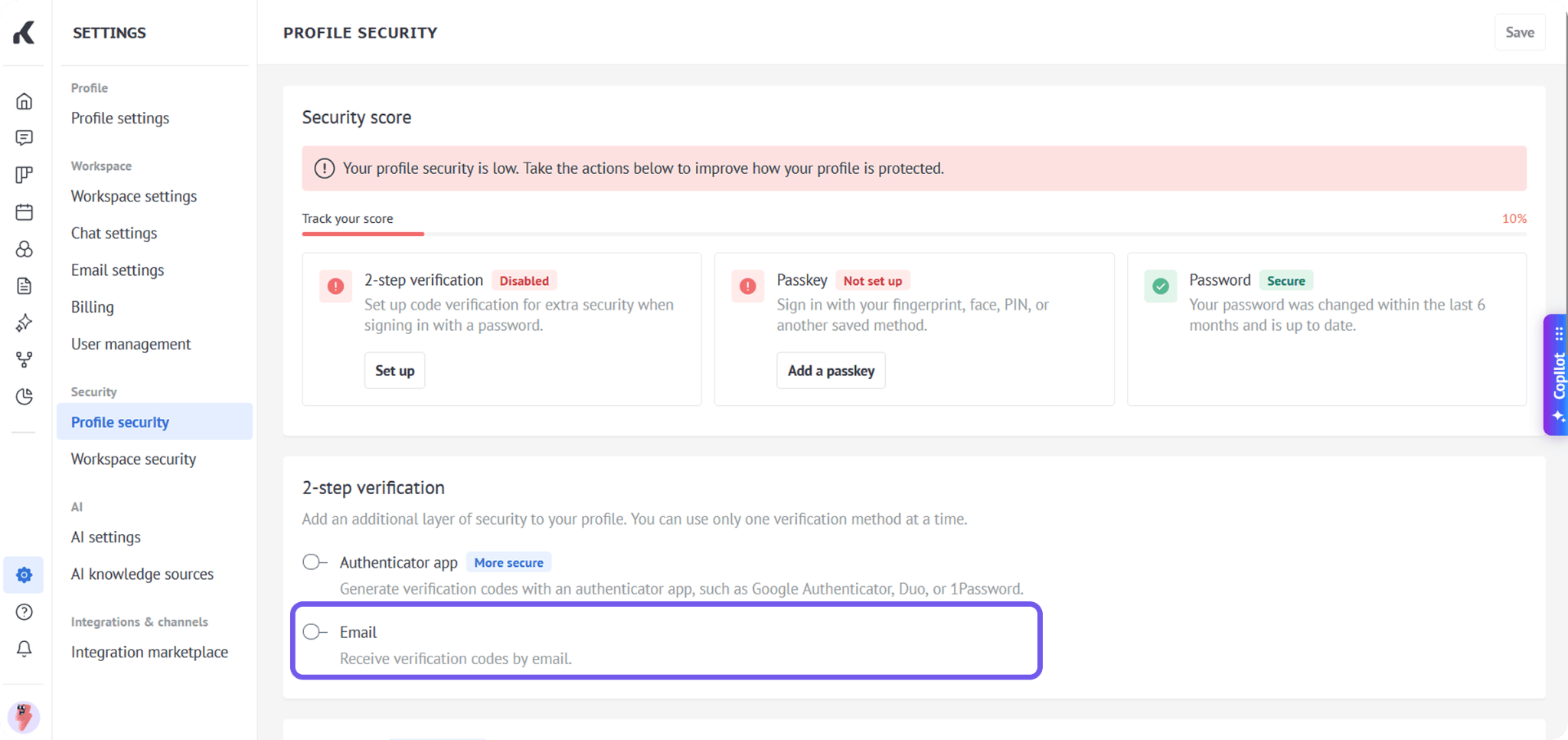
Find the 2-step verification section and turn on Email verification.
In the modal, click Send code.
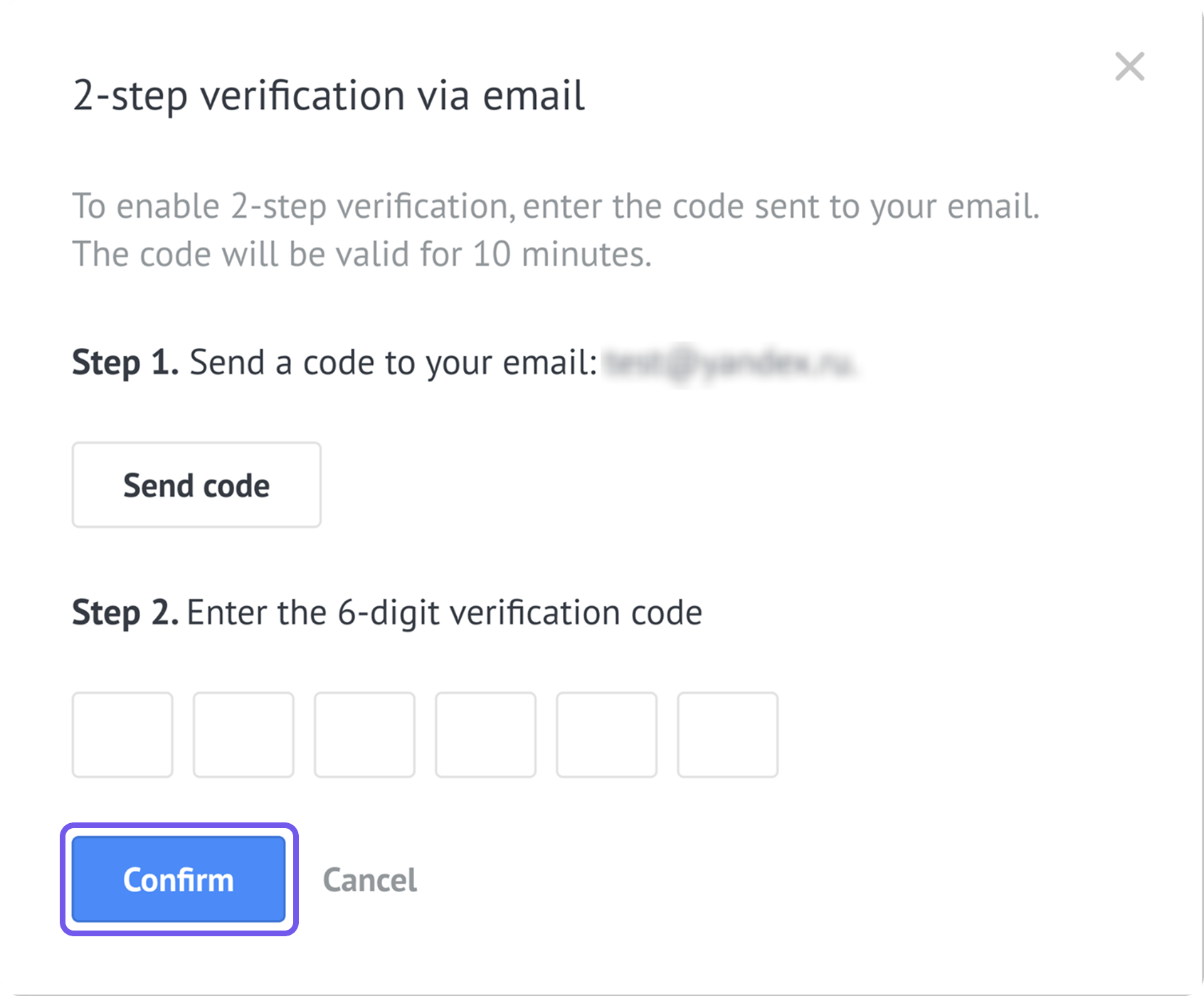
Enter the 6-digit code sent to your email and click Confirm.
Kommo will show your backup codes. Copy them and save them in a secure location.
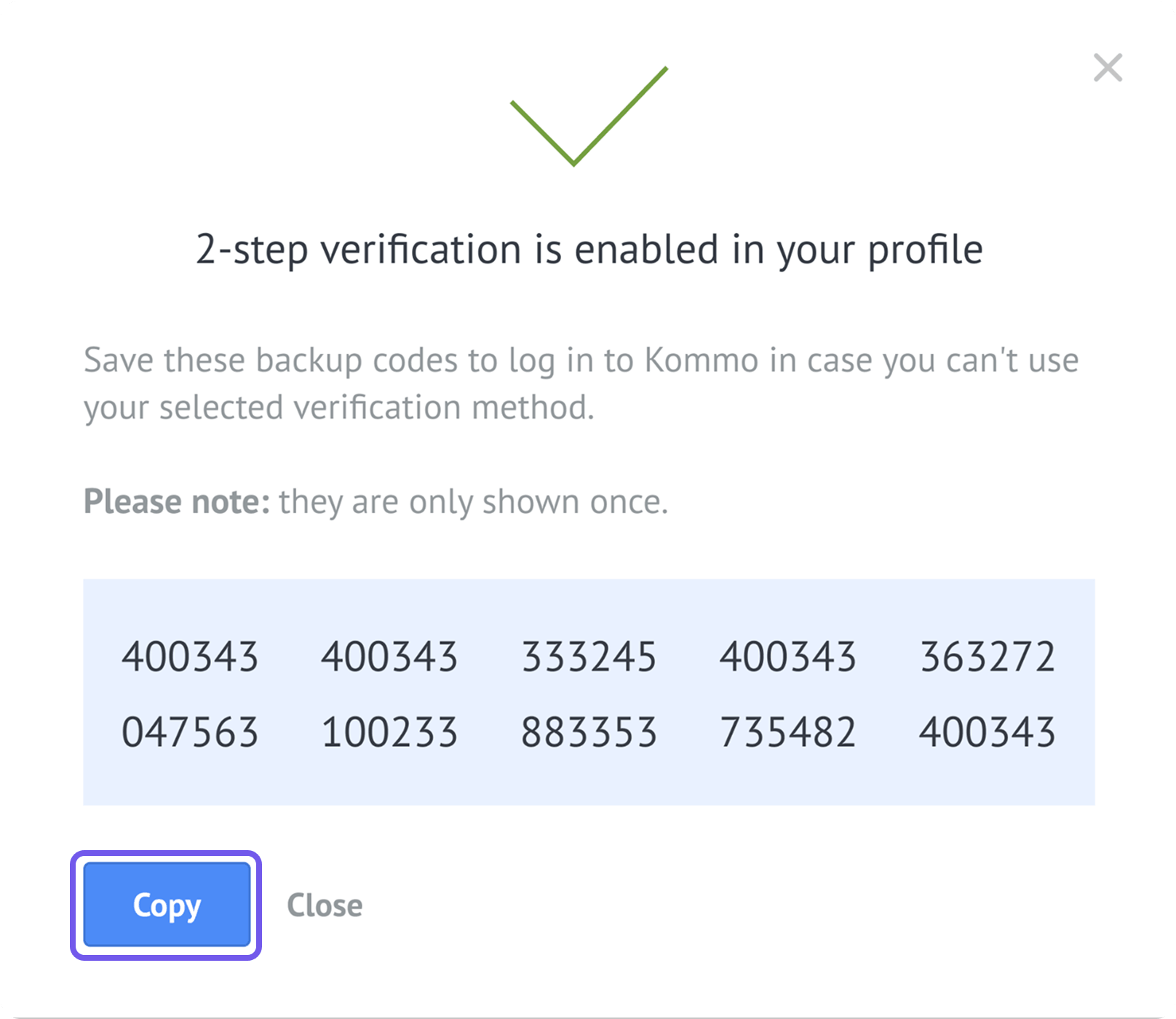
Once setup is complete:
Two-step verification appears as Active in your profile.
You’ll receive a confirmation email.
You’ll be logged out of all devices except the current one.
When you log in again, enter the verification code sent to your email.
Set up with an authenticator app
An authenticator app generates TOTP (Time-based One-Time Password) codes for verification. Each code is valid for 30 seconds and is automatically replaced with a new one after it expires. Enter the current code in Kommo before it expires.
Each code can be used only once. If you’ve already used a code, wait for your authenticator app to generate a new one before confirming another action.
Note: TOTP can only be set up in the Kommo web version. In the mobile app, TOTP setup is available only if Mandatory two-step verification is enabled for the account. Once TOTP is set up, you can use it to log in to both the web version and the mobile app.
To set it up:
Go to Settings → Security → Profile security.
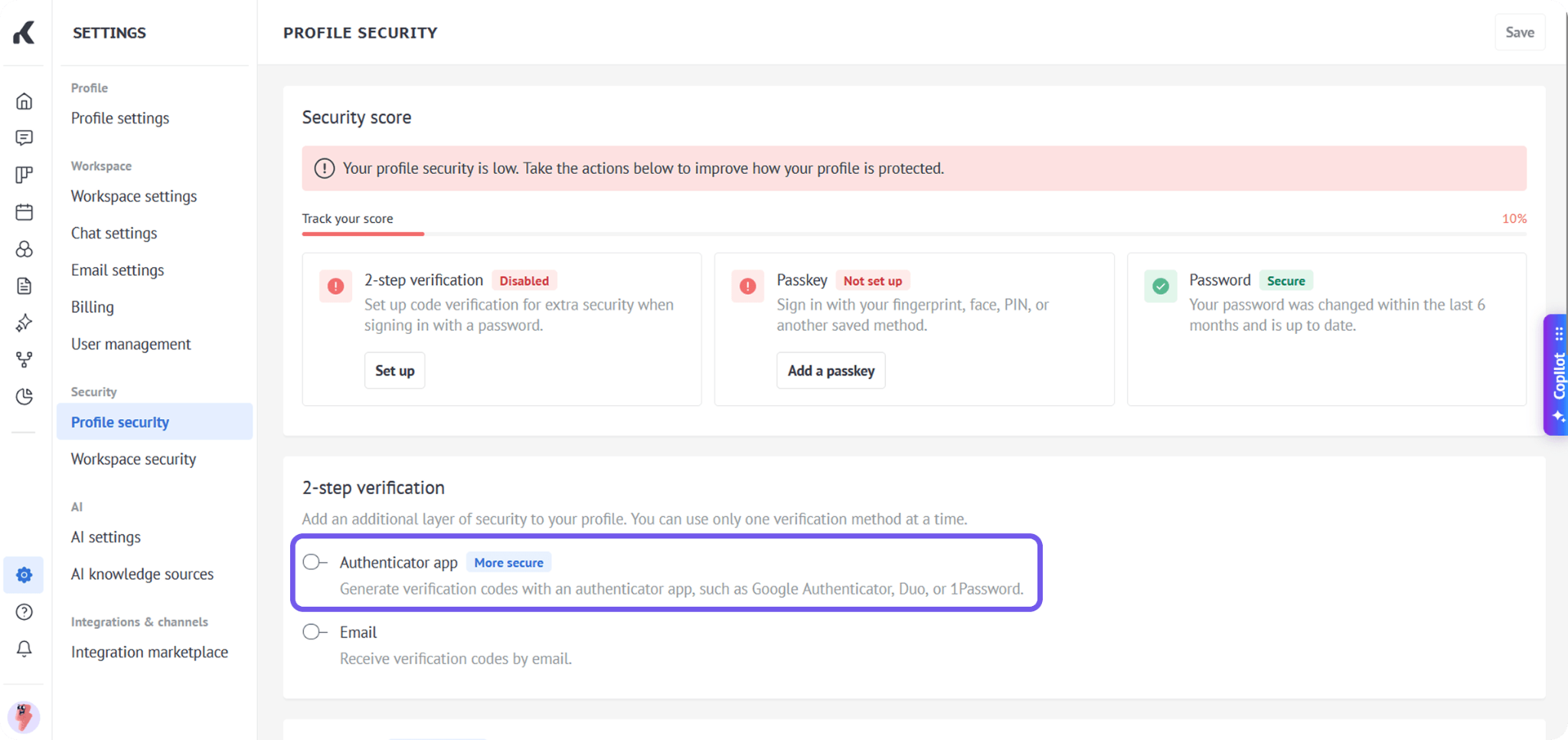
Find the 2-step verification section and turn on Authenticator app verification.
First, you need to verify your identity. Click Send code, and Kommo will send a verification code to the email address linked to your profile. When you receive it, enter the code and click Confirm.
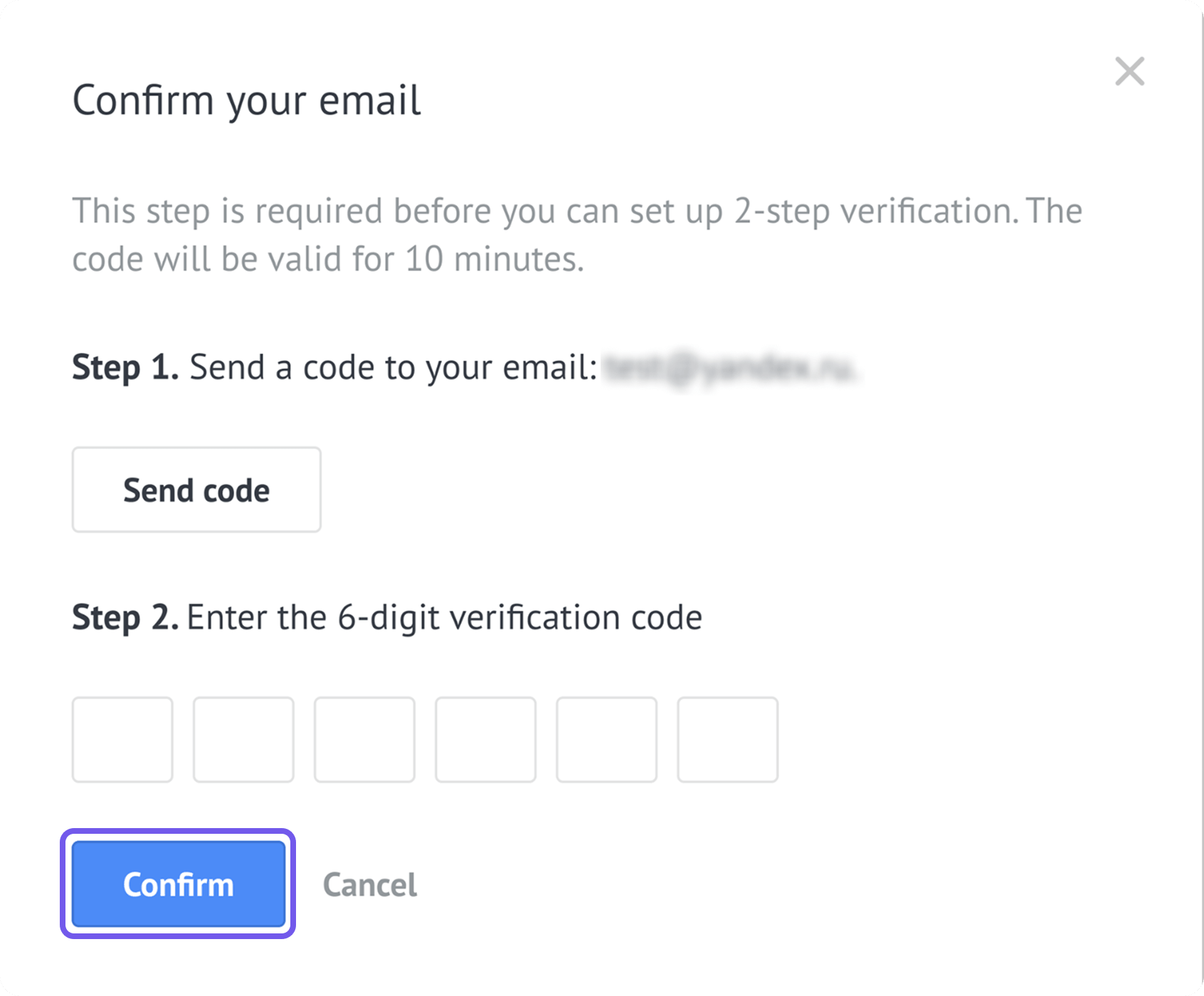
A QR code will appear. Open your authenticator app and scan it.
Your authenticator app will generate a temporary verification code.
Enter the code in Kommo and click Confirm.
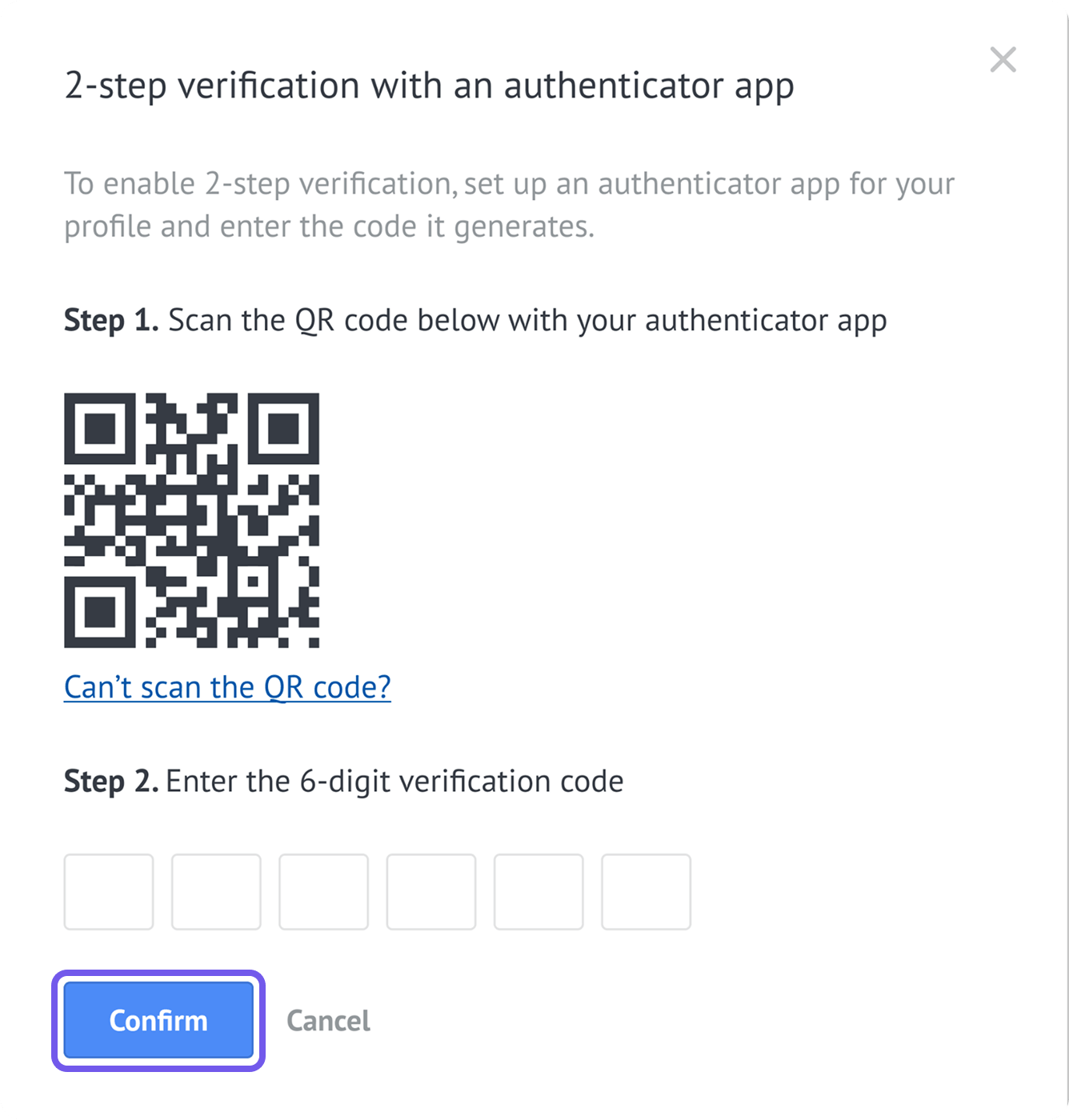
Kommo will show your backup codes. Copy them and save them in a secure location.
If you can’t scan the QR code (for example, if your authenticator app is installed on the same device):
Click Can’t scan the QR code?
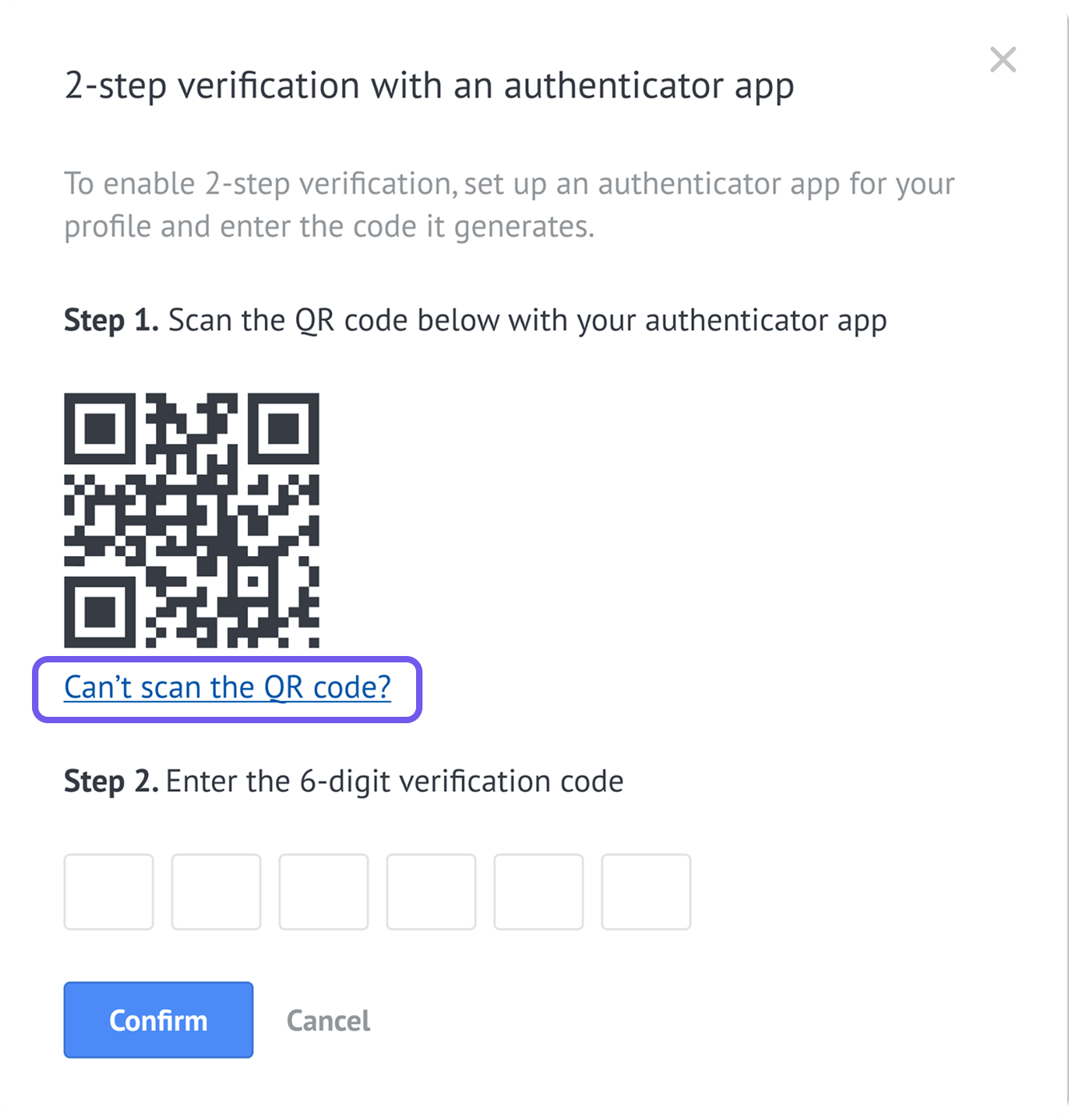
In the opened modal, copy the setup key and enter it manually in your authenticator app.
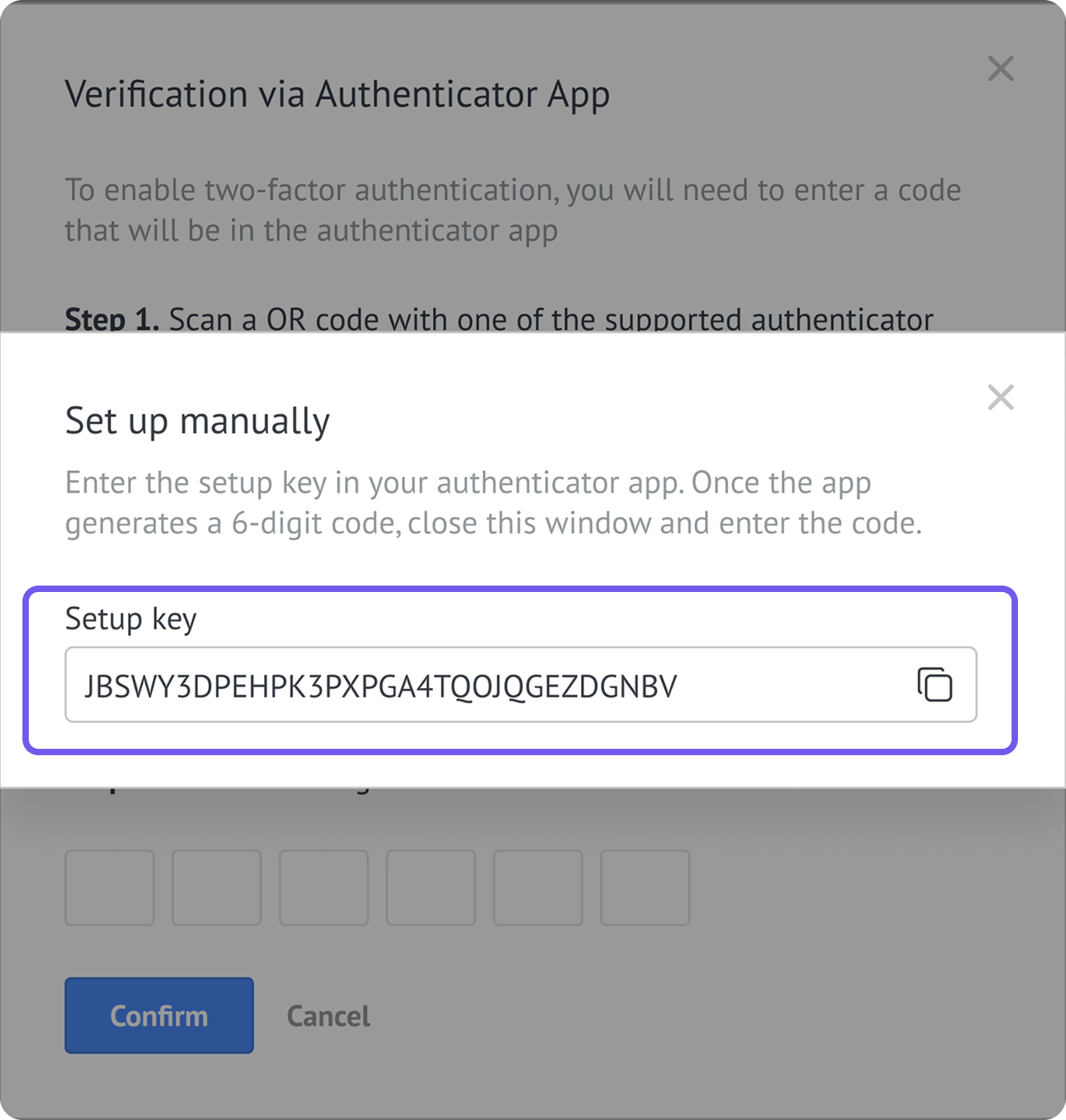
Your authenticator app will generate a verification code. Close the modal, enter the code in Kommo, and click Confirm.
Kommo will show your backup codes. Copy them and save them in a secure location.
Once setup is complete:
Two-step verification appears as Active in your profile.
You’ll receive a confirmation email.
You’ll be logged out of all devices except the current one.
Use the current code from your authenticator app whenever Kommo asks you to verify your login.
Save your backup codes
When you enable two-step verification, Kommo provides backup codes that you can use if you can’t access your regular verification method.
Keep these points in mind:
Backup codes are shown only once during setup. Save them somewhere secure.
Each backup code can be used only once.
Backup codes are re-issued every time you change your two-step verification method. Your previous backup codes stop working.
Store your backup codes separately from your regular verification method.
If you lose access to your email or authenticator app, use one of your saved backup codes to log in.
Note: If you can’t access your verification method or backup codes, contact Kommo support.
Change two-step verification method
You can switch between email and an authenticator app as your two-step verification method.
Go to Settings → Security → Profile security.
In the 2-step verification section, turn on the inactive verification method you want to use.
In the opened modal, click Change.
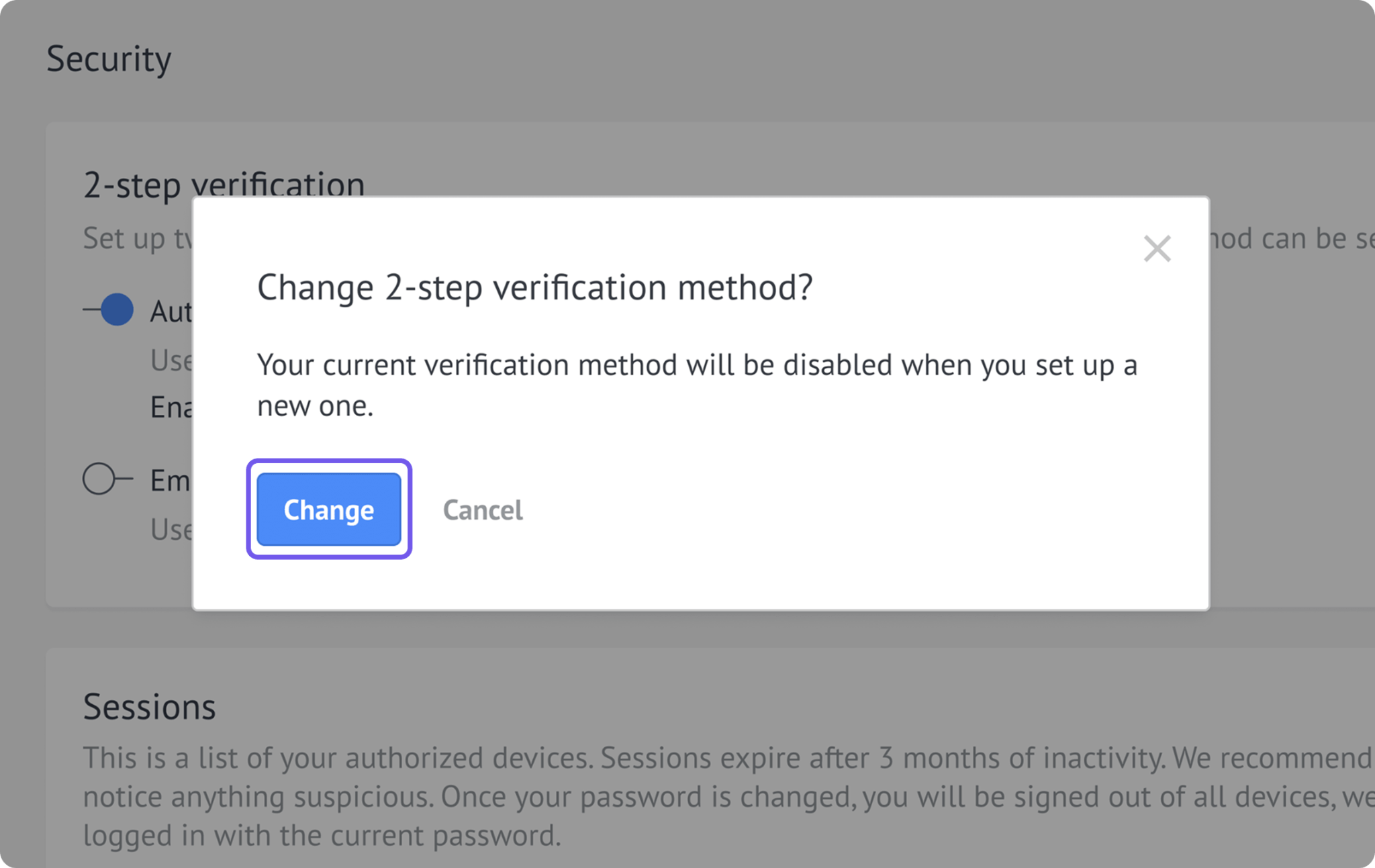
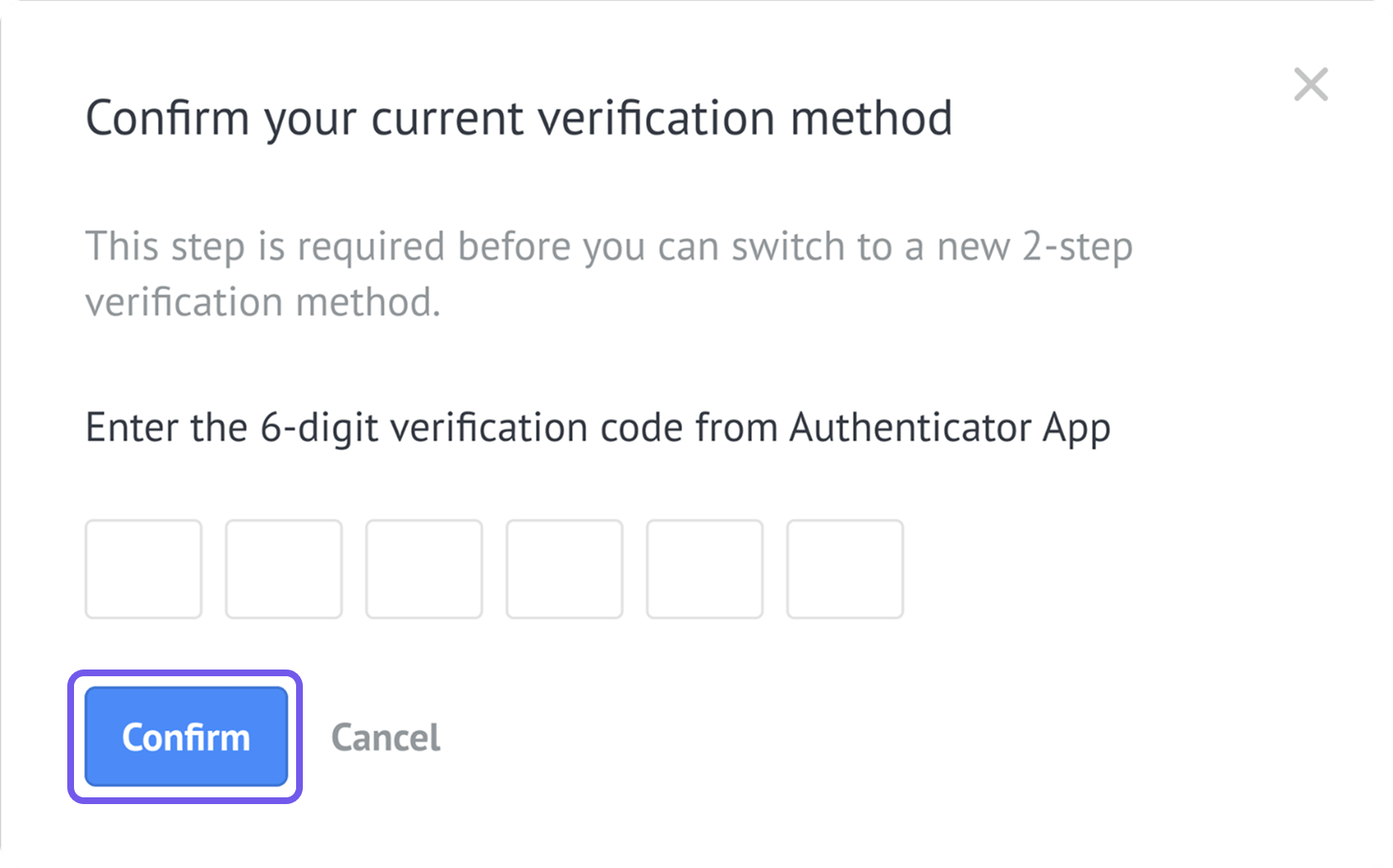
Get a verification code using your current method:
Email: Click Send code and check the email address linked to your profile.
Authenticator app: Open your authenticator app and find the current code.
Enter the code in Kommo and click Confirm.
Set up your new verification method:
To switch to email verification:
Click Send code.
Enter the code sent to the email address linked to your profile.
Click Confirm.
Copy the new backup codes and save them in a secure location.
To switch to authenticator app verification:
Open your authenticator app and scan the QR code shown in Kommo.
Enter the temporary code generated by the authenticator app.
Click Confirm.
Copy the new backup codes and save them in a secure location.
If you can’t scan the QR code, click Can’t scan the QR code?, copy the setup key, and enter it manually in your authenticator app. Then enter the generated code in Kommo and click Confirm.
After you change the method, Kommo generates new backup codes. Your previous backup codes no longer work.
Disable two-step verification
How you turn off two-step verification depends on the method you use.
Disable email verification
Go to Settings → Security → Profile security.
Find the 2-step verification section and turn off Email verification.
To verify your identity, click Send code. Kommo will send a verification code to the email address linked to your profile.
Enter the code and click Disable.
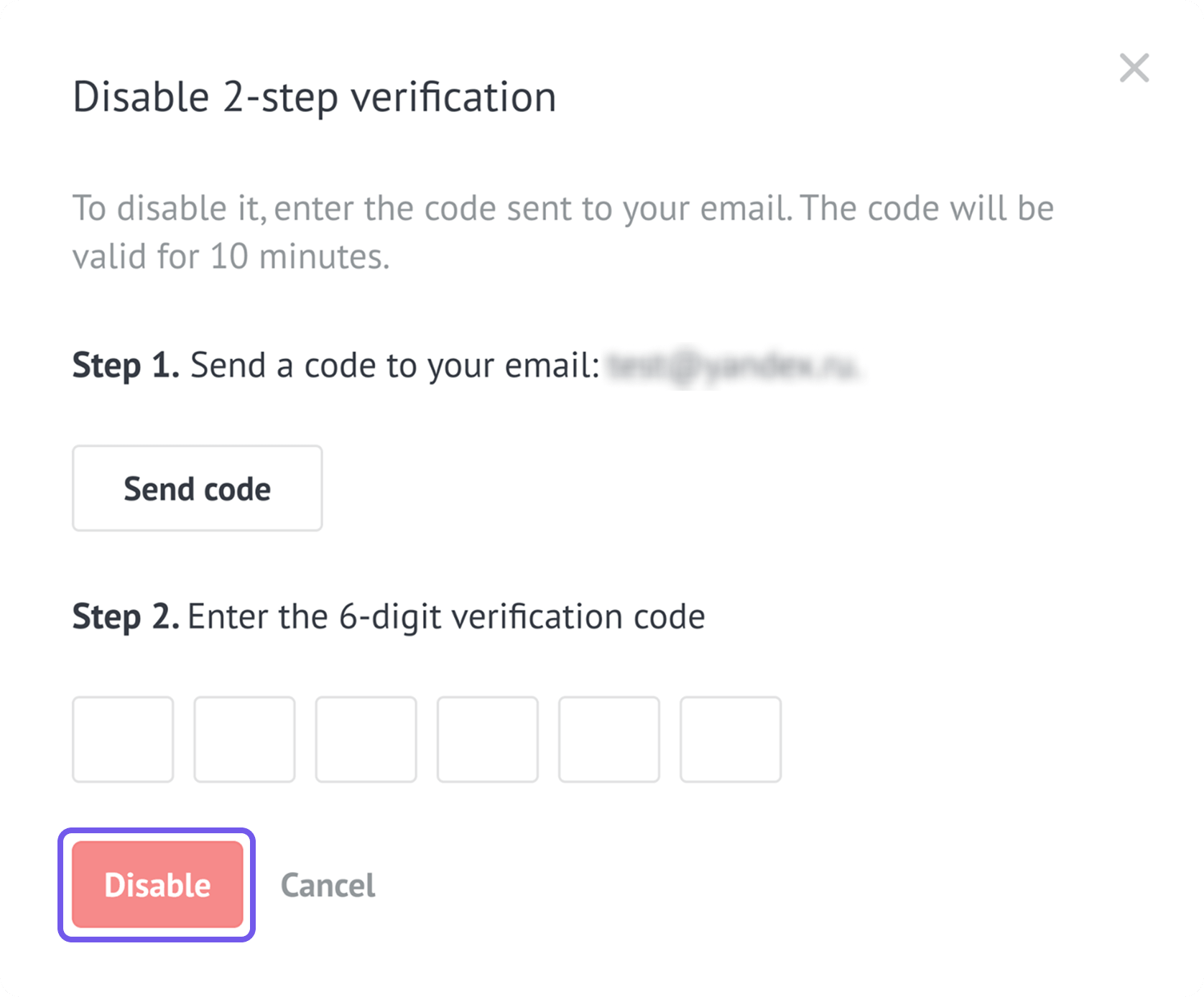
If you can’t access your email:
Click Send code.
In the code field, enter one of the backup codes you saved when you enabled two-step verification — instead of the code sent to your email.
Click Disable.
Disable authenticator app verification
Go to Settings → Security → Profile security.
Find the 2-step verification section and turn off Authenticator app verification.
To verify your identity, open your authenticator app and enter the current verification code.
Click Disable.
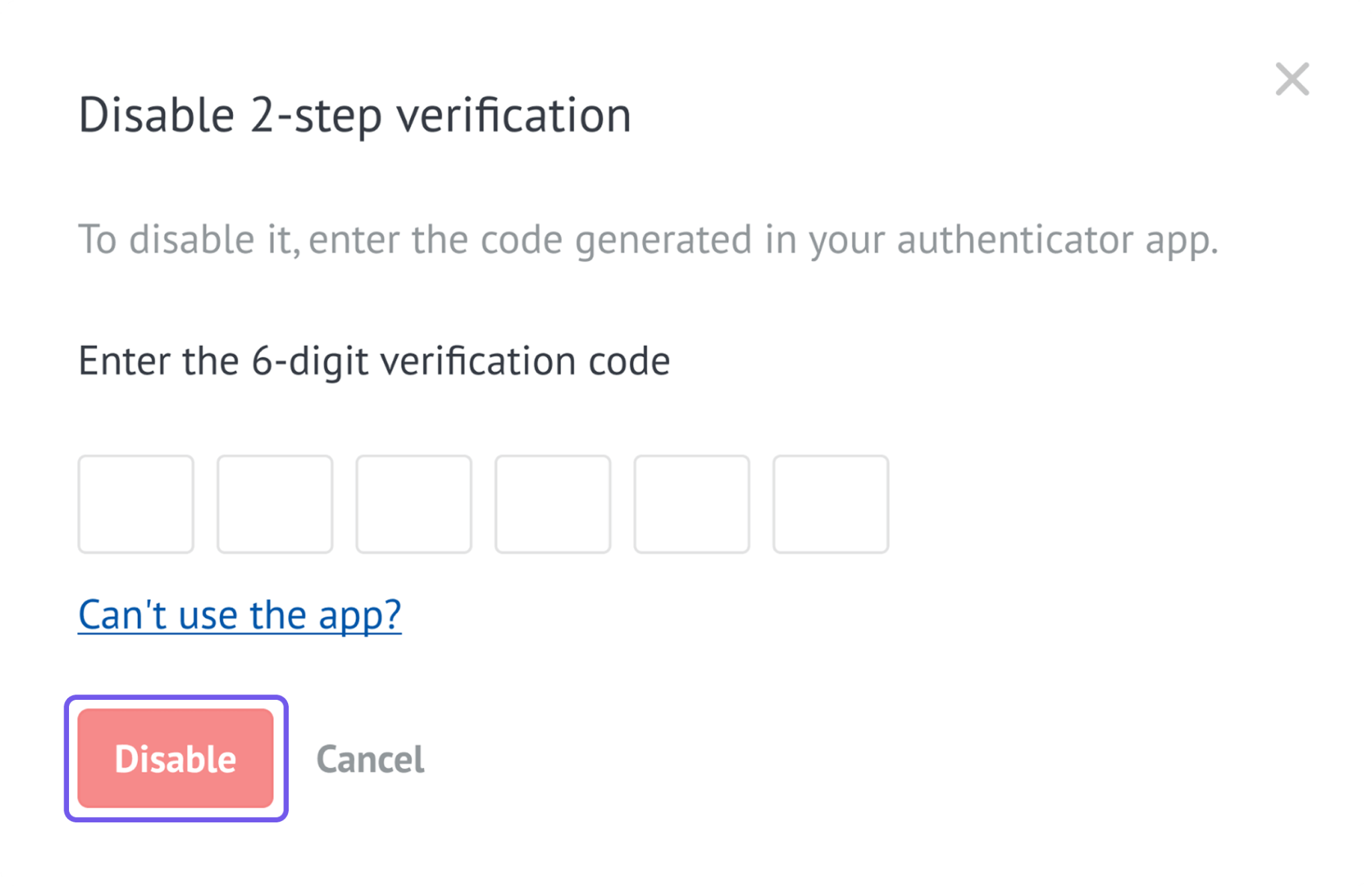
If you can’t access your authenticator app:
Click Can’t use the app?
Enter one of the backup codes you saved when you enabled two-step verification.
Click Disable.
After you disable two-step verification
You’ll receive a confirmation email.
Existing backup codes become invalid.
Email or authenticator app verification will no longer be required when you log in.
Learn how two-step verification protects your Kommo account, set it up with email or an authenticator app, and manage your backup codes.
What you’ll need:
Access to the email address linked to your Kommo profile.
For authenticator app verification: An authenticator app, such as Google Authenticator or Microsoft Authenticator.
For mandatory two-step verification: Admin access.
Keep in mind:
You can use email or an authenticator app for two-step verification.
You can use only one two-step verification method at a time.
If you lose access to your verification method, you can use a backup code.
Backup codes are shown only once during setup. Save them somewhere secure.
Some sensitive actions require two-step verification to be enabled.
Two-step verification, also known as two-factor authentication (2FA), adds an extra layer of security to your Kommo account.
When it’s enabled, you confirm your login using either email or an authenticator app. This helps protect your account even if someone knows your password.
Kommo also uses two-step verification for some sensitive actions. To learn which actions are protected and how Admins can require two-step verification for all users, see Manage security with two-step verification in Kommo.
Set up two-step verification
Choose the verification method you want to use:
To learn about other ways to protect your profile, including passkeys and active sessions, see Manage your profile security in Kommo.
Set up with email
Go to Settings → Security → Profile security.
Find the 2-step verification section and turn on Email verification.
In the modal, click Send code.
Enter the 6-digit code sent to your email and click Confirm.
Kommo will show your backup codes. Copy them and save them in a secure location.
Once setup is complete:
Two-step verification appears as Active in your profile.
You’ll receive a confirmation email.
You’ll be logged out of all devices except the current one.
When you log in again, enter the verification code sent to your email.
Set up with an authenticator app
An authenticator app generates TOTP (Time-based One-Time Password) codes for verification. Each code is valid for 30 seconds and is automatically replaced with a new one after it expires. Enter the current code in Kommo before it expires.
Each code can be used only once. If you’ve already used a code, wait for your authenticator app to generate a new one before confirming another action.
Note: TOTP can only be set up in the Kommo web version. In the mobile app, TOTP setup is available only if Mandatory two-step verification is enabled for the account. Once TOTP is set up, you can use it to log in to both the web version and the mobile app.
To set it up:
Go to Settings → Security → Profile security.
Find the 2-step verification section and turn on Authenticator app verification.
First, you need to verify your identity. Click Send code, and Kommo will send a verification code to the email address linked to your profile. When you receive it, enter the code and click Confirm.
A QR code will appear. Open your authenticator app and scan it.
Your authenticator app will generate a temporary verification code.
Enter the code in Kommo and click Confirm.
Kommo will show your backup codes. Copy them and save them in a secure location.
If you can’t scan the QR code (for example, if your authenticator app is installed on the same device):
Click Can’t scan the QR code?
In the opened modal, copy the setup key and enter it manually in your authenticator app.
Your authenticator app will generate a verification code. Close the modal, enter the code in Kommo, and click Confirm.
Kommo will show your backup codes. Copy them and save them in a secure location.
Once setup is complete:
Two-step verification appears as Active in your profile.
You’ll receive a confirmation email.
You’ll be logged out of all devices except the current one.
Use the current code from your authenticator app whenever Kommo asks you to verify your login.
Save your backup codes
When you enable two-step verification, Kommo provides backup codes that you can use if you can’t access your regular verification method.
Keep these points in mind:
Backup codes are shown only once during setup. Save them somewhere secure.
Each backup code can be used only once.
Backup codes are re-issued every time you change your two-step verification method. Your previous backup codes stop working.
Store your backup codes separately from your regular verification method.
If you lose access to your email or authenticator app, use one of your saved backup codes to log in.
Note: If you can’t access your verification method or backup codes, contact Kommo support.
Change two-step verification method
You can switch between email and an authenticator app as your two-step verification method.
Go to Settings → Security → Profile security.
In the 2-step verification section, turn on the inactive verification method you want to use.
In the opened modal, click Change.
Get a verification code using your current method:
Email: Click Send code and check the email address linked to your profile.
Authenticator app: Open your authenticator app and find the current code.
Enter the code in Kommo and click Confirm.
Set up your new verification method:
To switch to email verification:
Click Send code.
Enter the code sent to the email address linked to your profile.
Click Confirm.
Copy the new backup codes and save them in a secure location.
To switch to authenticator app verification:
Open your authenticator app and scan the QR code shown in Kommo.
Enter the temporary code generated by the authenticator app.
Click Confirm.
Copy the new backup codes and save them in a secure location.
If you can’t scan the QR code, click Can’t scan the QR code?, copy the setup key, and enter it manually in your authenticator app. Then enter the generated code in Kommo and click Confirm.
After you change the method, Kommo generates new backup codes. Your previous backup codes no longer work.
Disable two-step verification
How you turn off two-step verification depends on the method you use.
Disable email verification
Go to Settings → Security → Profile security.
Find the 2-step verification section and turn off Email verification.
To verify your identity, click Send code. Kommo will send a verification code to the email address linked to your profile.
Enter the code and click Disable.
If you can’t access your email:
Click Send code.
In the code field, enter one of the backup codes you saved when you enabled two-step verification — instead of the code sent to your email.
Click Disable.
Disable authenticator app verification
Go to Settings → Security → Profile security.
Find the 2-step verification section and turn off Authenticator app verification.
To verify your identity, open your authenticator app and enter the current verification code.
Click Disable.
If you can’t access your authenticator app:
Click Can’t use the app?
Enter one of the backup codes you saved when you enabled two-step verification.
Click Disable.
After you disable two-step verification
You’ll receive a confirmation email.
Existing backup codes become invalid.
Email or authenticator app verification will no longer be required when you log in.