What you’ll need:
Any Kommo plan (Base, Advanced, Pro, Enterprise, or 14-day trial)
Administrator (Admin) access in Kommo (required for workspace-wide settings)
Updating workspace settings ensures the correct information appears across your account and in customer communications. You can update your workspace name, location, formats, and other global settings that apply to all users.
Go to Settings → Workspace settings → General settings (or click your profile → Workspace settings).
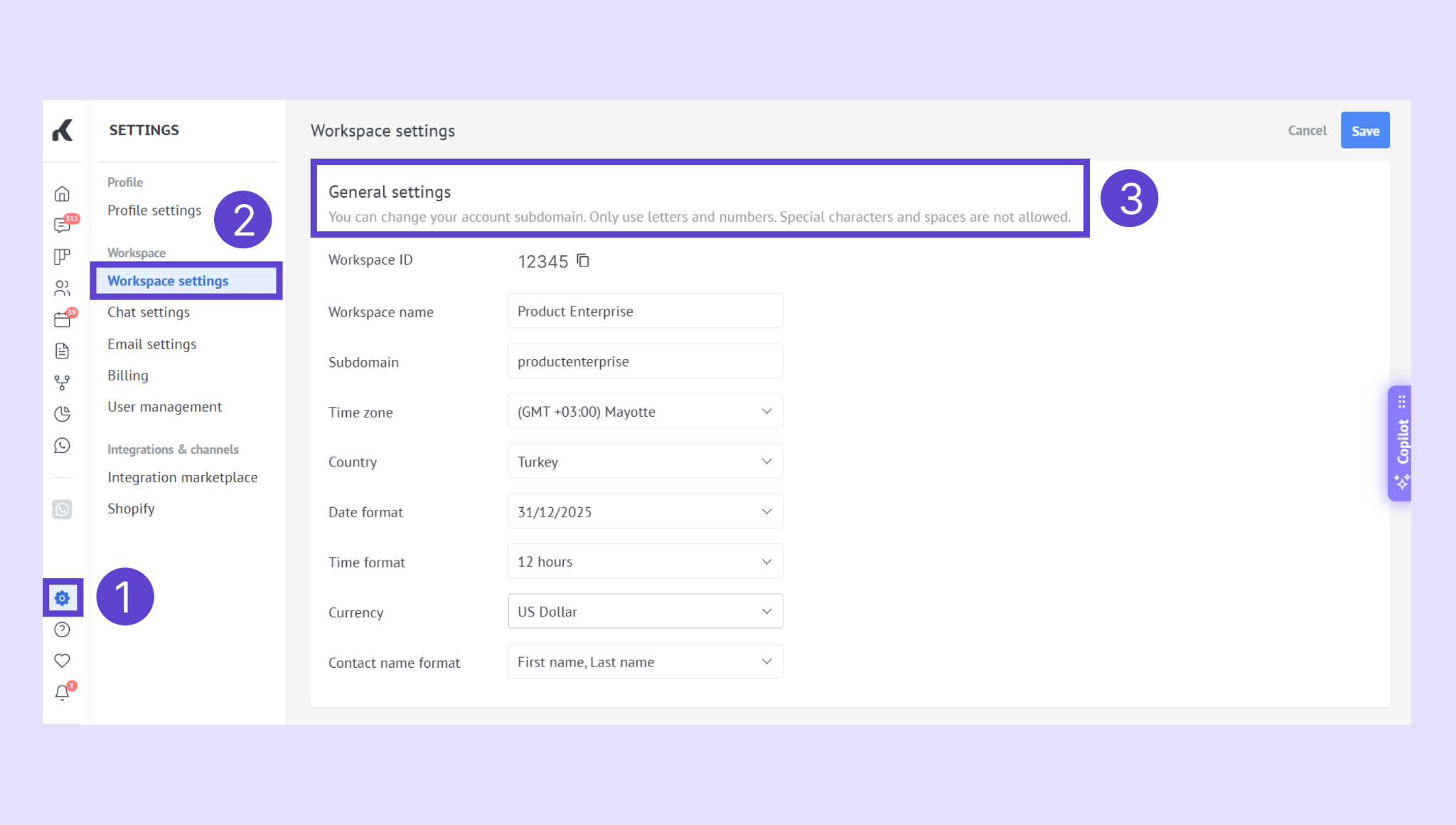
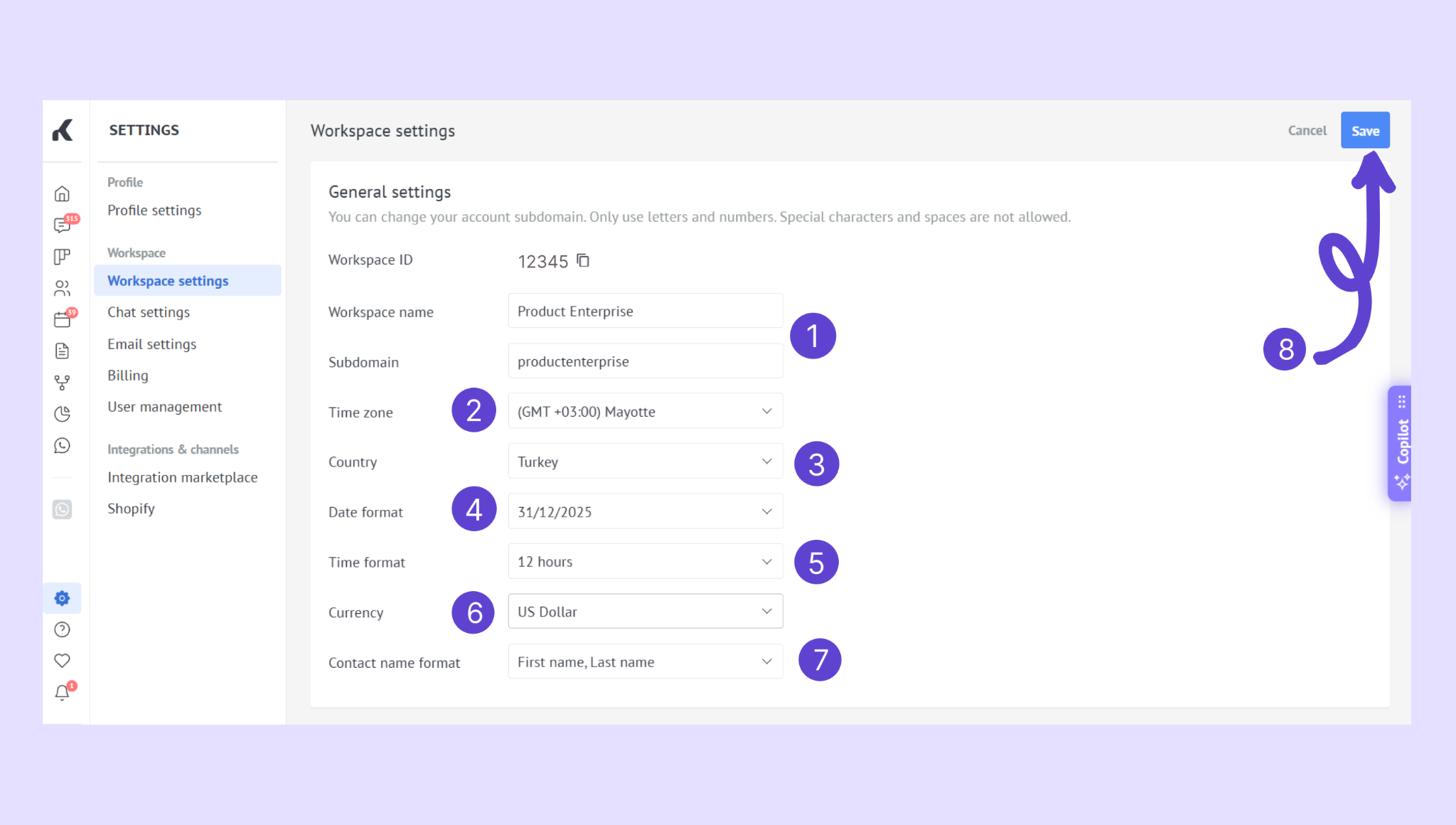
Update any of the following:
Workspace name and subdomain: Delete the current text and enter the new ones.
Time zone: Click the dropdown menu and select the time zone you are in.
Country: Choose the country you are in from the dropdown list.
Date format: Open the dropdown and pick your preferred format.
Time format: Select between 12-hour or 24-hour options.
Currency: Click the dropdown and choose the currency you use.
Contact name format: Open the dropdown and select how contact names are displayed (first name first or last name first).
Click Save to confirm your changes.
Verify your updates
After saving, your new workspace settings will take effect immediately and apply to all users in your Kommo account.
If you need more help with setup or troubleshooting, feel free to reach out to our support chat or contact us via WhatsApp. You can also hire a Kommo partner to do all the hard work for you.
Not a user yet? Sign up for our 14-day free trial or book a free live demo.