What you’ll need:
Any Kommo plan (Base, Advanced, Pro, Enterprise, or a 14-day trial)
Access to the email linked to your Kommo account
Kommo cannot restore deleted recovery codes
IP whitelist restrictions may block access if your address isn’t allowed
Here are the most common login and access issues users experience in Kommo, along with clear steps to fix each one. These solutions apply to all account types unless noted otherwise.
Common login issues and how to fix them
Forgot password
Cause: Incorrect password or lost access.
How to fix:
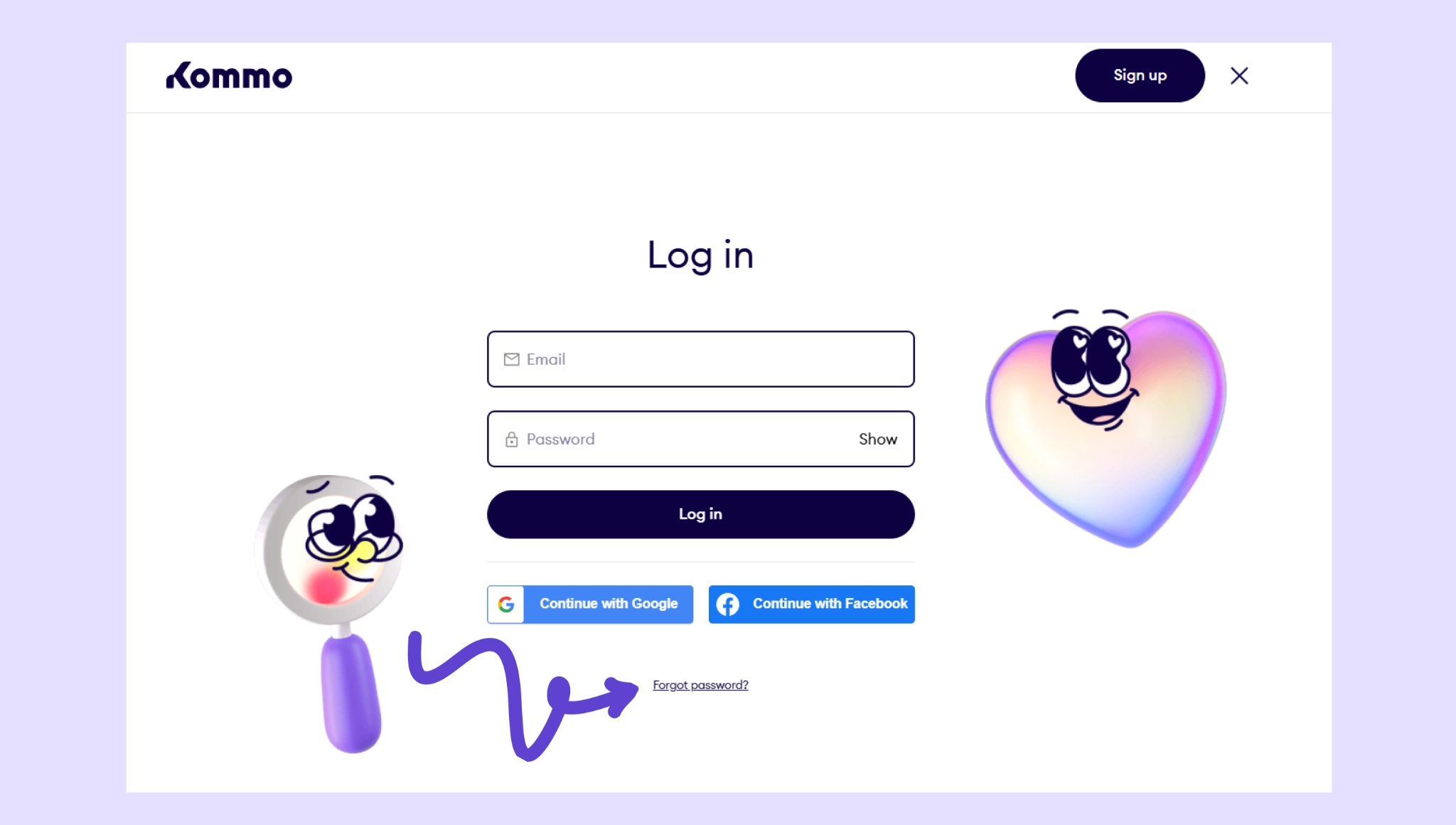
Click the Forgot password? button on the login page.
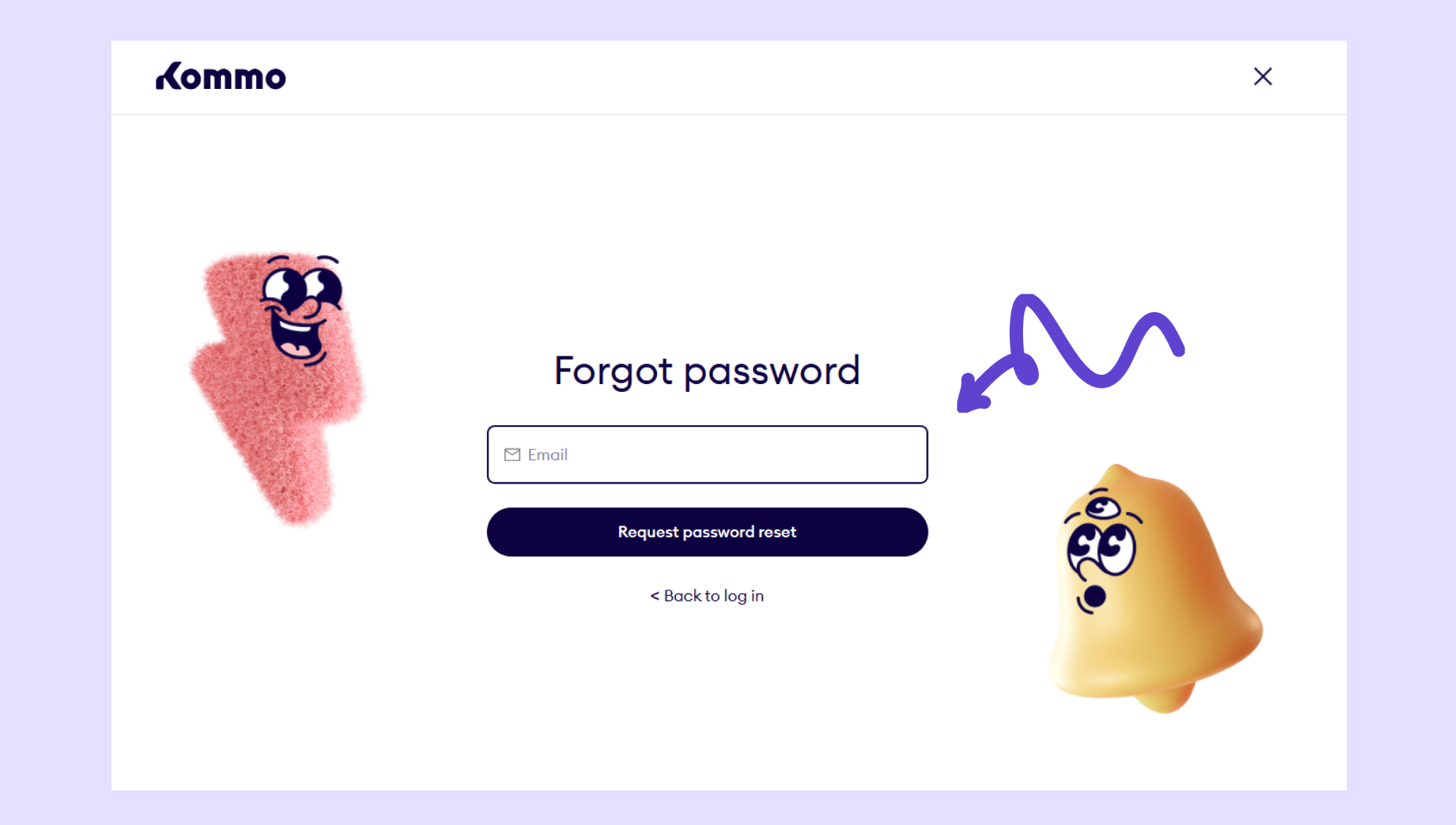
Enter your email address and click Request password reset.
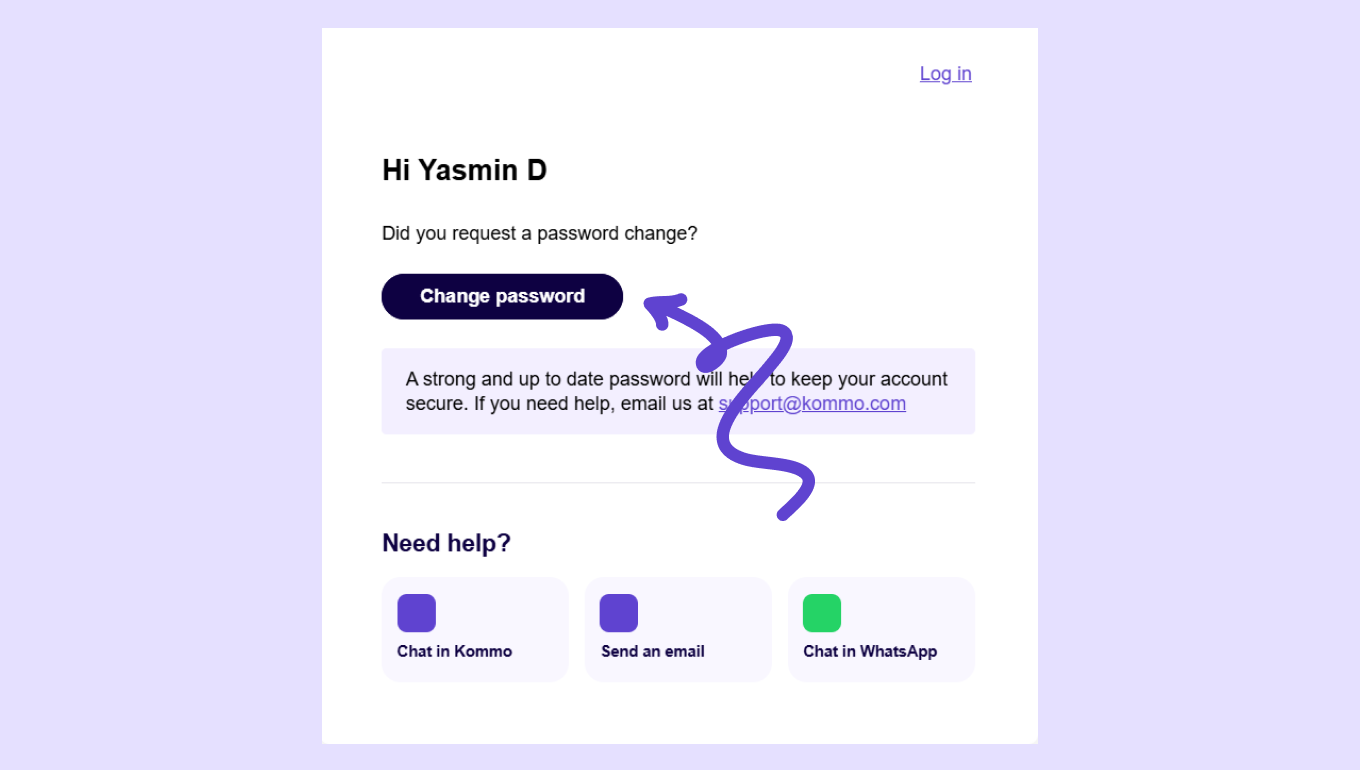
Check your email inbox — you’ll receive an email with a Change password button. Click it to continue.
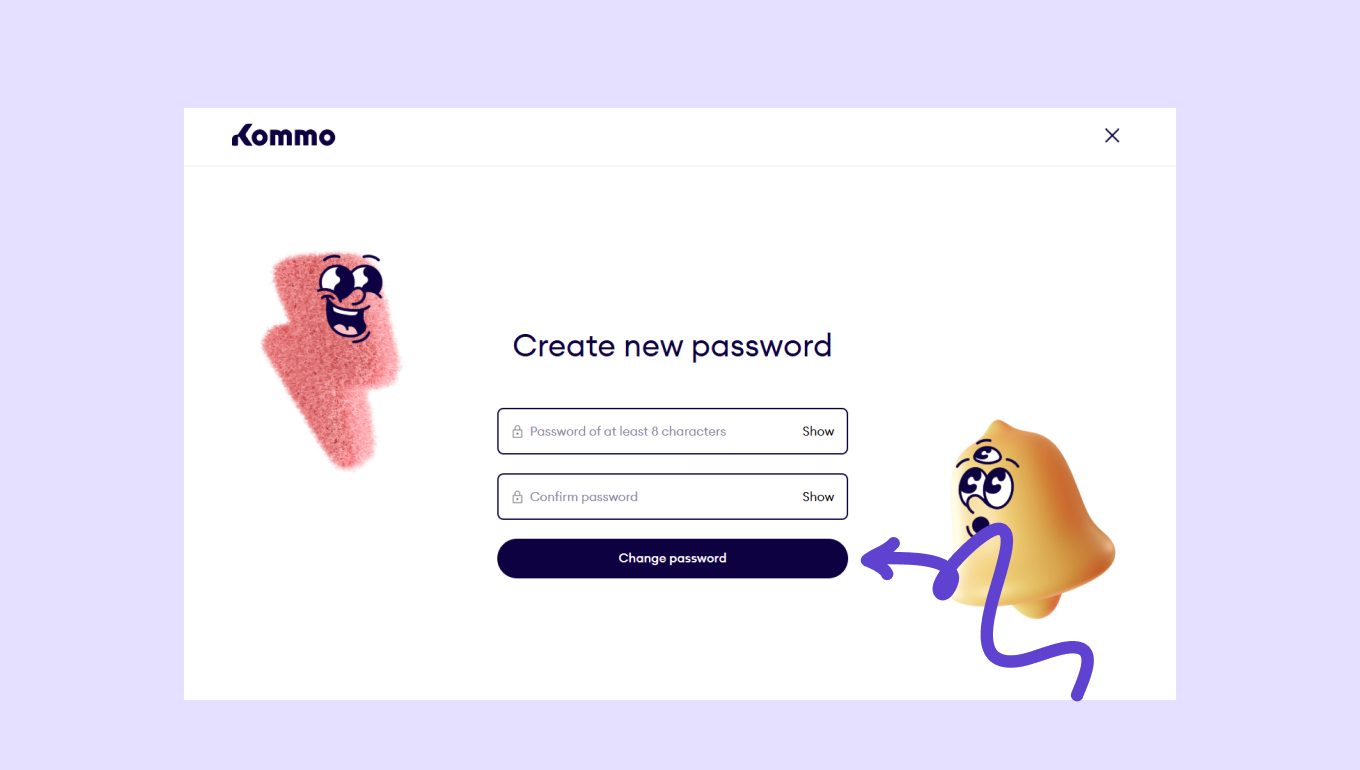
Create a new password with at least 8 characters, then confirm it by typing it again. Click Change password to save.
Once your password has been updated, return to the login page and sign in with your new password using the steps described in the How to log in section.
Access blocked by IP whitelist
Cause: Your IP isn’t included in the account’s trusted IP addresses
How to fix:
Contact your account Admin.
Ask them to add your current IP address by going to Settings → User management → three dots → Whitelist of IP addresses.
Ask them to enter your IP address in the box. Click Save to apply changes.
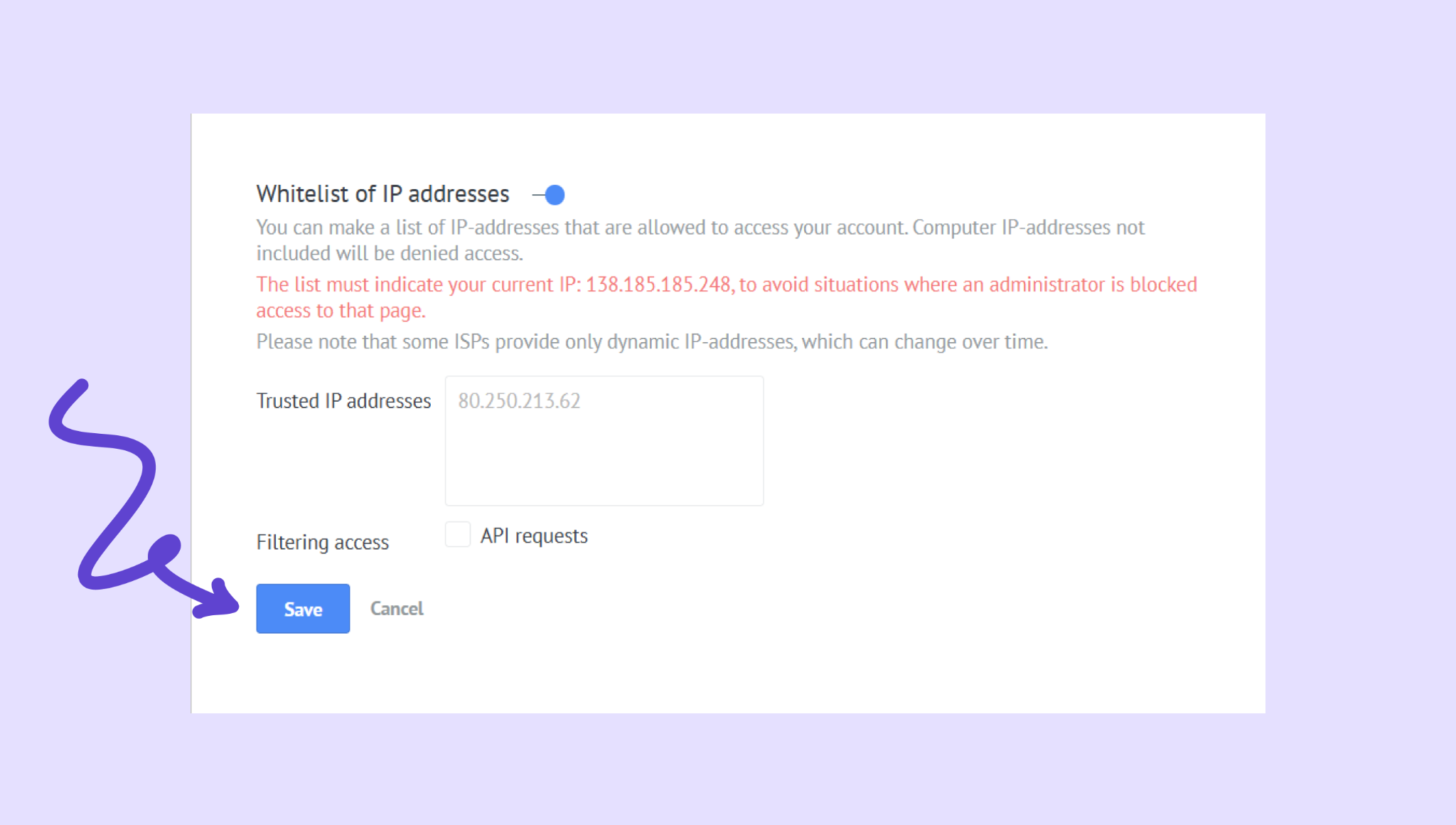
Try to log in again after the whitelist updates.
Didn’t receive the two-step verification email code
Cause: Email delays, spam filtering, or incorrect mailbox access.
How to fix:
Check your spam/junk folder for the verification email.
Wait at least 1 minute, then click Resend.
Ensure you still have access to the email address registered in Kommo.
If the mailbox is inaccessible, use your backup codes to log in.
If you have no backup codes, you must ask an Admin to help reset your access.
Lost access to the email used for two-step verification
Cause: You can’t receive verification codes because the email account is unavailable.
How to fix:
Use one of your previously saved backup codes to log in.
Once logged in, go to Profile → Security and temporarily disable 2FA.
Update your email address in your profile.
Re-enable 2FA to generate new backup codes.
If you have no backup codes, contact your account Admin for account recovery.
Lost or didn’t save two-step verification backup codes
Cause: Backup codes weren’t copied during setup, or they were misplaced.
How to fix:
Log in normally using your email 2FA code.
Go to Profile → Security.
Turn two-step verification off, then turn it back on.
Save the new backup codes somewhere secure — they are provided only once during setup.
Checklist
If none of the fixes above solve the issue, review this quick checklist before contacting Kommo support. These are the most common overlooked causes of login problems and are often easy to resolve on your own.
Your email and password are correct
Your 2FA backup codes are accessible
Your IP address isn’t blocked
Your internet connection is stable
If you need more help with setup or troubleshooting, feel free to reach out to our support chat or contact us via WhatsApp. You can also hire a Kommo partner to do all the hard work for you.
Not a user yet? Sign up for our 14-day free trial or book a free live demo.