What you’ll need:
Any Kommo plan (Base, Advanced, Pro, Enterprise, or 14-day trial)
Keep in mind:
If two-factor authentication (2FA) is enabled, you must disable it before changing your email
Your profile controls how you appear in Kommo and how you log in. Keeping it up to date helps personalize your workspace and ensures smooth account access.
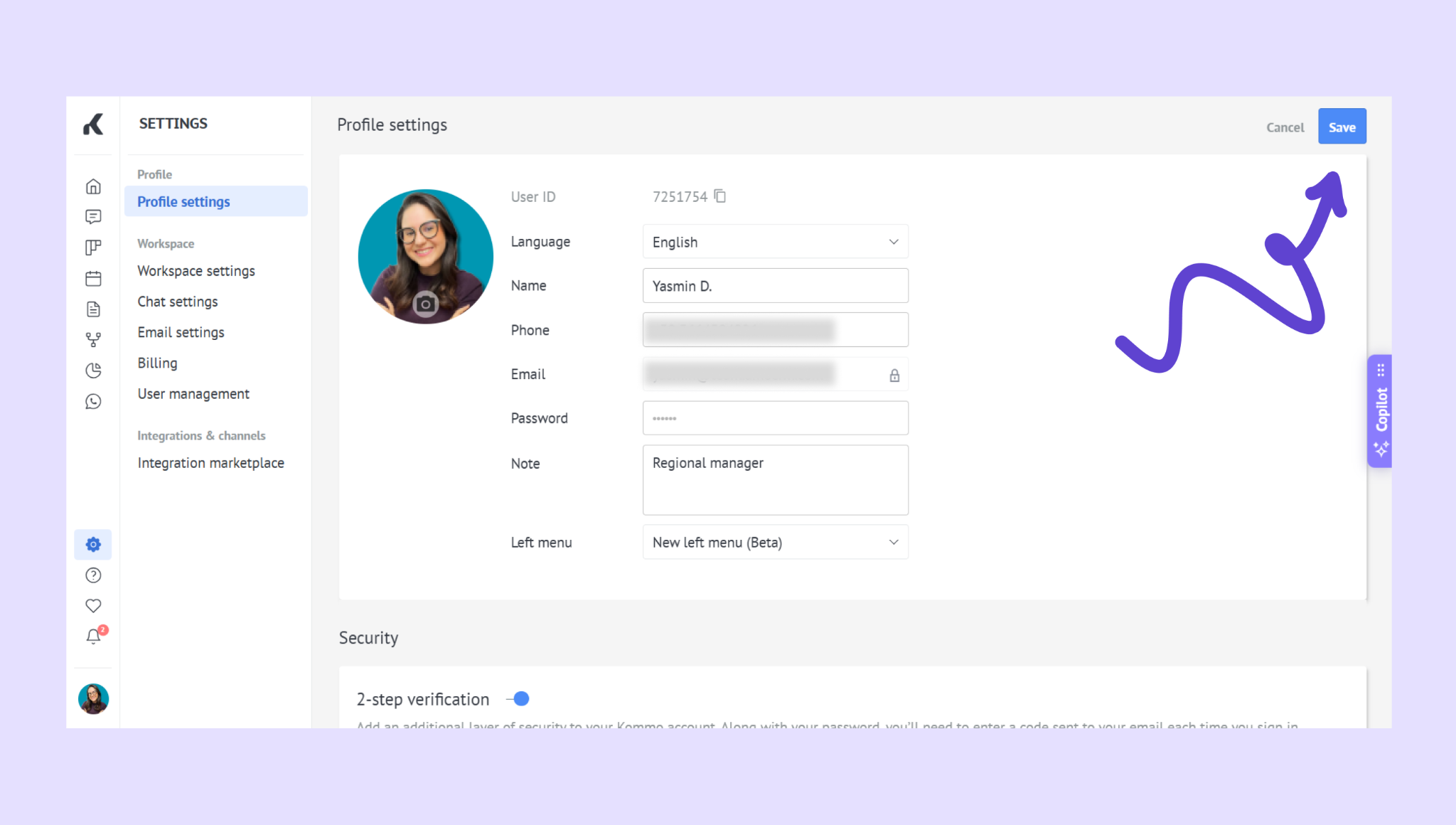
Go to Settings → Profile settings.
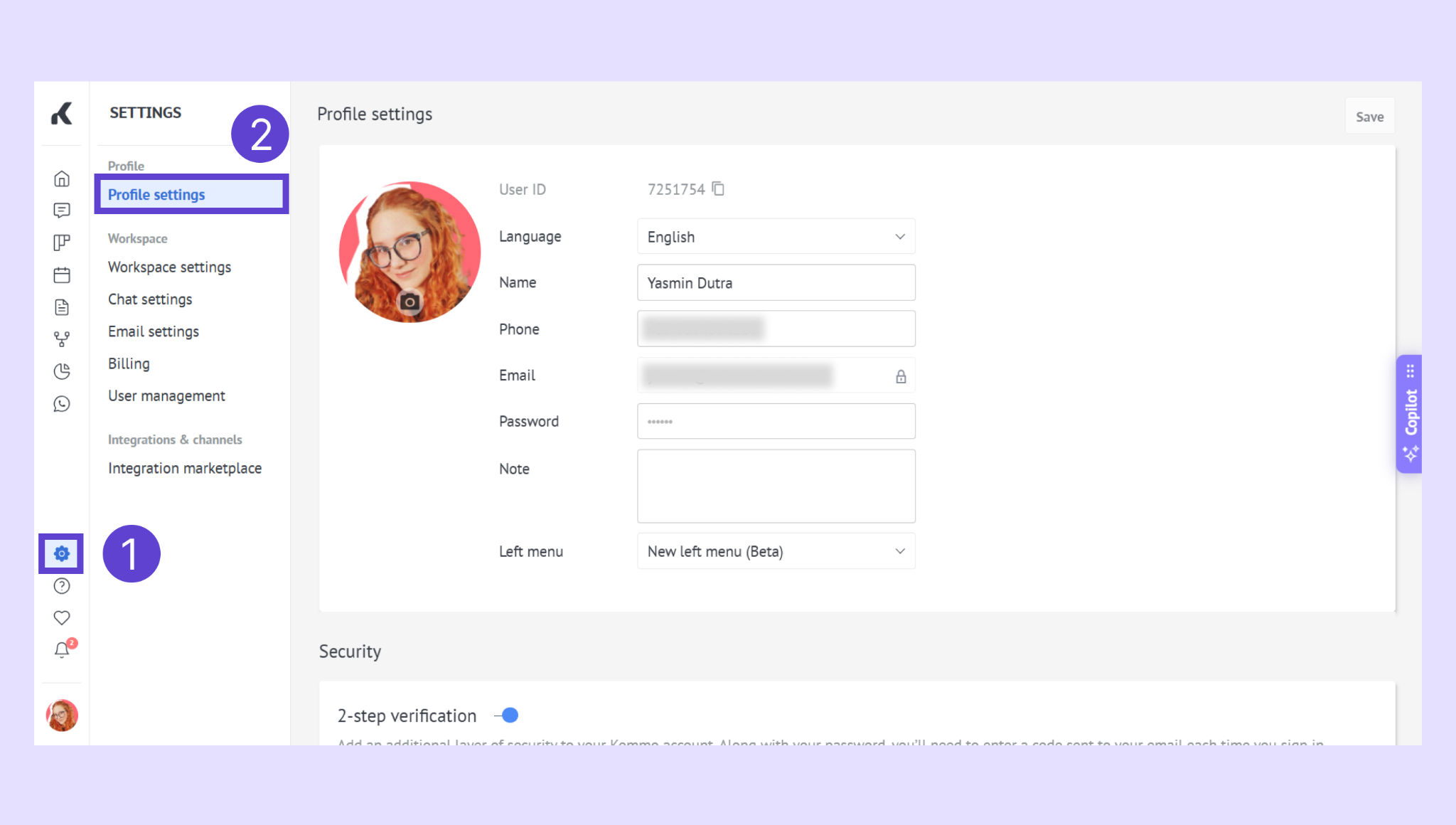
Update any of the following:
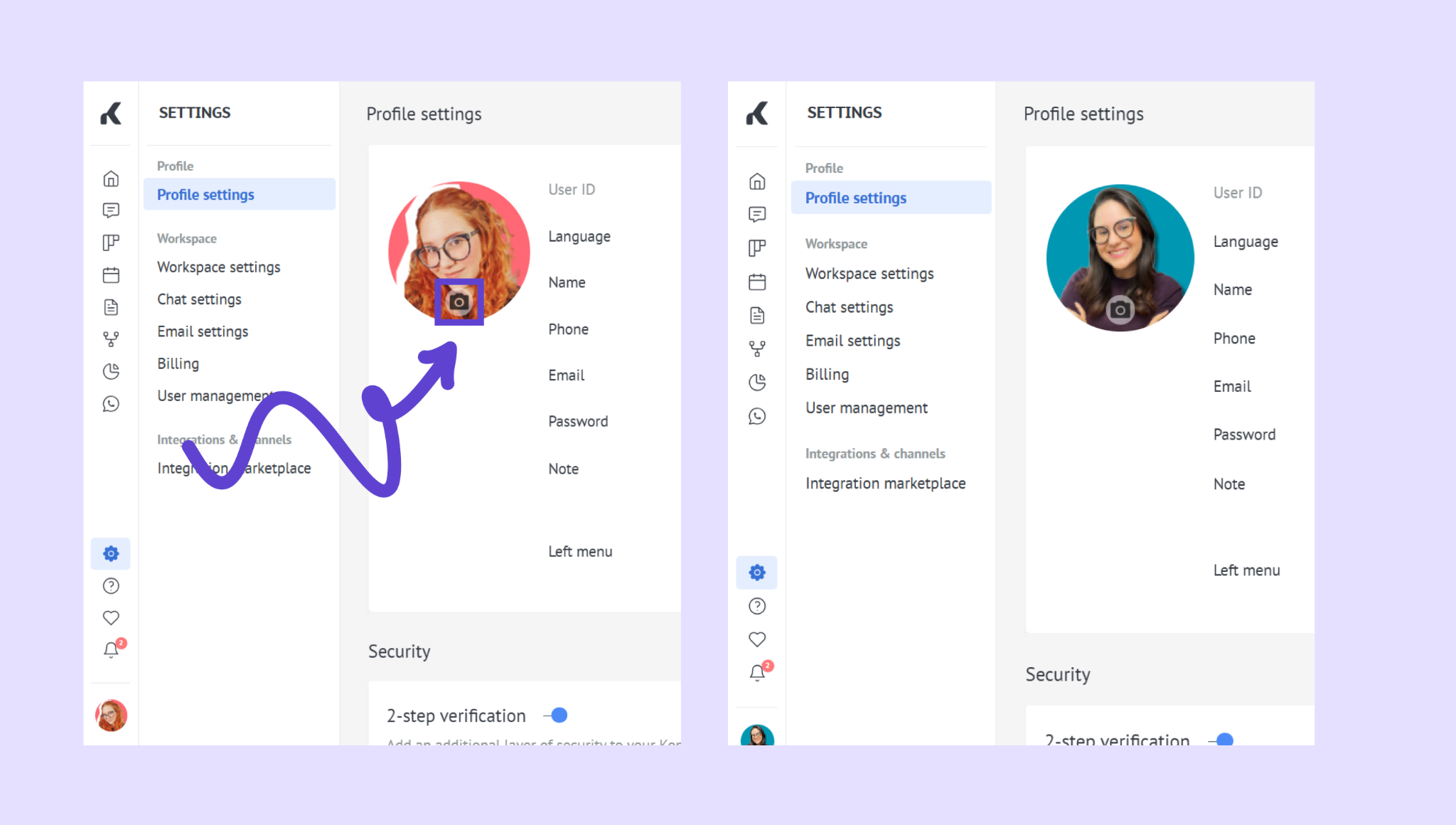
Profile photo: Click your photo and upload a new image.
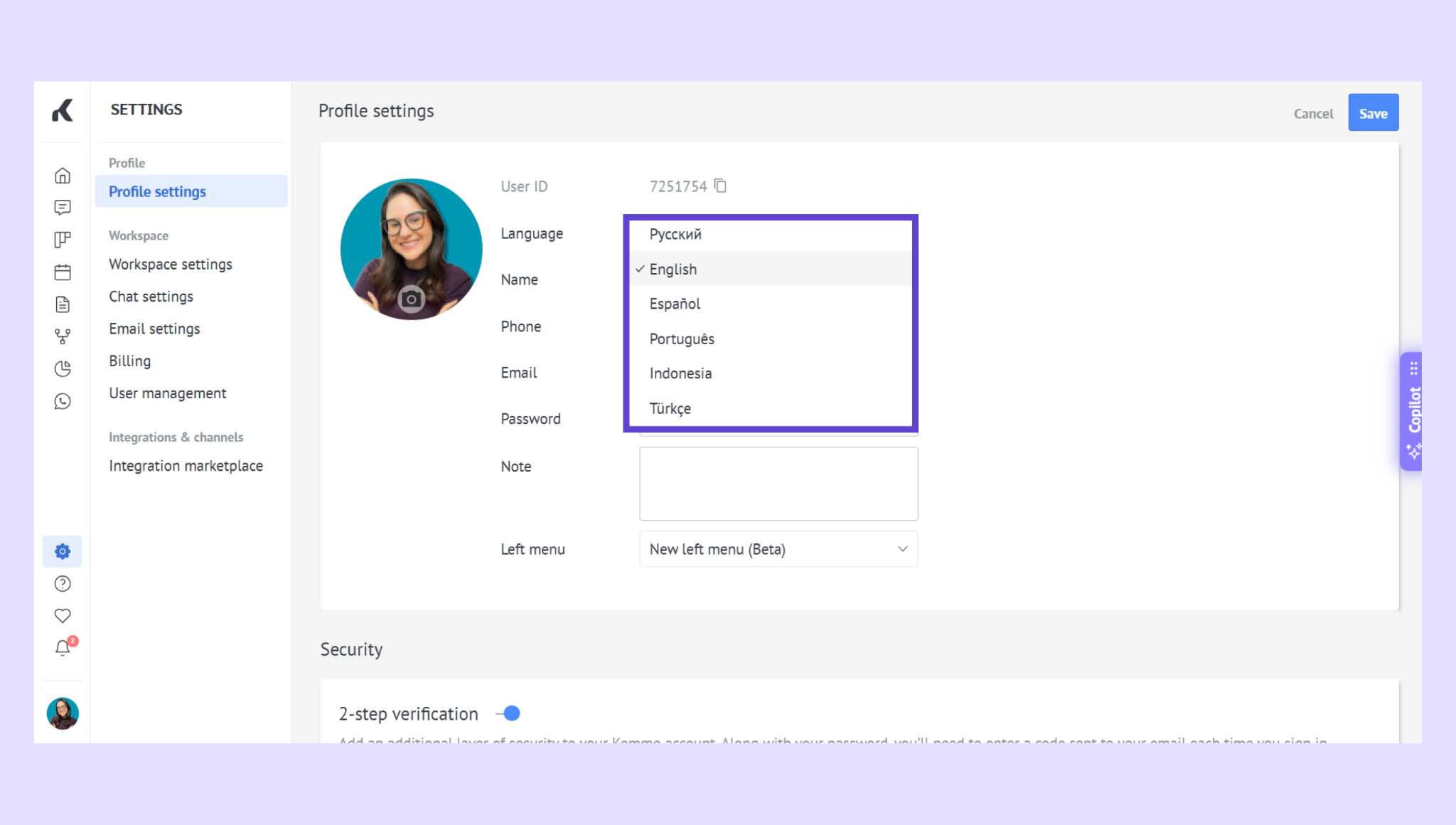
Language: Choose from English, Spanish, Portuguese (BR), Indonesian, Turkish, or Russian.
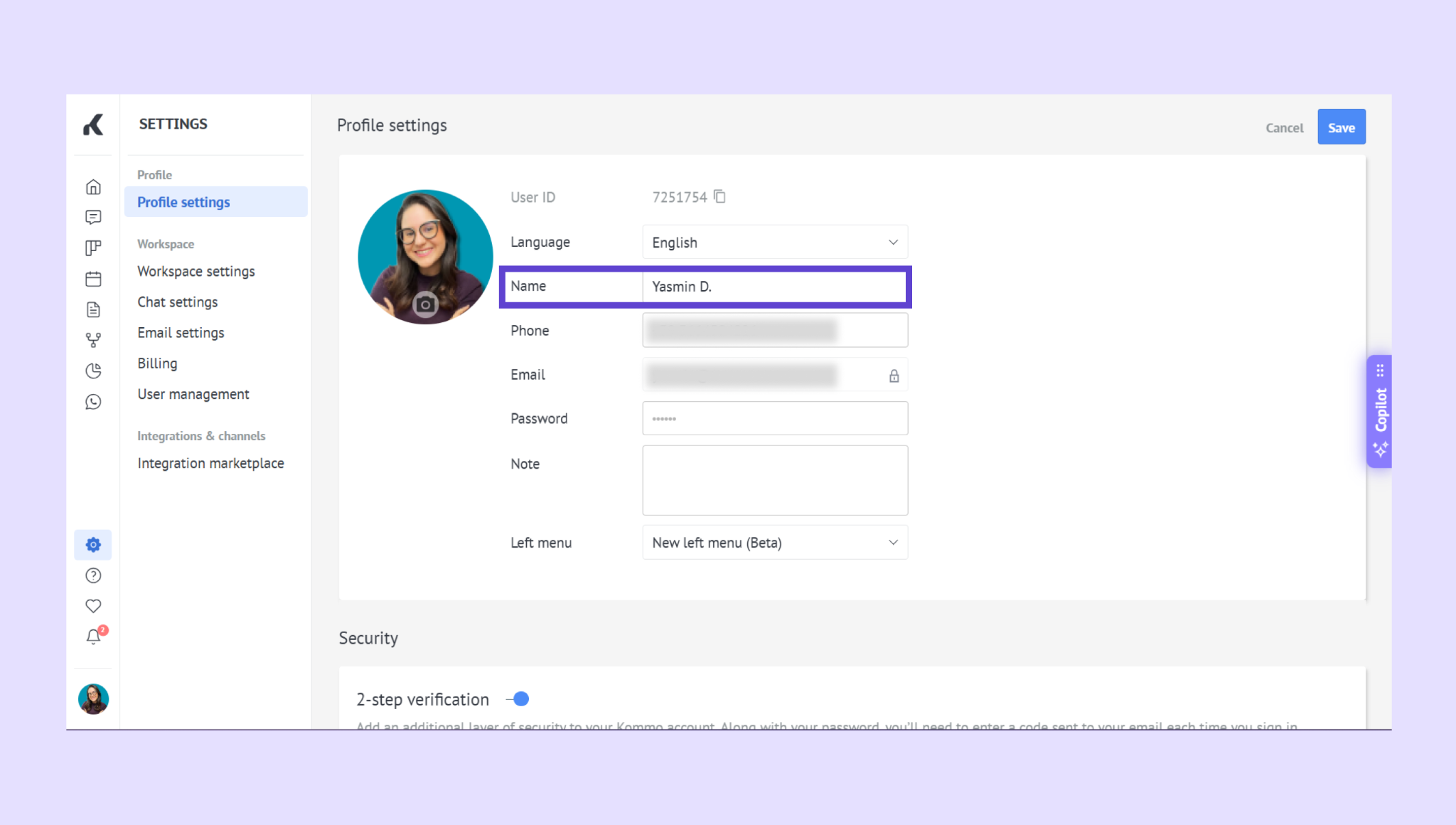
Name: Edit your display name.
Phone: Update your phone number.
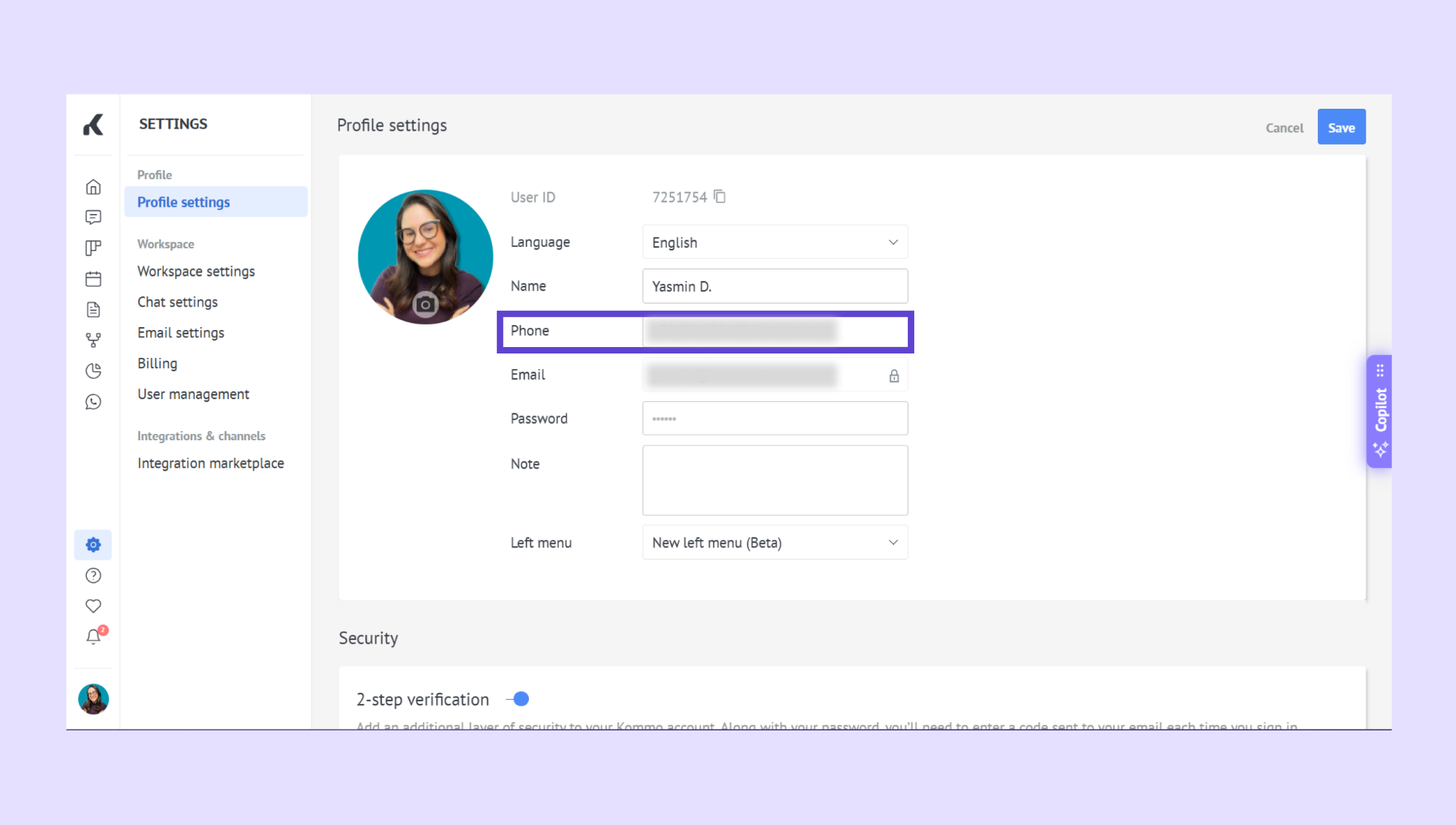
Email: Enter a new email address (2FA must be disabled first).
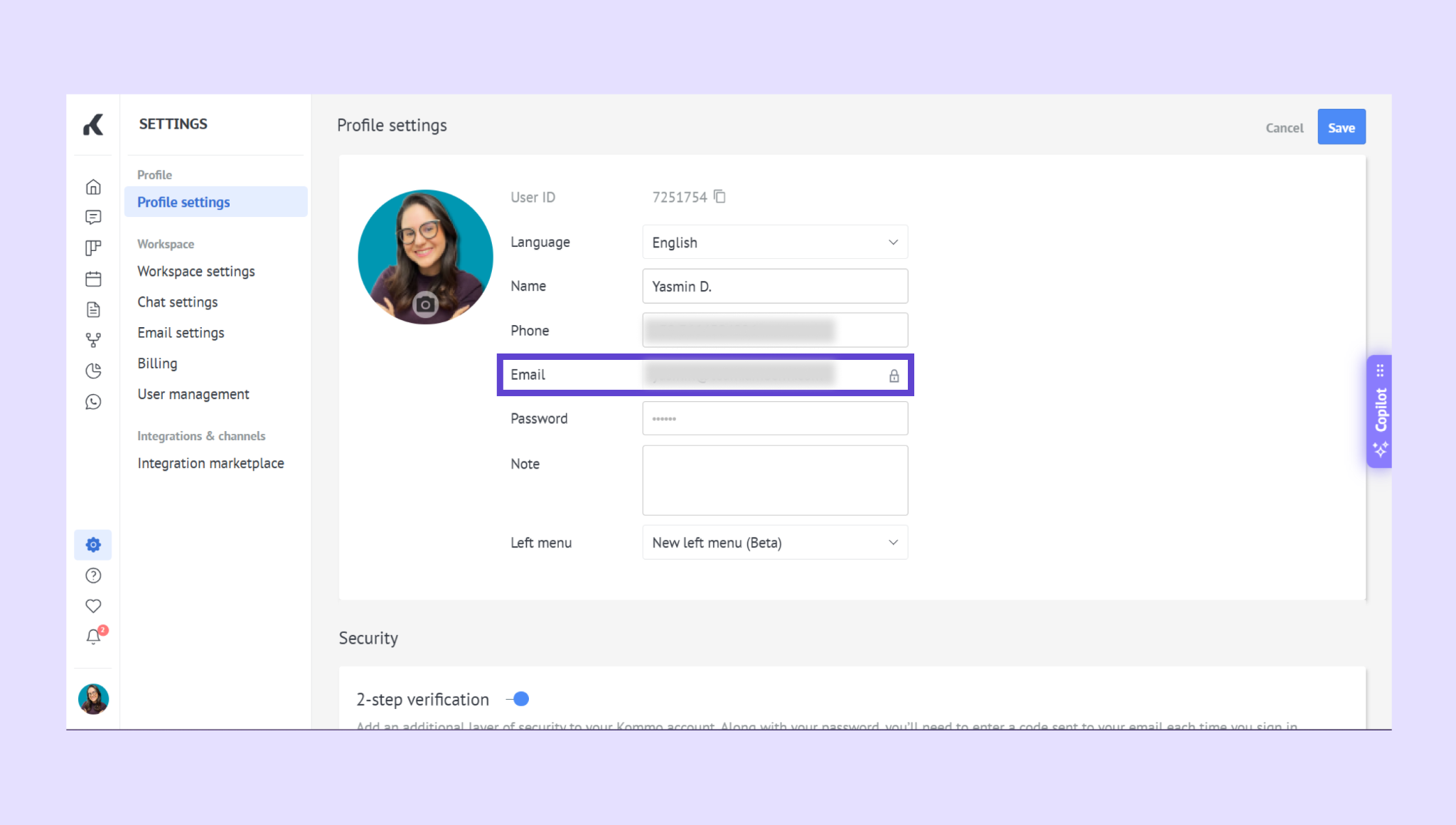
Password: Set a new password
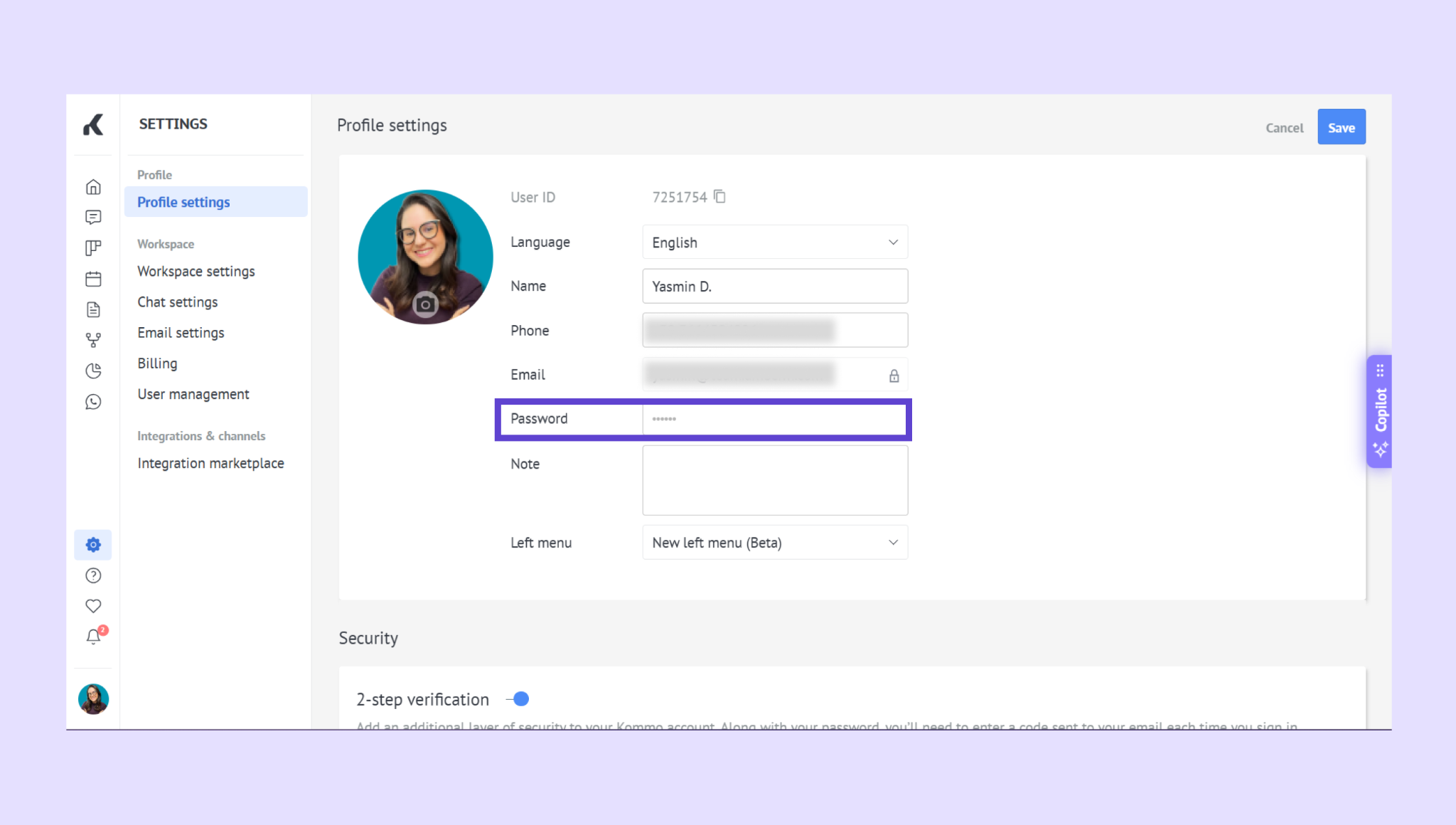
Note: Add internal comments (visible only to admins and users with profile access)
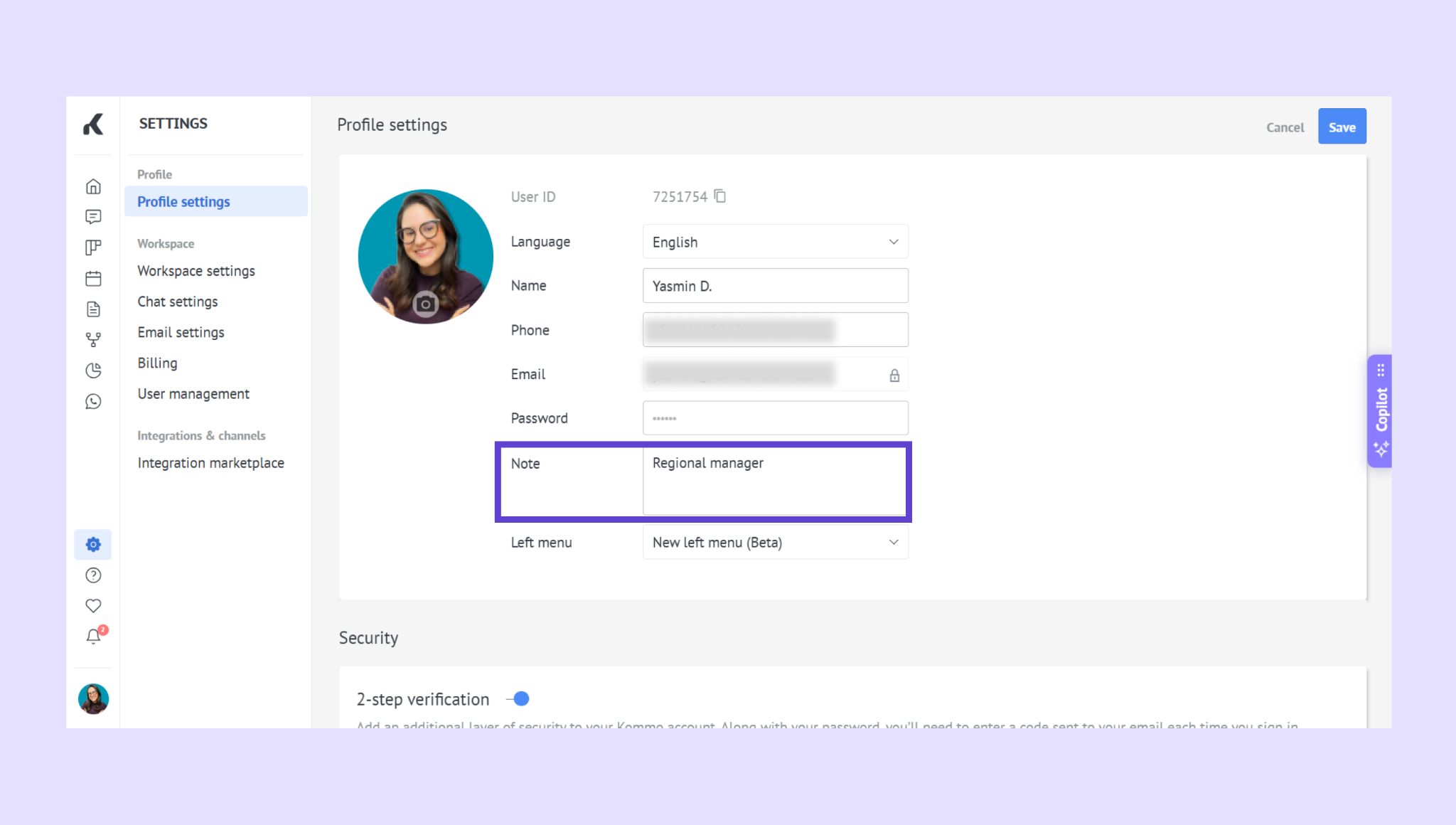
Click Save to apply your changes.
If you have two-step verification enabled
If two-step verification is enabled, you’ll need to disable it first before changing your email address.
To disable two-step verification:
Go to Settings → Profile settings. Scroll to the Security section.
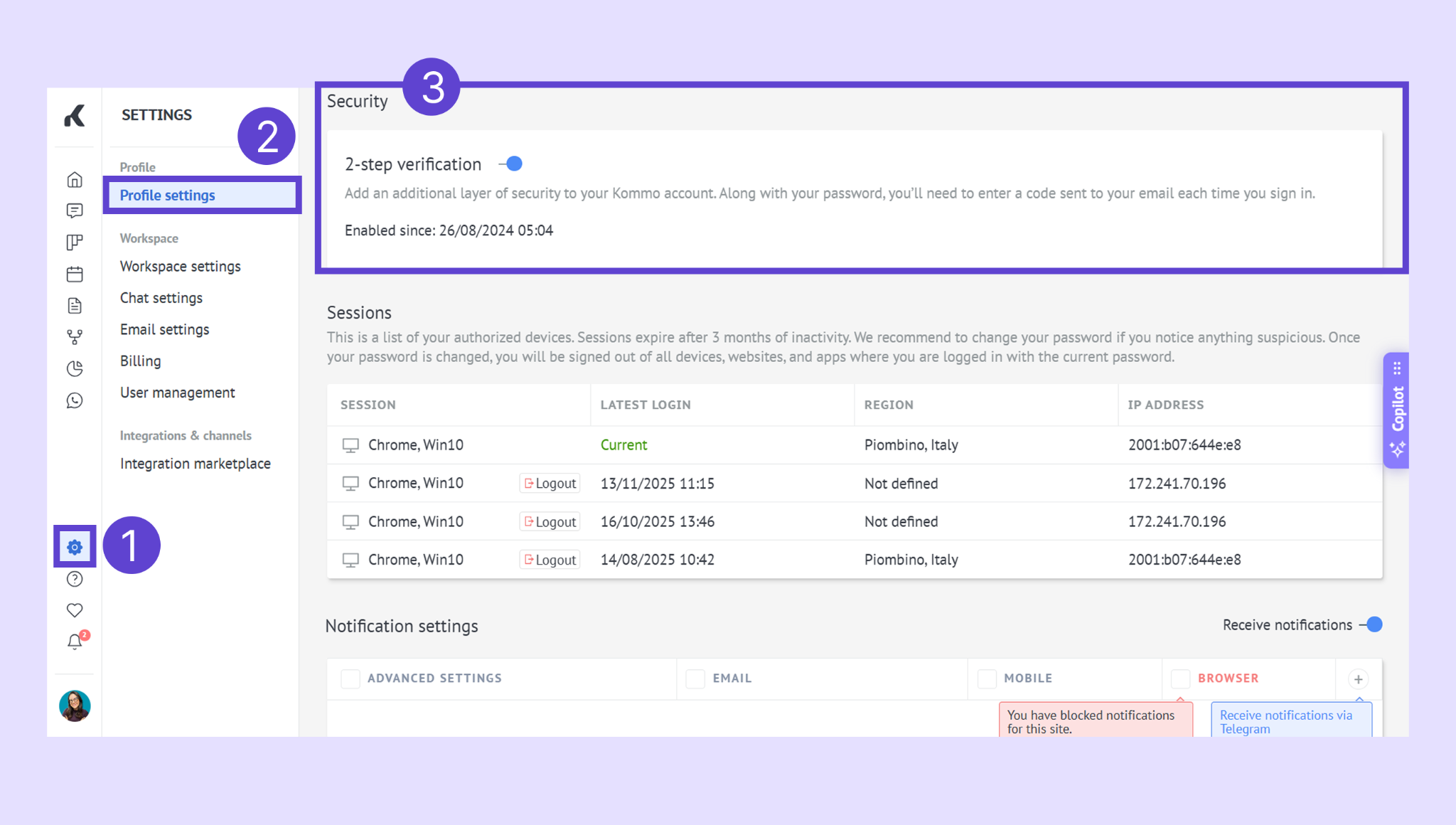
Turn off Two-factor authentication and confirm the action.
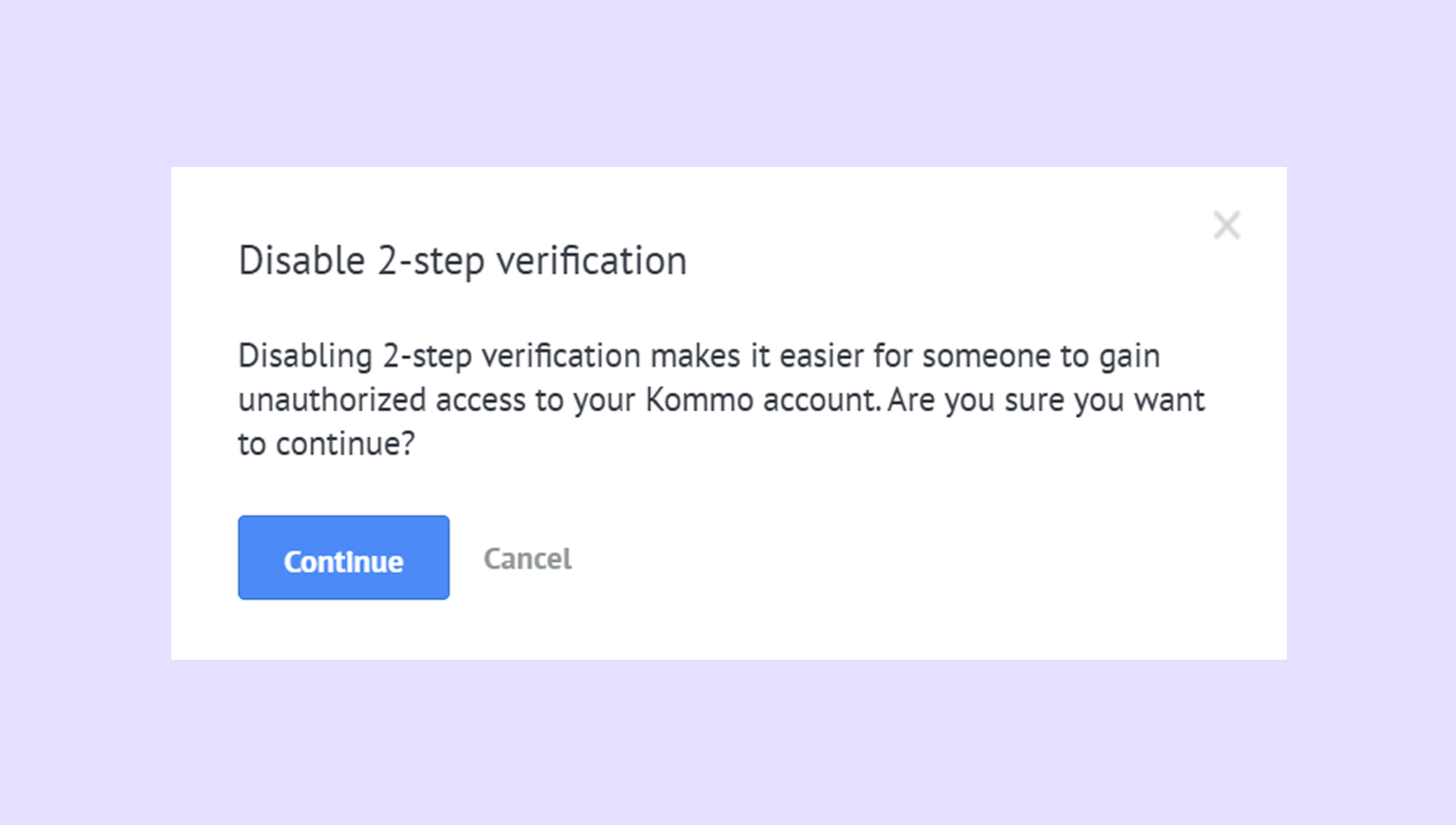
Note: Enabling or disabling 2FA is available only in the Kommo desktop version.
Once you’ve updated your email, you can turn 2FA back on. To learn how to enable 2FA and understand how it works, see our article Enable two-factor authentication (2FA).
After activating 2FA, you must confirm any password changes by entering your current password. Admins can also go to the Users settings to see a list of users who have 2FA enabled.
Notification settings
By default, notifications in Kommo are enabled. You can turn them off at any time by switching off the Receive notifications toggle.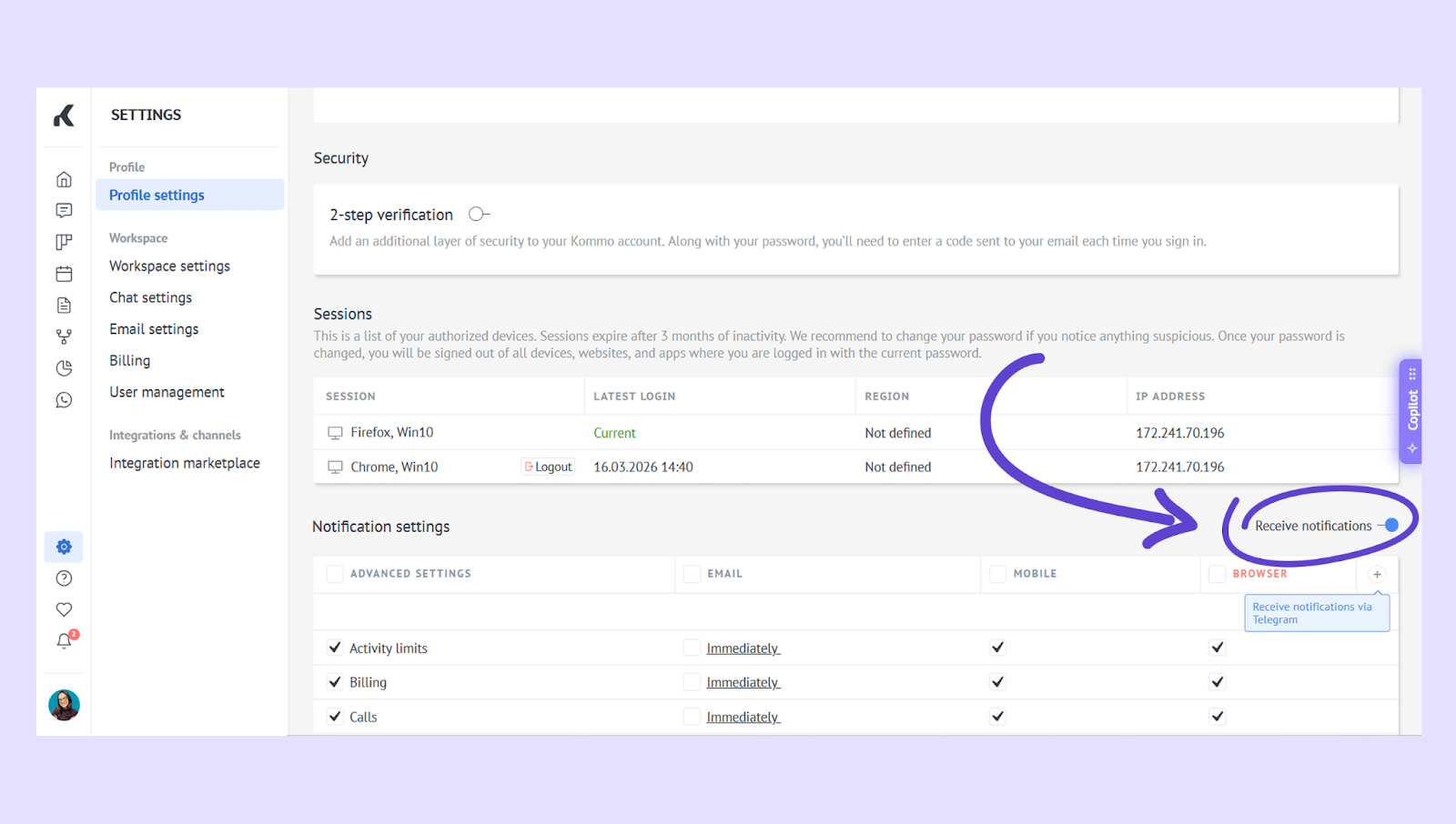
You can choose how you want to receive notifications:
Advanced settings – receive notifications directly in Kommo
Email – sent to the email linked to your profile
Mobile – available in the Kommo mobile app
Browser – shown as pop-up notifications (make sure they’re enabled in your browser)
Telegram – connect your Telegram account to receive notifications there
Select the notifications you want by checking or unchecking the boxes next to each option (for example, Calls, Incoming emails, or Tasks)..png)
Note: For email notifications, you can choose to receive them instantly or at a set time.
Сlick Save to apply your changes.
Verify your updates
After saving:
Profile changes will be updated immediately after saving
If 2FA is enabled, you’ll be prompted for a verification code at your next login
If you need more help with setup or troubleshooting, feel free to reach out to our support chat or contact us via WhatsApp. You can also hire a Kommo partner to do all the hard work for you.
Not a user yet? Sign up for our 14-day free trial or book a free live demo.