What you’ll need:
Any Kommo plan (Base, Advanced, Pro, Enterprise, or a 14-day trial)
Access to your Kommo profile
Keep in mind:
Each active user seat can have up to three web sessions and three mobile sessions at the same time
Web and mobile sessions are counted separately
When a new login exceeds a limit, Kommo closes the oldest session of the same type
Different browsers and incognito windows create separate web sessions, while multiple tabs in the same browser use one session
Sessions expire after three months of inactivity, or sooner when two-step verification affects the session
Active session settings show where your Kommo profile is currently signed in. Reviewing this list helps you identify unused or unfamiliar access, close sessions remotely, and understand how Kommo manages logins across browsers and mobile devices.
Access active session settings
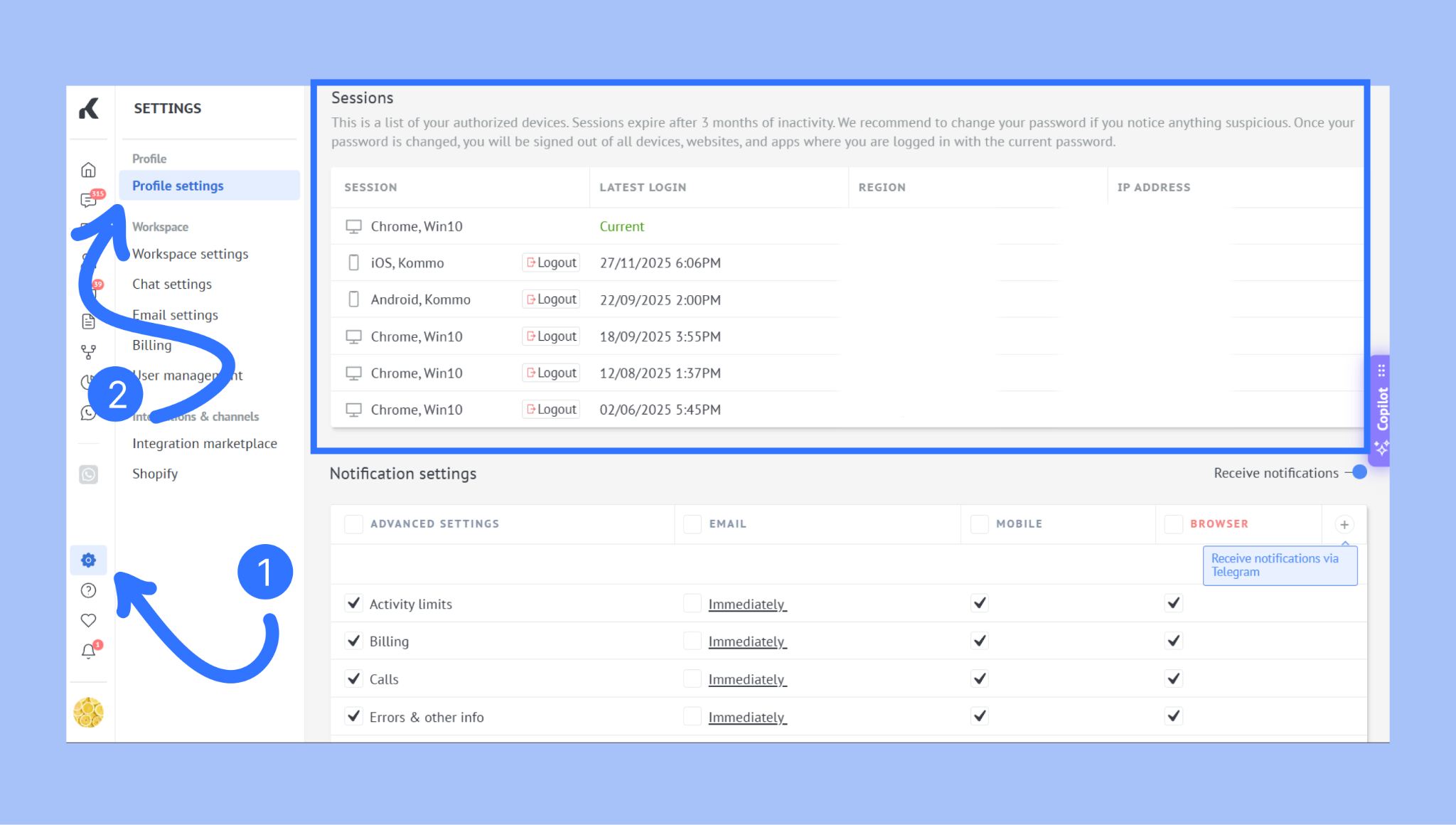
In Kommo, hover over your profile icon in the bottom-left corner.
Click Profile settings.
Scroll to the Sessions section.
Review active sessions
Use the Sessions list to check each active login before deciding whether it should remain connected.
For each session, Kommo shows:
Session type — Web or mobile
Device or browser — Where the profile was authorized
Last login or activity time — When the session was most recently used
Region — The approximate location associated with the login
IP address — The network address used for the session
Review these details when you change devices, use a shared computer, work through a VPN, or notice account activity you do not recognize.
Log out an active session
End a session when the device is no longer used, belongs to someone else, or looks unfamiliar.
Open Profile settings → Sessions.
Find the session you want to close.
Review its device, time, region, and IP address.
Click Logout.
The selected device is signed out immediately. To use Kommo from that browser or device again, the user must log in again and complete two-step verification when it is enabled.
Important: If you see an unfamiliar session, log it out and change your password immediately. Changing your password signs your profile out of all active sessions.
Understand active session limits
Kommo limits simultaneous sessions for each active user seat. Web and mobile access have separate limits.
Session type | What counts as a session | Limit |
|---|---|---|
Web | Each authorization in a desktop or mobile browser. Different browsers and incognito windows count separately. | 3 active sessions |
Mobile | Each authorization in the Kommo mobile app on a device. | 3 active sessions |
When a limit is exceeded:
The new session remains active
Kommo closes the oldest active session of the same type
A web login does not close a mobile session, and a mobile login does not close a web session
Existing sessions are not closed automatically unless a new authorization exceeds the limit
Connected integrations and automations remain active because session limits apply only to user logins
When the web limit is reached, Admins may see an option to open Billing and add seats. Other users can close the notice and ask an Admin for help when more teammates need simultaneous access.
Best practices
Review active sessions regularly and remove devices you no longer use
Always log out after using Kommo on a shared or public device
Use multiple tabs in the same browser instead of signing in through several browsers when you do not need separate sessions
Do not share one user login between teammates; add separate seats so each person has their own access
Enable two-step verification for stronger protection
If you cannot log back in or another access restriction prevents you from using Kommo, see Fix login or access problems.