Keeping your Kommo workspace secure is a shared responsibility between Kommo and your team. Kommo provides built-in security tools — and configuring them correctly helps protect your data, users, and customer conversations.
This guide walks you through recommended security settings in Kommo, explains where to configure them, and shows how to monitor access over time.
Recommended security settings
Start by enabling the core security features available in your workspace.
Enable two-step verification
Two-step verification adds an extra verification step during login.
Where to set it up
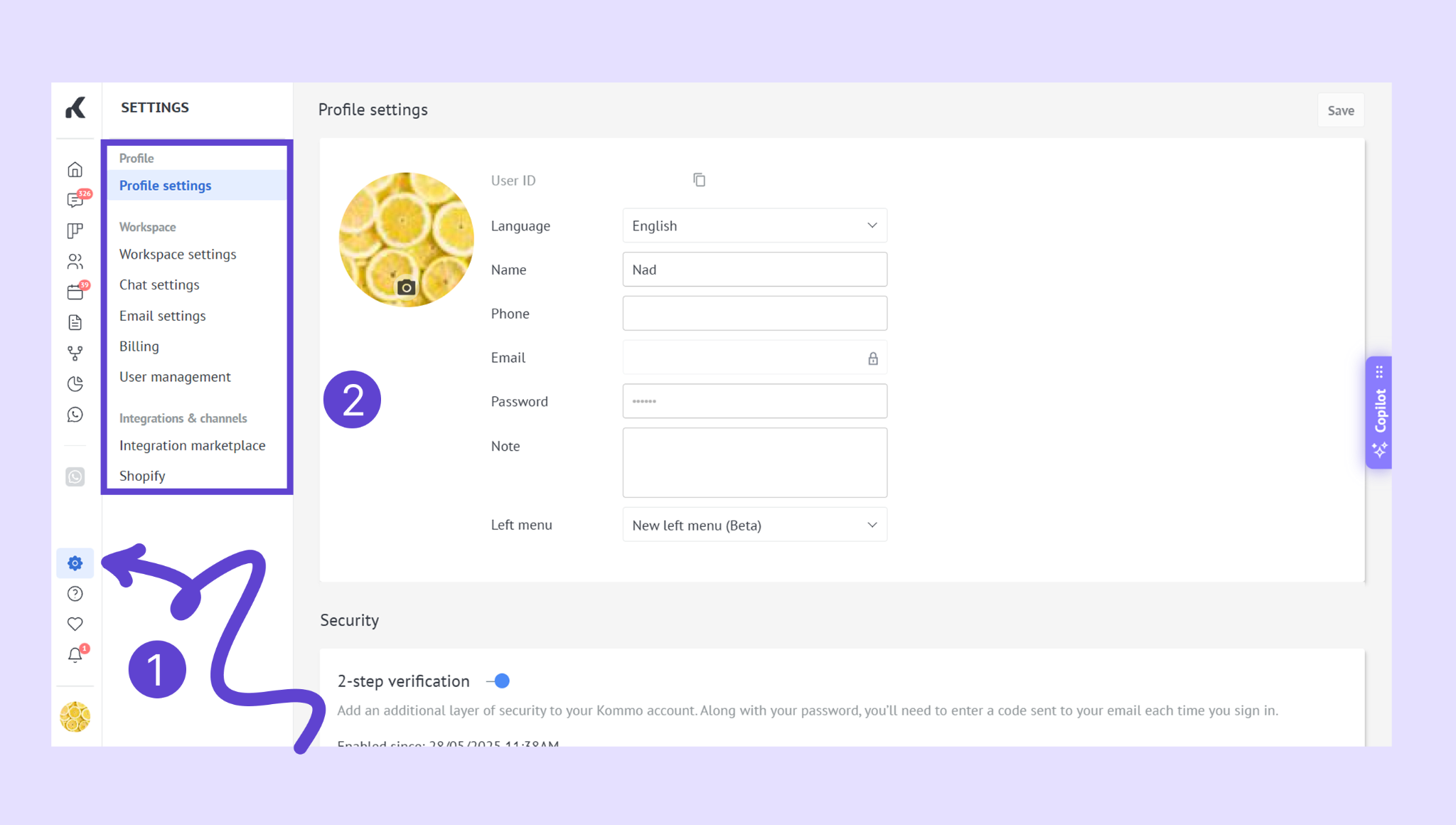
Go to Settings → Profile settings
Enable Two-step verification for your account
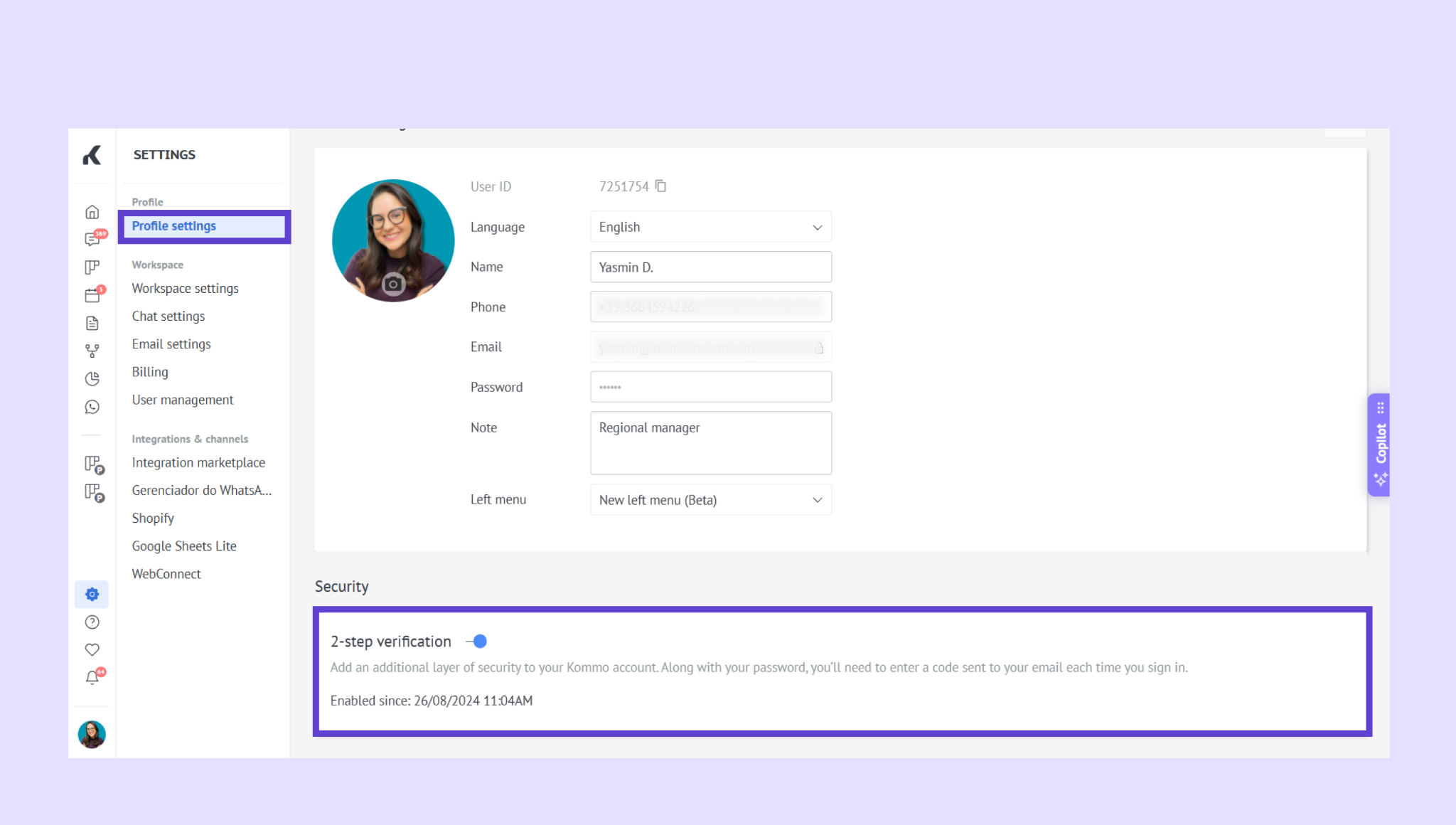
(Admins) Require two-step verification for the workspace if available
Best practice
Enable two-step verification for all Administrators
Require two-step verification for the entire workspace if you handle sensitive data or payments
This helps prevent unauthorized access even if passwords are compromised. Read more about two-step verification here.
Set clear roles and permissions
Permissions control what each user can see and do in Kommo.
Where to manage permissions
Go to Settings → User management
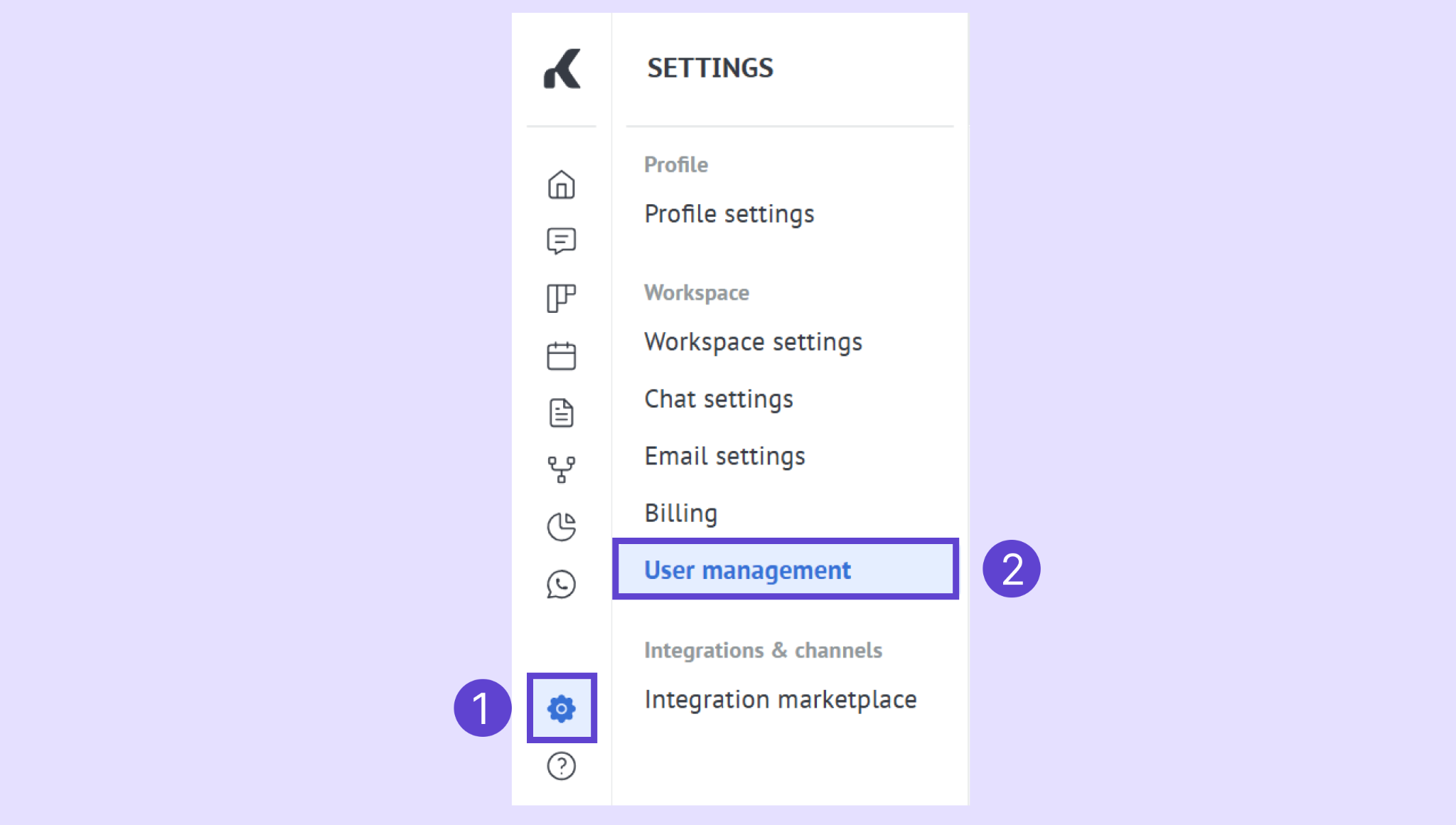
Open a user profile to:
Assign Administrator access, or
Configure custom permissions
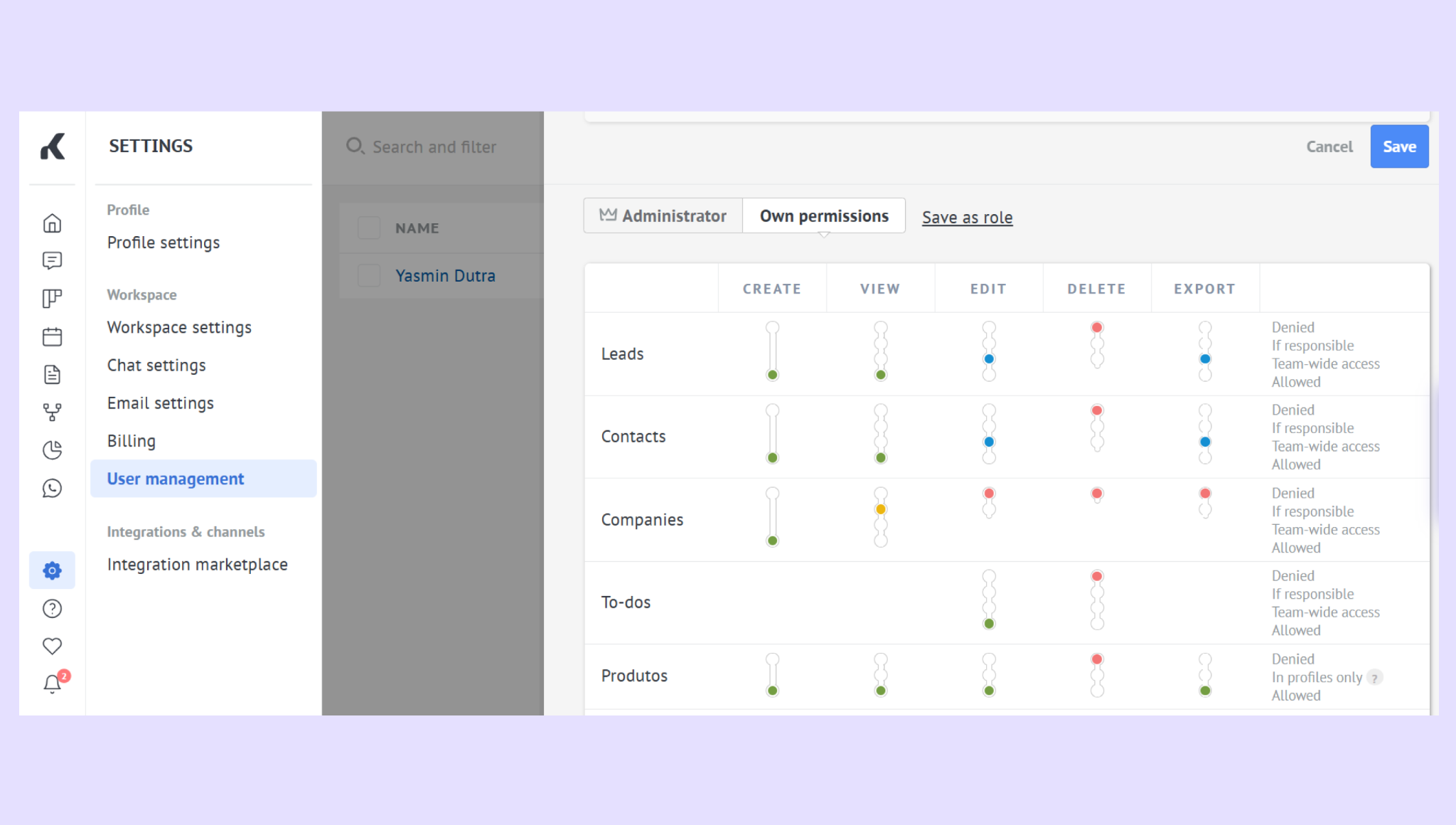
Best practice
Grant Admin access only to users who truly need it
Use custom permissions to limit access to:
Pipelines and stages
Data exports
Settings and integrations
Review permissions whenever a user’s role or responsibilities change
Avoid giving full access to all users unless it’s necessary. Learn more about how to set up roles and permissions here.
Restrict access by IP address (optional)
IP whitelisting limits login access to approved networks only.
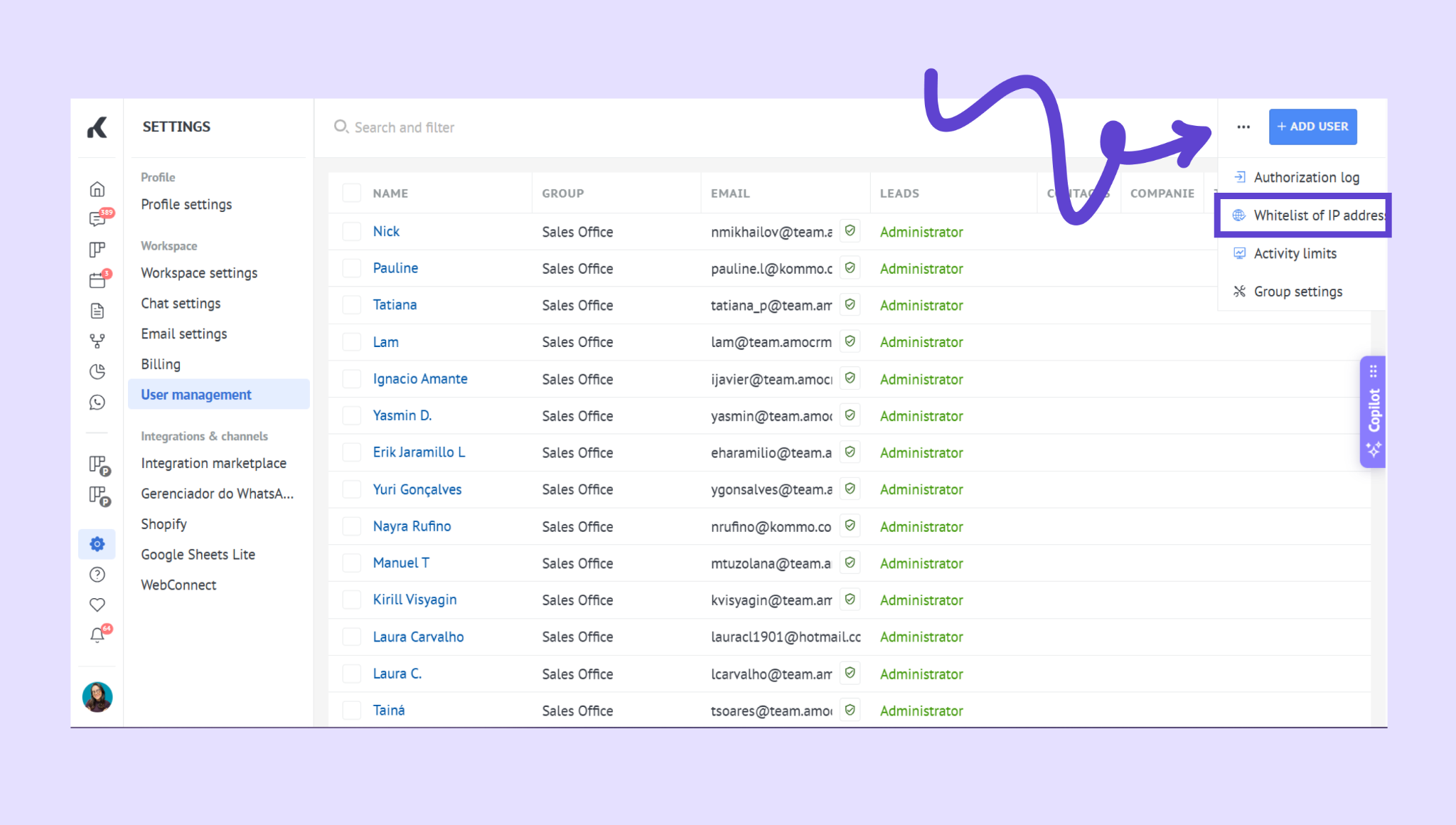
Where to manage IP access
Go to Settings → User management
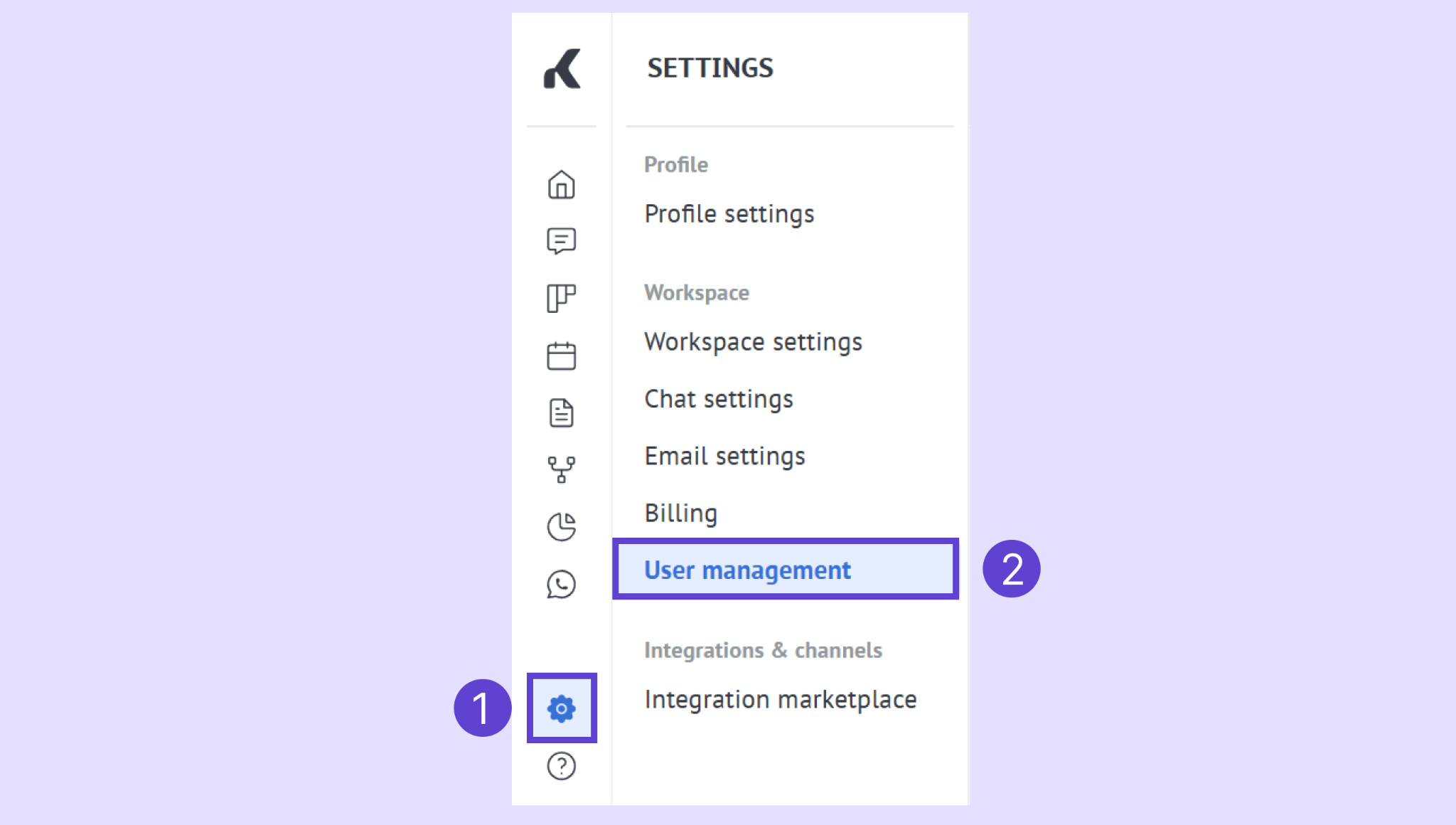
Click the three dots in the top-right corner
Select Whitelist of IP addresses
Best practice
Use IP restrictions only with trusted, static IP addresses
Always add your current IP before saving
Avoid IP restrictions for teams that rely on:
Mobile access
VPN connections
Changing networks
Note: Blocking untrusted API requests will disable Kommo mobile access.
Learn more about how to manage your IP whitelist here.
Ongoing account monitoring
Security isn’t a one-time setup — it requires regular checks.
Review active sessions
Where to check
Go to Settings → Profile settings
Scroll to Sessions
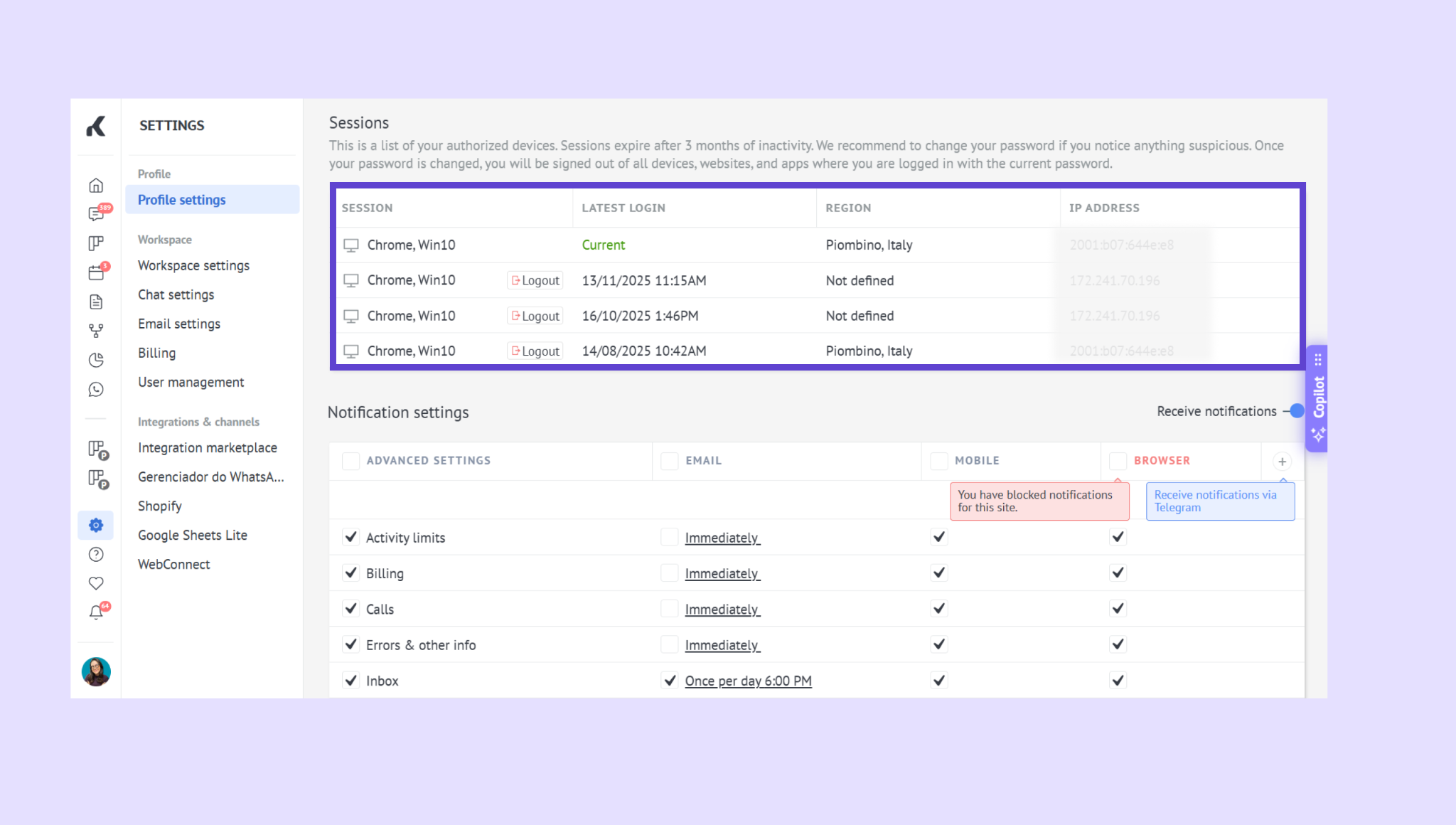
Here you can see:
Logged-in devices
Last activity time
Location and IP address
Best practice
Log out unfamiliar or unused sessions
Change passwords immediately if something looks suspicious
Review and clean up users
As teams grow and change, access can easily become outdated.
Where to manage users
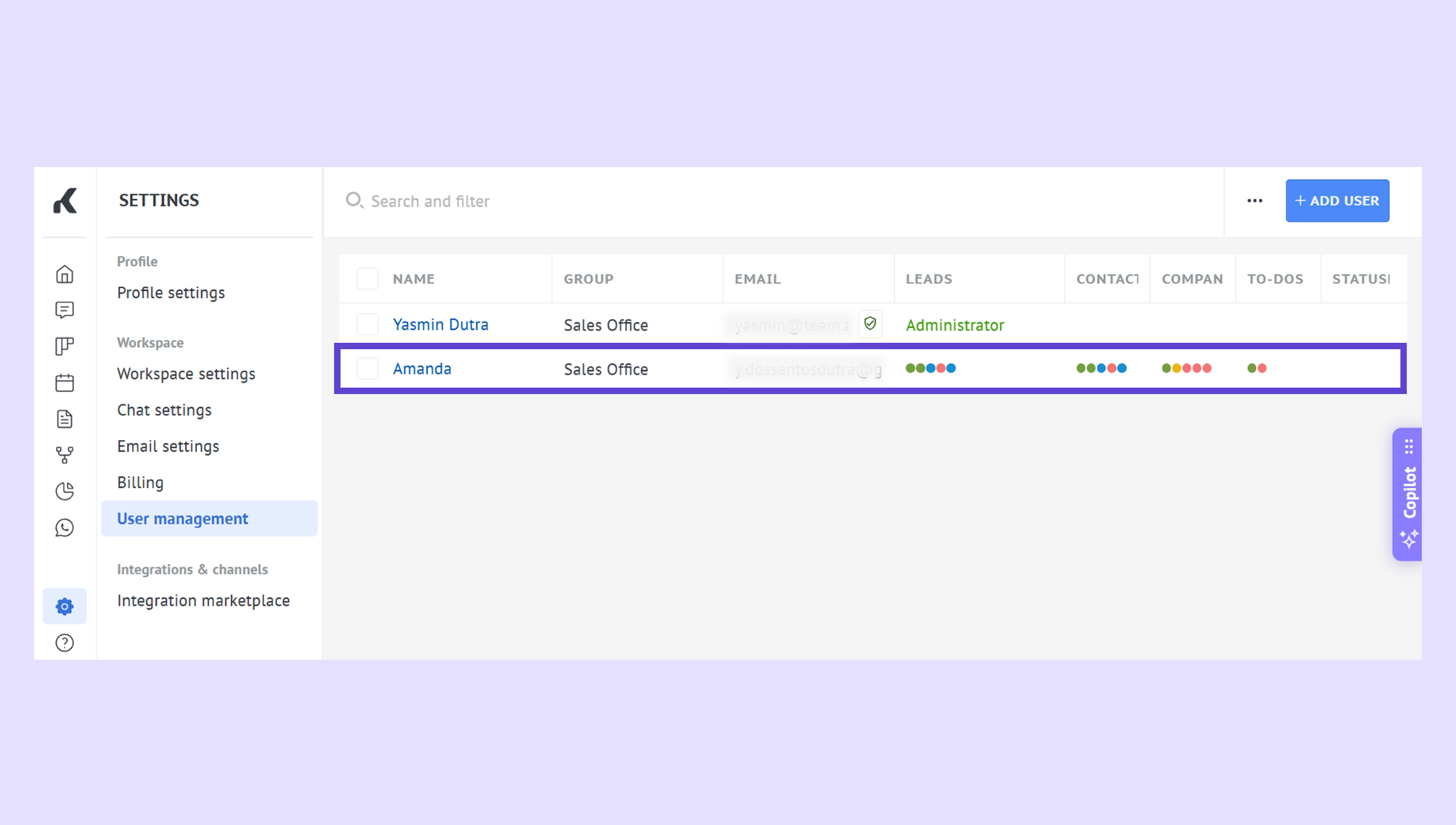
Go to Settings → User management
Best practice
Regularly review your user list
Disable users who no longer need access
Remove users permanently after reassigning their data
Make sure inactive users don’t retain sensitive permissions
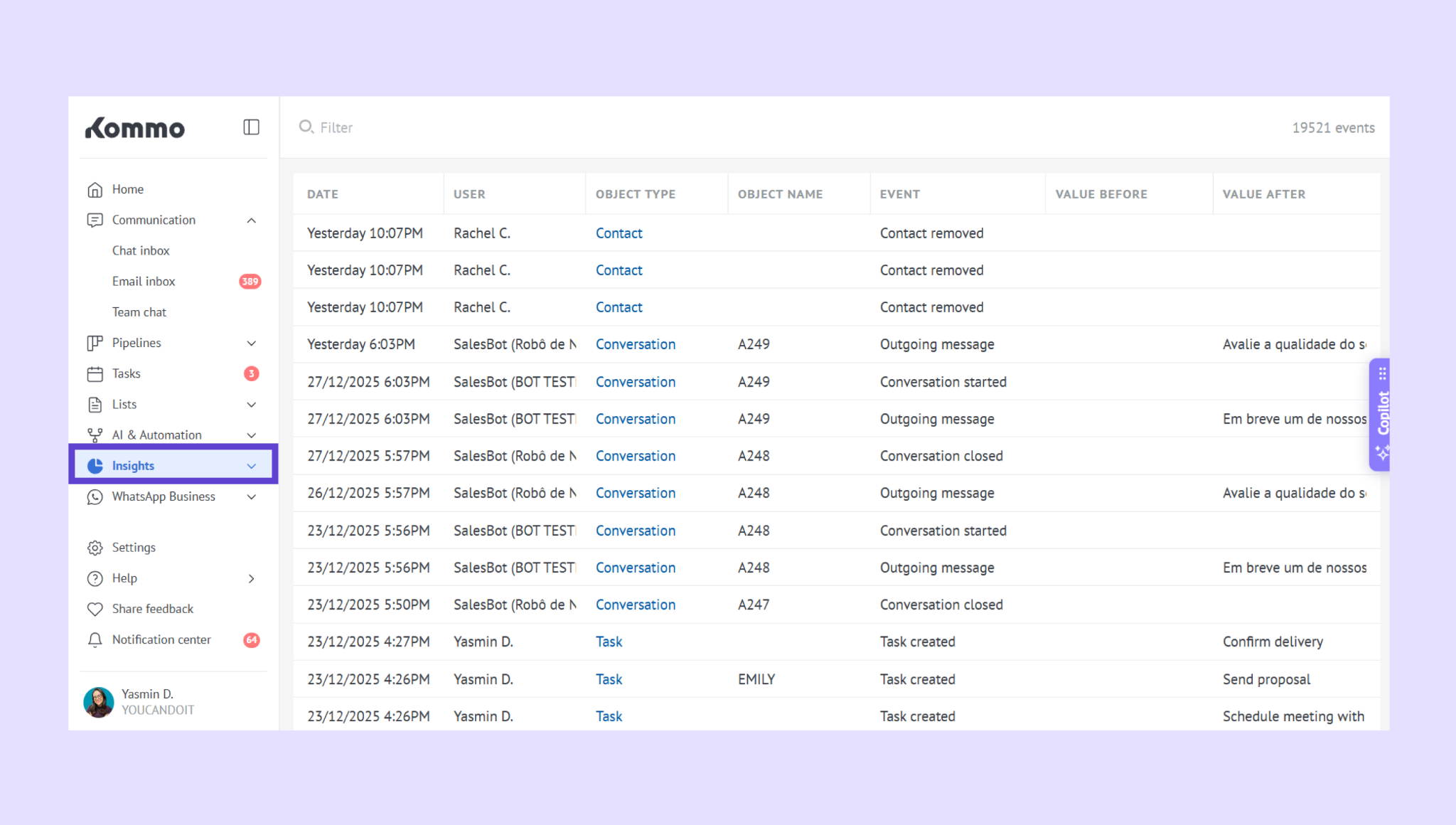
Monitor account activity
Activity logs help you understand what’s happening in your workspace.
Where to check
Go to Insights → Activity log (Pro / Enterprise plans)
Best practice
Review changes to:
Settings
Pipelines
Permissions
Investigate unexpected edits or deletions promptly
This improves accountability and transparency across your team.
Team habits that improve security
Security tools work best when paired with good team practices.
Encourage your team to:
Use strong, unique passwords
Never share login credentials
Log out from shared or public devices
Keep browsers and operating systems up to date
Follow security guidelines during onboarding
If something looks wrong
If you notice suspicious behavior:
Change affected passwords immediately
Log out all active sessions if needed
Review recent activity and access changes
Contact Kommo support for assistance
Acting quickly can prevent further issues.
Following these best practices helps keep your Kommo workspace secure, your data protected, and your team working confidently.
If you need more help with setup or troubleshooting, feel free to reach out to our support chat or contact us via WhatsApp. You can also hire a Kommo partner to do all the hard work for you.
Not a user yet? Sign up for our 14-day free trial or book a free live demo.