What you’ll need:
Any Kommo plan (Base, Advanced, Pro, Enterprise, or a 14-day trial)
Administrator (Admin) access in Kommo
A list of trusted static IP addresses
Access to your current IP address
Keep in mind:
Add your current IP before saving to avoid being locked out
Blocking untrusted API requests will disable the Kommo mobile app
VPN users may be blocked if their IP isn’t added
IP whitelisting applies to the entire workspace
IP whitelisting limits access to your account so only approved networks can log in — even if someone has valid login credentials.
Set up the IP whitelist
Use this option to restrict login access to approved IP addresses:
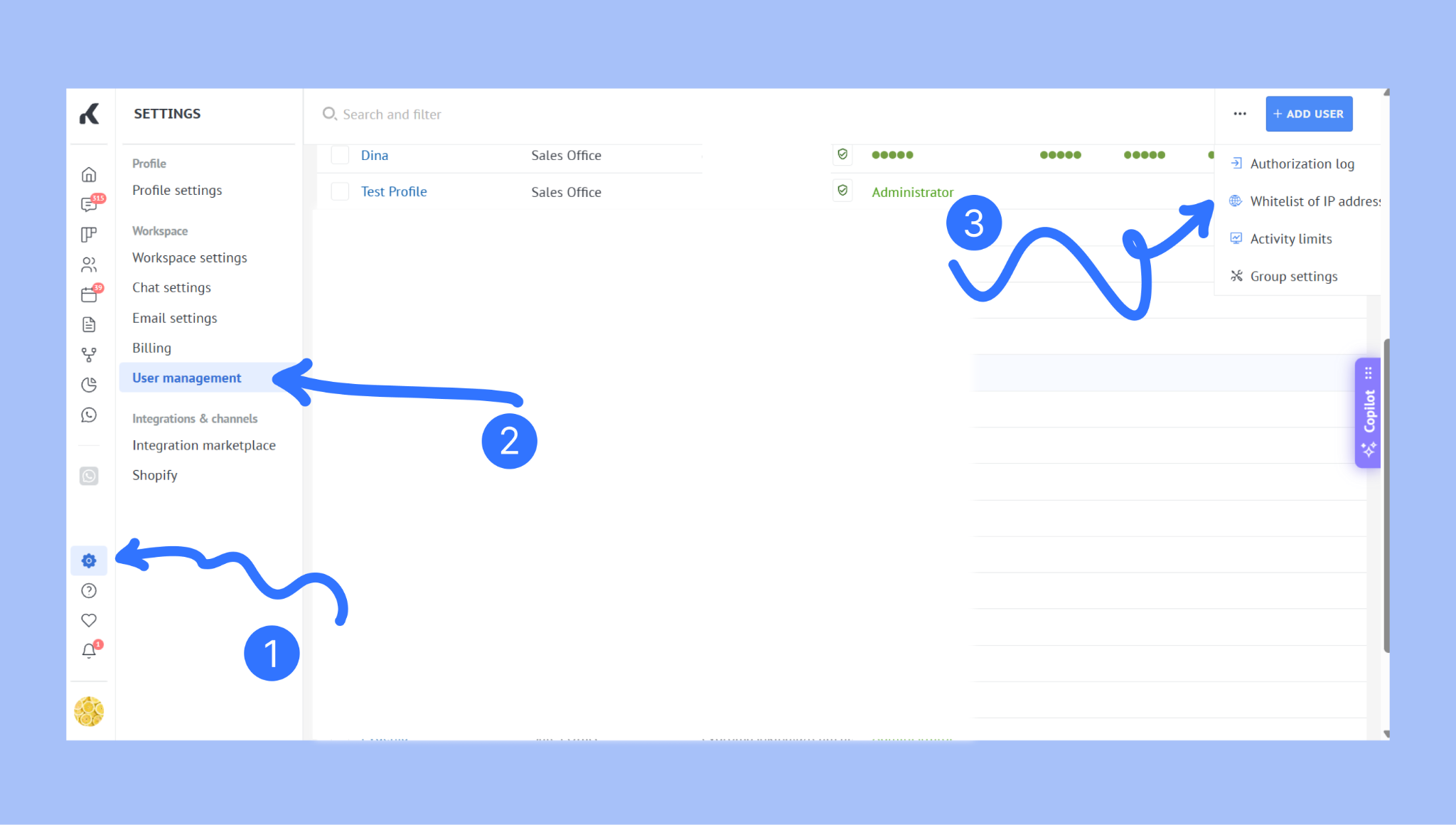
Go to Settings → User management. Click the three dots in the top-right corner. Select Whitelist of IP addresses.
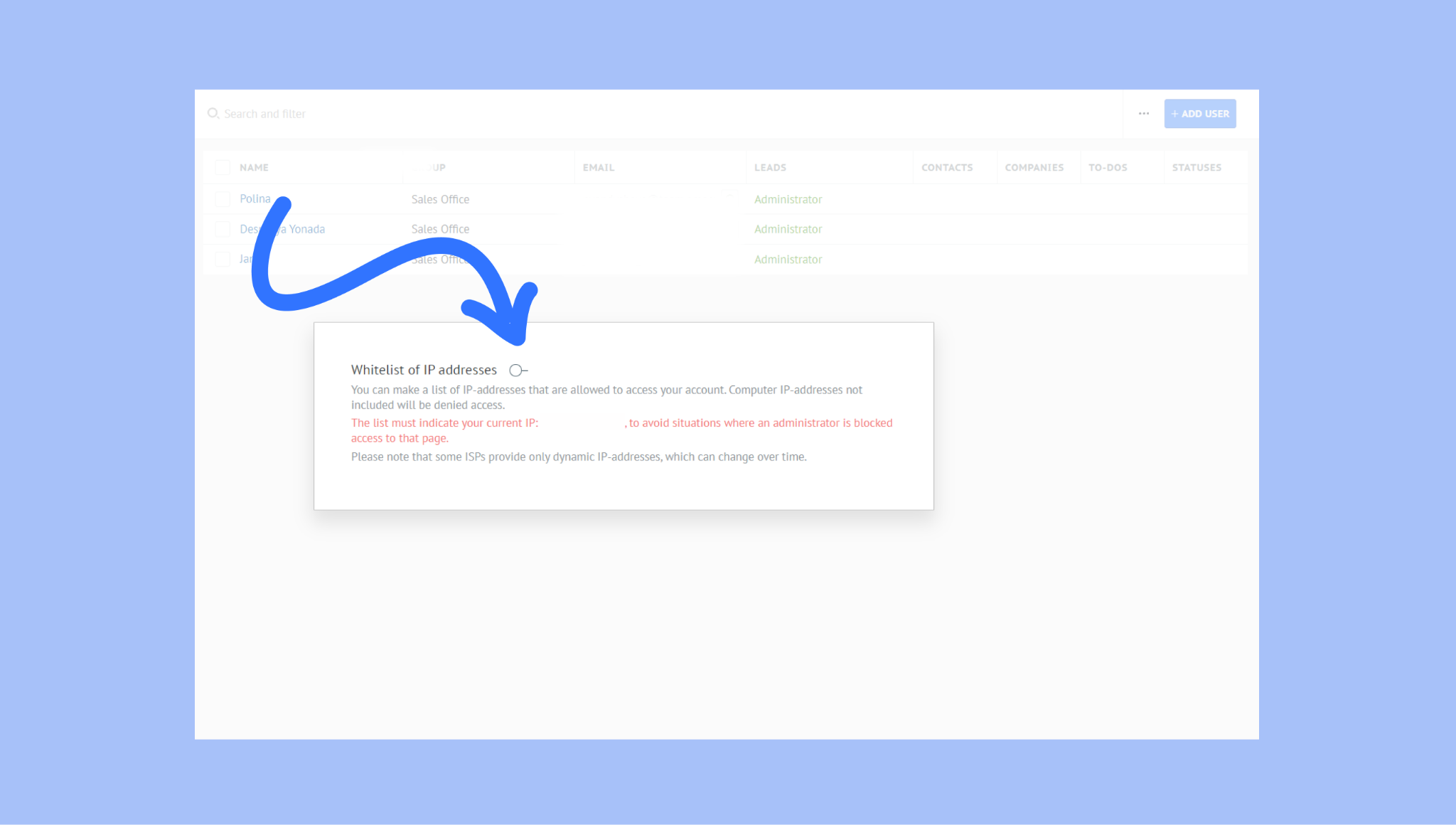
Turn on Whitelist of IP addresses.
Enter your trusted IP addresses (make sure to include your current IP).
Optional: Enable Block untrusted API requests to restrict API access to whitelisted IPs only. This will disable the Kommo mobile app and may affect integrations that use dynamic IPs.
Click Save to apply changes.
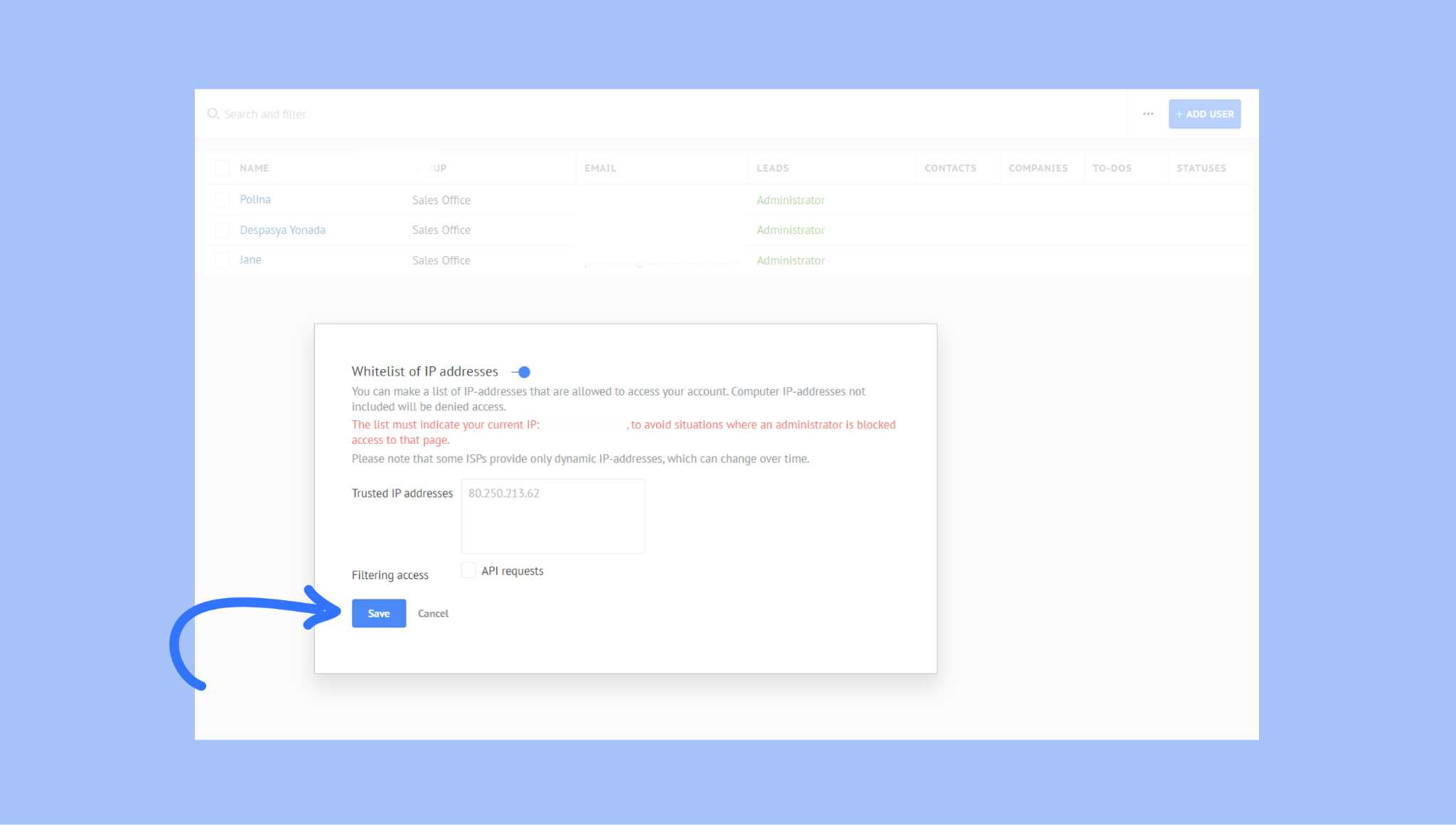
Note: Blocking API requests disables the Kommo mobile app because mobile devices use changing IP addresses.
View logged-in IP addresses
Use session history to monitor active logins and devices:
Go to Settings → Profile settings.
Scroll to the Sessions section to see:
Logged-in devices
Last login time
Region
IP address
Click Logout next to any device to end its session.
Note: Sessions expire after 3 months of inactivity (or sooner if two-step verification is enabled). Learn about two-step verification here.
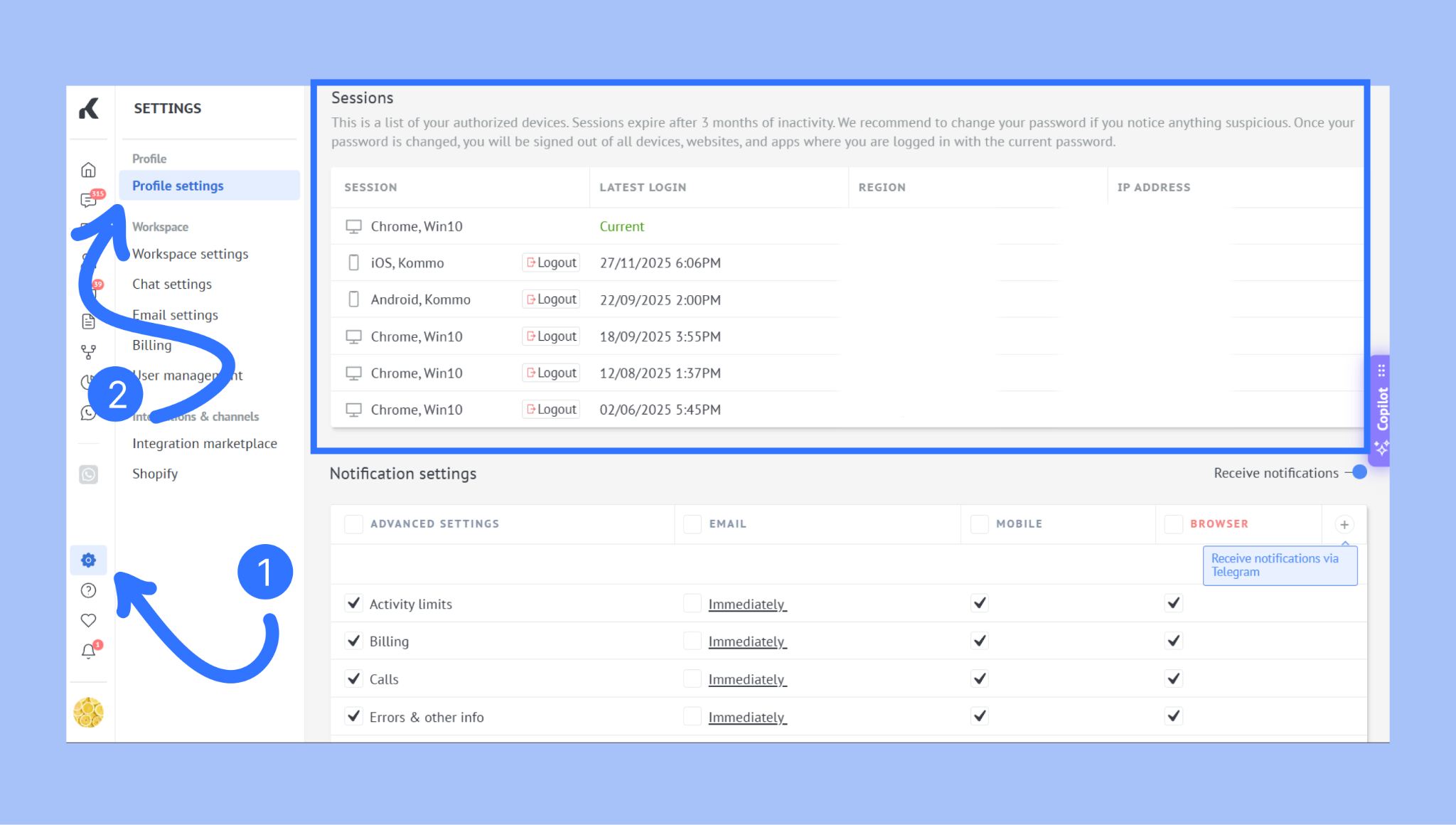
If you see an unfamiliar device, change your password immediately. This will log you out of all active sessions.
Verify your whitelist
Confirm that access restrictions work as expected:
Log out and log back in from your approved network
Test access from a non-whitelisted network
If you’re unable to log in because your IP isn’t whitelisted, contact Kommo support to restore access.
If you need more help with setup or troubleshooting, feel free to reach out to our support chat or contact us via WhatsApp. You can also hire a Kommo partner to do all the hard work for you.
Not a user yet? Sign up for our 14-day free trial or book a free live demo.