What you’ll need:
A Pro or Enterprise plan or an active 14-day trial to create, schedule, and download backup files. Learn more about Kommo plans here.
Admin role in Kommo.
Keep in mind:
Daily backups are available on all Kommo plans. You don’t need to set them up.
Backups don’t start immediately. All backup requests are processed. between 4:00 PM and 4:00 AM (GMT). Requests made earlier will be queued and completed during this window.
You can schedule backups to run automatically.
Backup files are delivered by email and stored in your workspace settings.
Kommo has two types of backups: daily backups and scheduled backups.
Daily backups are created automatically for all Kommo users, regardless of their plan. Kommo uses these backups to restore your workspace data if a server failure occurs. You don’t need to create or schedule them.
Scheduled backups are available on the Pro and Enterprise plans and during a 14-day trial. You can create one manually or set Kommo to create backups automatically. When a backup is ready, Kommo sends you an email with the file. You can also download it from your workspace.
This article explains how to create a backup manually, set up scheduled backups, and download backup files from your workspace.
Create a backup manually
Use this option to generate a backup of your workspace data at any time.
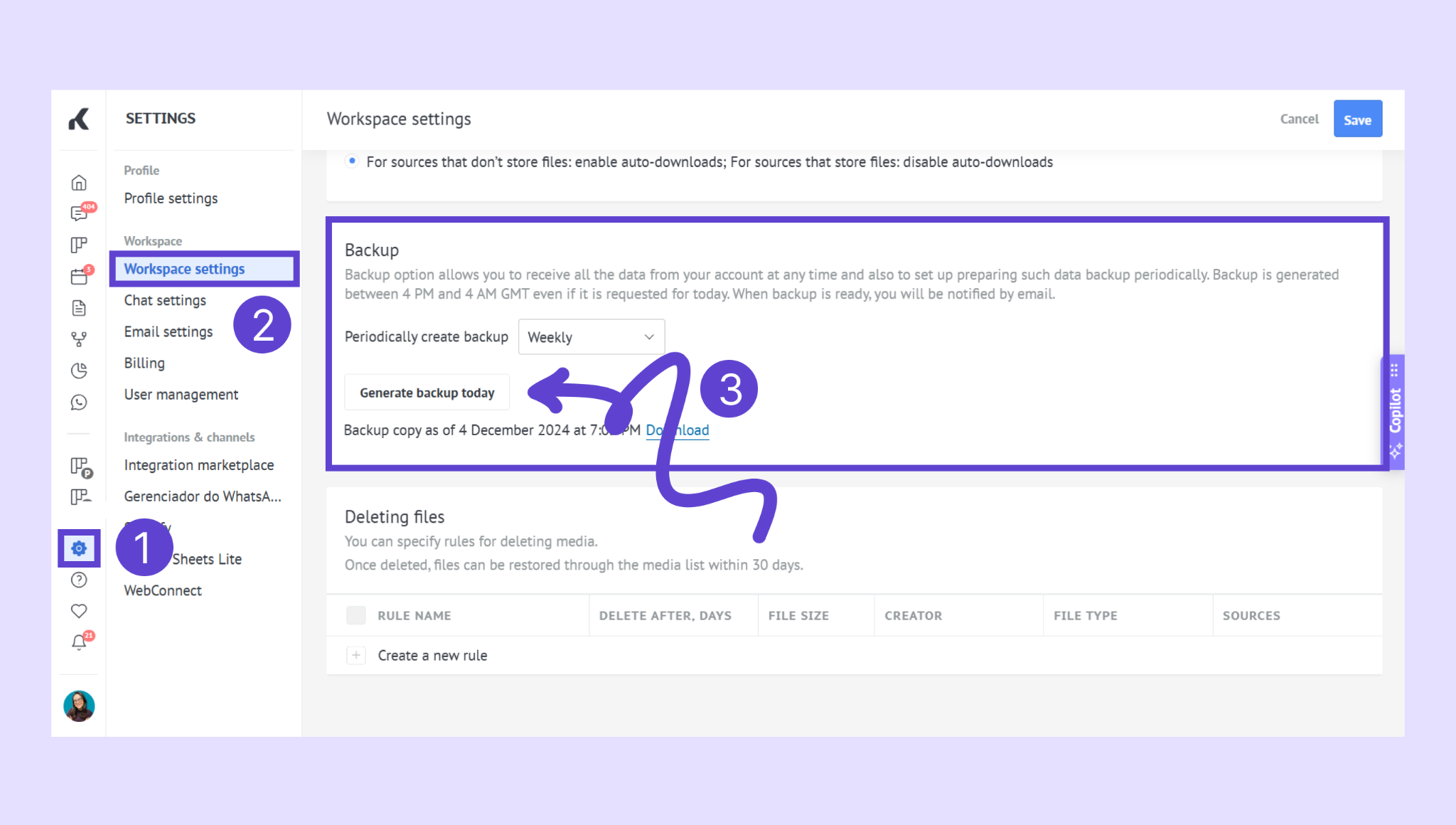
Go to Settings → Workspace settings. Scroll down to Backup and click Generate backup today.
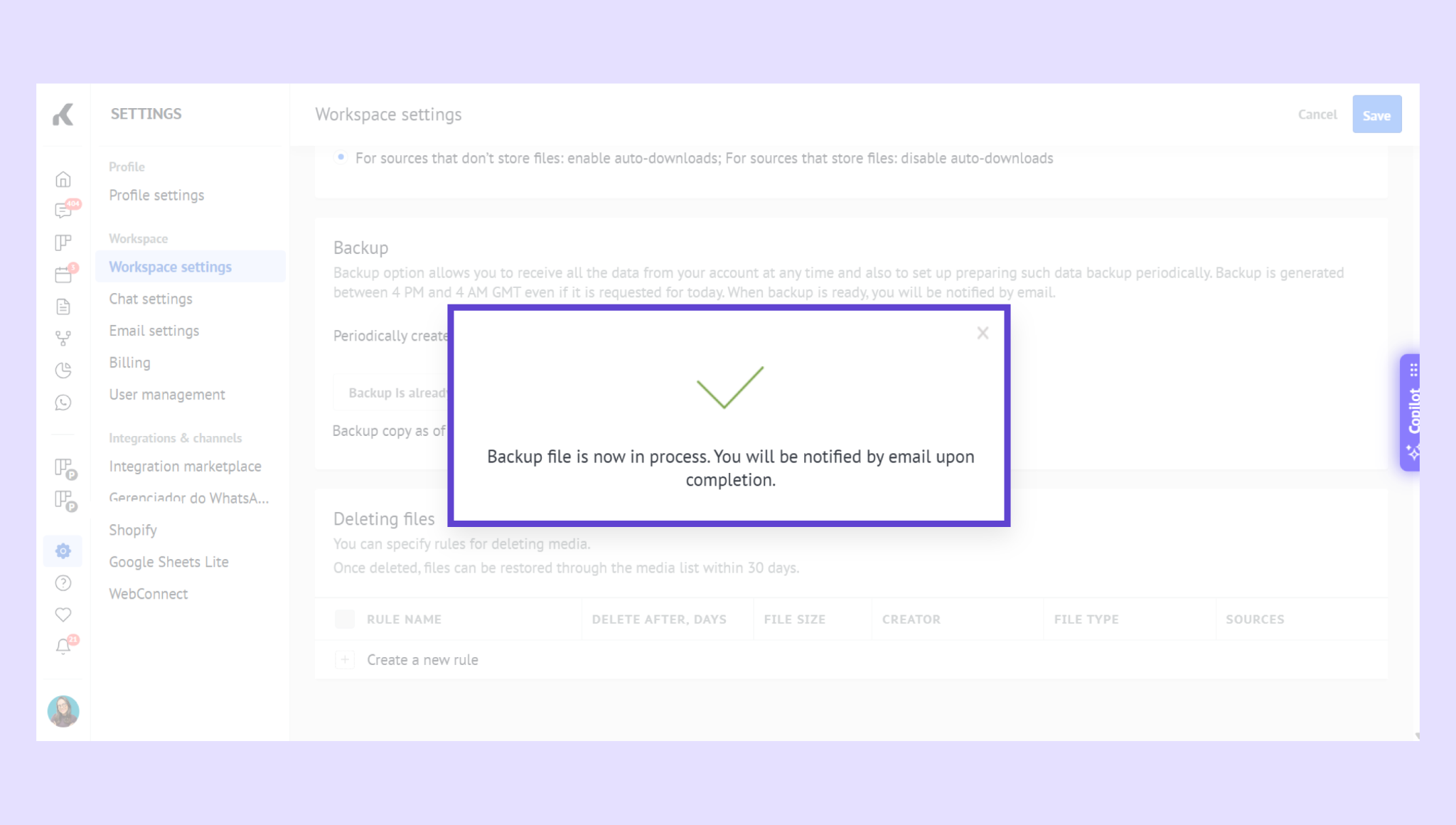
Wait for the email notification (this may take a few minutes).
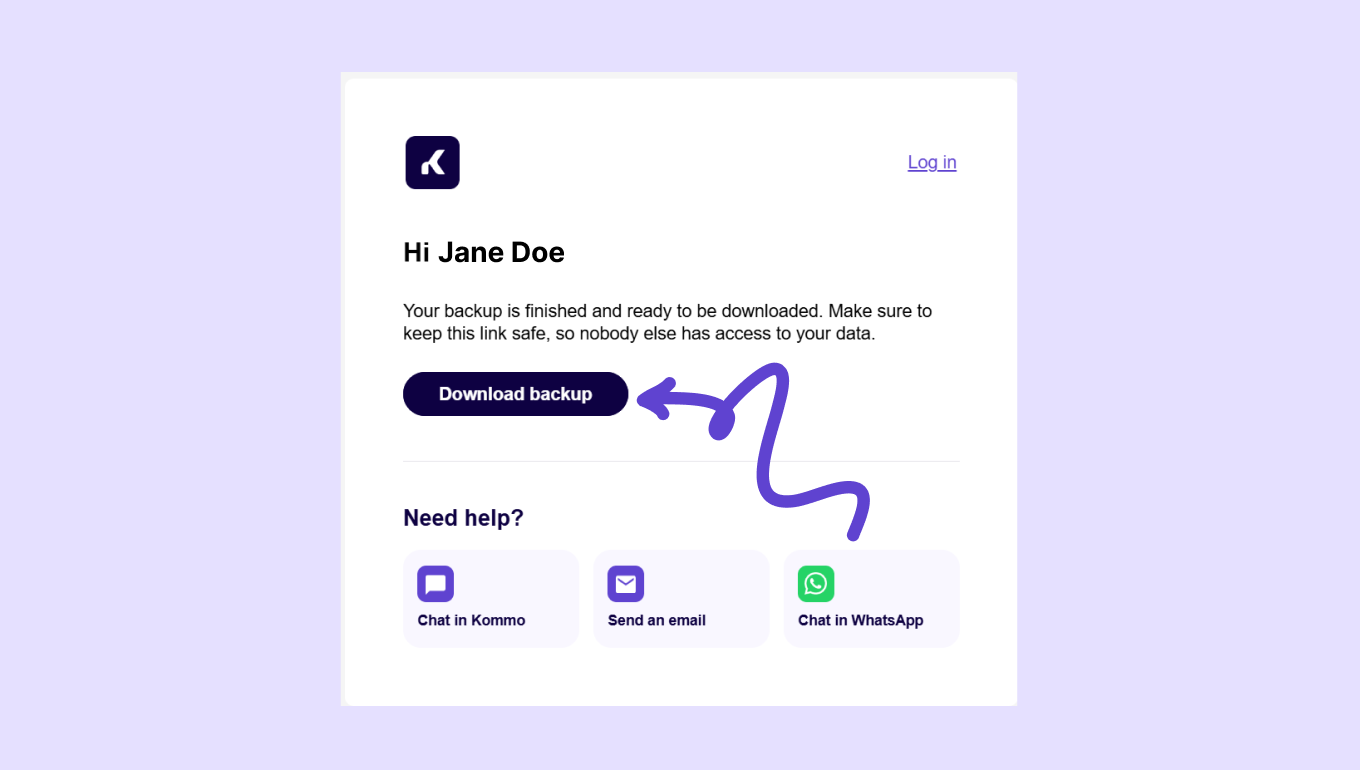
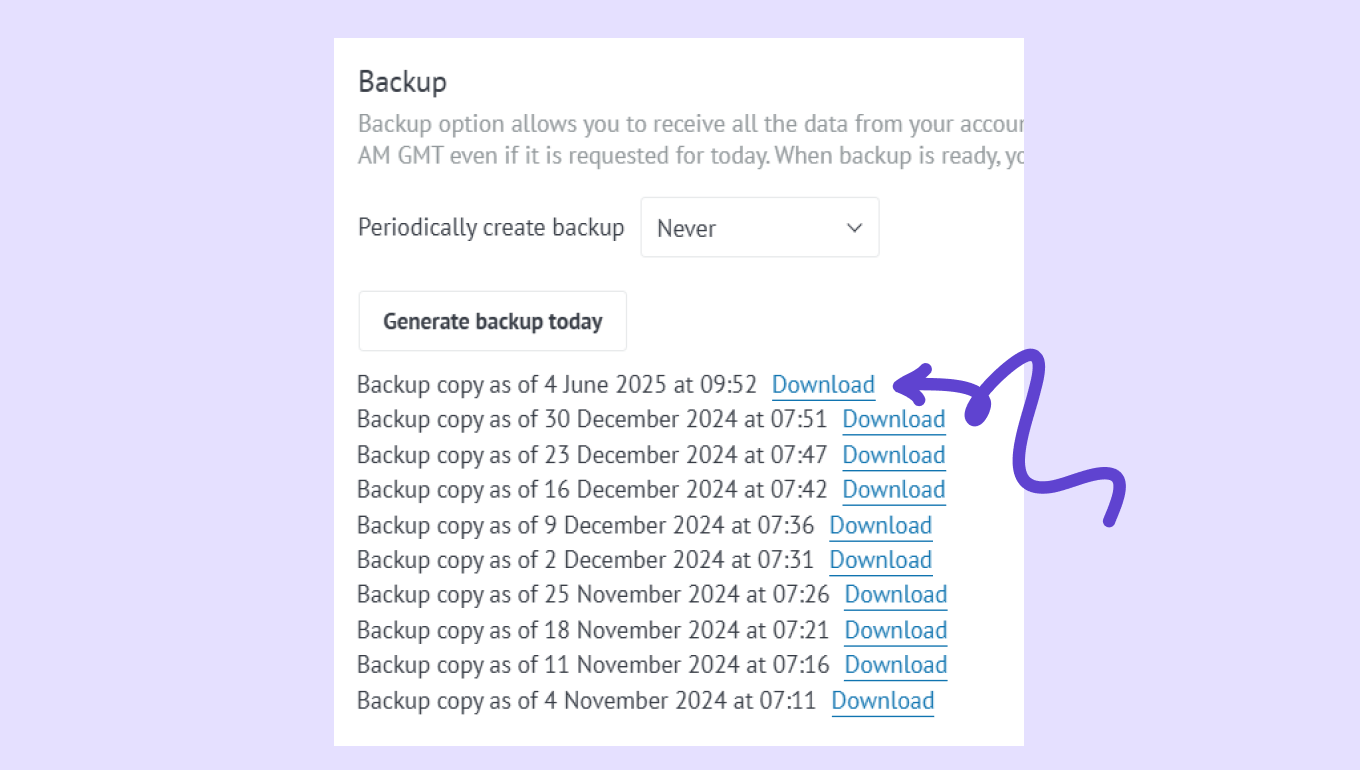
Download the backup file from the email or from the Backup section in your account.
Set up scheduled backups
Schedule backups to run automatically so your data is protected without manual work.
Go to Settings → Workspace settings → scroll down to Backup
Next to Periodically create backup, select either Weekly or Monthly. Click Save.
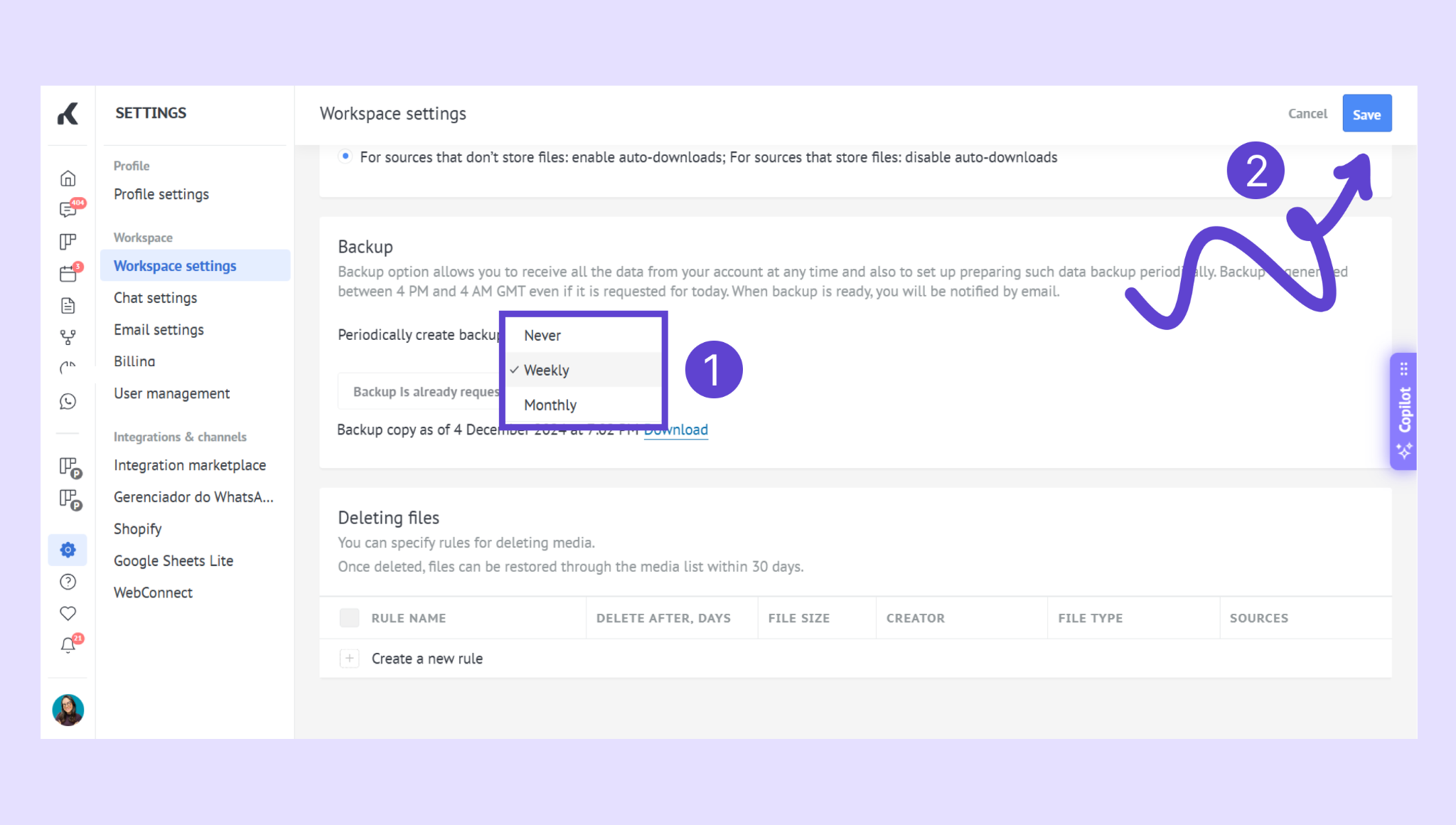
Kommo will generate backups based on your selected schedule.
You’ll receive an email notification each time a backup is ready and you can download it anytime from the same Backup settings page.
Restore data from a backup
Restoring a backup replaces your current workspace data with the data saved in the selected backup.
When a backup is restored:
Your workspace reverts to the saved data version
The restore action is logged in Activity Log
Updated records appear immediately across pipelines and profiles
Note: Restoring a backup overwrites current data. Make sure you select the correct backup before proceeding.
If you need more help with setup or troubleshooting, feel free to reach out to our support chat or contact us via WhatsApp. You can also hire a Kommo partner to do all the hard work for you.
Not a user yet? Sign up for our 14-day free trial or book a free live demo.