What you’ll need:
A Kommo account on any plan: Base, Advanced, Pro, Enterprise, or a 14-day trial
Admin access to your Kommo workspace.
Your teammate’s name and an email address they can access.
Access to your verification method to confirm that you’re adding a user.
Keep in mind:
A new user creates their own password. You don’t need to create or share one.
Existing Kommo users join the workspace with their current accounts and passwords.
Adding a user may affect your available seats and billing. Learn more in Manage seats in Kommo.
Add members of your team as users in your Kommo workspace so everyone can work together in one place. They can manage leads, follow client conversations, complete tasks, and find the information they need. This helps your team stay up to date and makes it easier to continue working with a client when responsibilities change.
You can add team members who are new to Kommo or already have a Kommo account. For each user, you can select a group and set access based on their role.
This article shows how to add users, check whether they’ve joined your workspace, and help them if the invitation doesn’t work.
Add a user
Add members of your team as users in User management. You can assign them to groups and choose what they can access in your workspace.
The steps depend on whether the person you’re adding:
Note: When you add a new admin, Kommo asks you to verify that it’s you making the change. If you have two-step verification enabled, follow the prompts for your chosen verification method. If you don’t, Kommo emails a code to the address in your profile. Enter that code to confirm. Learn more in Manage security with two-step verification in Kommo.
Add a new Kommo user
To add a new user:
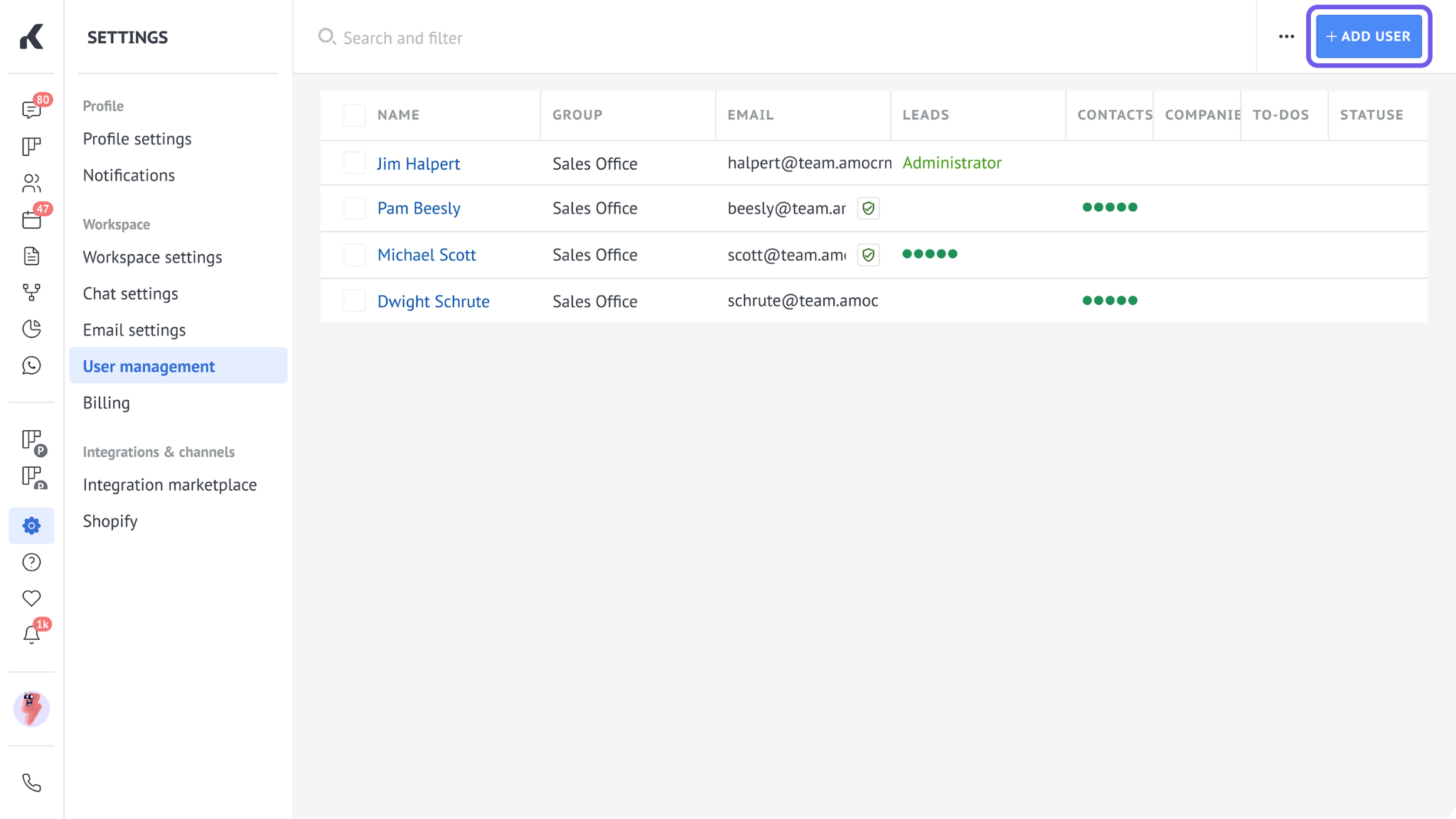
Go to Workspace settings → User management.
Click Add user.
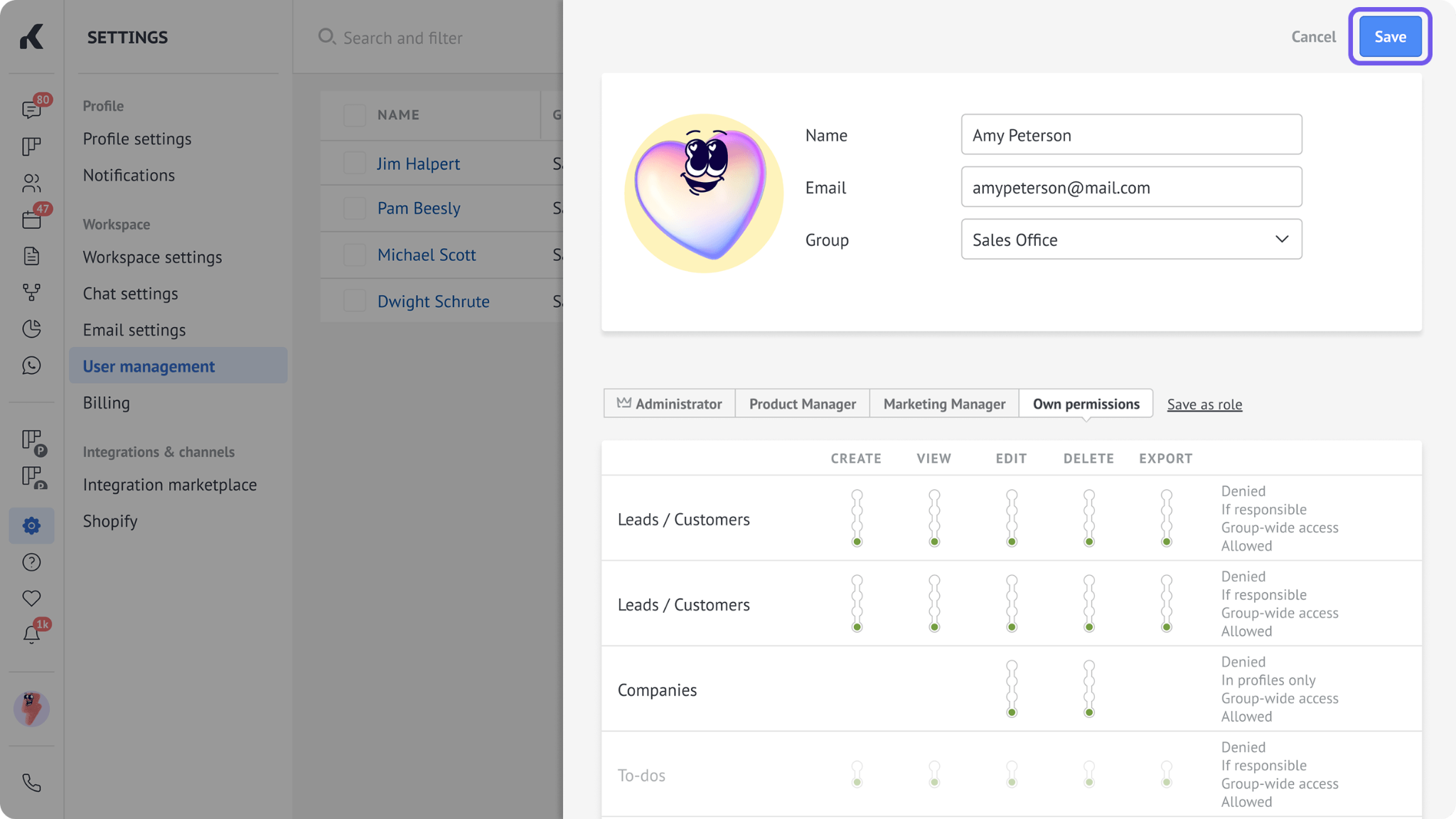
Enter your teammate’s name and email address.
Optional: assign them to a group and choose their permissions.
To learn more, see Create user groups in Kommo and Set permissions and access levels in Kommo.
Click Save.
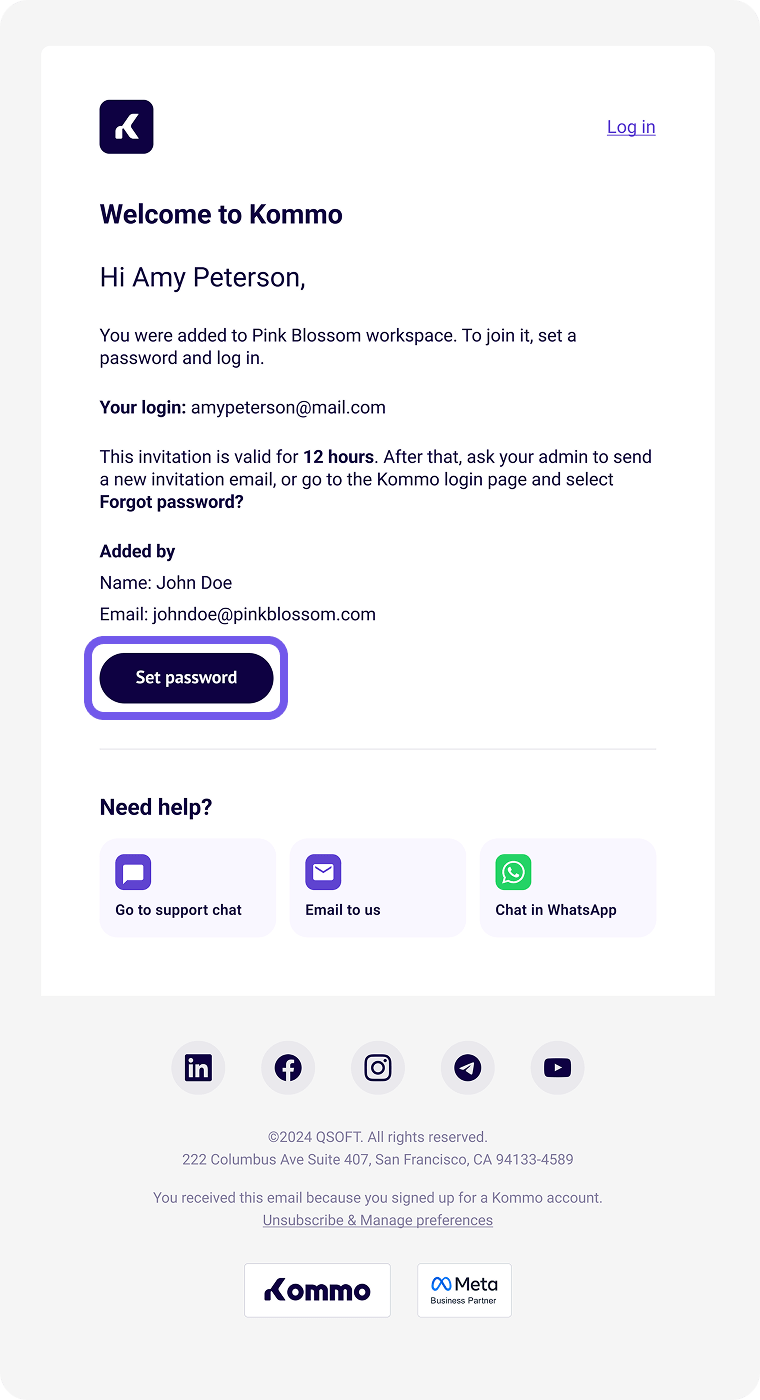
Kommo sends an invitation to the email address you entered. The invitation link is valid for 12 hours.
Add an existing Kommo user
Use these steps when the person you’re adding already has a Kommo account. They can join your workspace using their existing account and password.
To add them:
Go to Workspace settings → User management.
Click Add user.
Enter your teammate’s email address.
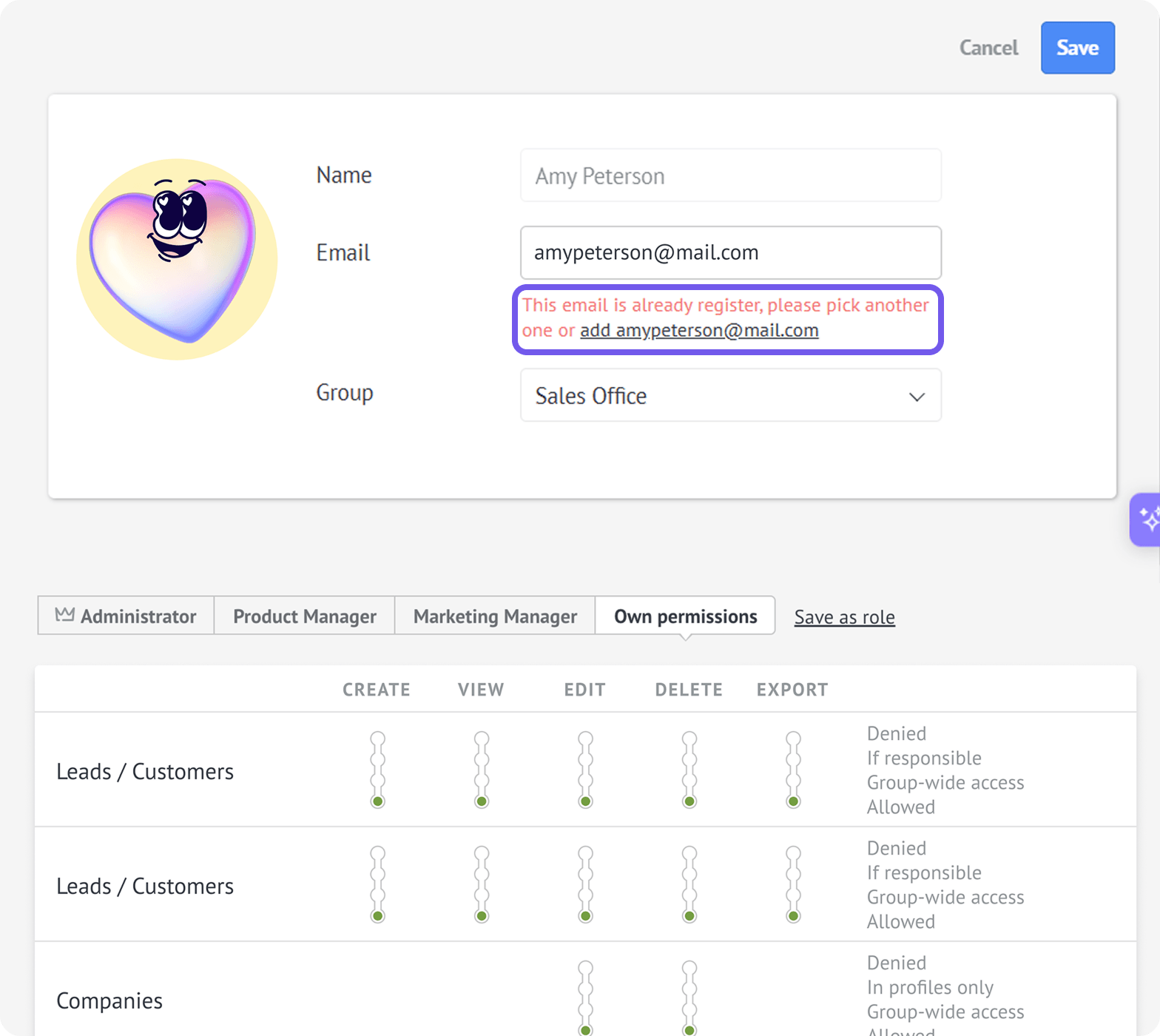
Kommo displays a message confirming that this user is already registered. Click Add [user email].
Optional: Assign them to a group and choose their permissions.
Click Save.
Kommo sends your teammate an invitation email with a link to your workspace. They don’t need to create or reset their password.
How a user joins your workspace
How a user joins your workspace depends on whether they’re new to Kommo or already have an account.
How a new Kommo user joins
A new Kommo user should:
Open the invitation email from Kommo.
Click the link in the email.
Follow the steps on the page to join the workspace.
Important: The password must contain at least 8 characters, including one uppercase letter, one lowercase letter, and at least one of these symbols: * ? & ! @. It can’t contain the user’s name, email address, or workspace subdomain. The new password must differ from their current one.
How an existing Kommo user joins
An existing Kommo user should:
Open the invitation email from Kommo.
Click the link to your workspace.
Sign in to their existing Kommo account if prompted.
They use their existing password and don’t need to set a new one.
Check a user’s invitation status
You can check the invitation status in User management to see whether the user has joined your workspace.
After you send the invitation, a yellow exclamation mark appears next to the user’s name.
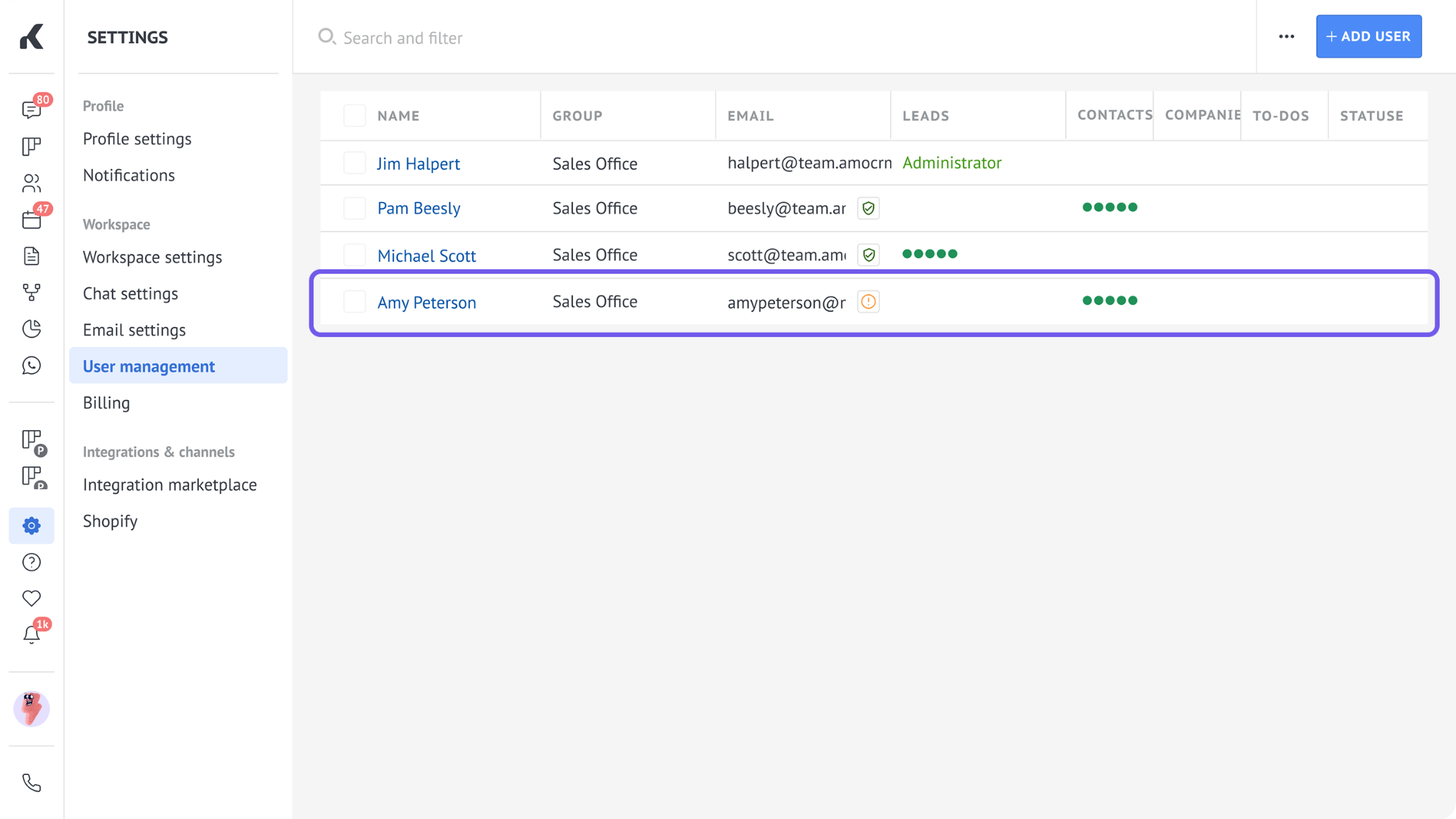
The yellow icon disappears after the user completes the setup.
If the invitation link expires, the exclamation mark icon turns red.
Note: A green shield next to a user’s name means they’ve set up two-step verification. Learn more in Set up two-step verification in Kommo.
Troubleshoot user invitations
If a user can’t use the invitation, check whether the email arrived and whether the invitation link is still valid.
Fix a missing invitation email
Ask the user to:
Check their spam, junk, promotions, and other filtered folders.
Make sure their inbox can receive new emails.
You should also check that their email address is correct in User management.
Resend an expired invitation
Invitation links for both new and existing Kommo users expire after 12 hours. You can send the user a new invitation from their profile.
To resend the invitation:
Go to Workspace settings → User management.
Open your teammate’s profile.
Click Resend.
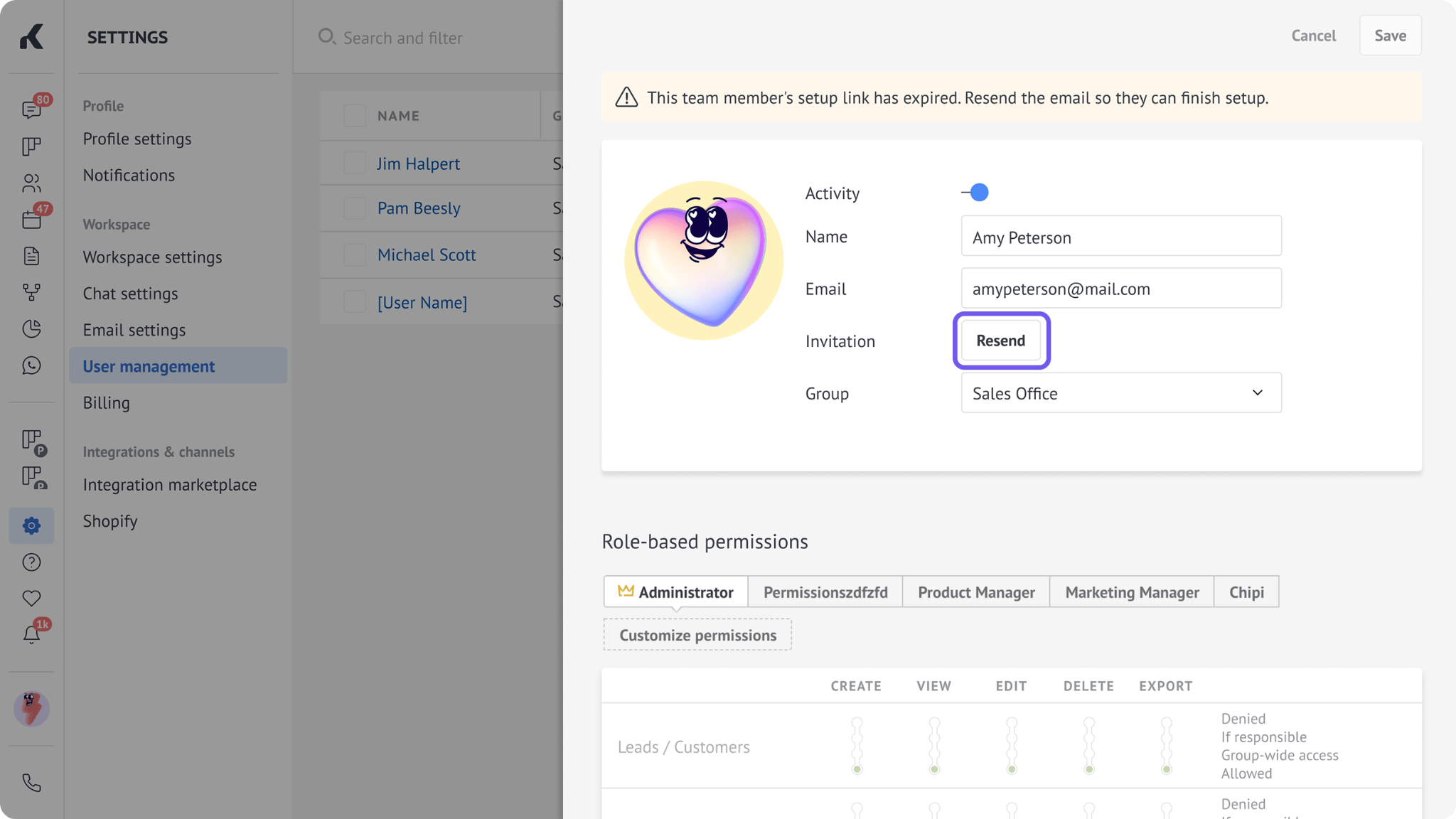
The Resend button becomes available 1 minute after the previous invitation was sent.
Use a password reset link instead
New and existing Kommo users can request a password reset link instead of using the invitation link. On the Kommo login page, the user should click Forgot password? and follow the steps to set a new password. They can then sign in and access the workspace.
For instructions, see Reset your password in Kommo.