Learn how to add teammates, organize users, set permissions, and manage access as your team changes.
What you’ll need:
Any Kommo plan (Base, Advanced, Pro, Enterprise, or a 14-day trial)
Administrator (Admin) access in Kommo
A valid email address for each teammate you add
Keep in mind:
Each invited teammate must accept their invitation before they can access the workspace
Group membership does not grant access by itself; visibility depends on the user’s permissions, including Team-wide access
Disabled users can be reactivated, while removed users are permanently deleted after their data is reassigned
Adding users may affect seat usage and billing; disabling or removing users does not automatically change your subscription
Managing users and access in Kommo helps Admins bring teammates into a workspace, give them the right access, and update or remove access as responsibilities change. It keeps collaboration organized, protects customer data, and preserves clear ownership of leads, contacts, conversations, and tasks.
Use cases
Onboard new teammates — Add people to your workspace so they can collaborate on leads, conversations, and tasks.
Match access to responsibilities — Give each person only the tools, pipelines, and data they need for their role.
Organize teams by function — Group users into teams such as Sales, Marketing, or Support to simplify visibility and access management.
Adapt when roles change — Update a user’s group, role, or permissions without creating a new account.
Offboard securely — Disable temporary access or permanently remove former teammates while preserving and reassigning their work.
Keep seat usage accurate — Track active and inactive users and understand how access changes may affect billing.
For step-by-step instructions, see Add users to your Kommo workspace and Manage seats in Kommo.
Add teammates
Invite teammates when they need to collaborate in your workspace. Each user gets their own login and works with the information available to them.
Best for: New sales reps, managers, support specialists, and other teammates joining your workflow
What they can work with: Leads, conversations, contacts, and tasks available through their assigned access
Main benefit: New teammates can start working with the right information without receiving unnecessary access
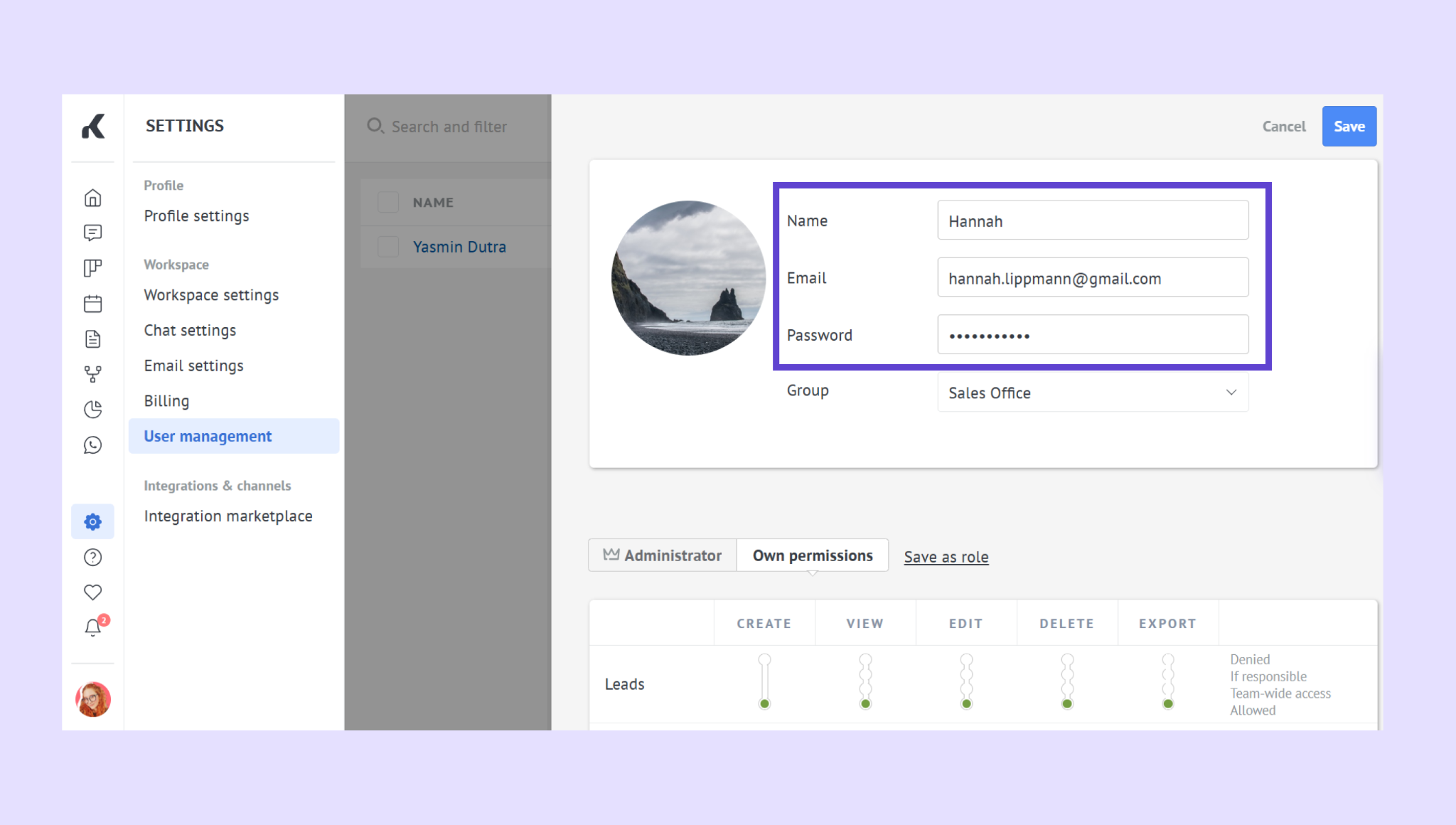
Learn how invitations work in our Add users to your Kommo workspace article.
Set roles and permissions
Use roles and permissions when teammates need different levels of access based on their responsibilities.
Permission settings apply only to the current workspace. Administrator role permissions cannot be edited.
Sales reps: Work only with their own leads and assigned conversations
Managers: Get team-wide visibility and access to the reports they need
Admins: Control viewing, editing, deleting, exporting, and access to pipelines, fields, inboxes, media, and automations
Main benefit: Clear access boundaries reduce accidental changes and keep sensitive information available only to the right people.
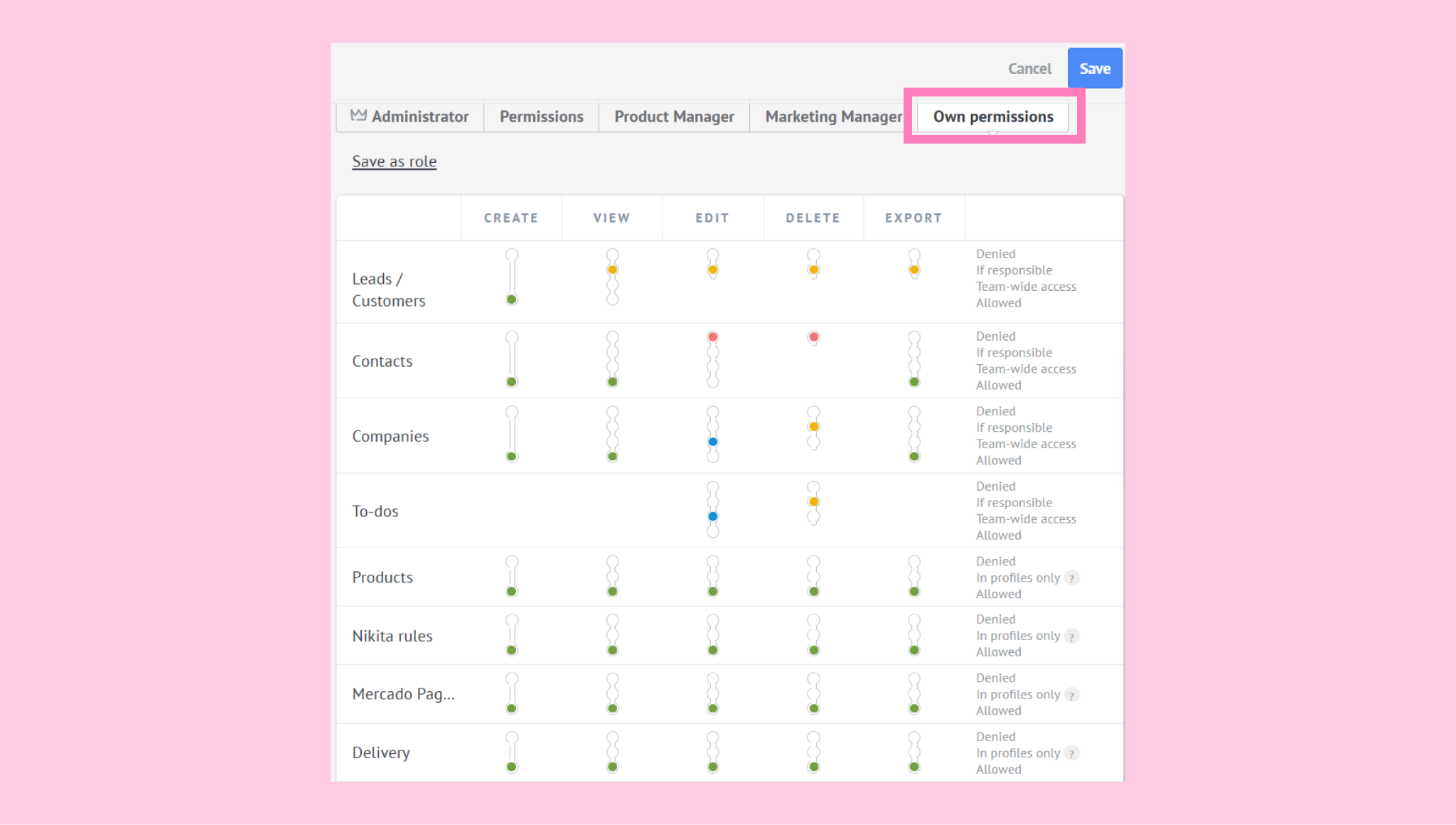
Explore the available controls in Set permissions and access levels in Kommo.
Organize users into groups
Create groups that reflect how your team is organized and how people work together.
Common group structures: Sales, Marketing, Support, regional teams, or separate business units
Use groups when: Several users share responsibilities or need access to the same leads
As your team changes: Move users between groups without recreating their accounts
Main benefit: Groups make users easier to organize and simplify team-wide visibility as your business grows.
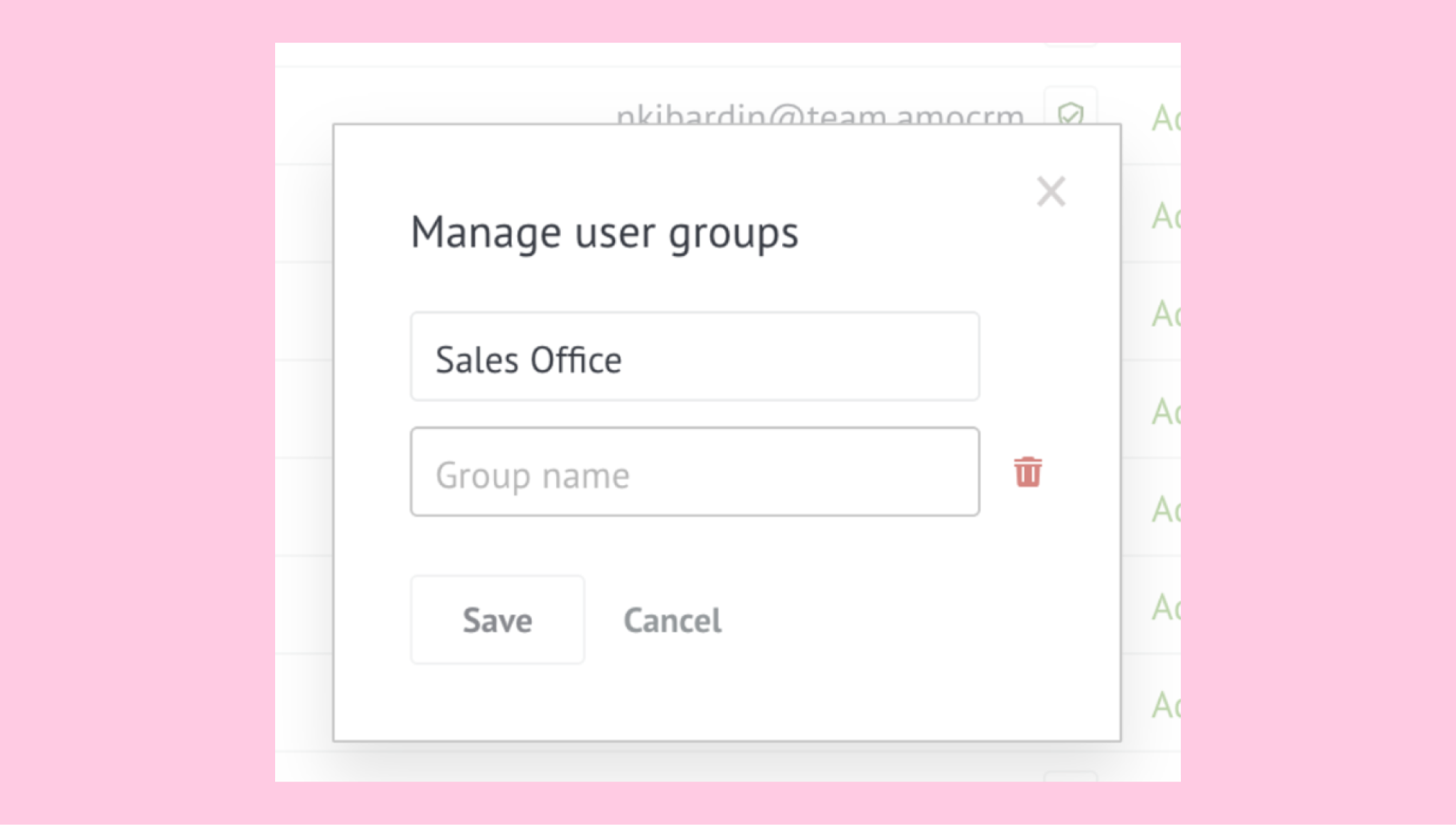
See Create user groups in Kommo for details.
Manage users and seats
Use user statuses as teammates join, take temporary leave, return, or leave your company.
Disable: Stop access temporarily when the user may return later
Reactivate: Restore access for a previously disabled user
Remove: End access permanently after the user’s data has been reassigned
What happens to their work: Leads, contacts, tasks, and conversation history can be reassigned so ongoing work stays with your team.
Billing: User status affects available seats, but changing a user’s status does not automatically adjust your subscription.
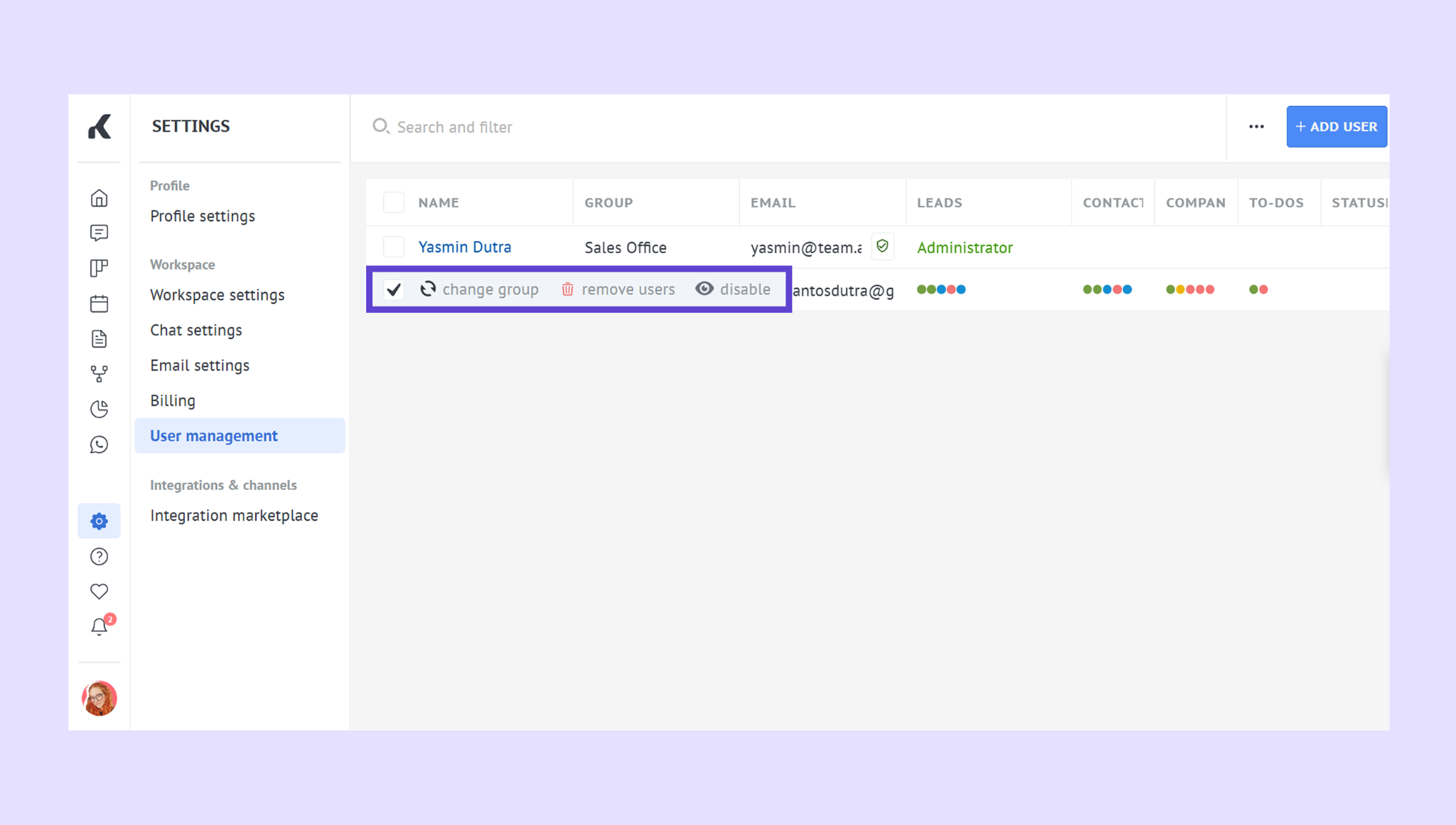
Review status and seat changes in Manage seats in Kommo.
Protect workspace access
Workspace security settings help Admins manage sign-in requirements and restrict access by IP address or country. For these workspace-wide controls, see Manage workspace security in Kommo.