What you’ll need:
A documented sales process with clear pipeline stages
Administrator (Admin) access in Kommo to create pipeline automations and workspace-wide rules
At least one repetitive action that happens under the same conditions
Test leads, contacts, conversations, and channels for checking each workflow
Keep in mind:
Automate a stable process. Automation cannot fix unclear ownership, inconsistent stages, or missing data.
Start with internal actions that are easy to reverse before automating client-facing messages or record movement.
Some automation tools, including Salesbot, broadcasts, advanced triggers, AI-agent capabilities, and integrations, depend on your Kommo plan or enabled package. Review Compare Kommo plans before you begin.
Every automation needs a clear owner, a test scenario, and a way to identify failures.
The AI agent replies to incoming messages. It cannot start conversations with clients.
Choose this guide if your team repeatedly assigns leads, creates tasks, updates fields, sends the same messages, follows up with inactive clients, moves records between stages, or copies information between Kommo and other tools.
The goal is to automate as much of the workflow as is useful without making the process difficult to understand or control. The safest approach is to start with small internal automations, confirm that they work, and gradually connect them into larger workflows.
Automation maturity ladder
Use this progression to decide what to automate next.
Automation type | Examples | Risk |
|---|---|---|
| Create tasks, notify teammates, add stage hints | Low |
| Assign users, add tags, update fields, complete tasks | Low to medium |
| Move qualified leads, create related leads, route between pipelines | Medium |
| Send templates, emails, confirmations, reminders, and follow-ups | Medium |
| Use bots for qualification, routing, forms, and no-response branches | Medium to high |
| Use AI tools and AI agents for replies, summaries, qualification, and handoff | High |
| Use segments, broadcasts, re-engagement, and ad audiences | High |
| Connect Kommo with external tools using integrations, Zapier, n8n, webhooks, or API | High |
Complete one level successfully before building the next. A simple workflow that runs reliably is more valuable than a complex workflow no one can explain.
Useful business use cases
Automatic lead capture: Create leads from forms, ads, messenger channels, calls, bookings, or online stores without copying data manually.
Fast first response: Assign the lead, create a response task, and send an approved confirmation as soon as the inquiry arrives.
Consistent qualification: Collect the same required information and route qualified leads to the correct team.
Reliable follow-up: Create tasks or send reminders when a proposal is sent, a client stops replying, or a deadline approaches.
Automatic handoffs: Reassign ownership and create the next task when the lead moves from marketing to sales, sales to onboarding, or sales to account management.
Data maintenance: Add tags, update fields, complete outdated tasks, and keep records consistent as leads move through the pipeline.
Appointment workflows: Send booking links, create reminders, and use the AI agent to manage supported booking requests.
Lifecycle communication: Send onboarding information, renewal reminders, re-engagement messages, or client updates to the right segment.
Cross-system processes: Send data to finance, fulfillment, analytics, spreadsheets, calendars, or other business tools.
Step 1. Map the manual workflow first
Before adding a trigger, write down the current process from start to finish.
For each step, record:
What starts the step
Which conditions must be true
Who performs the action
What information is required
What result should be created
What should happen when information is missing
What should happen when the action fails
A useful automation statement follows this structure:
When [event] happens, if [conditions are true], Kommo should [perform action], and the team should see [expected result].
Example:
When a lead enters Proposal sent, if it has a responsible user, Kommo should create a follow-up task due in three days.
Choose the first automation
Start with an action that:
Happens frequently
Uses clear conditions
Has one predictable result
Is easy to verify
Does not contact the client automatically
Can be corrected without affecting many records
A follow-up task is usually the safest first automation.
Related articles: Plan your Kommo setup and Set up Kommo for a sales team.
Step 2. Prepare the pipeline and data
Most Kommo automations are connected to pipeline stages. Each stage should represent a real point in the sales process.
For example:
New inquiry
First response due
Qualification
Proposal sent
Follow-up
Payment or agreement
Won or lost
Before automating a stage, confirm:
The team uses the stage consistently
The responsible user is clear
Required fields are available
The conditions can be identified through fields, tags, source, stage, or other record data
The team knows which actions remain manual
Use stage hints to explain what happens automatically and what the user still needs to do.
.png)
Related articles: Set up your first sales pipeline and Set up digital pipeline triggers.
Level 1. Automate internal reminders
Internal reminders reduce missed work without changing client communication or moving records.
Create tasks automatically
Create tasks when:
A new inquiry needs a first response
A lead enters qualification
A proposal is sent
A client asks to be contacted later
A booking or payment deadline approaches
A lead has been inactive for a defined period
A won lead needs onboarding
Set a clear task type, deadline, responsible user, and comment. Avoid vague tasks such as “Follow up” without context.
Set up the trigger:
Go to Pipelines → select a pipeline → Automate.
Click + under the stage where the task should be created and select Add task.
Add the conditions that identify the correct leads.
Choose the execution rule, such as when a lead moves to this stage.
Set the deadline, responsible user, task type, and a clear comment.
Click Save.
.png)
Expected result: When a lead meets the conditions, Kommo creates one task with the selected deadline and responsible user.
Test it: Move a test lead into the stage, confirm that one task is created, and repeat the event to check that your settings do not create an unwanted duplicate.
Notify the right teammate
Use notifications or internal messages when:
A high-value lead arrives
A task becomes overdue
A client requests a specialist
A lead reaches an approval stage
An integration or automated flow requires human review
Do not notify everyone about every action. Too many alerts make important exceptions harder to notice.
Where to go: Go to Pipelines → select a pipeline → Automate. Click + under the relevant stage, select Salesbot, and choose an existing Salesbot or create a new one.
In the visual builder, add the Internal message step.
Enter the notification and select the responsible user or users who should receive it.
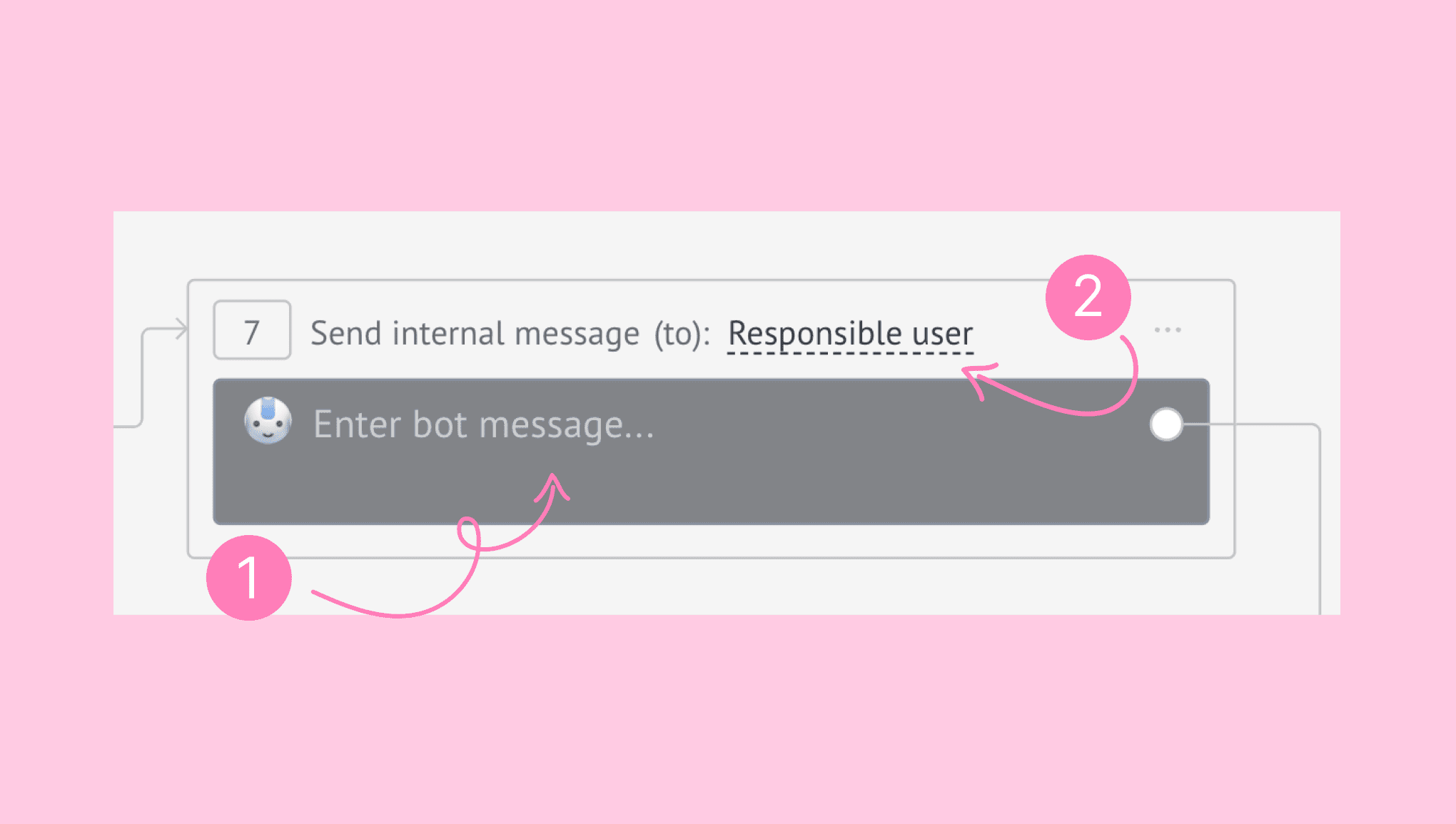
Connect the step to the correct branch and define when the Salesbot should run.
Save the Salesbot and the pipeline trigger.
Expected result: When the Salesbot reaches this step, the selected teammates receive the internal message and the client does not see it.
Test it: Run the Salesbot with a test lead and confirm that only the selected recipients receive the message. See Salesbot overview for complete setup details.
Complete obsolete tasks
Complete selected tasks automatically when a lead moves to a stage that makes them unnecessary. For example, complete the Proposal follow-up task when the lead moves to Payment received.
Where to go: Go to Pipelines → select a pipeline → Automate. Click + under the destination stage and select Complete tasks. Add the lead conditions and execution rule, select the task type and deadline conditions, add a completion comment if needed, and click Save.
Expected result: When a lead meets the conditions, Kommo completes only the selected matching tasks.
Test it: Move a test lead with a matching open task into the stage and confirm that only the intended task is completed.
Related articles: Tasks & calendar overview and Create and assign tasks.
Level 2. Automate lead organization
Once task automation works reliably, automate the record updates your team currently repeats.
Assign responsible users
Assign leads based on:
Source or advertising campaign
Product or service
Region or language
Business hours or team
Client type
Lead value or priority
Define a fallback owner for leads that do not match any rule. Test what happens when the intended teammate is inactive or unavailable.
Where to go: Go to Pipelines → select a pipeline → Automate and add the Change lead’s user trigger. Define the lead conditions and execution rule, select the new responsible user, choose whether related contacts or companies should also be reassigned, and click Save.
Expected result: Kommo reassigns matching leads to the selected user and leaves non-matching leads unchanged.
Test it: Use a matching and a non-matching test lead to confirm that only the intended lead is reassigned.
Add or remove tags
Use tags for operational labels such as:
VIP
Demo requested
Needs manager approval
Returning client
Qualified by bot
Re-engagement eligible
Use fields instead of tags when the value must be reported, validated, updated regularly, or limited to one option.
Where to go: Go to Pipelines → select a pipeline → Automate and add the Edit tags trigger. Define the lead conditions and execution rule, choose Add tag or Remove tag, select the tags, and click Save.
Expected result: Kommo adds or removes the selected tags only when the lead meets the conditions.
Test it: Use matching and non-matching test leads to confirm that tags change only under the selected conditions.
Update fields
Automatically update fields when a stable rule applies. Examples include:
Set Lead source when a record arrives through a specific integration
Set Client type when a lead enters a customer pipeline
Set Handoff status when responsibility changes
Add a service or region value based on the intake route
Record an expected next step
Do not overwrite information entered by a teammate or client unless the rule is unambiguous.
Where to go: Go to Pipelines → select a pipeline → Automate and add the Change field trigger. Define the lead conditions and execution rule, choose the field and value that Kommo should set, and click Save.
Expected result: Kommo sets the selected value only for leads that meet the conditions.
Test it: Use a test lead with an empty field and another with an existing value to confirm that the trigger does not overwrite information unexpectedly.
Related articles: Manage tags in Kommo and Configure custom fields.
Level 3. Automate pipeline movement
Moving records automatically can save time, but it also changes reports, ownership, and downstream actions. Add this only after the stage conditions are reliable.
Move leads between stages
Useful cases include:
Move a qualified lead to the specialist team
Move a lead to Waiting for client after a message is sent
Move a lead to Booking confirmed when a booking is created
Move a paid order to Fulfillment
Move an ineligible request to the correct closed stage
Avoid moving leads based only on time if the team still needs to review them.
Where to go: Go to Pipelines → select a pipeline → Automate and add the Change lead stage trigger. Define the lead conditions and execution rule, select the destination pipeline and stage, and click Save.
Expected result: Kommo moves matching leads to the selected destination stage and leaves non-matching leads unchanged.
Test it: Use matching and non-matching test leads to confirm that only ready leads move and that downstream automations run once.
Create related leads
Create another lead automatically when one client starts a separate sales process. For example:
A client buys a second product handled by another team
A won project creates an onboarding lead
A renewal opportunity should be managed separately
A referral should become a new lead linked to the original contact
Choose carefully which fields, tags, contacts, companies, and ownership values should be copied.
Where to go: Go to Pipelines → select a pipeline → Automate and add the Create lead trigger. Define the conditions and execution rule, select the contact, company, fields, tags, sales value, and responsible user to copy, choose the destination pipeline and stage, and click Save.
Expected result: Kommo creates one new lead in the selected pipeline and stage with only the information you chose to copy.
Test it: Run the trigger with a test lead and confirm that one new lead is created with the intended links and copied information.
Automate pipeline handoffs
A complete handoff can:
Move the lead to another pipeline
Change the responsible user
Add a handoff tag or field value
Complete sales tasks
Create the first task for the receiving team
Notify the new owner
Make sure the receiving team can see the full history and knows what information must be complete before the handoff.
Related articles: Automate pipeline actions and Move leads through pipeline stages.
Level 4. Automate client communication
Client-facing automation has a larger impact. Add it only after the correct channel, recipient, timing, and message are confirmed.
Prepare reusable templates
Create templates for:
Inquiry confirmation
Qualification questions
Booking invitation
Proposal follow-up
Payment reminder
Order or project update
No-response follow-up
Onboarding instructions
Renewal reminder
Use placeholders to personalize messages with lead, contact, company, booking, or user information.
Send automatic emails
Automatic emails are useful for confirmations, documents, proposals, onboarding information, and scheduled follow-ups. Confirm that:
The correct mailbox is connected
The main contact has a valid email
The template is appropriate for the stage
The email will not be sent repeatedly
Unsubscribe requirements are handled where relevant
Send automatic messenger messages
Use a bot or approved template when sending through a messenger channel. Channel-specific windows, consent, template approval, content formats, and pricing may apply.
For message-heavy workflows, see Manage client messages in Kommo.
Automate no-response follow-ups
A useful no-response flow checks that:
The client has not replied
The lead is still active
No teammate has already completed the follow-up
The channel still allows the message
The client has not opted out
Limit the number of automated follow-ups and create a final human-review task instead of continuing indefinitely.
Related articles: Create and use chat templates and Create and use email templates.
Level 5. Automate structured conversations with bots
Use a bot when the workflow follows a predictable decision tree.
Bots can:
Welcome new leads
Ask qualification questions
Offer quick-reply buttons or menus
Collect contact information
Validate responses
Add tags or update fields
Create tasks
Assign or transfer leads
Move leads through stages
Send files, links, and templates
Handle no-answer branches
Request opt-in or feedback
Build the first bot
A safe first bot may follow this sequence:
Send a welcome message
Ask what the client needs
Collect one or two required details
Add a tag or update a field
Create a task for the right teammate
Confirm that the team will continue the conversation
Add an alternative path for an unexpected answer and a no-response path. Keep a human handoff available.
See Create a Salesbot in Kommo and Use Salesbot templates.
Related articles: Create a Salesbot in Kommo and Use Salesbot templates.
Level 6. Add AI-assisted automation
AI is useful when the input varies and fixed rules cannot cover every conversation. Use it after the business information and handoff rules are ready.
Use Kommo AI core tools
AI reply suggestions: Draft replies using the conversation and knowledge sources.
AI rewriter: Improve grammar, clarity, tone, and length.
AI suggestions: Recommend improvements while a teammate writes.
Conversation Summary: Summarize long conversations before a follow-up or handoff.
Task Suggestions: Turn client commitments into follow-up tasks.
Copilot: Summarize records, identify unanswered questions, and suggest missing field values for confirmation.
These tools support teammates without fully taking control of the conversation. Learn more in Kommo AI overview.
Use the AI agent
The AI agent can automate incoming conversations using your knowledge sources, Persona, Actions, and connected integrations.
Depending on your plan and setup, it can:
Answer incoming questions
Understand the client’s intent
Collect missing information
Qualify leads
Recommend products or services
Update supported lead information
Start a bot
Create tasks or transfer the conversation
Manage supported booking requests
Process supported voice messages
The AI agent only replies to incoming messages. Use tasks, templates, broadcasts, or teammates for proactive outreach.
Prepare the AI agent
Add accurate knowledge sources
Set the role, tone, language, reply length, delay, and guidelines
Create clear Actions with positive and negative examples
Define human-handoff situations
Select the correct channels and pipeline stages
Test common, unclear, urgent, negative, and out-of-scope requests
Review answered conversations, unanswered questions, handover rate, response time, and credit usage
See Kommo AI agent overview and Work with AI agents.
Related articles: Kommo AI overview, Kommo AI agent overview, and Work with AI agents.
Level 7. Automate lifecycle communication
Once individual workflows work reliably, automate communication for groups of leads.
Create dynamic segments
Segments can update automatically based on conditions such as:
Pipeline stage
Lead source
Tags
Sales value
Conversation activity
Last contact date
Product or client type
Useful segments include:
New leads not contacted within the response target
Qualified leads without a booking
Proposals with no response
Inactive leads ready for re-engagement
Won clients approaching renewal
Clients eligible for another product
See Segments overview.
Send targeted broadcasts
Use broadcasts for:
Appointment and payment reminders
Service or policy updates
Product launches
Event invitations
Onboarding information
Feedback requests
Re-engagement campaigns
Respect channel-specific consent, templates, messaging windows, content limits, and pricing. See Broadcasting overview.
Use advertising audiences
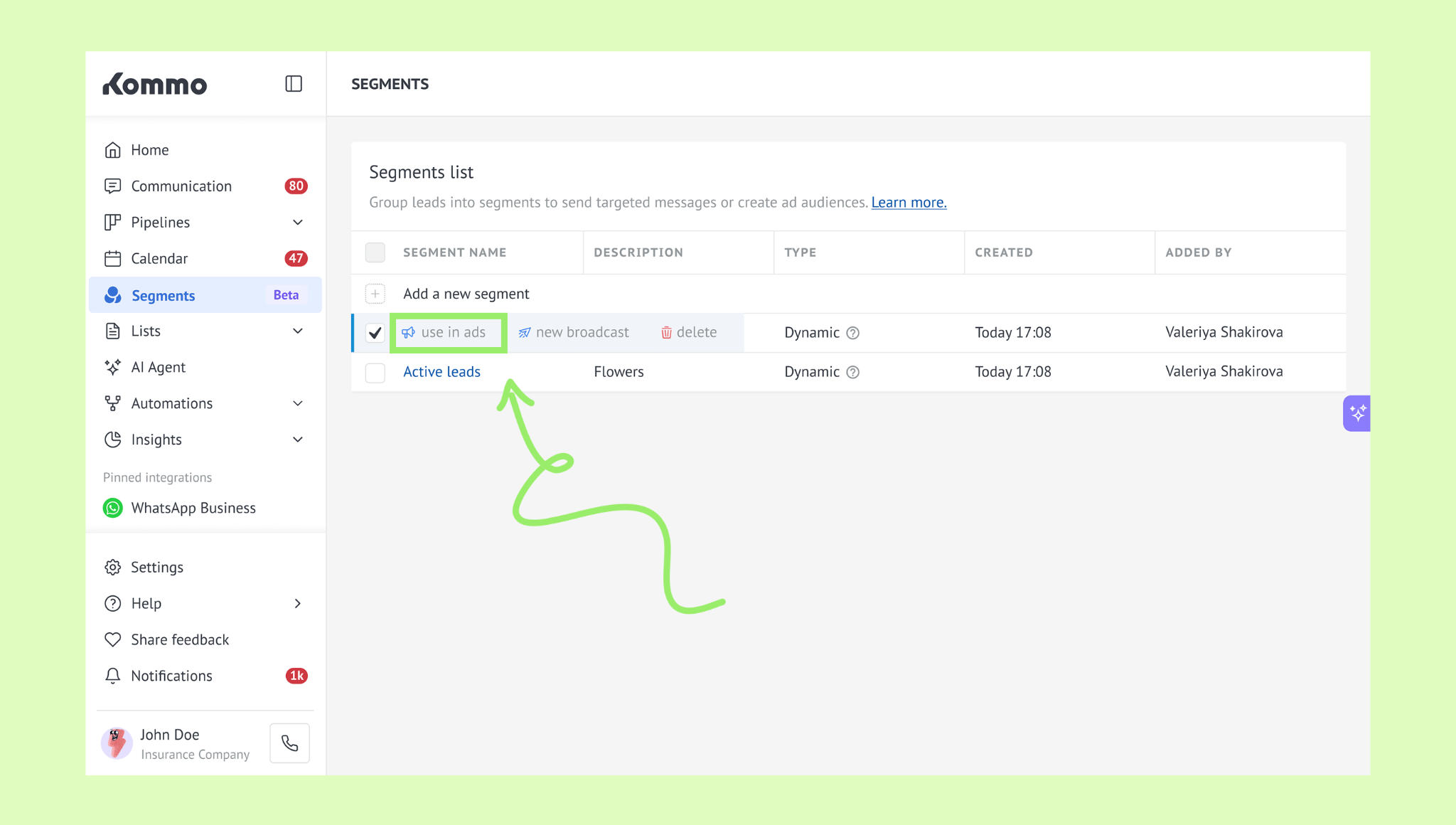
On supported plans, pipeline-stage ad tools can update advertising audiences automatically. You can also send a segment to Google Ads or Facebook Ads for a campaign.
Note: Segment audiences do not sync automatically. If a segment changes after it is sent to Google Ads or Facebook Ads, send it again to update the audience.
For example, exclude active sales opportunities from acquisition campaigns or retarget qualified leads who have not booked. See Segments overview to learn more.
Related articles: Segments overview and Broadcasting overview.
Level 8. Connect external systems
Use cross-system automation when the process cannot be completed inside Kommo alone.
Use native integrations first
Native integrations are usually the easiest to maintain. Examples include:
Advertising platforms
Website and form tools
Messaging channels
Calendars and booking tools
Online stores
Telephony
Payment and invoicing tools
Analytics platforms
Choose the system that should be the source of truth for each value. Avoid two tools repeatedly overwriting the same field.
Use Zapier for no-code connections
Zapier can connect Kommo with external apps using triggers and actions. Common workflows include:
Add new Kommo leads to Google Sheets
Create or update Kommo records from another app
Synchronize calendars
Send data to reporting or operational tools
Add filters, delays, branches, or formatting steps
Use n8n for low-code workflows
n8n is useful for multi-step workflows that need custom logic, validation, enrichment, or several connected services. See n8n overview.
Use webhooks for event-based integration
Webhooks can send Kommo events to another system when a lead, contact, company, task, incoming message, or other supported record changes.
Use them when another application needs to react immediately to activity in Kommo. See Manage webhooks in Kommo.
Use API for custom workflows
Use API development when the business needs a custom integration, complex two-way synchronization, higher control, or behavior not supported by native tools.
For advanced integrations, document:
Authentication and ownership
Field mapping
Source of truth
Duplicate handling
Retry behavior
Error logging
Rate limits
Fallback process
Related articles: Connect Zapier to Kommo, Connect n8n to Kommo, and Manage webhooks in Kommo.
Example end-to-end workflow
A complete automated sales workflow may look like this:
A client submits a website form or sends a WhatsApp message.
Kommo creates or matches the lead and contact.
The lead is tagged and assigned by product and region.
A first-response task is created.
A bot or AI agent collects qualification information.
Qualified leads move to the specialist stage.
The responsible teammate receives a task and conversation summary.
A booking link or proposal is sent.
If the client does not reply, a controlled follow-up runs.
When payment is confirmed, the lead moves to Won.
A new onboarding lead or task is created for the next team.
Relevant data is sent to fulfillment, finance, or analytics through an integration.
The client enters the correct onboarding or renewal segment.
Build this workflow one section at a time. Do not launch the full chain before every individual action has been tested.
Test every automation
Use at least four test cases:
Test case | What to confirm |
|---|---|
Positive case | The correct record meets the conditions and the expected action runs once. |
Negative case | A record that does not meet the conditions is not changed. |
Missing-data case | The workflow does not send incorrect messages or move incomplete records unexpectedly. |
Repeat case | Moving a lead back into the stage or receiving another event does not create duplicate tasks, messages, leads, or external records. |
For client-facing and cross-system workflows, also test:
Wrong or unavailable channel
Expired messaging window
Inactive responsible user
Duplicate contact
Integration delay or failure
API or webhook retry
Bot or AI-agent handoff
Returning client
Manage automations as the workflow grows
For every automation, record:
Name and business purpose
Pipeline and stage
Trigger and conditions
Actions performed
Responsible owner
Dependencies
Plan or integration requirements
Test date and result
Fallback process
Review automations when:
A pipeline stage changes
A teammate, team, or responsibility changes
A product, price, or policy changes
A channel or integration is replaced
A template is updated
Duplicate tasks or messages appear
Reports no longer match the real process
Archive unused triggers, templates, bots, tags, segments, and integrations. Old automations are difficult to notice and can continue affecting new records.
Recommended automation roadmap
Create a first-response task for new leads.
Create a proposal follow-up task.
Assign leads by one reliable condition.
Add one source or qualification tag.
Update one field automatically.
Complete outdated tasks when a lead advances.
Automate one pipeline handoff.
Prepare reusable client templates.
Add one controlled confirmation or reminder.
Build one short bot flow.
Add Kommo AI tools for teammate assistance.
Configure the AI agent for one incoming-message use case.
Create one dynamic segment and targeted broadcast.
Connect one external system using a native integration.
Use Zapier, n8n, webhooks, or API only when the native workflow is not enough.
Launch checklist
The manual workflow is documented and used consistently
Each automation has a clear trigger, conditions, action, owner, and expected result
Internal automations work before client-facing actions are enabled
Responsible users and fallback owners are defined
Required fields, tags, and source values are available
Automated messages use the correct recipient, channel, template, and timing
Bot and AI-agent handoff paths are tested
Duplicate tasks, messages, leads, and external records are prevented
Positive, negative, missing-data, and repeat cases have been tested
External integrations have error handling and a fallback process
The team knows which actions are automated and which remain manual
Automation results are reviewed regularly
Unused or outdated automations are disabled
Best first result
A routine internal action happens automatically under the correct conditions, creates a visible result, does not run twice, and saves the team time without making the sales process harder to understand.
What you’ll need:
A documented sales process with clear pipeline stages
Administrator (Admin) access in Kommo to create pipeline automations and workspace-wide rules
At least one repetitive action that happens under the same conditions
Test leads, contacts, conversations, and channels for checking each workflow
Keep in mind:
Automate a stable process. Automation cannot fix unclear ownership, inconsistent stages, or missing data.
Start with internal actions that are easy to reverse before automating client-facing messages or record movement.
Some automation tools, including Salesbot, broadcasts, advanced triggers, AI-agent capabilities, and integrations, depend on your Kommo plan or enabled package. Review Compare Kommo plans before you begin.
Every automation needs a clear owner, a test scenario, and a way to identify failures.
The AI agent replies to incoming messages. It cannot start conversations with clients.
Choose this guide if your team repeatedly assigns leads, creates tasks, updates fields, sends the same messages, follows up with inactive clients, moves records between stages, or copies information between Kommo and other tools.
The goal is to automate as much of the workflow as is useful without making the process difficult to understand or control. The safest approach is to start with small internal automations, confirm that they work, and gradually connect them into larger workflows.
Automation maturity ladder
Use this progression to decide what to automate next.
Automation type | Examples | Risk |
|---|---|---|
| Create tasks, notify teammates, add stage hints | Low |
| Assign users, add tags, update fields, complete tasks | Low to medium |
| Move qualified leads, create related leads, route between pipelines | Medium |
| Send templates, emails, confirmations, reminders, and follow-ups | Medium |
| Use bots for qualification, routing, forms, and no-response branches | Medium to high |
| Use AI tools and AI agents for replies, summaries, qualification, and handoff | High |
| Use segments, broadcasts, re-engagement, and ad audiences | High |
| Connect WhatsApp Business, Instagram, or TikTok to manage client conversations in Kommo | Medium |
Complete one level successfully before building the next. A simple workflow that runs reliably is more valuable than a complex workflow no one can explain.
Useful business use cases
Automatic lead capture: Create leads from forms, ads, messenger channels, calls, bookings, or online stores without copying data manually.
Fast first response: Assign the lead, create a response task, and send an approved confirmation as soon as the inquiry arrives.
Consistent qualification: Collect the same required information and route qualified leads to the correct team.
Reliable follow-up: Create tasks or send reminders when a proposal is sent, a client stops replying, or a deadline approaches.
Automatic handoffs: Reassign ownership and create the next task when the lead moves from marketing to sales, sales to onboarding, or sales to account management.
Data maintenance: Add tags, update fields, complete outdated tasks, and keep records consistent as leads move through the pipeline.
Appointment workflows: Send booking links, create reminders, and use the AI agent to manage supported booking requests.
Lifecycle communication: Send onboarding information, renewal reminders, re-engagement messages, or client updates to the right segment.
Connected conversations: Bring messages and comments from WhatsApp Business, Instagram, and TikTok into Kommo and keep them linked to the correct lead.
Before you automate
Before adding a trigger:
Map the workflow: Identify what starts it, the required conditions and data, who owns the action, the expected result, and what should happen if data is missing or the action fails.
Prepare the pipeline and data: Confirm that the team uses the stage consistently, the responsible user and required fields are clear, and the conditions can be identified in Kommo. Use stage hints to clarify what remains manual.
Choose a safe first automation: Start with a frequent, predictable, easy-to-test action that can be corrected without contacting clients. A follow-up task is usually the safest option.
Define the rule: When [event] happens, if [conditions are true], Kommo should [perform action], and the team should see [expected result]. For example: When a lead enters Proposal sent, Kommo should create a follow-up task due in three days.
Related articles: Plan your Kommo setup, Set up Kommo for a sales team, Set up your first sales pipeline, and Set up digital pipeline triggers.
Level 1. Automate internal reminders
Internal reminders reduce missed work without changing client communication or moving records.
Create tasks automatically
Create tasks when:
A new inquiry needs a first response
A lead enters qualification
A proposal is sent
A client asks to be contacted later
A booking or payment deadline approaches
A lead has been inactive for a defined period
A won lead needs onboarding
Set a clear task type, deadline, responsible user, and comment. Avoid vague tasks such as “Follow up” without context.
Set up the trigger:
Go to Pipelines → select a pipeline → Automate.
Click + under the stage where the task should be created and select Add task.
Add the conditions that identify the correct leads.
Choose the execution rule, such as when a lead moves to this stage.
Set the deadline, responsible user, task type, and a clear comment.
Click Save.
Expected result: When a lead meets the conditions, Kommo creates one task with the selected deadline and responsible user.
Test it: Move a test lead into the stage, confirm that one task is created, and repeat the event to check that your settings do not create an unwanted duplicate.
Notify the right teammate
Use notifications or internal messages when:
A high-value lead arrives
A task becomes overdue
A client requests a specialist
A lead reaches an approval stage
An integration or automated flow requires human review
Do not notify everyone about every action. Too many alerts make important exceptions harder to notice.
Where to go: Go to Pipelines → select a pipeline → Automate. Click + under the relevant stage, select Salesbot, and choose an existing Salesbot or create a new one.
In the visual builder, add the Internal message step.
Enter the notification and select the responsible user or users who should receive it.
Connect the step to the correct branch and define when the Salesbot should run.
Save the Salesbot and the pipeline trigger.
Expected result: When the Salesbot reaches this step, the selected teammates receive the internal message and the client does not see it.
Test it: Run the Salesbot with a test lead and confirm that only the selected recipients receive the message. See Salesbot overview for complete setup details.
Complete obsolete tasks
Complete selected tasks automatically when a lead moves to a stage that makes them unnecessary. For example, complete the Proposal follow-up task when the lead moves to Payment received.
Where to go: Go to Pipelines → select a pipeline → Automate. Click + under the destination stage and select Complete tasks. Add the lead conditions and execution rule, select the task type and deadline conditions, add a completion comment if needed, and click Save.
Expected result: When a lead meets the conditions, Kommo completes only the selected matching tasks.
Test it: Move a test lead with a matching open task into the stage and confirm that only the intended task is completed.
Related articles: Tasks & calendar overview and Create and assign tasks.
Level 2. Automate lead organization
Once task automation works reliably, automate the record updates your team currently repeats.
Assign responsible users
Assign leads based on:
Source or advertising campaign
Product or service
Region or language
Business hours or team
Client type
Lead value or priority
Define a fallback owner for leads that do not match any rule. Test what happens when the intended teammate is inactive or unavailable.
Where to go: Go to Pipelines → select a pipeline → Automate and add the Change lead’s user trigger. Define the lead conditions and execution rule, select the new responsible user, choose whether related contacts or companies should also be reassigned, and click Save.
Expected result: Kommo reassigns matching leads to the selected user and leaves non-matching leads unchanged.
Test it: Use a matching and a non-matching test lead to confirm that only the intended lead is reassigned.
Add or remove tags
Use tags for operational labels such as:
VIP
Demo requested
Needs manager approval
Returning client
Qualified by bot
Re-engagement eligible
Use fields instead of tags when the value must be reported, validated, updated regularly, or limited to one option.
Where to go: Go to Pipelines → select a pipeline → Automate and add the Edit tags trigger. Define the lead conditions and execution rule, choose Add tag or Remove tag, select the tags, and click Save.
Expected result: Kommo adds or removes the selected tags only when the lead meets the conditions.
Test it: Use matching and non-matching test leads to confirm that tags change only under the selected conditions.
Update fields
Automatically update fields when a stable rule applies. Examples include:
Set Lead source when a record arrives through a specific integration
Set Client type when a lead enters a customer pipeline
Set Handoff status when responsibility changes
Add a service or region value based on the intake route
Record an expected next step
Do not overwrite information entered by a teammate or client unless the rule is unambiguous.
Where to go: Go to Pipelines → select a pipeline → Automate and add the Change field trigger. Define the lead conditions and execution rule, choose the field and value that Kommo should set, and click Save.
Expected result: Kommo sets the selected value only for leads that meet the conditions.
Test it: Use a test lead with an empty field and another with an existing value to confirm that the trigger does not overwrite information unexpectedly.
Related articles: Manage tags in Kommo and Configure custom fields.
Level 3. Automate pipeline movement
Moving records automatically can save time, but it also changes reports, ownership, and downstream actions. Add this only after the stage conditions are reliable.
Move leads between stages
Useful cases include:
Move a qualified lead to the specialist team
Move a lead to Waiting for client after a message is sent
Move a lead to Booking confirmed when a booking is created
Move a paid order to Fulfillment
Move an ineligible request to the correct closed stage
Avoid moving leads based only on time if the team still needs to review them.
Where to go: Go to Pipelines → select a pipeline → Automate and add the Change lead stage trigger. Define the lead conditions and execution rule, select the destination pipeline and stage, and click Save.
Expected result: Kommo moves matching leads to the selected destination stage and leaves non-matching leads unchanged.
Test it: Use matching and non-matching test leads to confirm that only ready leads move and that downstream automations run once.
Create related leads
Create another lead automatically when one client starts a separate sales process. For example:
A client buys a second product handled by another team
A won project creates an onboarding lead
A renewal opportunity should be managed separately
A referral should become a new lead linked to the original contact
Choose carefully which fields, tags, contacts, companies, and ownership values should be copied.
Where to go: Go to Pipelines → select a pipeline → Automate and add the Create lead trigger. Define the conditions and execution rule, select the contact, company, fields, tags, sales value, and responsible user to copy, choose the destination pipeline and stage, and click Save.
Expected result: Kommo creates one new lead in the selected pipeline and stage with only the information you chose to copy.
Test it: Run the trigger with a test lead and confirm that one new lead is created with the intended links and copied information.
Automate pipeline handoffs
A complete handoff can:
Move the lead to another pipeline
Change the responsible user
Add a handoff tag or field value
Complete sales tasks
Create the first task for the receiving team
Notify the new owner
Make sure the receiving team can see the full history and knows what information must be complete before the handoff.
Related articles: Automate pipeline actions and Move leads through pipeline stages.
Level 4. Automate client communication
Client-facing automation has a larger impact. Add it only after the correct channel, recipient, timing, and message are confirmed.
Prepare reusable templates
Create templates for:
Inquiry confirmation
Qualification questions
Booking invitation
Proposal follow-up
Payment reminder
Order or project update
No-response follow-up
Onboarding instructions
Renewal reminder
Use placeholders to personalize messages with lead, contact, company, booking, or user information.
Send automatic emails
Automatic emails are useful for confirmations, documents, proposals, onboarding information, and scheduled follow-ups. Confirm that:
The correct mailbox is connected
The main contact has a valid email
The template is appropriate for the stage
The email will not be sent repeatedly
Unsubscribe requirements are handled where relevant
Send automatic messenger messages
Use a bot or approved template when sending through a messenger channel. Channel-specific windows, consent, template approval, content formats, and pricing may apply.
For message-heavy workflows, see Manage client messages in Kommo.
Automate no-response follow-ups
A useful no-response flow checks that:
The client has not replied
The lead is still active
No teammate has already completed the follow-up
The channel still allows the message
The client has not opted out
Limit the number of automated follow-ups and create a final human-review task instead of continuing indefinitely.
Related articles: Create and use chat templates and Create and use email templates.
Level 5. Automate structured conversations with bots
Use a bot when the workflow follows a predictable decision tree.
Bots can:
Welcome new leads
Ask qualification questions
Offer quick-reply buttons or menus
Collect contact information
Validate responses
Add tags or update fields
Create tasks
Assign or transfer leads
Move leads through stages
Send files, links, and templates
Handle no-answer branches
Request opt-in or feedback
Build the first bot
A safe first bot may follow this sequence:
Send a welcome message
Ask what the client needs
Collect one or two required details
Add a tag or update a field
Create a task for the right teammate
Confirm that the team will continue the conversation
Add an alternative path for an unexpected answer and a no-response path. Keep a human handoff available.
See Create a Salesbot in Kommo and Use Salesbot templates.
Related articles: Create a Salesbot in Kommo and Use Salesbot templates.
Level 6. Add AI-assisted automation
AI is useful when the input varies and fixed rules cannot cover every conversation. Use it after the business information and handoff rules are ready.
Use Kommo AI core tools
AI reply suggestions: Draft replies using the conversation and knowledge sources.
AI rewriter: Improve grammar, clarity, tone, and length.
AI suggestions: Recommend improvements while a teammate writes.
Conversation Summary: Summarize long conversations before a follow-up or handoff.
Task Suggestions: Turn client commitments into follow-up tasks.
Copilot: Summarize records, identify unanswered questions, and suggest missing field values for confirmation.
These tools support teammates without fully taking control of the conversation. Learn more in Kommo AI overview.
Related articles: Kommo AI overview, Kommo AI agent overview, and Work with AI agents.
Level 7. Automate lifecycle communication
Once individual workflows work reliably, automate communication for groups of leads.
Create dynamic segments
Segments can update automatically based on conditions such as:
Pipeline stage
Lead source
Tags
Sales value
Conversation activity
Last contact date
Product or client type
Useful segments include:
New leads not contacted within the response target
Qualified leads without a booking
Proposals with no response
Inactive leads ready for re-engagement
Won clients approaching renewal
Clients eligible for another product
See Segments overview.
Send targeted broadcasts
Use broadcasts for:
Appointment and payment reminders
Service or policy updates
Product launches
Event invitations
Onboarding information
Feedback requests
Re-engagement campaigns
Respect channel-specific consent, templates, messaging windows, content limits, and pricing. See Broadcasting overview.
Use advertising audiences
On supported plans, pipeline-stage ad tools can update advertising audiences automatically. You can also send a segment to Google Ads or Facebook Ads for a campaign.
Note: Segment audiences do not sync automatically. If a segment changes after it is sent to Google Ads or Facebook Ads, send it again to update the audience.
For example, exclude active sales opportunities from acquisition campaigns or retarget qualified leads who have not booked. See Segments overview to learn more.
Related articles: Segments overview and Broadcasting overview.
Level 8. Connect integrations
Connect the messaging channels your clients already use so messages and comments arrive in Kommo, stay linked to the correct lead, and can be managed by your team from one place.
Choose the integrations
WhatsApp Business: Manage WhatsApp conversations, approved templates, broadcasts, and automations in Kommo. You need the required Meta access and a supported phone number.
Instagram: Manage direct messages, comments, and story mentions from an Instagram Business Account. You can connect directly through Instagram or through a linked Facebook Page.
TikTok: Manage supported direct messages and comments from a TikTok Business Account. Direct messages must be enabled for everyone, and regional and messaging limitations apply.
Connect one channel first, confirm that it works, and then add the other channels your clients use.
Connect an integration
Go to Settings → Integrations.
Search for WhatsApp Business, Instagram, or TikTok, then open the integration.
Click Install and sign in to the selected channel.
Grant the requested permissions and complete the channel-specific setup.
Repeat the process for each additional channel you want to connect.
Keep in mind: TikTok and TikTok Ads Manager are separate integrations. Select TikTok when you want to manage direct messages and comments.
Test the connections
Send a test direct message through each connected channel.
For Instagram and TikTok, add a test comment if your team plans to manage comments in Kommo.
Confirm that the conversation appears in Communication → Chat inbox and is created as or matched to the correct lead.
Check the lead source, pipeline, and responsible user before adding channel-based automations.
Expected result: New supported messages and comments from the connected channels appear in Kommo and stay linked to the relevant lead.
Related articles: Connect your first channel, Connect WhatsApp Business to Kommo, Connect Instagram to Kommo, and Connect TikTok to Kommo.
Example end-to-end workflow
A complete automated sales workflow may look like this:
A client submits a website form or sends a WhatsApp message.
Kommo creates or matches the lead and contact.
The lead is tagged and assigned by product and region.
A first-response task is created.
A bot or AI agent collects qualification information.
Qualified leads move to the specialist stage.
The responsible teammate receives a task and conversation summary.
A booking link or proposal is sent.
If the client does not reply, a controlled follow-up runs.
When payment is confirmed, the lead moves to Won.
A new onboarding lead or task is created for the next team.
Messages from connected channels remain linked to the lead and available to the team.
The client enters the correct onboarding or renewal segment.
Build this workflow one section at a time. Do not launch the full chain before every individual action has been tested.
Test every automation
Use at least four test cases:
Test case | What to confirm |
|---|---|
Positive case | The correct record meets the conditions and the expected action runs once. |
Negative case | A record that does not meet the conditions is not changed. |
Missing-data case | The workflow does not send incorrect messages or move incomplete records unexpectedly. |
Repeat case | Moving a lead back into the stage or receiving another event does not create duplicate tasks, messages, or leads. |
For client-facing and channel-based workflows, also test:
Wrong or unavailable channel
Expired messaging window
Inactive responsible user
Duplicate contact
Integration delay or failure
Disconnected channel or expired permissions
Bot or AI-agent handoff
Returning client
Manage automations as the workflow grows
For every automation, record:
Name and business purpose
Pipeline and stage
Trigger and conditions
Actions performed
Responsible owner
Dependencies
Plan or integration requirements
Test date and result
Fallback process
Review automations when:
A pipeline stage changes
A teammate, team, or responsibility changes
A product, price, or policy changes
A channel or integration is replaced
A template is updated
Duplicate tasks or messages appear
Reports no longer match the real process
Archive unused triggers, templates, bots, tags, segments, and integrations. Old automations are difficult to notice and can continue affecting new records.
Recommended automation roadmap
Create a first-response task for new leads.
Create a proposal follow-up task.
Assign leads by one reliable condition.
Add one source or qualification tag.
Update one field automatically.
Complete outdated tasks when a lead advances.
Automate one pipeline handoff.
Prepare reusable client templates.
Add one controlled confirmation or reminder.
Build one short bot flow.
Add Kommo AI tools for teammate assistance.
Configure the AI agent for one incoming-message use case.
Create one dynamic segment and targeted broadcast.
Connect WhatsApp Business, Instagram, or TikTok.
Send a test message through every connected channel.
Launch checklist
The manual workflow is documented and used consistently
Each automation has a clear trigger, conditions, action, owner, and expected result
Internal automations work before client-facing actions are enabled
Responsible users and fallback owners are defined
Required fields, tags, and source values are available
Automated messages use the correct recipient, channel, template, and timing
Bot and AI-agent handoff paths are tested
Duplicate tasks, messages, and leads are prevented
Positive, negative, missing-data, and repeat cases have been tested
Connected channels have been tested and a fallback process is defined for connection failures
The team knows which actions are automated and which remain manual
Automation results are reviewed regularly
Unused or outdated automations are disabled
What you’ll need:
A documented sales process with clear pipeline stages
Administrator (Admin) access in Kommo to create pipeline automations and workspace-wide rules
At least one repetitive action that happens under the same conditions
Test leads, contacts, conversations, and channels for checking each workflow
Keep in mind:
Automate a stable process. Automation cannot fix unclear ownership, inconsistent stages, or missing data.
Start with internal actions that are easy to reverse before automating client-facing messages or record movement.
Some automation tools, including Salesbot, broadcasts, advanced triggers, AI-agent capabilities, and integrations, depend on your Kommo plan or enabled package. Review Compare Kommo plans before you begin.
Every automation needs a clear owner, a test scenario, and a way to identify failures.
The AI agent replies to incoming messages. It cannot start conversations with clients.
Choose this guide if your team repeatedly assigns leads, creates tasks, updates fields, sends the same messages, follows up with inactive clients, moves records between stages, or copies information between Kommo and other tools.
The goal is to automate as much of the workflow as is useful without making the process difficult to understand or control. The safest approach is to start with small internal automations, confirm that they work, and gradually connect them into larger workflows.
Automation maturity ladder
Use this progression to decide what to automate next.
Automation type | Examples | Risk |
|---|---|---|
| Create tasks, notify teammates, add stage hints | Low |
| Assign users, add tags, update fields, complete tasks | Low to medium |
| Move qualified leads, create related leads, route between pipelines | Medium |
| Send templates, emails, confirmations, reminders, and follow-ups | Medium |
| Use bots for qualification, routing, forms, and no-response branches | Medium to high |
| Use AI tools and AI agents for replies, summaries, qualification, and handoff | High |
| Use segments, broadcasts, re-engagement, and ad audiences | High |
| Connect Kommo with external tools using integrations, Zapier, n8n, webhooks, or API | High |
Complete one level successfully before building the next. A simple workflow that runs reliably is more valuable than a complex workflow no one can explain.
Useful business use cases
Automatic lead capture: Create leads from forms, ads, messenger channels, calls, bookings, or online stores without copying data manually.
Fast first response: Assign the lead, create a response task, and send an approved confirmation as soon as the inquiry arrives.
Consistent qualification: Collect the same required information and route qualified leads to the correct team.
Reliable follow-up: Create tasks or send reminders when a proposal is sent, a client stops replying, or a deadline approaches.
Automatic handoffs: Reassign ownership and create the next task when the lead moves from marketing to sales, sales to onboarding, or sales to account management.
Data maintenance: Add tags, update fields, complete outdated tasks, and keep records consistent as leads move through the pipeline.
Appointment workflows: Send booking links, create reminders, and use the AI agent to manage supported booking requests.
Lifecycle communication: Send onboarding information, renewal reminders, re-engagement messages, or client updates to the right segment.
Cross-system processes: Send data to finance, fulfillment, analytics, spreadsheets, calendars, or other business tools.
Step 1. Map the manual workflow first
Before adding a trigger, write down the current process from start to finish.
For each step, record:
What starts the step
Which conditions must be true
Who performs the action
What information is required
What result should be created
What should happen when information is missing
What should happen when the action fails
A useful automation statement follows this structure:
When [event] happens, if [conditions are true], Kommo should [perform action], and the team should see [expected result].
Example:
When a lead enters Proposal sent, if it has a responsible user, Kommo should create a follow-up task due in three days.
Choose the first automation
Start with an action that:
Happens frequently
Uses clear conditions
Has one predictable result
Is easy to verify
Does not contact the client automatically
Can be corrected without affecting many records
A follow-up task is usually the safest first automation.
Step 2. Prepare the pipeline and data
Most Kommo automations are connected to pipeline stages. Each stage should represent a real point in the sales process.
For example:
New inquiry
First response due
Qualification
Proposal sent
Follow-up
Payment or agreement
Won or lost
Before automating a stage, confirm:
The team uses the stage consistently
The responsible user is clear
Required fields are available
The conditions can be identified through fields, tags, source, stage, or other record data
The team knows which actions remain manual
Use stage hints to explain what happens automatically and what the user still needs to do.
For pipeline automation basics, see Automate pipeline actions and Set up digital pipeline triggers.
Level 1. Automate internal reminders
Internal reminders reduce missed work without changing client communication or moving records.
Create tasks automatically
Create tasks when:
A new inquiry needs a first response
A lead enters qualification
A proposal is sent
A client asks to be contacted later
A booking or payment deadline approaches
A lead has been inactive for a defined period
A won lead needs onboarding
Set a clear task type, deadline, responsible user, and comment. Avoid vague tasks such as “Follow up” without context.
Set up the trigger:
Go to Pipelines → select a pipeline → Automate.
Click + under the stage where the task should be created and select Add task.
Add the conditions that identify the correct leads.
Choose the execution rule, such as when a lead moves to this stage.
Set the deadline, responsible user, task type, and a clear comment.
Click Save.
Expected result: When a lead meets the conditions, Kommo creates one task with the selected deadline and responsible user.
Test it: Move a test lead into the stage, confirm that one task is created, and repeat the event to check that your settings do not create an unwanted duplicate.
Notify the right teammate
Use notifications or internal messages when:
A high-value lead arrives
A task becomes overdue
A client requests a specialist
A lead reaches an approval stage
An integration or automated flow requires human review
Do not notify everyone about every action. Too many alerts make important exceptions harder to notice.
Where to go: Go to Pipelines → select a pipeline → Automate. Click + under the relevant stage, select Salesbot, and choose an existing Salesbot or create a new one.
In the visual builder, add the Internal message step.
Enter the notification and select the responsible user or users who should receive it.
Connect the step to the correct branch and define when the Salesbot should run.
Save the Salesbot and the pipeline trigger.
Expected result: When the Salesbot reaches this step, the selected teammates receive the internal message and the client does not see it.
Test it: Run the Salesbot with a test lead and confirm that only the selected recipients receive the message. See Salesbot overview for complete setup details.
Complete obsolete tasks
Complete selected tasks automatically when a lead moves to a stage that makes them unnecessary. For example, complete the Proposal follow-up task when the lead moves to Payment received.
Where to go: Go to Pipelines → select a pipeline → Automate. Click + under the destination stage and select Complete tasks. Add the lead conditions and execution rule, select the task type and deadline conditions, add a completion comment if needed, and click Save.
Expected result: When a lead meets the conditions, Kommo completes only the selected matching tasks.
Test it: Move a test lead with a matching open task into the stage and confirm that only the intended task is completed.
Level 2. Automate lead organization
Once task automation works reliably, automate the record updates your team currently repeats.
Assign responsible users
Assign leads based on:
Source or advertising campaign
Product or service
Region or language
Business hours or team
Client type
Lead value or priority
Define a fallback owner for leads that do not match any rule. Test what happens when the intended teammate is inactive or unavailable.
Where to go: Go to Pipelines → select a pipeline → Automate and add the Change lead’s user trigger. Define the lead conditions and execution rule, select the new responsible user, choose whether related contacts or companies should also be reassigned, and click Save.
Expected result: Kommo reassigns matching leads to the selected user and leaves non-matching leads unchanged.
Test it: Use a matching and a non-matching test lead to confirm that only the intended lead is reassigned.
Add or remove tags
Use tags for operational labels such as:
VIP
Demo requested
Needs manager approval
Returning client
Qualified by bot
Re-engagement eligible
Use fields instead of tags when the value must be reported, validated, updated regularly, or limited to one option.
Where to go: Go to Pipelines → select a pipeline → Automate and add the Edit tags trigger. Define the lead conditions and execution rule, choose Add tag or Remove tag, select the tags, and click Save.
Expected result: Kommo adds or removes the selected tags only when the lead meets the conditions.
Test it: Use matching and non-matching test leads to confirm that tags change only under the selected conditions.
Update fields
Automatically update fields when a stable rule applies. Examples include:
Set Lead source when a record arrives through a specific integration
Set Client type when a lead enters a customer pipeline
Set Handoff status when responsibility changes
Add a service or region value based on the intake route
Record an expected next step
Do not overwrite information entered by a teammate or client unless the rule is unambiguous.
Where to go: Go to Pipelines → select a pipeline → Automate and add the Change field trigger. Define the lead conditions and execution rule, choose the field and value that Kommo should set, and click Save.
Expected result: Kommo sets the selected value only for leads that meet the conditions.
Test it: Use a test lead with an empty field and another with an existing value to confirm that the trigger does not overwrite information unexpectedly.
Level 3. Automate pipeline movement
Moving records automatically can save time, but it also changes reports, ownership, and downstream actions. Add this only after the stage conditions are reliable.
Move leads between stages
Useful cases include:
Move a qualified lead to the specialist team
Move a lead to Waiting for client after a message is sent
Move a lead to Booking confirmed when a booking is created
Move a paid order to Fulfillment
Move an ineligible request to the correct closed stage
Avoid moving leads based only on time if the team still needs to review them.
Where to go: Go to Pipelines → select a pipeline → Automate and add the Change lead stage trigger. Define the lead conditions and execution rule, select the destination pipeline and stage, and click Save.
Expected result: Kommo moves matching leads to the selected destination stage and leaves non-matching leads unchanged.
Test it: Use matching and non-matching test leads to confirm that only ready leads move and that downstream automations run once.
Create related leads
Create another lead automatically when one client starts a separate sales process. For example:
A client buys a second product handled by another team
A won project creates an onboarding lead
A renewal opportunity should be managed separately
A referral should become a new lead linked to the original contact
Choose carefully which fields, tags, contacts, companies, and ownership values should be copied.
Where to go: Go to Pipelines → select a pipeline → Automate and add the Create lead trigger. Define the conditions and execution rule, select the contact, company, fields, tags, sales value, and responsible user to copy, choose the destination pipeline and stage, and click Save.
Expected result: Kommo creates one new lead in the selected pipeline and stage with only the information you chose to copy.
Test it: Run the trigger with a test lead and confirm that one new lead is created with the intended links and copied information.
Automate pipeline handoffs
A complete handoff can:
Move the lead to another pipeline
Change the responsible user
Add a handoff tag or field value
Complete sales tasks
Create the first task for the receiving team
Notify the new owner
Make sure the receiving team can see the full history and knows what information must be complete before the handoff.
Level 4. Automate client communication
Client-facing automation has a larger impact. Add it only after the correct channel, recipient, timing, and message are confirmed.
Prepare reusable templates
Create templates for:
Inquiry confirmation
Qualification questions
Booking invitation
Proposal follow-up
Payment reminder
Order or project update
No-response follow-up
Onboarding instructions
Renewal reminder
Use placeholders to personalize messages with lead, contact, company, booking, or user information.
Send automatic emails
Automatic emails are useful for confirmations, documents, proposals, onboarding information, and scheduled follow-ups. Confirm that:
The correct mailbox is connected
The main contact has a valid email
The template is appropriate for the stage
The email will not be sent repeatedly
Unsubscribe requirements are handled where relevant
Send automatic messenger messages
Use a bot or approved template when sending through a messenger channel. Channel-specific windows, consent, template approval, content formats, and pricing may apply.
For message-heavy workflows, see Manage client messages in Kommo.
Automate no-response follow-ups
A useful no-response flow checks that:
The client has not replied
The lead is still active
No teammate has already completed the follow-up
The channel still allows the message
The client has not opted out
Limit the number of automated follow-ups and create a final human-review task instead of continuing indefinitely.
Level 5. Automate structured conversations with bots
Use a bot when the workflow follows a predictable decision tree.
Bots can:
Welcome new leads
Ask qualification questions
Offer quick-reply buttons or menus
Collect contact information
Validate responses
Add tags or update fields
Create tasks
Assign or transfer leads
Move leads through stages
Send files, links, and templates
Handle no-answer branches
Request opt-in or feedback
Build the first bot
A safe first bot may follow this sequence:
Send a welcome message
Ask what the client needs
Collect one or two required details
Add a tag or update a field
Create a task for the right teammate
Confirm that the team will continue the conversation
Add an alternative path for an unexpected answer and a no-response path. Keep a human handoff available.
See Create a Salesbot in Kommo and Use Salesbot templates.
Level 6. Add AI-assisted automation
AI is useful when the input varies and fixed rules cannot cover every conversation. Use it after the business information and handoff rules are ready.
Use Kommo AI core tools
AI reply suggestions: Draft replies using the conversation and knowledge sources.
AI rewriter: Improve grammar, clarity, tone, and length.
AI suggestions: Recommend improvements while a teammate writes.
Conversation Summary: Summarize long conversations before a follow-up or handoff.
Task Suggestions: Turn client commitments into follow-up tasks.
Copilot: Summarize records, identify unanswered questions, and suggest missing field values for confirmation.
These tools support teammates without fully taking control of the conversation. Learn more in Kommo AI overview.
Use the AI agent
The AI agent can automate incoming conversations using your knowledge sources, Persona, Actions, and connected integrations.
Depending on your plan and setup, it can:
Answer incoming questions
Understand the client’s intent
Collect missing information
Qualify leads
Recommend products or services
Update supported lead information
Start a bot
Create tasks or transfer the conversation
Manage supported booking requests
Process supported voice messages
The AI agent only replies to incoming messages. Use tasks, templates, broadcasts, or teammates for proactive outreach.
Prepare the AI agent
Add accurate knowledge sources
Set the role, tone, language, reply length, delay, and guidelines
Create clear Actions with positive and negative examples
Define human-handoff situations
Select the correct channels and pipeline stages
Test common, unclear, urgent, negative, and out-of-scope requests
Review answered conversations, unanswered questions, handover rate, response time, and credit usage
See Kommo AI agent overview and Work with AI agents.
Level 7. Automate lifecycle communication
Once individual workflows work reliably, automate communication for groups of leads.
Create dynamic segments
Segments can update automatically based on conditions such as:
Pipeline stage
Lead source
Tags
Sales value
Conversation activity
Last contact date
Product or client type
Useful segments include:
New leads not contacted within the response target
Qualified leads without a booking
Proposals with no response
Inactive leads ready for re-engagement
Won clients approaching renewal
Clients eligible for another product
See Segments overview.
Send targeted broadcasts
Use broadcasts for:
Appointment and payment reminders
Service or policy updates
Product launches
Event invitations
Onboarding information
Feedback requests
Re-engagement campaigns
Respect channel-specific consent, templates, messaging windows, content limits, and pricing. See Broadcasting overview.
Use advertising audiences
On supported plans, pipeline-stage ad tools can update advertising audiences automatically. You can also send a segment to Google Ads or Facebook Ads for a campaign.
Note: Segment audiences do not sync automatically. If a segment changes after it is sent to Google Ads or Facebook Ads, send it again to update the audience.
For example, exclude active sales opportunities from acquisition campaigns or retarget qualified leads who have not booked. See Segments overview to learn more.
Level 8. Connect external systems
Use cross-system automation when the process cannot be completed inside Kommo alone.
Use native integrations first
Native integrations are usually the easiest to maintain. Examples include:
Advertising platforms
Website and form tools
Messaging channels
Calendars and booking tools
Online stores
Telephony
Payment and invoicing tools
Analytics platforms
Choose the system that should be the source of truth for each value. Avoid two tools repeatedly overwriting the same field.
Use Zapier for no-code connections
Zapier can connect Kommo with external apps using triggers and actions. Common workflows include:
Add new Kommo leads to Google Sheets
Create or update Kommo records from another app
Synchronize calendars
Send data to reporting or operational tools
Add filters, delays, branches, or formatting steps
Use n8n for low-code workflows
n8n is useful for multi-step workflows that need custom logic, validation, enrichment, or several connected services. See n8n overview.
Use webhooks for event-based integration
Webhooks can send Kommo events to another system when a lead, contact, company, task, incoming message, or other supported record changes.
Use them when another application needs to react immediately to activity in Kommo. See Manage webhooks in Kommo.
Use API for custom workflows
Use API development when the business needs a custom integration, complex two-way synchronization, higher control, or behavior not supported by native tools.
For advanced integrations, document:
Authentication and ownership
Field mapping
Source of truth
Duplicate handling
Retry behavior
Error logging
Rate limits
Fallback process
Example end-to-end workflow
A complete automated sales workflow may look like this:
A client submits a website form or sends a WhatsApp message.
Kommo creates or matches the lead and contact.
The lead is tagged and assigned by product and region.
A first-response task is created.
A bot or AI agent collects qualification information.
Qualified leads move to the specialist stage.
The responsible teammate receives a task and conversation summary.
A booking link or proposal is sent.
If the client does not reply, a controlled follow-up runs.
When payment is confirmed, the lead moves to Won.
A new onboarding lead or task is created for the next team.
Relevant data is sent to fulfillment, finance, or analytics through an integration.
The client enters the correct onboarding or renewal segment.
Build this workflow one section at a time. Do not launch the full chain before every individual action has been tested.
Test every automation
Use at least four test cases:
Test case | What to confirm |
|---|---|
Positive case | The correct record meets the conditions and the expected action runs once. |
Negative case | A record that does not meet the conditions is not changed. |
Missing-data case | The workflow does not send incorrect messages or move incomplete records unexpectedly. |
Repeat case | Moving a lead back into the stage or receiving another event does not create duplicate tasks, messages, leads, or external records. |
For client-facing and cross-system workflows, also test:
Wrong or unavailable channel
Expired messaging window
Inactive responsible user
Duplicate contact
Integration delay or failure
API or webhook retry
Bot or AI-agent handoff
Returning client
Manage automations as the workflow grows
For every automation, record:
Name and business purpose
Pipeline and stage
Trigger and conditions
Actions performed
Responsible owner
Dependencies
Plan or integration requirements
Test date and result
Fallback process
Review automations when:
A pipeline stage changes
A teammate, team, or responsibility changes
A product, price, or policy changes
A channel or integration is replaced
A template is updated
Duplicate tasks or messages appear
Reports no longer match the real process
Archive unused triggers, templates, bots, tags, segments, and integrations. Old automations are difficult to notice and can continue affecting new records.
Recommended automation roadmap
Create a first-response task for new leads.
Create a proposal follow-up task.
Assign leads by one reliable condition.
Add one source or qualification tag.
Update one field automatically.
Complete outdated tasks when a lead advances.
Automate one pipeline handoff.
Prepare reusable client templates.
Add one controlled confirmation or reminder.
Build one short bot flow.
Add Kommo AI tools for teammate assistance.
Configure the AI agent for one incoming-message use case.
Create one dynamic segment and targeted broadcast.
Connect one external system using a native integration.
Use Zapier, n8n, webhooks, or API only when the native workflow is not enough.
Launch checklist
The manual workflow is documented and used consistently
Each automation has a clear trigger, conditions, action, owner, and expected result
Internal automations work before client-facing actions are enabled
Responsible users and fallback owners are defined
Required fields, tags, and source values are available
Automated messages use the correct recipient, channel, template, and timing
Bot and AI-agent handoff paths are tested
Duplicate tasks, messages, leads, and external records are prevented
Positive, negative, missing-data, and repeat cases have been tested
External integrations have error handling and a fallback process
The team knows which actions are automated and which remain manual
Automation results are reviewed regularly
Unused or outdated automations are disabled
Best first result
A routine internal action happens automatically under the correct conditions, creates a visible result, does not run twice, and saves the team time without making the sales process harder to understand.
What you’ll need:
A documented sales process with clear pipeline stages
Administrator (Admin) access in Kommo to create pipeline automations and workspace-wide rules
At least one repetitive action that happens under the same conditions
Test leads, contacts, conversations, and channels for checking each workflow
Keep in mind:
Automate a stable process. Automation cannot fix unclear ownership, inconsistent stages, or missing data.
Start with internal actions that are easy to reverse before automating client-facing messages or record movement.
Some automation tools, including Salesbot, broadcasts, advanced triggers, AI-agent capabilities, and integrations, depend on your Kommo plan or enabled package. Review Compare Kommo plans before you begin.
Every automation needs a clear owner, a test scenario, and a way to identify failures.
The AI agent replies to incoming messages. It cannot start conversations with clients.
Choose this guide if your team repeatedly assigns leads, creates tasks, updates fields, sends the same messages, follows up with inactive clients, moves records between stages, or copies information between Kommo and other tools.
The goal is to automate as much of the workflow as is useful without making the process difficult to understand or control. The safest approach is to start with small internal automations, confirm that they work, and gradually connect them into larger workflows.
Automation maturity ladder
Use this progression to decide what to automate next.
Automation type | Examples | Risk |
|---|---|---|
| Create tasks, notify teammates, add stage hints | Low |
| Assign users, add tags, update fields, complete tasks | Low to medium |
| Move qualified leads, create related leads, route between pipelines | Medium |
| Send templates, emails, confirmations, reminders, and follow-ups | Medium |
| Use bots for qualification, routing, forms, and no-response branches | Medium to high |
| Use AI tools and AI agents for replies, summaries, qualification, and handoff | High |
| Use segments, broadcasts, re-engagement, and ad audiences | High |
| Connect WhatsApp Business, Instagram, or TikTok to manage client conversations in Kommo | Medium |
Complete one level successfully before building the next. A simple workflow that runs reliably is more valuable than a complex workflow no one can explain.
Useful business use cases
Automatic lead capture: Create leads from forms, ads, messenger channels, calls, bookings, or online stores without copying data manually.
Fast first response: Assign the lead, create a response task, and send an approved confirmation as soon as the inquiry arrives.
Consistent qualification: Collect the same required information and route qualified leads to the correct team.
Reliable follow-up: Create tasks or send reminders when a proposal is sent, a client stops replying, or a deadline approaches.
Automatic handoffs: Reassign ownership and create the next task when the lead moves from marketing to sales, sales to onboarding, or sales to account management.
Data maintenance: Add tags, update fields, complete outdated tasks, and keep records consistent as leads move through the pipeline.
Appointment workflows: Send booking links, create reminders, and use the AI agent to manage supported booking requests.
Lifecycle communication: Send onboarding information, renewal reminders, re-engagement messages, or client updates to the right segment.
Connected conversations: Bring messages and comments from WhatsApp Business, Instagram, and TikTok into Kommo and keep them linked to the correct lead.
Before you automate
Before adding a trigger:
Map the workflow: Identify what starts it, the required conditions and data, who owns the action, the expected result, and what should happen if data is missing or the action fails.
Prepare the pipeline and data: Confirm that the team uses the stage consistently, the responsible user and required fields are clear, and the conditions can be identified in Kommo. Use stage hints to clarify what remains manual.
Choose a safe first automation: Start with a frequent, predictable, easy-to-test action that can be corrected without contacting clients. A follow-up task is usually the safest option.
Define the rule: When [event] happens, if [conditions are true], Kommo should [perform action], and the team should see [expected result]. For example: When a lead enters Proposal sent, Kommo should create a follow-up task due in three days.
Related articles: Plan your Kommo setup, Set up Kommo for a sales team, Set up your first sales pipeline, and Set up digital pipeline triggers.
Level 1. Automate internal reminders
Internal reminders reduce missed work without changing client communication or moving records.
Create tasks automatically
Create tasks when:
A new inquiry needs a first response
A lead enters qualification
A proposal is sent
A client asks to be contacted later
A booking or payment deadline approaches
A lead has been inactive for a defined period
A won lead needs onboarding
Set a clear task type, deadline, responsible user, and comment. Avoid vague tasks such as “Follow up” without context.
Set up the trigger:
Go to Pipelines → select a pipeline → Automate.
Click + under the stage where the task should be created and select Add task.
Add the conditions that identify the correct leads.
Choose the execution rule, such as when a lead moves to this stage.
Set the deadline, responsible user, task type, and a clear comment.
Click Save.
Expected result: When a lead meets the conditions, Kommo creates one task with the selected deadline and responsible user.
Test it: Move a test lead into the stage, confirm that one task is created, and repeat the event to check that your settings do not create an unwanted duplicate.
Notify the right teammate
Use notifications or internal messages when:
A high-value lead arrives
A task becomes overdue
A client requests a specialist
A lead reaches an approval stage
An integration or automated flow requires human review
Do not notify everyone about every action. Too many alerts make important exceptions harder to notice.
Where to go: Go to Pipelines → select a pipeline → Automate. Click + under the relevant stage, select Salesbot, and choose an existing Salesbot or create a new one.
In the visual builder, add the Internal message step.
Enter the notification and select the responsible user or users who should receive it.
Connect the step to the correct branch and define when the Salesbot should run.
Save the Salesbot and the pipeline trigger.
Expected result: When the Salesbot reaches this step, the selected teammates receive the internal message and the client does not see it.
Test it: Run the Salesbot with a test lead and confirm that only the selected recipients receive the message. See Salesbot overview for complete setup details.
Complete obsolete tasks
Complete selected tasks automatically when a lead moves to a stage that makes them unnecessary. For example, complete the Proposal follow-up task when the lead moves to Payment received.
Where to go: Go to Pipelines → select a pipeline → Automate. Click + under the destination stage and select Complete tasks. Add the lead conditions and execution rule, select the task type and deadline conditions, add a completion comment if needed, and click Save.
Expected result: When a lead meets the conditions, Kommo completes only the selected matching tasks.
Test it: Move a test lead with a matching open task into the stage and confirm that only the intended task is completed.
Related articles: Tasks & calendar overview and Create and assign tasks.
Level 2. Automate lead organization
Once task automation works reliably, automate the record updates your team currently repeats.
Assign responsible users
Assign leads based on:
Source or advertising campaign
Product or service
Region or language
Business hours or team
Client type
Lead value or priority
Define a fallback owner for leads that do not match any rule. Test what happens when the intended teammate is inactive or unavailable.
Where to go: Go to Pipelines → select a pipeline → Automate and add the Change lead’s user trigger. Define the lead conditions and execution rule, select the new responsible user, choose whether related contacts or companies should also be reassigned, and click Save.
Expected result: Kommo reassigns matching leads to the selected user and leaves non-matching leads unchanged.
Test it: Use a matching and a non-matching test lead to confirm that only the intended lead is reassigned.
Add or remove tags
Use tags for operational labels such as:
VIP
Demo requested
Needs manager approval
Returning client
Qualified by bot
Re-engagement eligible
Use fields instead of tags when the value must be reported, validated, updated regularly, or limited to one option.
Where to go: Go to Pipelines → select a pipeline → Automate and add the Edit tags trigger. Define the lead conditions and execution rule, choose Add tag or Remove tag, select the tags, and click Save.
Expected result: Kommo adds or removes the selected tags only when the lead meets the conditions.
Test it: Use matching and non-matching test leads to confirm that tags change only under the selected conditions.
Update fields
Automatically update fields when a stable rule applies. Examples include:
Set Lead source when a record arrives through a specific integration
Set Client type when a lead enters a customer pipeline
Set Handoff status when responsibility changes
Add a service or region value based on the intake route
Record an expected next step
Do not overwrite information entered by a teammate or client unless the rule is unambiguous.
Where to go: Go to Pipelines → select a pipeline → Automate and add the Change field trigger. Define the lead conditions and execution rule, choose the field and value that Kommo should set, and click Save.
Expected result: Kommo sets the selected value only for leads that meet the conditions.
Test it: Use a test lead with an empty field and another with an existing value to confirm that the trigger does not overwrite information unexpectedly.
Related articles: Manage tags in Kommo and Configure custom fields.
Level 3. Automate pipeline movement
Moving records automatically can save time, but it also changes reports, ownership, and downstream actions. Add this only after the stage conditions are reliable.
Move leads between stages
Useful cases include:
Move a qualified lead to the specialist team
Move a lead to Waiting for client after a message is sent
Move a lead to Booking confirmed when a booking is created
Move a paid order to Fulfillment
Move an ineligible request to the correct closed stage
Avoid moving leads based only on time if the team still needs to review them.
Where to go: Go to Pipelines → select a pipeline → Automate and add the Change lead stage trigger. Define the lead conditions and execution rule, select the destination pipeline and stage, and click Save.
Expected result: Kommo moves matching leads to the selected destination stage and leaves non-matching leads unchanged.
Test it: Use matching and non-matching test leads to confirm that only ready leads move and that downstream automations run once.
Create related leads
Create another lead automatically when one client starts a separate sales process. For example:
A client buys a second product handled by another team
A won project creates an onboarding lead
A renewal opportunity should be managed separately
A referral should become a new lead linked to the original contact
Choose carefully which fields, tags, contacts, companies, and ownership values should be copied.
Where to go: Go to Pipelines → select a pipeline → Automate and add the Create lead trigger. Define the conditions and execution rule, select the contact, company, fields, tags, sales value, and responsible user to copy, choose the destination pipeline and stage, and click Save.
Expected result: Kommo creates one new lead in the selected pipeline and stage with only the information you chose to copy.
Test it: Run the trigger with a test lead and confirm that one new lead is created with the intended links and copied information.
Automate pipeline handoffs
A complete handoff can:
Move the lead to another pipeline
Change the responsible user
Add a handoff tag or field value
Complete sales tasks
Create the first task for the receiving team
Notify the new owner
Make sure the receiving team can see the full history and knows what information must be complete before the handoff.
Related articles: Automate pipeline actions and Move leads through pipeline stages.
Level 4. Automate client communication
Client-facing automation has a larger impact. Add it only after the correct channel, recipient, timing, and message are confirmed.
Prepare reusable templates
Create templates for:
Inquiry confirmation
Qualification questions
Booking invitation
Proposal follow-up
Payment reminder
Order or project update
No-response follow-up
Onboarding instructions
Renewal reminder
Use placeholders to personalize messages with lead, contact, company, booking, or user information.
Send automatic emails
Automatic emails are useful for confirmations, documents, proposals, onboarding information, and scheduled follow-ups. Confirm that:
The correct mailbox is connected
The main contact has a valid email
The template is appropriate for the stage
The email will not be sent repeatedly
Unsubscribe requirements are handled where relevant
Send automatic messenger messages
Use a bot or approved template when sending through a messenger channel. Channel-specific windows, consent, template approval, content formats, and pricing may apply.
For message-heavy workflows, see Manage client messages in Kommo.
Automate no-response follow-ups
A useful no-response flow checks that:
The client has not replied
The lead is still active
No teammate has already completed the follow-up
The channel still allows the message
The client has not opted out
Limit the number of automated follow-ups and create a final human-review task instead of continuing indefinitely.
Related articles: Create and use chat templates and Create and use email templates.
Level 5. Automate structured conversations with bots
Use a bot when the workflow follows a predictable decision tree.
Bots can:
Welcome new leads
Ask qualification questions
Offer quick-reply buttons or menus
Collect contact information
Validate responses
Add tags or update fields
Create tasks
Assign or transfer leads
Move leads through stages
Send files, links, and templates
Handle no-answer branches
Request opt-in or feedback
Build the first bot
A safe first bot may follow this sequence:
Send a welcome message
Ask what the client needs
Collect one or two required details
Add a tag or update a field
Create a task for the right teammate
Confirm that the team will continue the conversation
Add an alternative path for an unexpected answer and a no-response path. Keep a human handoff available.
See Create a Salesbot in Kommo and Use Salesbot templates.
Related articles: Create a Salesbot in Kommo and Use Salesbot templates.
Level 6. Add AI-assisted automation
AI is useful when the input varies and fixed rules cannot cover every conversation. Use it after the business information and handoff rules are ready.
Use Kommo AI core tools
AI reply suggestions: Draft replies using the conversation and knowledge sources.
AI rewriter: Improve grammar, clarity, tone, and length.
AI suggestions: Recommend improvements while a teammate writes.
Conversation Summary: Summarize long conversations before a follow-up or handoff.
Task Suggestions: Turn client commitments into follow-up tasks.
Copilot: Summarize records, identify unanswered questions, and suggest missing field values for confirmation.
These tools support teammates without fully taking control of the conversation. Learn more in Kommo AI overview.
Related articles: Kommo AI overview, Kommo AI agent overview, and Work with AI agents.
Level 7. Automate lifecycle communication
Once individual workflows work reliably, automate communication for groups of leads.
Create dynamic segments
Segments can update automatically based on conditions such as:
Pipeline stage
Lead source
Tags
Sales value
Conversation activity
Last contact date
Product or client type
Useful segments include:
New leads not contacted within the response target
Qualified leads without a booking
Proposals with no response
Inactive leads ready for re-engagement
Won clients approaching renewal
Clients eligible for another product
See Segments overview.
Send targeted broadcasts
Use broadcasts for:
Appointment and payment reminders
Service or policy updates
Product launches
Event invitations
Onboarding information
Feedback requests
Re-engagement campaigns
Respect channel-specific consent, templates, messaging windows, content limits, and pricing. See Broadcasting overview.
Use advertising audiences
On supported plans, pipeline-stage ad tools can update advertising audiences automatically. You can also send a segment to Google Ads or Facebook Ads for a campaign.
Note: Segment audiences do not sync automatically. If a segment changes after it is sent to Google Ads or Facebook Ads, send it again to update the audience.
For example, exclude active sales opportunities from acquisition campaigns or retarget qualified leads who have not booked. See Segments overview to learn more.
Related articles: Segments overview and Broadcasting overview.
Level 8. Connect integrations
Connect the messaging channels your clients already use so messages and comments arrive in Kommo, stay linked to the correct lead, and can be managed by your team from one place.
Choose the integrations
WhatsApp Business: Manage WhatsApp conversations, approved templates, broadcasts, and automations in Kommo. You need the required Meta access and a supported phone number.
Instagram: Manage direct messages, comments, and story mentions from an Instagram Business Account. You can connect directly through Instagram or through a linked Facebook Page.
TikTok: Manage supported direct messages and comments from a TikTok Business Account. Direct messages must be enabled for everyone, and regional and messaging limitations apply.
Connect one channel first, confirm that it works, and then add the other channels your clients use.
Connect an integration
Go to Settings → Integrations.
Search for WhatsApp Business, Instagram, or TikTok, then open the integration.
Click Install and sign in to the selected channel.
Grant the requested permissions and complete the channel-specific setup.
Repeat the process for each additional channel you want to connect.
Keep in mind: TikTok and TikTok Ads Manager are separate integrations. Select TikTok when you want to manage direct messages and comments.
Test the connections
Send a test direct message through each connected channel.
For Instagram and TikTok, add a test comment if your team plans to manage comments in Kommo.
Confirm that the conversation appears in Communication → Chat inbox and is created as or matched to the correct lead.
Check the lead source, pipeline, and responsible user before adding channel-based automations.
Expected result: New supported messages and comments from the connected channels appear in Kommo and stay linked to the relevant lead.
Related articles: Connect your first channel, Connect WhatsApp Business to Kommo, Connect Instagram to Kommo, and Connect TikTok to Kommo.
Example end-to-end workflow
A complete automated sales workflow may look like this:
A client submits a website form or sends a WhatsApp message.
Kommo creates or matches the lead and contact.
The lead is tagged and assigned by product and region.
A first-response task is created.
A bot or AI agent collects qualification information.
Qualified leads move to the specialist stage.
The responsible teammate receives a task and conversation summary.
A booking link or proposal is sent.
If the client does not reply, a controlled follow-up runs.
When payment is confirmed, the lead moves to Won.
A new onboarding lead or task is created for the next team.
Messages from connected channels remain linked to the lead and available to the team.
The client enters the correct onboarding or renewal segment.
Build this workflow one section at a time. Do not launch the full chain before every individual action has been tested.
Test every automation
Use at least four test cases:
Test case | What to confirm |
|---|---|
Positive case | The correct record meets the conditions and the expected action runs once. |
Negative case | A record that does not meet the conditions is not changed. |
Missing-data case | The workflow does not send incorrect messages or move incomplete records unexpectedly. |
Repeat case | Moving a lead back into the stage or receiving another event does not create duplicate tasks, messages, or leads. |
For client-facing and channel-based workflows, also test:
Wrong or unavailable channel
Expired messaging window
Inactive responsible user
Duplicate contact
Integration delay or failure
Disconnected channel or expired permissions
Bot or AI-agent handoff
Returning client
Manage automations as the workflow grows
For every automation, record:
Name and business purpose
Pipeline and stage
Trigger and conditions
Actions performed
Responsible owner
Dependencies
Plan or integration requirements
Test date and result
Fallback process
Review automations when:
A pipeline stage changes
A teammate, team, or responsibility changes
A product, price, or policy changes
A channel or integration is replaced
A template is updated
Duplicate tasks or messages appear
Reports no longer match the real process
Archive unused triggers, templates, bots, tags, segments, and integrations. Old automations are difficult to notice and can continue affecting new records.
Recommended automation roadmap
Create a first-response task for new leads.
Create a proposal follow-up task.
Assign leads by one reliable condition.
Add one source or qualification tag.
Update one field automatically.
Complete outdated tasks when a lead advances.
Automate one pipeline handoff.
Prepare reusable client templates.
Add one controlled confirmation or reminder.
Build one short bot flow.
Add Kommo AI tools for teammate assistance.
Configure the AI agent for one incoming-message use case.
Create one dynamic segment and targeted broadcast.
Connect WhatsApp Business, Instagram, or TikTok.
Send a test message through every connected channel.
Launch checklist
The manual workflow is documented and used consistently
Each automation has a clear trigger, conditions, action, owner, and expected result
Internal automations work before client-facing actions are enabled
Responsible users and fallback owners are defined
Required fields, tags, and source values are available
Automated messages use the correct recipient, channel, template, and timing
Bot and AI-agent handoff paths are tested
Duplicate tasks, messages, and leads are prevented
Positive, negative, missing-data, and repeat cases have been tested
Connected channels have been tested and a fallback process is defined for connection failures
The team knows which actions are automated and which remain manual
Automation results are reviewed regularly
Unused or outdated automations are disabled