What you’ll need:
Any Kommo plan (Base, Advanced, Pro, Enterprise, or 14-day trial).
Keep in mind:
Only users with the Admin role can create new task types
With Kommo’s updated calendar, you can set working hours, create tasks and bookings, and assign them to your team members to manage your workflow.
This article explains how the new calendar works, the difference between tasks and bookings, and the benefits of using them.
Use cases
Manage your teamwork – Create tasks for responsible users, set deadlines, and track progress.
Schedule client meetings – Plan bookings with clients directly from Kommo.
Keep all tasks in one place – Sync with Google Calendar to manage all your tasks and bookings from a single calendar.
Stay updated – Use Kommo’s built-in notifications to get alerts about newly assigned tasks and upcoming deadlines.
Reduce manual work – Save time by creating tasks automatically.
Calendar
The Calendar is where you manage your tasks and bookings in Kommo. You can set your working hours, create different types of tasks and bookings, assign them to your users, and track progress. It offers three views:
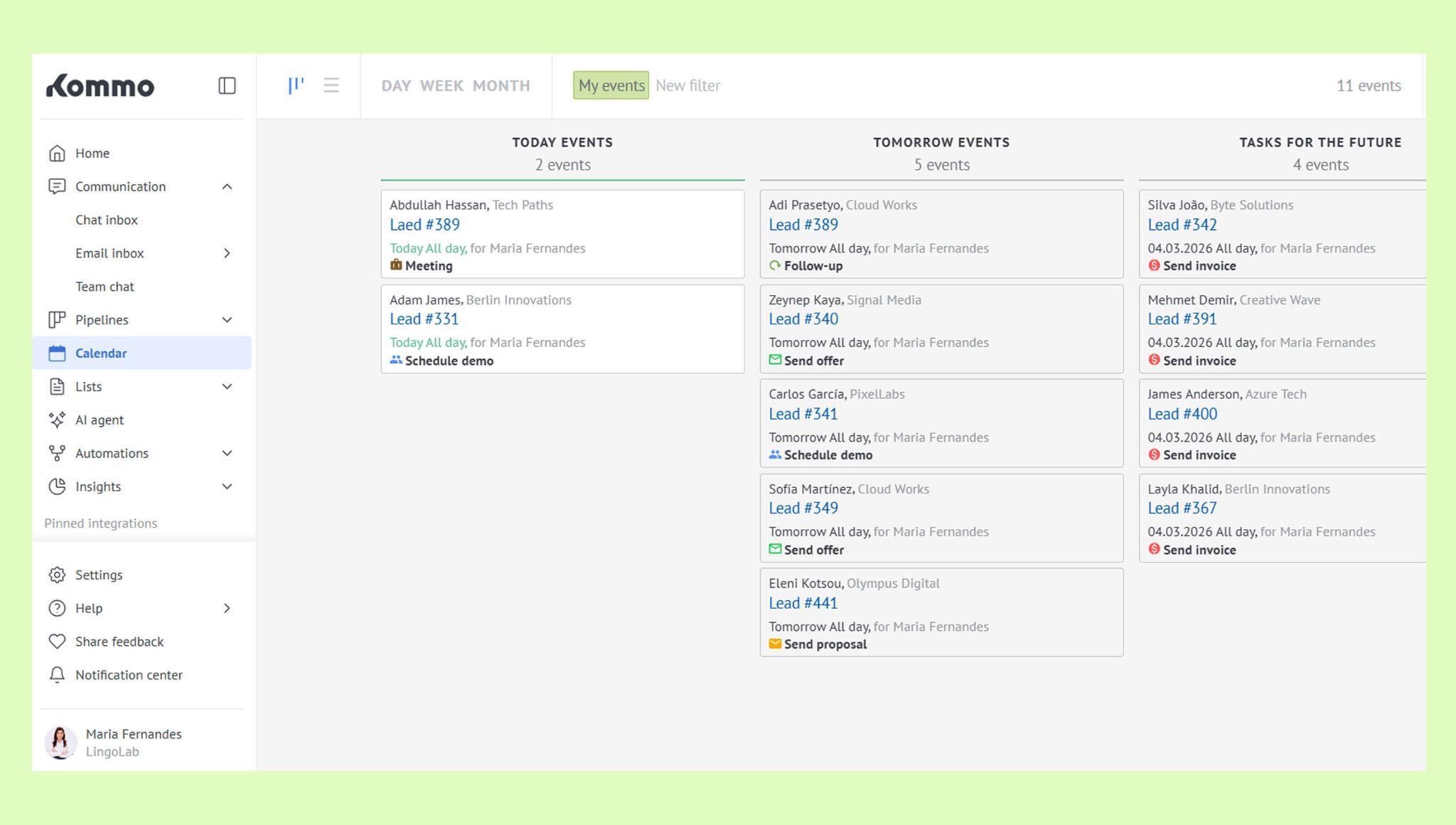
1. Task board view
A Kanban-style view of your tasks.
Tasks are organized by status: Overdue, To-do today, To-do tomorrow, To-do this Week.
Drag and drop tasks to update their status quickly.
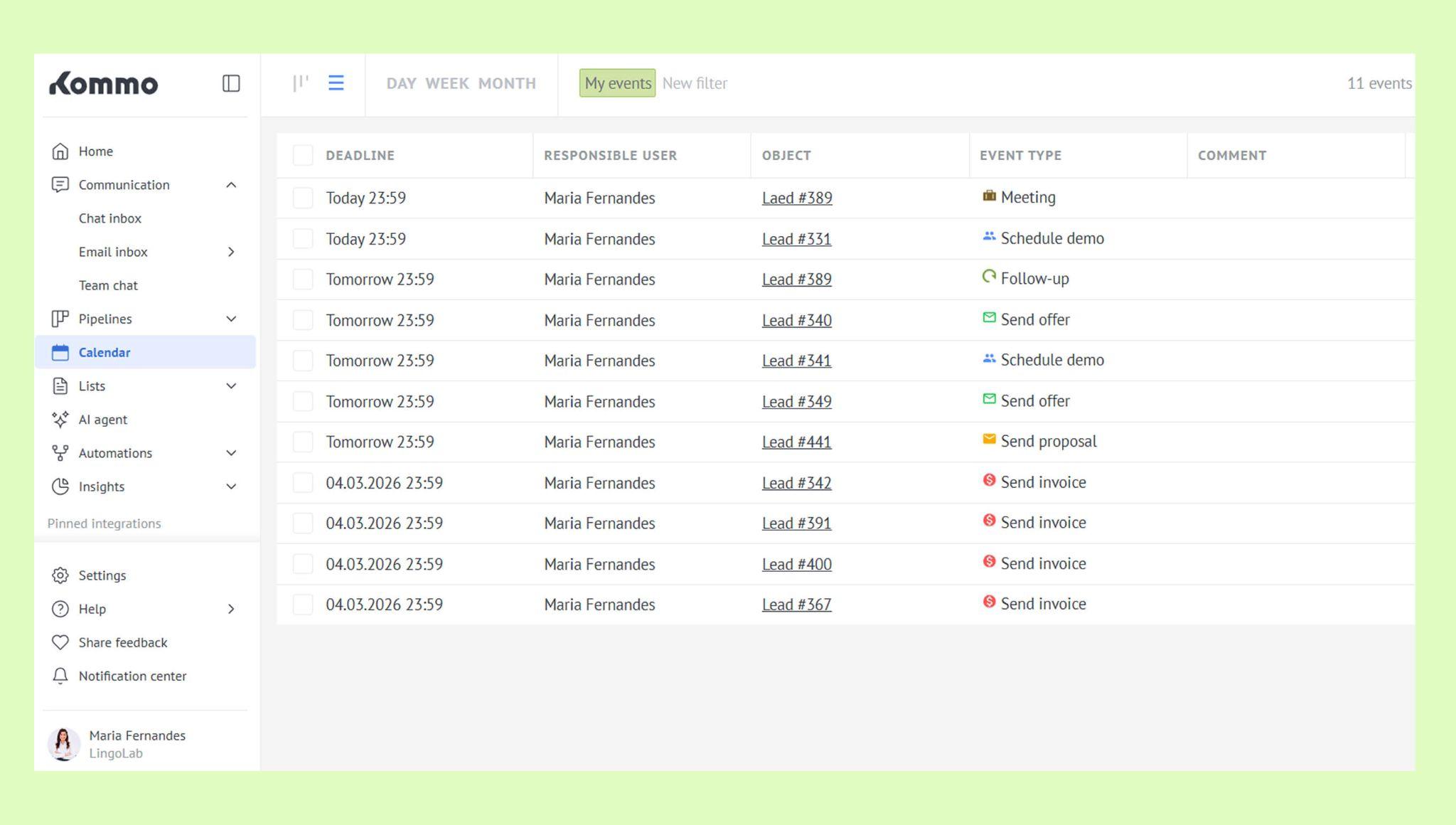
2. List view
Shows tasks in a list format.
Allows you to manage multiple tasks at once: complete, reassign, reschedule, delete, or change task type.
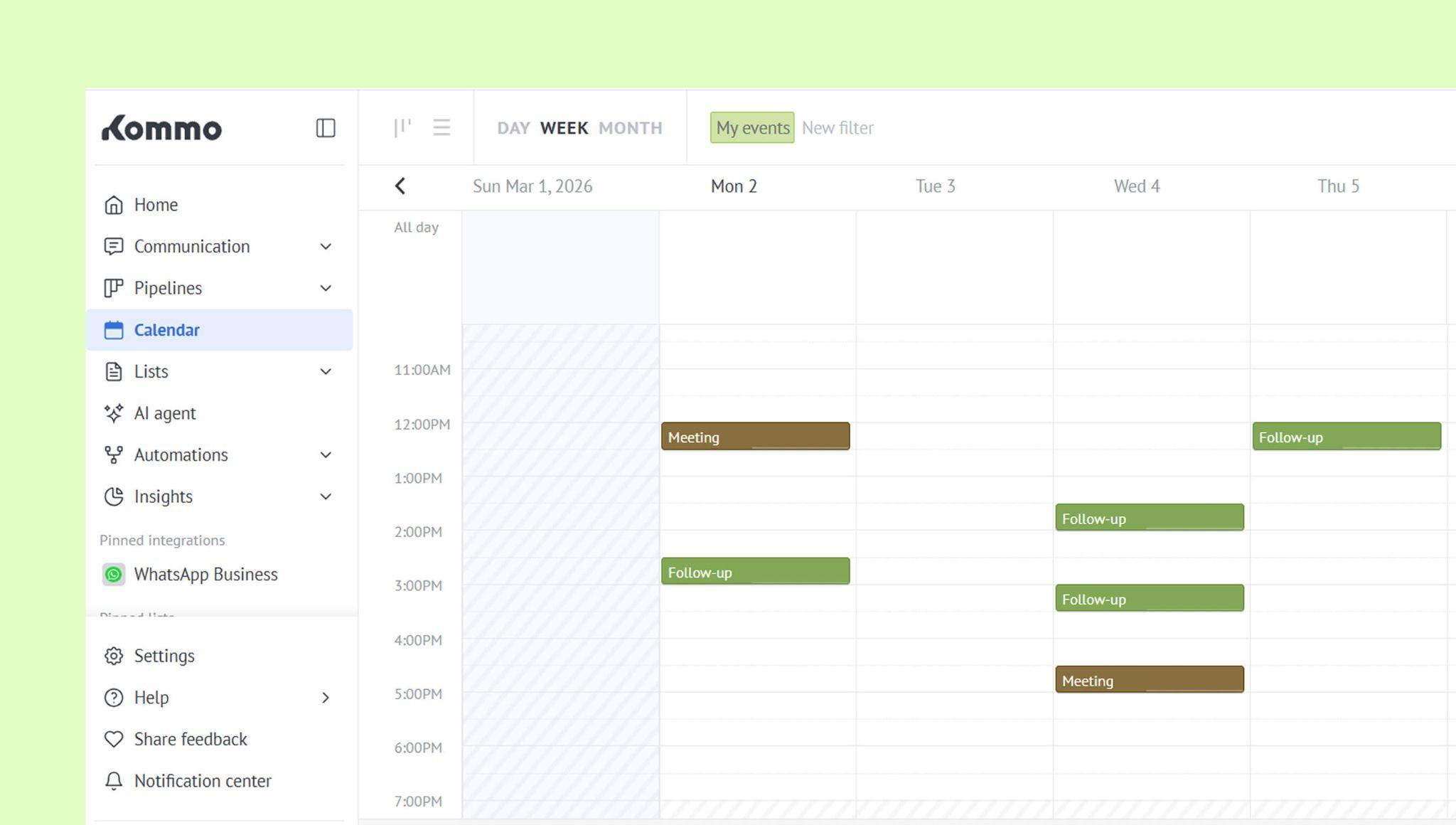
3. Calendar view
View your schedule by day, week, or month.
See busy and available time slots to plan your workday effectively.
Tasks
Tasks are to-dos with deadlines that help you organize and manage your team’s internal work.
Example: Send a proposal to a lead due tomorrow.
How it works:
Assign a responsible user
Select a task type (default or custom)
Set a deadline
Create tasks in the calendar or directly from a lead card
View all task history on the lead card
Learn more in the Create and assign tasks article.
Bookings
Bookings are events scheduled for a specific date and time. Unlike tasks, they’re mainly used for meetings and interactions with clients.
Example: Product demo for a client via Google Meet on March 3 at 10:30 AM
Learn more in the Bookings overview article.
Notifications
Kommo keeps you informed about important event-related updates with in-app and email notifications. Users will get alerts when:
A new task is assigned to you
A task becomes overdue
A deadline is approaching
Learn how to set up notifications in the Manage your Kommo account article.
Automated tasks
You can set up tasks to be created automatically:
For contacts and companies – Create a task when a new contact or company is added using business processes.
For leads – Automatically create one-time or recurring tasks using pipeline automations.
See the articles below to learn more:
Google Calendar sync
You can connect your Google Calendar to your Kommo workspace to keep your tasks and bookings in sync. Once connected, the sync works both ways:
Events and tasks created in Kommo appear in Google Calendar.
Events created in Google Calendar appear in Kommo.
This means you can manage your schedule from either platform without missing anything.