What you’ll need:
Any Kommo plan (Base, Advanced, Pro, Enterprise, or a 14-day trial).
WhatsApp Business integration installed and connected to your number. Learn how to set it up in this guide.
A payment method added to your WhatsApp Business account in Meta. Learn how to do it here.
Keep in mind:
Custom templates must be approved by Meta before you can send them.
Clients must have agreed to receive WhatsApp messages from your business.
Only Admins can create, edit, or delete chat templates in Kommo.
Custom templates can be created in the Marketing or Utility category.
You can edit templates only while they have the Draft or Rejected status.
A Custom template can include up to 3 Quick reply buttons or up to 2 URL buttons.
Meta may charge for WhatsApp template messages. Learn more about pricing rules in this article.
Custom templates are one of the WhatsApp template types available in Kommo.
Custom templates are designed for clear, direct communication. They can include text, images, videos, and buttons.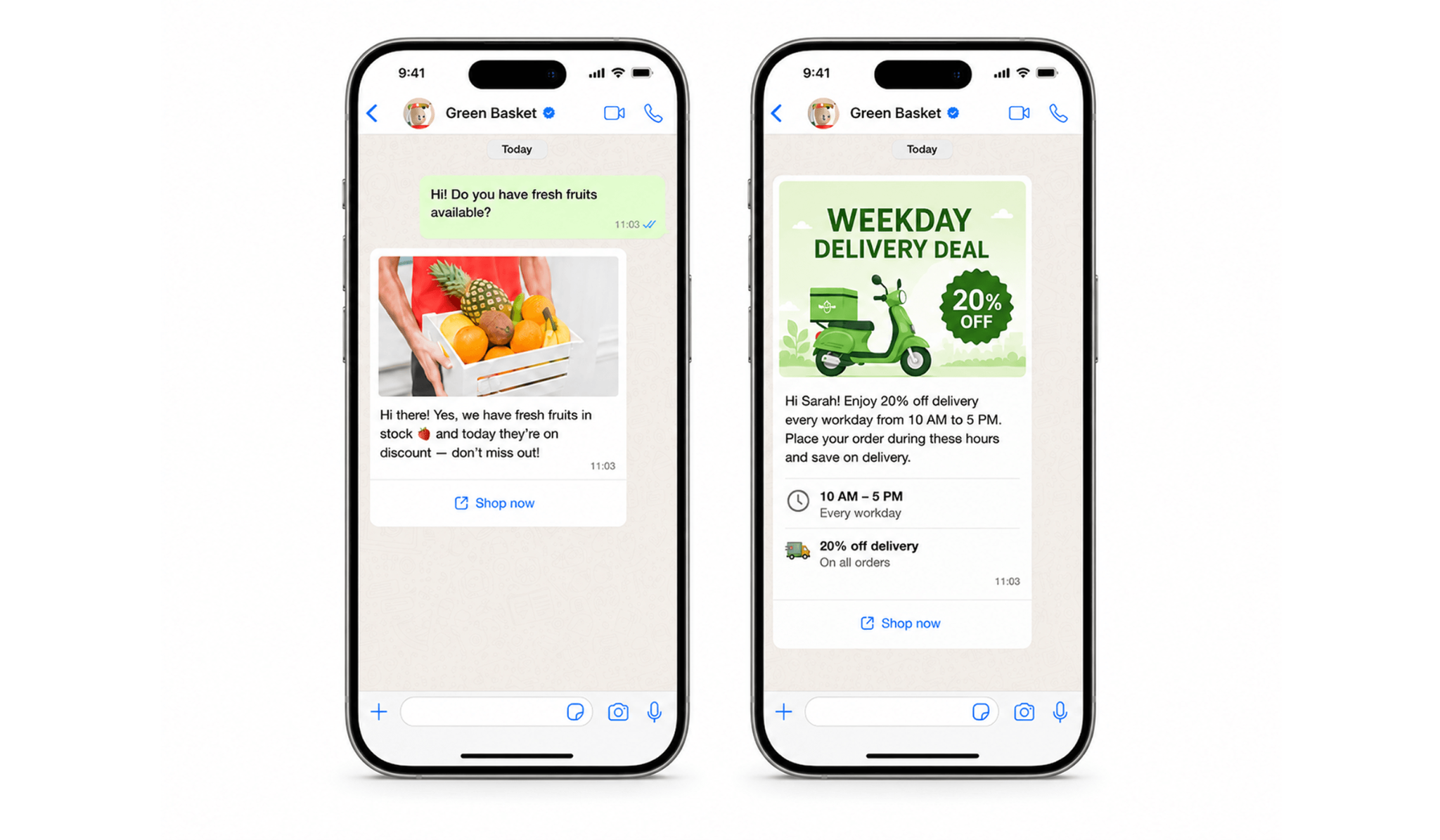
To compare Custom templates with other available formats, see the WhatsApp templates overview.
This step-by-step guide explains how to create and send Custom templates in Kommo.
Use cases
Send reminders — remind clients about upcoming bookings, payment due dates, subscription renewals, document deadlines, or scheduled deliveries.
Share important updates — send order confirmations, delivery status changes, booking updates, or waitlist notifications.
Promote special offers — send bulk messages through broadcasting to share seasonal promotions, product launches, discounts, webinars, or limited-time offers.
Help clients take the next step — add Quick reply or URL buttons so clients can confirm an appointment, visit a payment page, or open a booking link.
Follow up automatically — use Salesbot to send messages when a lead reaches a specific pipeline stage, completes an action, or needs a follow-up.
How to create a Custom template
To create a Custom WhatsApp template in Kommo:
Go to Automations → Templates → Chat templates and click + New template.
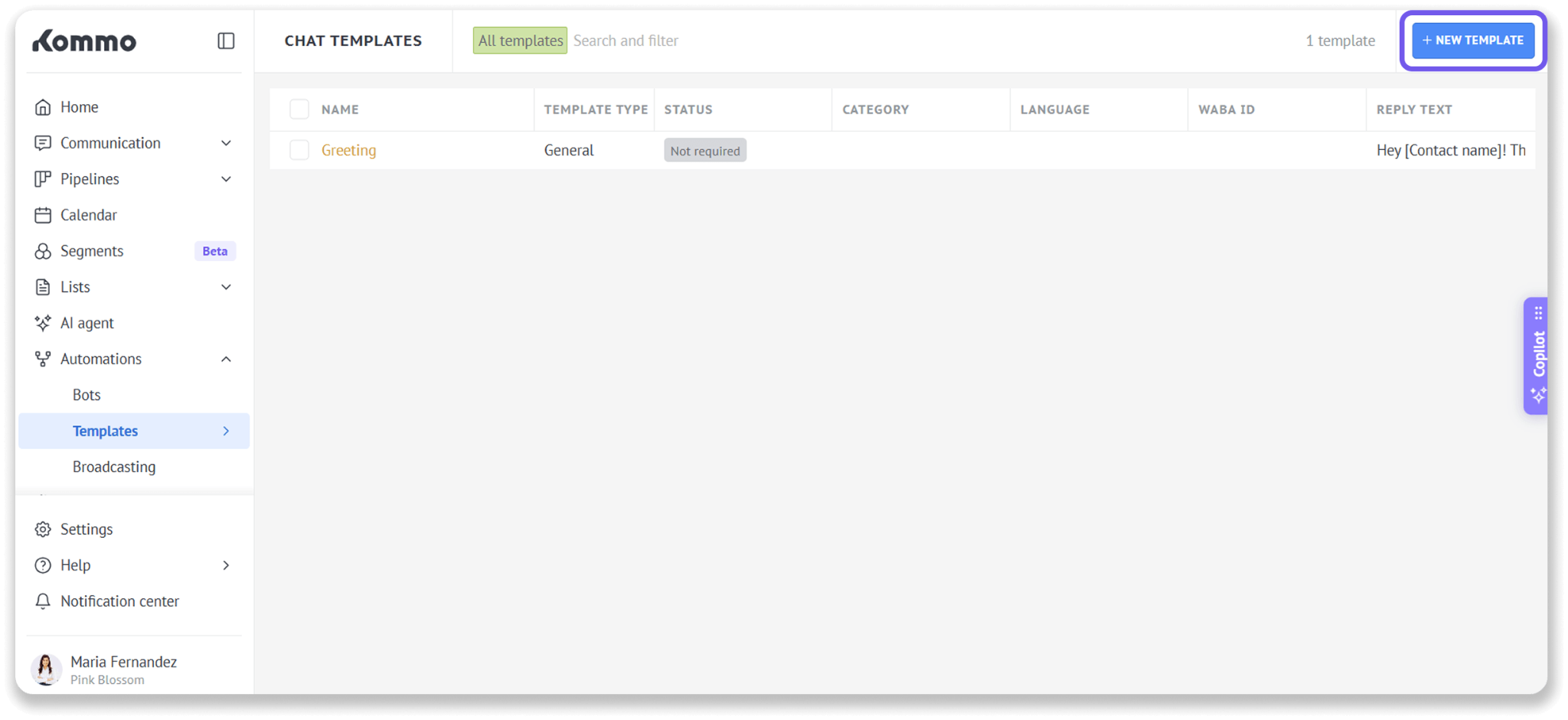
Select WhatsApp template.
Note: General templates are saved messages you can reuse instead of typing the same reply each time. They don’t need Meta approval and can be sent in WhatsApp while the 24-hour customer service window is open. Learn more in Create and use chat templates.
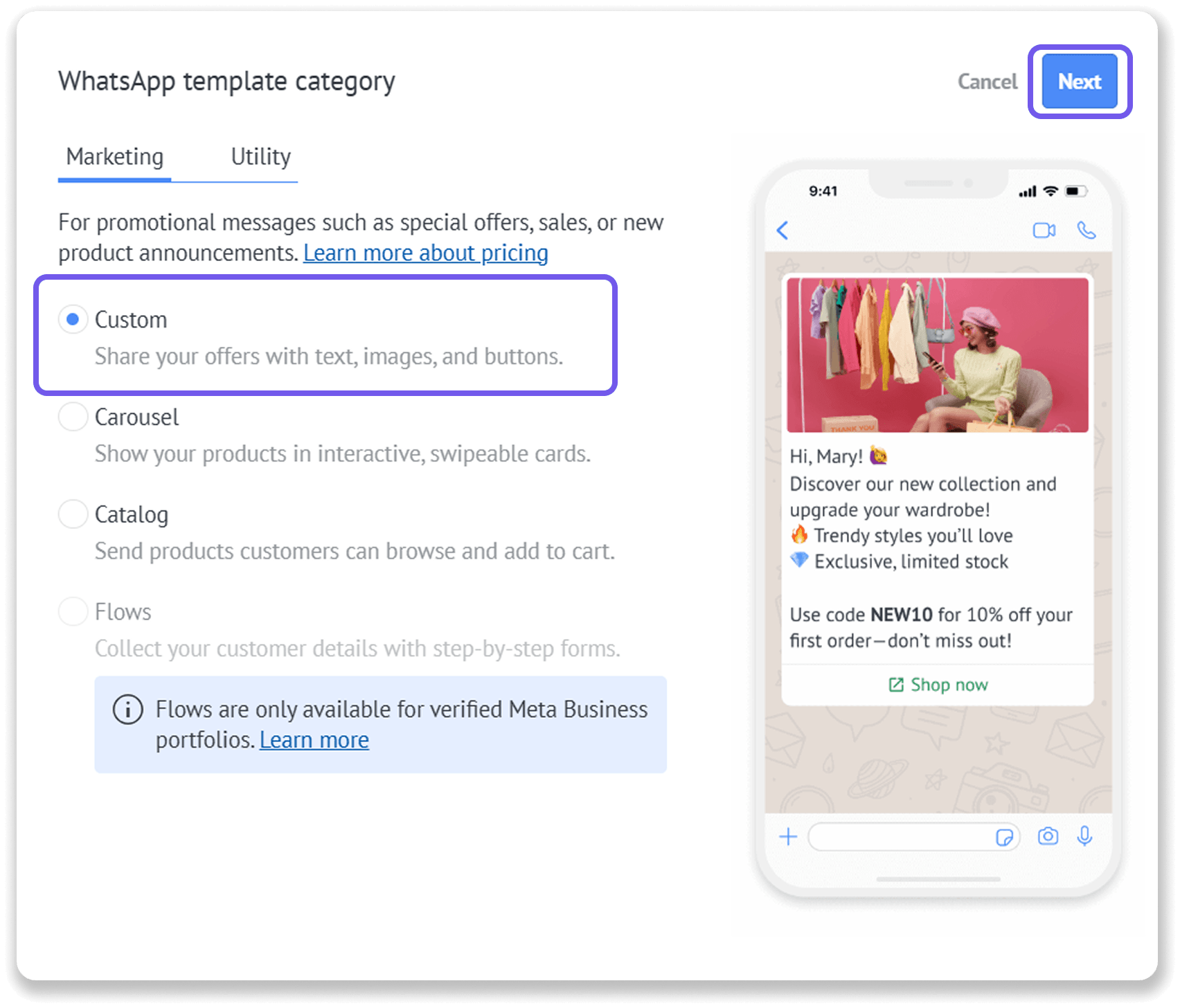
Choose a category:
Marketing
Utility
Select Custom and click Next.
Review the automatically generated template name and edit it if needed.
Select the WABA ID for the WhatsApp Business Account you want to use.
Select the message Language. Make sure it matches the language used in the template text. Otherwise, Meta may reject the template.
Configure the Validity period when this option is available.
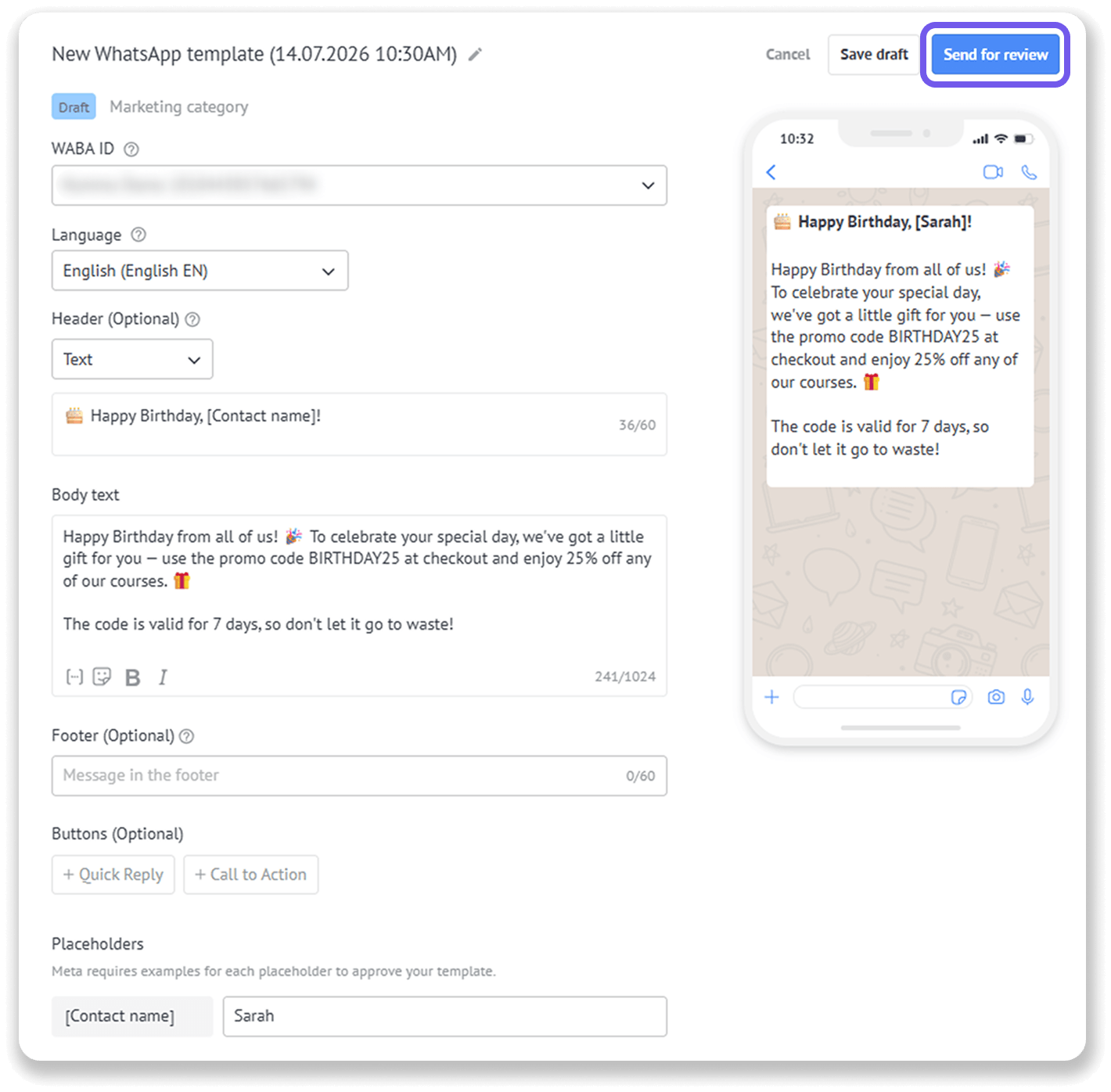
Create your message:
Add an optional Header with text, an image, or a video.
Write the Body. The body is required.
Add an optional Footer.
Add up to three Quick reply buttons or two URL buttons.
Add placeholders to personalize the message.
If you use placeholders, add an example for every placeholder. Meta uses these examples when reviewing the template.
Click Save draft to continue later, or Send for review to submit the template to Meta.
What happens after you submit the template
After you click Send for approval, the template status changes from Draft to In review.
Meta checks that the template follows WhatsApp policies and reviews its category, language, content, buttons, and placeholder examples. The review typically takes from one minute to 48 hours. You can’t edit the template while it has the In review status.
If Meta approves the template, its status changes to Approved, and you can start sending it to clients.
If Meta rejects the template, its status changes to Rejected. Hover over the status to see the rejection reason, correct the template, and submit it again.
For tips on getting your template approved, see Create and manage WhatsApp Business message templates.
How to send Custom templates
Once approved, Custom templates can be sent from different places in Kommo:
Chat inbox — send a template manually during a conversation with a client.
Salesbot — Send a template automatically as part of an automated chat flow.
Broadcasting — Send a template to multiple clients at once.
Kommo mobile app — Send a template from your phone when you need to reply or follow up on the go.
For step-by-step instructions, see the Send templates with WhatsApp Business article.