What you’ll need:
Any Kommo plan or an active 14-day trial to send templates manually through chats or the mobile app.
Advanced, Pro, or Enterprise plan, or an active 14-day trial, to send templates through Salesbot or Broadcasting.
WhatsApp Business integration installed and connected to your number. Learn how to set it up in this guide.
A payment method added to your WhatsApp Business account in Meta. Learn how to do it here.
Keep in mind:
Clients must agree to receive WhatsApp messages from your business.
Only templates with the Approved status can be sent.
Templates can't be edited after submission or after sending.
Meta may charge for WhatsApp template messages. Learn more about pricing rules in this article.
The available content, buttons, and client interactions depend on the template type.
WhatsApp Business templates are Meta-approved messages that let you message a client first or continue a conversation after the 24-hour service window closes.
You can send the following WhatsApp template types in Kommo:
Custom
Carousel
Flow
Catalog
This article explains how to send them through chats, Salesbot, Broadcasting, or the Kommo mobile app.
Before you send a template
First, create your WhatsApp template in Kommo and submit it to Meta for approval.
After Meta approves it, choose the sending method that best matches your goal:
Sending method | Best for | Availability |
|---|---|---|
Sending a template manually to one client | Any Kommo plan or an active 14-day trial | |
Sending templates automatically as part of a conversation flow | Advanced plan and above, or an active 14-day trial | |
Sending a template to multiple clients at once | Advanced plan and above, or an active 14-day trial | |
Sending templates while working from your phone | Any Kommo plan or an active 14-day trial |
Learn more about Kommo subscription plans.
Send a template through a chat
Use Chat inbox when you want to send a WhatsApp template manually to one client.
To send a template through a chat:
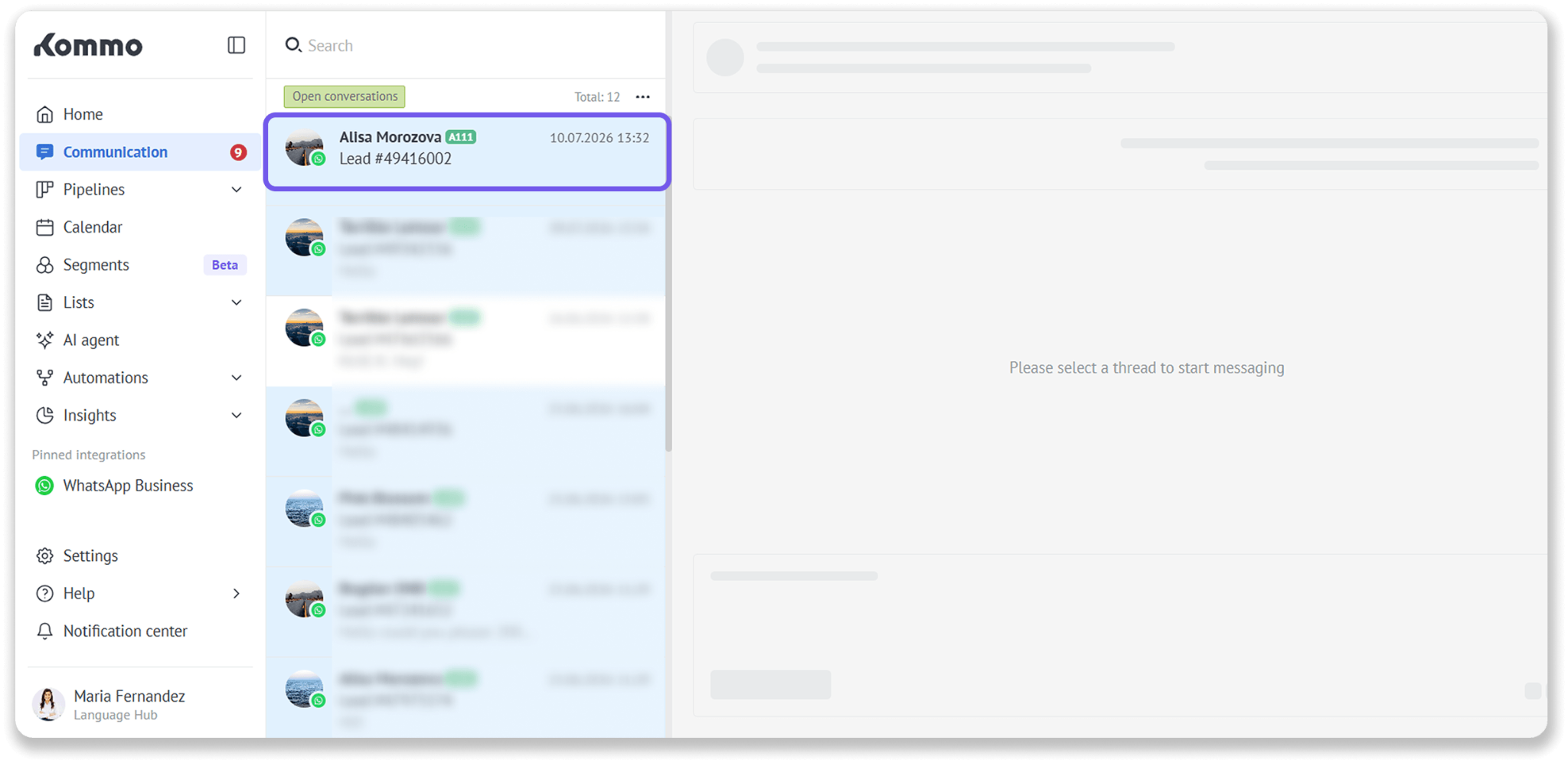
Go to Communication → Chat inbox and open a conversation.
Type / in the message box.
To find a template faster, continue typing its name.
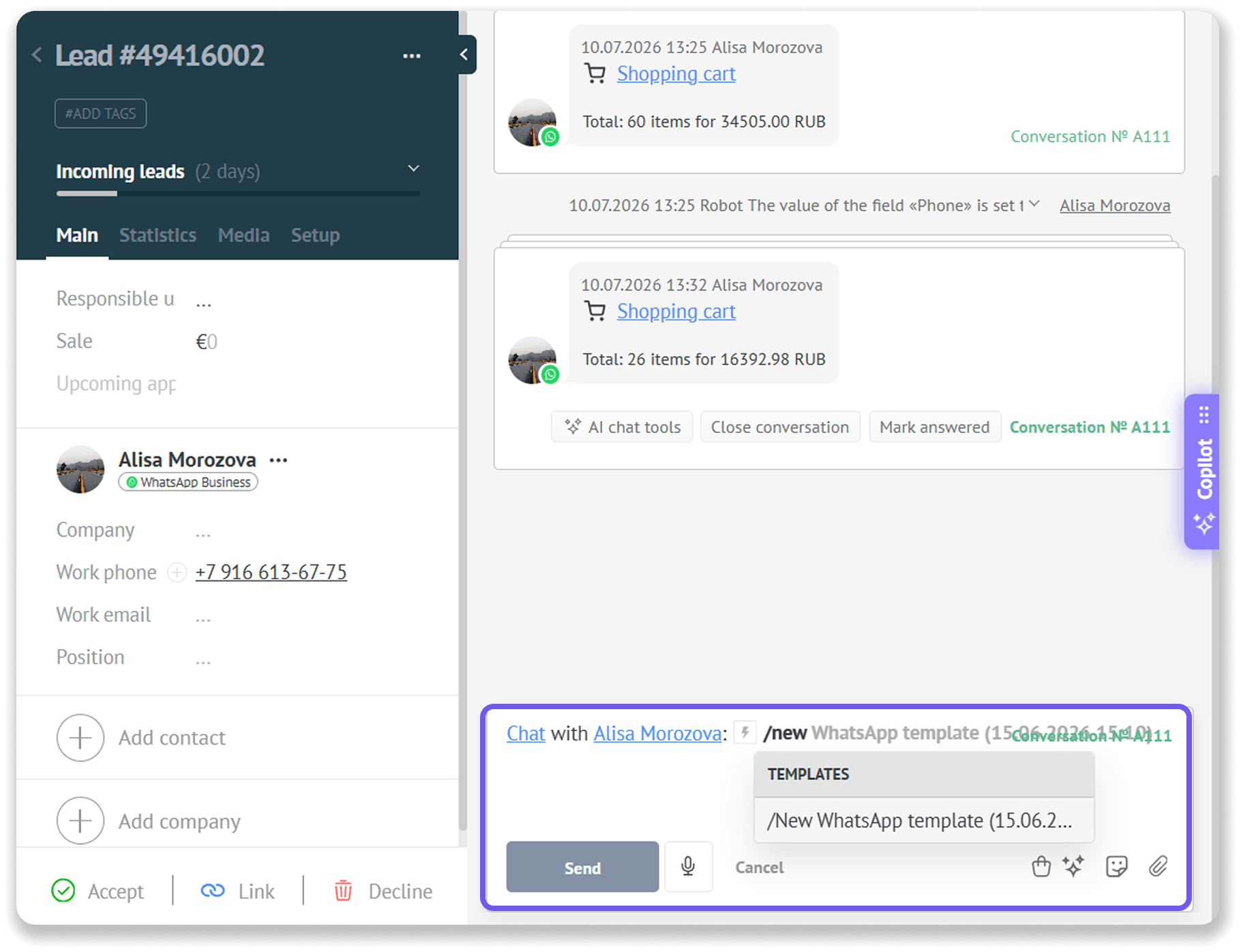
Select a WhatsApp template. The message will be added to the message box.
Review the message, then click Send.
The template’s appearance and available interactions depend on its type. For example, a Carousel template contains swipeable cards, while a Flow template includes a button that opens a form in WhatsApp.
Note: Do not change the template before sending it. If you edit its content, Kommo sends it as a regular message instead of a WhatsApp template. Regular messages cannot be delivered after the 24-hour service window closes.
Learn how to manage Chat inbox in Kommo.
Send a template through Salesbot
Salesbot is Kommo’s no-code tool for automating conversations. It can send messages, ask questions, collect client information, qualify leads, and guide clients through the next steps.
You can send WhatsApp templates through Salesbot directly or let an AI agent trigger a Salesbot that sends a template as part of the conversation.
Add a WhatsApp template to Salesbot
To send a WhatsApp template through Salesbot:
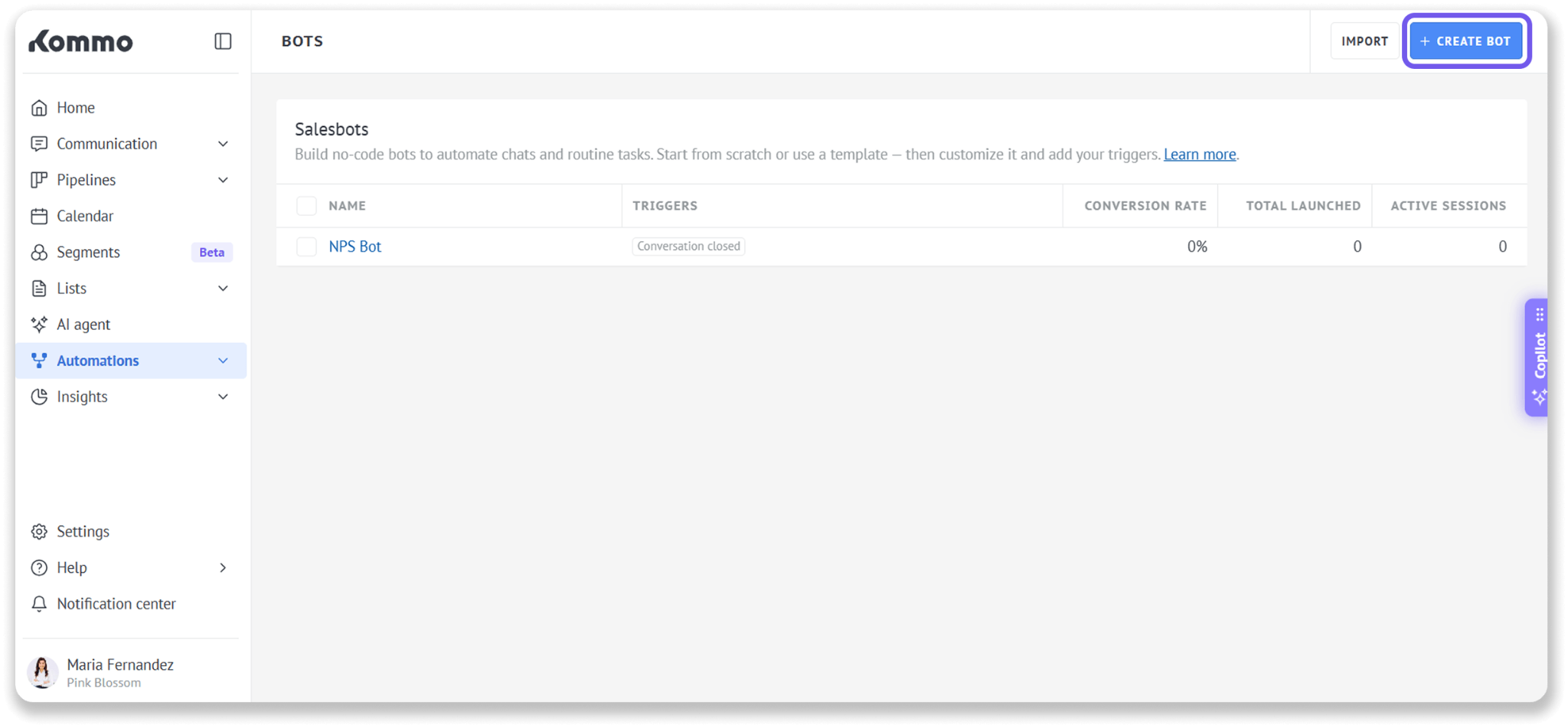
Go to Automations → Bots.
Click + Create bot, or open an existing Salesbot.
Select WhatsApp as the channel.
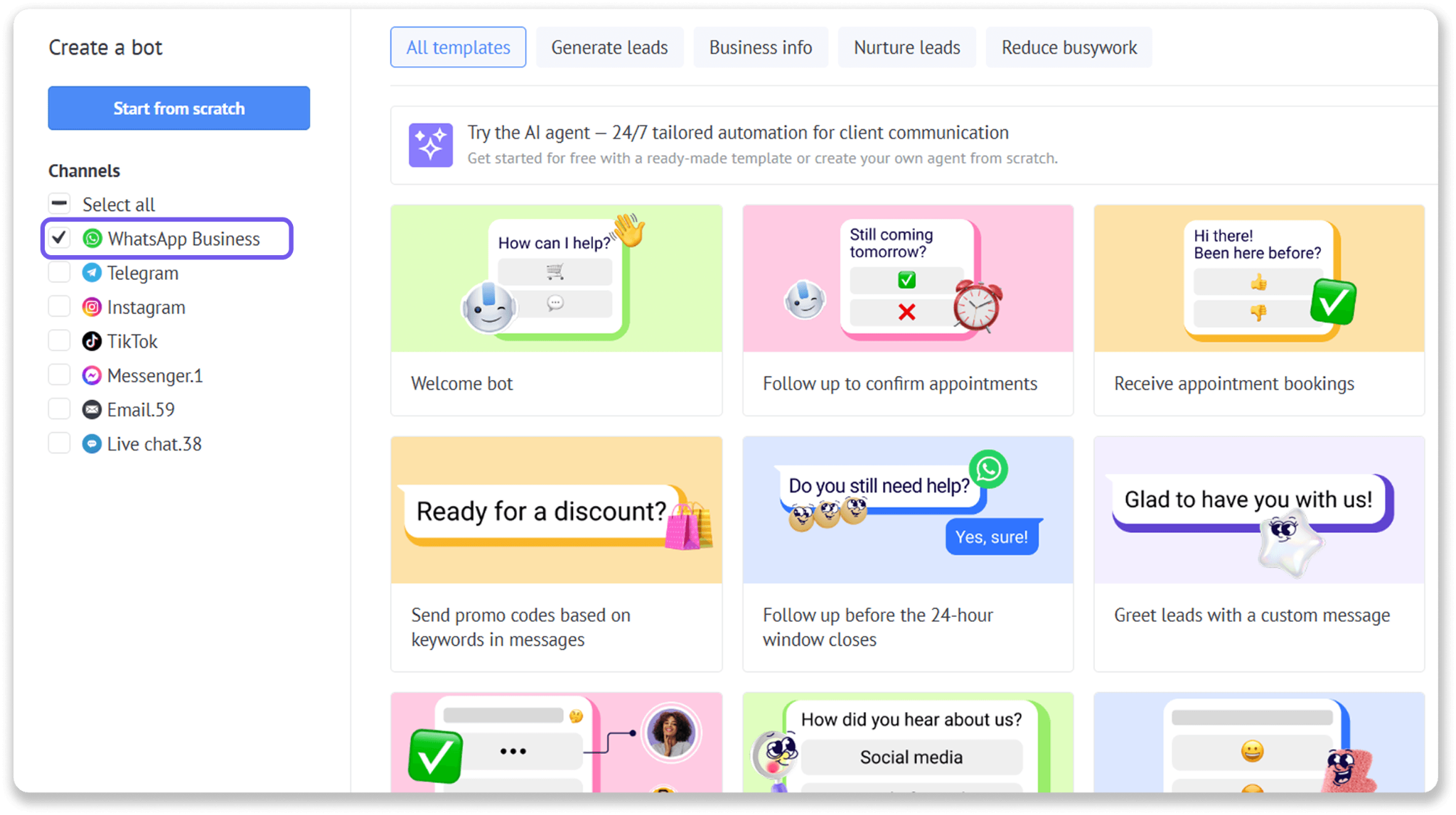
Select a Salesbot preset, or click Start from scratch.
Add a Message step.
Choose a WhatsApp template.
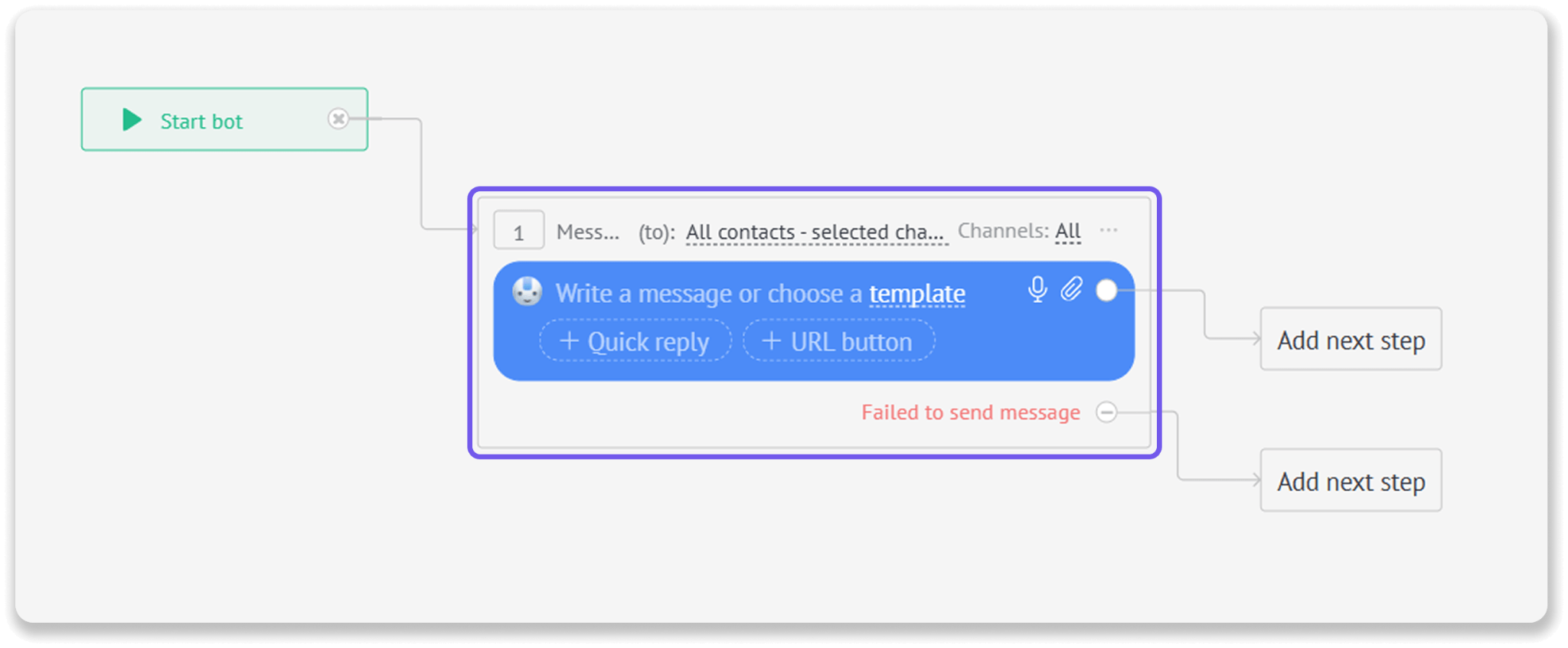
Complete any additional settings required for the selected template type.
Add more steps if needed.
Set how the Salesbot should start:
Automatically when a configured condition is met.
Manually from a chat with a client.
Save and launch the Salesbot.
The template is sent when the Salesbot reaches the Message step.
Note: When WhatsApp is selected as a channel, the option to choose a template in the message step only appears if you have approved WhatsApp templates.
Learn how to create a Salesbot in Kommo.
Trigger a template with an AI agent
An AI agent cannot send a WhatsApp template directly. When a client requests relevant information, the AI agent can trigger a Salesbot that sends the template.
For example, if a client asks about current discounts, the AI agent can start a Salesbot that sends an offer template.
To set this up:
Create a Salesbot that contains the WhatsApp template.
Open the AI agent’s Actions tab.
Create an action for the relevant client request.
Add the Salesbot as a DO step.
Save and test the action.
Learn how to set up AI agents.
Send a template through Broadcasting
Broadcasting lets you send a WhatsApp template to multiple clients at once. Each client receives it as a private message in their own WhatsApp conversation.
You can send Custom, Carousel, Flow, or Catalog templates through Broadcasting.
To send a WhatsApp template through Broadcasting:
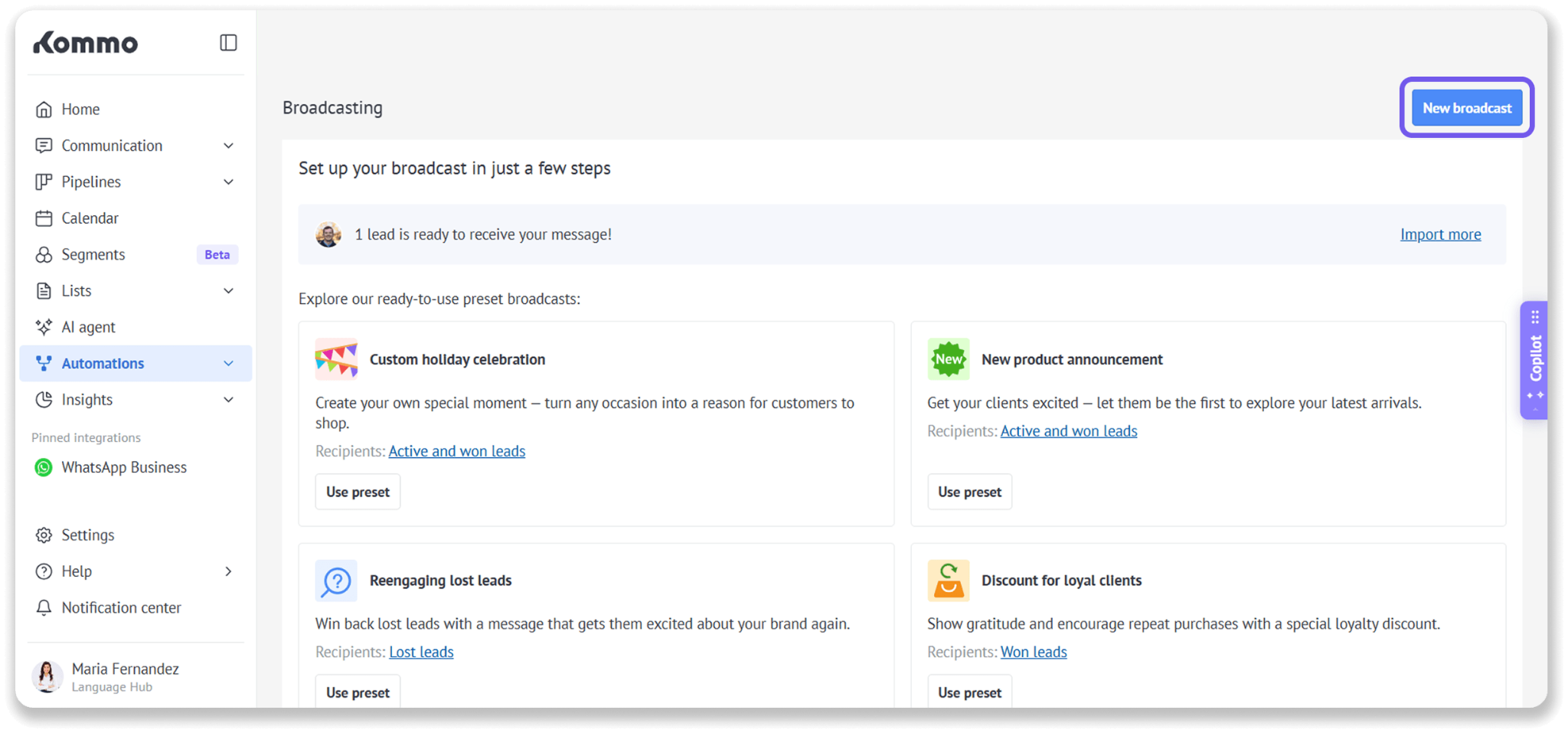
Go to Automations → Broadcasting.
Click New broadcast.
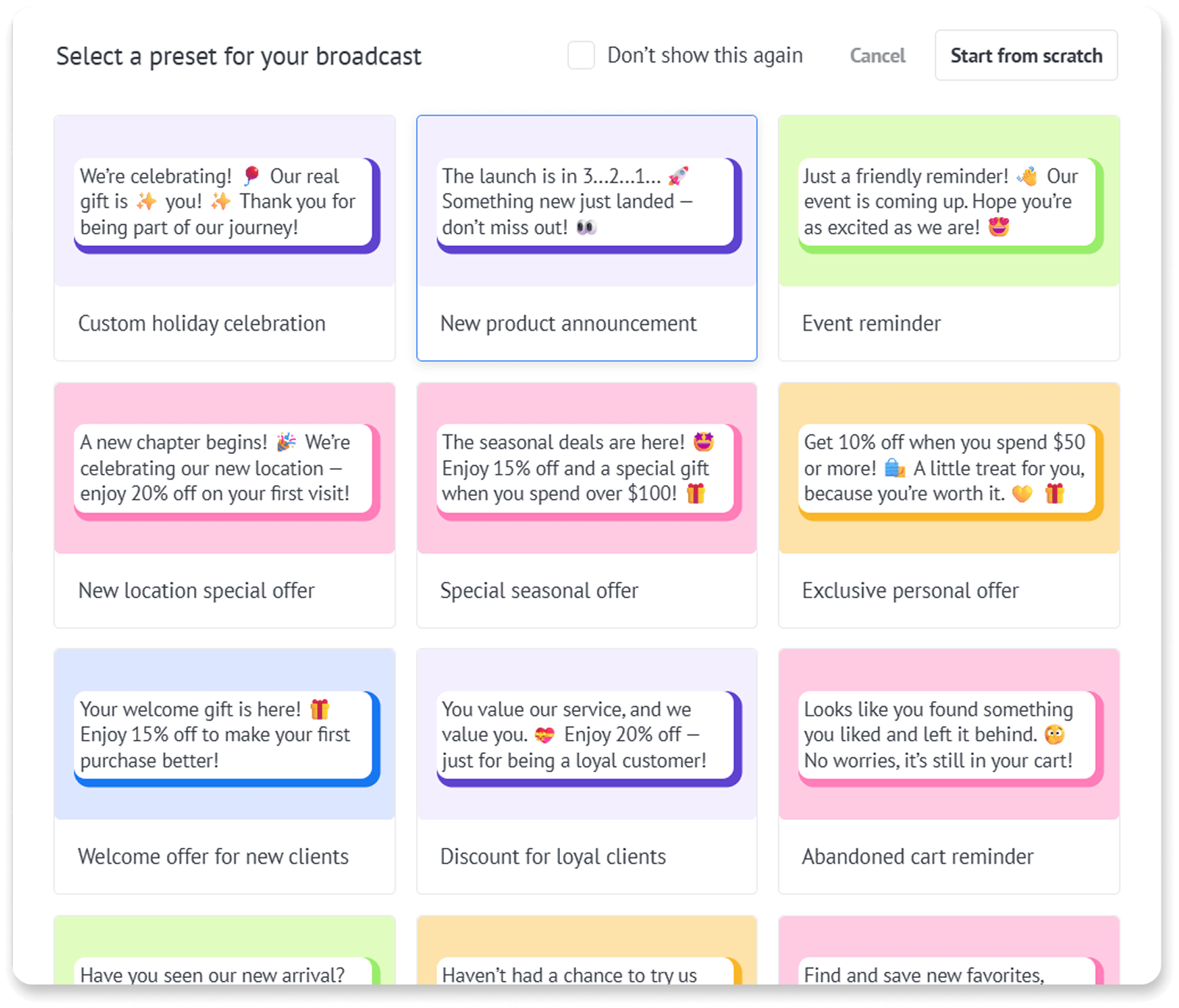
Select a preset, or click Start from scratch.
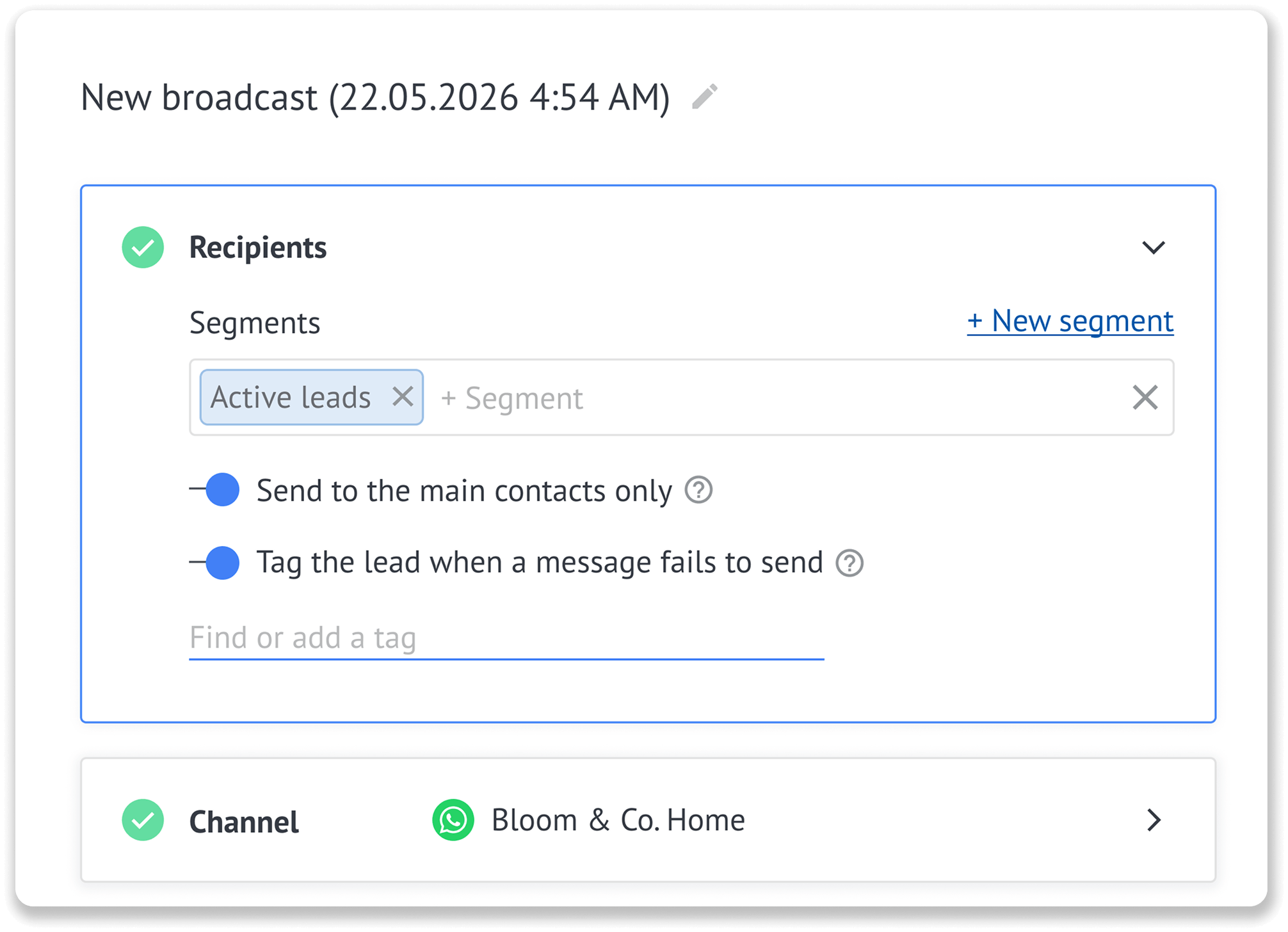
In the Recipients section, choose who will receive the broadcast.
In the Channel section, select WhatsApp Business.
In the Content section, choose a WhatsApp template.
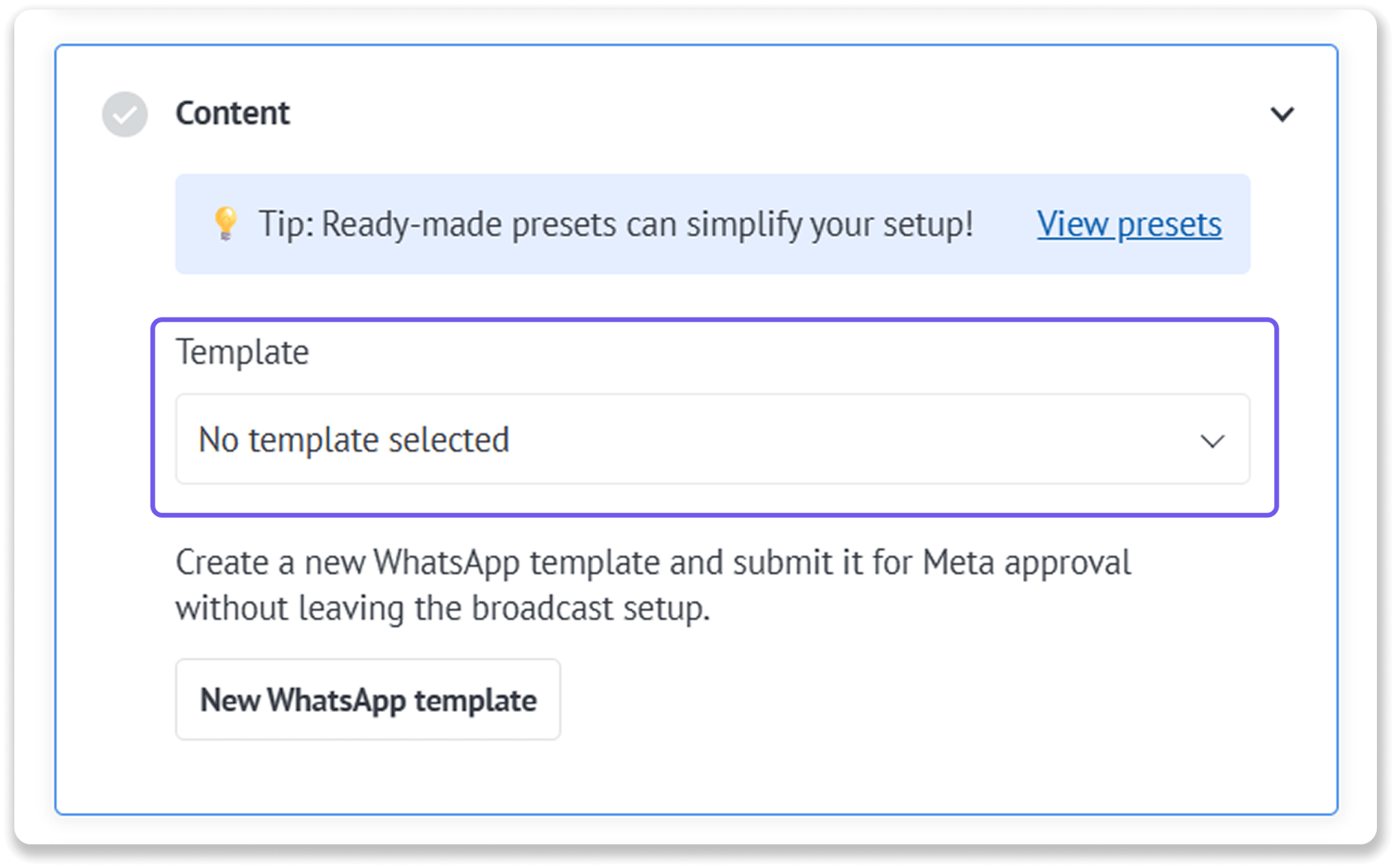
Review the template preview and complete any settings required for the selected template type.
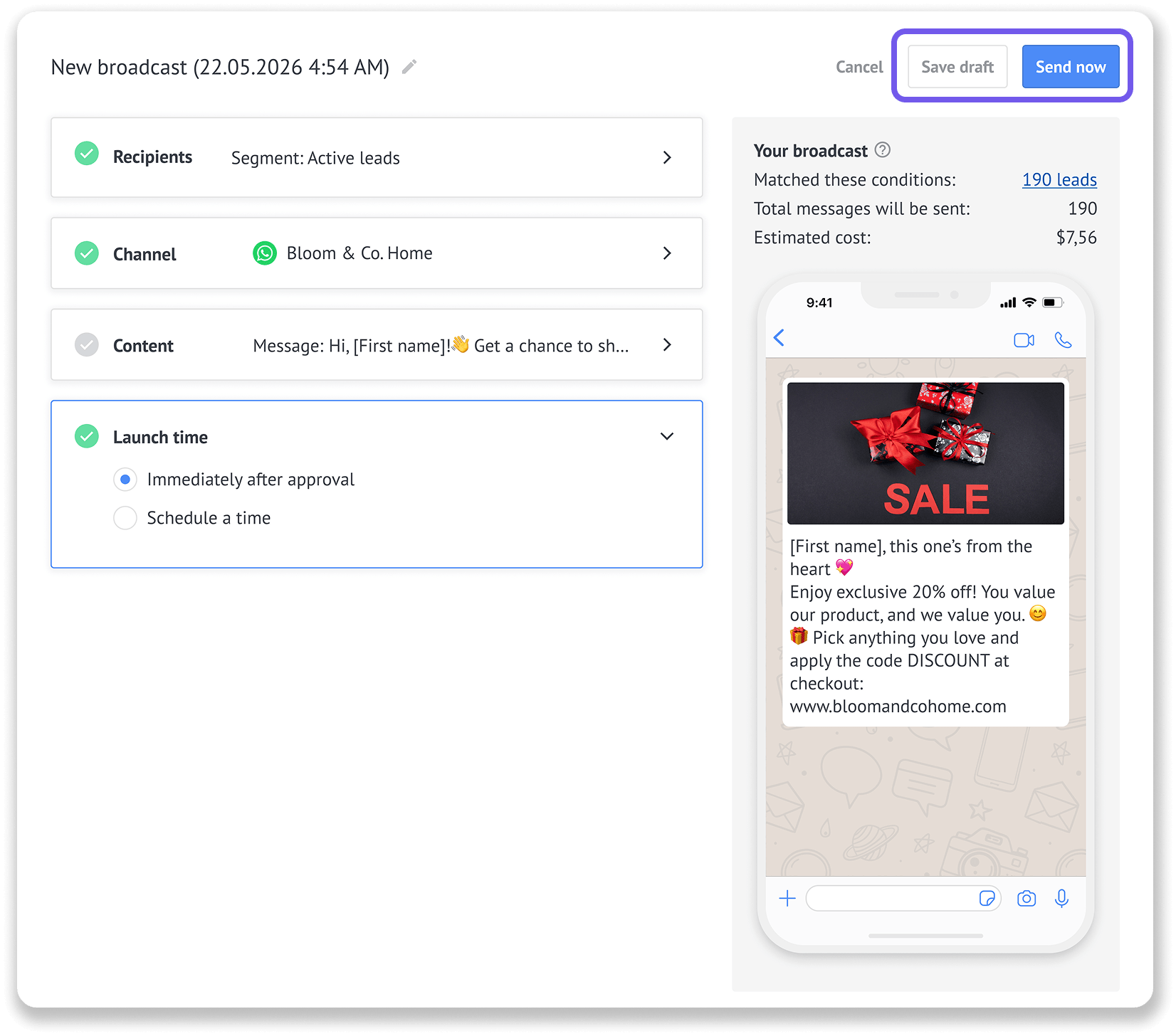
In the Launch time section, choose whether to send the broadcast immediately or schedule it for later.
Click:
Send now to launch it immediately.
Save draft to finish setting it up later.
Tip: You can also create a new template and send it for approval by clicking New WhatsApp template. Then your broadcast will be sent after the template is approved.
Learn how to set up and customize broadcasts in Kommo.
Send a template through the Kommo mobile app
You can send Custom, Carousel, Flow, and Catalog templates from the Kommo mobile app when you need to contact a client or follow up while working from your phone.
To send a template from the app:
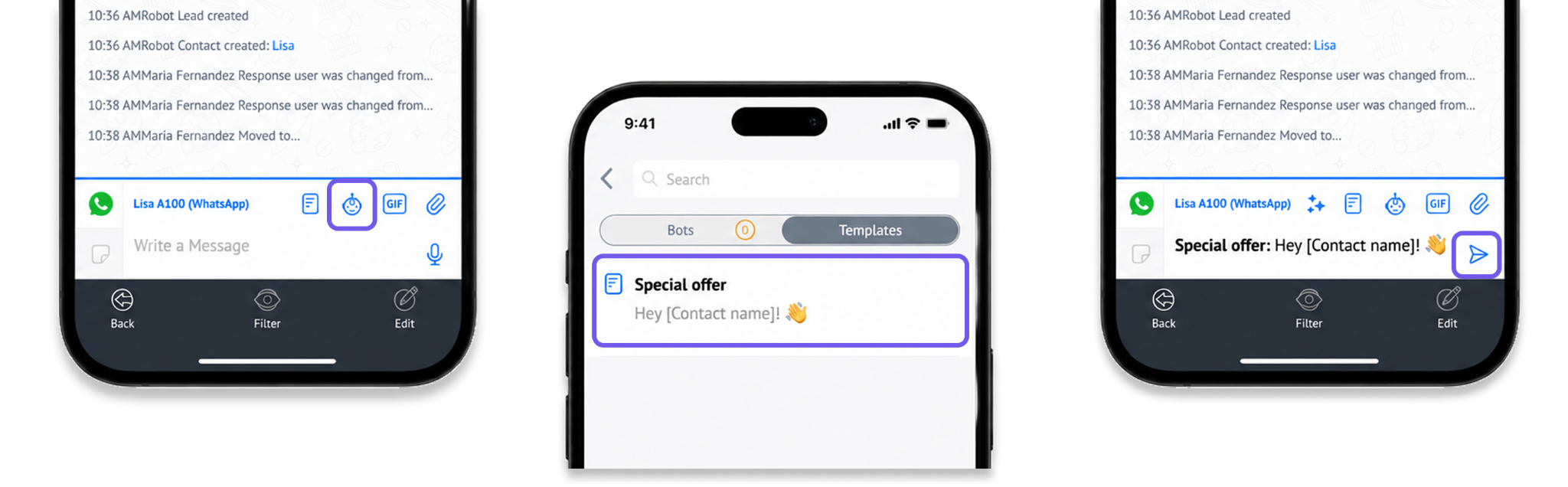
In the Kommo mobile app, go to Chats and start or open a conversation.
Tap the Robot icon.
Open the Templates tab.
Choose a WhatsApp template.
Once the message appears in the message box, tap the Send icon.
The template is delivered in its supported WhatsApp format. For example, Carousel templates appear as swipeable cards, Flow templates open an interactive form, and Catalog templates display products from your connected catalog.
Learn more in the Kommo mobile overview.