What you’ll need:
Any Kommo plan or an active 14-day trial to send templates manually through chats or the mobile app.
Advanced, Pro, or Enterprise plan, or an active 14-day trial, to send templates through Salesbot or Broadcasting.
WhatsApp Business integration installed and connected to your number. Learn how to set it up in this guide.
A payment method added to your WhatsApp Business account in Meta. Learn how to add one here.
Keep in mind:
WhatsApp templates must be approved by Meta.
Clients must have agreed to receive WhatsApp messages from your business.
Meta may charge for WhatsApp template messages. Pricing is based on Meta’s WhatsApp Business messaging rates. Learn more in this article.
Each template type has its own requirements and limitations. For more details, check the related article for that template type.
WhatsApp templates are messages approved by Meta that let your business contact clients when regular WhatsApp messages are not available.
Depending on the template type, they can include text, media, buttons, forms, swipeable cards, or products from your catalog.
When a client messages your business, a 24-hour customer service window opens. During this time, you can reply with regular WhatsApp messages.
You need an approved WhatsApp template to:
Message a client first.
Continue a conversation after the 24-hour customer service window closes.
Send WhatsApp messages through Broadcasting.
Send automated messages through Salesbot when a regular message cannot be used.
This article explains the available WhatsApp template categories and types, how to choose the right format, and where you can send templates in Kommo.
Use cases
Start a conversation — reach out first with an approved message, such as an appointment reminder or promotion.
Re-engage customers — continue a conversation after the 24-hour customer service window closes.
Send messages at scale — use approved templates in broadcasts to reach customer segments.
Create interactive experiences — let customers browse cards, complete forms, or open your catalog directly in WhatsApp.
Automate communication — use templates in Salesbot to send messages as part of automated workflows.
WhatsApp template categories and types
WhatsApp templates are organized by category and type:
The category describes the purpose of the message.
The type defines its format and how customers can interact with it.
Template categories
WhatsApp has three template categories:
Marketing — promotions, offers, announcements, re-engagement, and other messages designed to drive awareness or action.
Utility — updates related to a client action or request, such as order updates, payment notifications, and appointment reminders.
Authentication — identity verification messages, such as one-time passwords and login codes.
Note: Authentication templates are not currently supported in Kommo.
Template types
The available template types depend on the category you select:
Category | Available template types |
|---|---|
Marketing | Custom, Carousel, Flow, and Catalog |
Utility | Custom and Flow |
Compare WhatsApp template types
Choose a template based on what you want the client to do: read an update, browse several options, complete a form, or explore products.
Type | Best for | Category | Format |
|---|---|---|---|
Custom | Reminders, confirmations, updates, and promotions | Marketing and Utility | Text, media, and buttons |
Carousel | Presenting several visual options in one message | Marketing | Swipeable cards with media, text, and buttons |
Flow | Collecting information from clients | Marketing and Utility | An interactive form that opens inside WhatsApp |
Catalog | Sharing products from a connected WhatsApp catalog | Marketing | A full catalog, product set, or single product |
Type | Best for | Category | Format |
|---|---|---|---|
Custom | Reminders, confirmations, updates, and promotions | Marketing and Utility | Text, media, and buttons |
Carousel | Presenting several visual options in one message | Marketing | Swipeable cards with media, text, and buttons |
Flow | Collecting information from clients | Marketing and Utility | An interactive form that opens inside WhatsApp |
Flow | Marketing | A full catalog, product set, or single product |
Custom templates: Send clear, personalized messages
Custom templates are standard WhatsApp template messages. They can include text, media, and buttons. 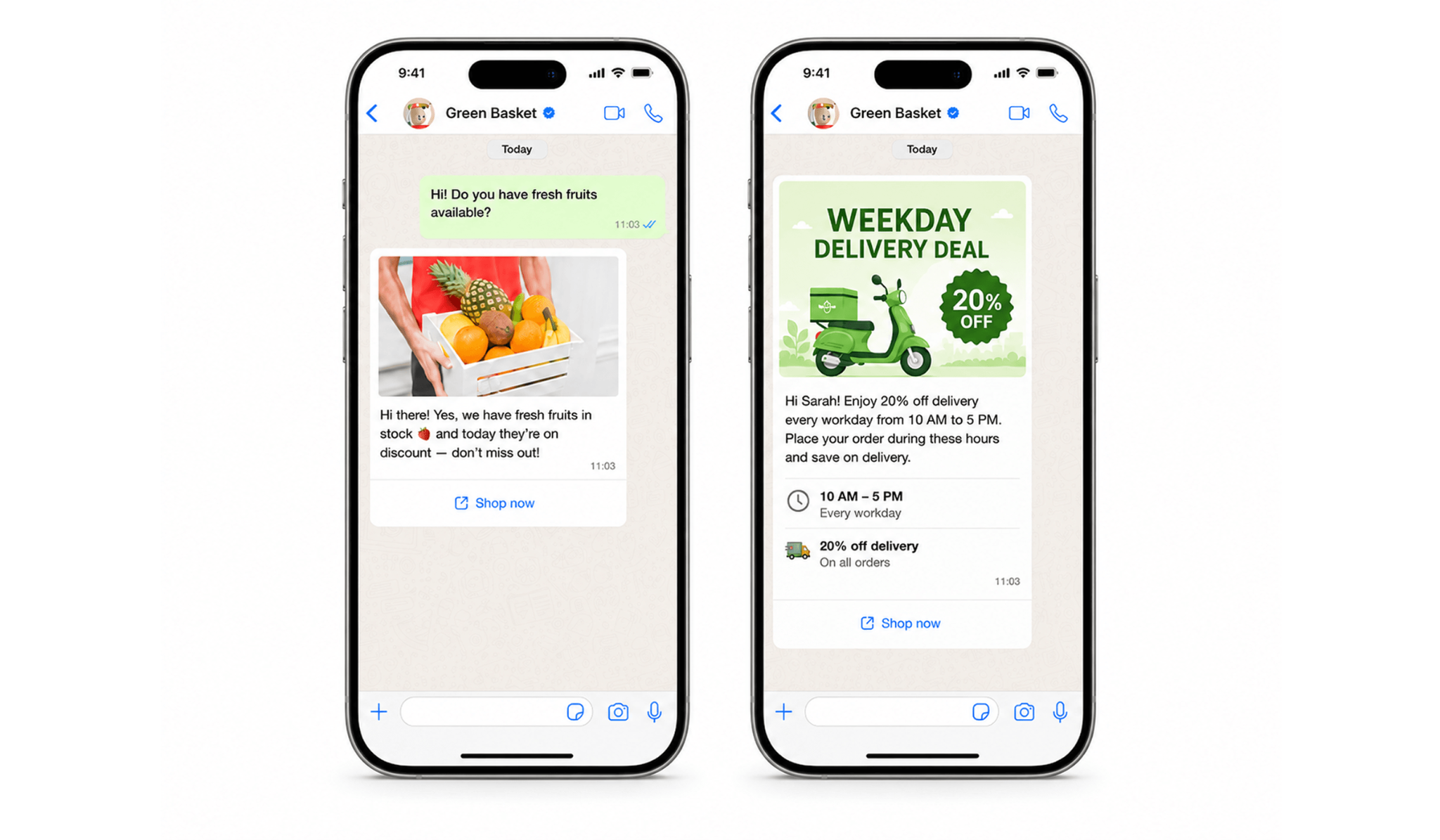
Use Custom templates to:
Send appointment reminders or service updates.
Confirm payments, orders, bookings, or requests.
Share a short promo code or re-engagement message.
Follow up with a personalized message using CRM data.
Learn how to create and use Custom templates.
Carousel templates
Carousel templates let you send a set of swipeable cards in one WhatsApp message. Each card can include media, text, and buttons, making this format useful for visual marketing. 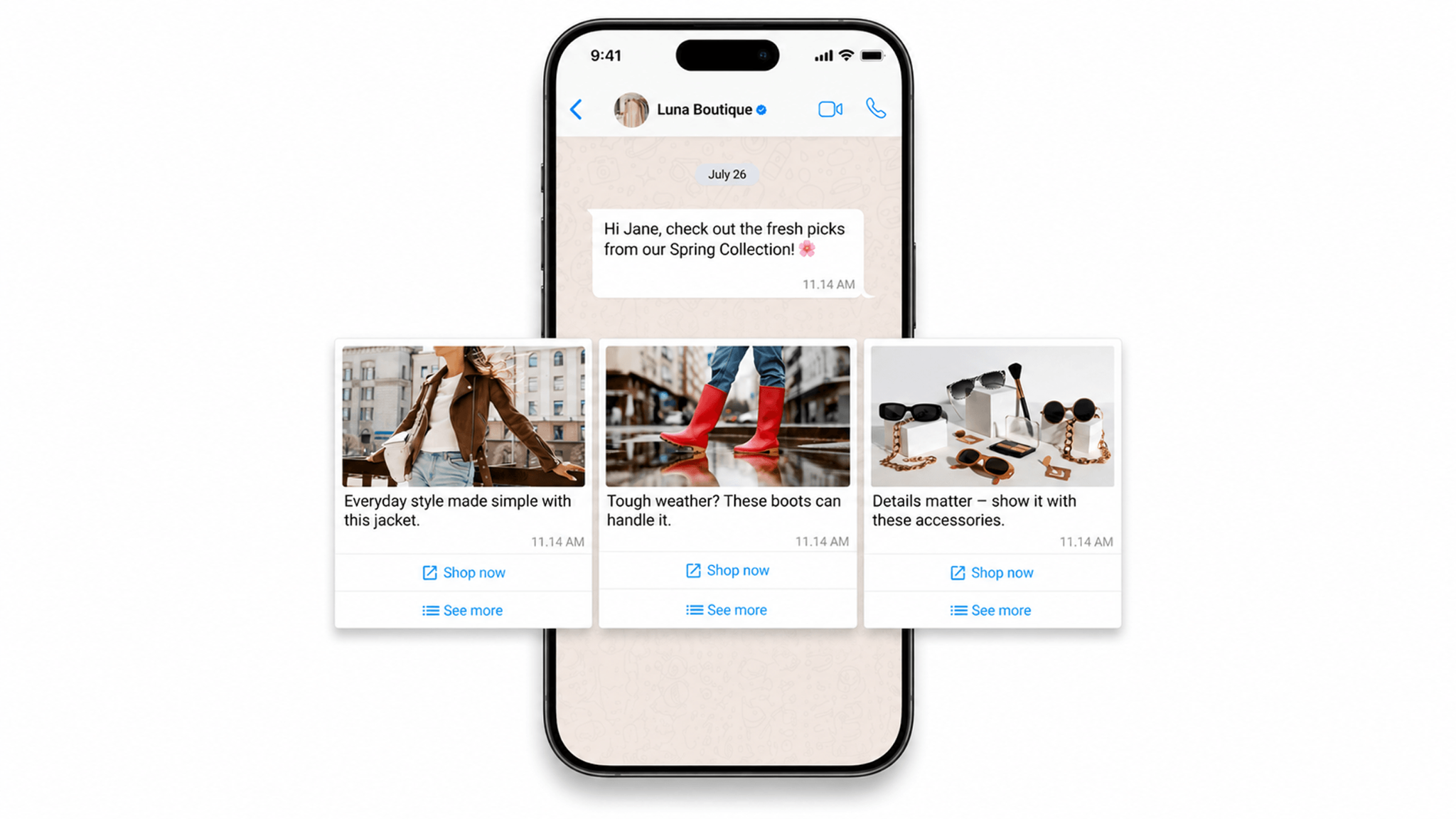
Use Carousel templates to:
Promote several products or services at once.
Show different plans, packages, or offers side by side.
Highlight seasonal campaigns or featured items.
Let clients open links or send a Quick reply from a card.
Learn how to create and use Carousel templates.
Flow templates
Flow templates include an interactive form that opens directly inside WhatsApp. Clients can enter information, select options, and move through multiple screens without leaving the chat.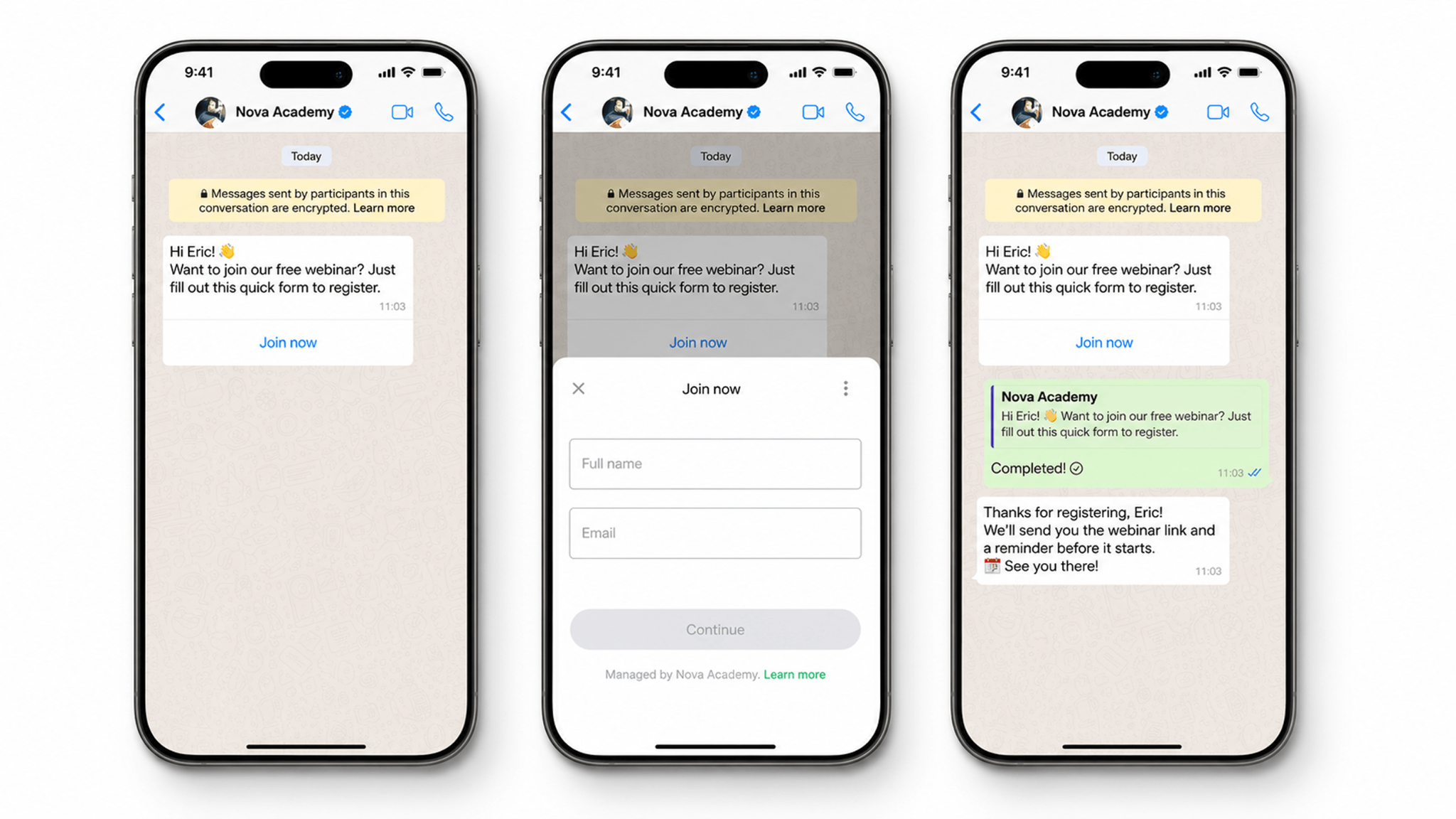
Use Flow templates to:
Register clients for events or appointments.
Collect lead details, preferences, or requirements.
Gather feedback after a purchase or service.
Qualify leads with a short set of questions.
Guide clients through onboarding or product selection.
Learn how to create and use Flows templates.
Catalog templates
Catalog templates let customers open and browse your products directly in WhatsApp. Unlike Carousel templates, they use products from your connected WhatsApp catalog. 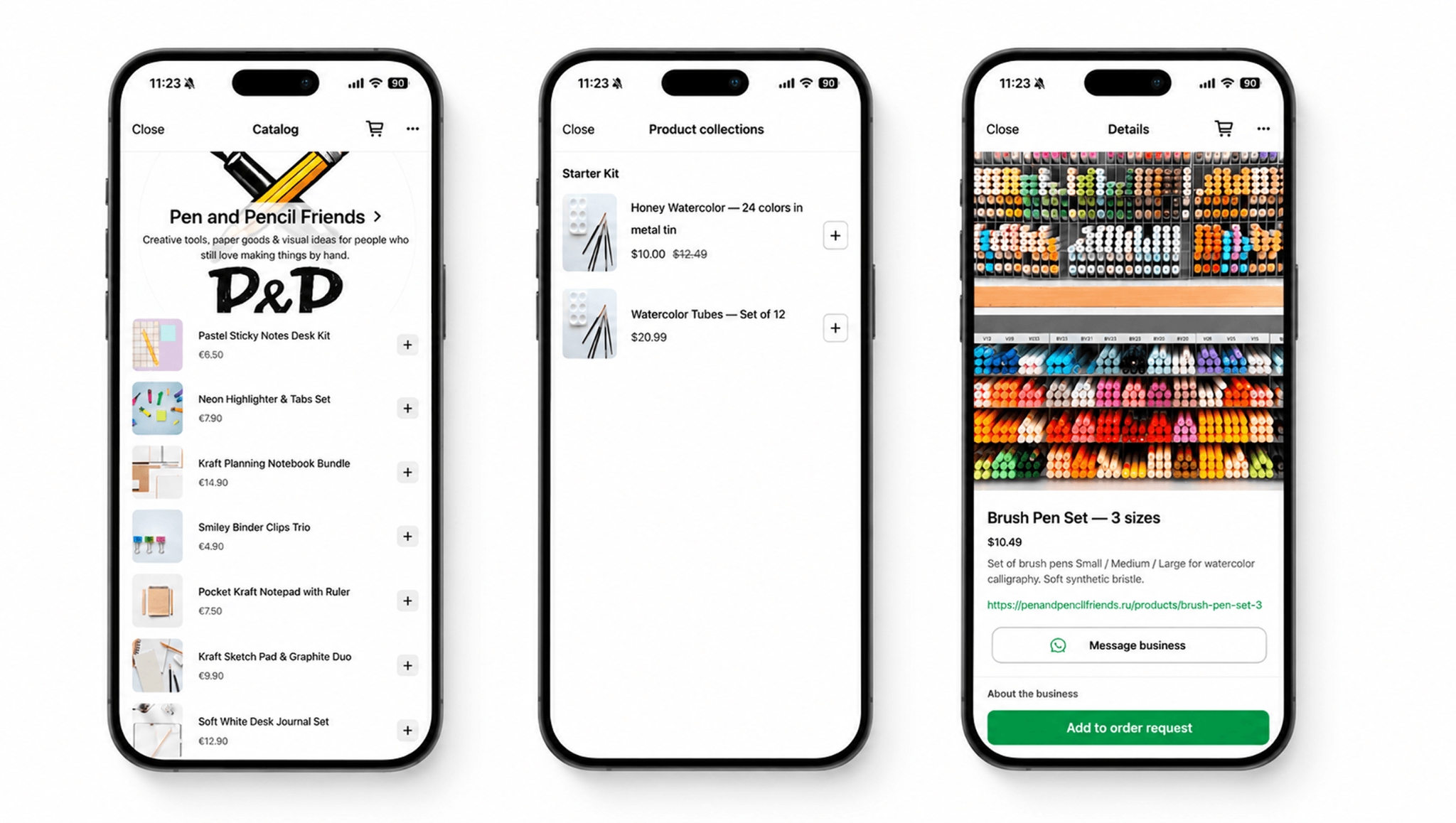
Use Catalog templates to:
Introduce your products to a new client.
Promote a new collection or seasonal selection.
Recover abandoned carts or re-engage inactive leads.
Send tailored product recommendations.
Share a full catalog, product set, or single product.
Learn how to create and use Catalog templates.
Other WhatsApp interactive messages
List messages
List messages are WhatsApp interactive messages, but they are not templates and do not require Meta’s approval.
They display a menu of options that clients can select instead of typing a response. List messages can be sent only through Salesbot while the 24-hour customer service window is open.
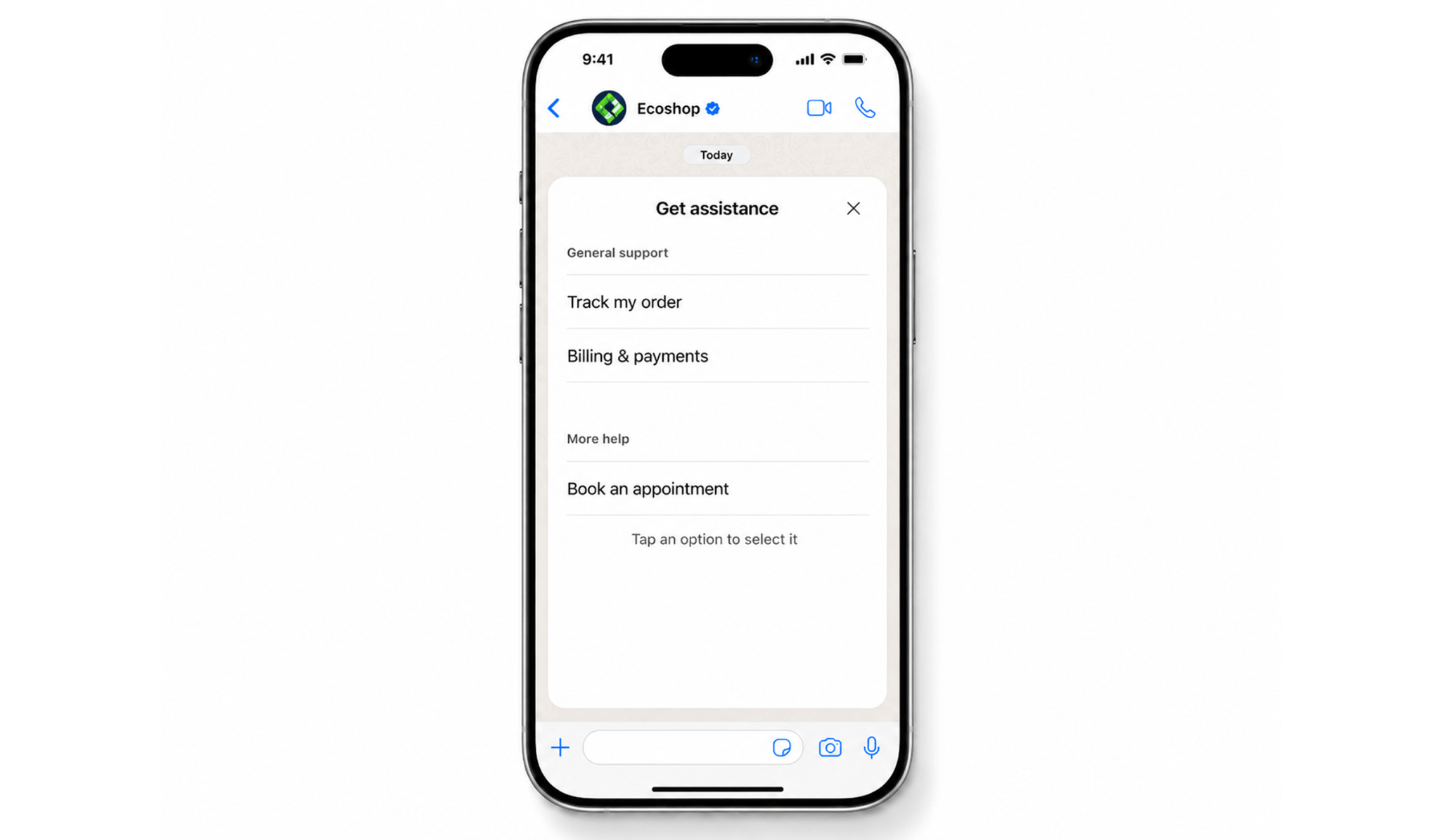
Use List messages to:
Collect client preferences — contact time, service type, or delivery option.
Offer appointment locations or other available options.
Guide clients through a quick decision.
Present FAQ options for instant answers.
Learn how to create and use List messages.
Create and approve a WhatsApp template
Before you can send a WhatsApp template, you need to create it in Kommo and submit it to Meta for approval.
When creating a template, you add the required details and submit it to Meta for review. Meta checks that the template follows WhatsApp policies before approving it.
Only templates with the Approved status can be sent to clients. Learn how to create, submit, track, and resubmit WhatsApp templates in this article.
Send WhatsApp templates in Kommo
Once Meta approves a template, you can use it across Kommo for manual, automated, and bulk messaging and send it through:
Chats — send a template from your Chats inbox to start a conversation, re-engage a client, or continue messaging after the 24-hour window closes.
Salesbot — send a template automatically as part of a bot scenario, for example, to follow up with a lead, collect information, or share products.
Broadcasting — send bulk messages to a selected group of clients. This works well for announcements, promotions, reminders, and product campaigns.
Kommo mobile app — send WhatsApp templates while working on the go.
Tip: You can also set up your AI agent to send WhatsApp templates through Salesbot.
How many WhatsApp templates you can create
You can create multiple WhatsApp templates in different languages.
The number of templates you can create depends on your business verification status:
Unverified businesses — up to 250 templates per WhatsApp Business Account (WABA).
Verified businesses — up to 6,000 templates per WABA, as long as at least one business phone number has an approved display name.