What you’ll need:
Any Kommo plan (Base, Advanced, Pro, Enterprise, or a 14-day trial).
WhatsApp Business integration installed and connected to your number. Learn how to set it up in this guide.
The Analyze with AI feature is currently available only on Pro, Enterprise, and trial accounts. It will become available on other plans soon.
Keep in mind:
Templates must be approved by Meta.
Only Admins can create, edit, or delete templates in Kommo.
You can edit templates that have the Draft or Rejected status. Templates that are In review or Approved cannot be edited.
Authentication templates are not currently available in Kommo.
Each template type has its own supported fields, format requirements, and limits. See the related article for the exact requirements of Custom, Carousel, Catalog, or Flow templates.
This guide explains how to create, submit, track, resubmit, and delete WhatsApp templates in Kommo.
To learn when WhatsApp templates are required and compare the available template categories and types, see the WhatsApp templates overview.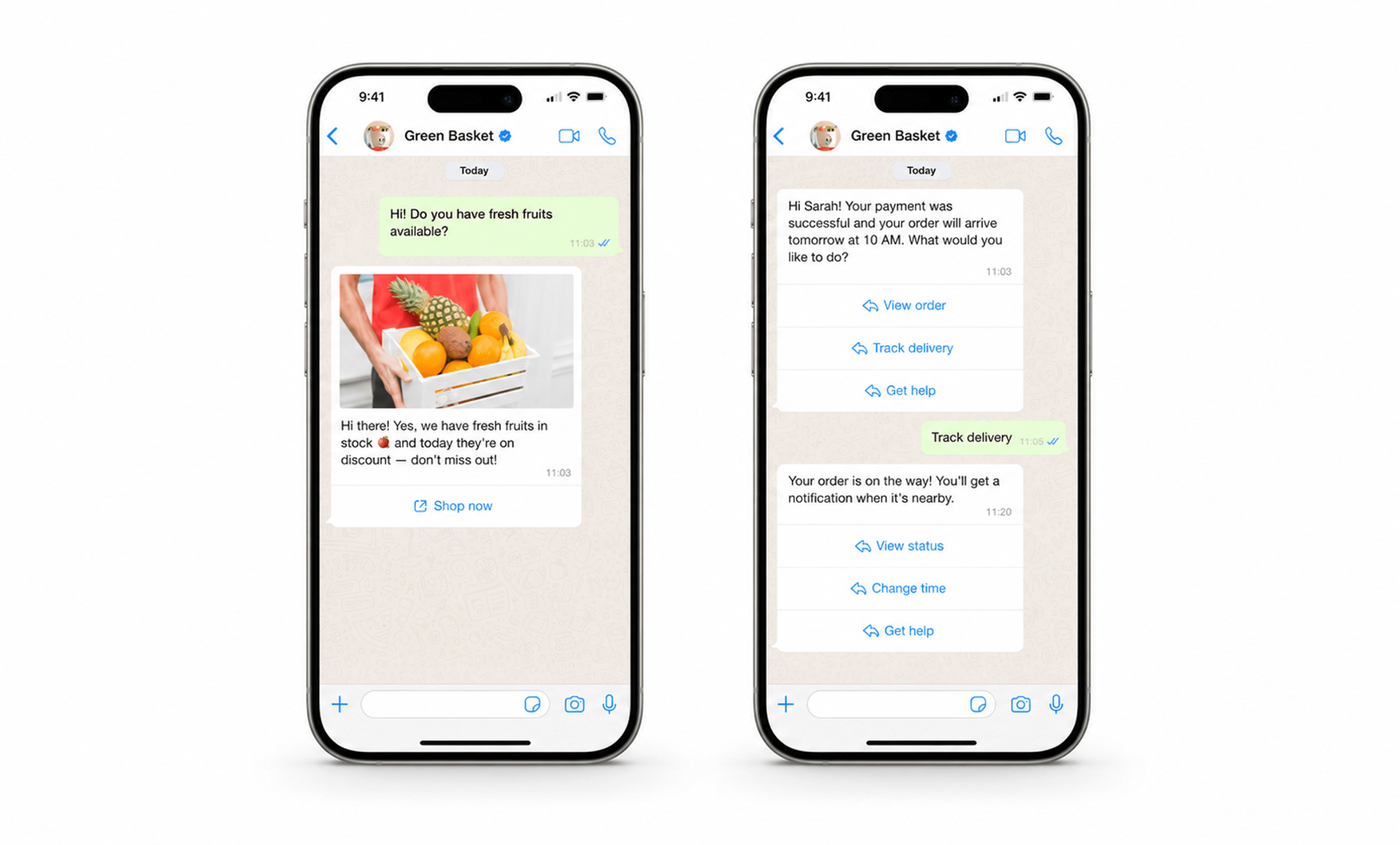
WhatsApp template settings and content
When you create a WhatsApp template, you first select its category and type. These choices determine which settings, message fields, and limits apply.
Most WhatsApp templates include some of the settings and content described below. The exact options depend on the selected template type.
Template settings
Template name
Kommo creates a template name automatically. You can edit it to make the template easier to find and recognize later.
The template name is shown only in Kommo. Clients do not see it.
WABA ID
The WABA ID identifies the WhatsApp Business Account linked to the template.
Check this field carefully if you manage multiple WhatsApp Business Accounts.
Language
Select the language used in the template.
Make sure the selected language matches the template text. Otherwise, Meta may reject the template.
Validity period
The validity period controls how long WhatsApp keeps trying to deliver a message when the recipient is offline or unavailable.
If the message is not delivered within this period, it expires and is automatically cancelled.
For Marketing templates, the available range is 12 hours to 30 days.
For Utility templates, the available range is 30 seconds to 12 hours.
You are not charged when a message is cancelled because it was not delivered within the validity period.
Note: You can configure the validity period for Marketing templates only when the Marketing Messages API is enabled. Learn more about the Marketing Messages API and how to enable it.
Message content
Header
Depending on the template type, you can add a header with text or media, such as an image or video.
A header can introduce the message or highlight its main topic. For example, you can use a text header for an order update or an image header for a product offer.
Body
The body contains the main text of the message.
Footer
Depending on the template type, you can add short text at the bottom of the message.
Buttons
Buttons let clients reply or take an action directly from the message.
The supported button types and limits depend on the template type. For example, Custom templates can include Quick reply and URL buttons, while Carousel and Flow templates have their own button requirements.
Placeholders
Placeholders let you personalize the same template for different clients. They automatically insert information from Kommo, such as:
Client name
Responsible user email
Lead ID
For example, you can create this message once:
“Hi [First name]! You have an appointment with [Contact responsible user] at 6 PM. We look forward to seeing you.”
When the message is sent, Kommo replaces each placeholder with the relevant information for that client. Learn more about placeholders.
You must also provide an example value for each placeholder. Meta uses these examples to understand what the completed message may look like during review.
Create and submit a WhatsApp template for approval
To create a WhatsApp template:
In Kommo, go to Automations → Templates → Chat templates.
Click + New template.
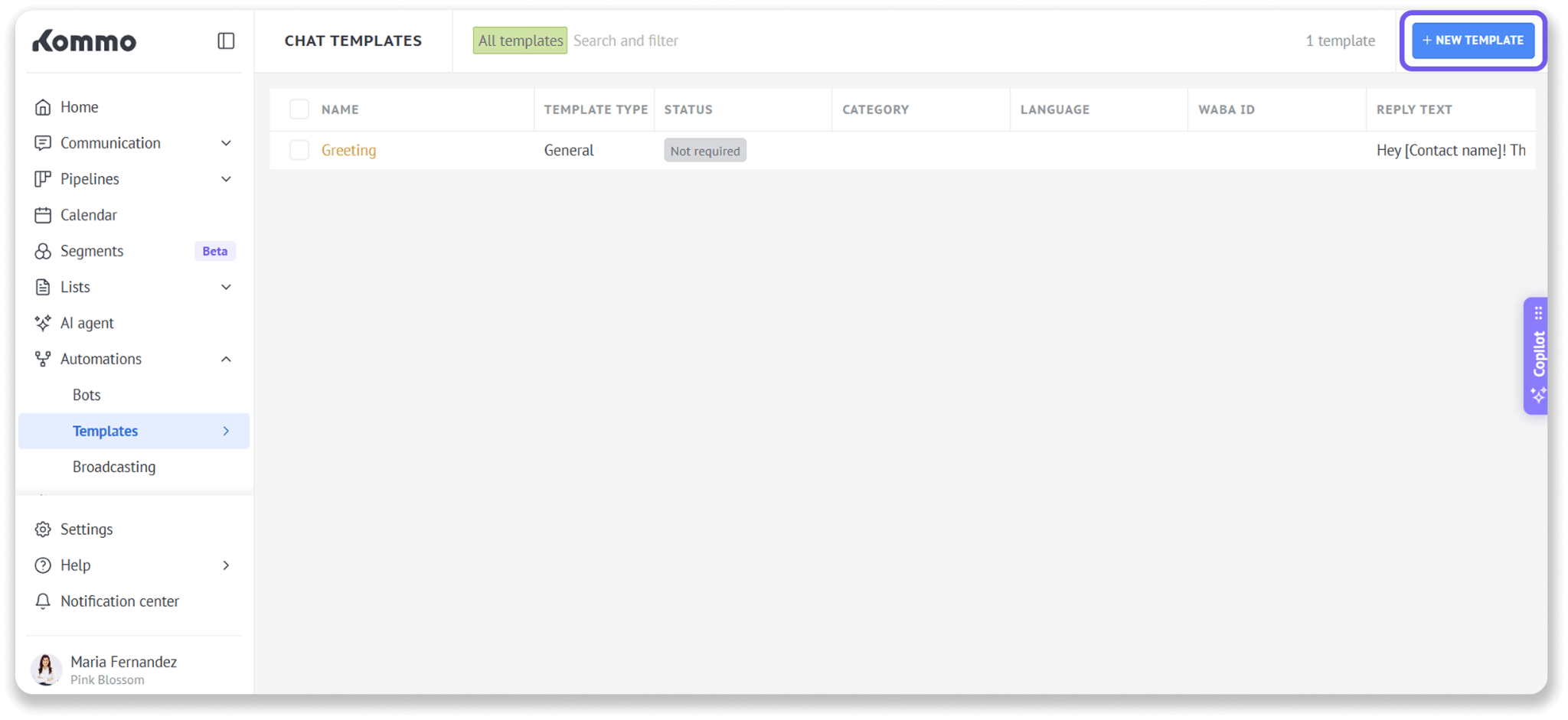
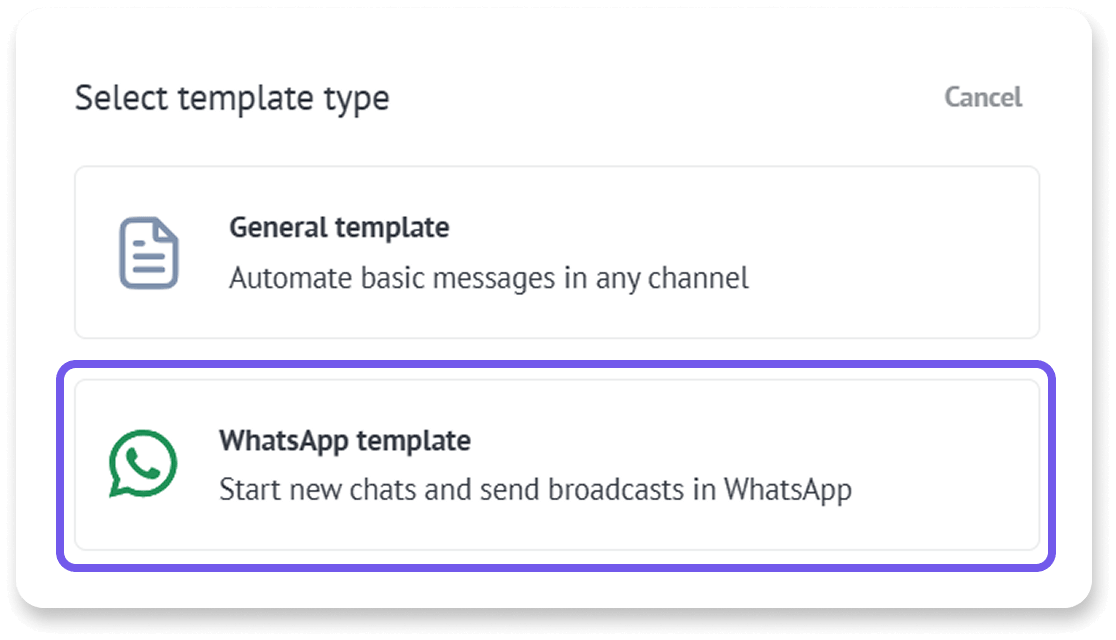
Select WhatsApp template.
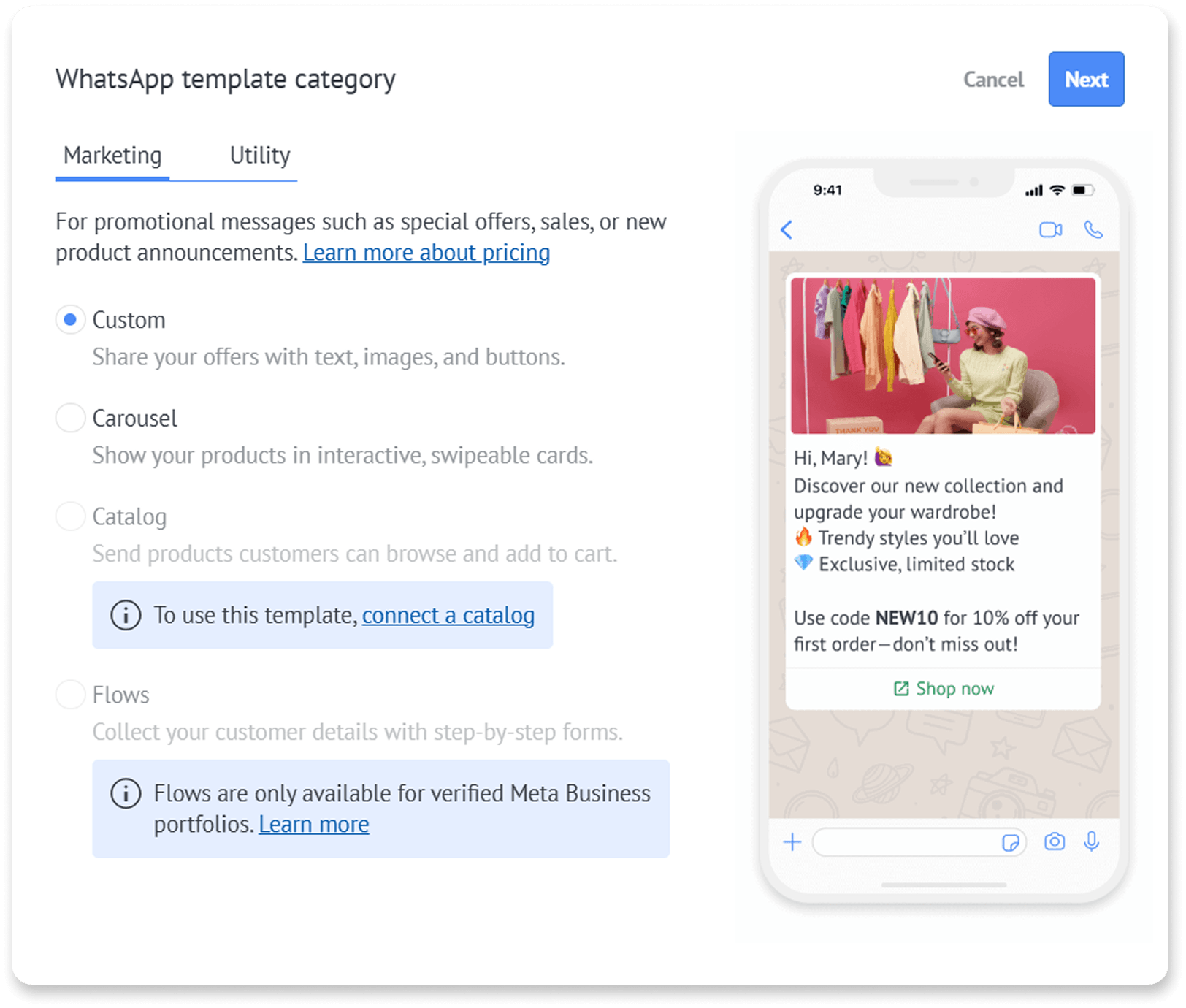
Select a category, choose the template type you want to create, and click Next.
Review the automatically generated template name and edit it if needed.
Select the WABA ID for the WhatsApp Business Account you want to link the template to.
Select the message Language.
Configure the Validity period when this option is available.
Add the fields supported by the selected template type. These may include:
Header
Body
Footer
Buttons
Carousel cards
Catalog products
Flow screens
Add placeholders if you want to personalize the message, then provide an example for each placeholder.
Review the template.
Before submitting the template, you can click Analyze with AI to review its content.
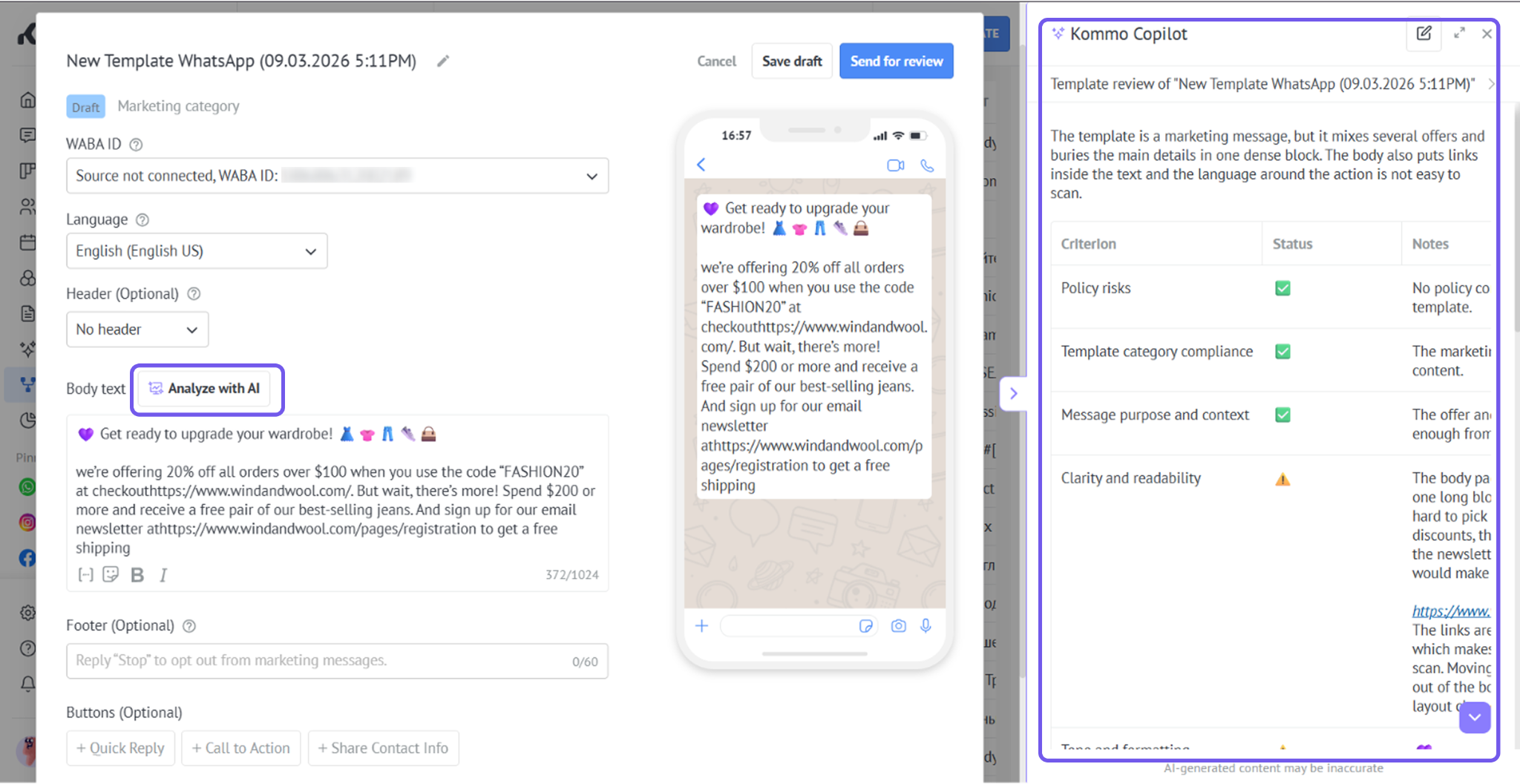
Copilot checks whether the content matches the selected category and language. It also identifies potential policy risks, unclear wording, spam-like formatting, and calls to action that do not match the message.
Copilot reviews the header, body, footer, buttons and links, and placeholders with example values. It does not review fields related to images, videos, or Carousel, Catalog, and Flows.
Click Apply suggested changes.
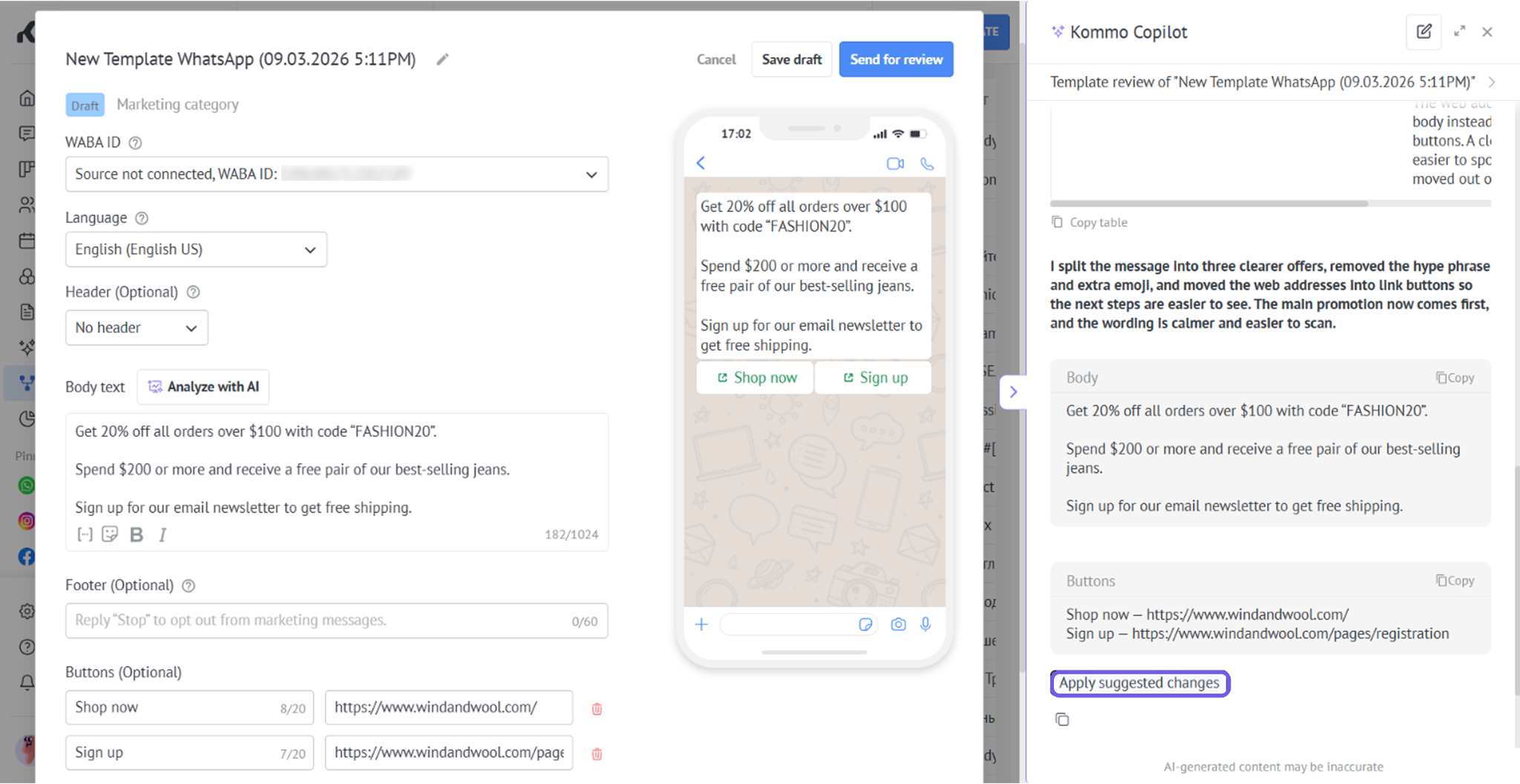
Important: The Analyze with AI feature is currently available only on Pro, Enterprise, and trial accounts. It will become available on other plans soon.
Click Save draft to continue later, or click Send for approval to submit it to Meta.
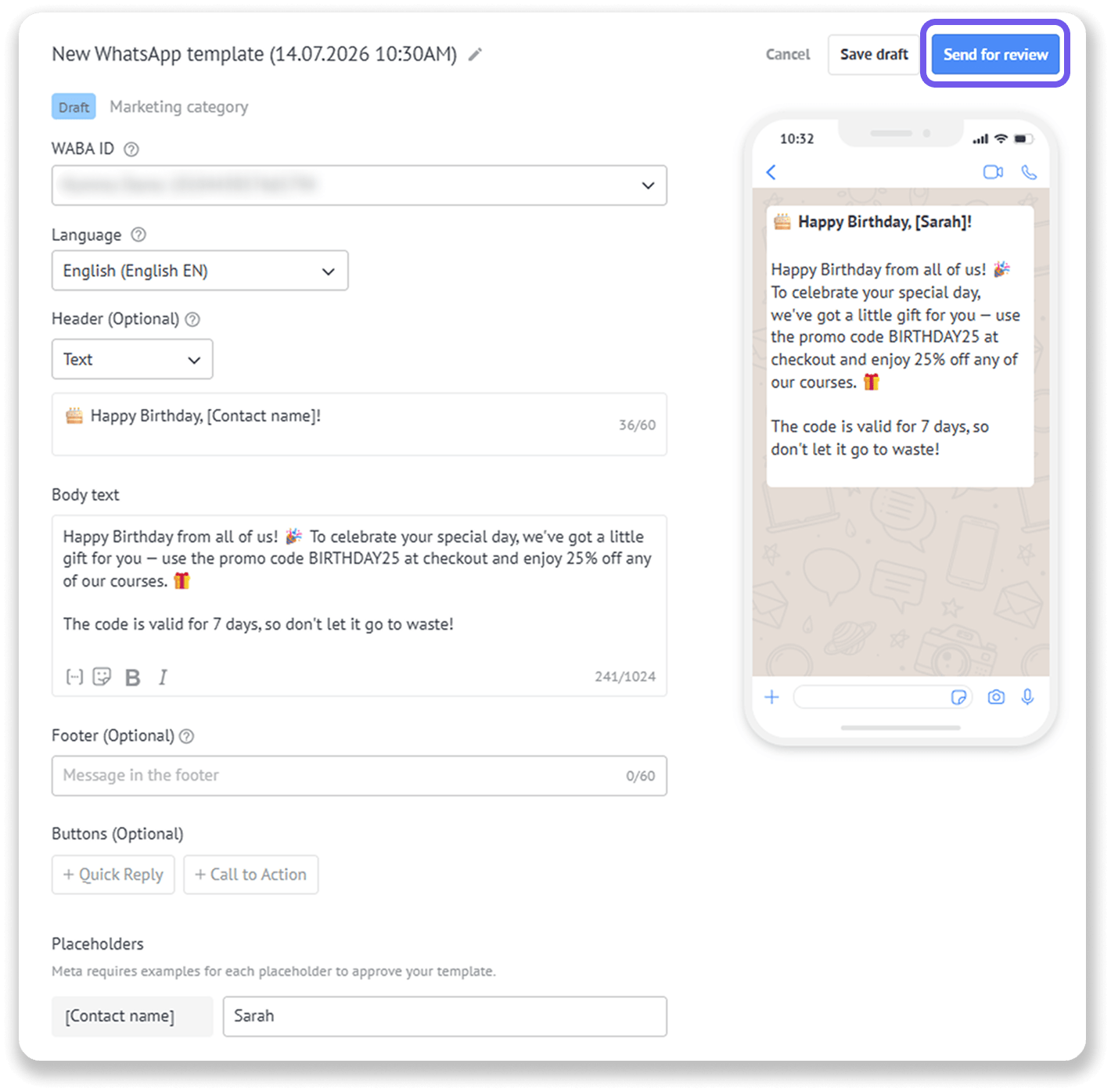
Meta’s review usually takes from one minute to 48 hours. During this time, the template has the In review status and cannot be edited.
For instructions specific to Custom, Carousel, Catalog, or Flow templates, see the related article for that template type.
Check a template’s status
After you submit a template, you can follow its status directly in Kommo:
Go to Automations → Templates → Chat templates.
Find the template you want to check.
Review the Status column.
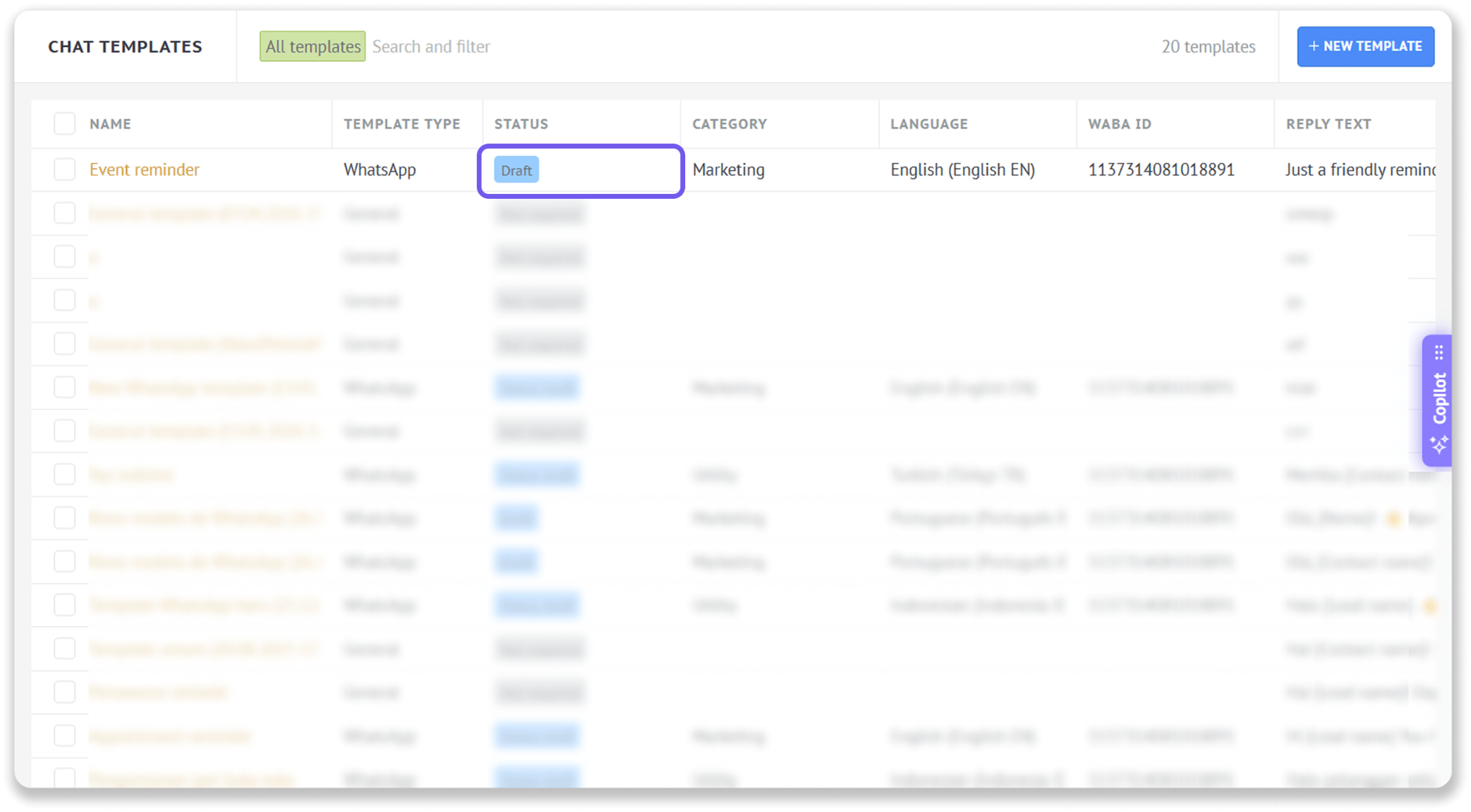
The template can have one of the following statuses:
Draft — Saved but not submitted to Meta. You can open and edit the template.
In review — Submitted and waiting for Meta’s decision. You cannot edit the template while it is being reviewed.
Approved — Approved by Meta and ready to send.
Paused — Temporarily blocked because of quality or policy issues. You cannot send the template while it is paused.
Rejected — Not approved by Meta. Hover over the status to see the rejection reason. You can edit the template and submit it again.
Only templates with the Approved status can be sent to clients.
If a template is paused, contact Meta Business Support for help.
Fix and resubmit a rejected WhatsApp template
When Meta rejects a template, check the rejection reason before making changes.
To update and resubmit it:
Go to Automations → Templates → Chat templates.
Find the template with the Rejected status.
Hover over the status to see why the template was rejected.
Open the template.
Correct the content that caused the rejection.
Click Send for approval.
The template returns to the In review status while Meta reviews the updated version.
Delete a template
To remove a template you no longer need:
Open the template.
Click Delete template.
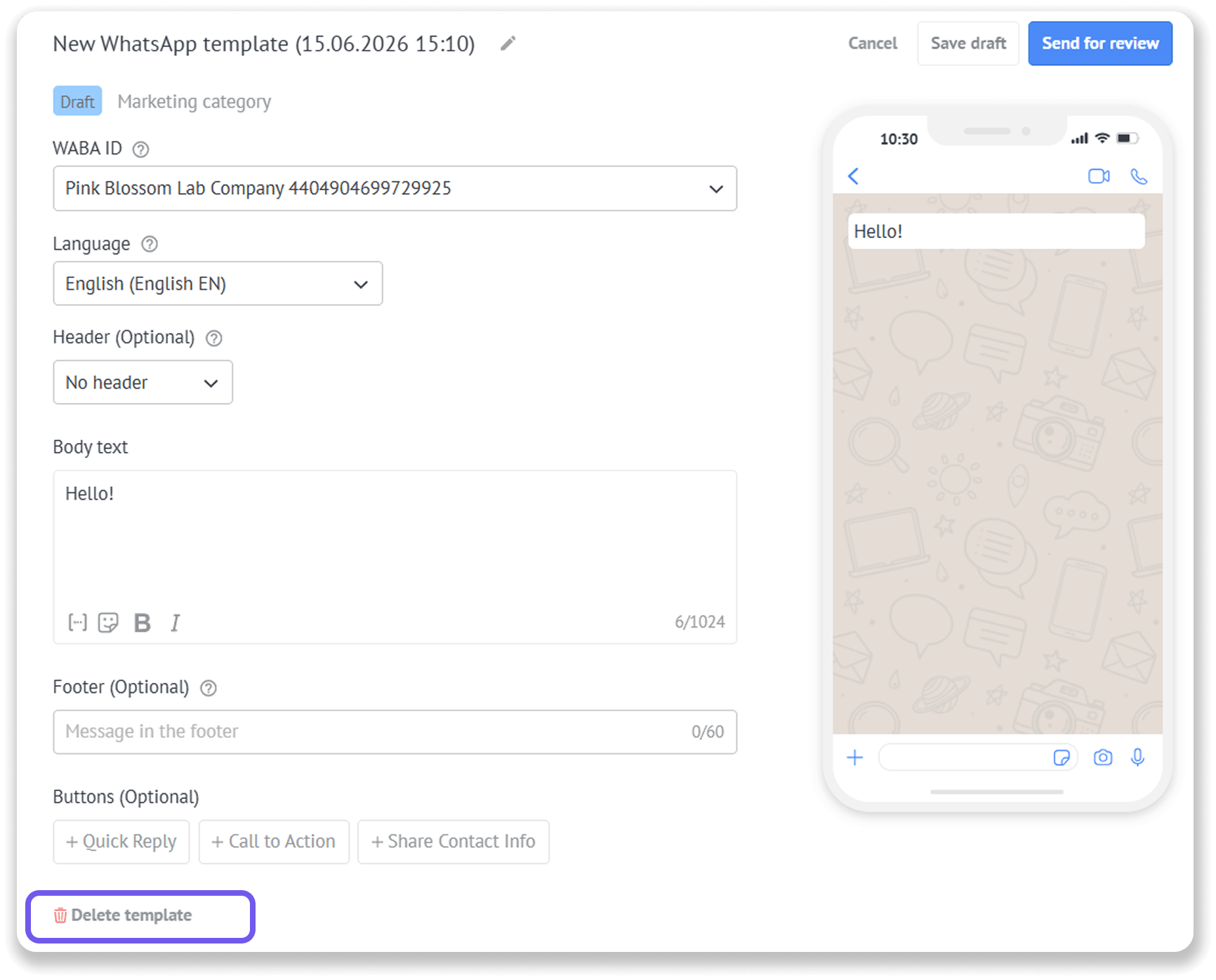
Confirm the deletion when prompted.
The deleted template is no longer available for sending.
Note: Before deleting a template, make sure it is not needed in an active Salesbot, broadcast, or another messaging workflow. Deleted templates cannot be restored.
Help Meta approve your template
Before submitting your template, check the following:
Add an example for every placeholder. Meta uses these examples to understand what the final message will look like.
Use placeholders correctly. Avoid unsupported special characters such as #, $, or % in placeholder parameters.
Choose the right category. Use Utility for updates related to a customer action or request, and Marketing for promotions, awareness, or re-engagement messages. Choosing the wrong category may lead to rejection or reclassification.
Match the language to the message text. The language selected in the template must match the language you actually use in the message.
Keep meaningful text around placeholders. Do not create a message made only of placeholders. Add text for Meta and the clients to understand the message.
Follow WhatsApp’s Commerce Policy. When promoting or selling products and services, make sure descriptions, prices, fees, taxes, media, and required disclosures comply with the policy.
Follow WhatsApp’s Business Messaging Policy. Ask only for information that WhatsApp allows. Do not request full sensitive details such as complete card numbers, bank account numbers, PINs, or documents that expose confidential identifiers.
Keep the message respectful and clear. Avoid threats, public shaming, abusive language, misleading claims, or overly aggressive wording.
Make each template distinct. Avoid submitting a template with the same body and footer as one that already exists.
Write with the client in mind. Make the purpose of the message easy to understand and avoid wording that may feel spammy or misleading.
Troubleshoot WhatsApp templates
Issue | What to do |
|---|---|
The template was rejected | Hover over the Rejected status to see the reason. Open the template, correct the issue, and submit it again. |
The template was paused | You cannot send the template while it is paused. Contact Meta Business Support for help. Do not follow the rejected-template resubmission steps unless Meta changes the status to Rejected. |
The validity period option is unavailable for a Marketing template | Make sure the Marketing Messages API is enabled for your account. |
The template cannot be sent | Make sure its status is Approved and that it is linked to the correct WhatsApp Business Account. |
The template is missing after deletion | Deleted templates cannot be restored. Create and submit a new template if you need to use the message again. |
A template becomes a regular message in a chat | After you add an approved template to the chat message box, do not change its content. Any change turns it into a regular message, and it can no longer be sent as a WhatsApp template. Select the template again to restore the approved version. |