What you’ll need:
Any Kommo plan (Base, Advanced, Pro, Enterprise, or 14-day trial)
Keep in mind:
Only Admins can create email and chat templates
Placeholders let you automatically insert information from a lead, contact, company, or user into your email and chat templates. Instead of manually typing a client’s name, company, or other details every time, Kommo fills them in automatically when you send the message.
For example, instead of writing:
Hello John,
you can write:
Hello {{contact.first_name}},
When the message is sent, Kommo replaces the placeholder with the recipient’s actual name.
This article explains how placeholders work, where to find them, and how to use them in email and chat templates.
How placeholders work
Every lead, contact, company, and user record in Kommo stores information in dynamic fields, such as a client’s name, phone number, email address, or custom field values.
A placeholder is a tag you add to a template that tells Kommo which dynamic field to use. When you send the message, Kommo automatically replaces the placeholder with the corresponding information from the record.
For example:
Dynamic field: Contact first name
Placeholder: {{contact.first_name}}
Message sent: Hello John
This way, you can create a template once and personalize it automatically for every recipient.
Note: Email and chat templates use different placeholders. See more details below.
Available dynamic fields in Kommo
Contacts
ID – The unique identification number of a contact.
First name – The contact’s first name.
Last name – The contact’s last name.
Responsible user – The user assigned to the contact (can be different from the lead’s responsible user).
Responsible user (ID) – The unique ID of the responsible user.
Responsible user (Email) – The email address of the responsible user.
Position – The job title or position of the contact.
Phone / Email – Main phone number or email address of the contact.
User terms – A consent checkbox used in web forms. When enabled, it is also shown inside the lead profile.
Phone (Work / Mobile / Home / Fax / Other) – Different types of phone numbers for the contact.
Email (Work / Private / Other) – Different types of email addresses for the contact.
Companies
ID – The unique identification number of a company.
Responsible user – The user assigned to the company (can be different from the lead’s responsible user).
Responsible user (ID) – The unique ID of the responsible user.
Responsible user (Email) – The email address of the responsible user.
Phone / Email / Web / Address – Main contact details of the company.
Phone (Work / Mobile / Fax / Home / Other) – Different types of company phone numbers.
Email (Work / Private / Other) – Different types of company email addresses.
Leads
ID – The unique identification number of a lead. Every lead has a 7-digit ID and it should not be confused with the lead name.
Lead name – The name of the lead. It appears at the top of the lead profile. If a lead has no name, it is shown as “Lead #1234567” (based on its ID).
Sale value – The potential value of the deal if the lead converts. For example, if a lead wants to buy a product for $100, the sale value is $100.
Contact name – The name of the contact linked to the lead. This is not the same as the lead name. A lead can have one or multiple contacts.
Company name – The name of the company associated with the lead.
Lead stage – The current stage of the lead in the pipeline.
Responsible user – The user assigned to manage the lead.
Responsible user (ID) – The unique ID of the responsible user.
Responsible user (Email) – The email address of the responsible user.
utm_term – The search term value added to the utm_term parameter in a tracking link.
referrer – The website where the lead came from.
gclientid – Google Analytics Client ID used to identify unique visitors and track their activity across sessions.
gclid – Google Click ID used to track ad clicks and campaign attribution from Google Ads.
fbclid – Facebook Click Identifier used to track traffic from Facebook ads.
City – The city listed in the lead profile.
Country – The country listed in the lead profile.
Form – A field used in web forms to capture submission source or form data.
User
Kommo User name – The name of the Kommo user sending the message.
Kommo User phone – The phone number of the Kommo user sending the message.
Learn more about leads, contacts, and companies in this article.
Personalize emails and chat messages with placeholders
Add placeholders to email templates
You can just copy a placeholder from the list below and paste it to your email template.
Go to Automations → Templates → Email templates.
Click + Add a template or open an existing one.
Select a placeholder from the list below and add it to the text.
Click Save.
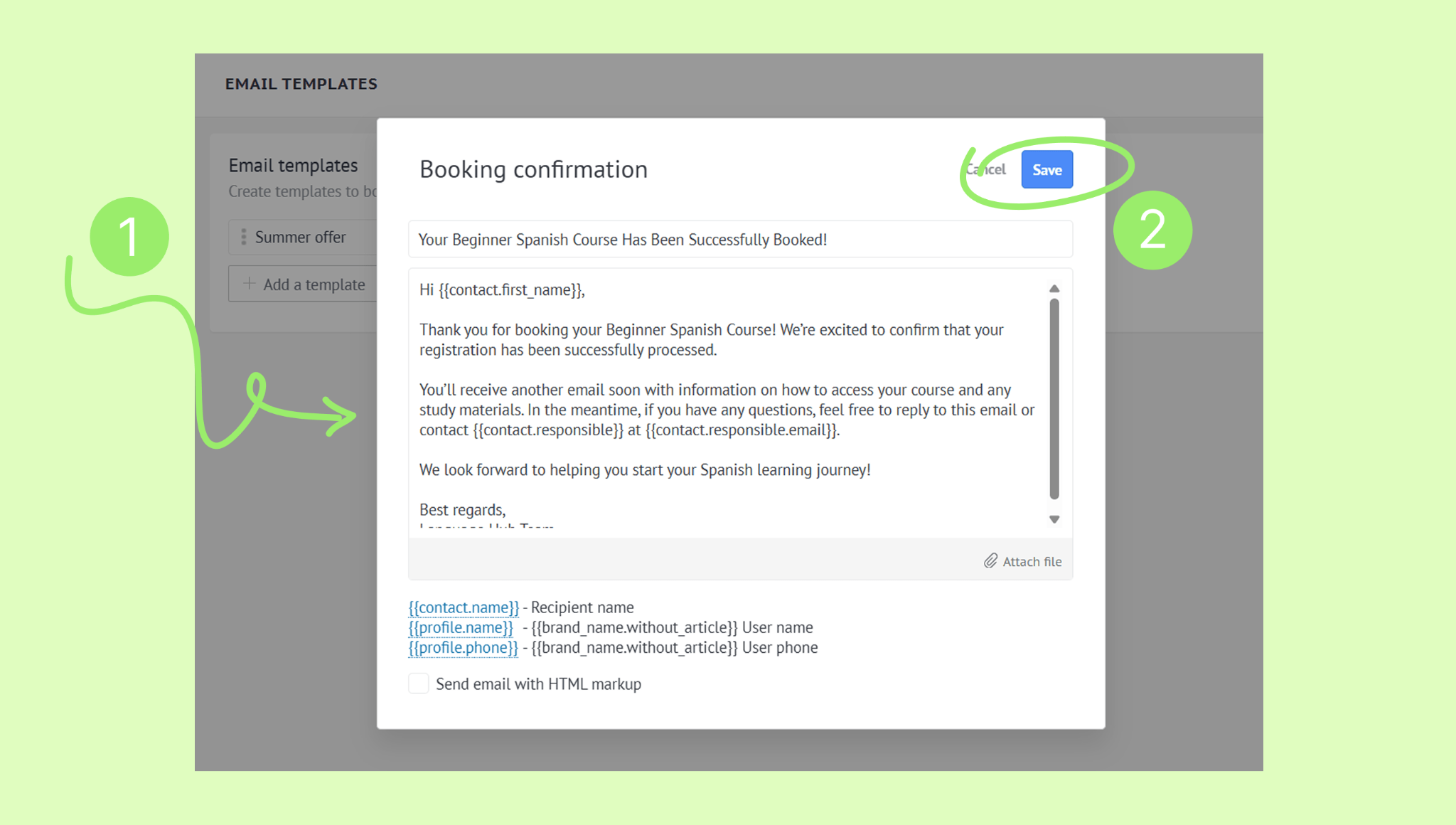
Learn how to create and use email templates in this article.
Email placeholders list
Contact placeholders
{{contact.id}} – Contact ID
{{contact.name}} – Contact full name
{{contact.first_name}} – Contact first name
{{contact.last_name}} – Contact last name
{{contact.cf.<field_name>}} – Custom field value
{{contact.responsible}} – Name of the user responsible for the contact
{{contact.responsible.id}} – ID of the user responsible for the contact
{{contact.responsible.email}} – Email of the user responsible for the contact
Company placeholders
{{company.id}} – Company ID
{{company.name}} – Company name
{{company.cf.<field_name>}} – Custom field value
{{company.responsible}} – Name of the user responsible for the company
{{company.responsible.id}} – ID of the user responsible for the company
Lead placeholders
{{lead.id}} – Lead ID
{{lead.name}} – Lead name
{{lead.cf.<field_name>}} – Custom field value
{{lead.cf.<subtype_name>}} – For smart email addresses
User placeholders
{{profile.name}} – User’s name
{{profile.phone}} – User’s phone number
Add placeholders to chat templates
You can add chat placeholders directly in your template settings.
Go to Automations → Templates → Chat templates.
Click + New template or open an existing one.
Click the three dots (⋯) icon and select a placeholder — it will be added automatically.
Click Save to finish.
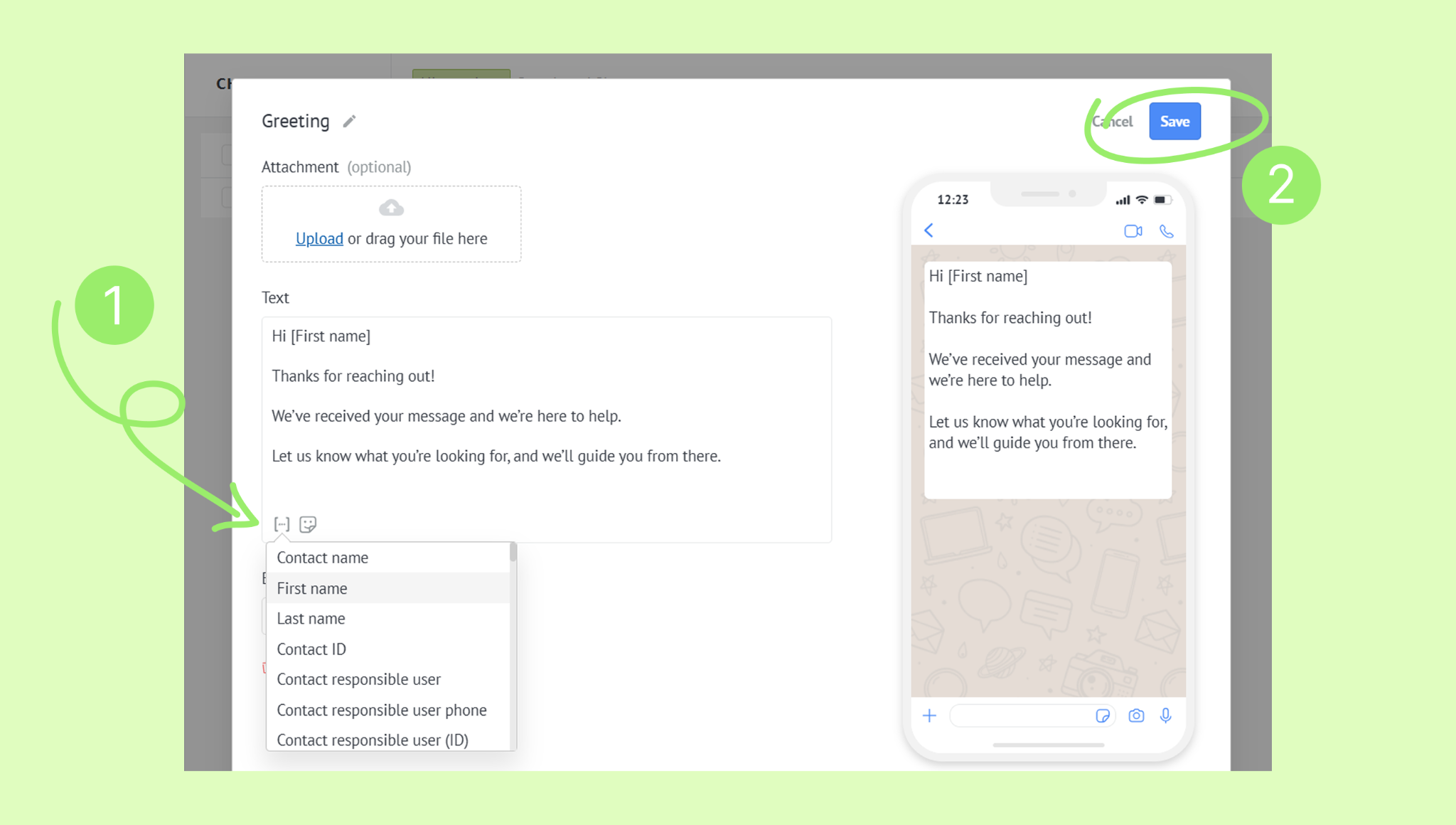
Tip: You can add a chat placeholder to a template by typing [. A list of available placeholders will appear, allowing you to choose the one you need.
Learn more about chat templates and how to use them in this article.