What you’ll need:
Any Kommo plan (Base, Advanced, Pro, Enterprise, or 14-day trial)
Keep in mind:
Only Admins can connect shared email accounts, create email templates, and add signatures
Kommo syncs only two folders from your email service: Inbox and Sent.
Kommo supports IMAP/SMTP email services like Gmail, Outlook, and Yahoo
Email templates in Kommo let you write messages once and reuse them anytime — whether it's a follow-up, a special offer, or an order confirmation.
Send them manually one by one, or set up a pipeline trigger or Salesbot to send them automatically — for example, when a lead moves to a new stage or at a scheduled time.
Add placeholders to automatically fill in client details — such as a name, lead number, or responsible user's email — without typing them in each time.
This article explains how to create and manage email templates in Kommo.
Create an email template
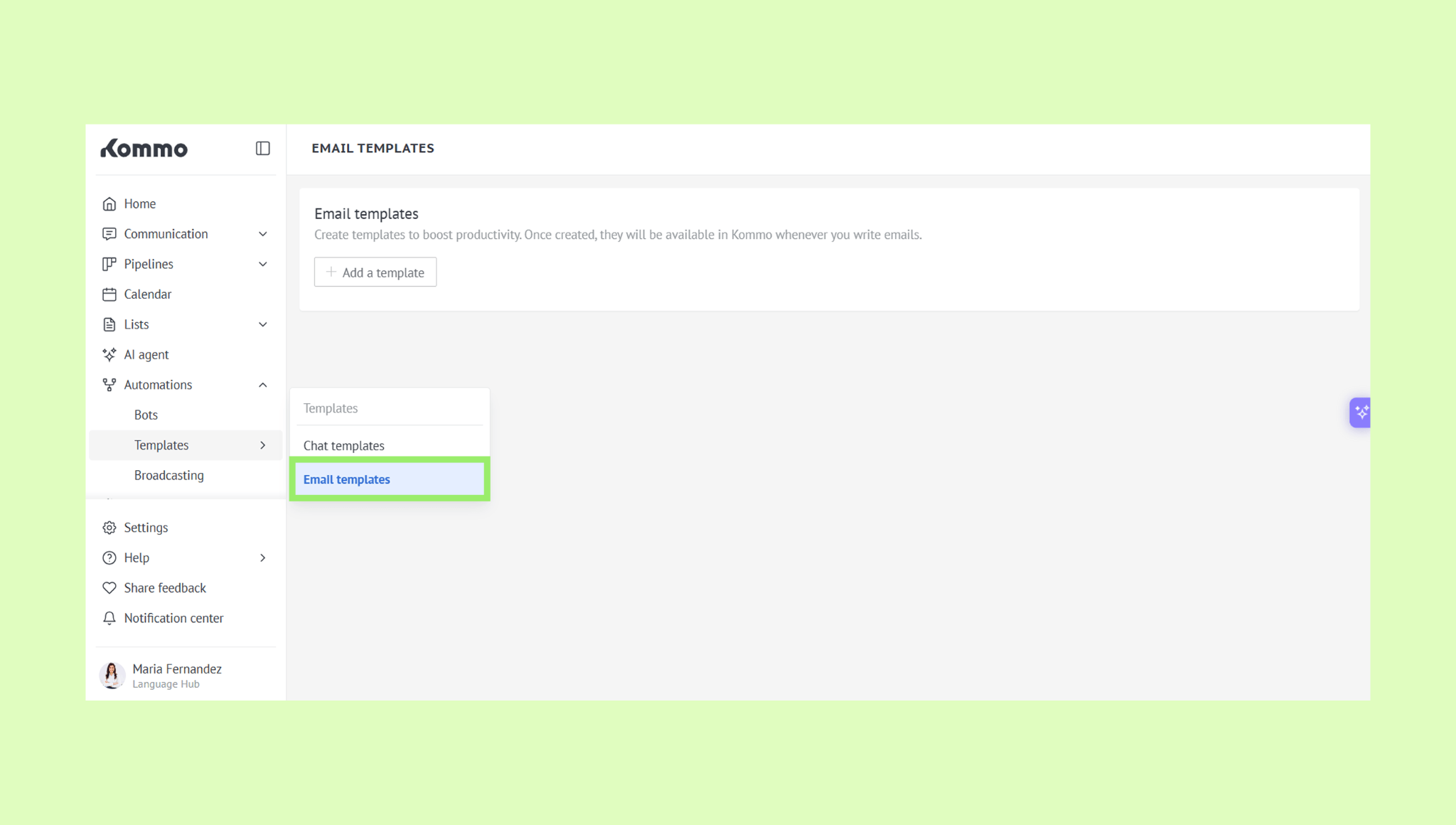
Go to Automations → Templates → Email templates.
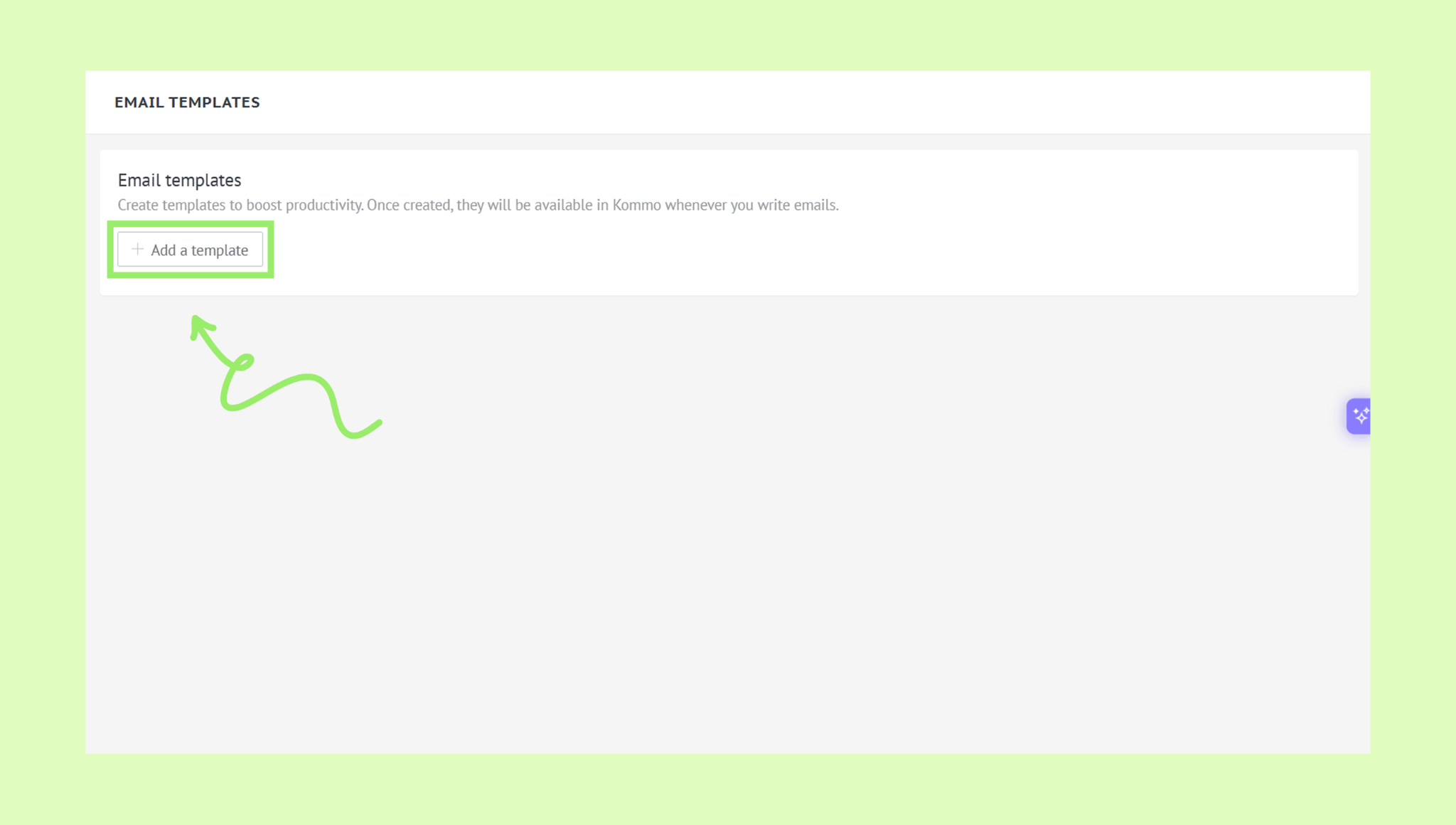
Click + Add a template.
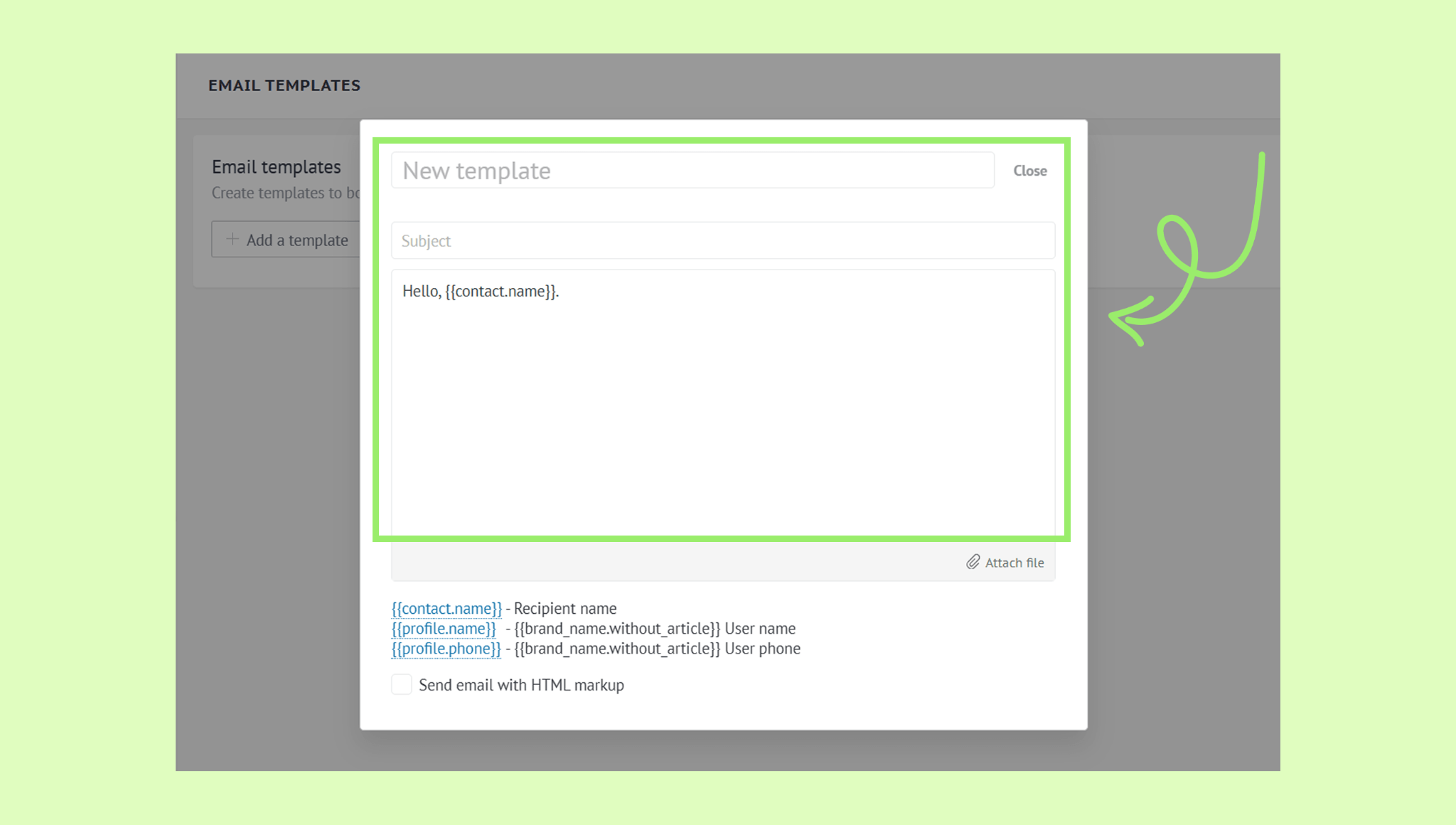
Enter the template name, add the subject, and type your message.
Optionally, attach a file.
Optionally, enable Send email with HTML markup.
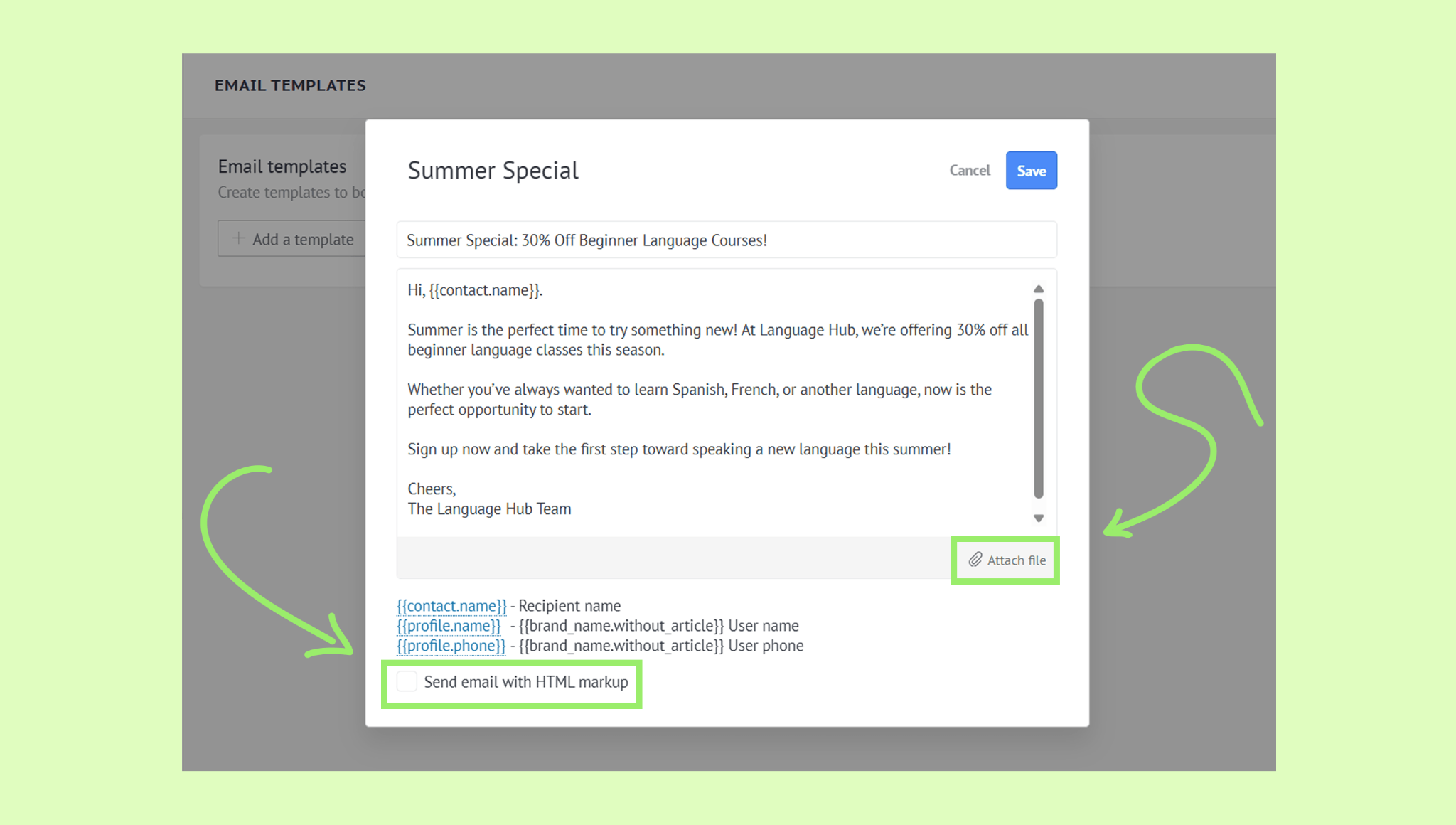
Tip: If you’re familiar with HTML markup, select Send email with HTML markup to create custom-formatted emails with colors, fonts, layouts, hosted images, buttons, links, tables, and a custom signature.
Click Save.
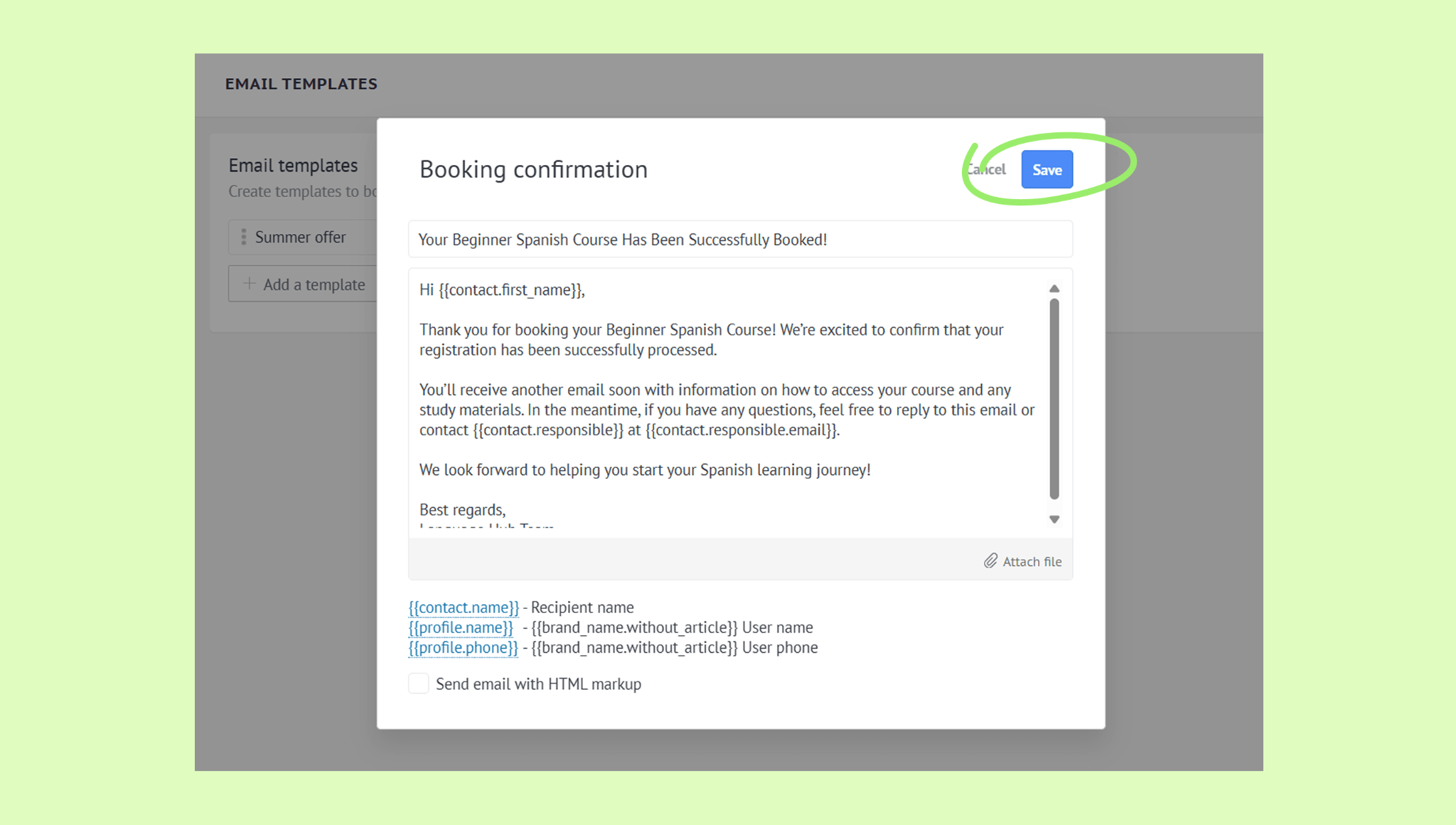
Tip: Add placeholders to automatically fill in client details — such as a contact's name or lead ID — without typing them in each time. Learn more in this article.
Use an email template
You can use email templates when composing a new email, replying to an existing one, or as part of an automated email workflow.
To write an email using a template:
Go to Communication → Email inbox, open your folder, and click Compose.
Add a recipient.
Click Template and choose a template from the list. The subject and message will be filled in automatically.
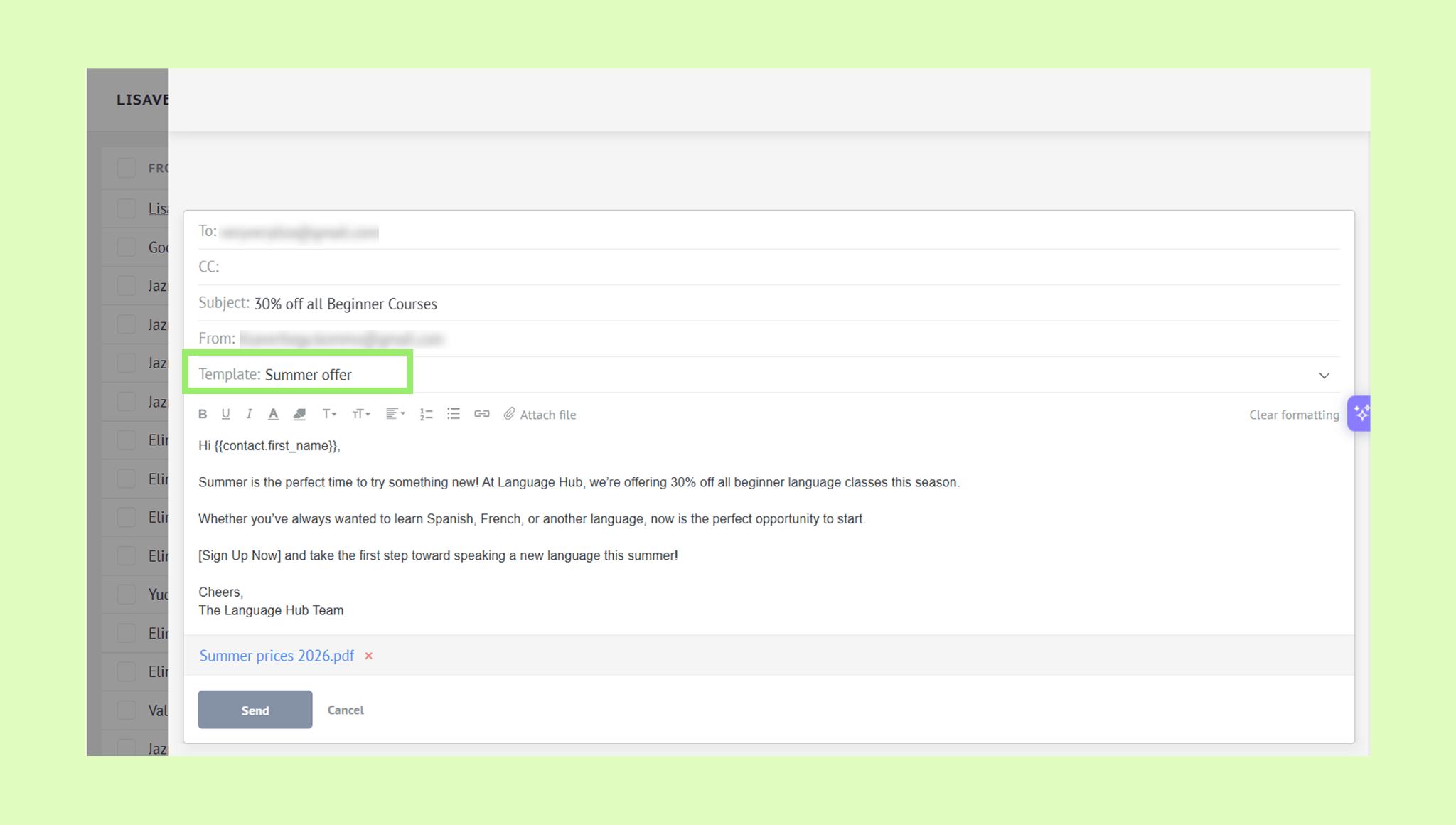
Optionally, edit the text using the formatting toolbar or attach a file.
Click Send.
Tip: You can also automate email sending in Kommo using Salesbot triggers. For example, emails can be sent automatically when a lead moves to a different pipeline stage, or scheduled to be sent at a specific time.
Learn how to manage emails in this article.
Edit an email template
Go to Automations → Templates → Email Templates.
Hover over a template and click the pencil icon.
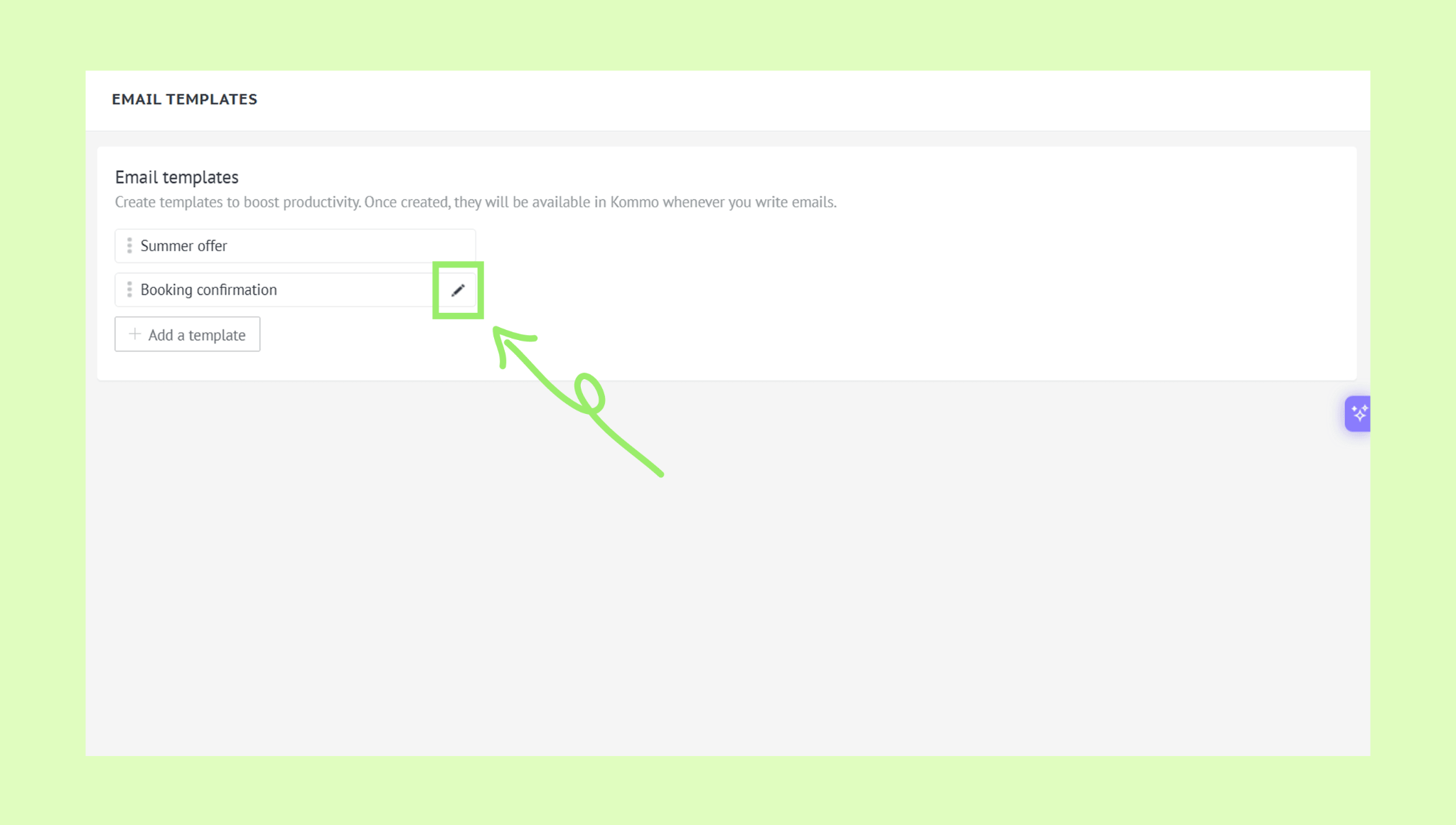
Make the changes and click Save.
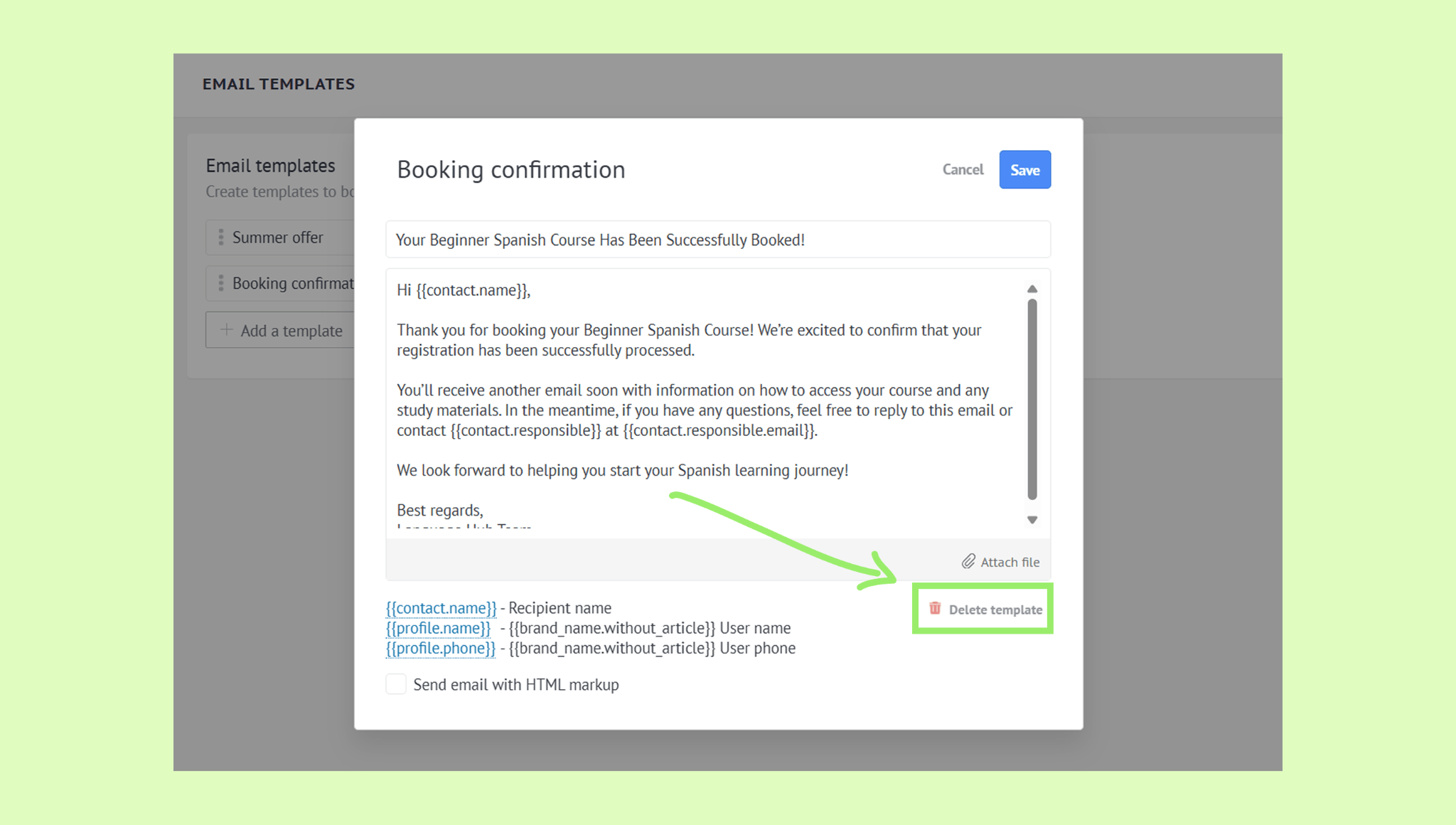
Delete an email template
Go to Automations → Templates → Email Templates.
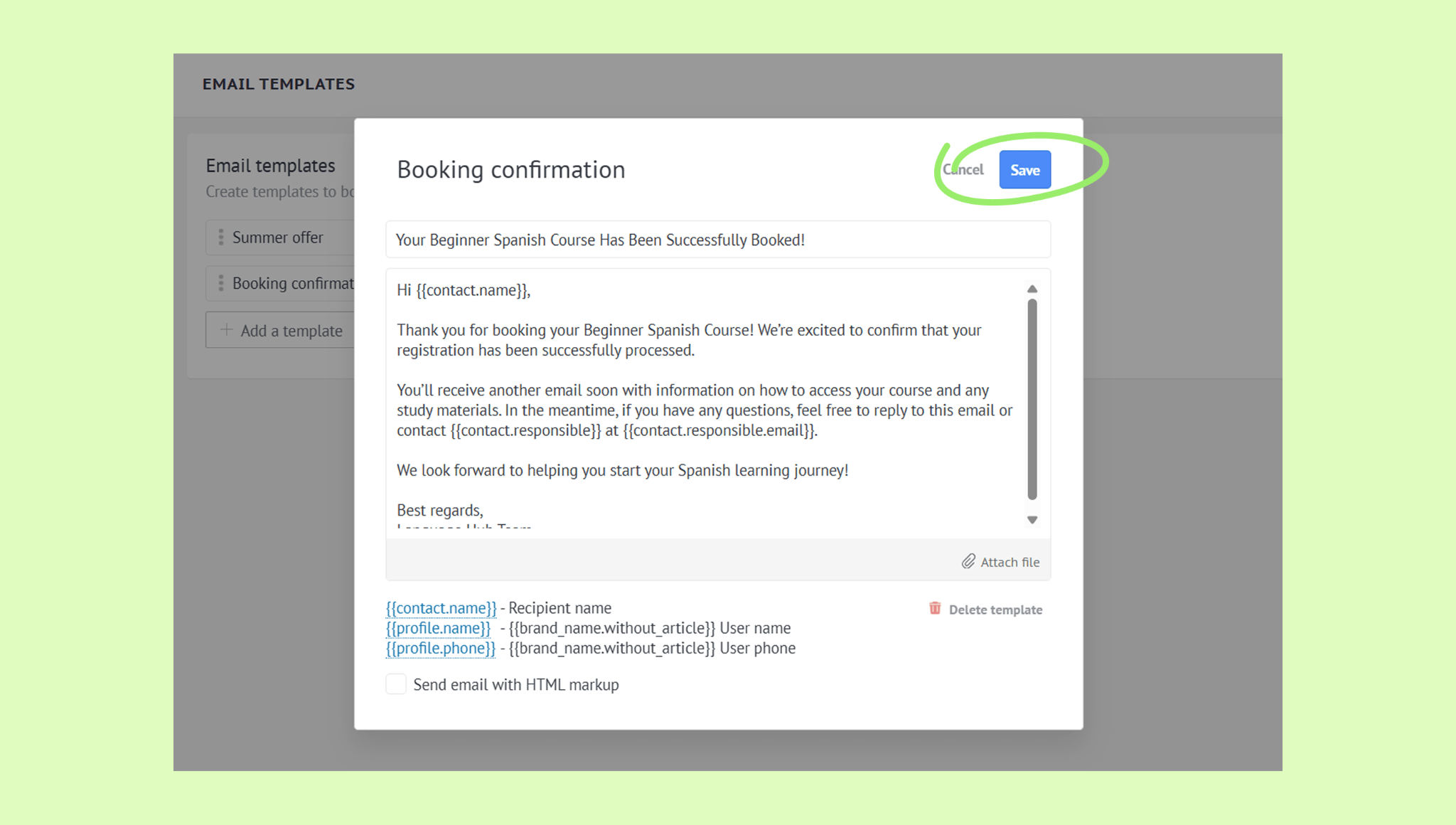
Hover over a template and click the pencil icon.
Click Delete template and confirm deletion.
Learn how to automate emails with digital pipeline triggers or Salesbot.