What you’ll need:
Any Kommo plan (Base, Advanced, Pro, Enterprise, or 14-day trial).
Keep in mind:
Only Admins can connect shared email accounts, create email templates, and add signatures
Kommo syncs only two folders from your email service: Inbox and Sent
Kommo supports IMAP/SMTP email services like Gmail, Outlook, and Yahoo
In Kommo, you can send and receive emails directly from your workspace — no need to switch between Kommo and your email provider.
Connect your email account, choose whether it should be personal or shared with your team, and all your emails will appear in Kommo, automatically linked to the matching leads and contacts. If the sender is new, you can create a lead or contact directly from the email, or enable automatic creation.
Use email templates for quick replies or set up a pipeline trigger or Salesbot to send emails automatically and save time.
This step-by-step guide will show you how to manage your emails in Kommo.
Send emails from the email inbox
Kommo's email inbox is organized into four folders:
Your email address folder — contains all emails for that specific address. If you have multiple email accounts connected, each one has its own folder.
All received emails — shows all incoming emails from all connected email accounts in one place.
All sent emails — shows all sent emails from all connected email accounts in one place.
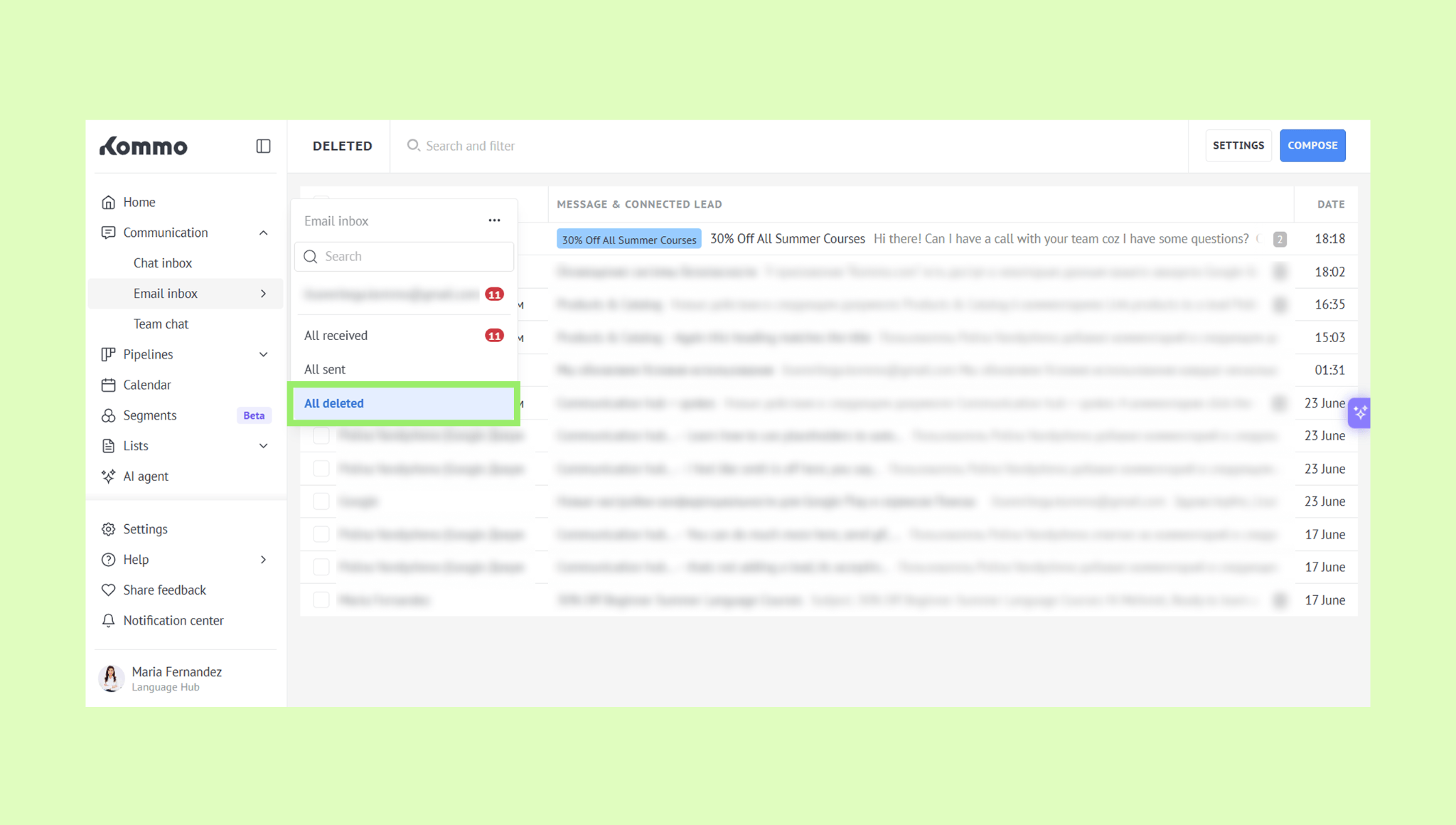
All deleted emails — a bin for deleted emails from all connected accounts.
Note: Emails are grouped into threads by default. You can turn this off in Email settings — learn more in this article.
To write a new email:
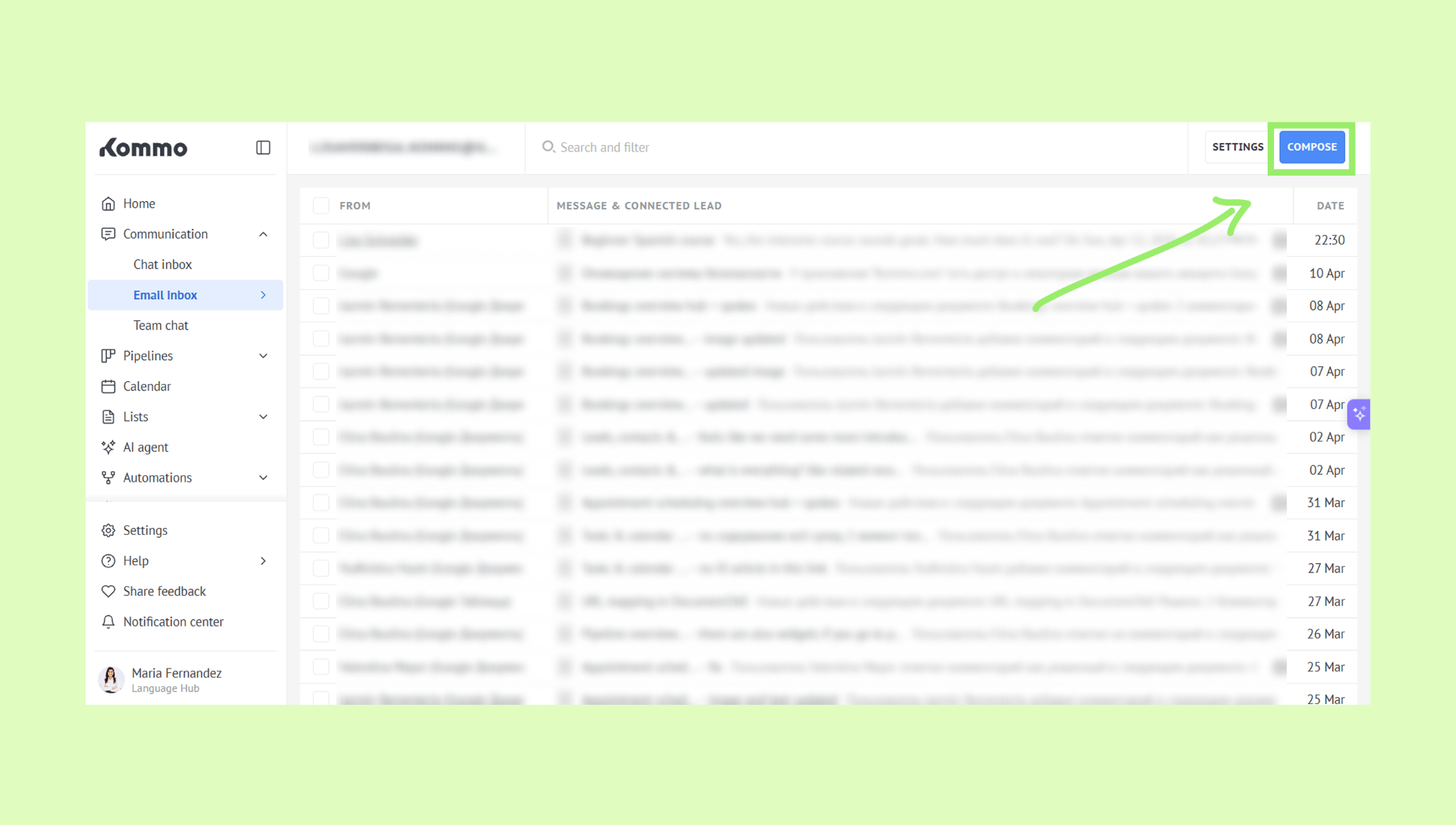
Go to Communication → Email inbox, open your folder, and click Compose.
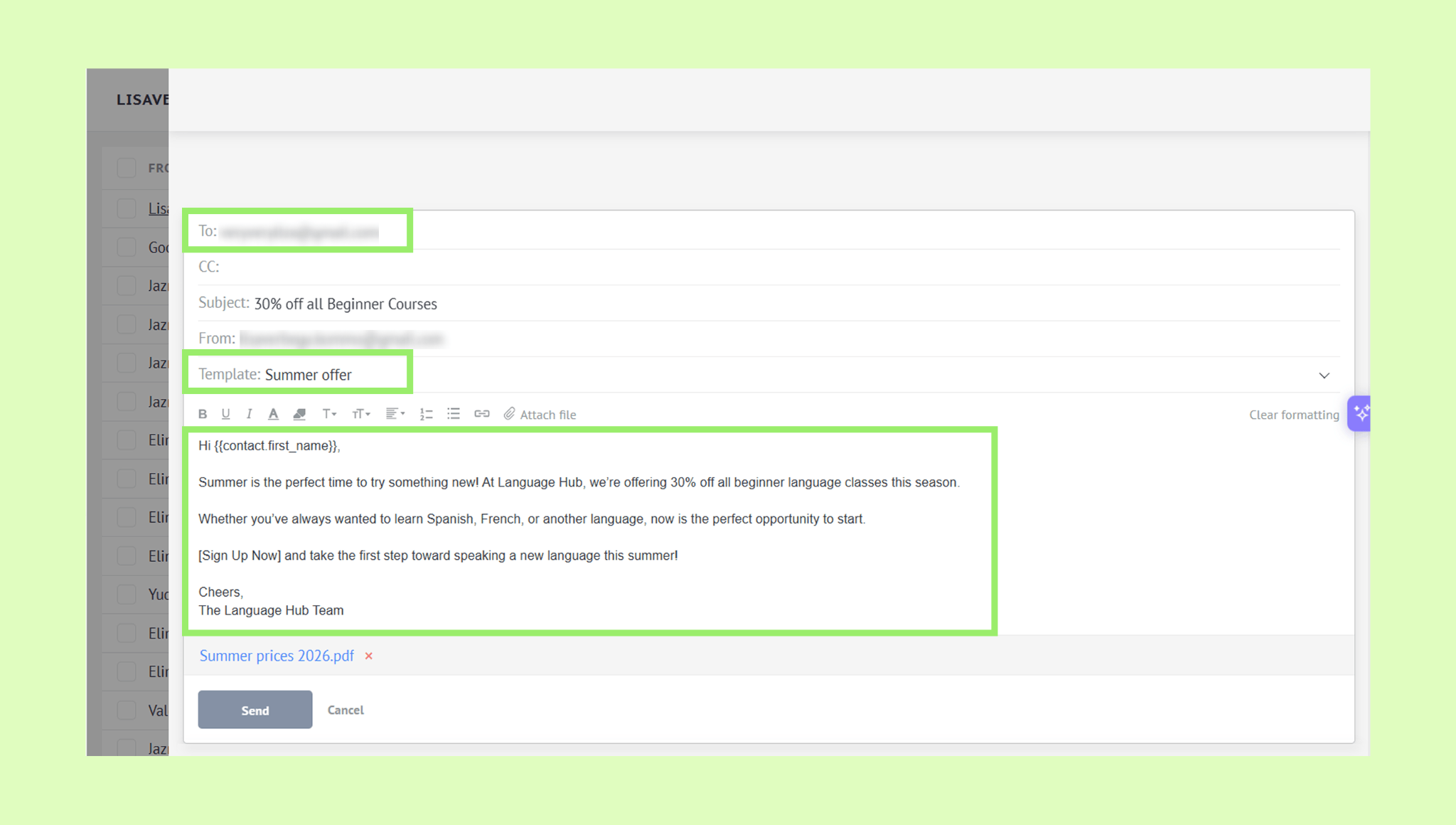
Add a recipient.
Optionally, click Template and select a template to insert a pre-written message.
Write your email message.
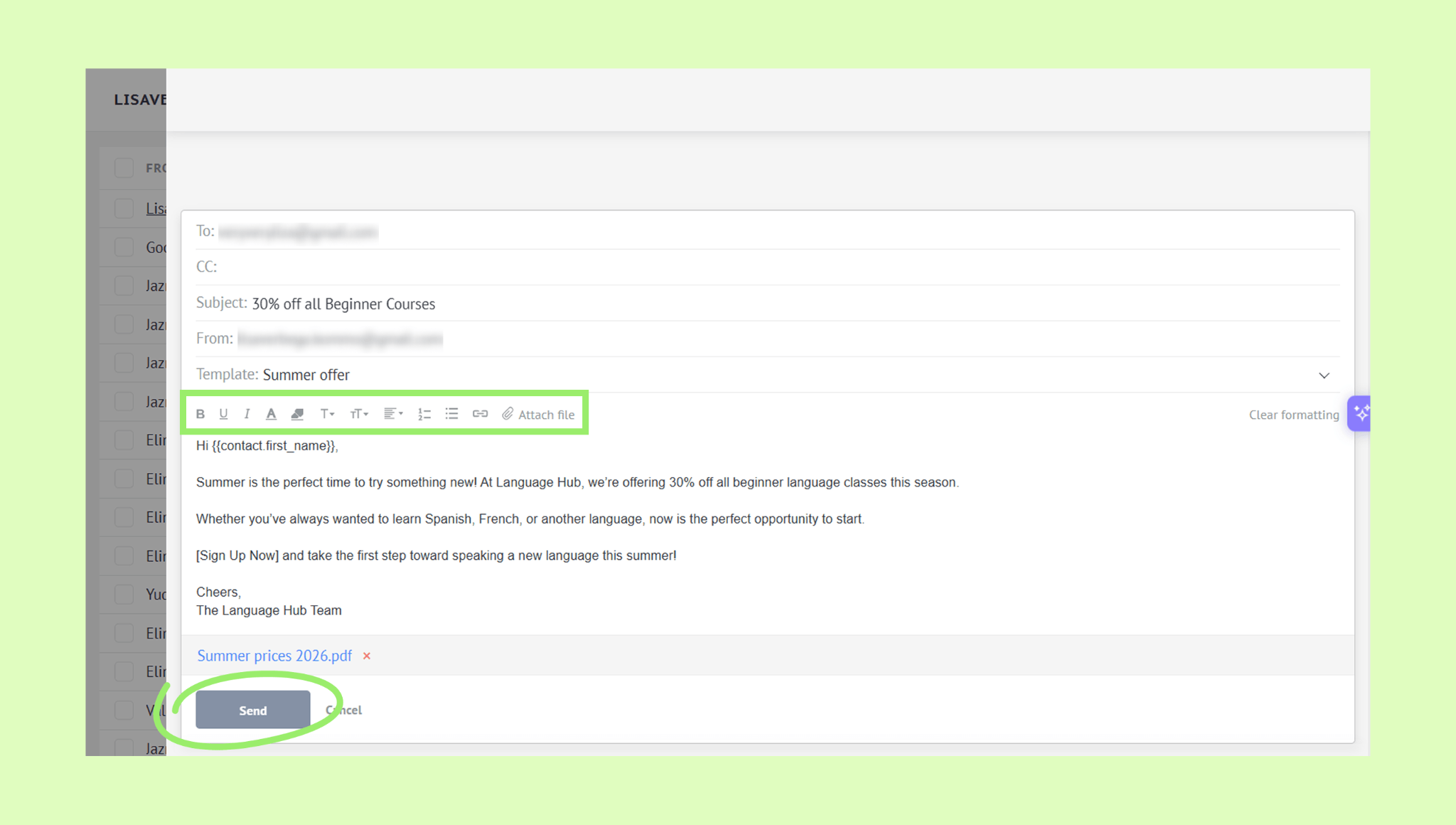
Optionally, use the formatting toolbar to style your text or click Attach file to add an attachment.
Click Send.
Tip: Save time by creating email templates for messages you send regularly — learn how in this article.
To respond to an email:
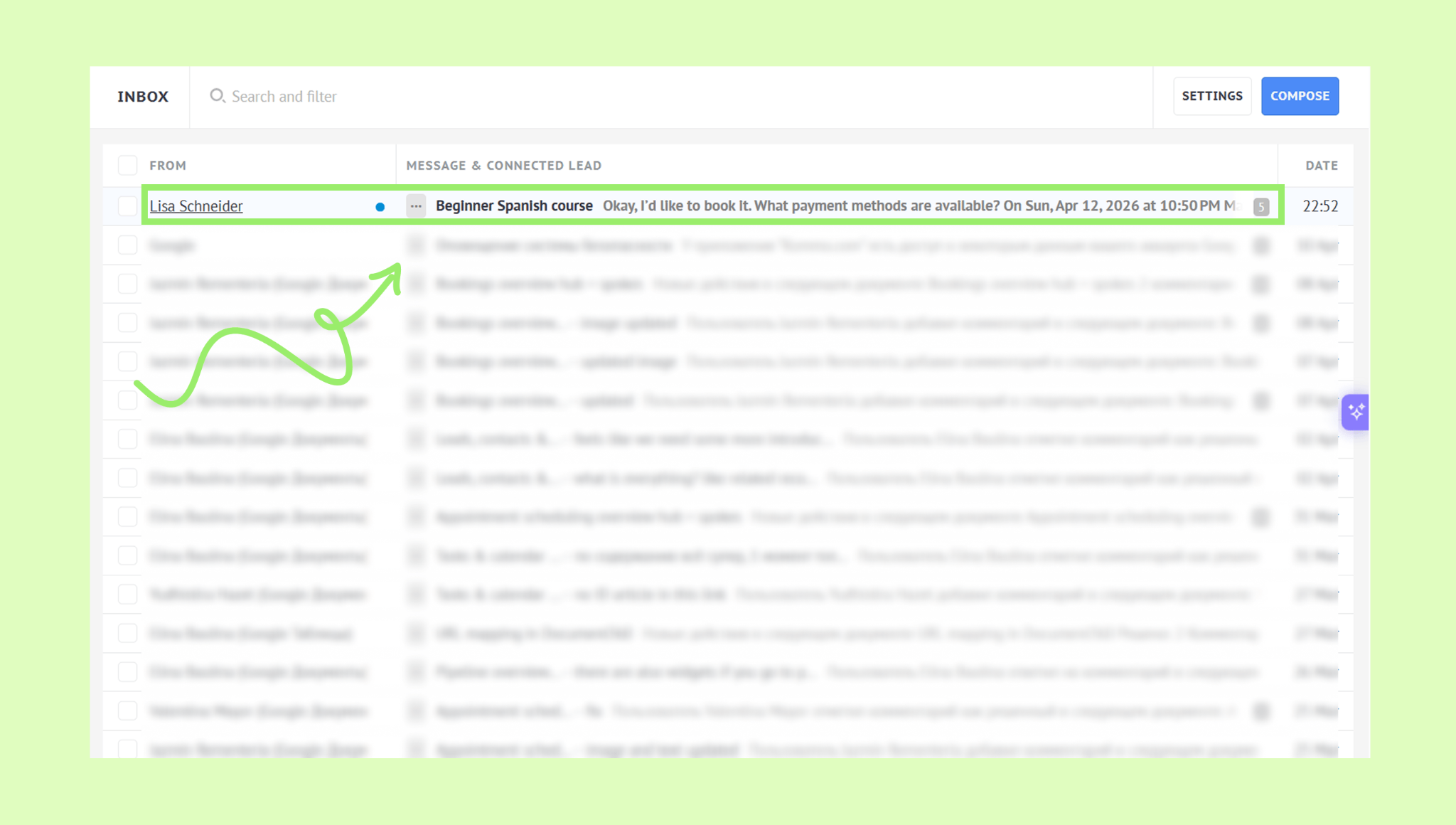
Go to Communication → Email inbox, open your folder, and click the email to open it.
Type your message.
Optionally, click Template and select a template to insert a pre-written message.
Optionally, use the formatting toolbar to style your text or click Attach file to add an attachment.
Click Send.
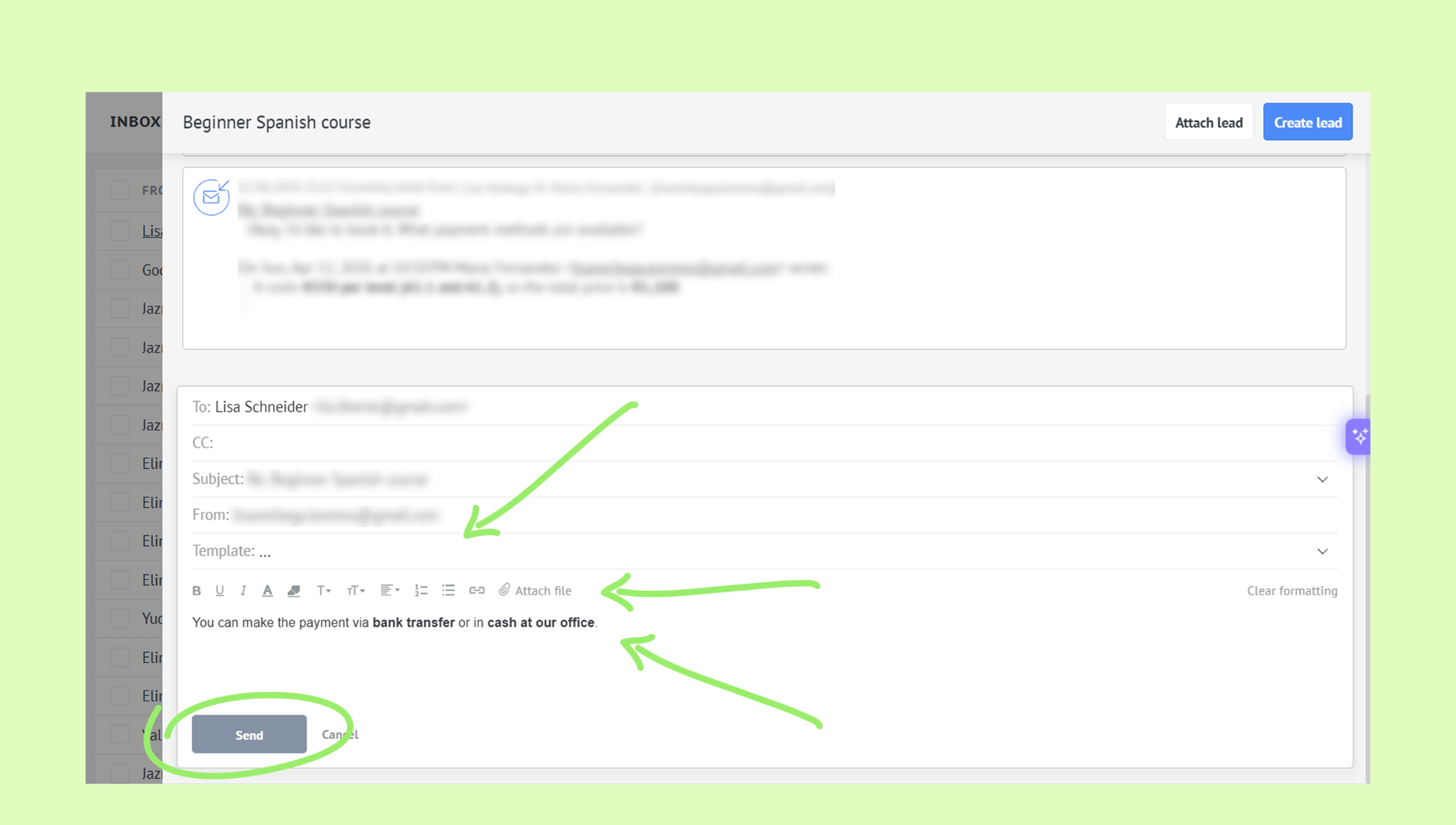
Note: You can also send and receive emails directly from a lead profile — go to Pipelines → All leads, open a lead, click the action widget, select Email, write your message, and click Send.
Add a lead from an email
You can create a lead directly from an incoming email in just a few clicks. The email subject will become the lead's name, and all related emails will be saved in the communication history. Once created, you can open the lead straight from the inbox and edit it if needed.
To add a lead from an email:
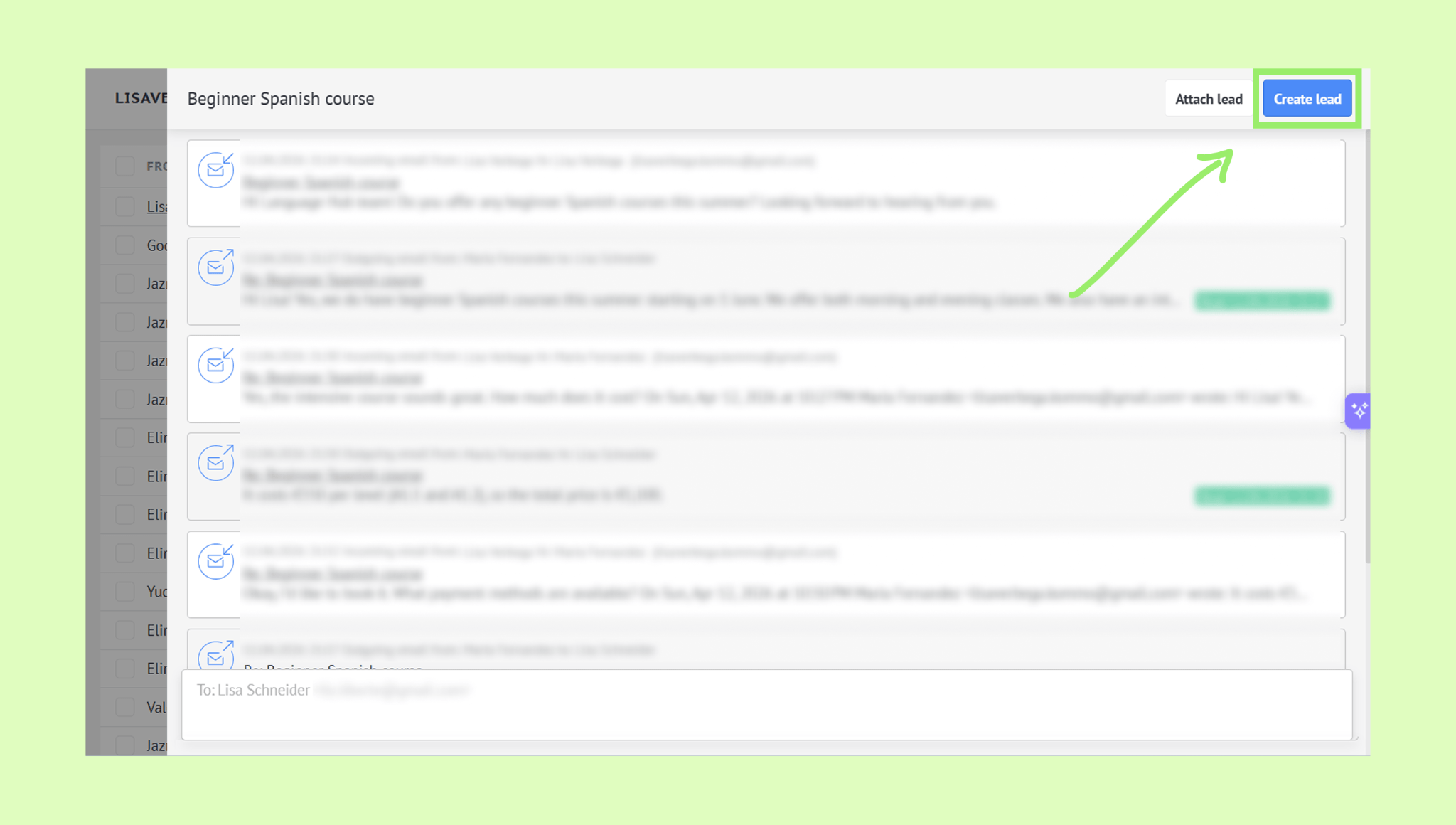
Go to Communication → Email inbox, open your folder and click the email you want to turn into a lead.
Click Create lead.
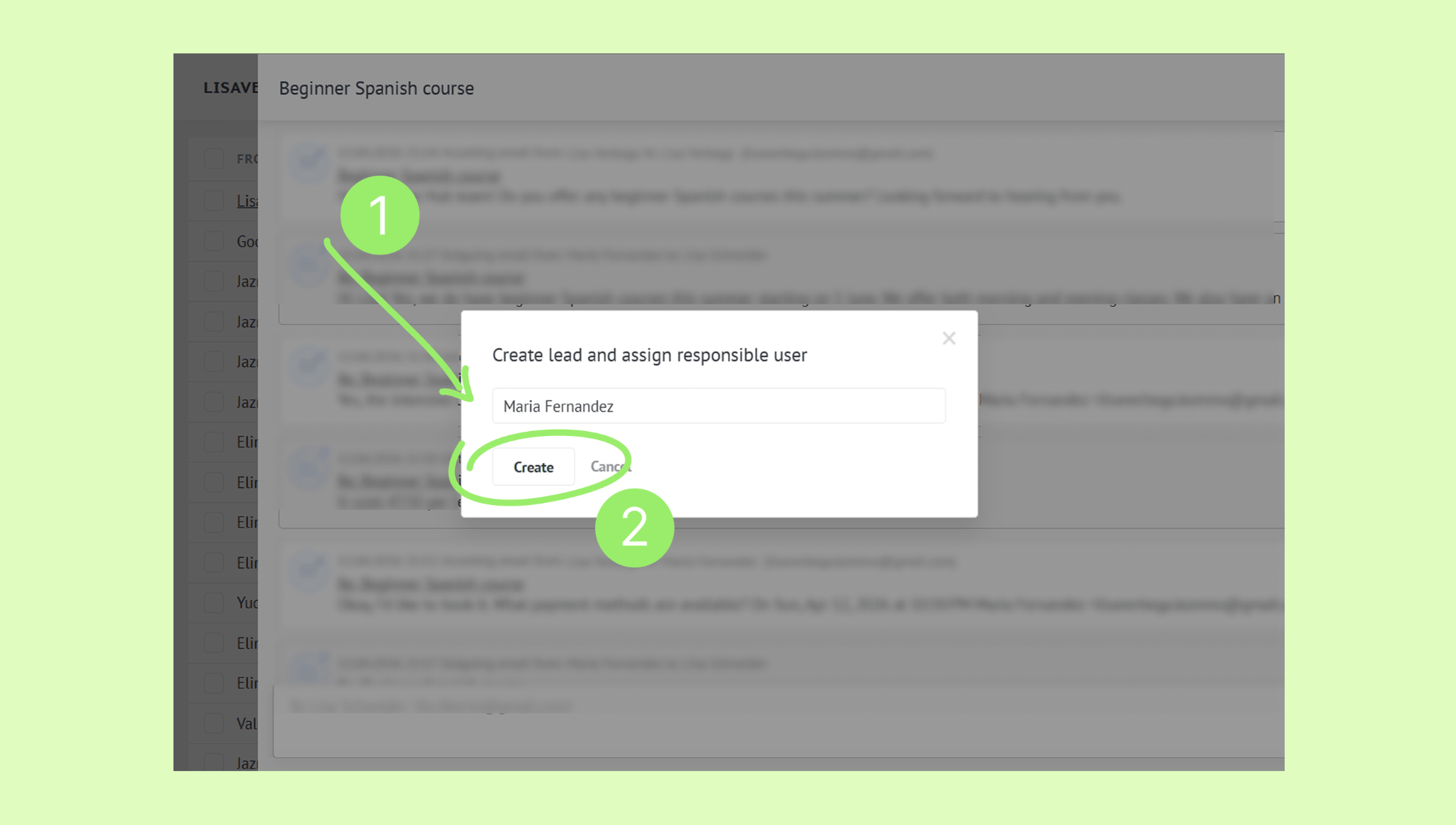
In the pop-up window, select the responsible user and click Create.
Note: You can automate lead creation from incoming emails using pipeline triggers. Learn more in this article.
Edit a lead from the email inbox
A lead appears in an email thread when you create it from the email or when Kommo matches the sender’s address to an existing lead profile.
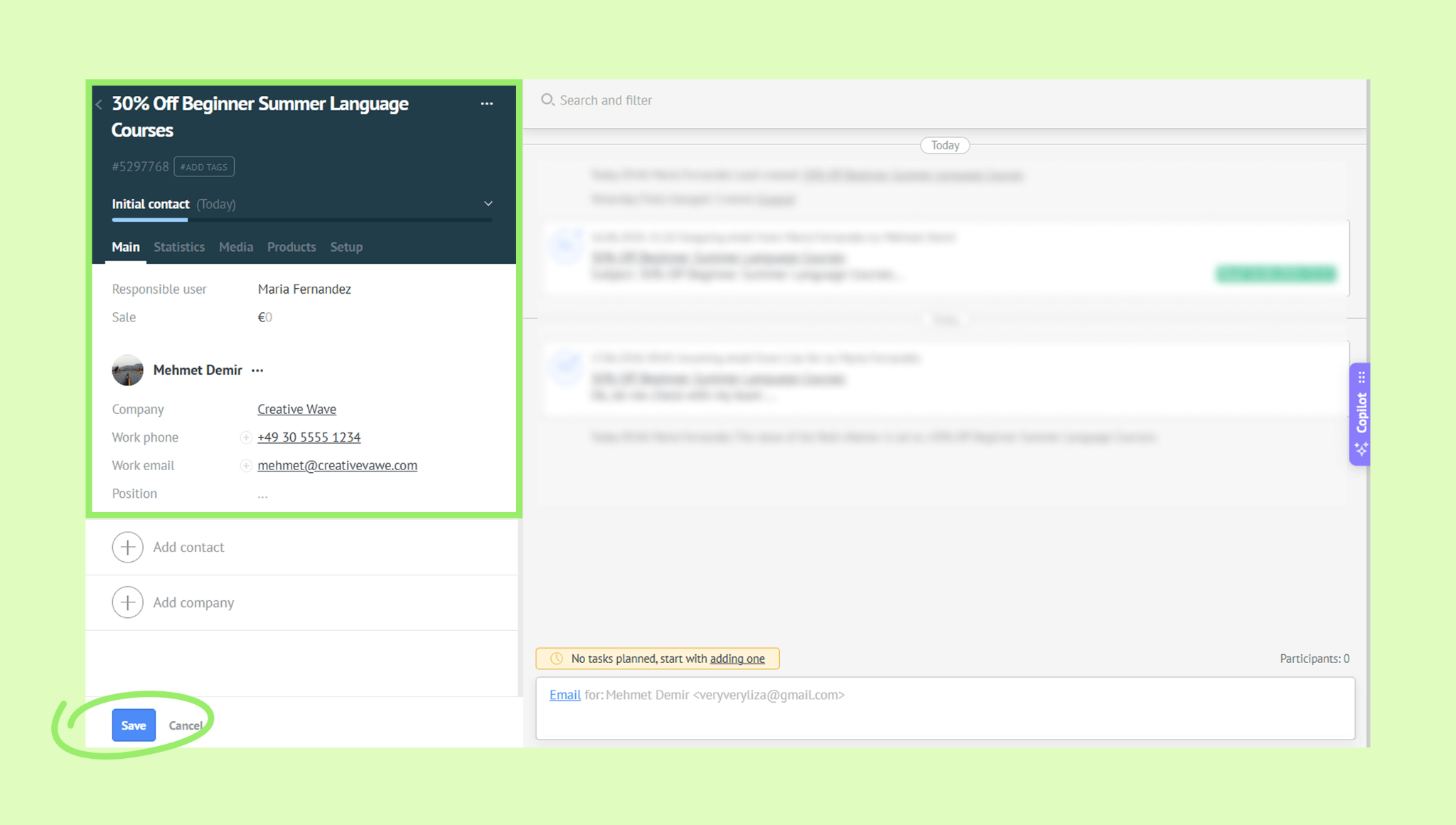
You can open and update the lead directly from your inbox – for example, to add a phone number, company name, budget, or other details shared in the email.
To edit a lead:
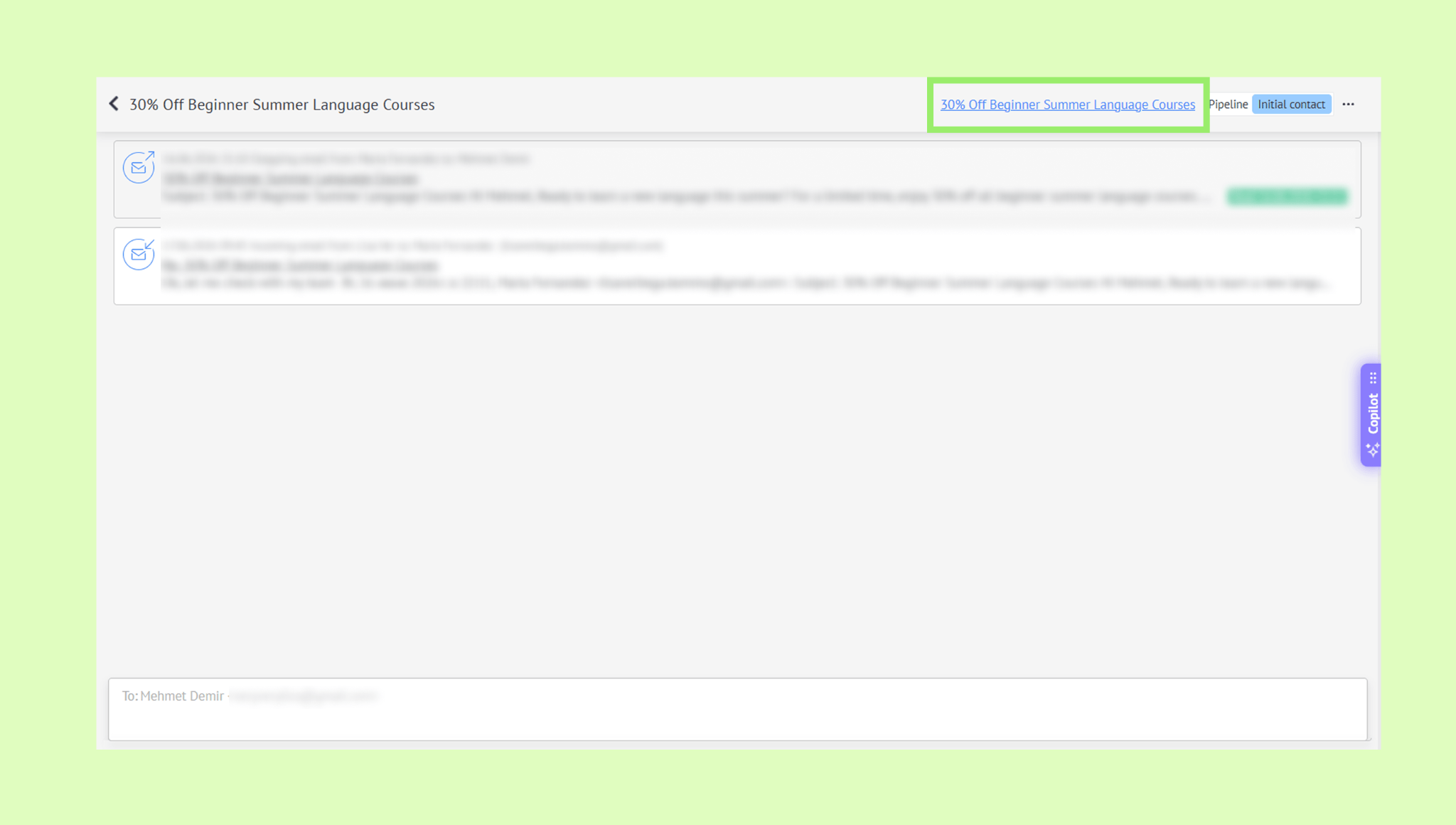
Open the email.
Click the lead’s name in the upper-right corner to open its profile.
Make your changes and click Save.
Learn how to manage leads in this article.
Delete an email
Deleted emails are moved to the All deleted folder and kept there for 30 days before being permanently removed. You can restore them any time within this period.
Note: Deleting an email in Kommo only removes it from your Kommo inbox — it will still be available in your email provider's inbox.
To delete an email:
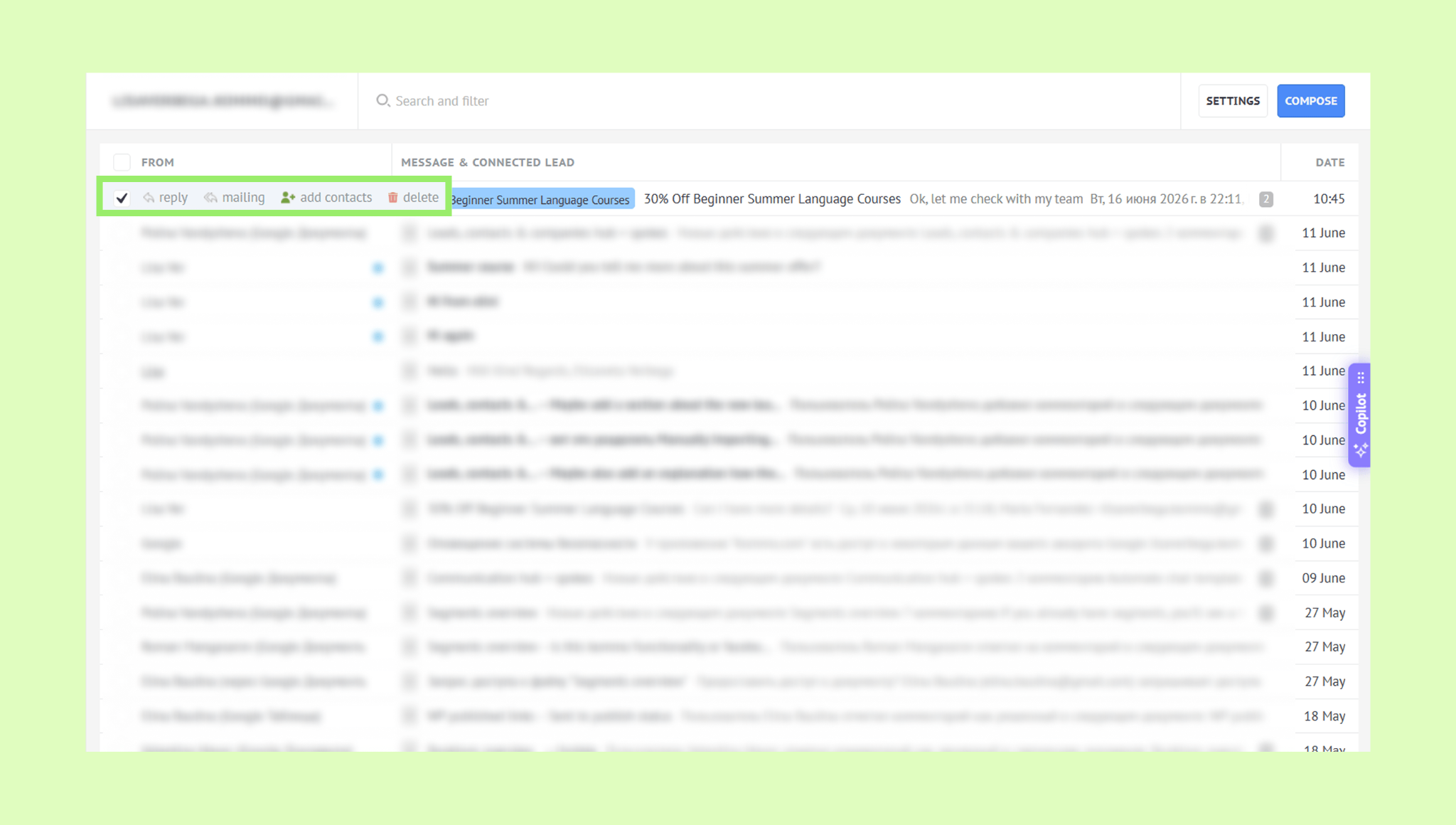
Go to Communication → Email inbox, open your folder, and check the box next to the email you want to delete.
Click Delete in the toolbar and confirm deletion.
Restore an email
To restore an email:
Go to Communication → Email inbox → All deleted.
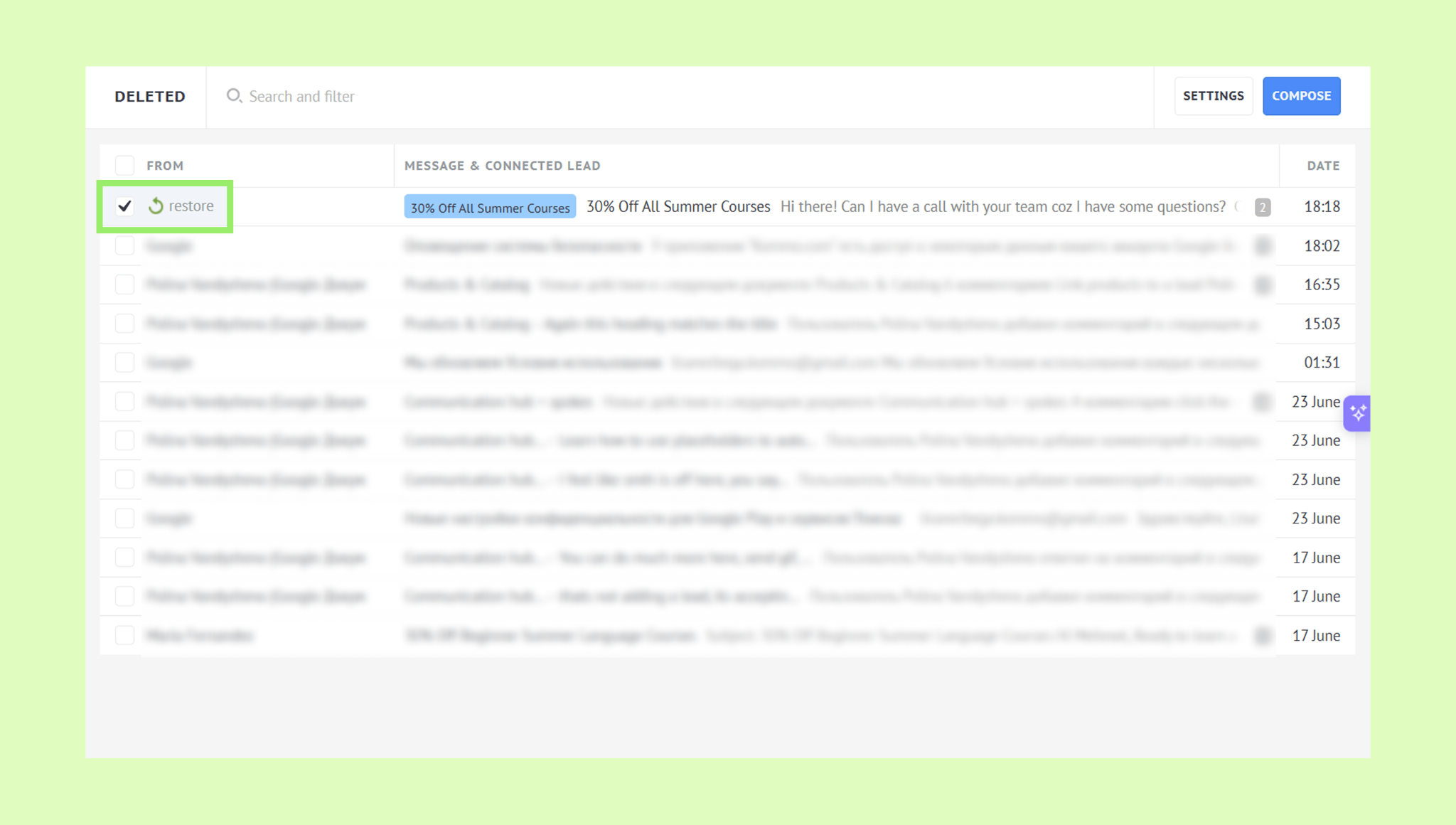
Check the box next to the email you want to restore and click Restore. The email will be moved back to your folder automatically.
Learn how to automate emails with digital pipeline triggers or Salesbot.