What you’ll need:
Any Kommo plan (Base, Advanced, Pro, Enterprise, or 14-day trial).
A connected Facebook integration in Kommo.
Keep in mind:
Only verified Facebook Business pages can be connected; personal pages are not supported, and you must have admin rights to the page.
Each Kommo account can only connect to one Facebook account. If you have multiple pipelines, you can link a different Facebook Business Page to each one, but the same page cannot be connected to multiple pipelines.
Learn how you can use Kommo features to chat and answer comments from your leads on Facebook. In this article, you’ll see how to:
Use the AI agent in Facebook chats
You can use Kommo’s AI agent to automatically reply to incoming Facebook messages.
Go to the AI agent section.
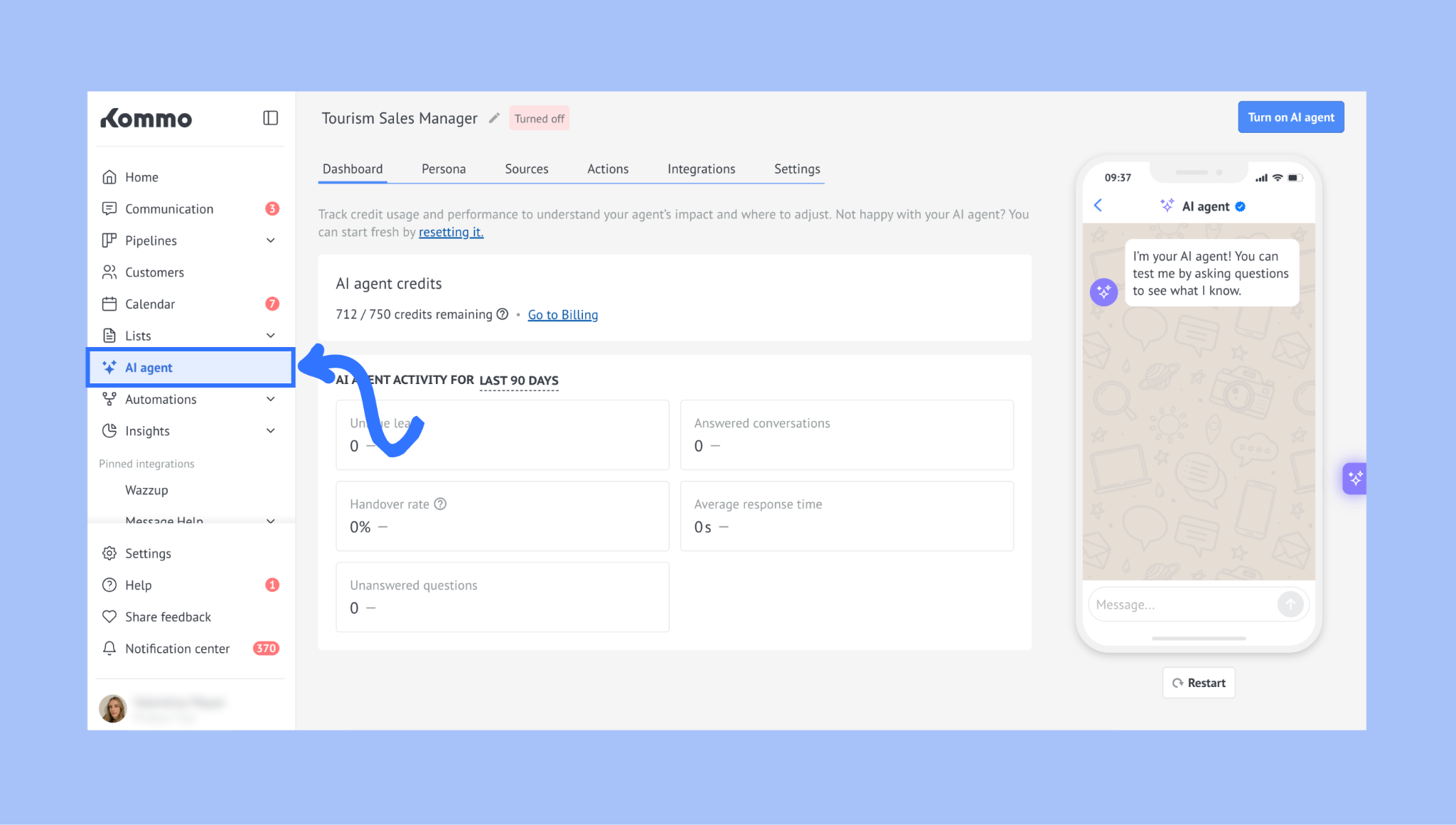
Set up your AI agent. To learn how to do this, check our AI agent manual setup article.
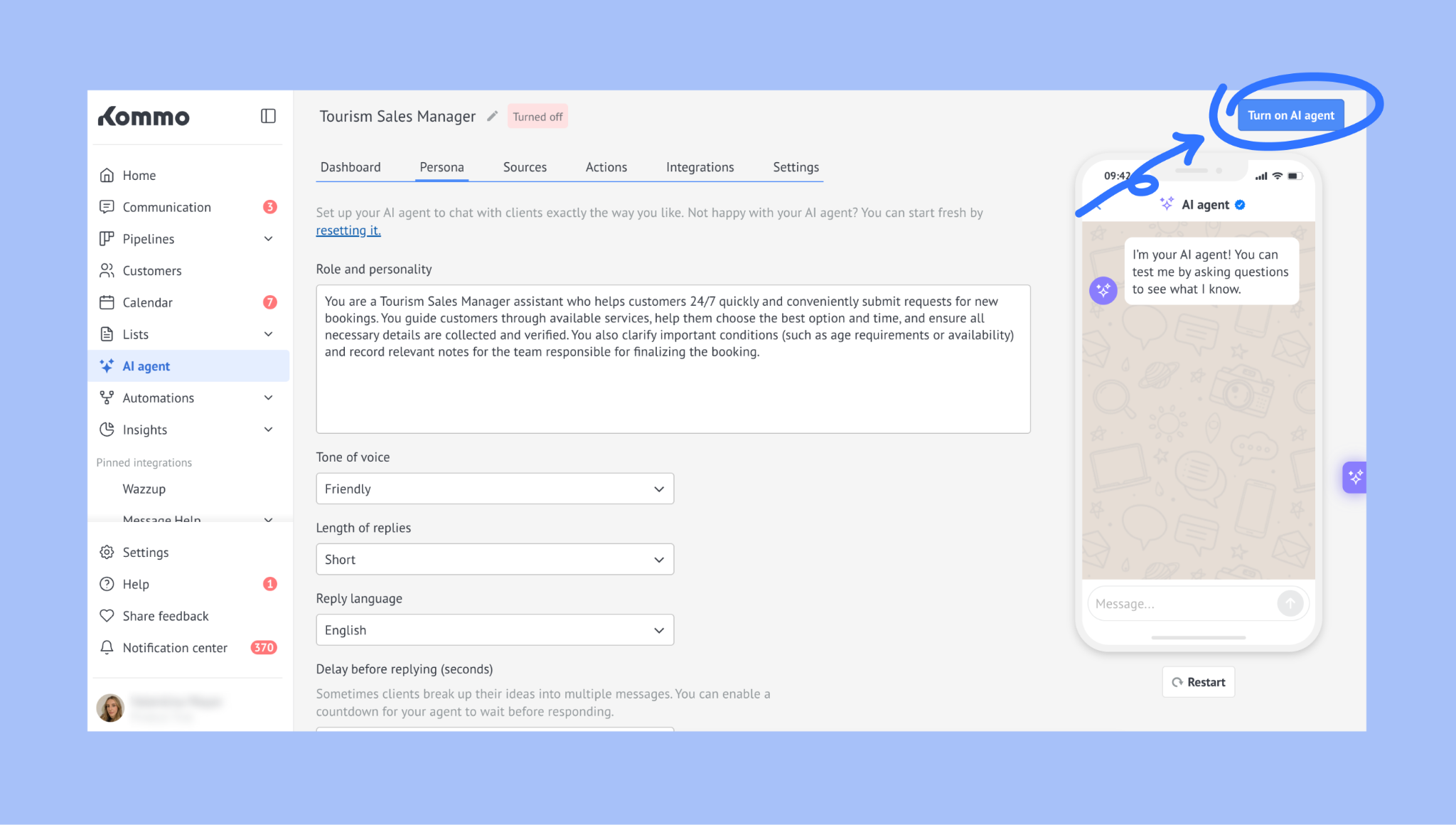
After reviewing and testing it, click Turn on AI agent.
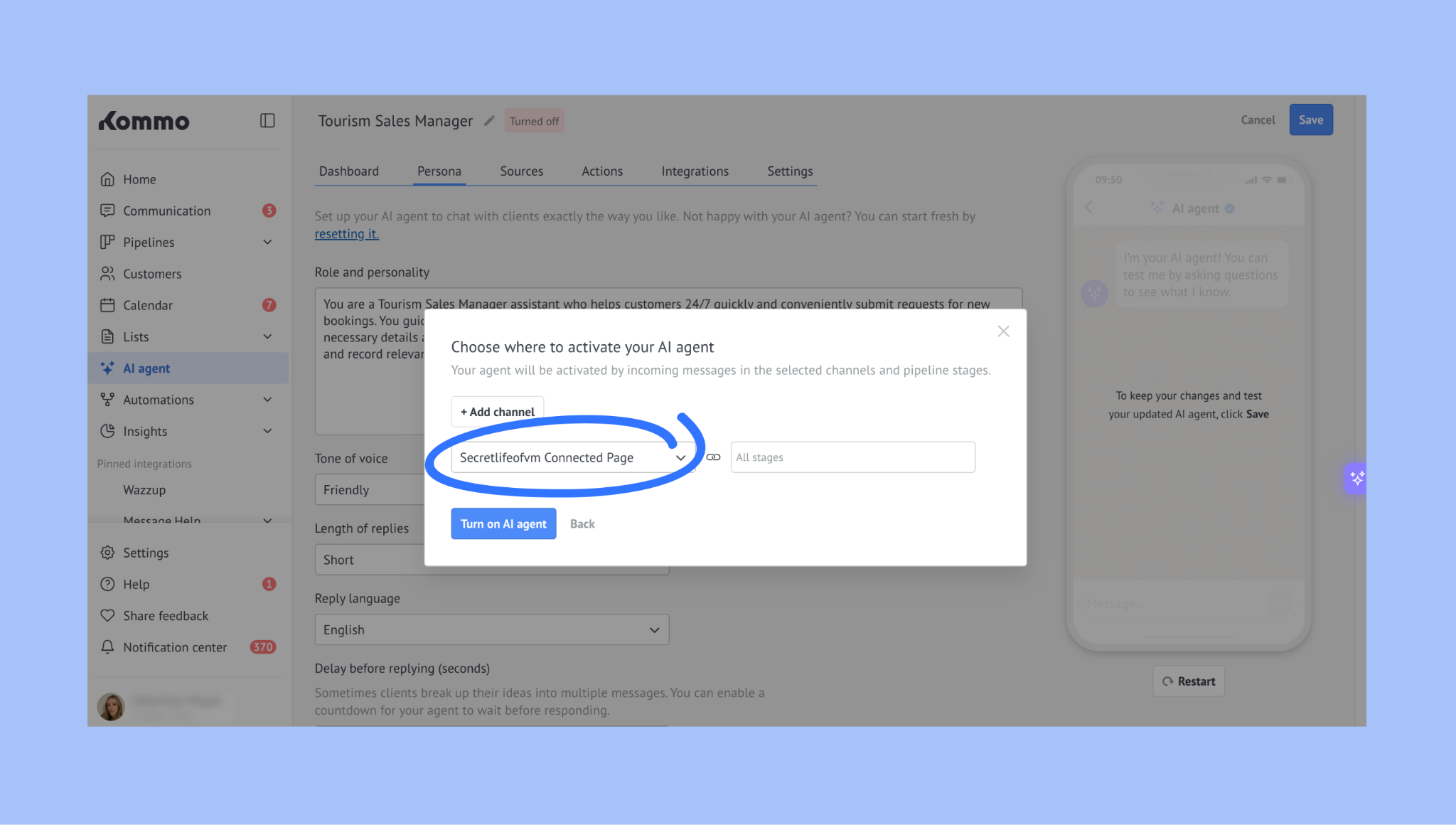
Select your Facebook page as the channel where the AI agent should reply to incoming messages.
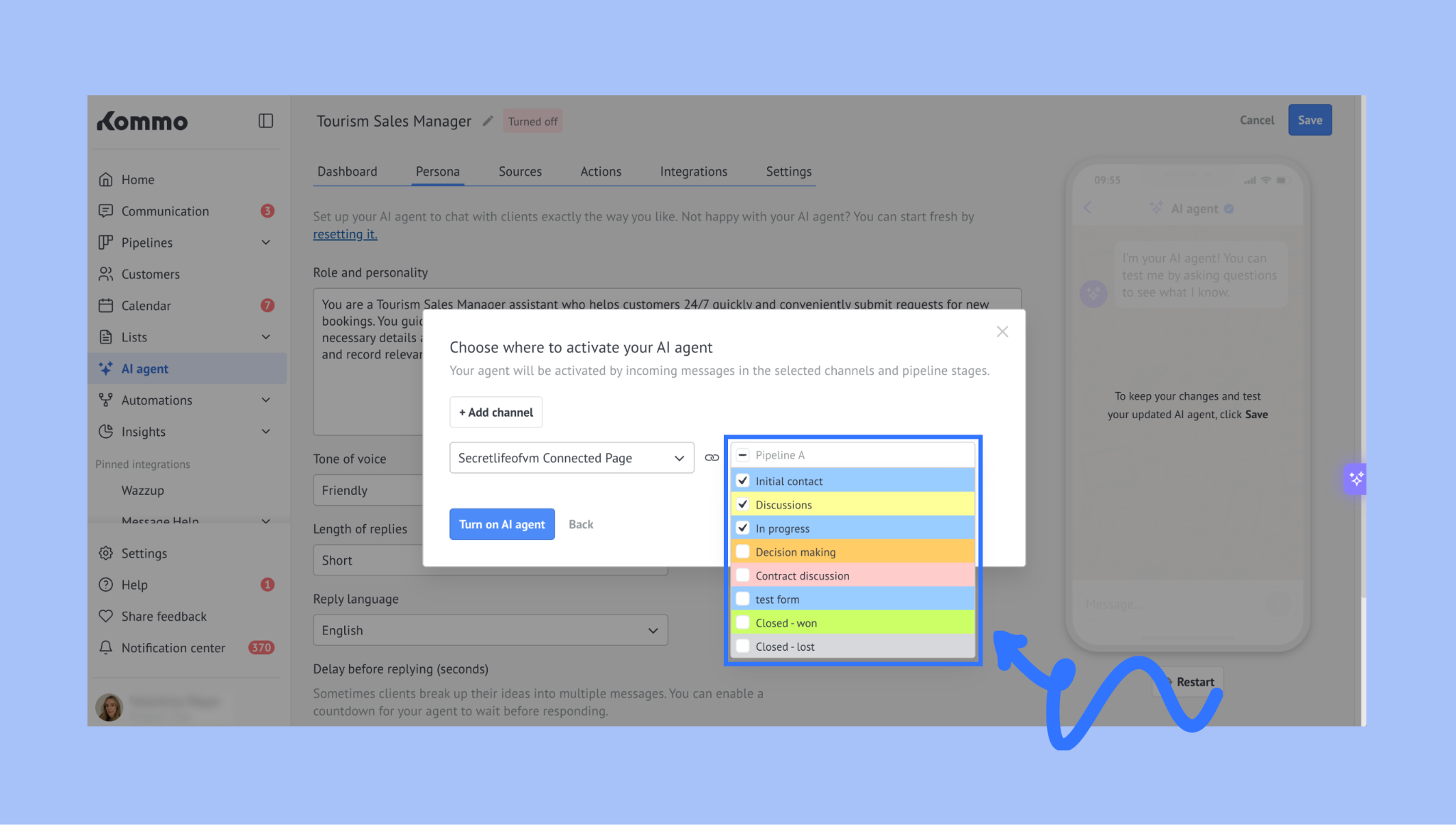
Choose the pipeline stages where the AI agent should operate.
Click Turn on AI agent to activate it.
To learn how to activate the AI agent in your pipeline, check our usage guide.
Manually launch a bot in a chat
Go to Communications → Chat inbox.
Open a Messenger chat and type / in the chat box.
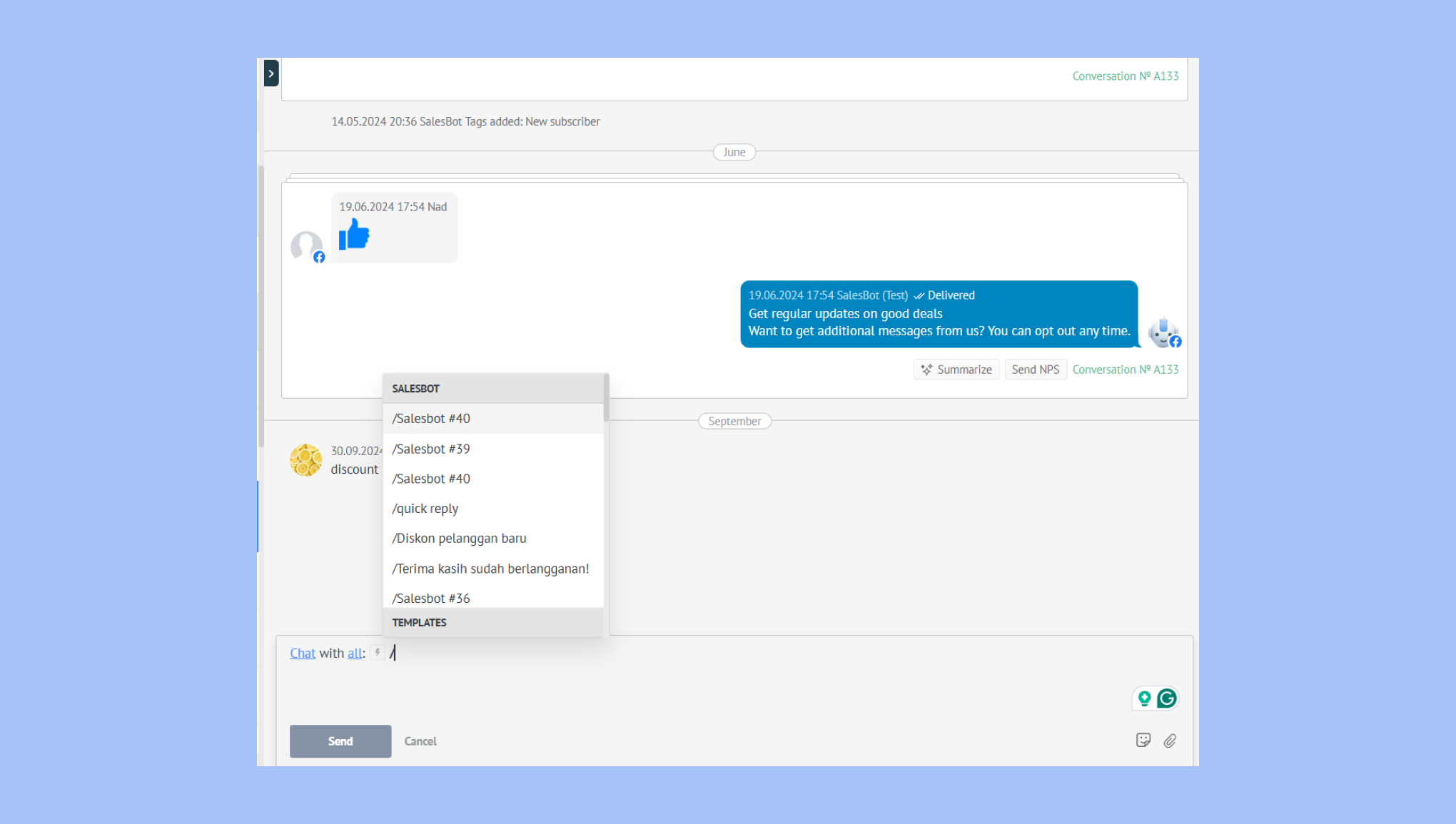
Select a saved bot and click Run.
Set up automatic bot responses
If you want the bot to launch automatically, or if you want to create automations with other triggers when leads enter your pipeline, then:
Go to Pipelines, select a pipeline and click Automate.
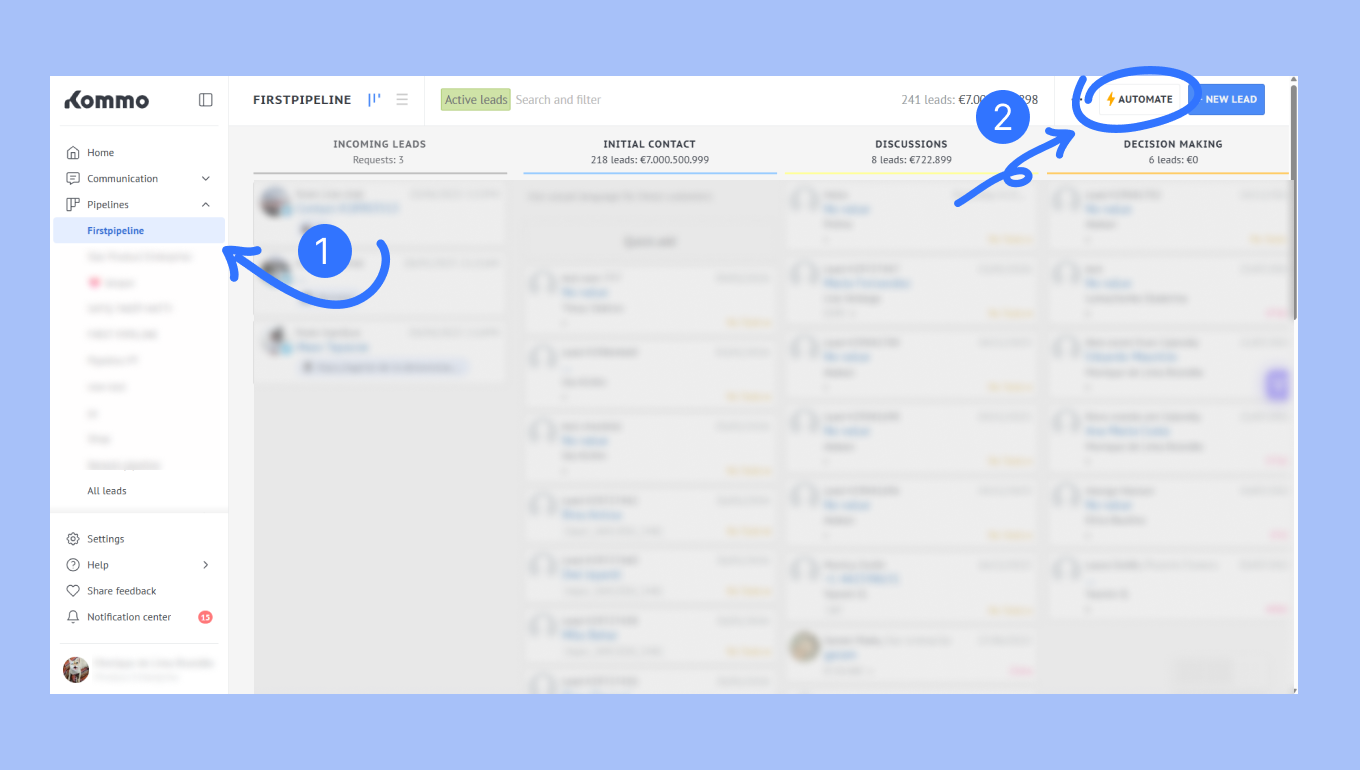
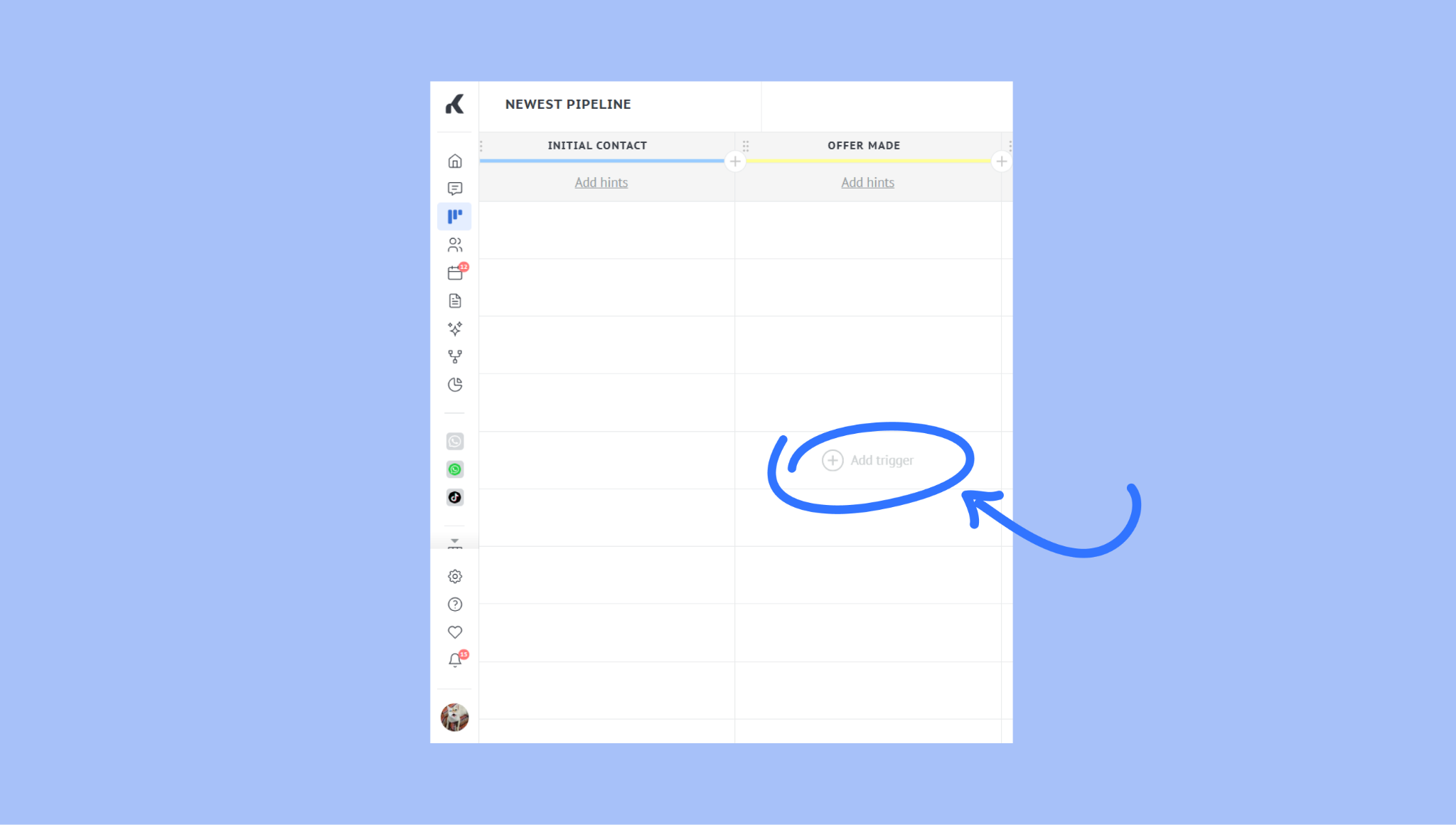
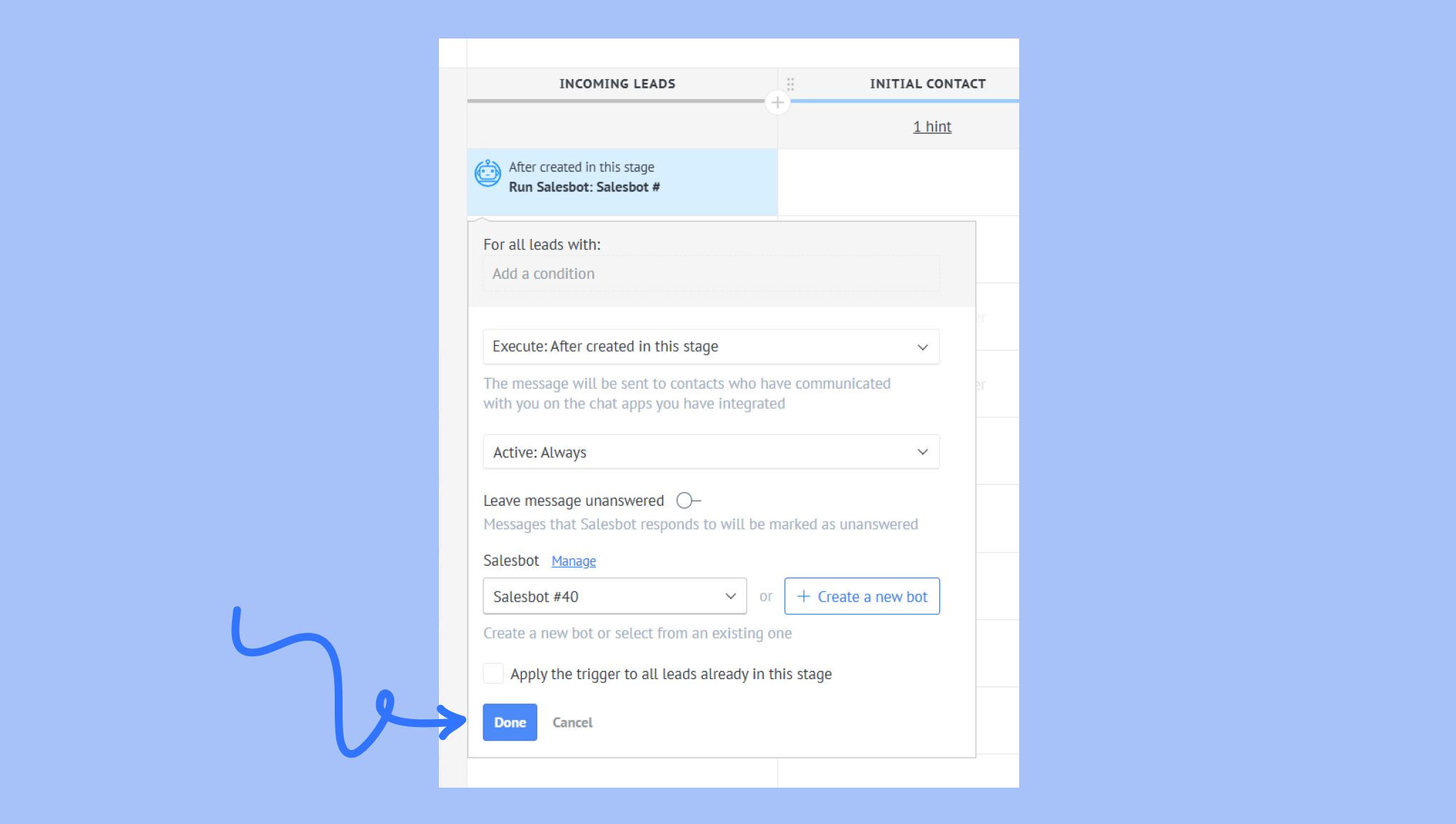
Click + Add trigger under the pipeline stage where you want the bot to activate.
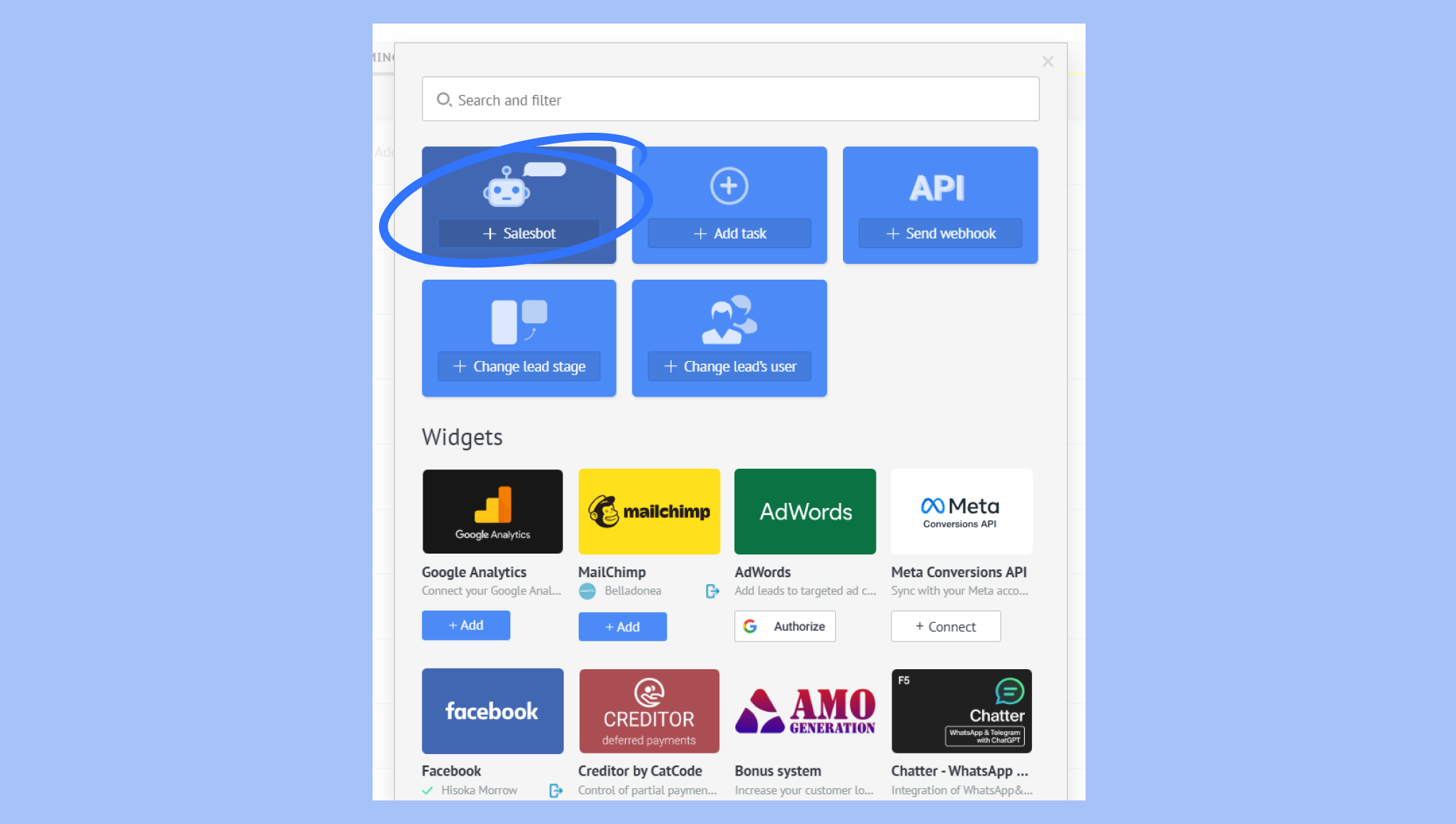
Select Salesbot as the automation type.
Choose a bot, set trigger conditions, and click Done.
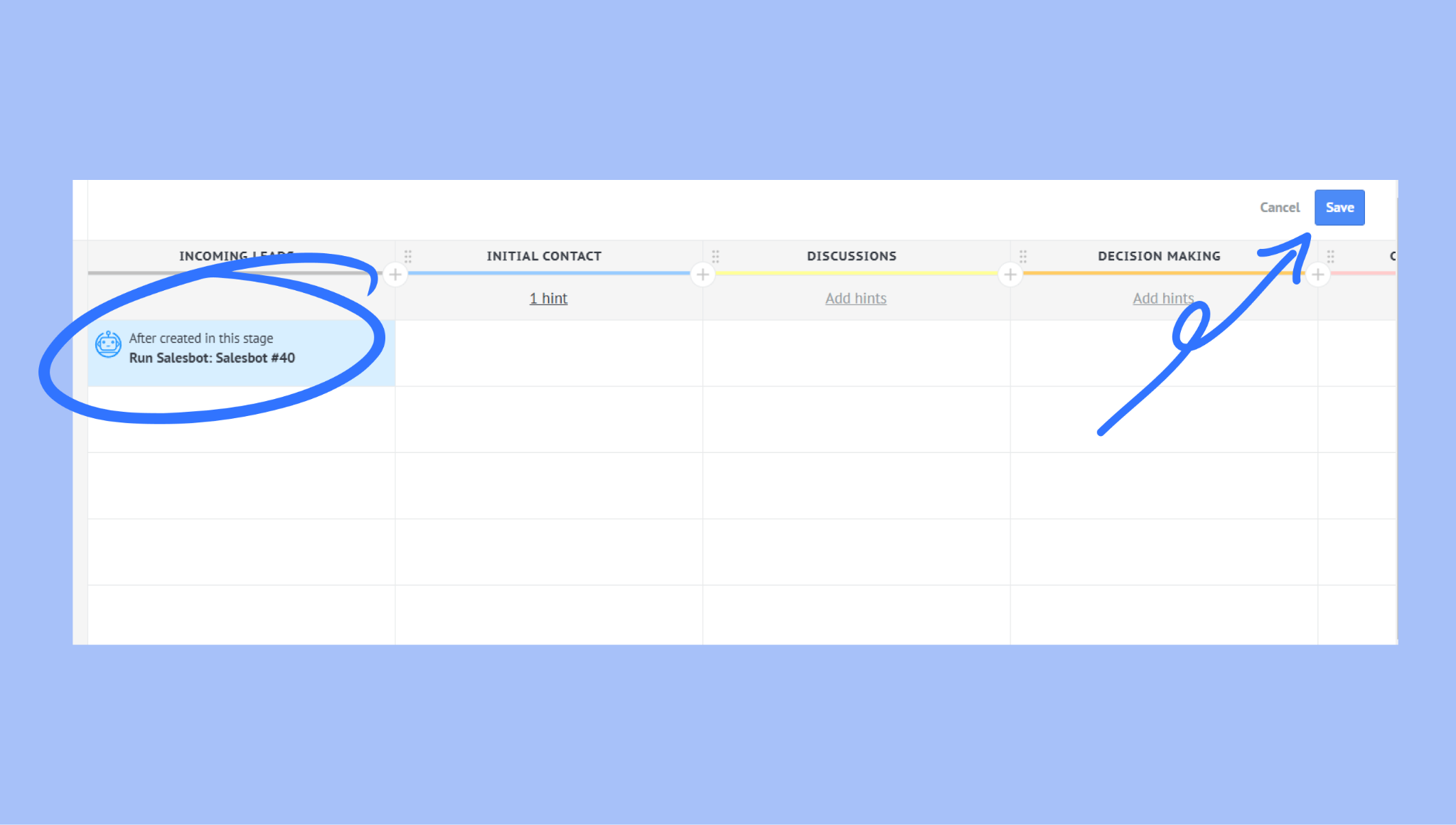
The automation will appear under the stage you selected. Finally, click Save to confirm.
Note: If you use third-party chatbots (e.g., Chatfuel), only incoming messages will sync to Kommo. Outgoing messages won’t sync due to platform restrictions.
To learn more about creating and setting up a Salesbot, check out our Salesbot article.
For more ways to use Salesbot, check out our full guide.
Connect Facebook Messenger to your website chat button
You can also connect Facebook Messenger to your website chat button so customers can message you directly from your website.
To install the website chat button:
Go to Pipelines > select a pipeline > click Automate.
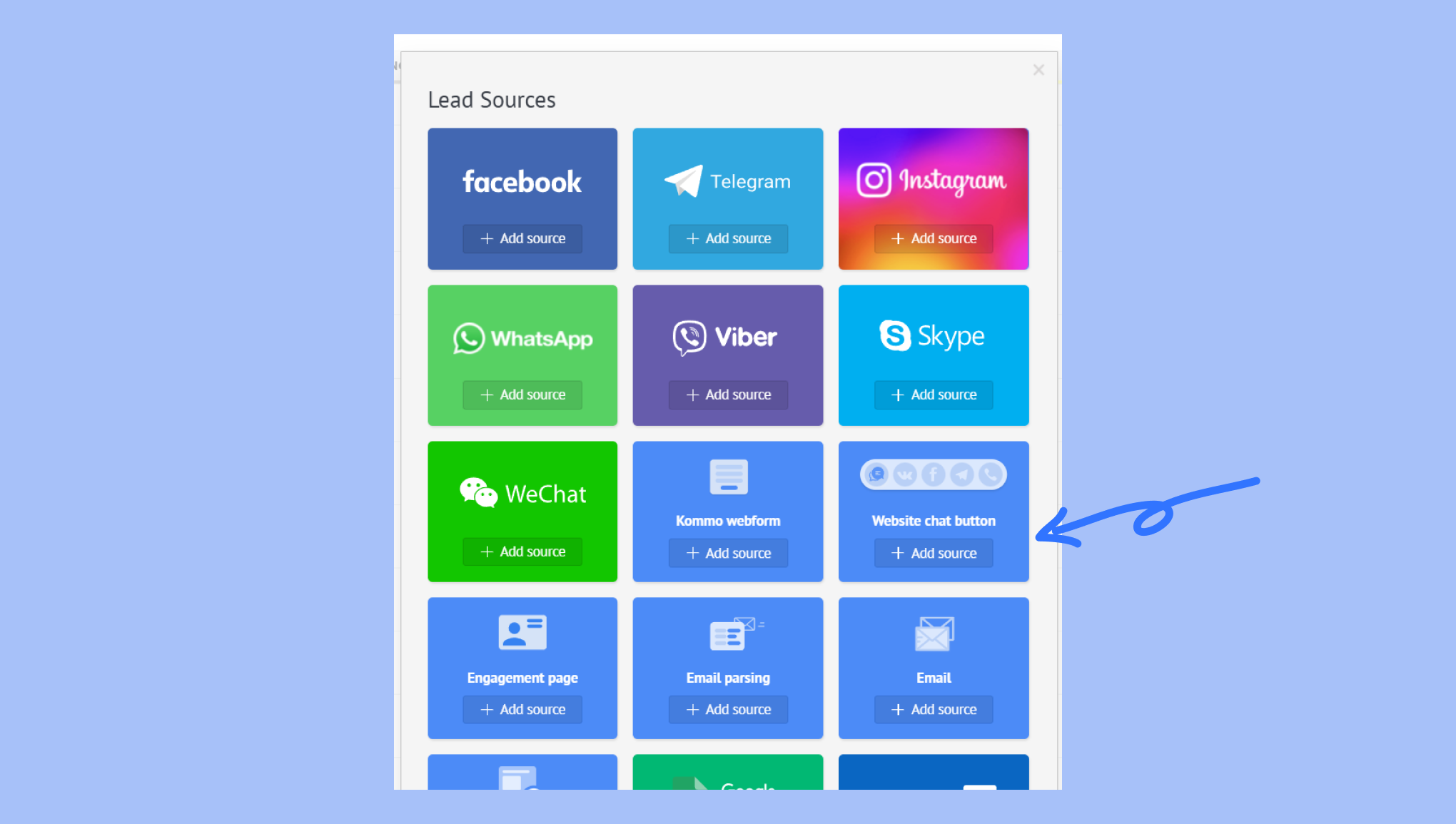
Under Lead sources, select + Add source button.
Select the website chat button and press + Add source.
Click the Facebook Messenger icon to move it to the website chat button slot.
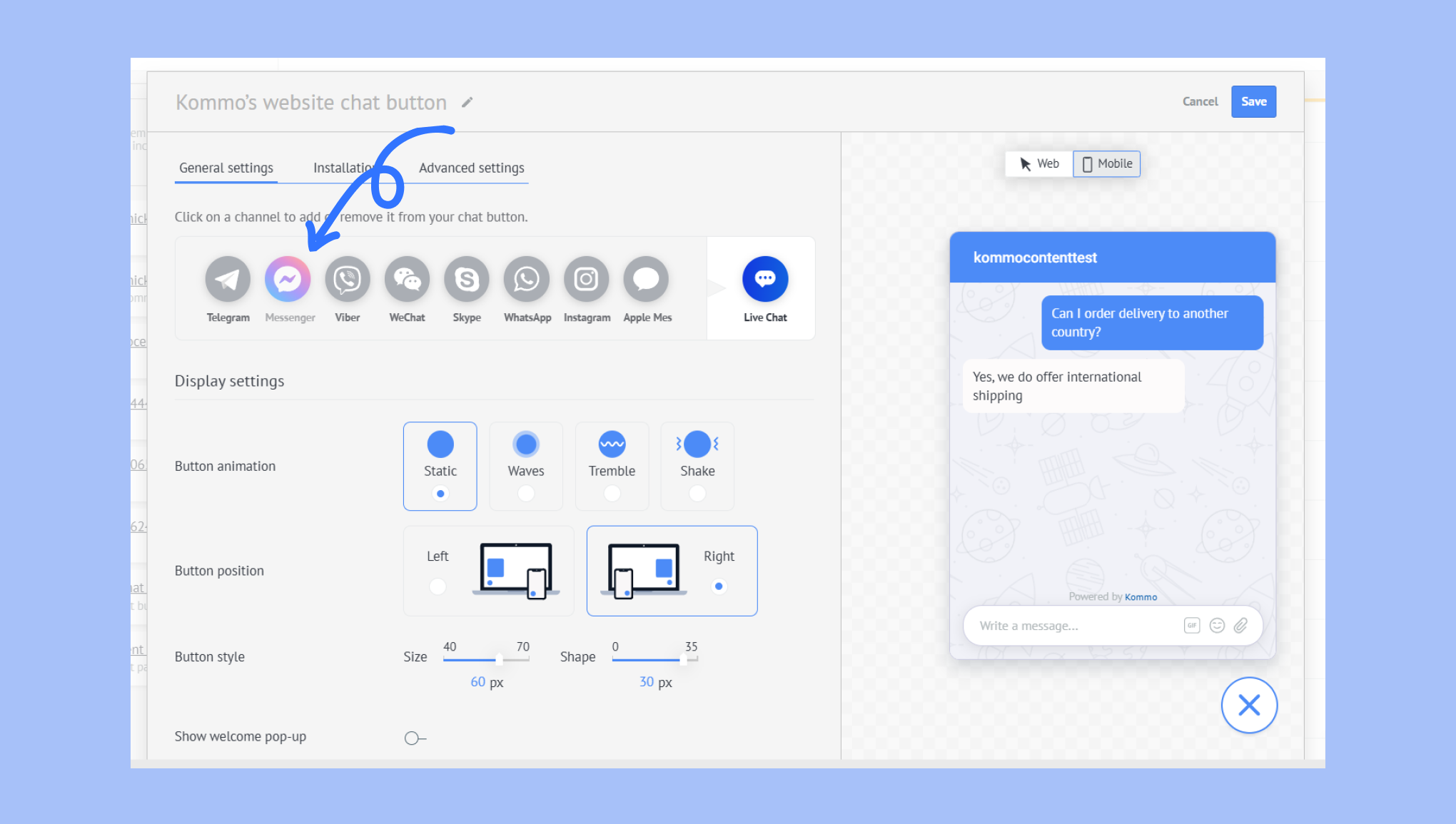
Click on the Facebook Messenger icon → select your Facebook Business page.
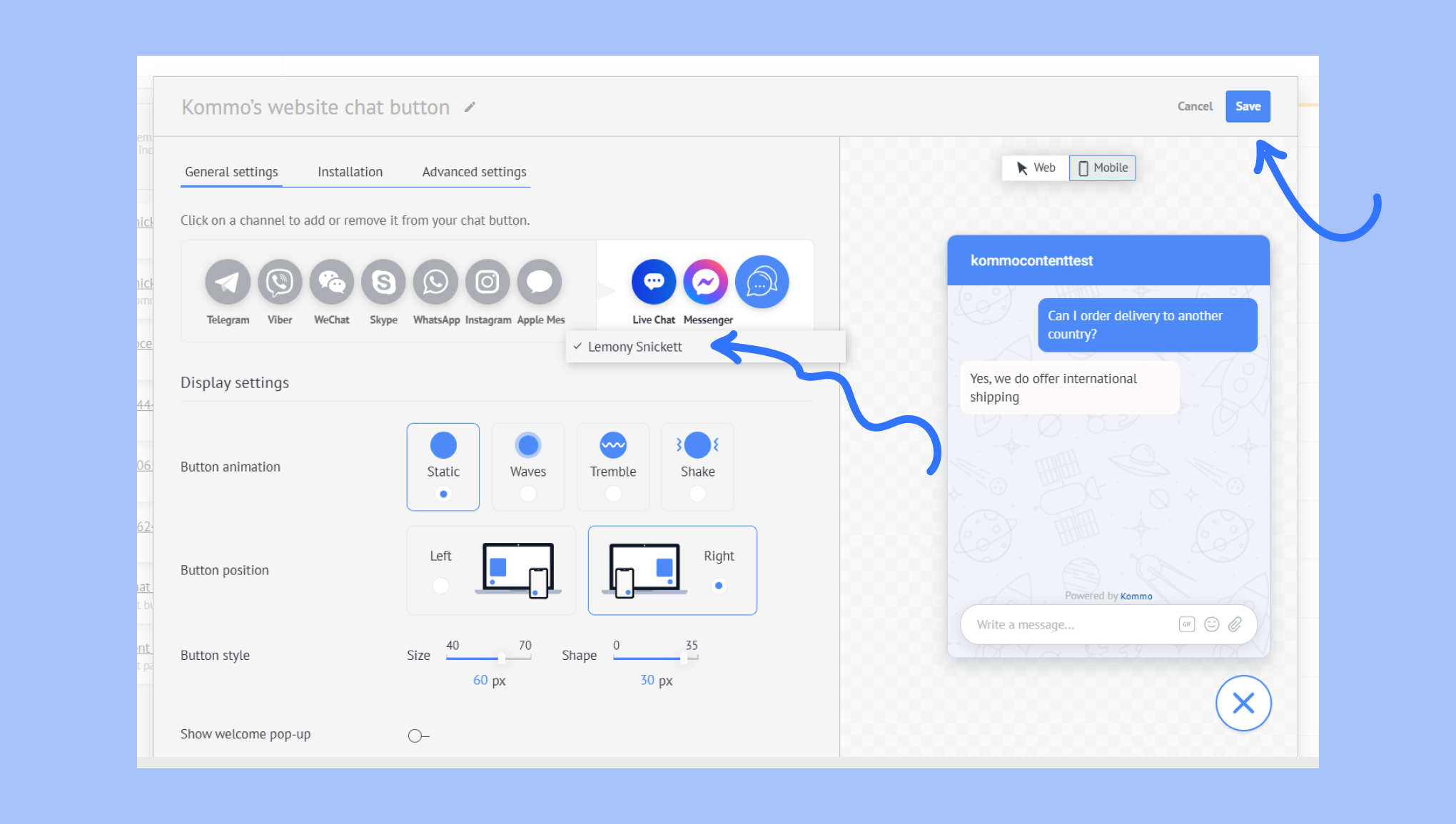
Adjust settings as needed and follow the on-page instructions to install it. Click Save once you’re finished.
To learn more about Kommo’s website chat button, read our article about how to create and install it.