What you’ll need:
Available during the 14-day trial and on Advanced, Pro, and Enterprise plans. Base plan accounts can continue using the AI agent if it was activated previously.
Keep in mind:
You can create multiple AI agents in the same workspace. The number of active AI agents depends on your subscription plan. To learn more, check our AI agent limits article.
AI agents use the shared AI credits available in your account. If you run out of credits, AI agents stop responding until your credits renew or an admin purchases an additional AI credit package. To learn more, see our Kommo AI limits article.
In this guide, you’ll learn how to activate or deactivate AI agents, manage them directly from conversations, and duplicate or delete existing setups.
Start managing your AI agents
To access your AI agents:
Go to AI agents.
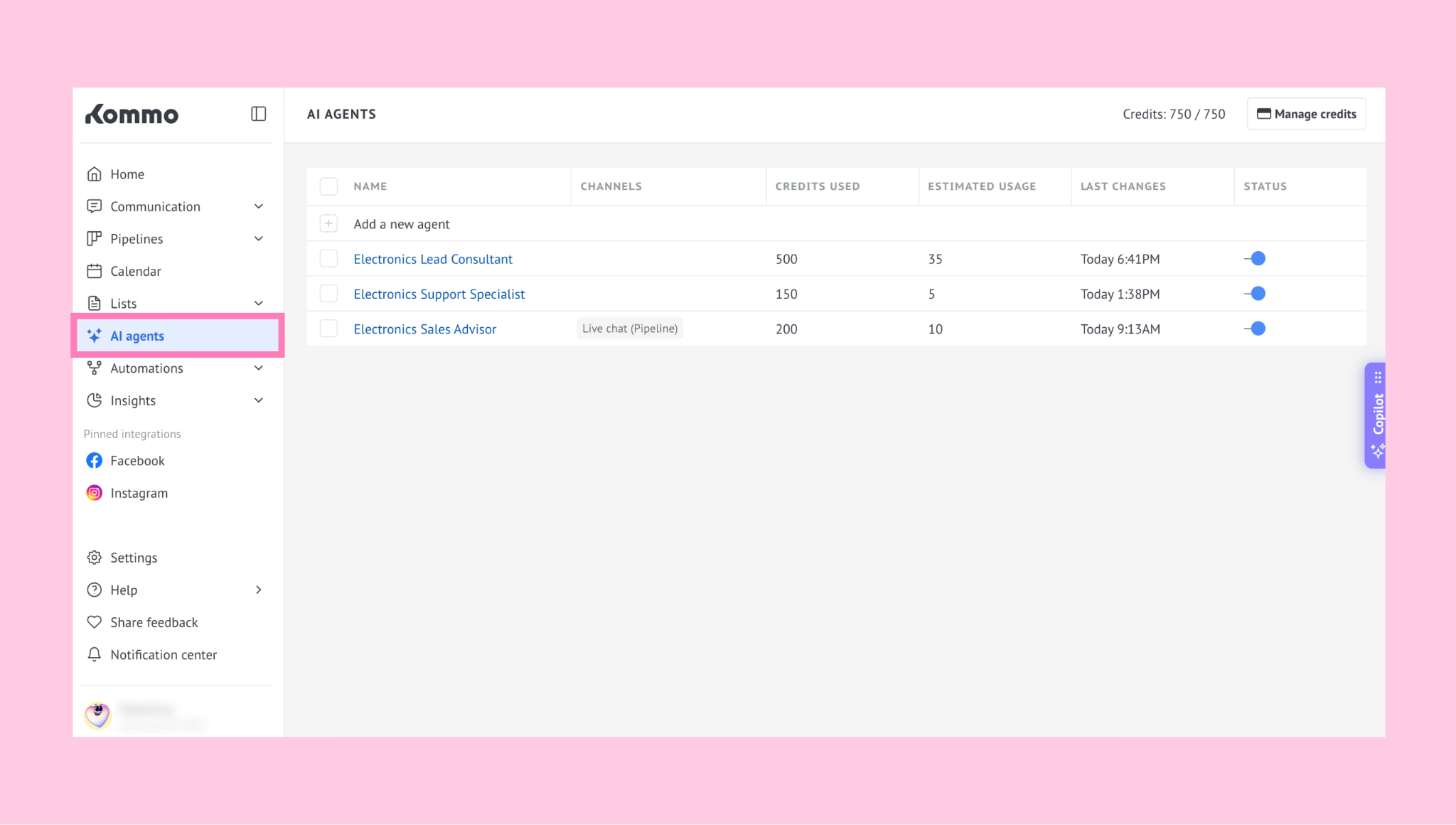
You’ll see your AI agents list, where all agents in your workspace are displayed.
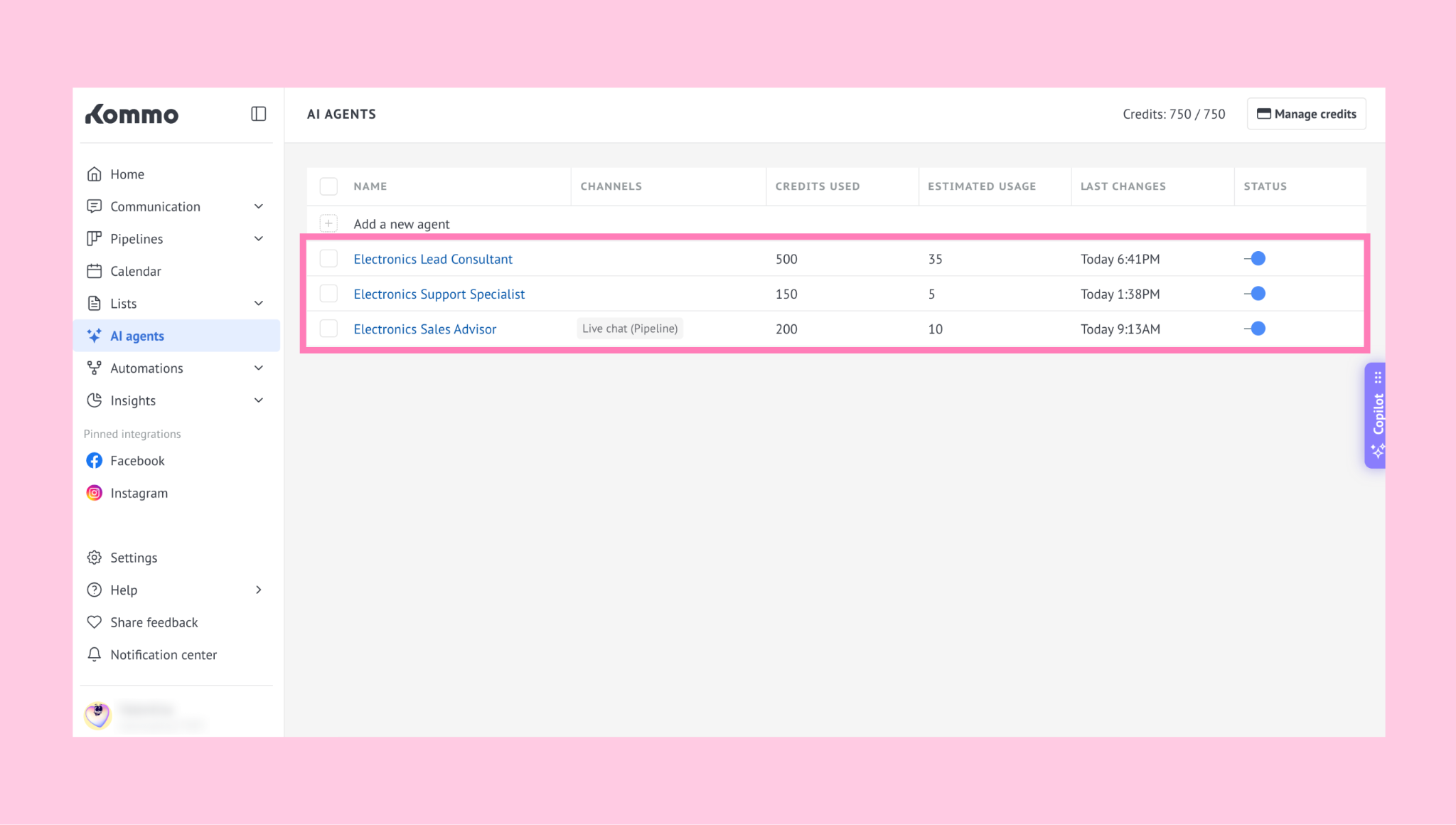
Each agent includes details such as:
Name
Channels – where the agent is active
Credits used – total credits spent
Estimated usage – cost per message
Last changed – date of the most recent edits
Status – turn the agent on or off
Activate or deactivate AI agents
You can activate or deactivate AI agents at any time from the Status column in your AI agents list.
To activate an AI agent:
Turn on the toggle for the AI agent you want to activate.
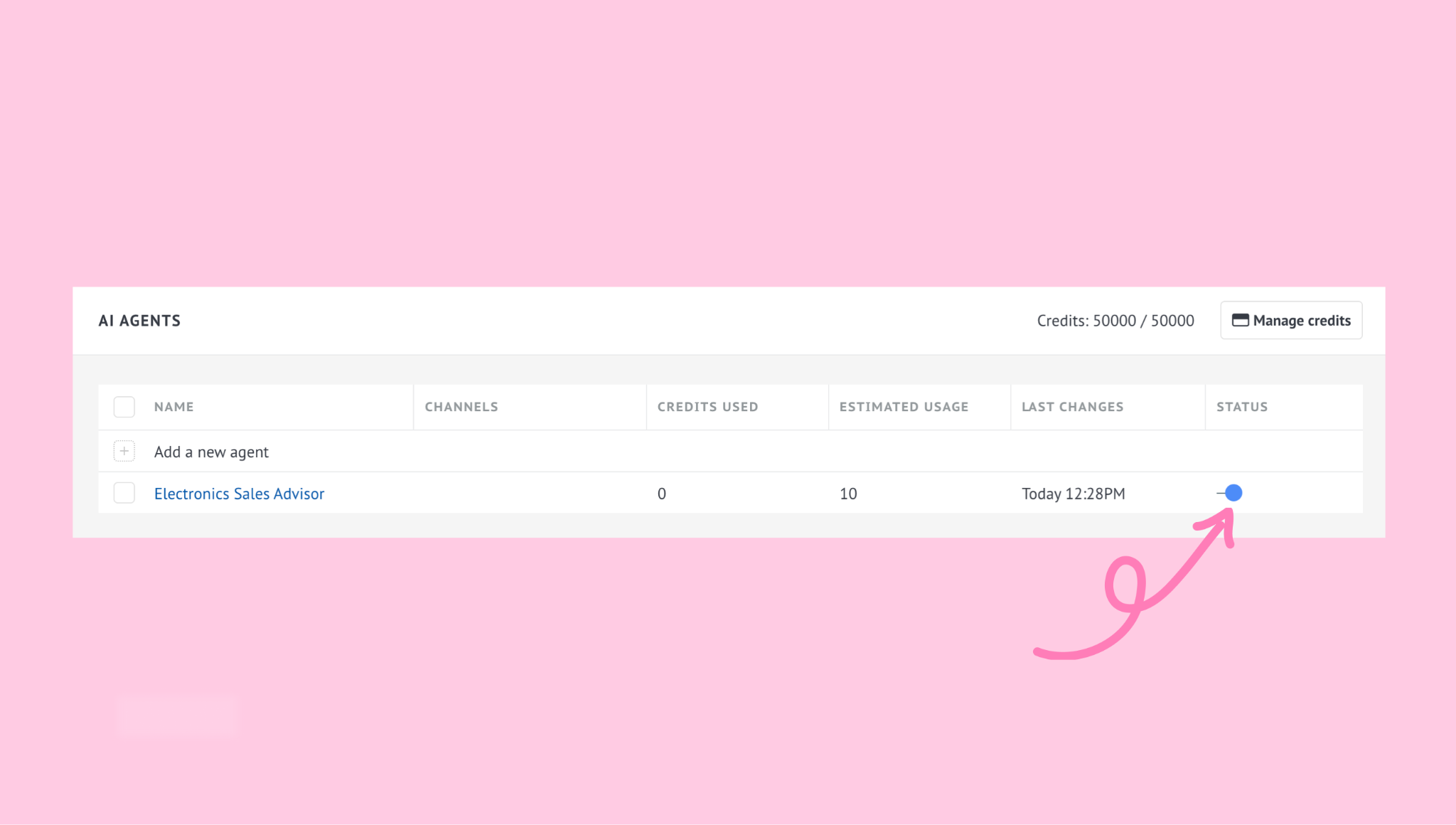
If the agent doesn’t have a channel connected yet, a modal window will appear asking you to add one. Click + Add channel.
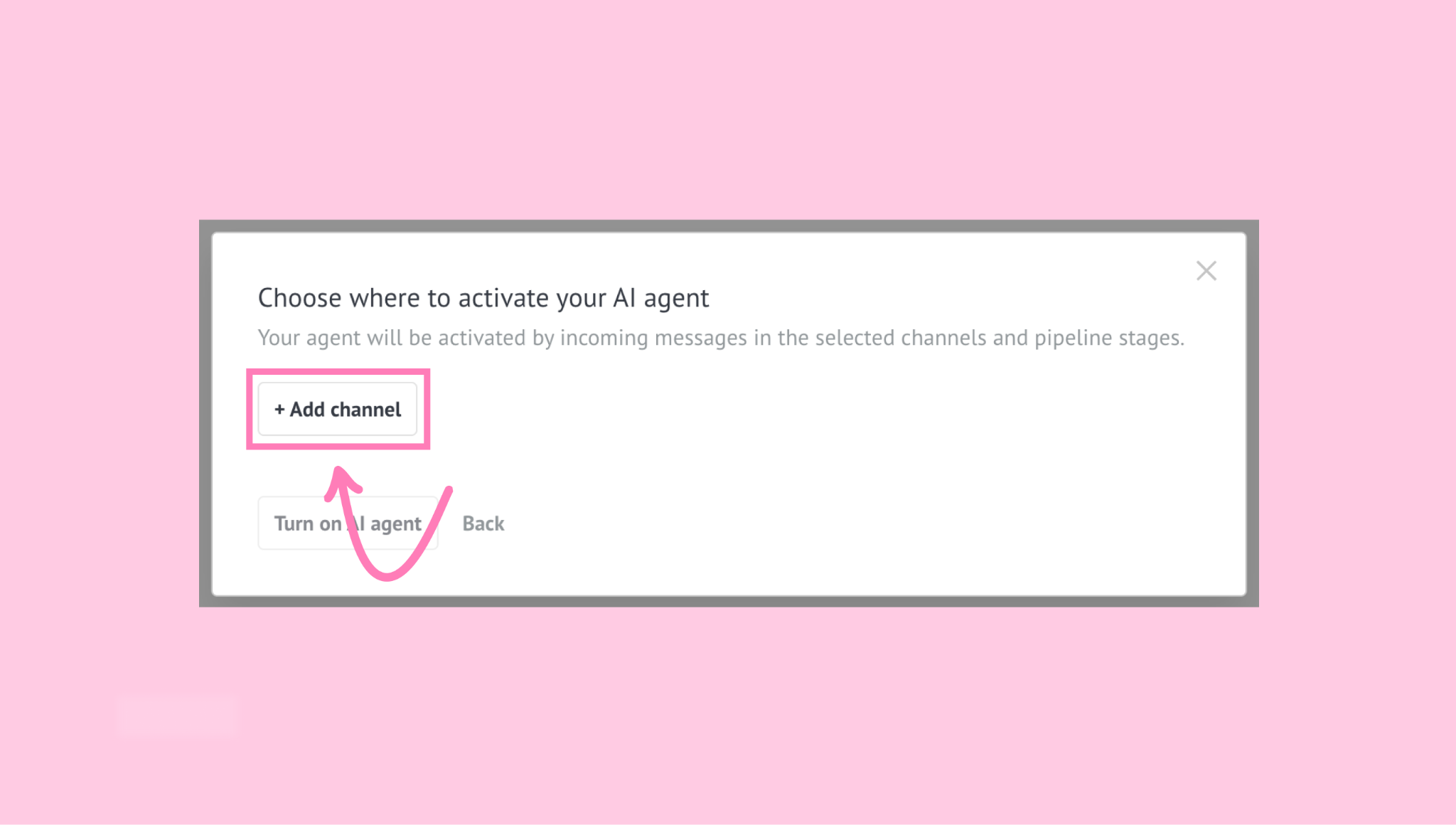
Select the channel where the AI agent should reply to incoming messages.
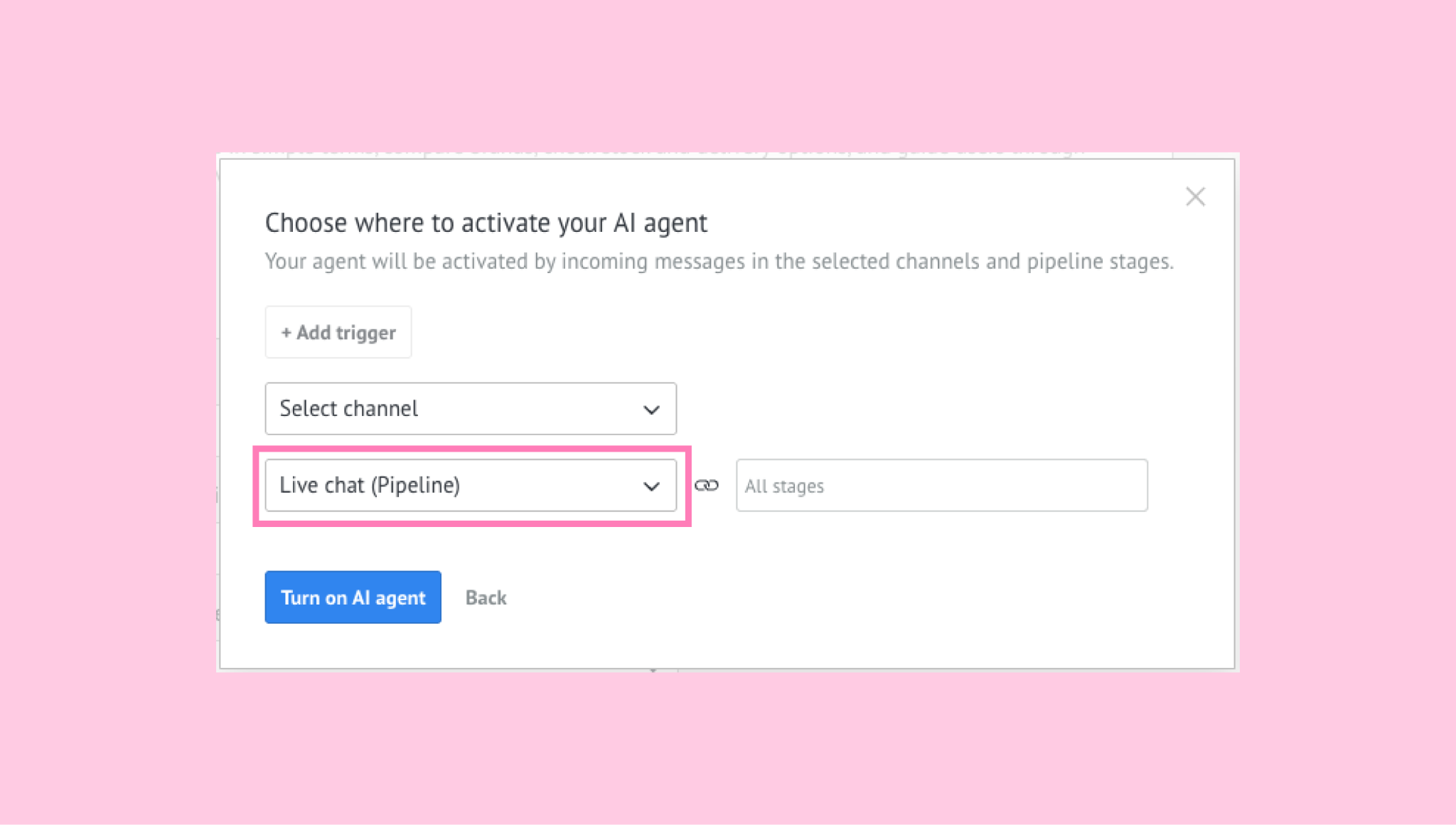
Then, choose the pipeline stages where it should operate.
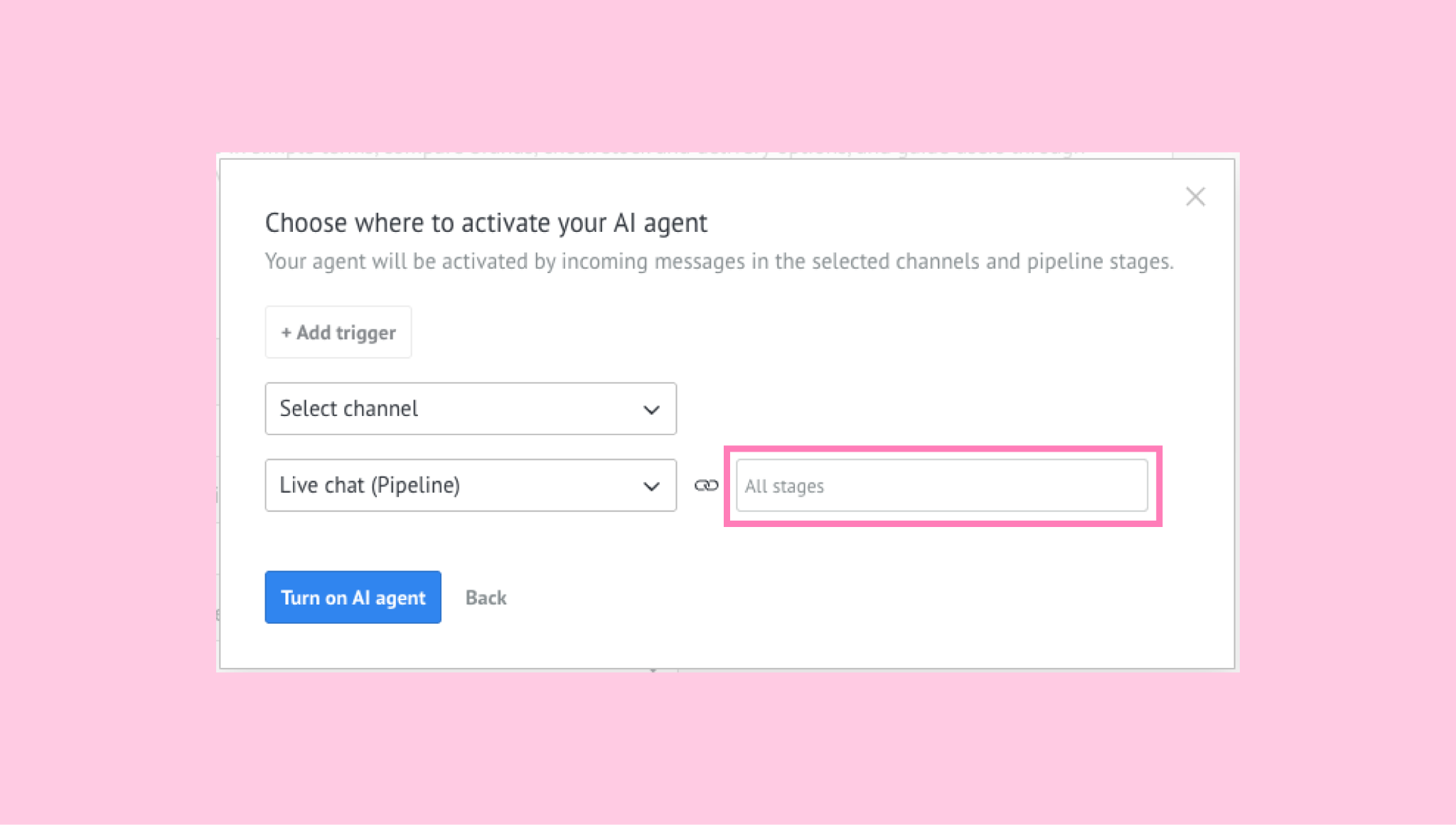
Click Turn on AI agent to confirm.
Once the AI agent is active, you can open the Settings tab to review or update the connected channel and selected pipeline stages. You can also add more channel and pipeline stage combinations or remove existing ones whenever needed.
Before activating an AI agent, make sure its setup is complete. For configuration steps, see our set up guide.
To deactivate an AI agent:
In the Status column, turn off the toggle for the AI agent you want to deactivate.
A confirmation modal will appear. Click Turn off AI agent.
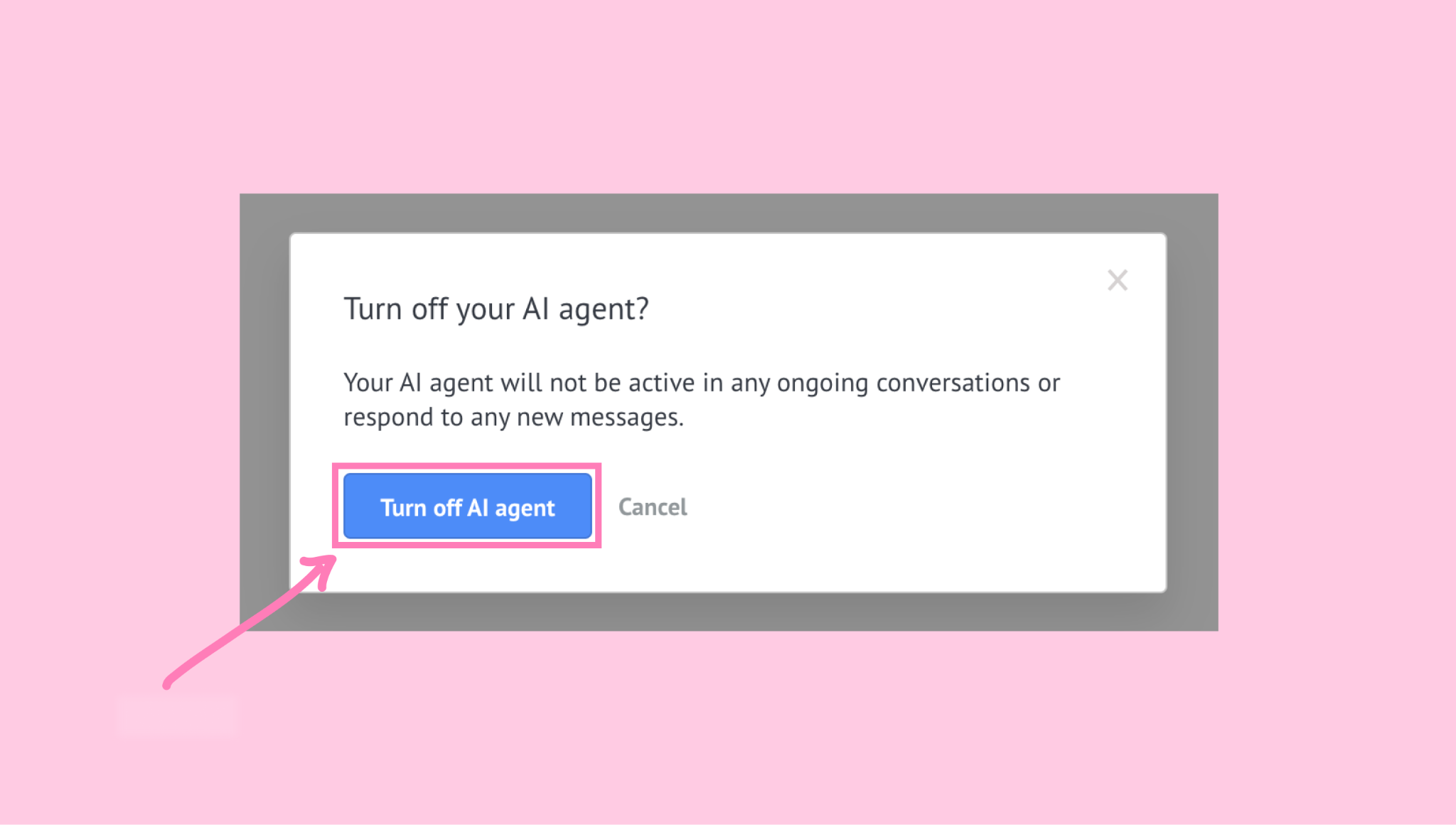
Once deactivated, the AI agent will stop responding to new incoming conversations until it is activated again.
Manage AI agents in conversations
You can pause, resume, or stop AI agents in a lead’s existing conversations.
Go to Communications → Chat inbox and open an active conversation.
Above the chatbox, click Active AI agents to open the management panel.
.png)
Note: Active AI agents appears only when at least one AI agent is active in the conversation. The panel shows the active agents associated with the lead and their existing conversations, not all the AI agents configured in your account.
Here, you can:
A. Pause or resume an AI agent for the entire lead
In the Active AI agents panel, find the agent and click the pause or play icon next to its name.
.png)
When paused, the agent stops replying in all current conversations with this lead. You can resume it at any time.
B. Stop an AI agent for the entire lead
In the panel, find the agent and click the stop icon next to its name.
This removes the agent from all its current conversations with the lead. The agent can’t be resumed in those conversations.
C. Pause or resume an AI agent in a specific conversation
In the panel, expand the agent to see its conversations. Find the conversation you want to manage and click the pause or play icon next to it.
.png)
When paused, the agent stops replying only in that conversation but continues working normally in others. When resumed, it uses the full conversation context, including messages received while it was paused.
D. Stop an AI agent in a specific conversation
In the panel, expand the agent to see its conversations. Find the conversation you want to manage and click the stop icon next to it.
This removes the agent from that conversation. You can’t resume it there, but the agent continues working normally in other conversations.
E. Stop all AI agents
When multiple AI agents are active for the lead, click Stop all agents at the bottom of the panel.
.png)
This removes every active AI agent from the lead’s existing conversations and clears the agents and their conversations from the panel.
Important: Pausing or stopping an AI agent affects only existing conversations. New conversations can still launch the agent according to its configured automation rules.
Note: To deactivate an AI agent across all conversations and remove its active triggers, open the AI agent builder and click Turn off agent.
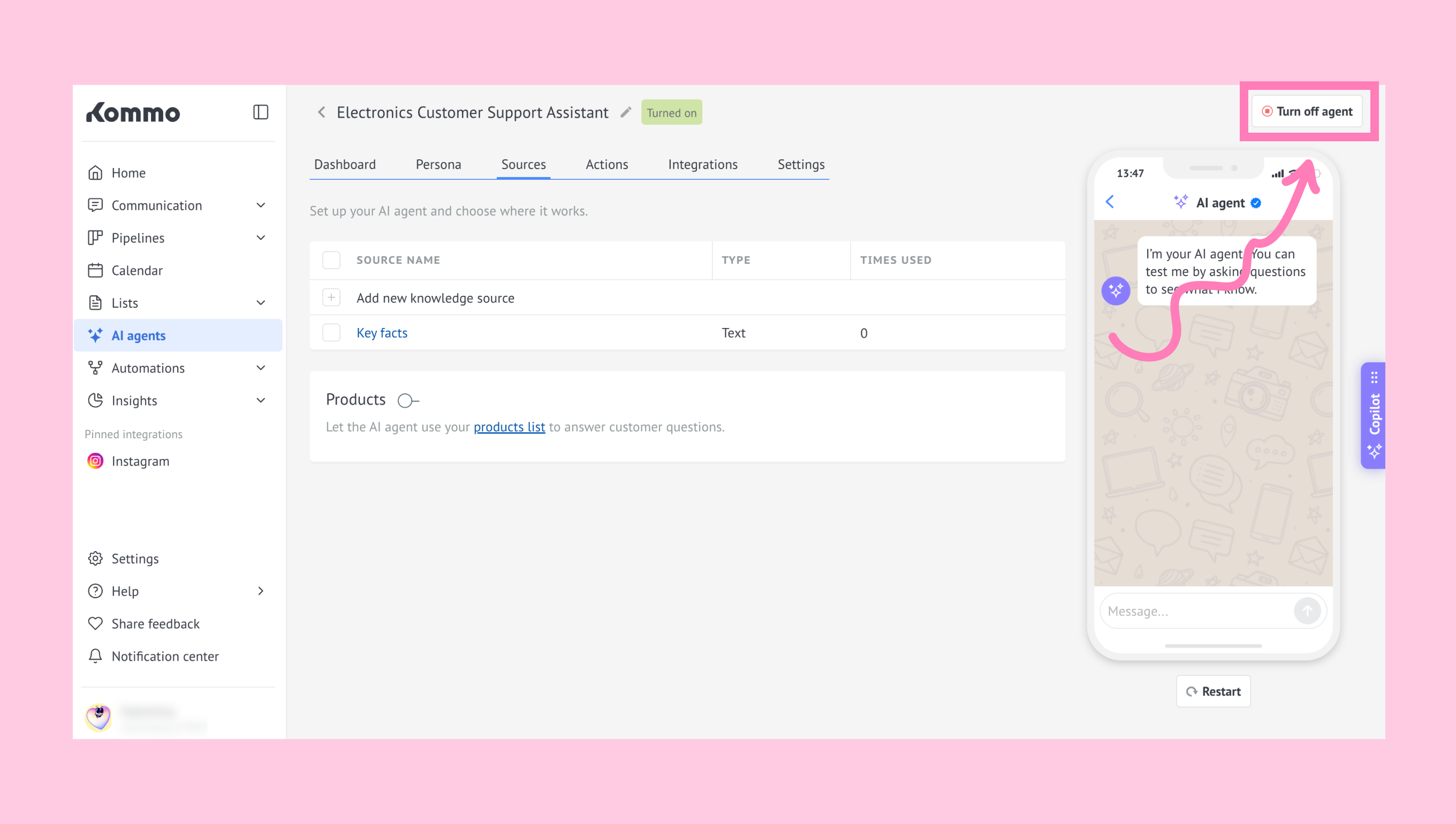
To learn more about how AI agent triggers work, see our article.
Duplicate or delete AI agents
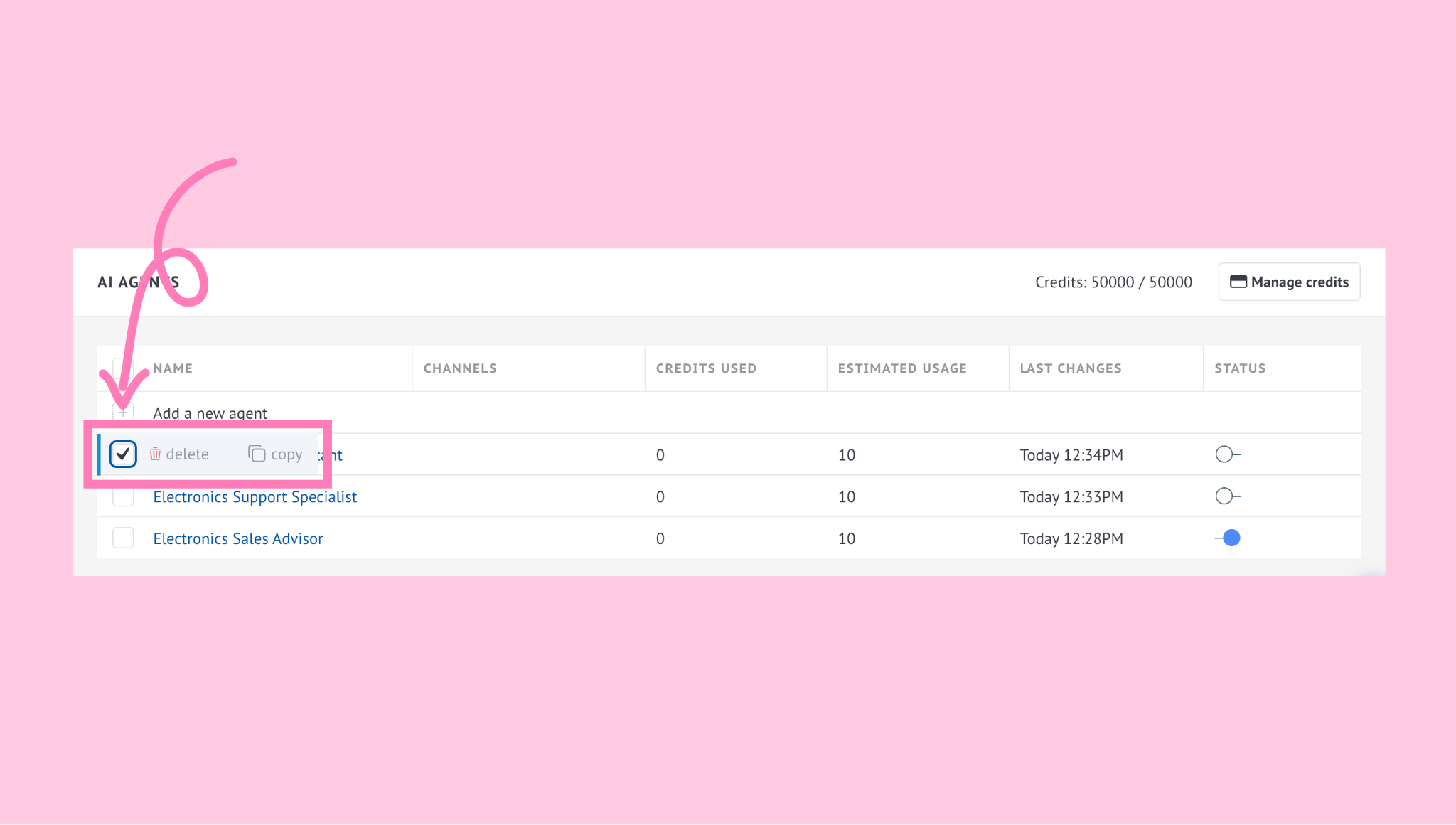
Select an AI agent by clicking the checkbox next to its name.
You’ll see two options: delete and copy.
To duplicate an AI agent, click copy.
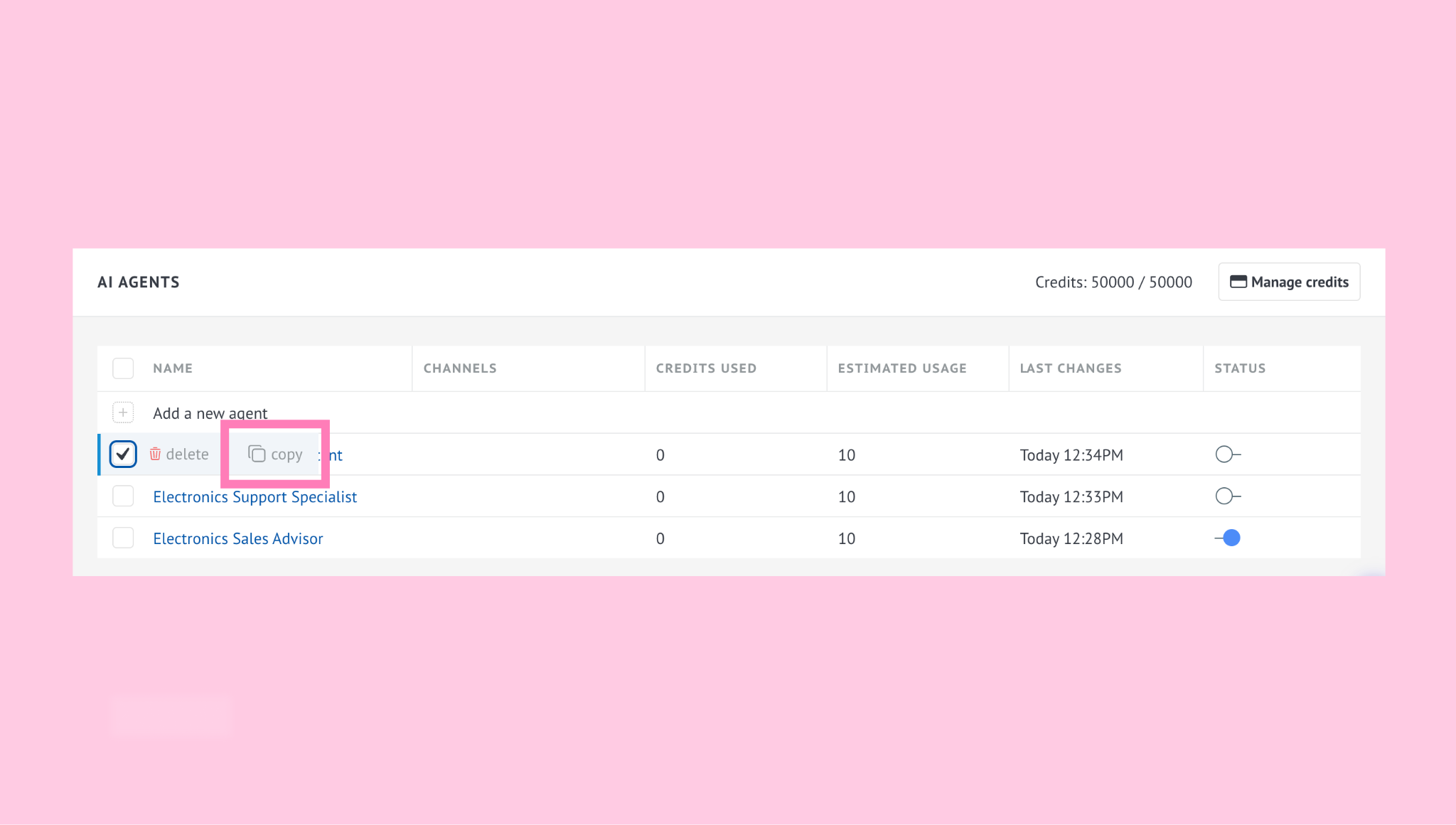
A copy of the selected agent will be created automatically, so you can reuse its setup instead of starting from scratch.
This is useful when creating agents for:
different teams
different languages
different channels
different products or services
different workflows
The copied agent will appear in your list, where you can review and edit it before activating.
To delete an AI agent, click delete.
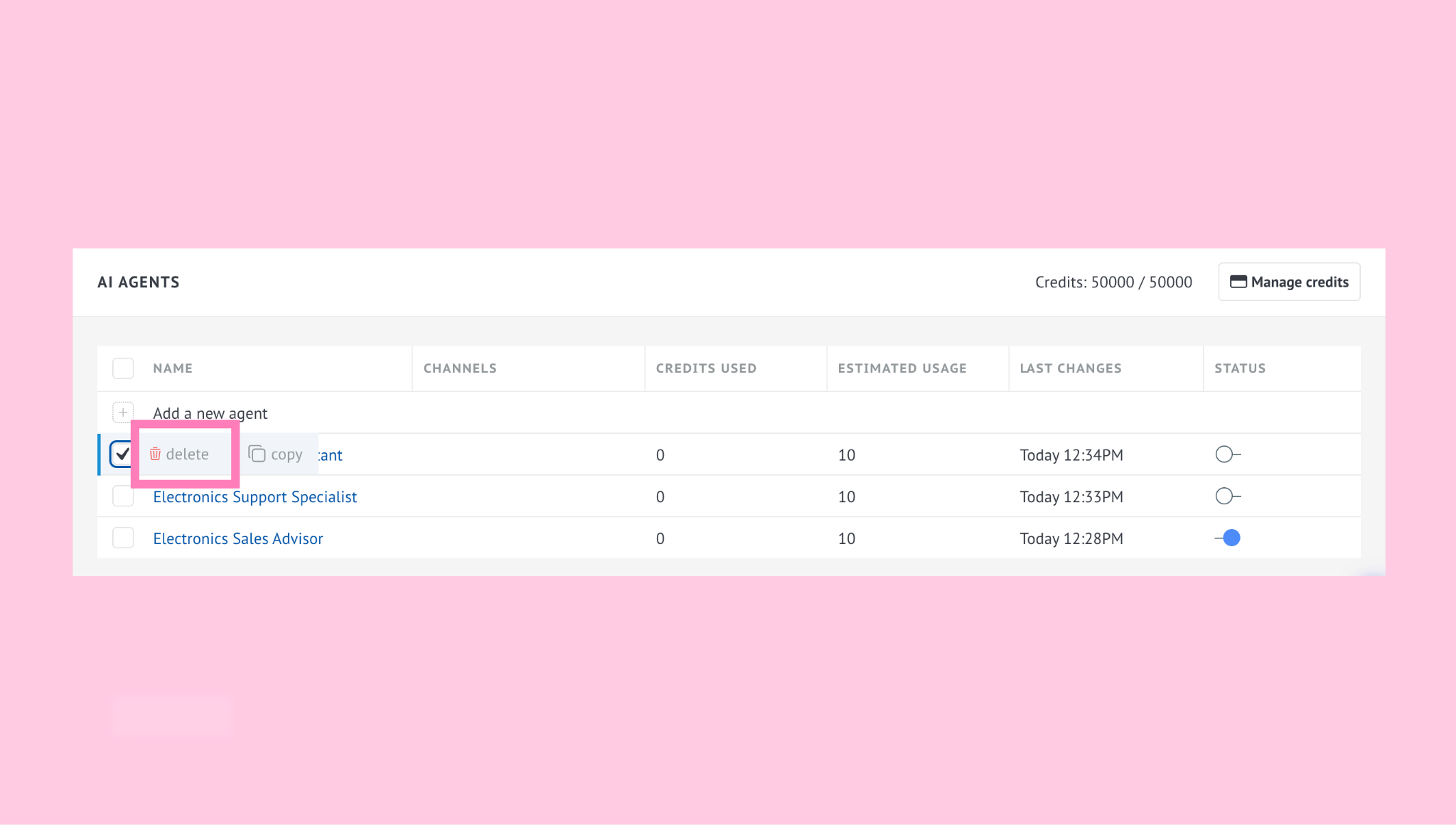
Important: Deleted AI agents can’t be restored.