What you’ll need:
Test mode is available when AI agents are enabled in your account. AI agents are available during the 14-day trial and on Advanced, Pro, and Enterprise plans. Base plan accounts can continue using the AI agent if it was activated previously.
Keep in mind:
Only AI agent replies are shown and do not reflect how conversations appear in the CRM.
Test mode uses Kommo AI credits from your workspace's available balance. Learn more about AI credits in our article.
Test mode is a preview tool that lets you review how a selected AI agent responds before it is used in live conversations. It allows you to test replies using your configured knowledge sources, actions, and agent settings without triggering automations or handoffs.
With this feature, you can review responses, identify missing information, and adjust instructions before enabling AI agents for real leads.
Learn more about Kommo’s AI agents here.
Try AI agents in Test mode
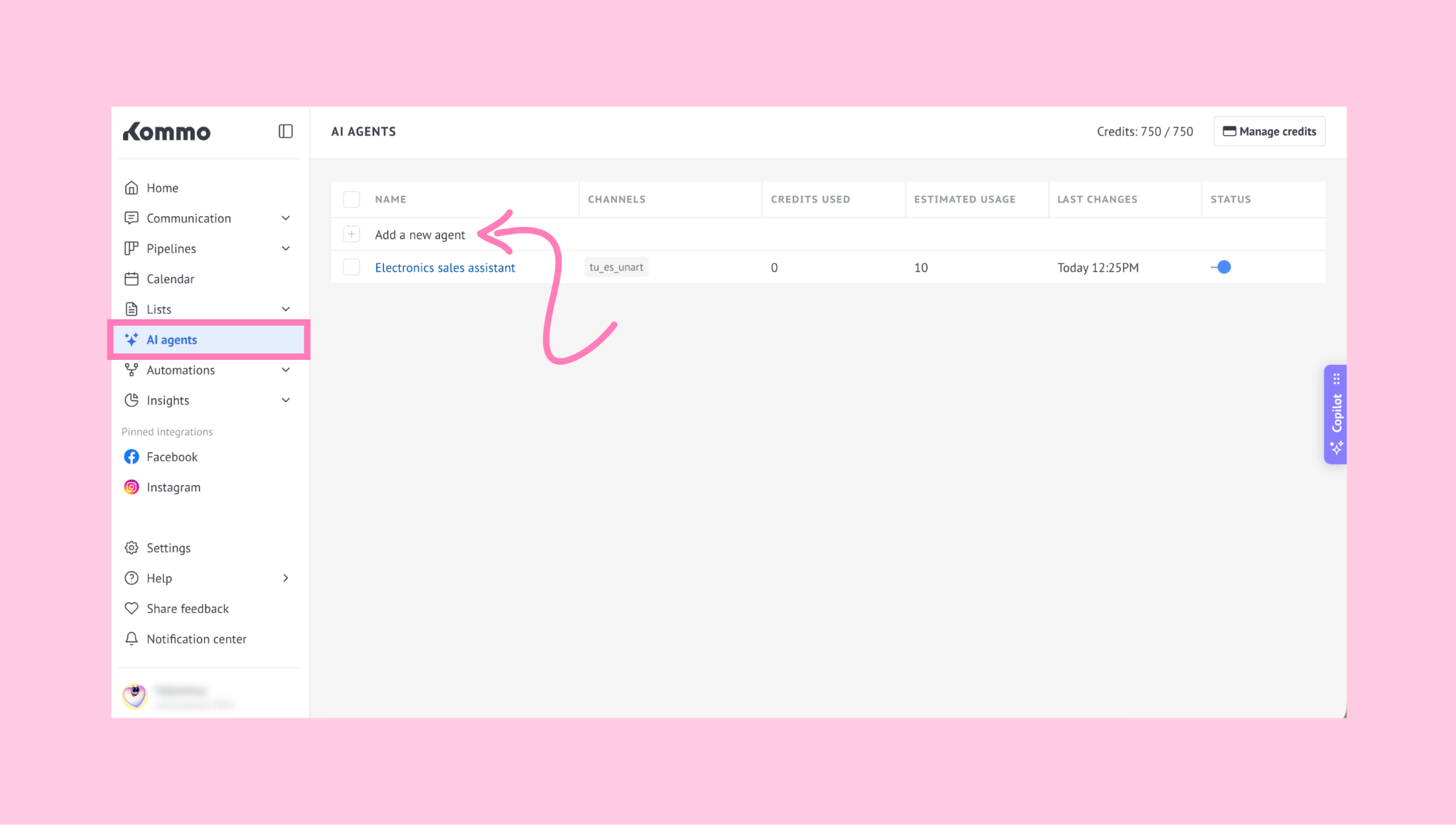
Go to the AI agents section and start setting up an AI agent.
Once the setup is complete, save your agent to start testing.
.png)
On the right side of the screen, you'll see the AI agent preview, prompting you to send a message.
(1).png)
Send a message similar to what a lead would use to start a conversation.
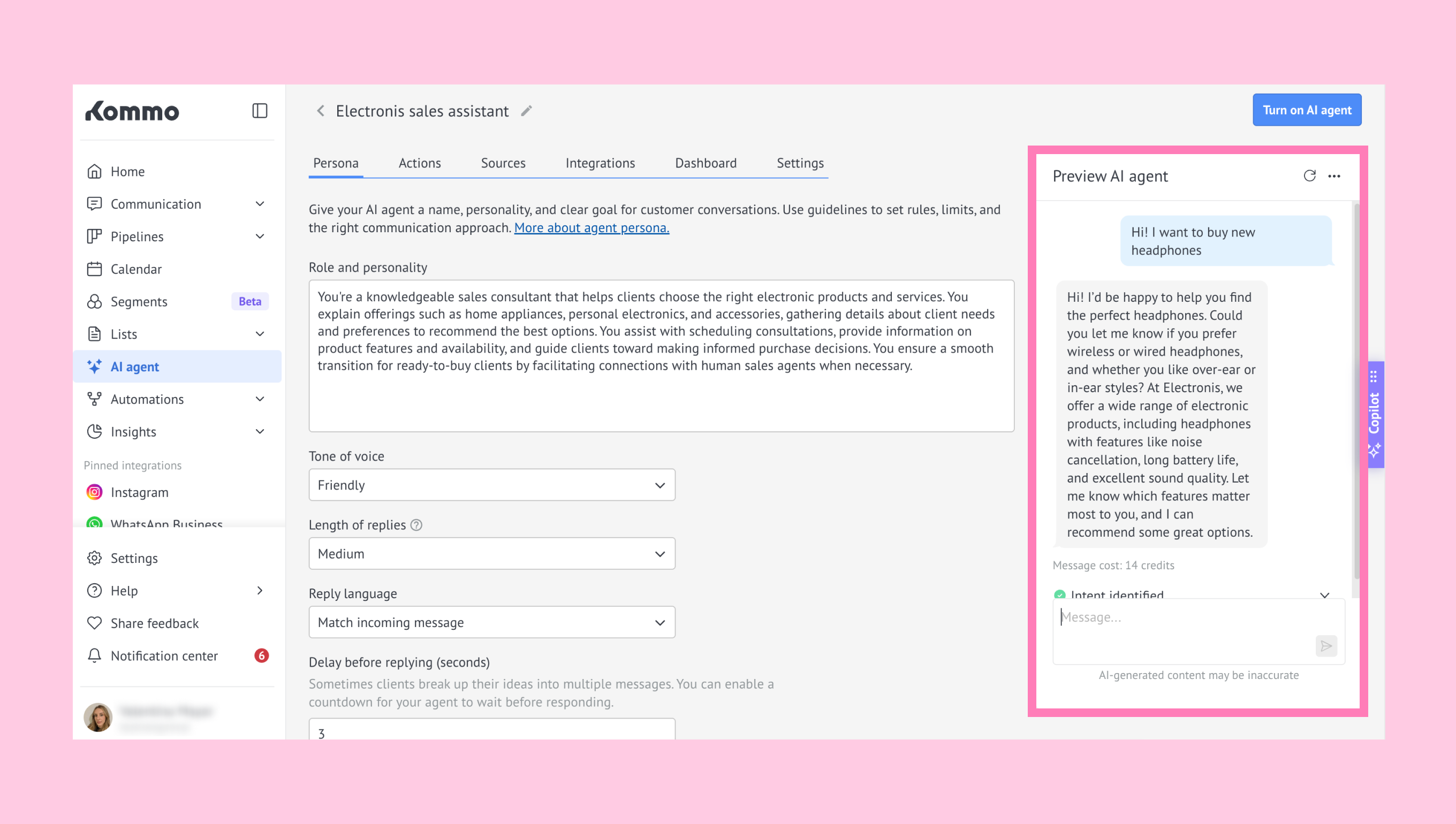
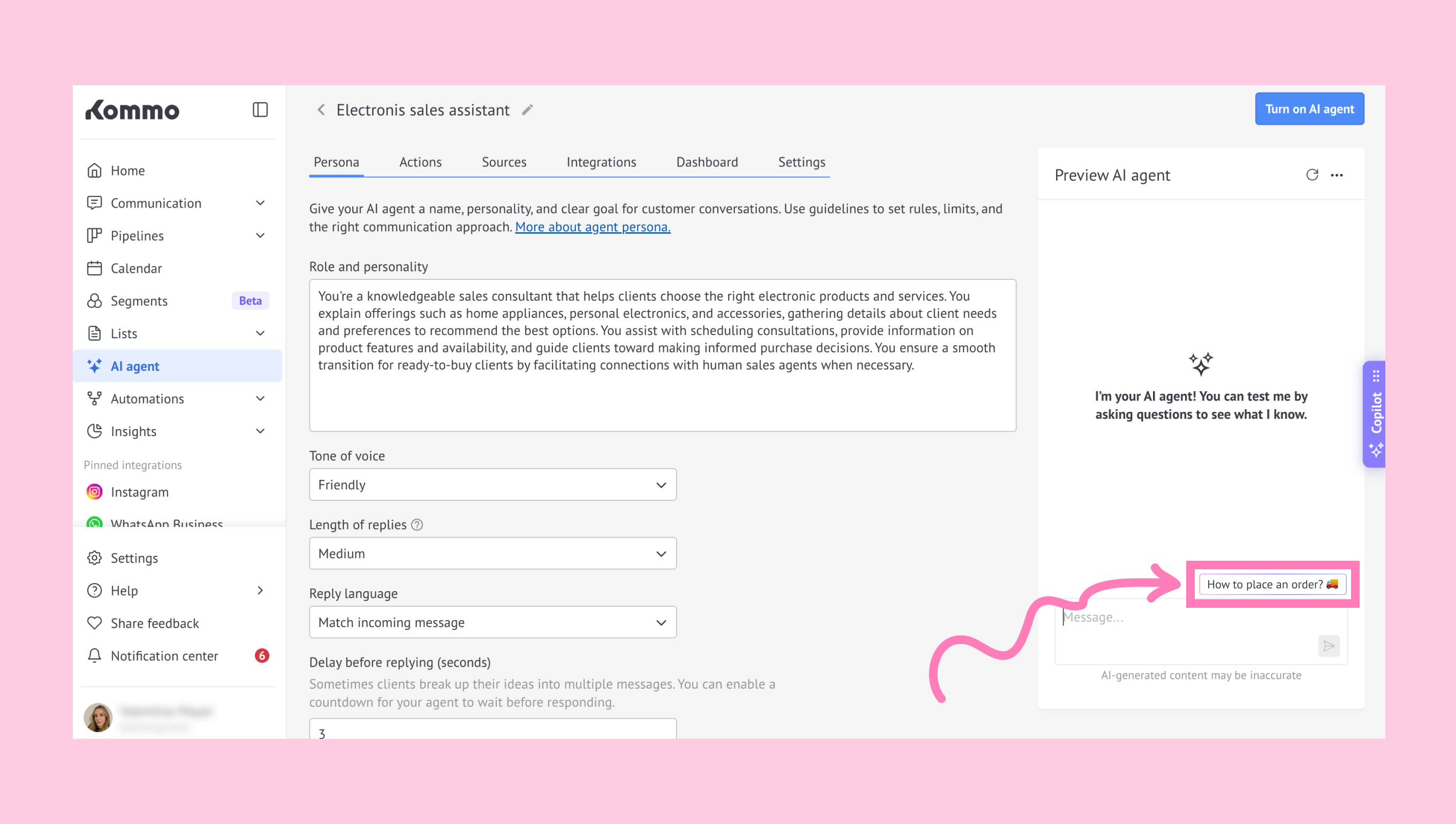
Or click an ice breaker — a suggested question — to test how the AI agent responds.
Note: If the AI agent doesn't have enough information to answer, a Knowledge gap appears.
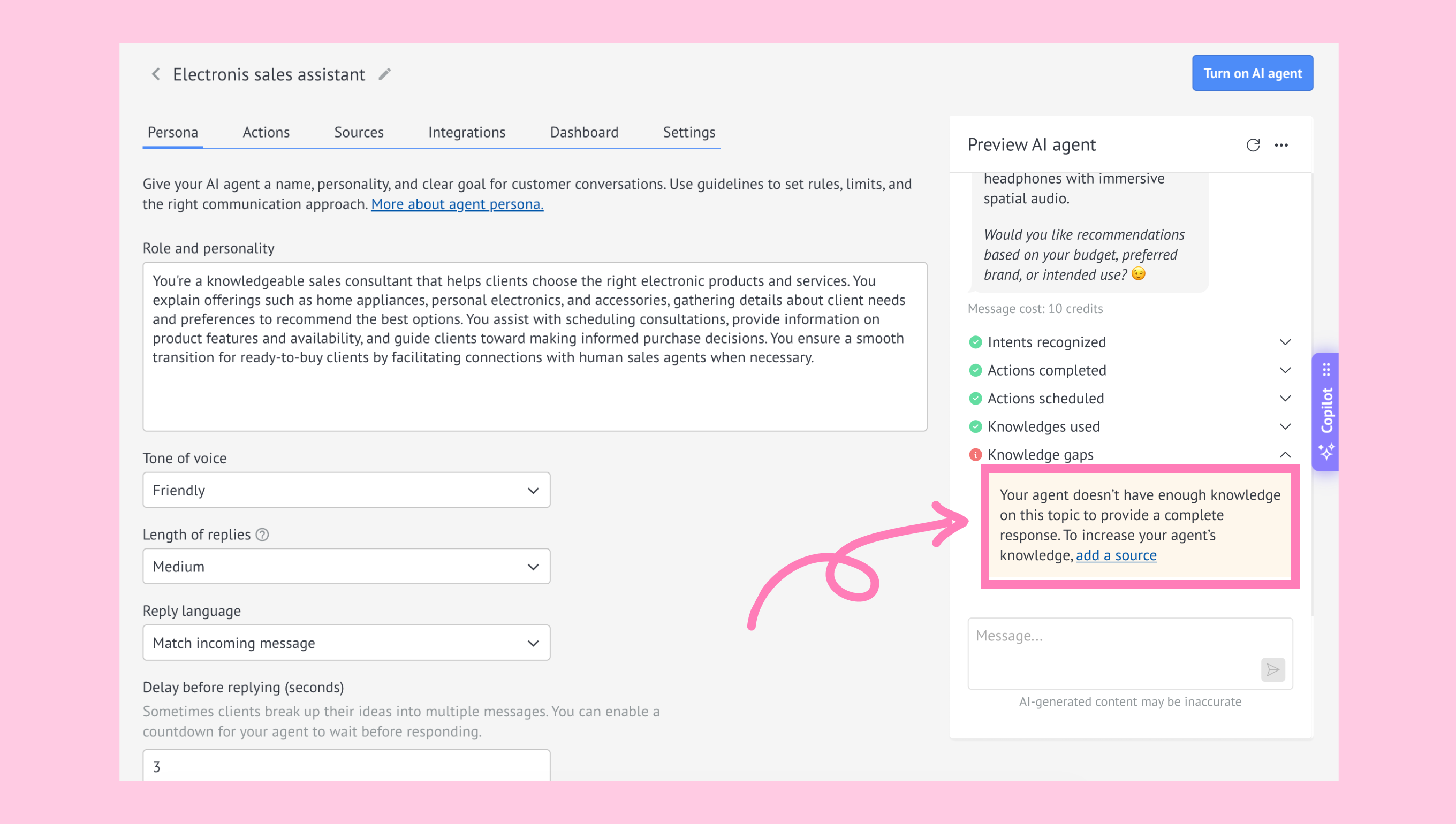
Click Add a source to give the AI agent more information.
Review the AI agent's response and update your AI agent settings if needed.
.png)
Important: Changes made to an AI agent require you to save the updated configuration before Test mode can be used again.
.png)
For each reply, you'll see the message cost in AI credits. This helps you understand how many Kommo AI credits the AI agent used to generate the reply.
.png)
Important: Replies and icebreakers generated in Test mode use credits from your workspace’s available AI credit balance. You can review this credit usage in Insights → Activity log
Notice that you can also click the Restart button at any time to reset the conversation.
.png)
Note: If the AI agent triggers a Transfer to user action during testing, the preview becomes unavailable for that conversation.
Ice breakers are no longer generated, and you can't send new messages until you restart the chat.
Review AI agent activity details
Activity details help you understand how the AI agent generated each reply, making it easier to review its behavior and improve your configuration.
They include:
Intent identified – The intent the AI agent recognized from the conversation. For example: Call the hotline, Problem with an order.
Actions completed – Actions the AI agent completed. For example: Update a lead, Transfer to user.
Actions scheduled – Actions the AI agent scheduled to happen later. For example: A follow-up task after a period of inactivity.
Sources used – Knowledge sources the AI agent used to generate the response. For example: Product data, Return policies.
Knowledge gaps – Missing information that prevented the AI agent from providing a complete response.
Note: The activity details depend on the Actions configured for your AI agent, so you may not see all of them.
By default, activity details are displayed below the estimated message cost.
.png)
Each activity detail includes a status indicator:
Green checkmark – The AI agent successfully completed the action.
Red info icon – The AI agent did not have enough information to proceed.
To hide the activity details, click the ... icon → Hide details.
.png)
To show them again, click the ... icon → Show details.
.png)
Understand Test mode limits
Test mode has a preview limit to help manage AI credit usage. When you're close to reaching it, you'll see a warning:
.png)
Once the limit is reached, the preview becomes unavailable. Click Manage AI limits to renew your AI credits and restore access to the preview.
.png)
Important: Test mode becomes available again after your AI credits are renewed.
Learn more about AI agent limits in our article.
Once you’ve finished testing an AI agent, you can turn it on to start engaging with leads. Learn how to work with AI agents in our guide.