What you’ll need:
Available during the 14-day trial and on Advanced, Pro, and Enterprise plans. Base plan accounts can continue using the AI agent if it was activated previously.
Keep in mind:
You can create multiple AI agents in the same workspace. The number of active AI agents depends on your subscription plan. To learn more, check our AI agent limits article.
Conversation limits are configured separately for each AI agent.
AI agents use the shared AI credits available in your account. If you run out of credits, AI agents stop responding until your credits renew or an admin purchases an additional AI credit package. To learn more, see our Kommo AI limits article.
In this guide, you’ll learn how many AI agents you can create in your workspace, how many can be active at the same time, how conversation limits work, and how to make the most of your active AI agents.
If you haven’t created an AI agent yet, check out our guide first.
Understand workspace and active limits
AI agent limits in Kommo apply to both the total number of AI agents in your workspace and the number that can be active at the same time.
Workspace limits
Each Kommo workspace can have up to 500 AI agents in total across draft, active, and offline states.
This gives you flexibility to create AI agents for different teams, channels, products, languages, or workflows while keeping them organized in one workspace.
For example, one workspace could include a sales AI agent for Instagram chats, a support AI agent for WhatsApp conversations, and a separate AI agent for Spanish-speaking leads.
Limits for active AI agents
The number of AI agents that can be active at the same time depends on your Kommo subscription plan.
Only enabled AI agents count toward the active limit.
Here are the current limits:
Base — 1 active AI agent (only available on older plans)
Advanced — 3 active AI agents
Pro and Trial — up to 50 active AI agents
Enterprise (new plans) — up to 500 active AI agents
Enterprise (older plans) — 1 active AI agent
You can create more AI agents than your active limit allows, but only the number included in your plan can be enabled at the same time.
For example, if you are on the Advanced plan and have six AI agents created, only three can be active simultaneously. The others can remain in draft or offline status until needed.
Understand conversation limits
Conversation limits help prevent an AI agent from using too many resources in a single conversation. You can configure them separately for each AI agent in the Settings tab.
.png)
You can enable one or both of the following conversation limits:
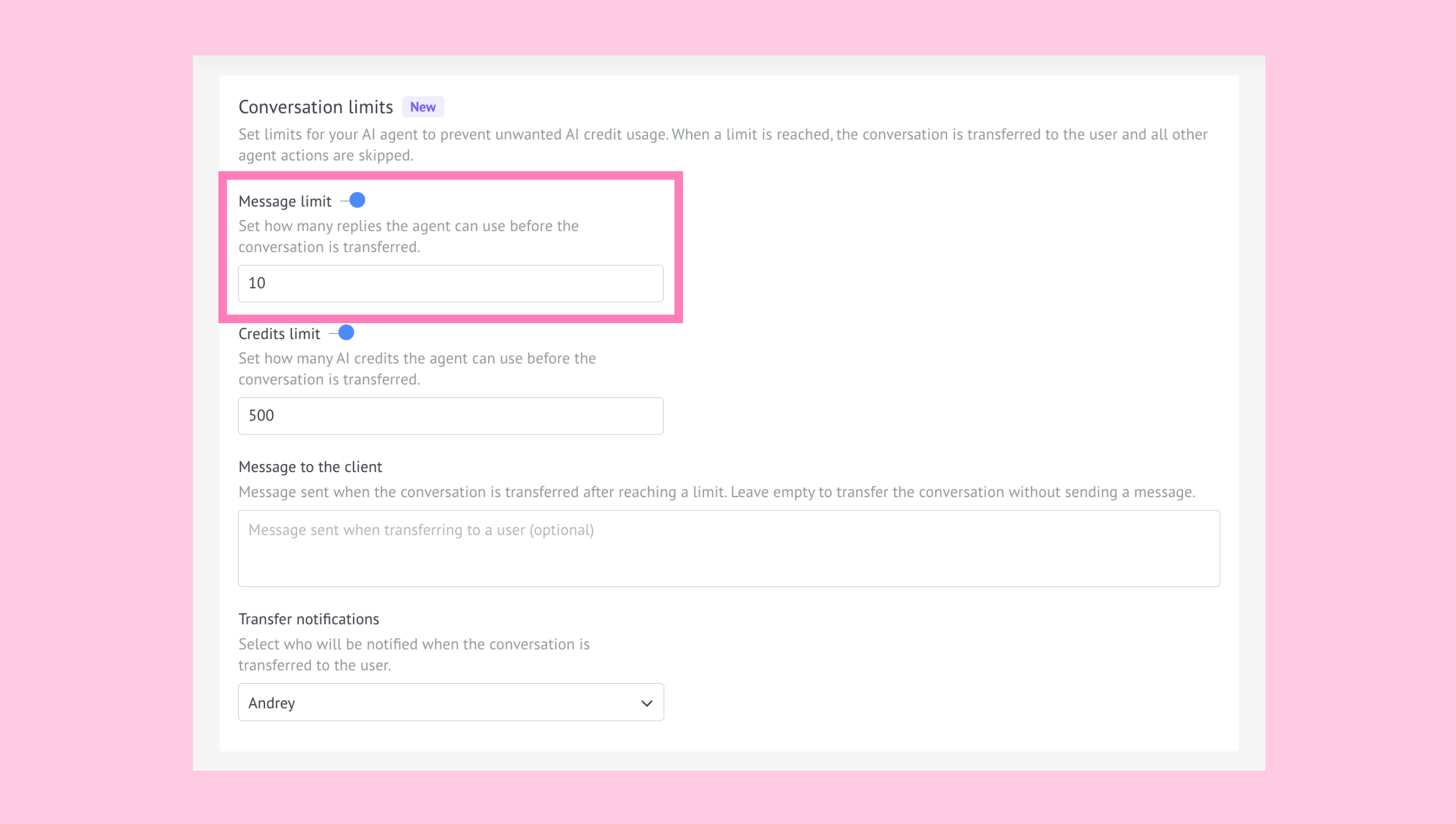
Message limit
Turn on the Message limit toggle to define the maximum number of replies an AI agent can send in a single conversation.
Credits limit
Turn on the Credits limit toggle to define the maximum number of AI credits an AI agent can use in a single conversation.
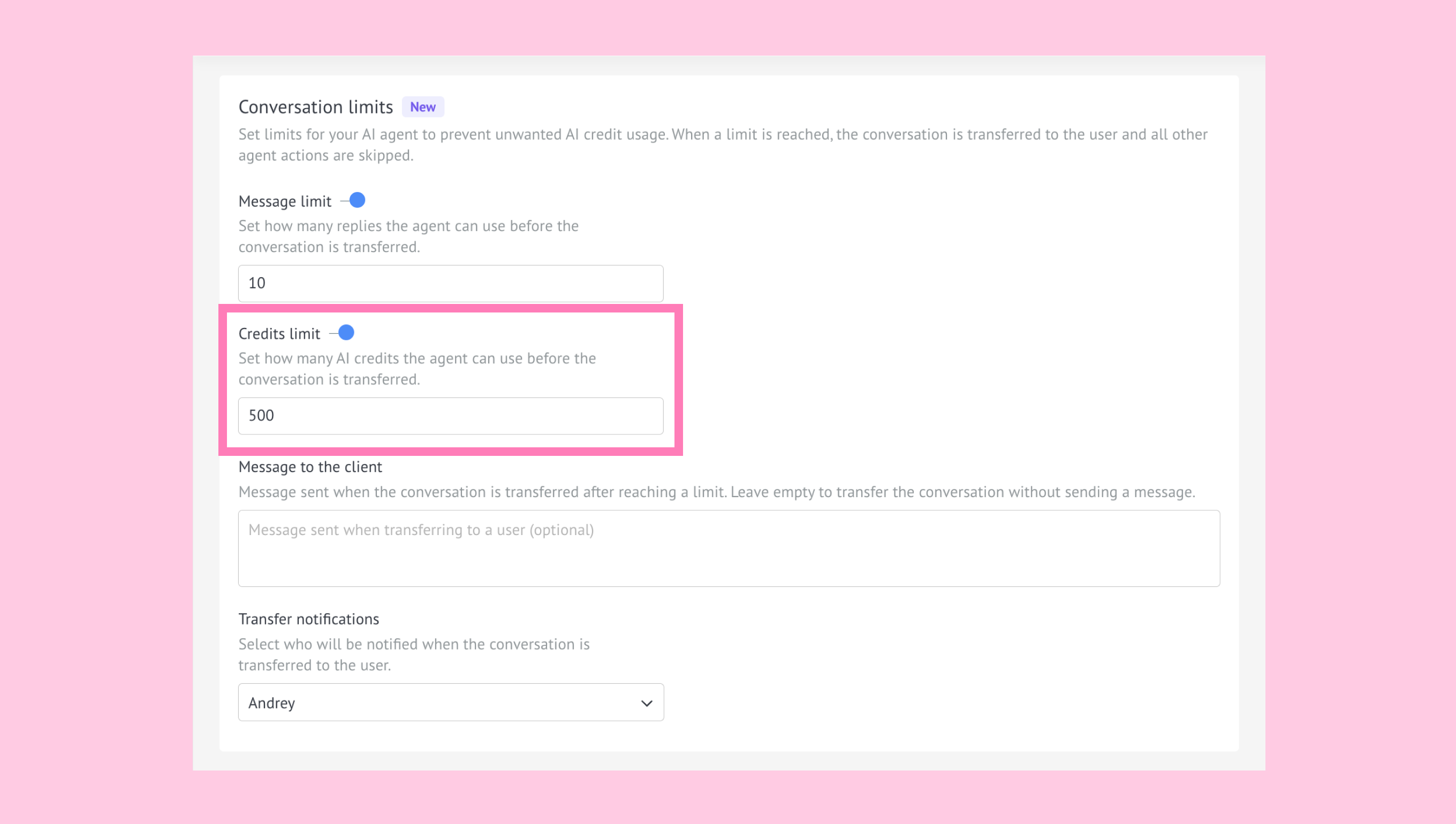
Note: Because credit usage is calculated after a response is generated, the actual number of AI credits used may slightly exceed the configured limit.
For example:
Suppose you have an AI agent that handles customer support for an online store.
You set up the following conversation limits:
Message limit: 10 replies
Credits limit: 500 credits
If the AI agent sends 10 replies or uses 500 AI credits during the conversation, the configured limit is reached. When the customer sends the next message, the AI agent stops responding and the conversation is transferred.
What happens when a conversation limit is reached?
Conversation limits are checked whenever the customer sends a new message.
If a configured limit has been reached, the AI agent stops responding automatically and the conversation is transferred.
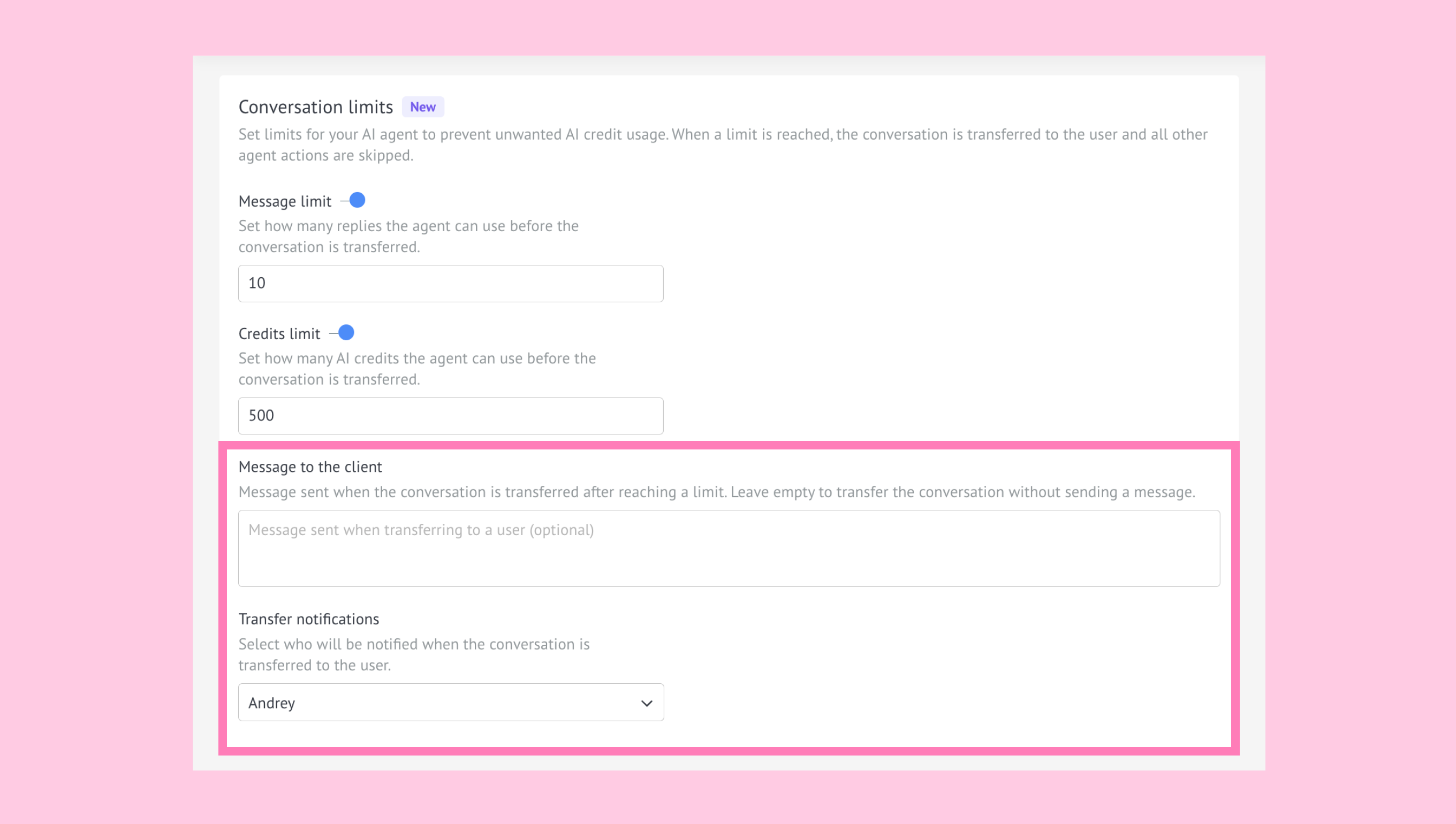
You can also set up the following transfer settings:
Message to the client (optional): Add a message that's sent before the conversation is transferred. If you leave this field empty, the conversation is transferred without sending a message. The message is displayed in the AI agent's configured language.
Transfer notifications: Select the user who should receive a notification when a conversation is transferred after a limit is reached. If no user is selected, no notification is sent.
After the transfer, the AI agent no longer participates in that conversation.
What happens when you reach the active AI agent limit?
If you try to enable another AI agent after reaching the active AI agent limit for your plan:
The AI agent won’t be enabled.
A message will explain that the active AI agent limit has been reached.
You’ll have the option to upgrade your subscription plan.
You can also disable one active AI agent to free a slot and enable another within your current plan. Once an active AI agent is turned off, that slot becomes available immediately.
To learn how to activate and deactivate AI agents, check our guide.
This can be useful when switching campaigns, testing a new setup, or activating a different AI agent for a specific team or channel.
For example, if three AI agents are already active on the Advanced plan, you can turn off your holiday campaign AI agent and activate a new AI agent for a product launch instead.
Best practices for active AI agents
To handle AI agent limits more effectively, keep in mind these recommendations:
Review which AI agents are currently active before creating or enabling new ones.
Disable unused AI agents to free up available active slots.
Use clear names for AI agents so they are easier to identify.
Plan separate AI agents for different workflows instead of duplicating similar setups unnecessarily.
Monitor shared credits regularly if multiple AI agents are active.
Use conversation limits to control how many replies or AI credits an AI agent can use in a single conversation.
Upgrade your plan if you need more active AI agents at the same time.
This will help you organize AI agents more efficiently and make better use of the limits included in your plan.