What you’ll need:
Available during the 14-day trial and on Advanced, Pro, and Enterprise plans. Base plan accounts can continue using the AI agent if it was activated previously.
The Voice messages feature is available only for clients on the Pro plan.
Keep in mind:
AI agents only reply to incoming messages and can’t start conversations.
You can create multiple AI agents in the same workspace. The number of active AI agents depends on your subscription plan. To learn more, check our AI agent limits article.
AI agents use the shared AI credits available in your account. If you run out of credits, AI agents stop responding until your credits renew or an admin purchases an additional AI credit package. To learn more, see our Kommo AI limits article.
In this guide, you’ll learn how to activate AI agents in your pipeline, use triggers to control their behavior, and monitor how they perform in conversations.
If you haven’t set up your AI agents yet, check out our guide first.
Activate AI agents in the pipeline
To allow AI agents to start handling conversations, add them to the relevant pipeline stages using a trigger.
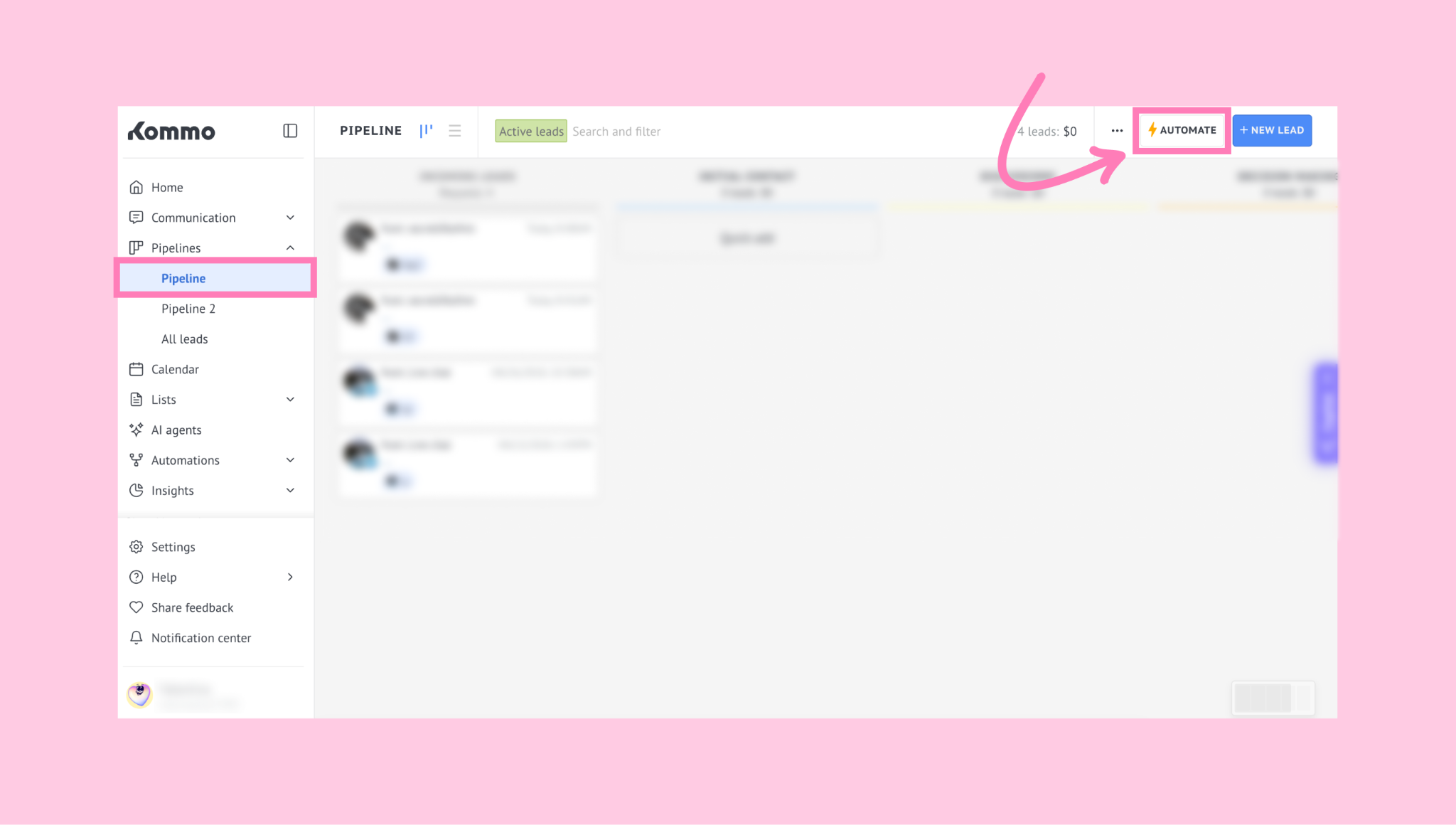
Open your pipeline and click Automate, or use the three dots (…) and select Edit pipeline.
Next, hover over an empty block in any stage and click +Add trigger.
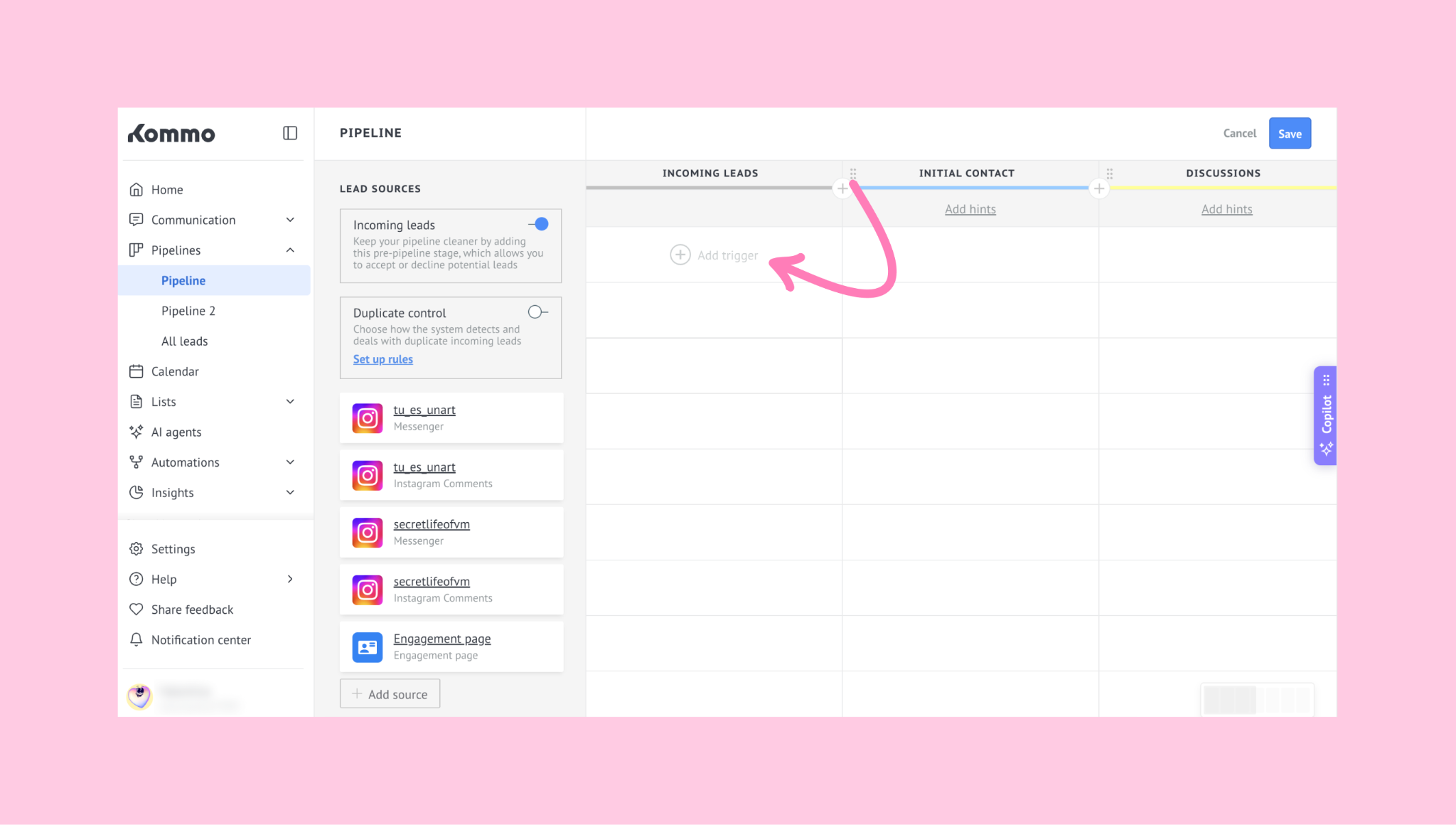
Note: The AI agent activates only in stages with a trigger but keeps responding even if the conversation moves to stages with no triggers set up. If a lead enters a stage without an AI trigger, the agent won’t start new conversations there.
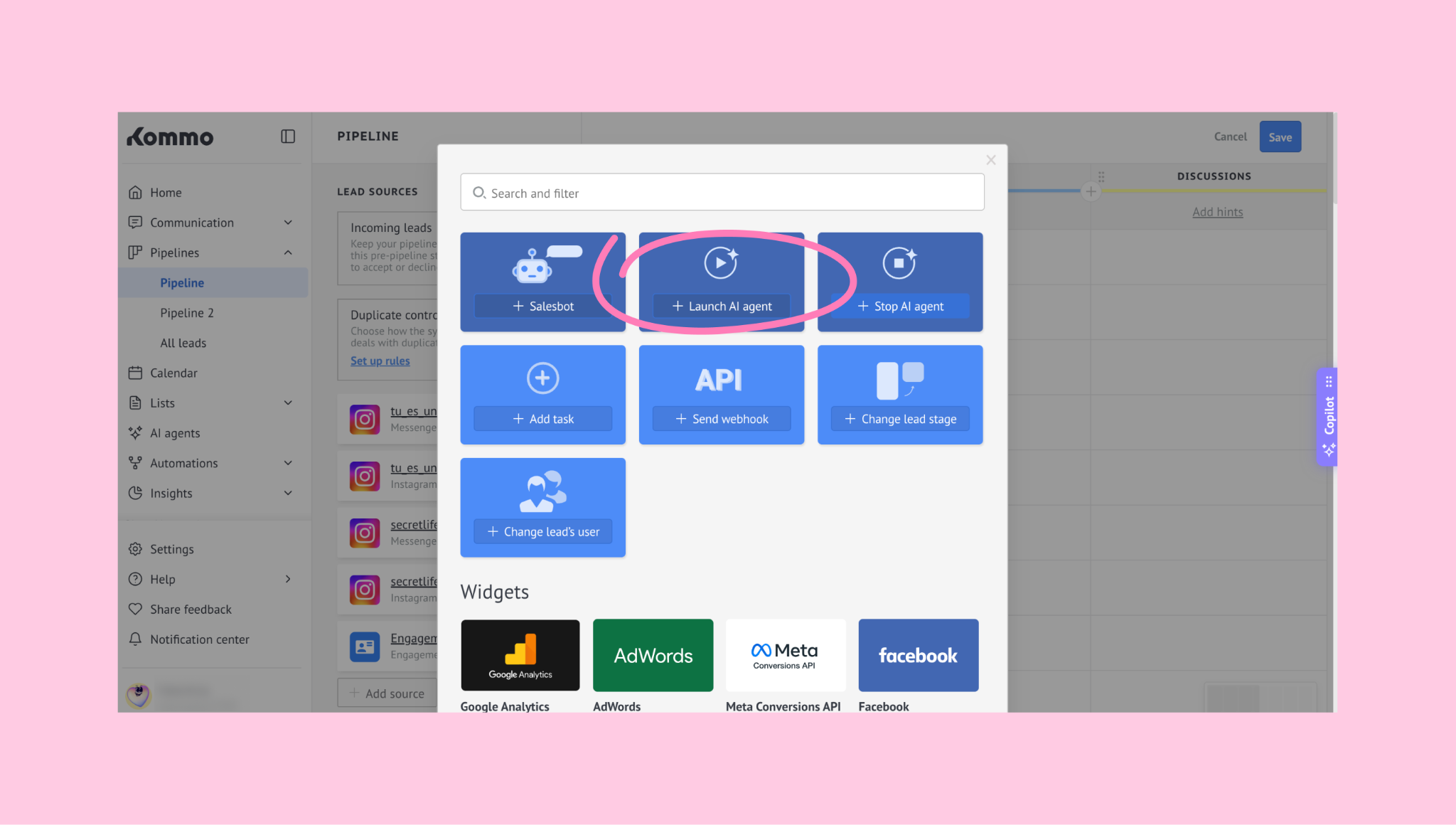
Click + Launch AI agent.
Select the AI agent you want to add to the pipeline, or create a new one.
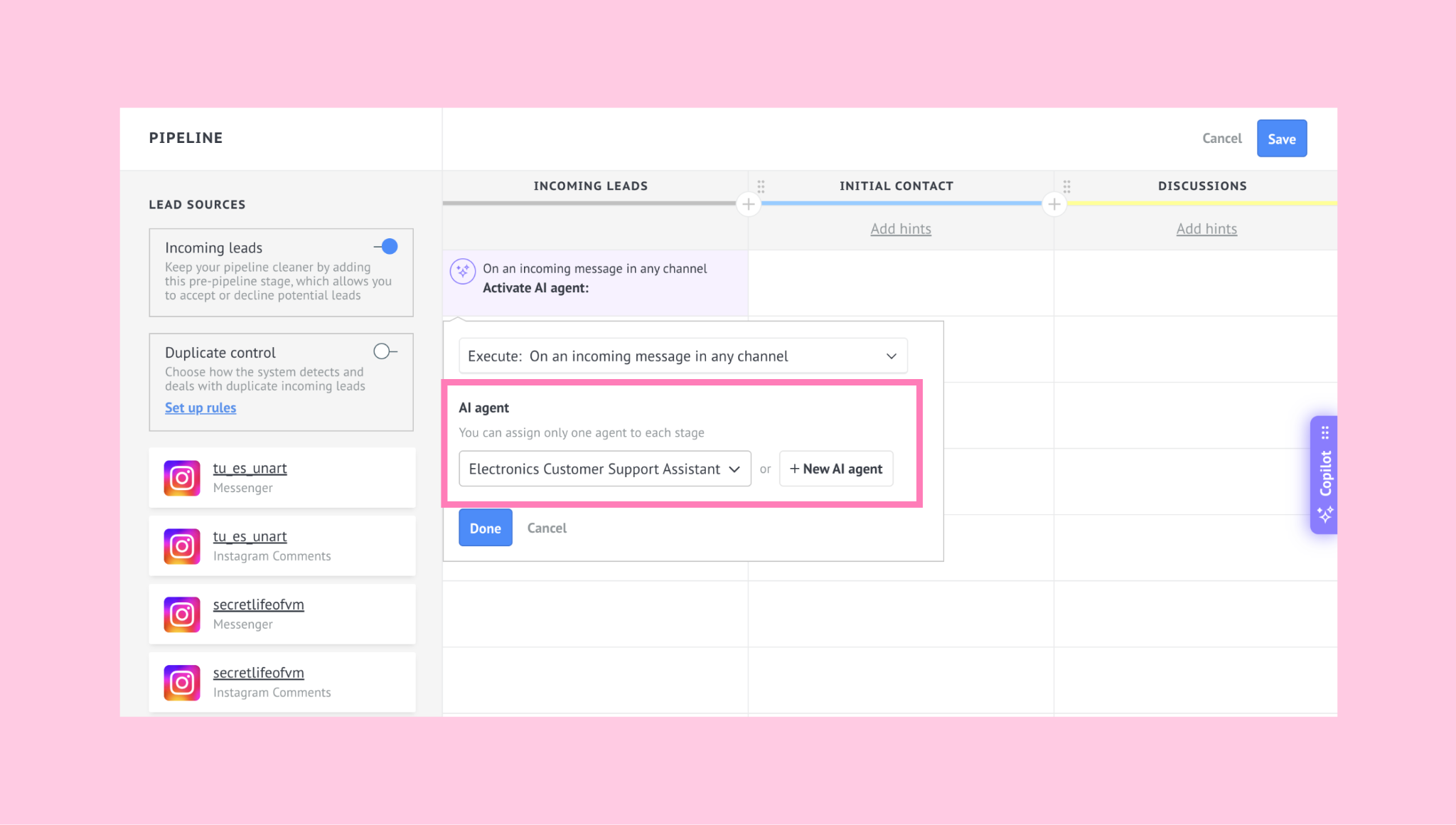
Important: Multiple AI agents can work in the same pipeline when assigned to different stages. However, each pipeline stage can launch only one AI agent for new conversations created in that stage.
Choose the conversational trigger that should activate the selected AI agent – currently limited to incoming messages in the chosen channels.
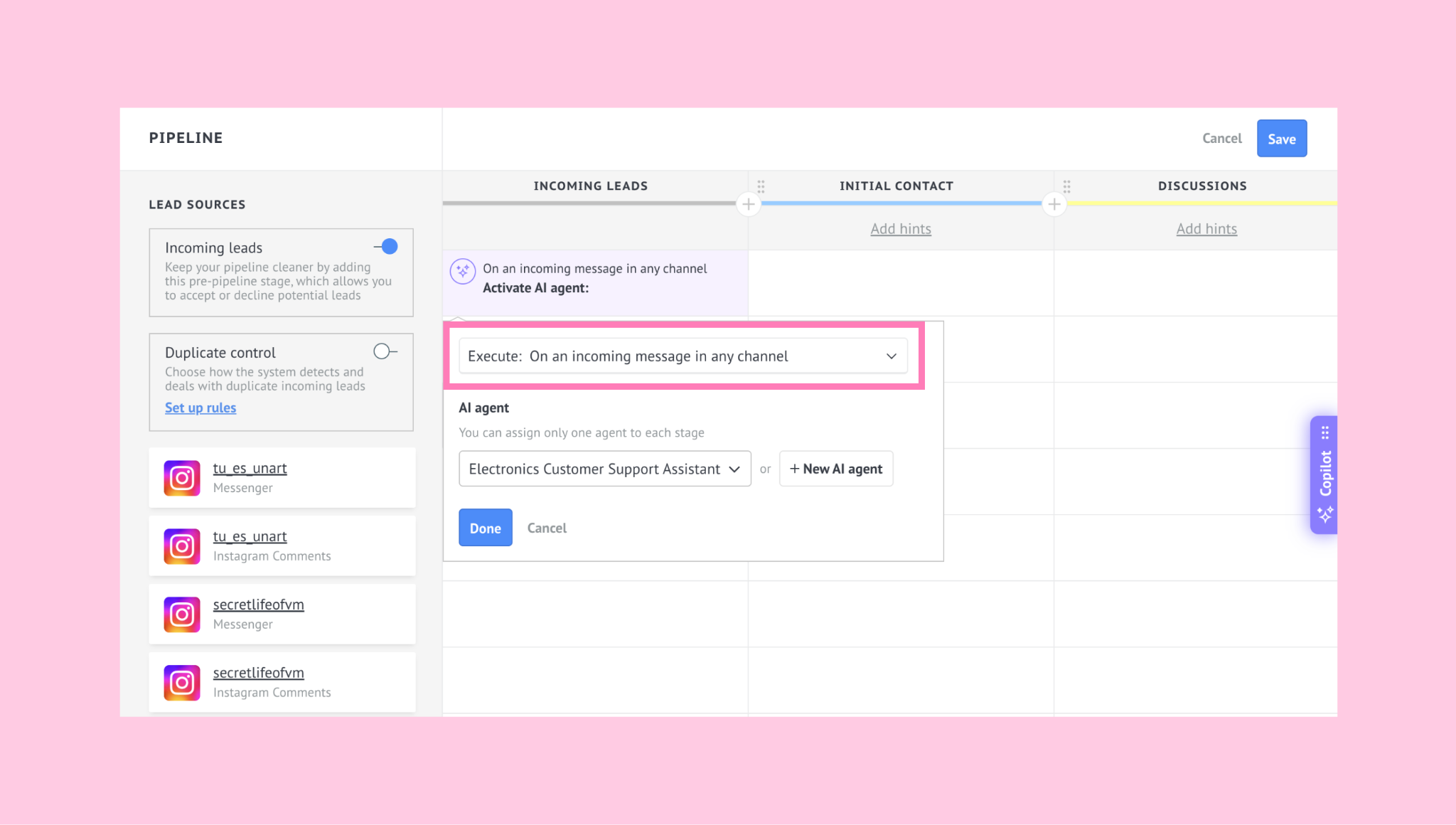
Important: Some stages already assigned to another AI agent may still appear available when setting triggers. If you try to save, only the available stages will be applied, and an error message will appear.
Click Done, then Save to save all changes.
Once an AI agent is active in a selected stage, it can respond to incoming messages based on its assigned triggers and settings.
If a lead moves to another stage, new conversations will be handled by the AI agent assigned to that stage. Existing conversations will continue with the AI agent already handling them.
Stop AI agents in the pipeline
You can also use a pipeline trigger to stop a specific AI agent when a lead enters a stage.
This is useful when you want an AI agent to stop responding at a certain point in the pipeline, while another AI agent or a teammate continues the conversation.
Open your pipeline → Click Automate or use the three dots (…) and select Edit pipeline.
Hover over an empty block in the stage where you want the AI agent to stop and click +Add trigger.
Select Stop AI agent.
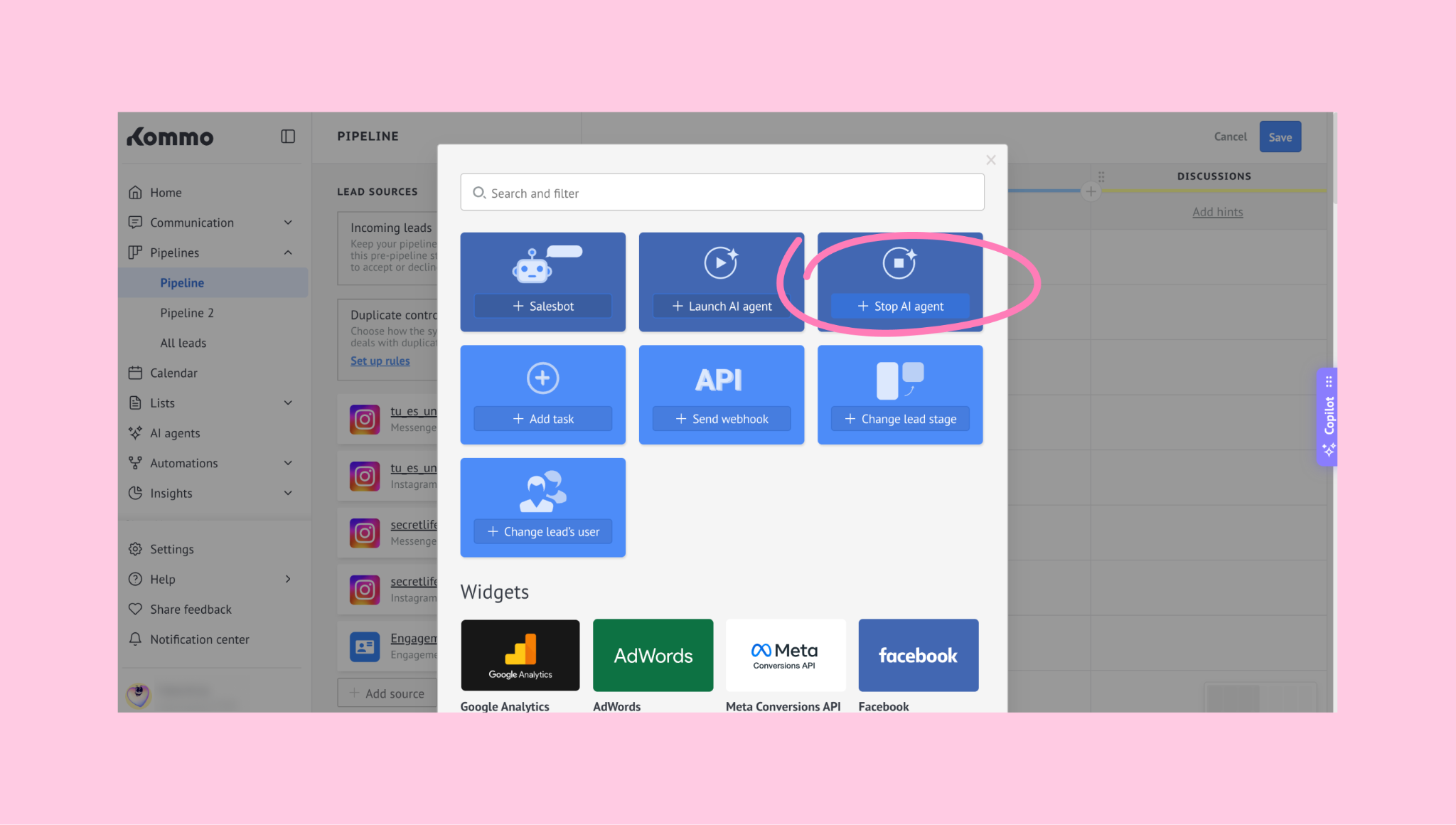
Choose the AI agent you want to stop.
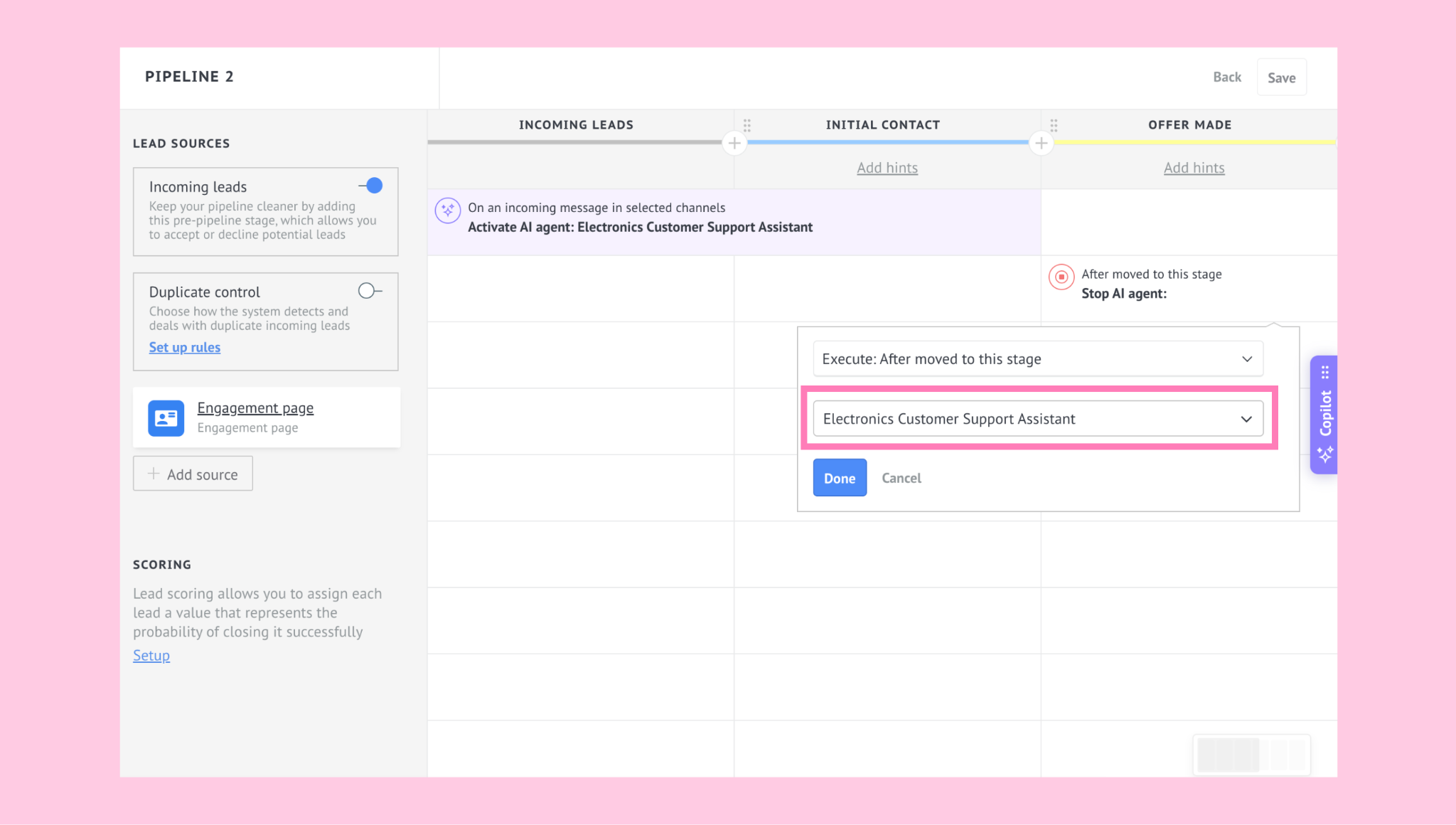
Click Done, then Save to apply your changes.
When a lead with an active conversation enters that stage, the selected AI agent will stop in all conversations linked to that lead.
If other AI agents are active for the same lead and are not included in the trigger, they will continue responding.
Understand how AI agents interact with leads
Initial response – The AI agent assigned to the current pipeline stage can automatically reply when a lead messages your business, based on the configured triggers and channels.
Conversation handling – The active AI agent remains engaged while the lead’s requests match its knowledge sources and settings. As the lead moves through the pipeline, other AI agents may become involved depending on the stage setup.
Transfer to manager – The AI agent can hand off the chat if it can’t help, if the lead asks to speak with a human, or if a conversation limit is reached.
Chat closure – AI agents remain active until the conversation is closed, transferred, or stopped by a trigger. After closing, there is a 5-minute cooldown before another conversation can begin.
Transfer details – Transferred chats appear unread and include full context for the manager. If a conversation limit is reached, the conversation is transferred according to the AI agent’s configured transfer settings.
Use voice messages with AI agents
When a client sends a voice message, the AI agent currently handling the conversation automatically:
Converts the voice message into text using speech recognition
Processes the message like a regular text input
Uses Sources to find relevant business information
Follows Actions to determine the next steps
Understands the client’s intent based on context
Applies your Persona to match tone and style
Based on this, the AI agent generates a text reply. It can answer questions, ask follow-up questions, update lead data, trigger automations, or transfer the conversation to your team.
The original voice message, its transcription, and the AI agent’s response are saved in Kommo for visibility and follow-up.
Note: If a voice message cannot be transcribed (for example, due to poor audio quality or a processing error), the AI agent will notify the client and ask them to resend their request in text form. The message will be marked with an error indicator in the chat, and admins will receive a silent notification with a direct link to the affected conversation for quick review.
Voice messages are enabled by default. To disable them, open the Settings tab and toggle off the Respond to voice messages switcher:
.png)
Review AI agents usage and performance
Performance overview
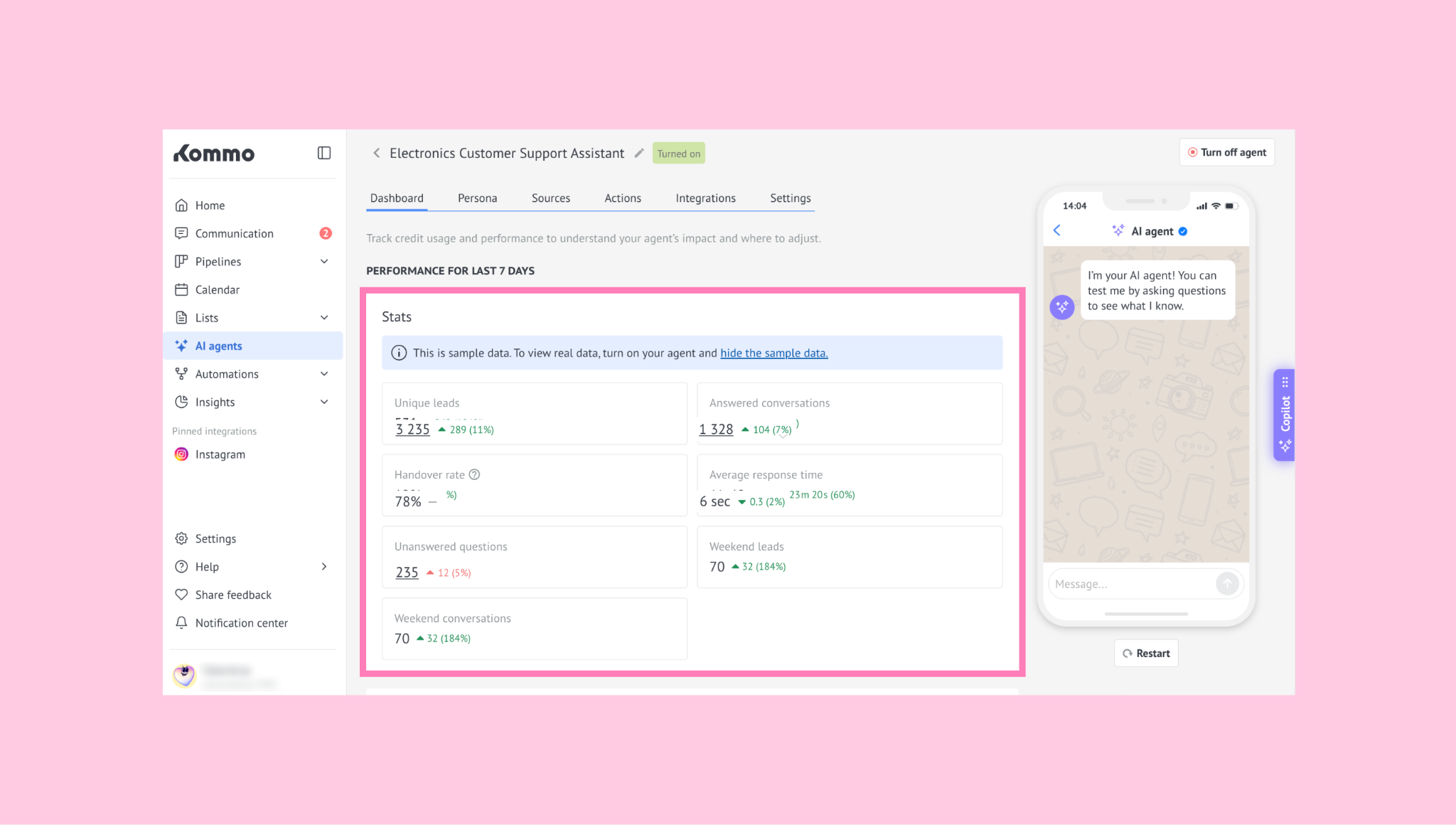
Once your AI agents are active, you can review their performance in the Dashboard tab. To open it, go to AI agents → choose an AI agent → click the Dashboard tab.
Each AI agent has its own Dashboard with information about:
Stats
Review performance for the last 7 days with metrics such as Unique leads, Answered conversations, Unanswered questions, Handover rate, Average response time, Weekend leads, and Weekend conversations.
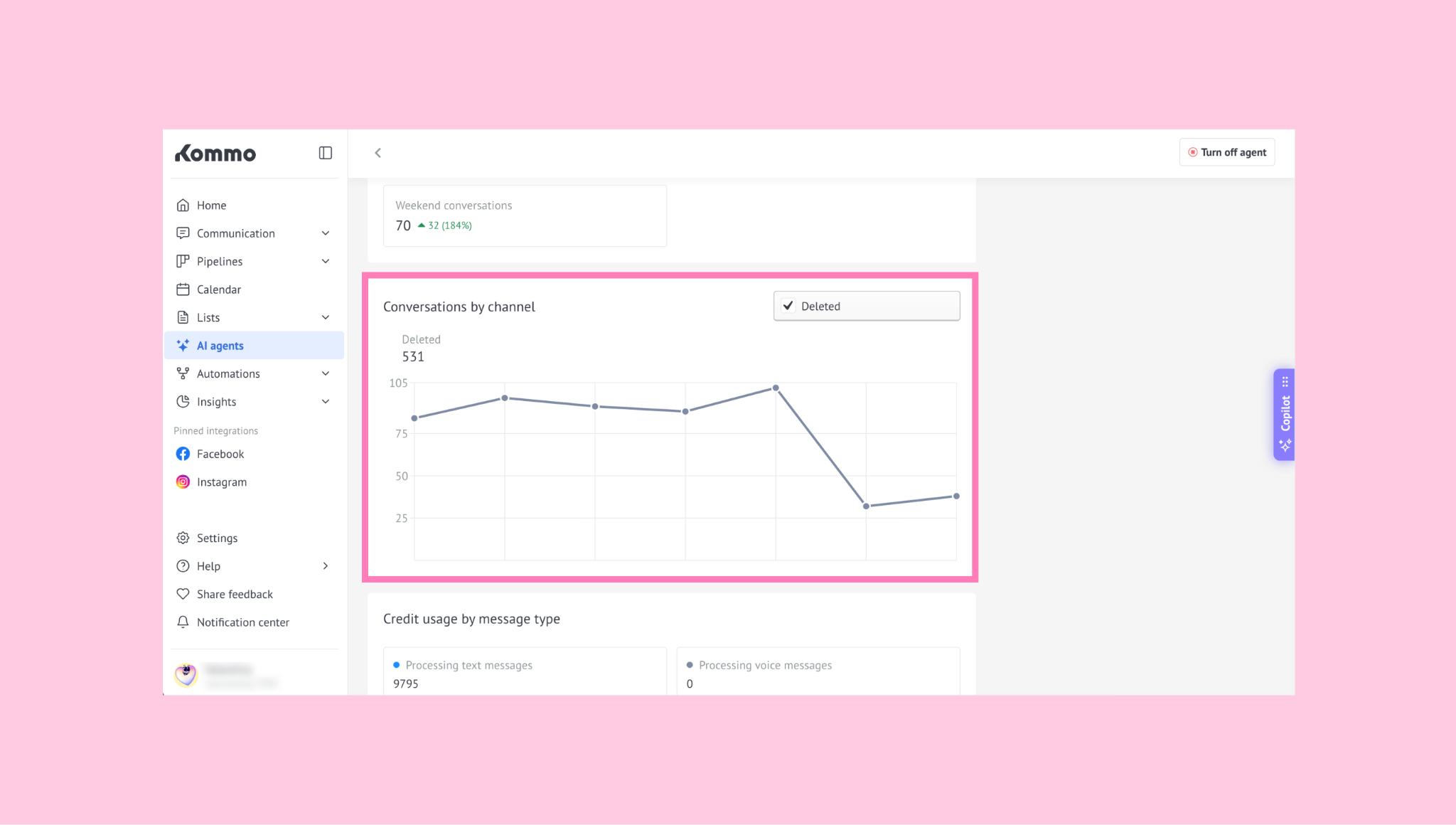
Conversations by channel
Track how many conversations are coming from each connected channel.
Credit usage by message type
Monitor how credits are used for text messages and voice messages.
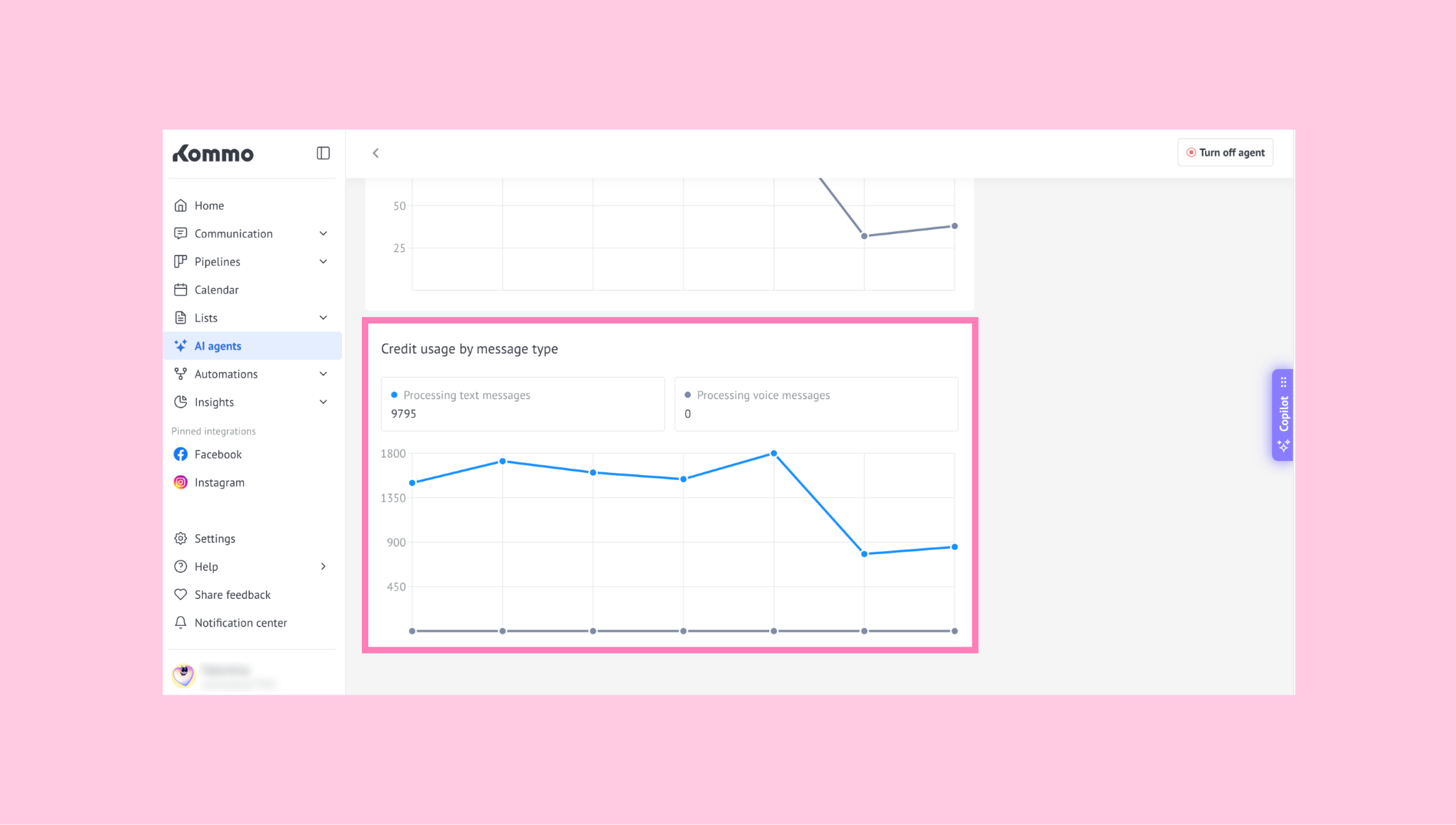
These insights help you understand how your AI agents are performing and how credits are being used.
Activity and credit usage
You can also review AI agent activity across your account. To do this, go to Insights → Activity log.
There, you can:
Identify the AI agent: Check which AI agent performed an action.
Track AI credit usage: See when an AI agent used credits, including when it generated a response but didn’t send it.
(1).png)
To review a specific lead, go to Pipelines → All leads and click the lead’s name to open its card. In the Timeline, you can see which AI agent performed each action and hover over the message cost to see how many AI credits were used.
Manage conversation limits
You can set up conversation limits for each AI agent to help control how many replies and AI credits it can use in a single conversation.
The following settings are available:
Message limit
Credits limit
Message to the client
Transfer notifications
(1).png)
When a limit is reached, the AI agent stops responding automatically and transfers the conversation.
Learn more about these features in our limits for AI agents article.