
What you’ll need:
Any Kommo plan (Base, Advanced, Pro, Enterprise, or 14-day trial)
Admin access in Kommo
Keep in mind:
Only one account per channel (Facebook, Instagram, WhatsApp, etc.) can be connected to Kommo
To use Kommo Copilot, AI rewriter and AI reply suggestions, you first need to enable them
Chat inbox brings client conversations from connected channels – such as WhatsApp, Facebook, Instagram, or TikTok – into Kommo. Use it to reply to messages, review conversation history, access lead details, and manage follow-ups from one place.
This step-by-step guide shows how to manage client conversations in the Chat inbox.
Respond to a message
When a new message arrives, a red badge appears on the Communication section to notify you. Each conversation is assigned a number automatically, and messages are displayed in chronological order by default.
Tip: You can mute notifications if needed.
To respond to a message:
Go to Communication → Chat inbox and open the message. The full communication history is available in the activity feed.
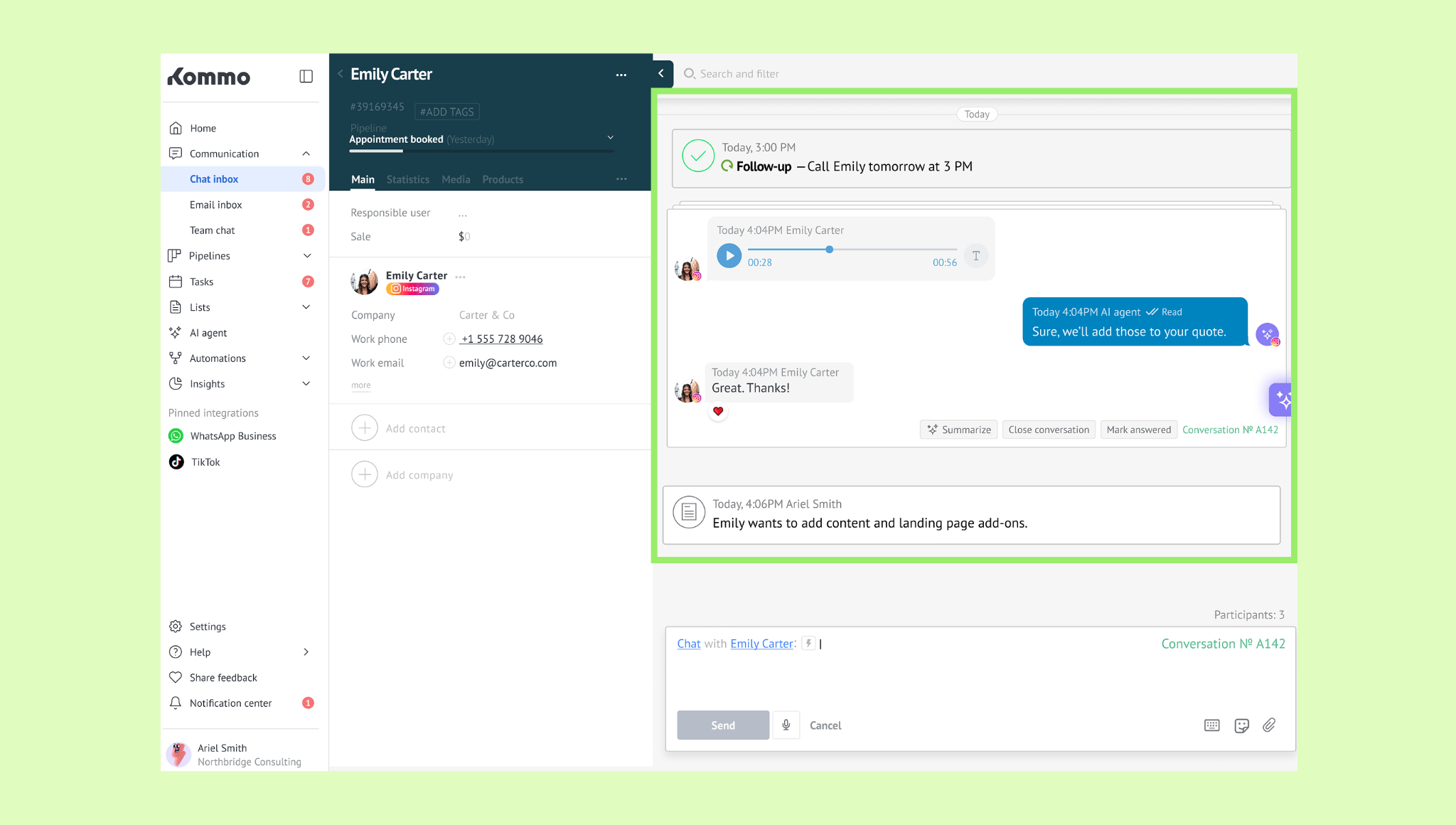
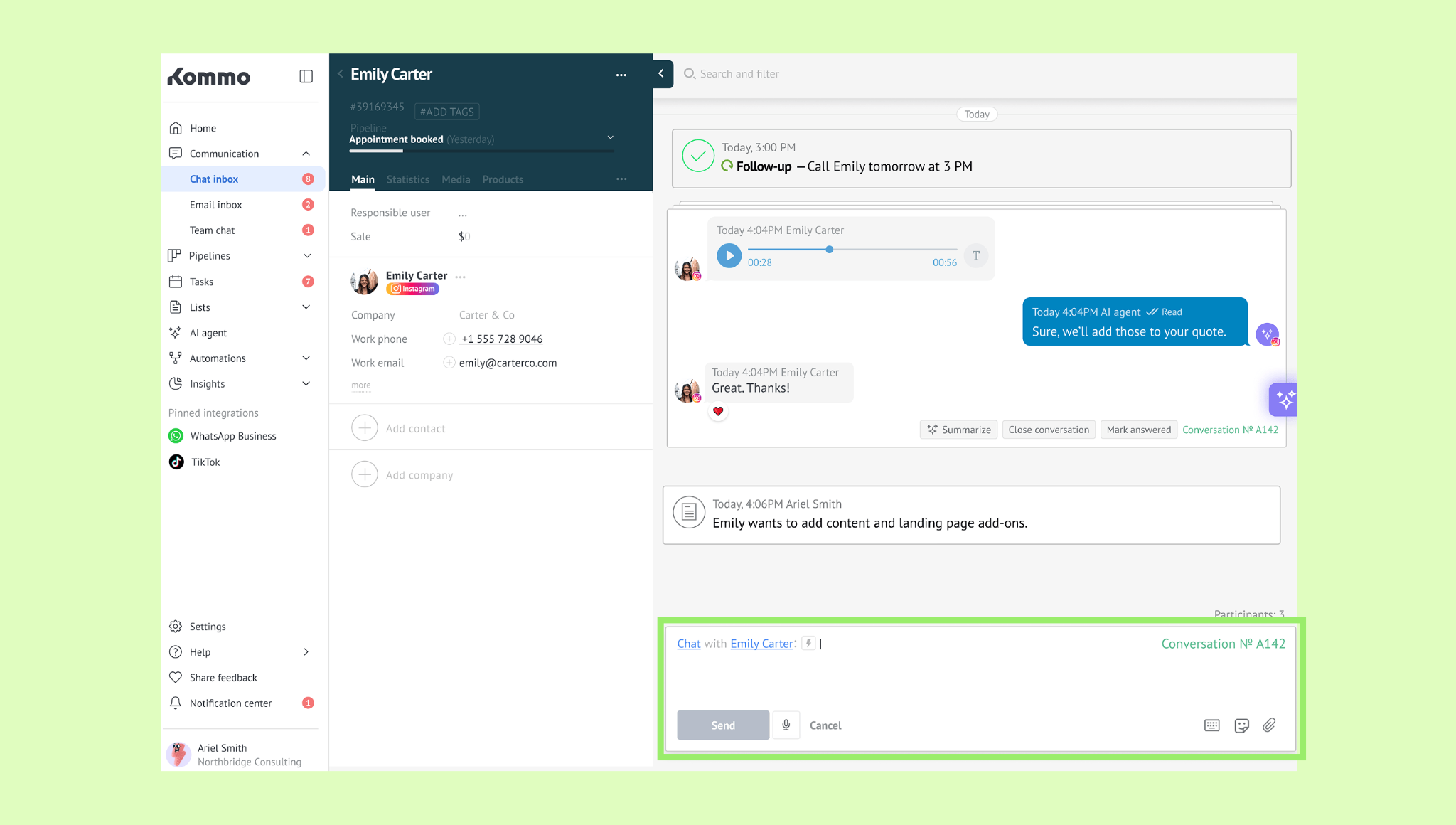
Type your reply in the chat box.
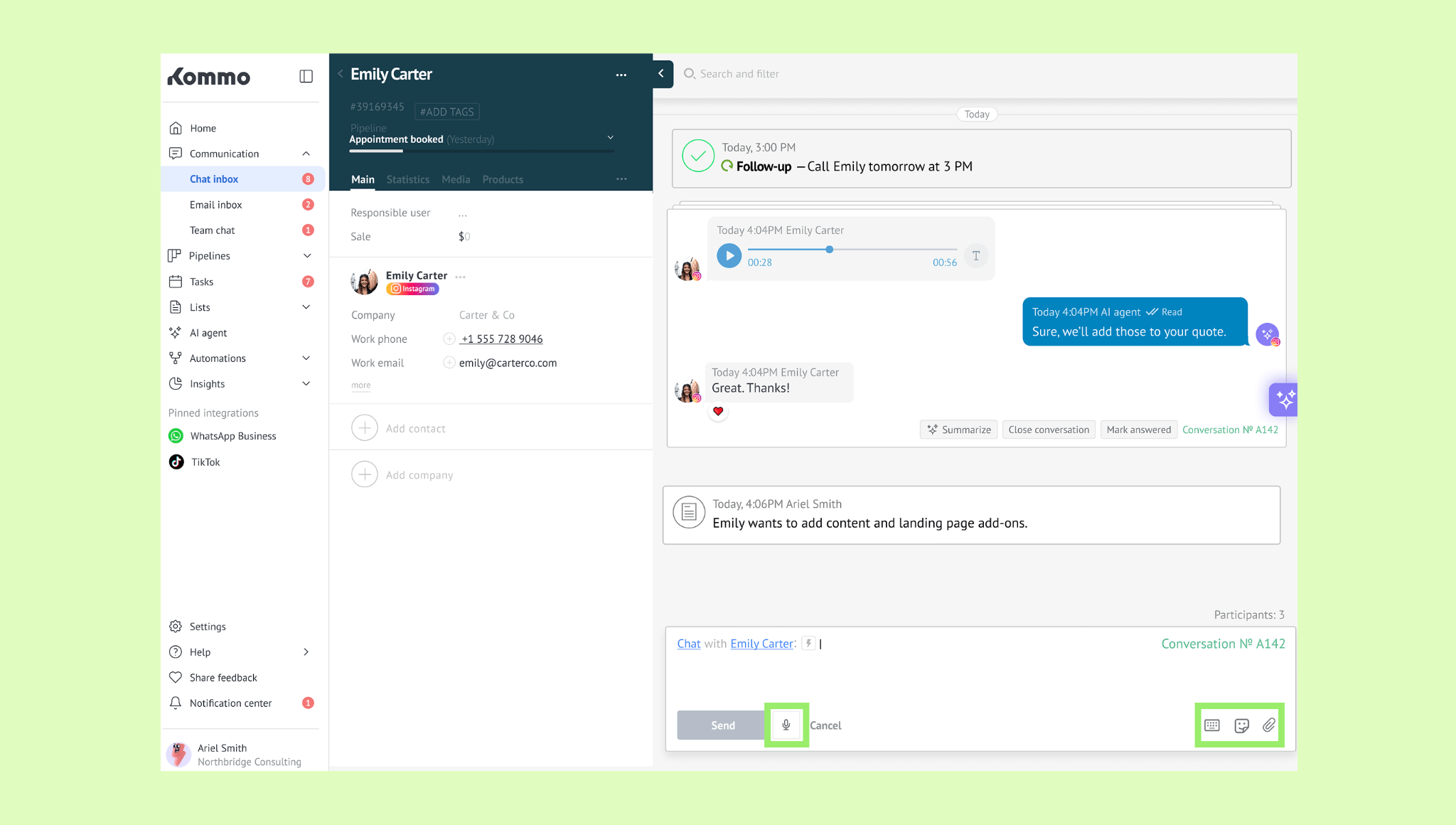
Optionally, record a voice message, add an emoji or GIF, attach a file, or view the shortcuts list.
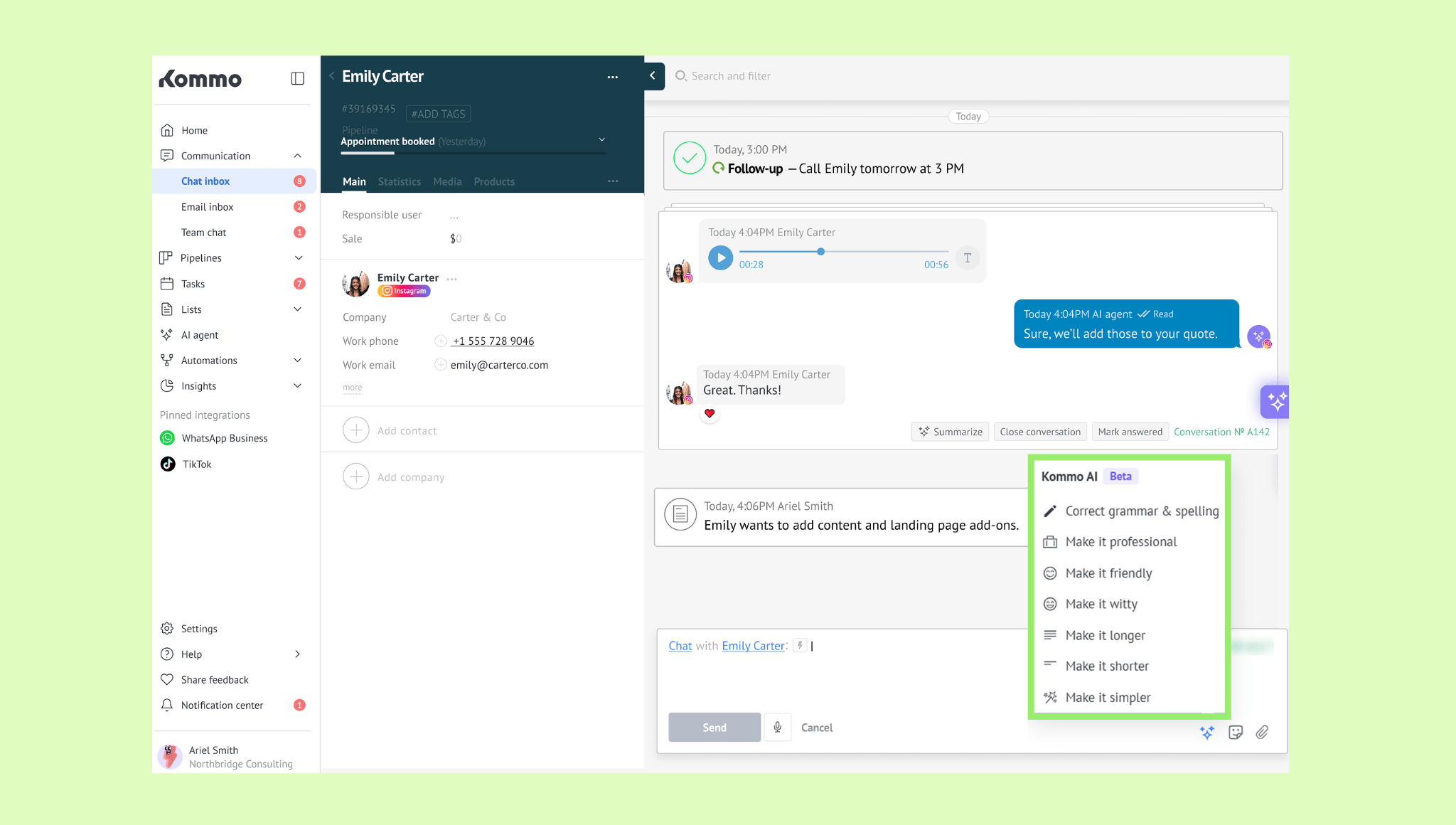
Optionally, use AI rewriter to improve your reply.
Click Send.
Note: AI rewriter and AI reply suggestions are available only after enabling them in Settings → AI settings. Once enabled, the AI icon will appear in the chat box, replacing the shortcuts icon.
Tip: To work faster, drag and drop files directly into the chat to attach them. You can also send a message by pressing Ctrl + Enter on Windows or Command + Enter on Mac.
Add a reaction
You can react to a message without sending a reply — so the client knows their message was seen.
Go to Communication → Chat inbox and open the conversation.
Hover over the message and select a reaction from the menu that appears.
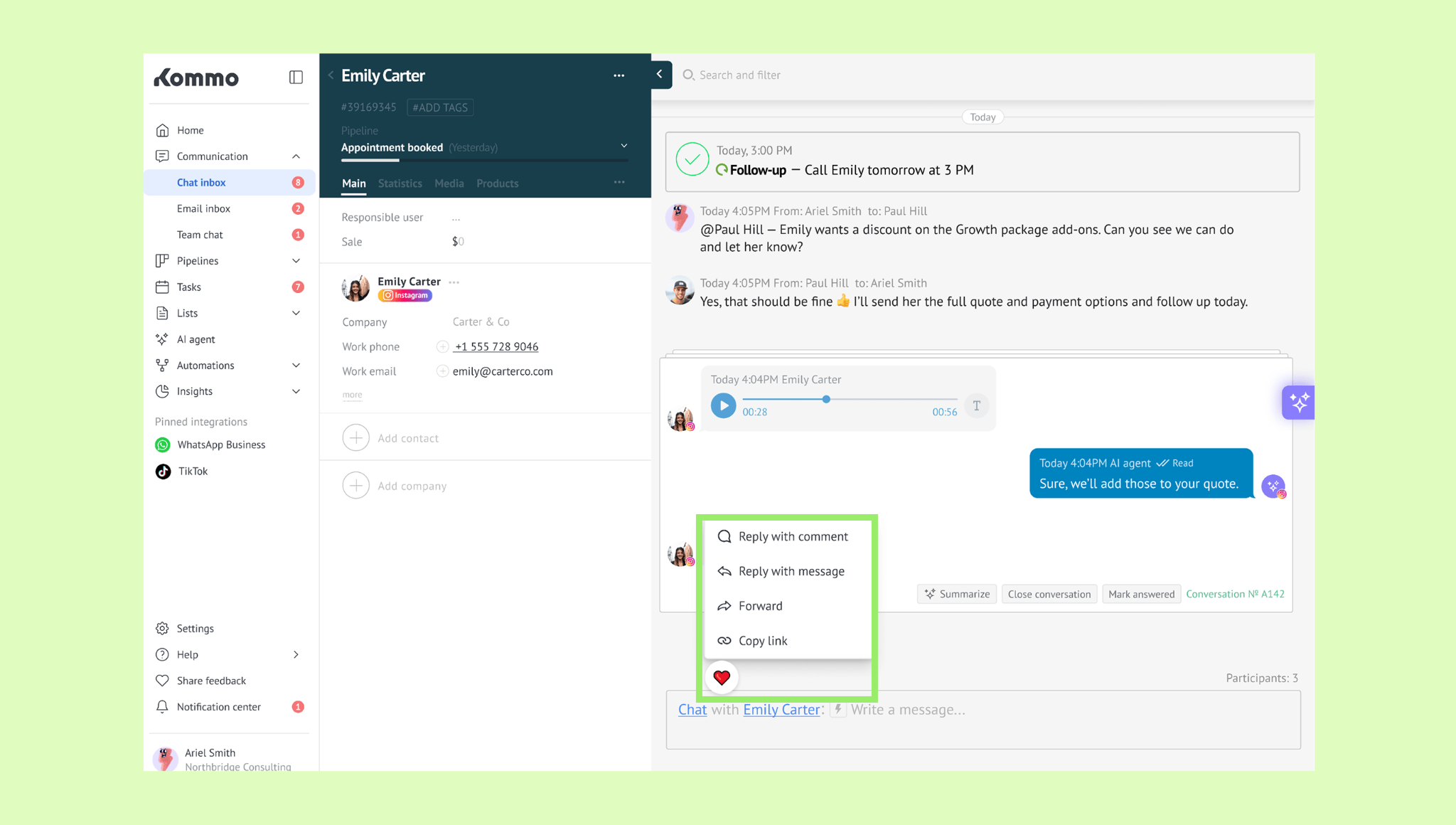
Note: Available reactions may vary depending on the channel.
Use a summary
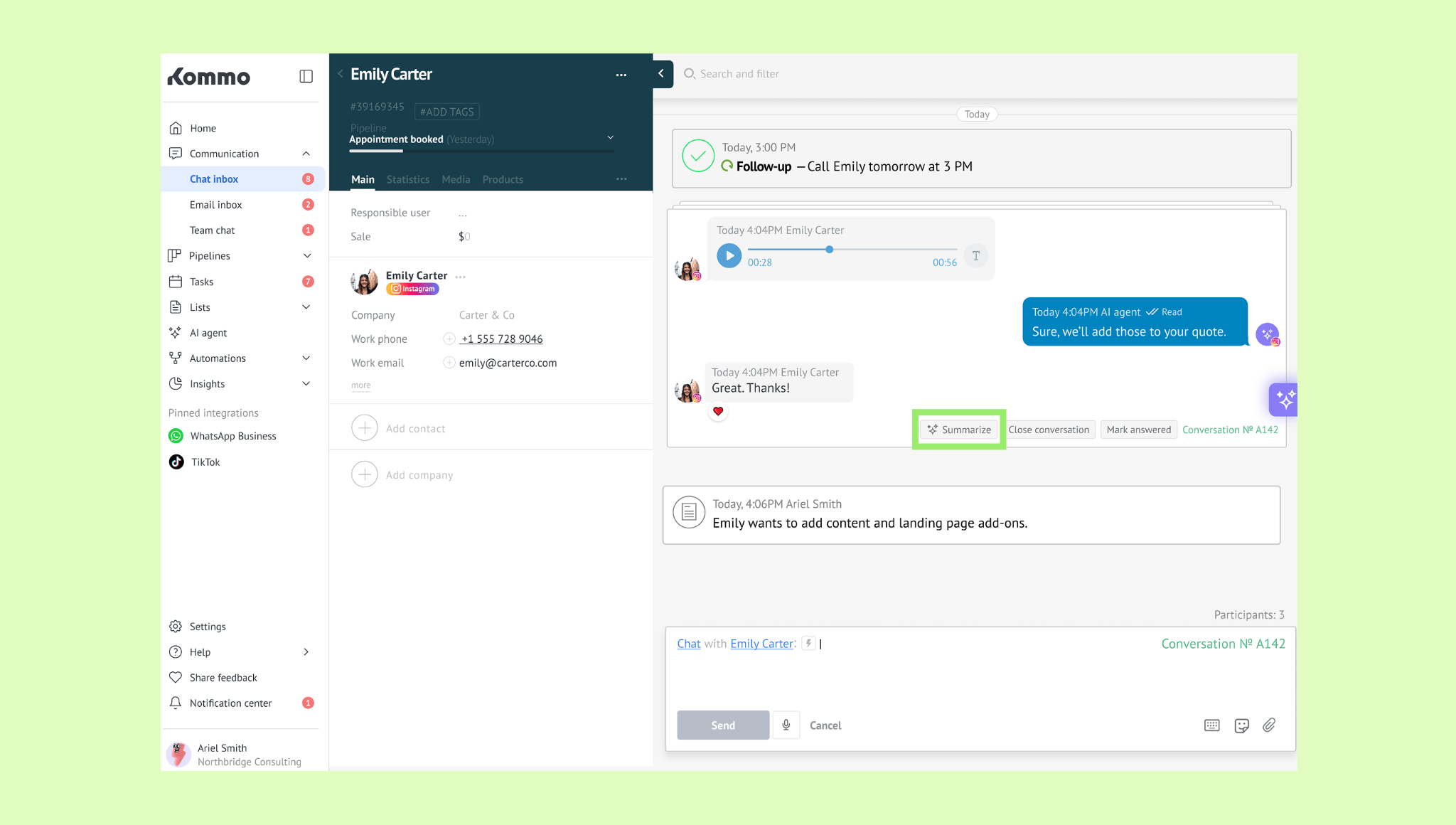
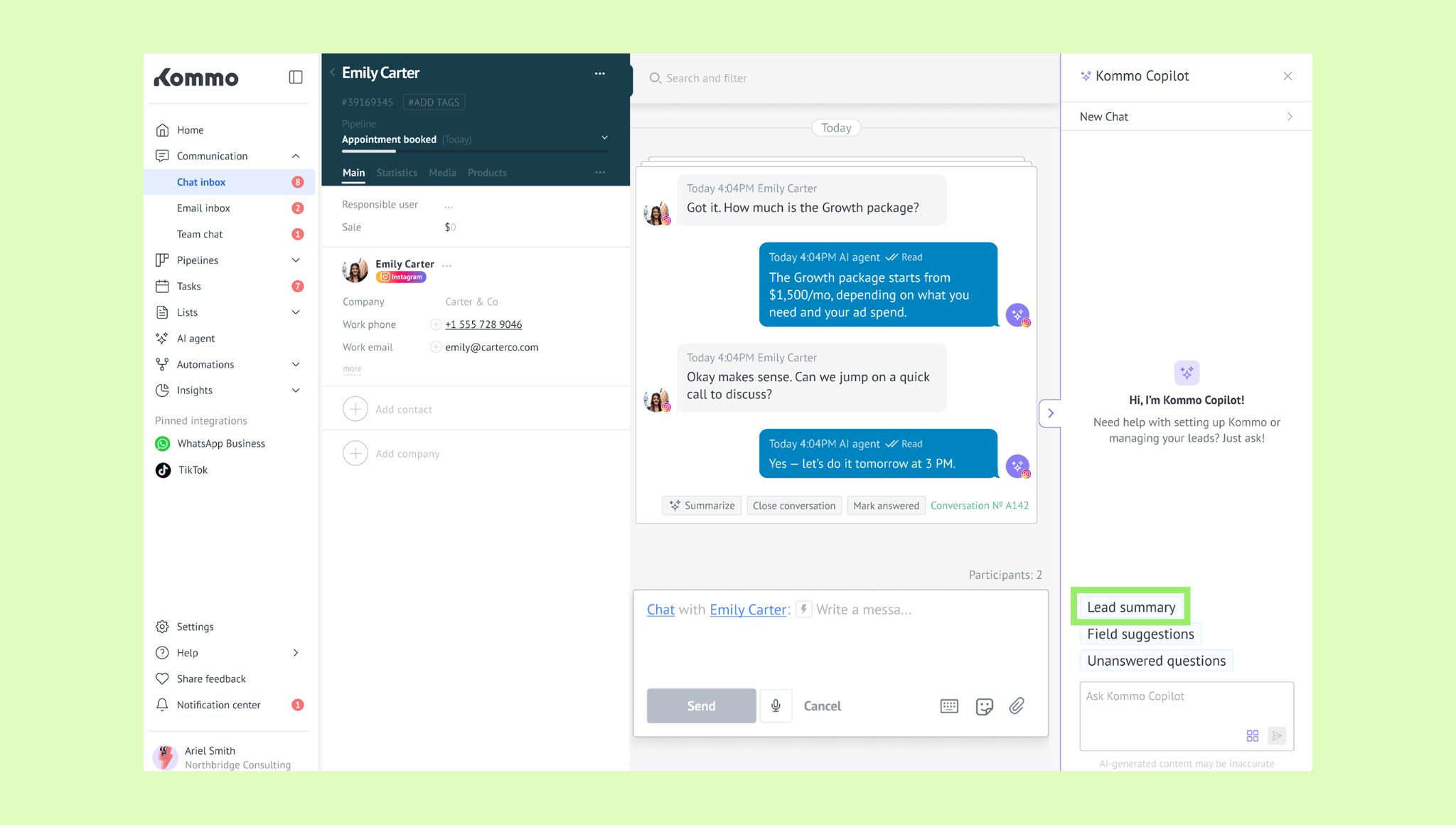
Before replying, you can get a quick overview of the context using two AI tools: Conversation Summary — summarizes the current chat, and Copilot lead summary — gives you a broader overview of the full lead. This helps you understand the situation and respond without reading through the entire history.
To summarize a conversation:
Go to Communication → Chat inbox and open the conversation.
Click Summarize. The summary will appear in the activity feed.
To summarize the lead:
Go to Communication → Chat inbox and open the conversation.
Click the Copilot icon and select Lead summary. The summary will appear in the Copilot panel.
Add an activity
You can send an email, add a note, or create a task directly from the chat — without leaving the conversation.
Go to Communication → Chat inbox and open the conversation.
Click Chat (the default option) and select another option.
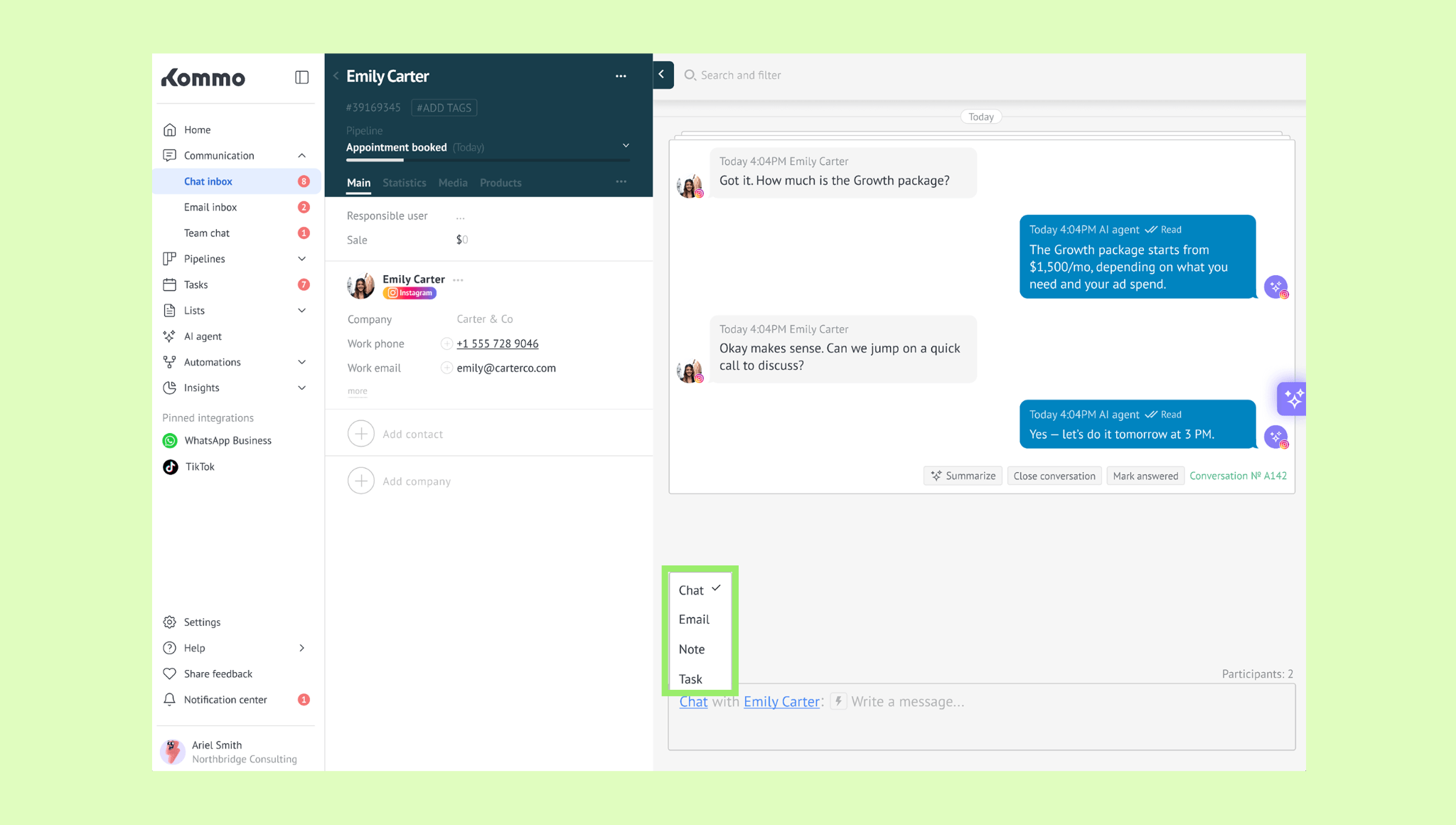
Fill in the details and save.
Tag a teammate
You can tag a teammate directly from the chat to get their attention or ask for help. The client won't see this message — your teammate will receive it in their Team chat inbox.
Go to Communication → Chat inbox and open the conversation.
Click the client's name and select your teammate's name from the list.
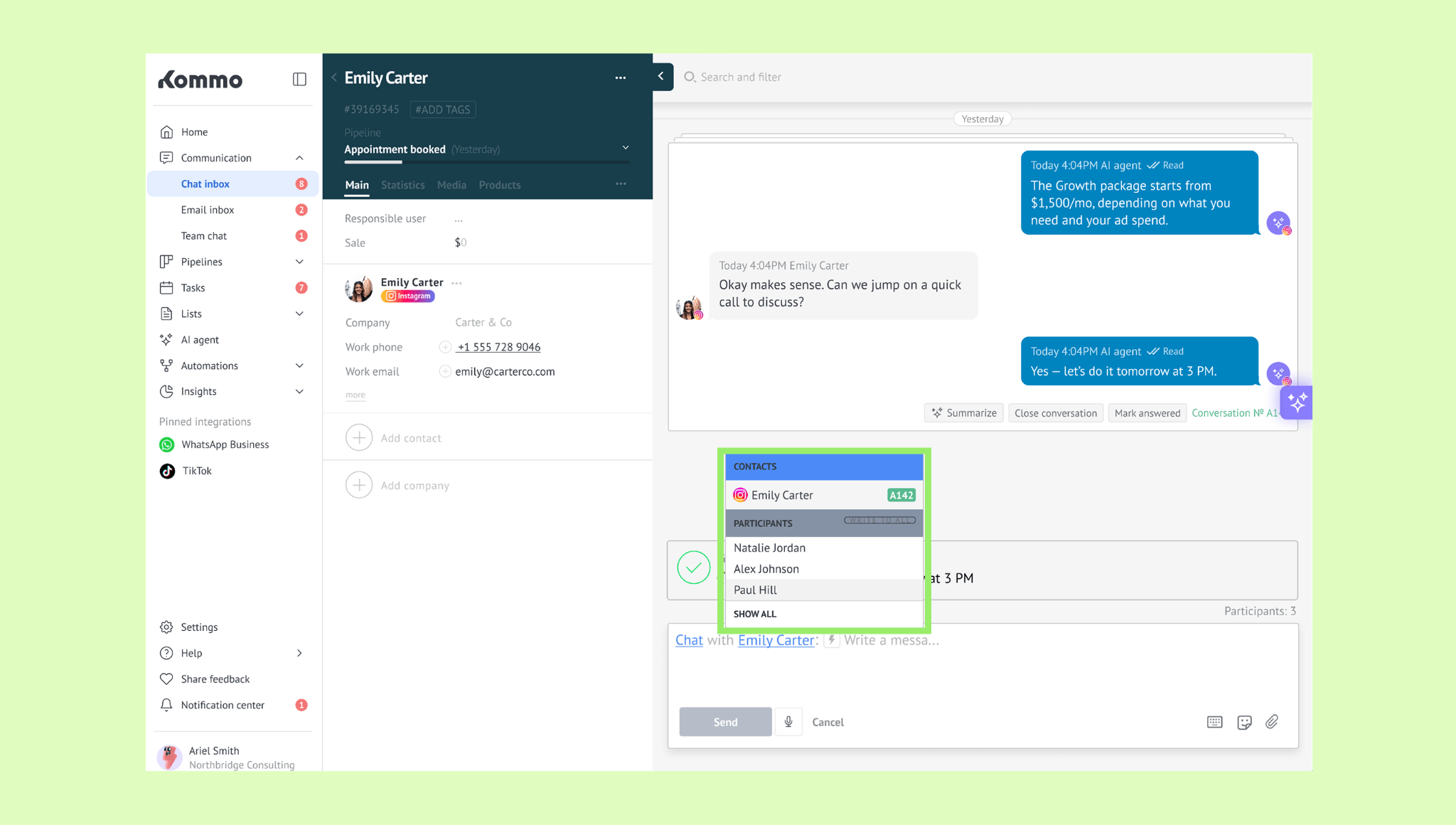
Write your message and click Send.
Accept incoming leads
If you enable the Incoming leads pipeline stage, Kommo will hold messages from new clients for your review. You can then manage them manually: accept them if they’re relevant, decline them if they’re spam, or link them to an existing contact. Once you accept a lead, it moves to the next pipeline stage.
To accept a lead:
Go to Communication → Chat inbox and open the chat.
Click Accept.
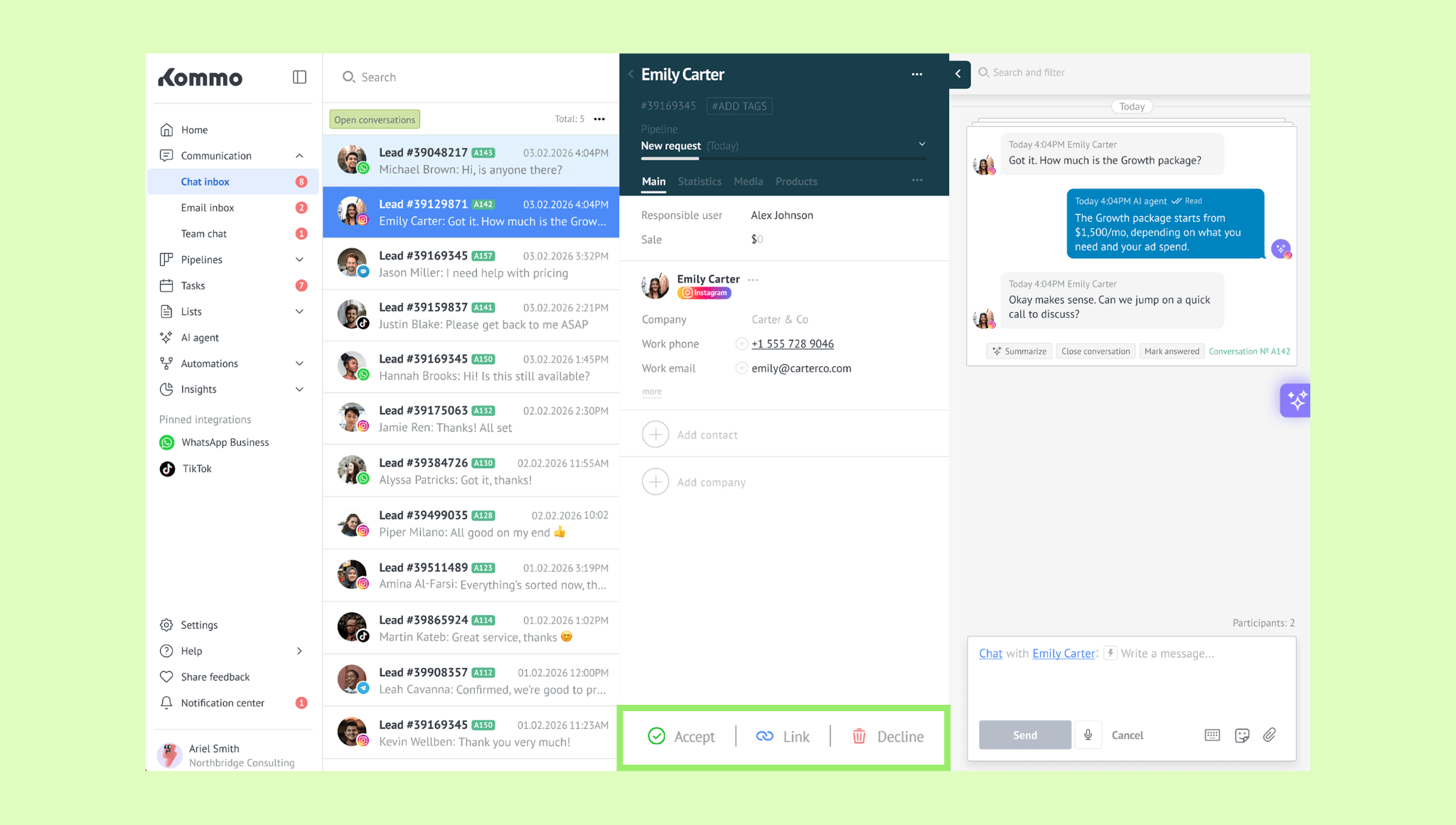
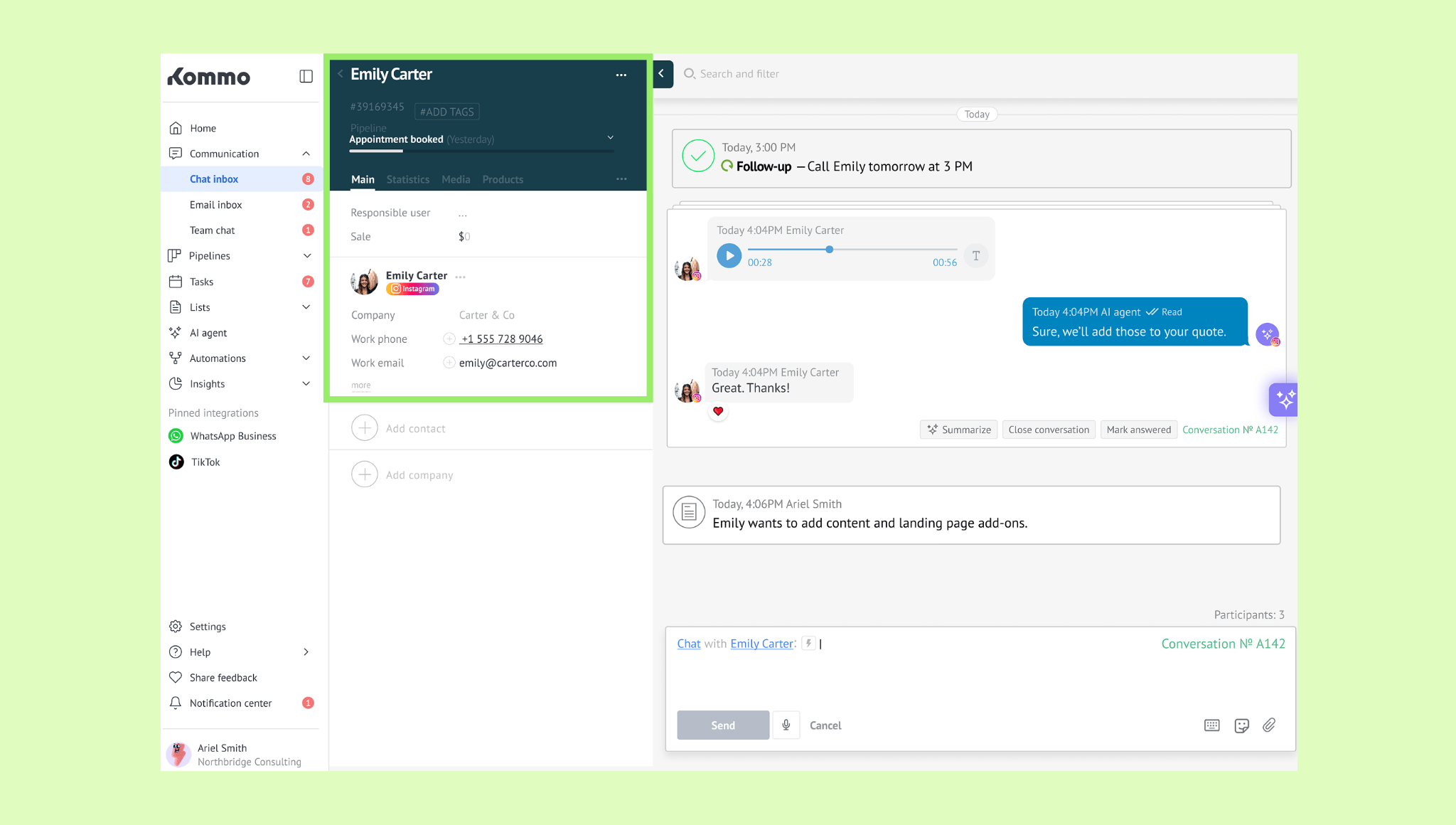
Edit details - all the changes will be saved automatically.
You can also Decline the message if it's not a valid lead, or click Link to connect it to an existing lead.
Search and filter conversations
You can use the search and filter bar at the top of the Chat inbox to find conversations by keyword or narrow them down using preset filters or your own criteria. 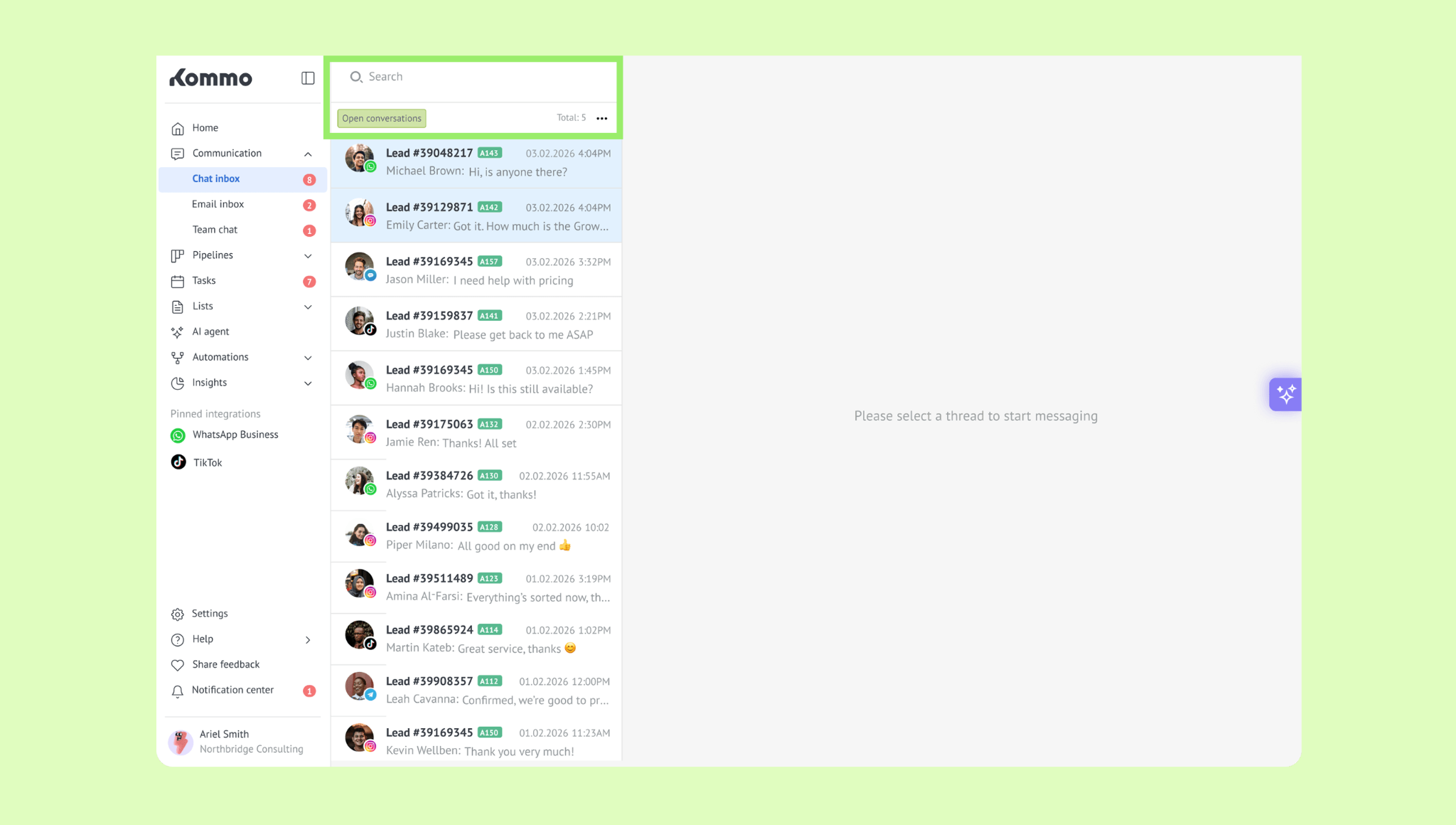
To search conversations:
Go to Communication → Chat inbox.
Type a keyword in the search field and press Enter.
Click X to reset.
To filter conversations:
Go to Communication → Chat inbox.
Click Open conversations, select your filter criteria, and click Apply.
Click X to reset.