What you’ll need:
Any Kommo plan (Base, Advanced, Pro, Enterprise, or a 14-day trial)
Note: AI reply suggestions are not available on Base and Advanced plans created before May 4, 2026.
Admin or Owner access to enable this feature.
Keep in mind:
Kommo AI works best when your messages match your interface language. It supports English, Indonesian, Portuguese, Russian, Spanish, and Turkish. Results may vary for other languages.
AI reply suggestions require adding Knowledge sources before they can generate responses.
Only text is supported in this feature.
AI responses are generated based on available data, so results may vary depending on your content.
Kommo AI usage limits apply and may temporarily restrict access to certain features when reached.
In this guide, you’ll learn how to enable reply suggestions and use them to generate replies to clients based on your business information.
How to set up AI reply suggestions
AI reply suggestions helps you generate responses to client messages using your business information. It uses your knowledge sources to suggest replies that you can review and edit before sending.
To use this feature, you need to enable it and add at least one knowledge source.
To get started:
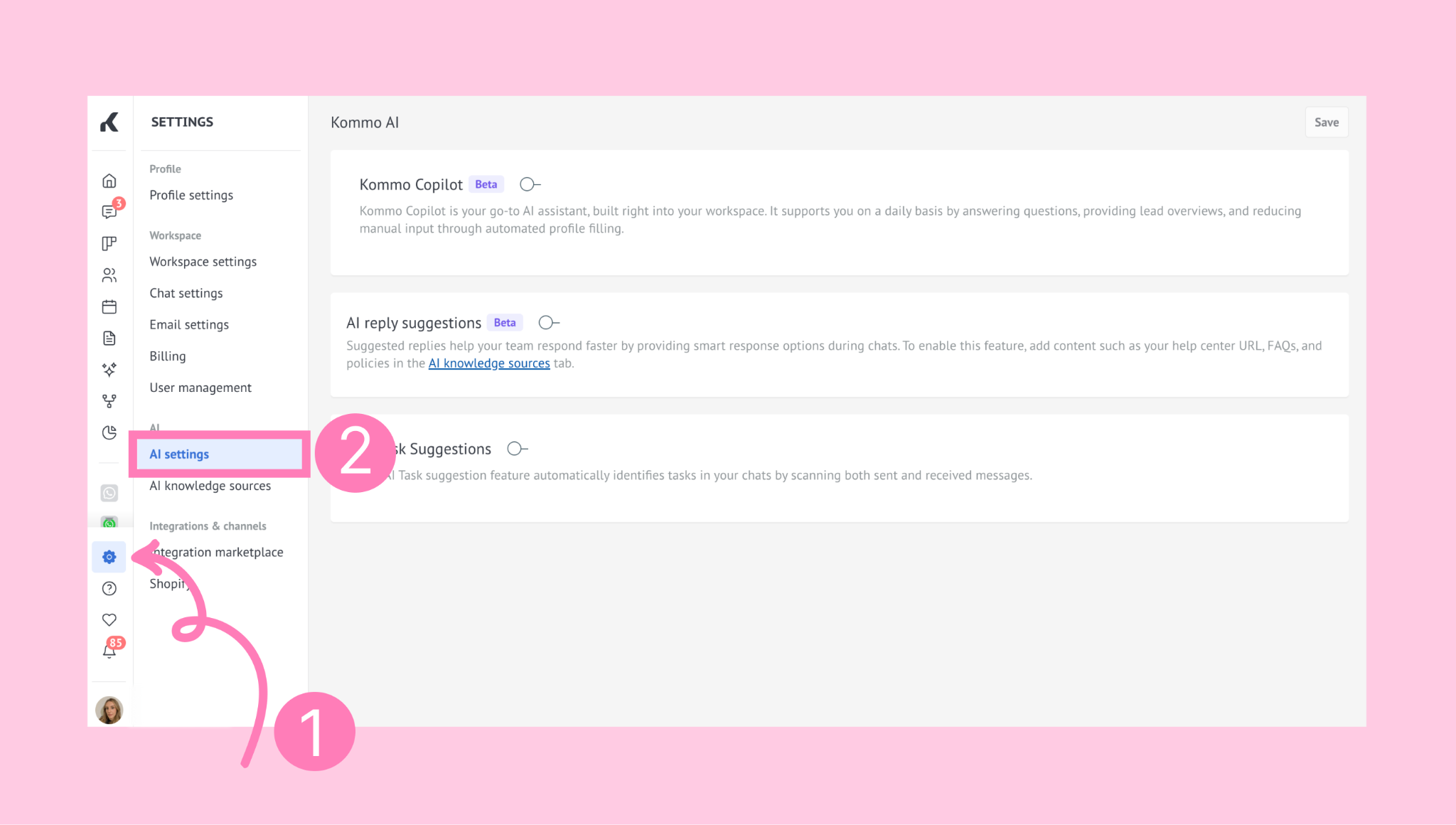
Go to Settings → AI settings.
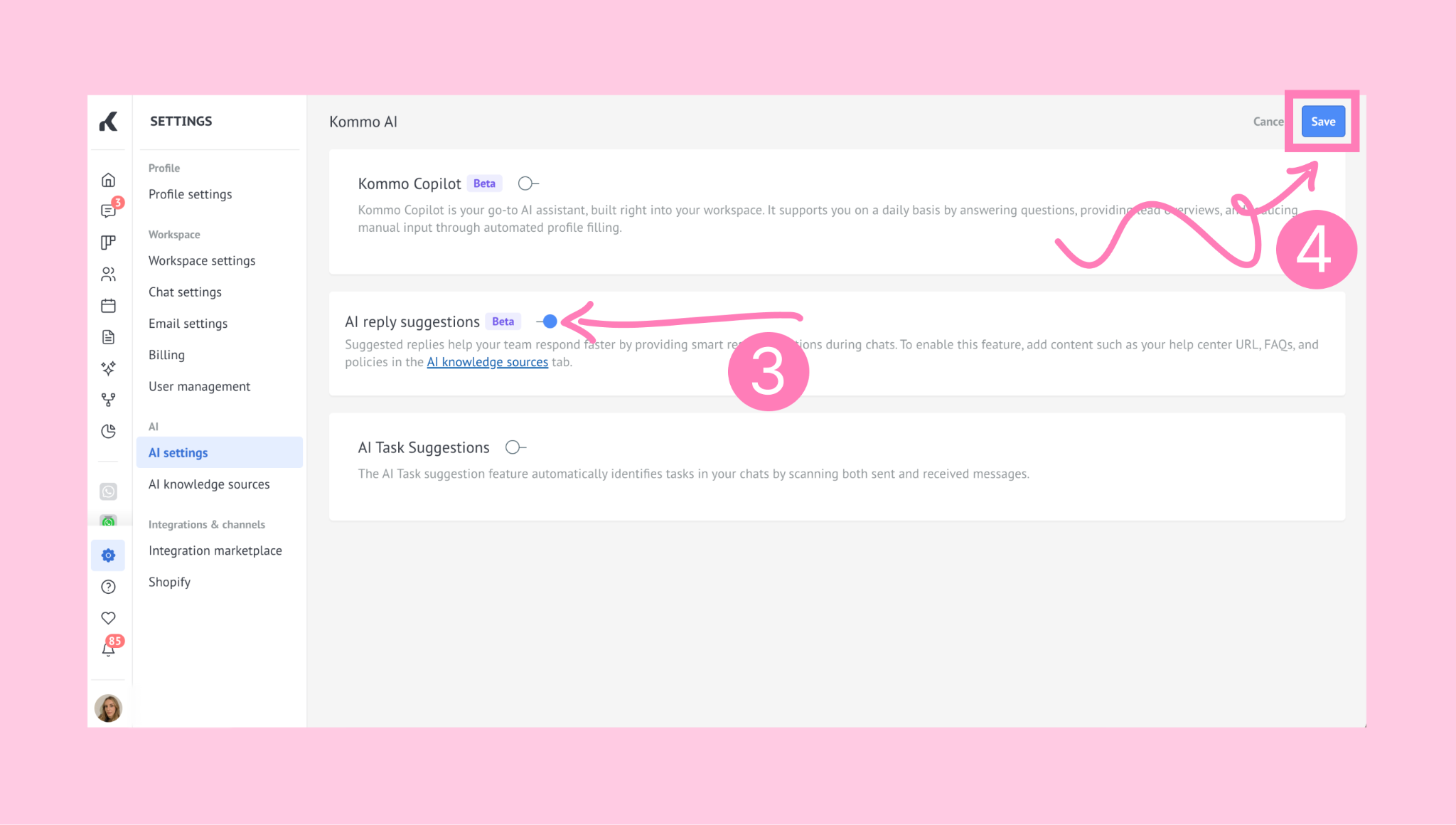
In the AI reply suggestions section, turn the toggle on and click Save.
Once enabled, you’ll be redirected to the AI Knowledge sources section, where you’ll need to add information about your products, services, or FAQs.
For instructions on adding and managing knowledge sources, see our AI knowledge sources article.
How to use AI reply suggestions
To use this tool, make sure it’s already enabled and that you’ve added a knowledge source.
Once this is done, you can generate replies in two ways:
A. Get a suggested reply automatically
In the Communications section, go to Chat inbox and open a chat with a lead.
.png)
When you receive a message from a client, click the chatbox. Kommo AI will analyze the message and your knowledge sources.
If relevant information is found, a suggested reply will appear above the chatbox.
.png)
Click the suggestion to see a preview, then click Add as a draft.
.png)
Review the suggestion, edit it if needed, then click Send.
Important: The AI can’t generate responses for messages over 25,000 characters.
Example:
A client is checking delivery details before placing an order.
They send:
‘Hi, how long does delivery usually take?’
Kommo AI analyzes the message and your knowledge sources, and a suggested reply appears above the chatbox:
‘Delivery usually takes 2–4 business days, depending on your location. If you’d like, I can check the exact timeframe for your address.’
You can review the suggestion, make any edits, and send it.
B) Generate a reply for a specific message
You can also generate a reply manually for any message:
Hover over the message date and time to open the dropdown menu.
Then click Suggest reply.
.png)
Note: Any previous suggestion will disappear once you click Generate response.
Wait while the response is being generated (‘Working on it…’ will appear).
.png)
Once the response is ready, a suggested reply will appear:
.png)
Note: The suggestion will remain visible until a new message arrives or you generate another response.
If no relevant information is found, or if your knowledge sources don't include enough details to answer the client's question, an error will appear:
.png)
To fix this, click Go to settings to review and update your knowledge sources.
Click Add as a draft to insert the suggestion into the chatbox after your last typed text.
To learn more about user roles, see our User pemissions article.
Note: If you reach Kommo AI usage limits, the tool will remain available, but an error message will appear when trying to generate a response.
Example:
A client asks about a promotion, but no automatic reply appears.
They send:
‘Do you offer any discounts for bulk orders?’
You hover over the message and click Suggest reply.
Kommo AI generates a reply like:
‘Yes, we offer discounts for bulk orders. Please let me know the quantity you’re interested in, and I’ll share the available options.’
You can add it as a draft, adjust the message if needed, and send it.