
What you’ll need:
Available in Base, Advanced, Pro and Enterprise plans or an active 14-day trial.
Keep in mind:
Only admins can enable or disable Kommo Copilot for the account. Once it’s enabled, all users can start using Copilot in their workspace.
Kommo Copilot uses shared AI credits that renew automatically during your billing cycle. To learn more about AI credits and limits, check our article.
Analyst mode is only available on the Pro plan.
Copilot works in any language but is optimized for English, Spanish, Portuguese, Indonesian, Turkish, and Russian.
Analyst mode uses all workspace data, regardless of individual user permissions. Other Copilot modes follow user access permissions.
Copilot is regularly updated to improve answer quality and performance, so its interface and responses may change over time.
This guide explains how to use Kommo Copilot in conversations and lead cards.
Get started with Kommo Copilot
You can access Kommo Copilot through the icon on the right side of the screen. It opens as a side panel and can be expanded to full screen. Close it by clicking the icon again or the cross in the Copilot chat.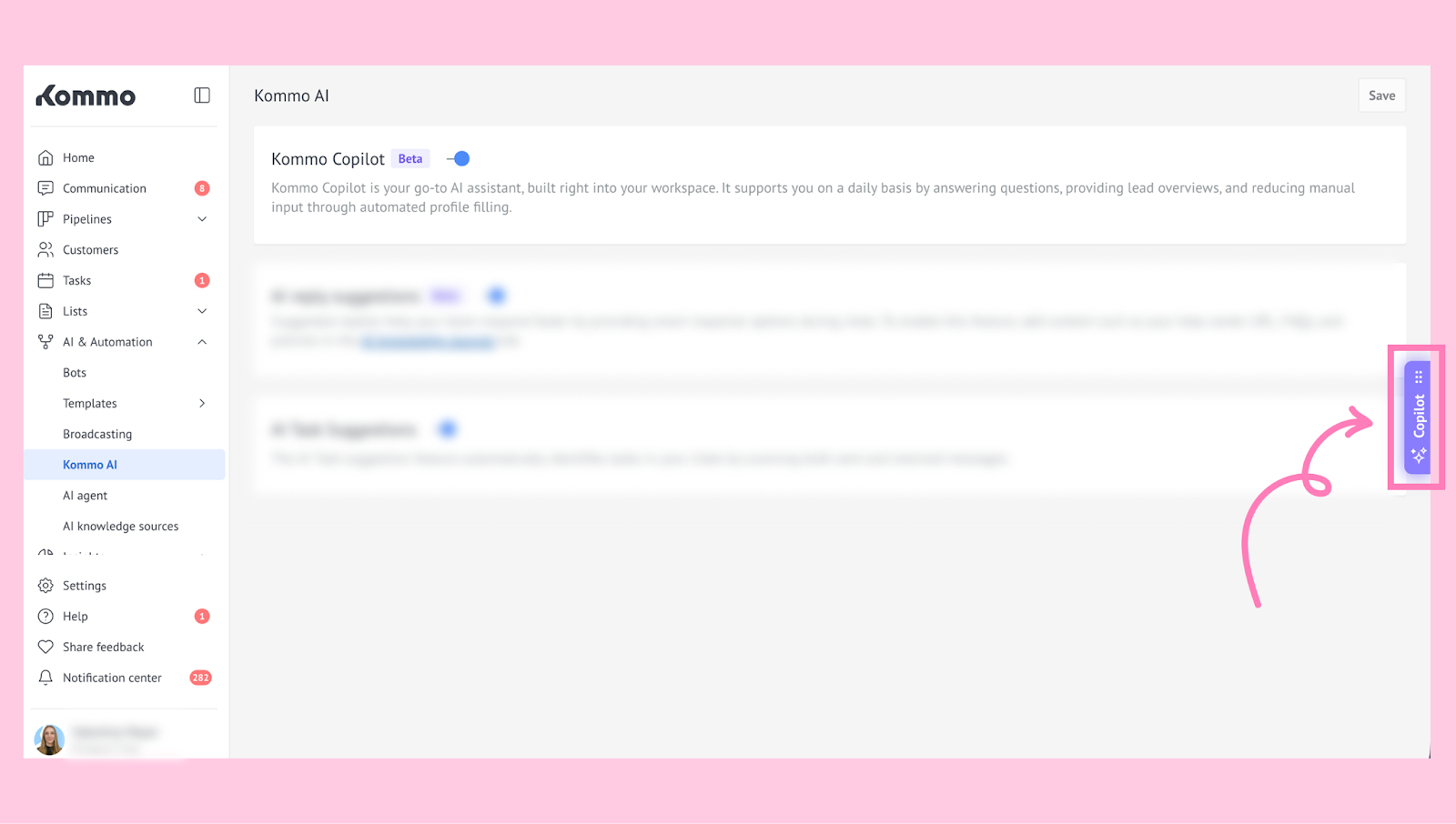
Once opened, you can start working with Kommo Copilot.
Chat with Kommo Copilot
Once you open Copilot, you can start chatting with the AI. Each chat is automatically saved for later use, and every user has their own list of chats: 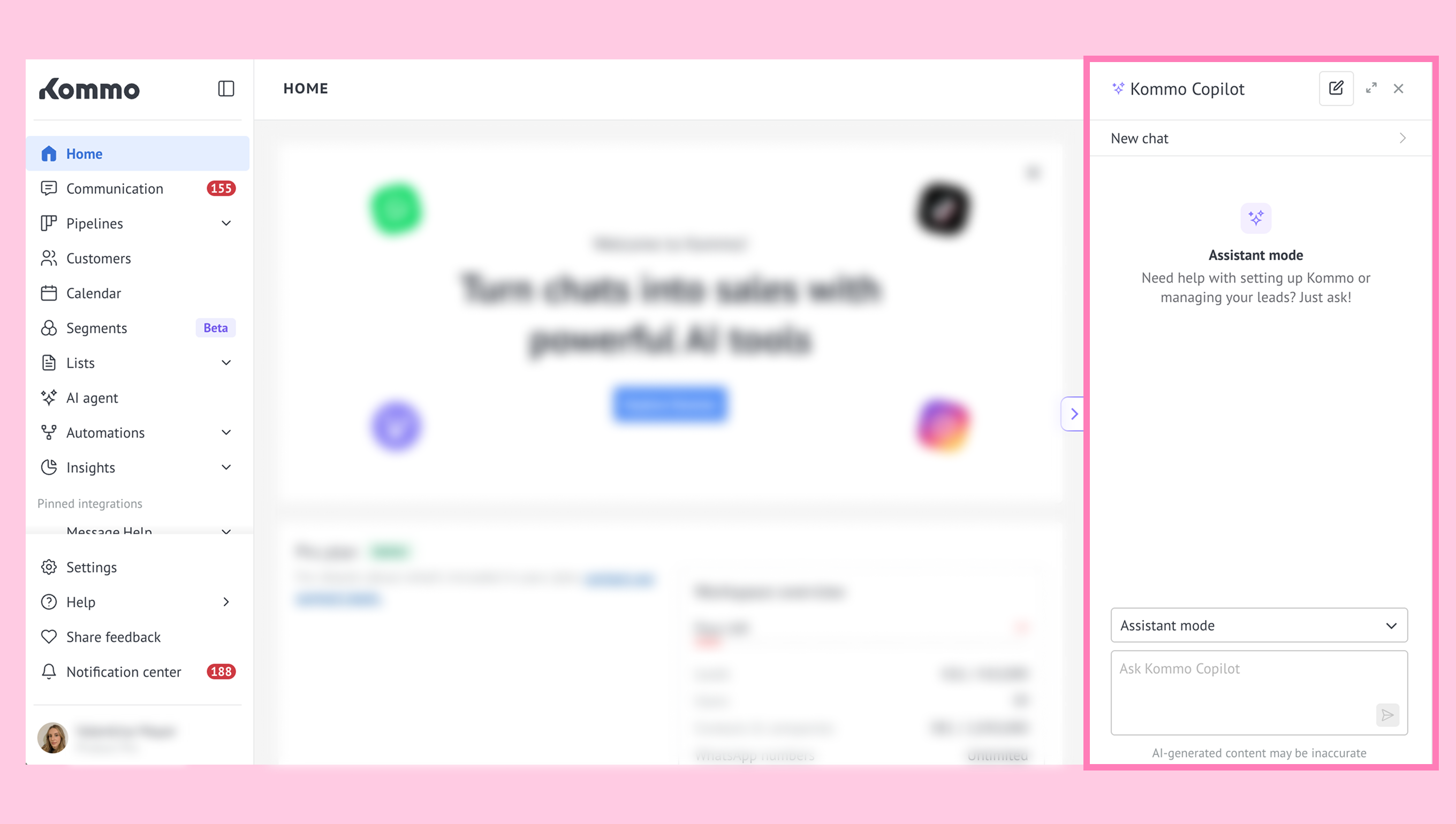
Note: Each Copilot response can be rated with a Like or Dislike to help improve future interactions.
Clicking the chat title opens a list of all your previous conversations. You can select any chat and continue the previous conversation. You can also click Back in order to return to the previous chat: 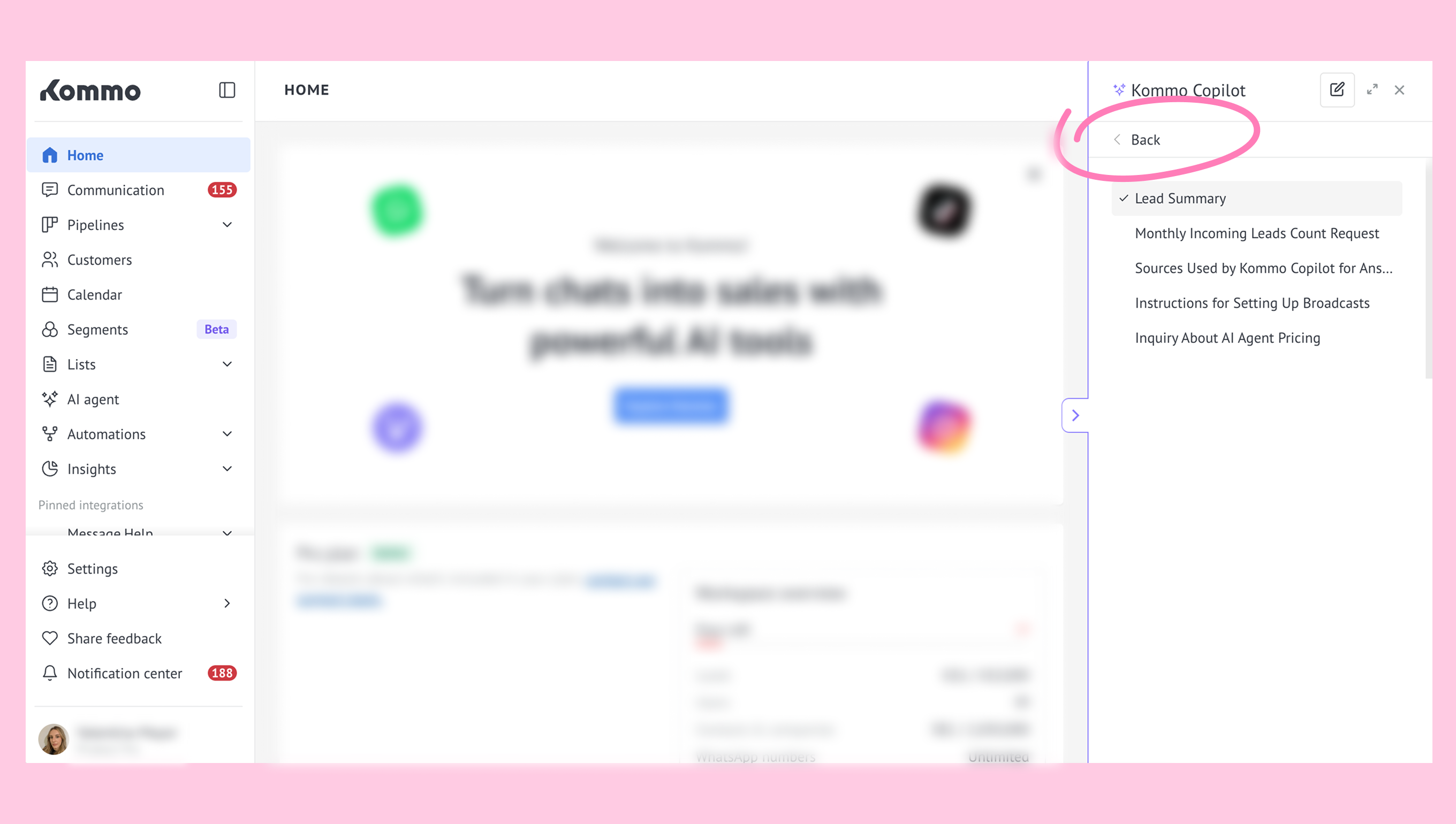
Note: Make sure your queries are clear, avoid using ambiguous wording when chatting with the Copilot. This way, Copilot will provide a more precise answer.
Use Kommo Copilot modes
Copilot includes different modes for different types of tasks. Depending on the mode you use, Copilot can answer questions using Kommo support information, your workspace context, and CRM reporting data.
Help mode – answers questions about Kommo features, settings, and account configuration.
Assistant mode – helps with replies, summaries, lead updates, and other CRM tasks.
Analyst mode – available on the Pro plan and helps analyze sales activity, pipeline performance, and CRM trends.
To choose a mode, click the dropdown menu in the Copilot chat and select one.
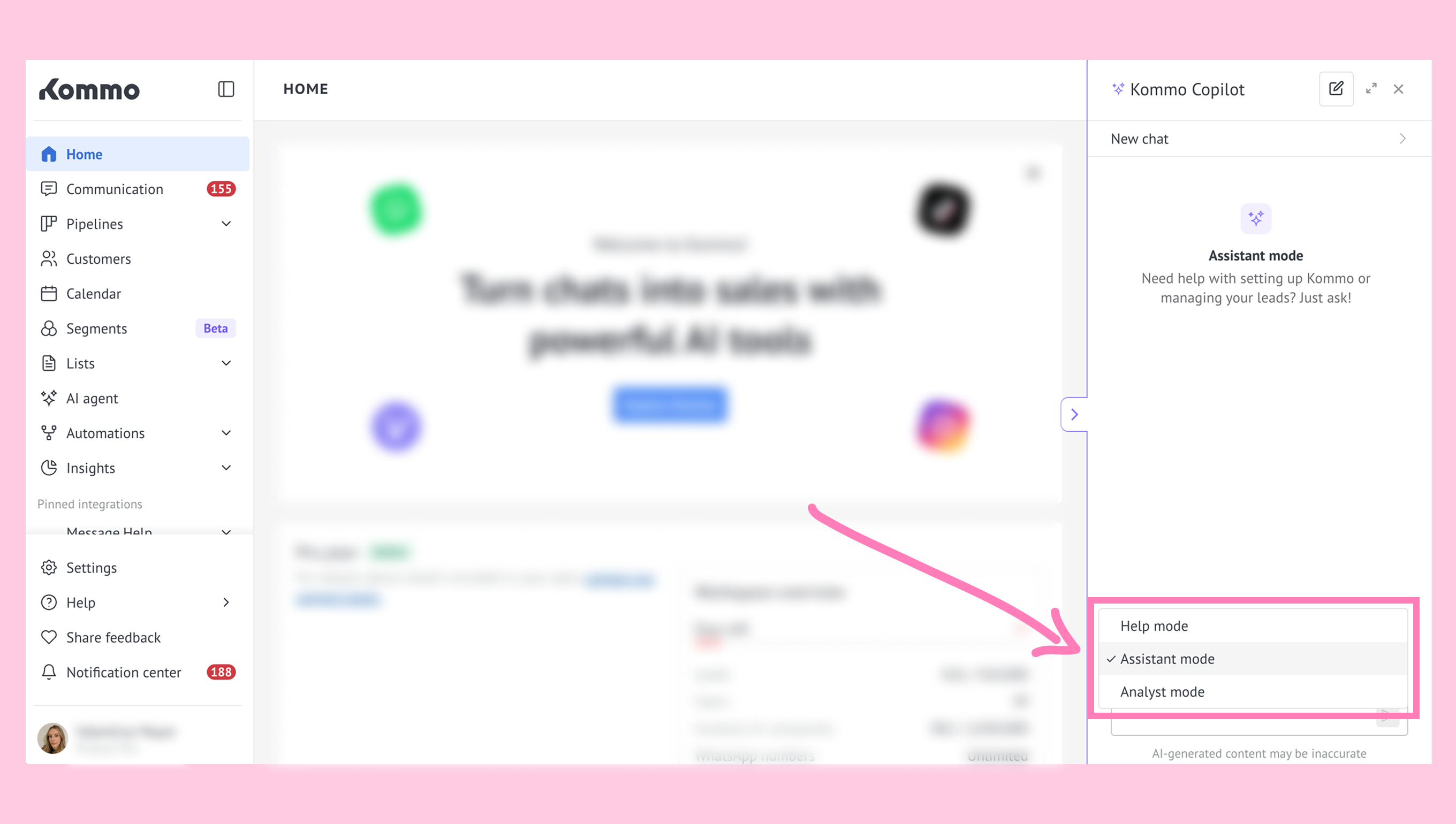
You can switch between modes within the same chat depending on the type of response you need.
Review lead details with Kommo Copilot
To use the Data Enrichment feature, go to the Pipelines section and open any lead in any pipeline, or go to the Communication section, open the Chat inbox, and select the lead card you want to work with. Then, click the Copilot icon on the right side of the screen.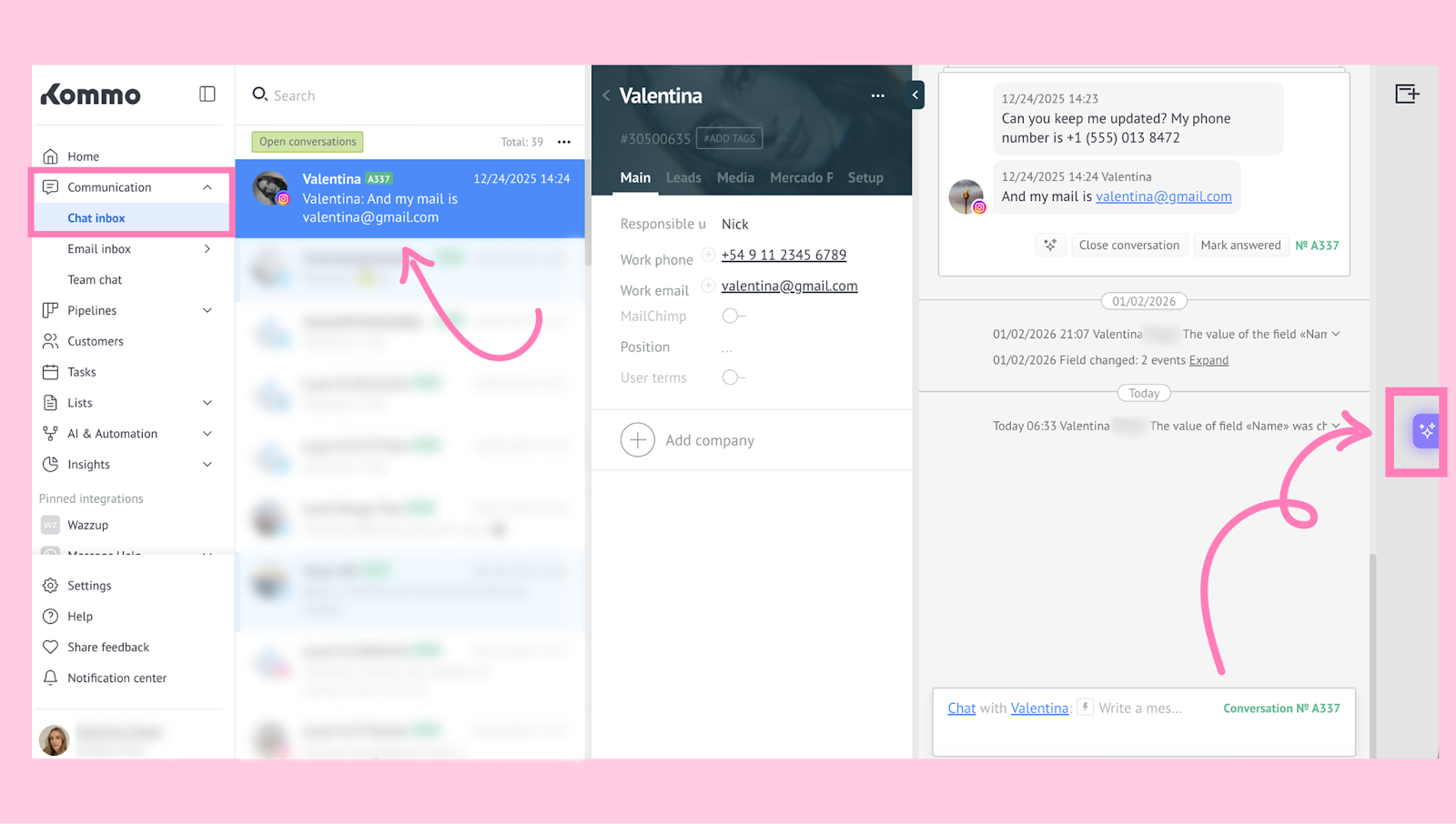
Copilot will provide you with three prompts designed to assist you in your work: 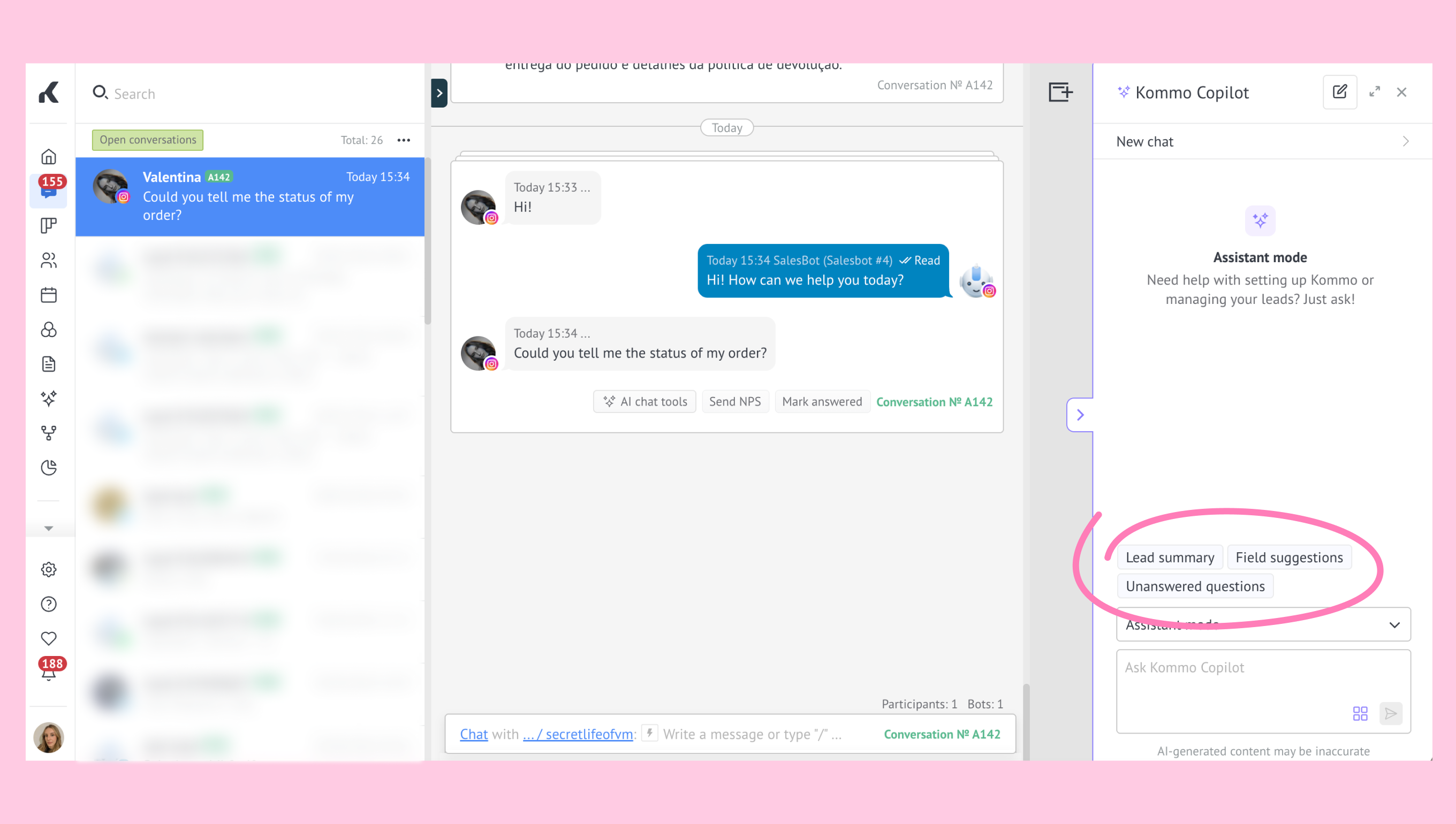
Clicking Lead summary automatically generates a short summary of the lead’s history, including:
The client’s initial need
Actions taken by managers (meetings, demos, etc.)
Agreements reached
Overdue tasks and reminders
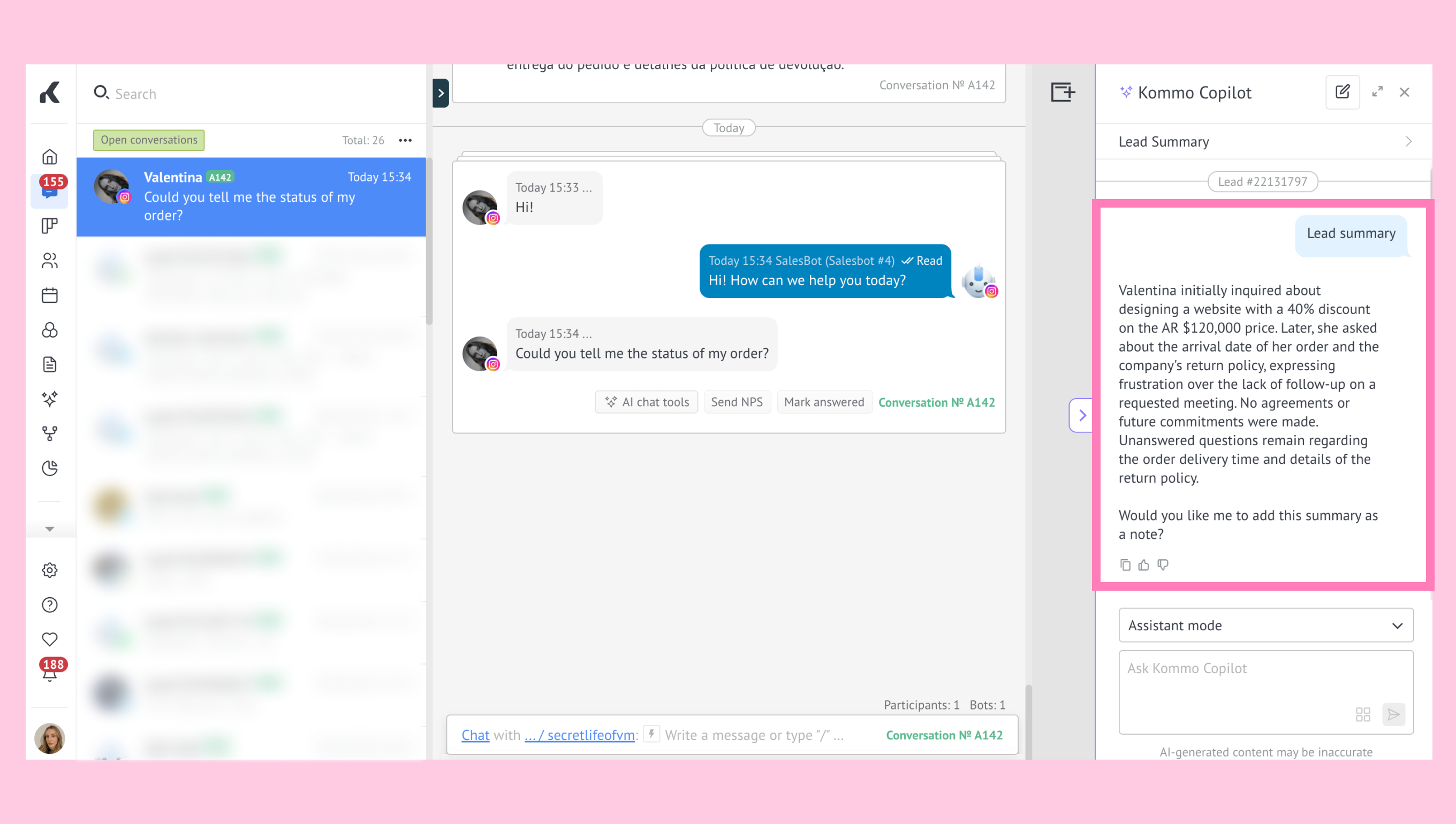
Example:
A Telegram lead is interested in corporate training for 50 employees. Manager Maria handled the demo and agreed on a $5,000 fee. A test account is set up, and the contract is in progress, but payment and feedback tasks are overdue. The client recently asked about technical courses and certificates and is waiting for a reply.
Clicking Field suggestions makes Copilot analyze communications with the lead (250 latest messages in open conversations, 50 latest emails, and 20 latest voice messages) and suggest values for empty lead, contact and company fields like email, phone number, or job title.
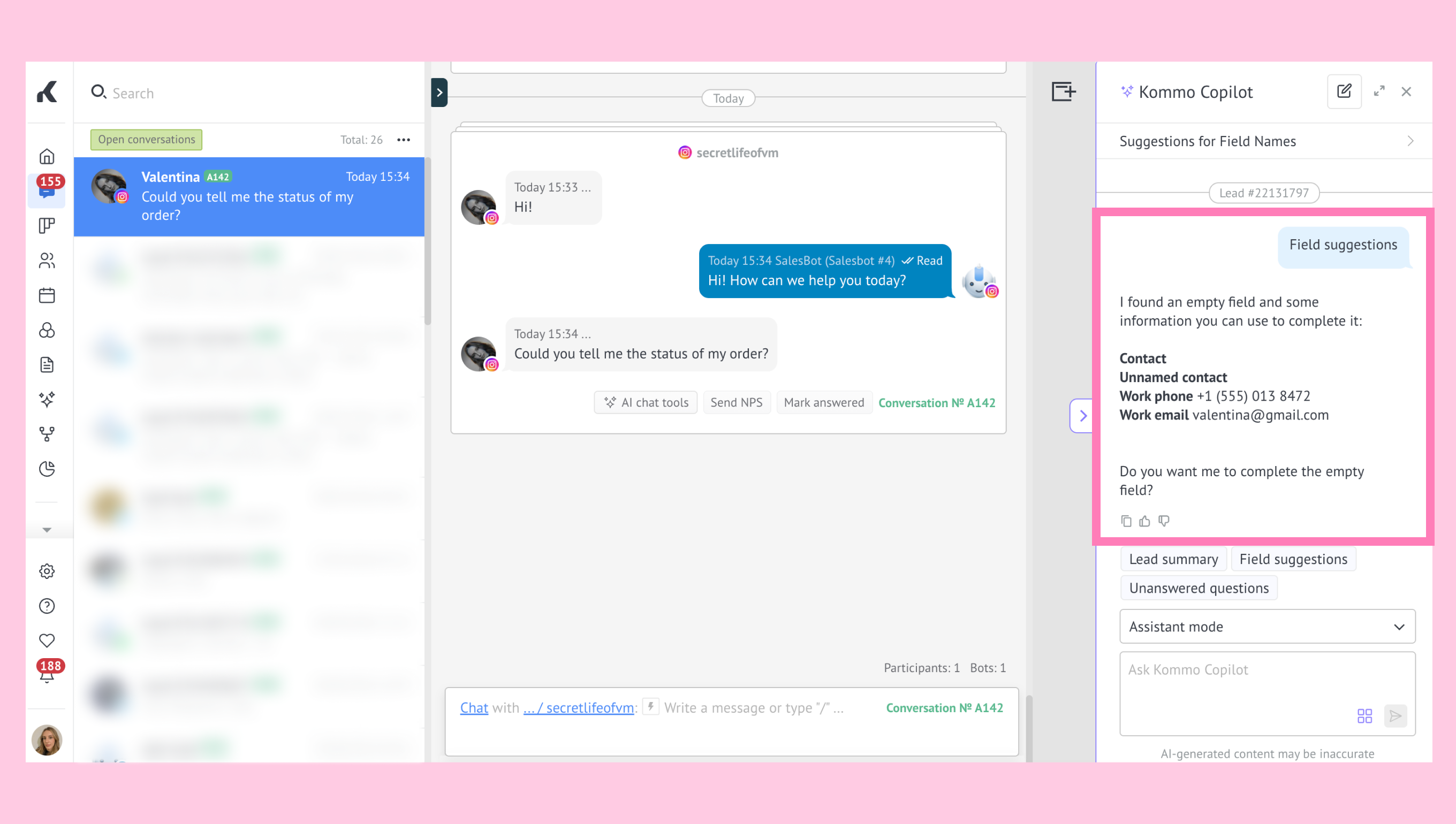
Example:
If a client mentions their email in chat but it is missing from the card, Copilot will suggest adding it. Once confirmed, the field will be filled automatically. Example:
Clicking Unanswered questions makes Copilot review communications with the lead (250 latest messages in open conversations, 50 latest emails, and 20 latest voice messages) and identify customer questions that haven’t received a response.
Copilot then generates a text summary that outlines:
Which questions the customer asked
Which questions were not answered
Which topics require follow-up.
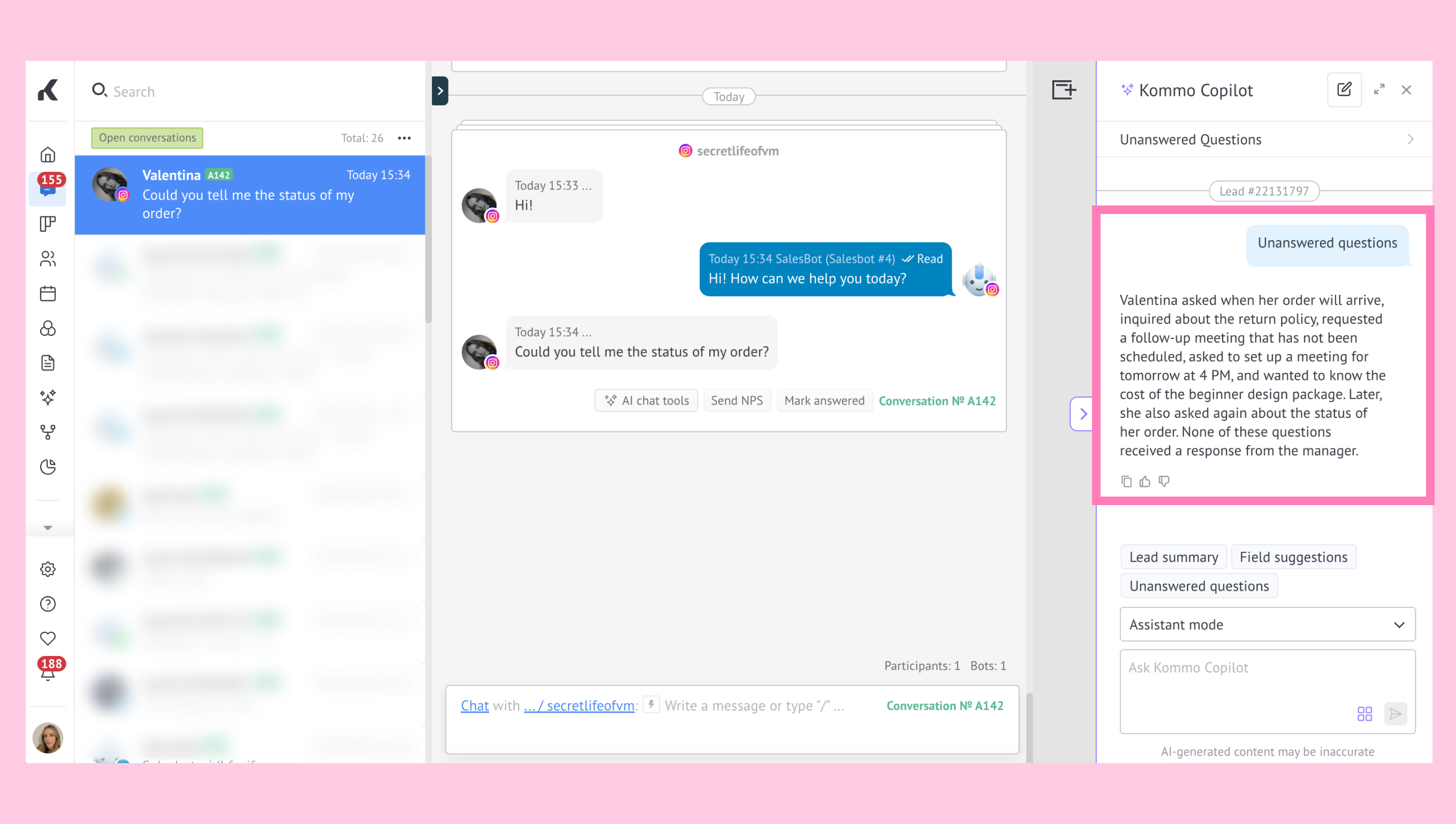
This summary helps you quickly see what needs attention before continuing the conversation.
Example:
If a customer asks about pricing or delivery time in a chat and those questions are not answered, Copilot will include them in the summary so you can review them and follow up.
How to disable Kommo Copilot
By default, the Copilot feature is enabled. To disable it, go to AI & Automation → Kommo AI, turn off the Kommo Copilot toggle, and click Save.
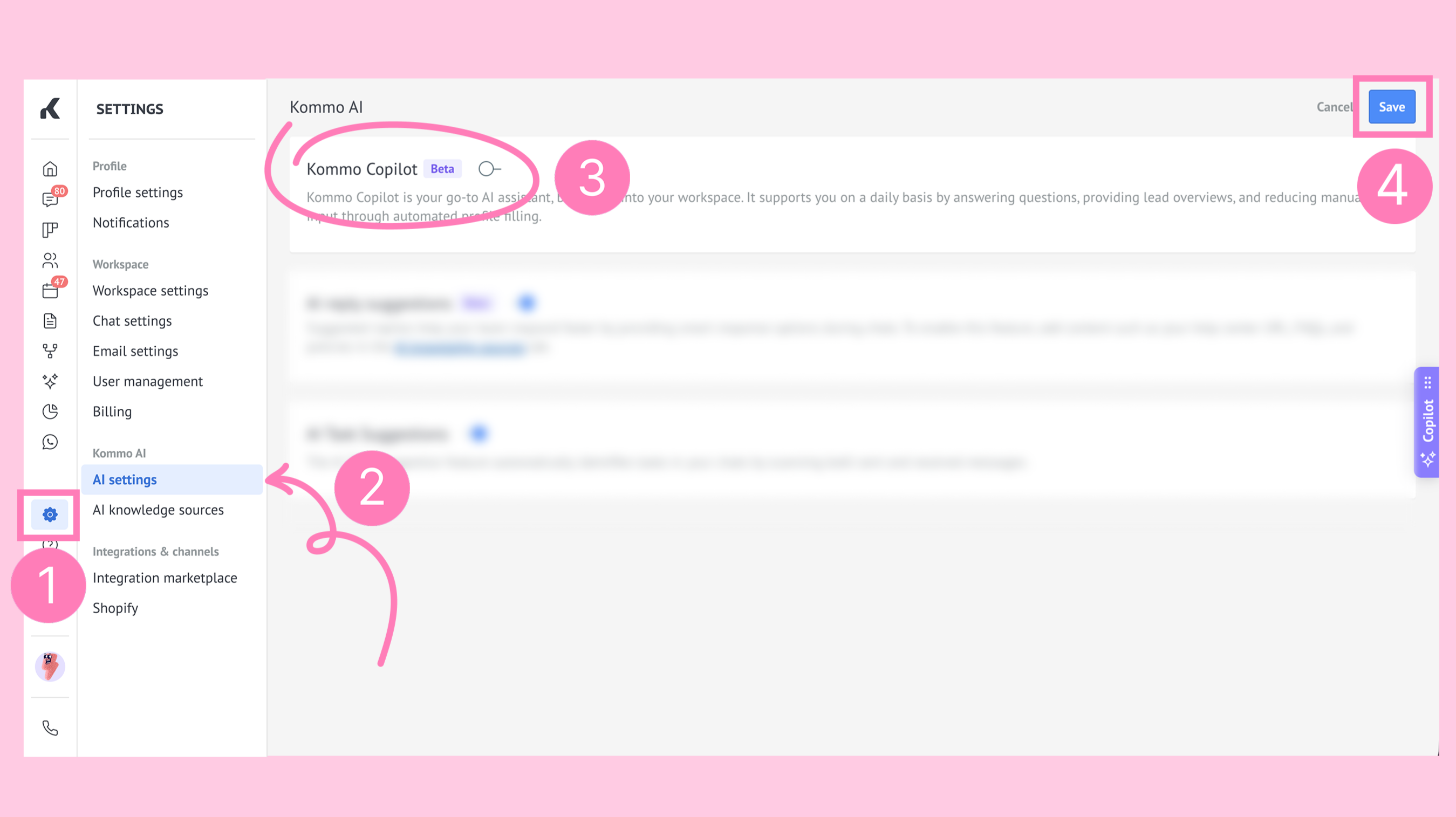
Important: Only admins can enable or disable Kommo Copilot in the account.