What you’ll need:
Any Kommo plan (Base, Advanced, Pro, Enterprise, or 14-day trial).
Admin access in Kommo to set up the Chat inbox
At least one connected messaging channel
A configured AI agent or Salesbot to use automated replies
Keep in mind:
Only one account per channel (Facebook, Instagram, WhatsApp, etc.) can be connected to Kommo
Available message formats may depend on the connected channel
The Chat inbox brings client conversations from connected messaging channels into Kommo. It helps you reply to clients, review previous interactions, access lead details, and coordinate follow-ups without switching between tools.
Use cases
Manage conversations across channels — Handle incoming messages from connected channels in a shared inbox while keeping each conversation linked to the correct lead.
Reply in the right format — Use text, voice messages, reactions, files, emojis, or GIFs based on the client and the situation.
Stay in context — Review previous messages, files, tasks, and notes before responding, even when another teammate handled the client earlier.
Work smarter with AI – Let AI help you write better responses, quickly catch up with conversations and lead summaries, and automate conversations with an AI agent.
Coordinate client follow-ups — Leave internal notes, mention teammates, and create tasks without moving the discussion to a separate tool.
Handle common questions automatically — Use Salesbot to provide quick replies and keep conversations moving when message volume is high.
Reply to clients
Connect channels such as WhatsApp, Instagram, Facebook, or TikTok to bring client conversations into the Chat inbox. Messages, comments, and story replies appear there, so your team can follow every interaction in one thread.
You can reply with text, voice messages, reactions, files, media, emojis, and GIFs, or use chat templates or automate conversations with Salesbot to answer common questions faster.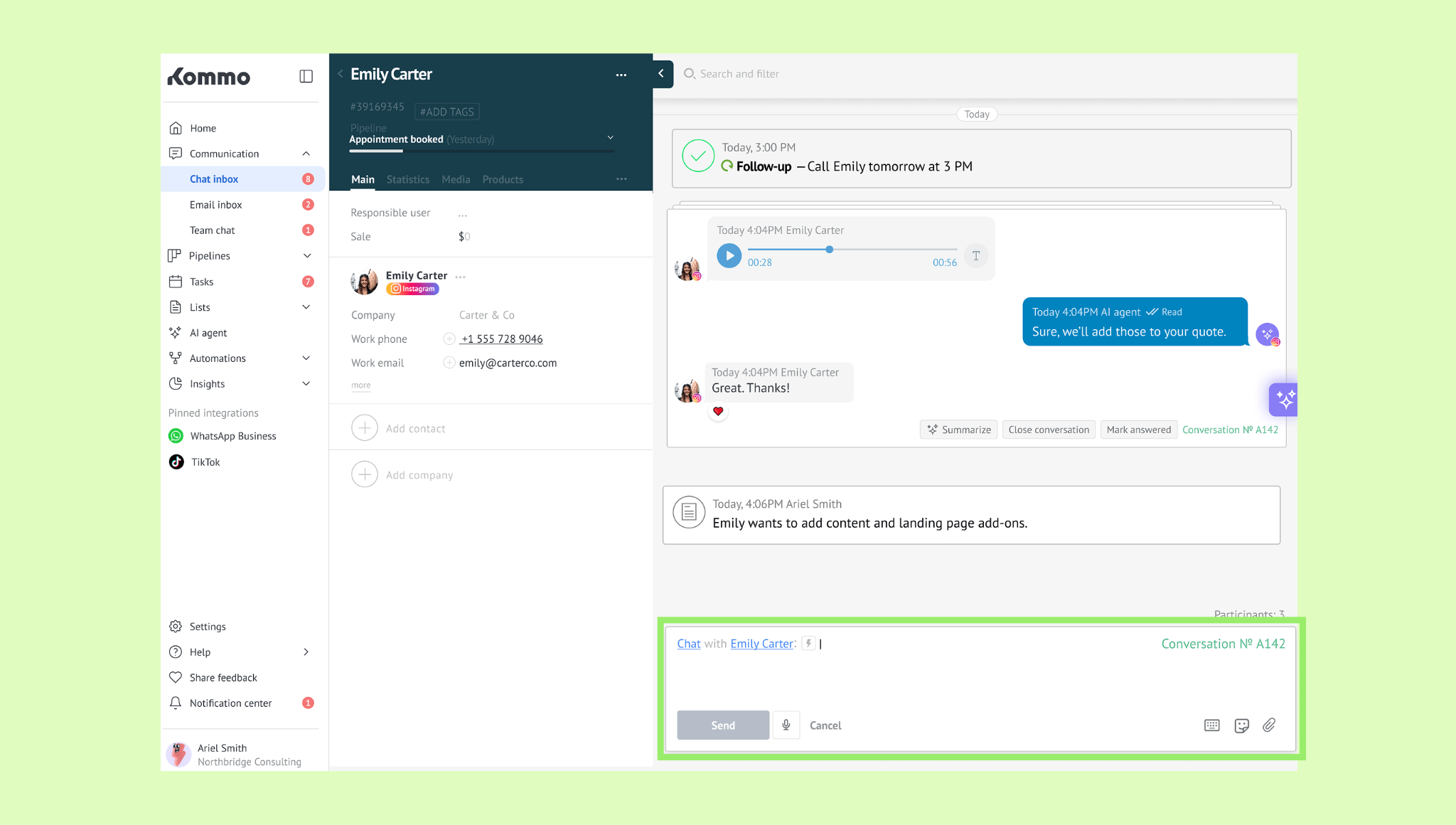
Manage leads
Turn an incoming request into a lead and manage it without leaving the conversation. You can change the responsible user, move the lead to another pipeline stage, add tags, and link purchased products.
This keeps client communication and sales progress connected, so your team can update lead details while chatting.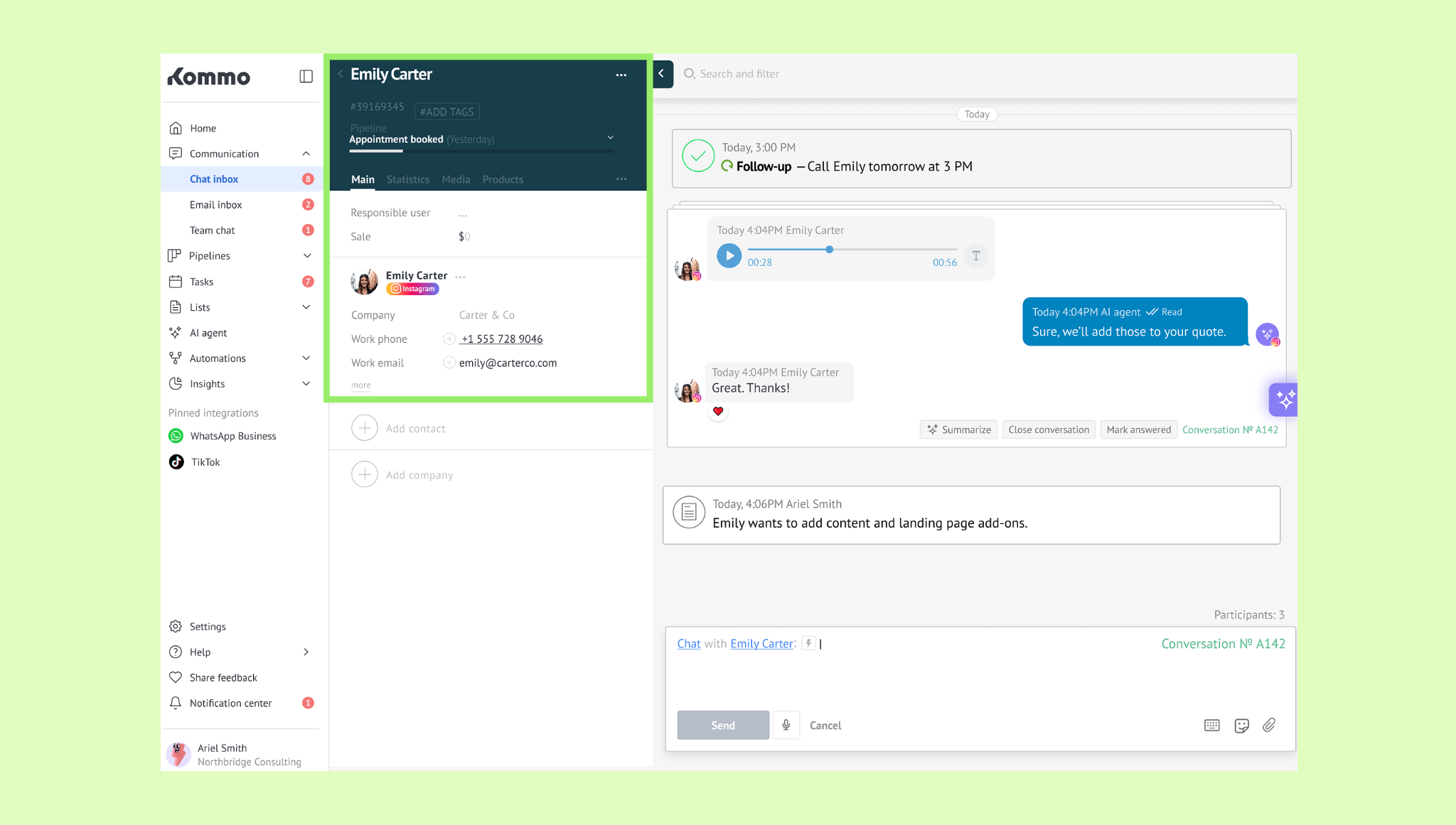
Use AI assistance
Kommo’s AI tools help you understand conversations and reply faster. Conversation Summary highlights key points from a chat and shows unanswered questions, while Copilot’s lead summary gives you a quick overview of the entire lead based on their messages and other available details.
AI reply suggestion drafts a contextual response you can review, edit, or send. AI rewriter improves your draft by adjusting its tone or length, while the AI agent can answer client questions automatically and handle bookings.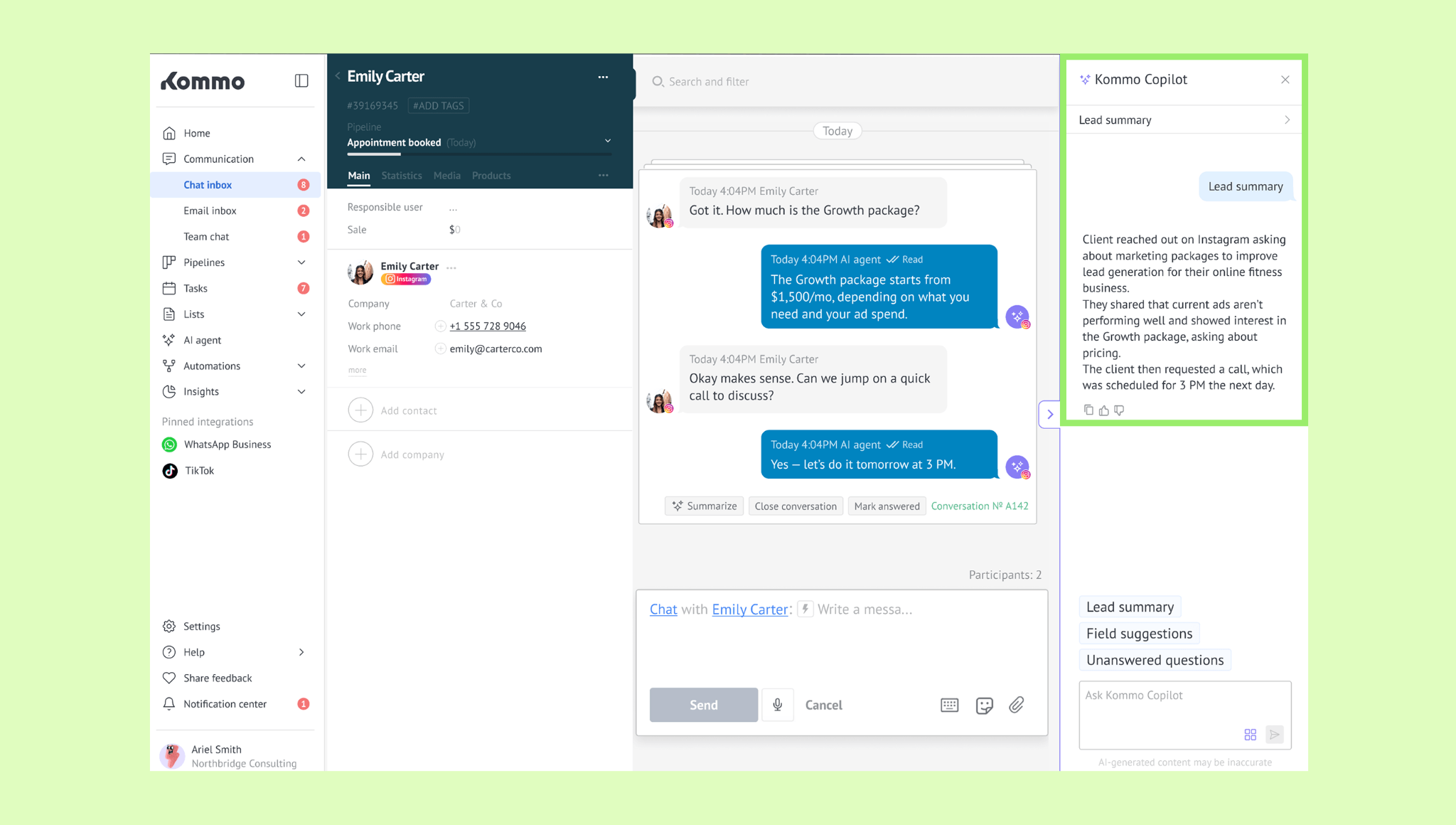
Review conversation history
Each chat keeps previous messages, voice messages, files, reactions, AI agent replies, notes, and tasks connected to the lead.
This gives users the context they need to continue a conversation, check what was promised, or understand what should happen next. Conversation summaries make longer exchanges easier to review.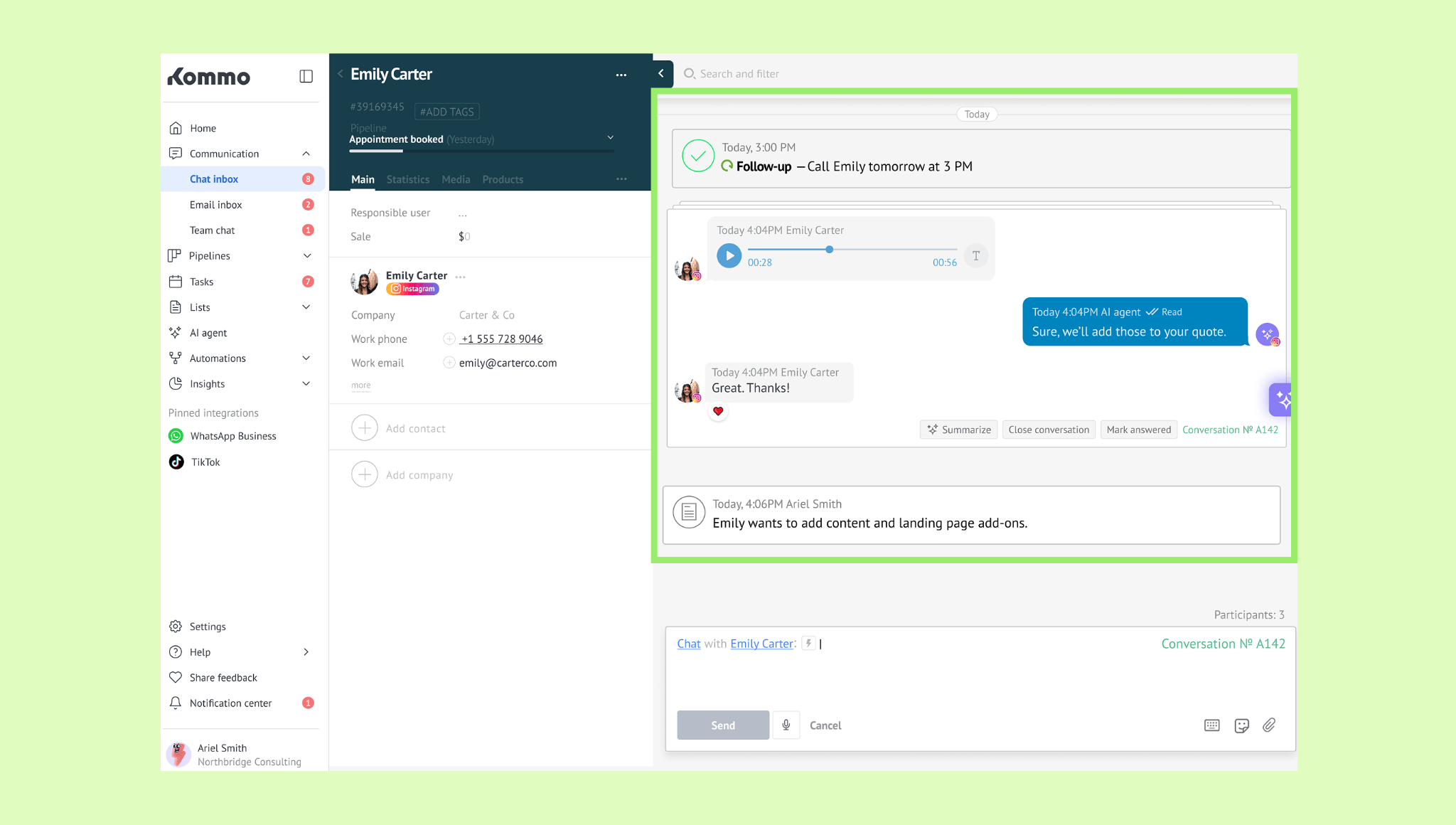
Collaborate with teammates
You can leave notes, have an internal chat with a teammate, or create a task right from the chat.
This is useful when a user needs approval, specialist input, or support from another team member while keeping the full context attached to the client conversation.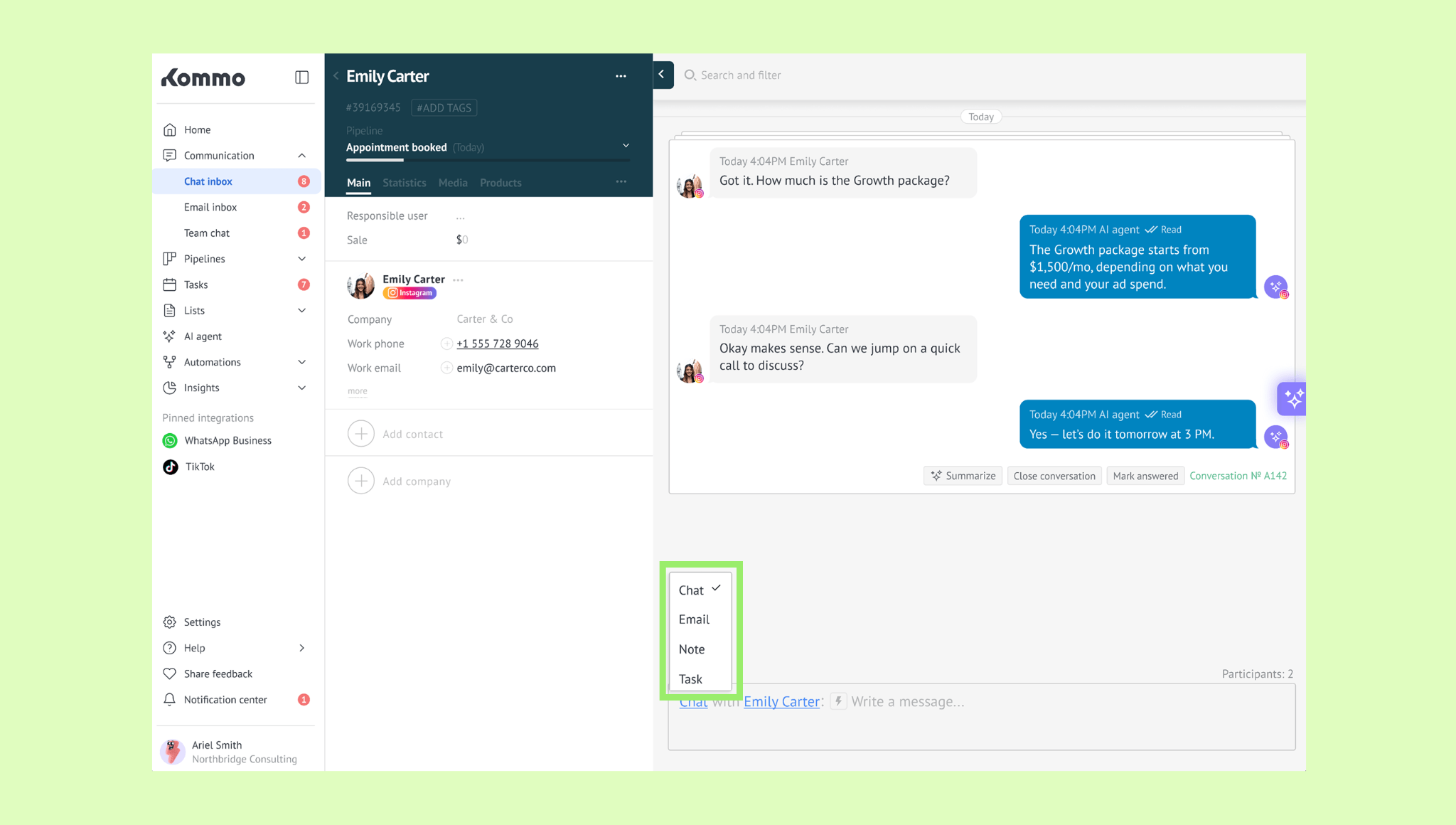
Note: Messages sent to a teammate from the client chat are automatically routed to their Team chat inbox.
Learn how to manage Chat inbox in this article.