What you’ll need:
Any Kommo plan (Base, Advanced, Pro, Enterprise, or 14-day trial)
Keep in mind:
Only Admins can create, edit, or delete chat templates
Only Admins can set up Salesbot and broadcasts
WhatsApp Business templates must be approved by Meta. You can find more info about these templates here
In Kommo, chat templates are pre-written messages you can quickly insert into a conversation or send automatically — saving you time and keeping your communication consistent.
This step-by-step guide explains how to create and use chat templates.
Use cases
Create templates — write messages once and reuse them anytime. For example, follow-ups, order confirmations, special offers, or newsletters.
Personalize messages — add placeholders to automatically pull in client details from your database, such as a client's name, so every message feels personal.
Automate messaging — use Salesbot to automatically send messages or respond to your clients.
Send messages in bulk — use broadcasts to notify your clients about special offers, ask for feedback, or share onboarding information.
Types of chat templates available in Kommo
Kommo has two types of chat templates: general templates and WhatsApp templates.
General templates
General templates are pre-written messages for everyday communication across any connected channel. You can use them for quick replies, bulk messages, or automate them via Salesbot.
Note: In WhatsApp, general templates only work within the 24-hour messaging window. To start a new conversation or send bulk messages via broadcasts, you'll need WhatsApp templates approved by Meta.
WhatsApp templates
WhatsApp templates in Kommo are pre-approved message templates required by Meta for certain types of WhatsApp communication. Unlike general templates, they must be submitted to Meta for review and approved before use.
You need WhatsApp templates to:
Start a conversation with a client first
Reply after the 24-hour messaging window has closed
Send bulk messages via broadcasts
When creating a WhatsApp template, you choose a category — Marketing (for promotions and offers) or Utility (for reminders and transactional messages) — and a message type. Each template can include a header, body text, footer, and call-to-action or quick reply buttons. You can also add placeholders to automatically fill in client details such as a name or lead ID.
Learn more about WhatsApp templates in this article.
How to create general chat templates
To create a general chat template:
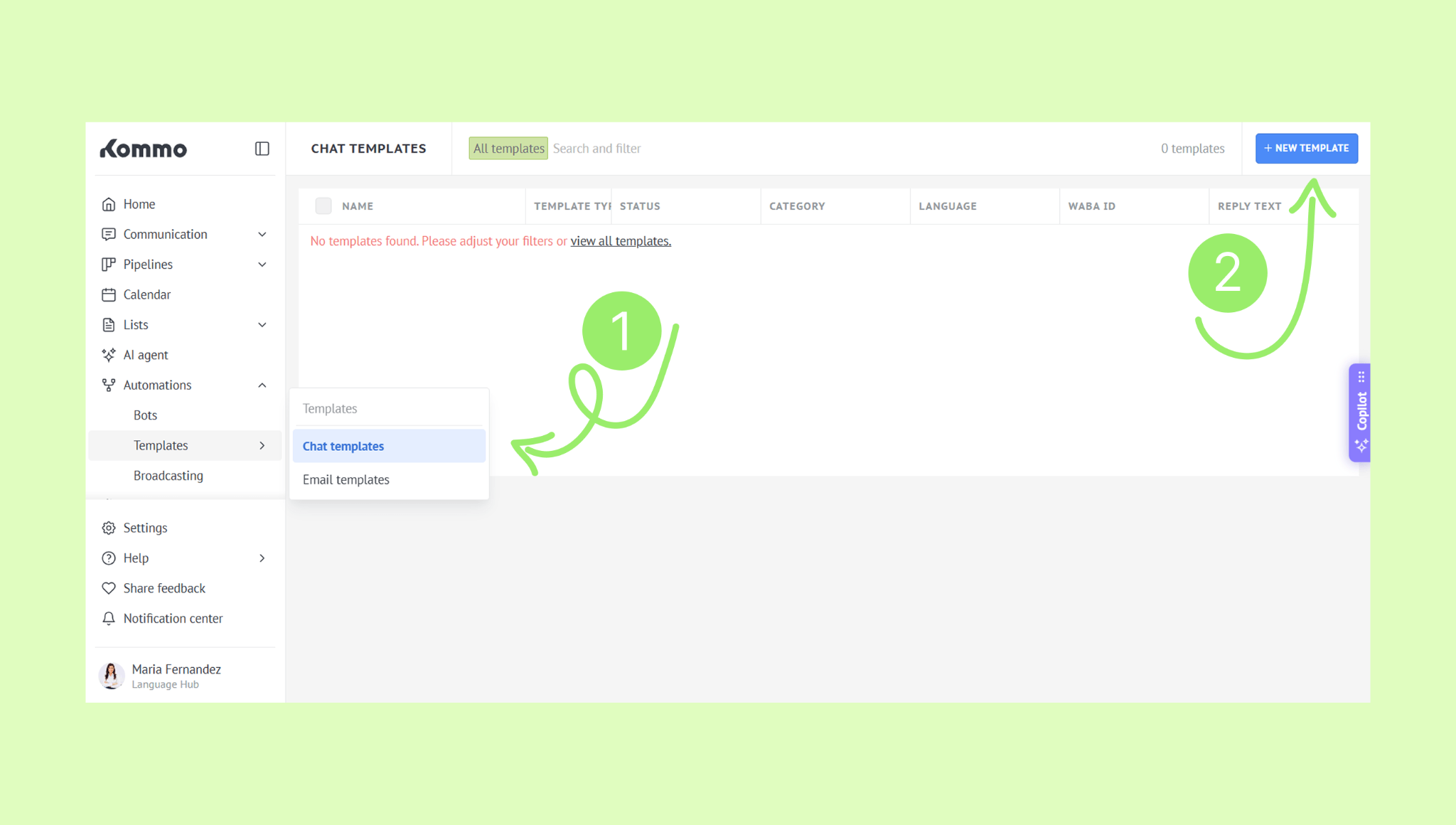
Go to Automations → Templates → Chat templates and click + New template.
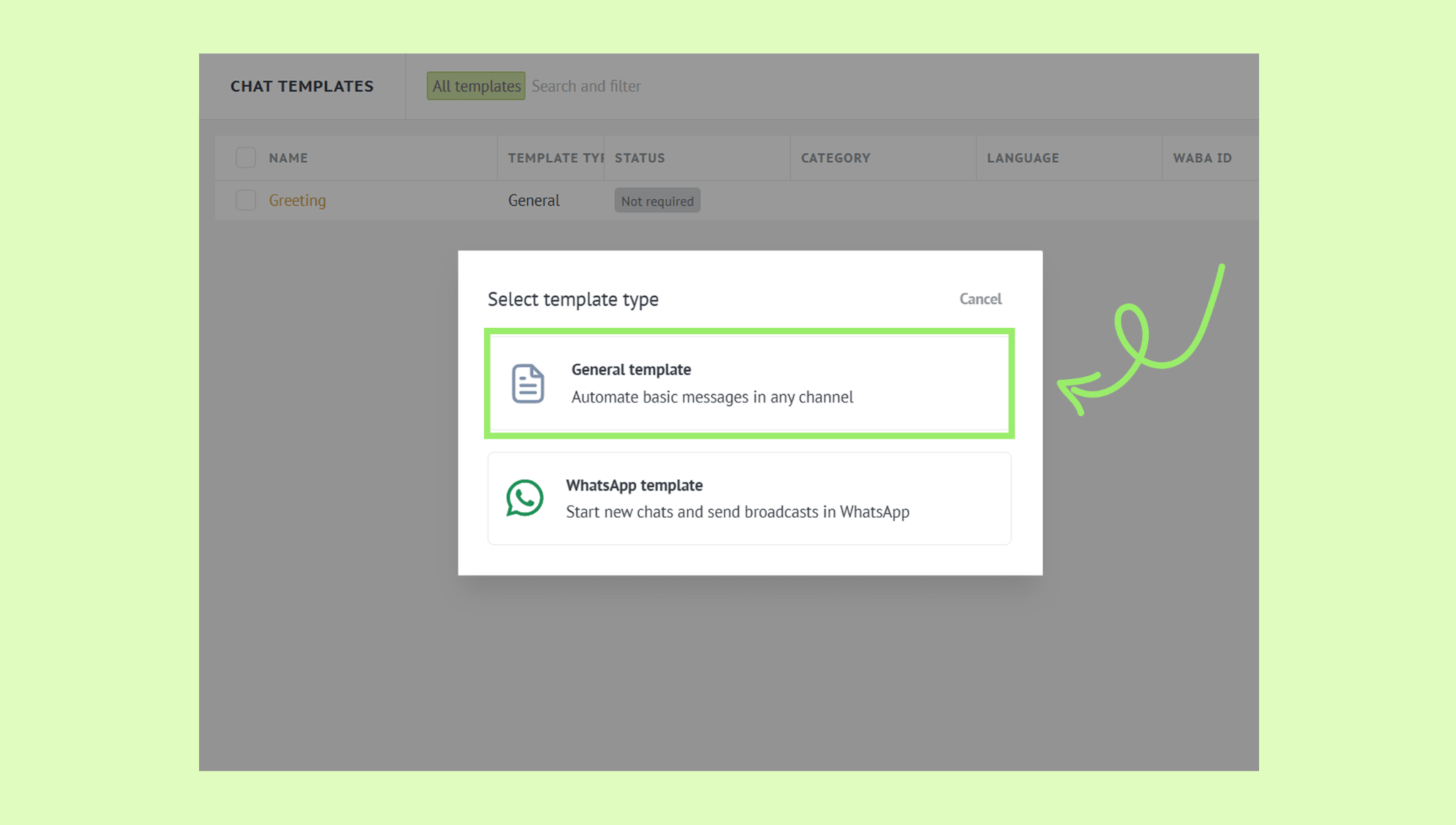
Select General template.
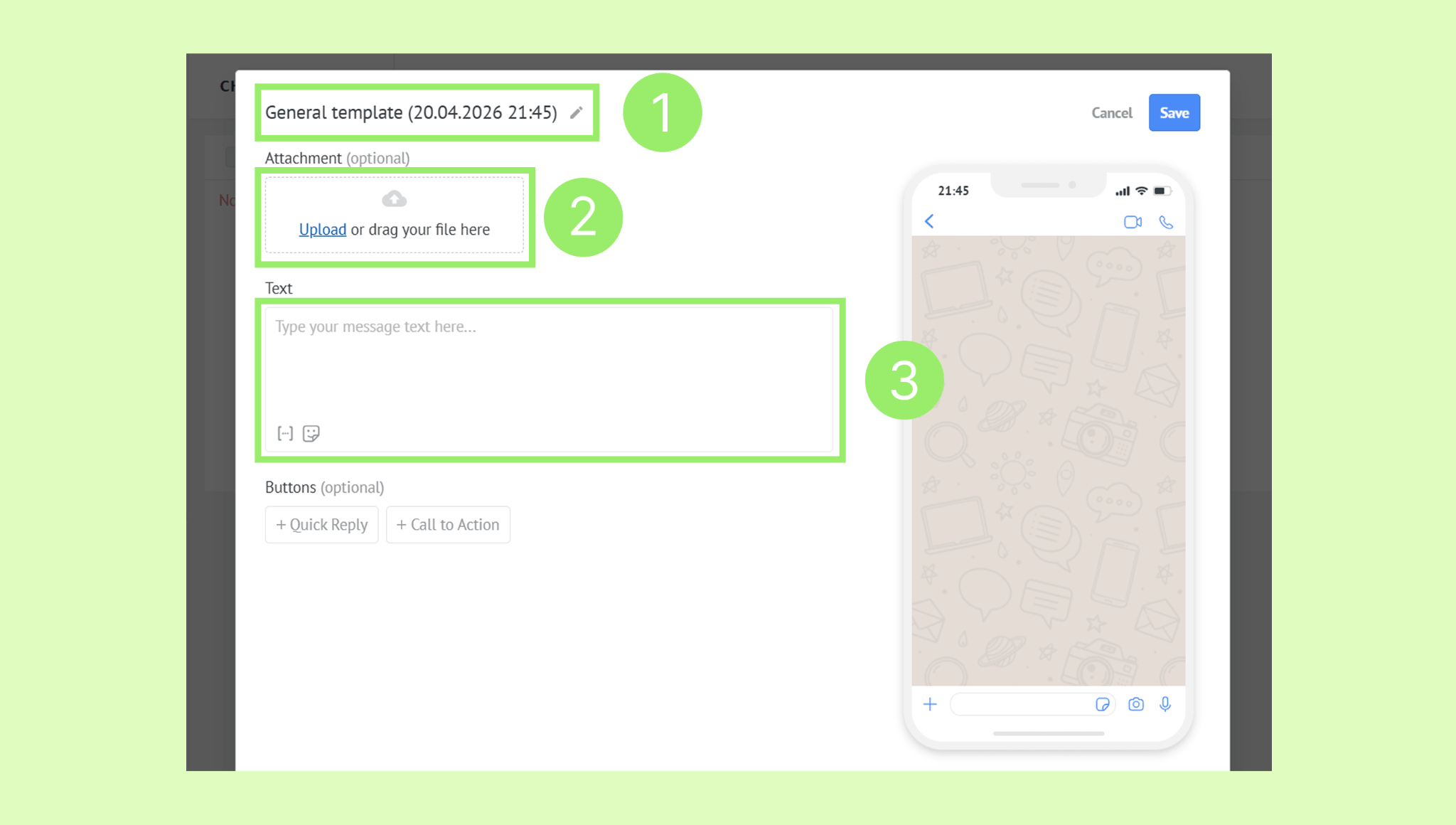
Enter a name for your template.
(Optional) Upload a file.
Type your message.
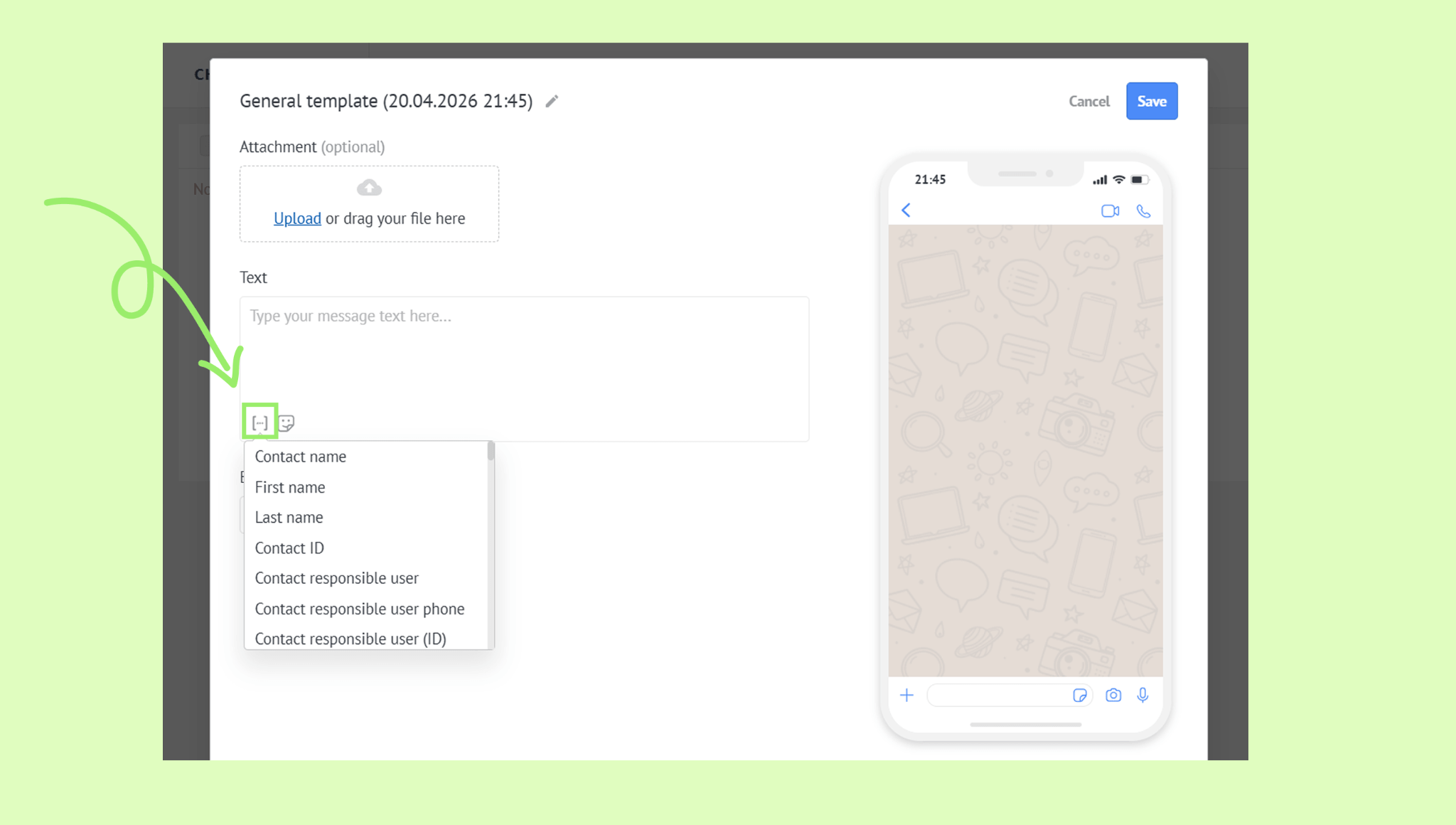
(Optional) Click the three dots icon to insert a placeholder.
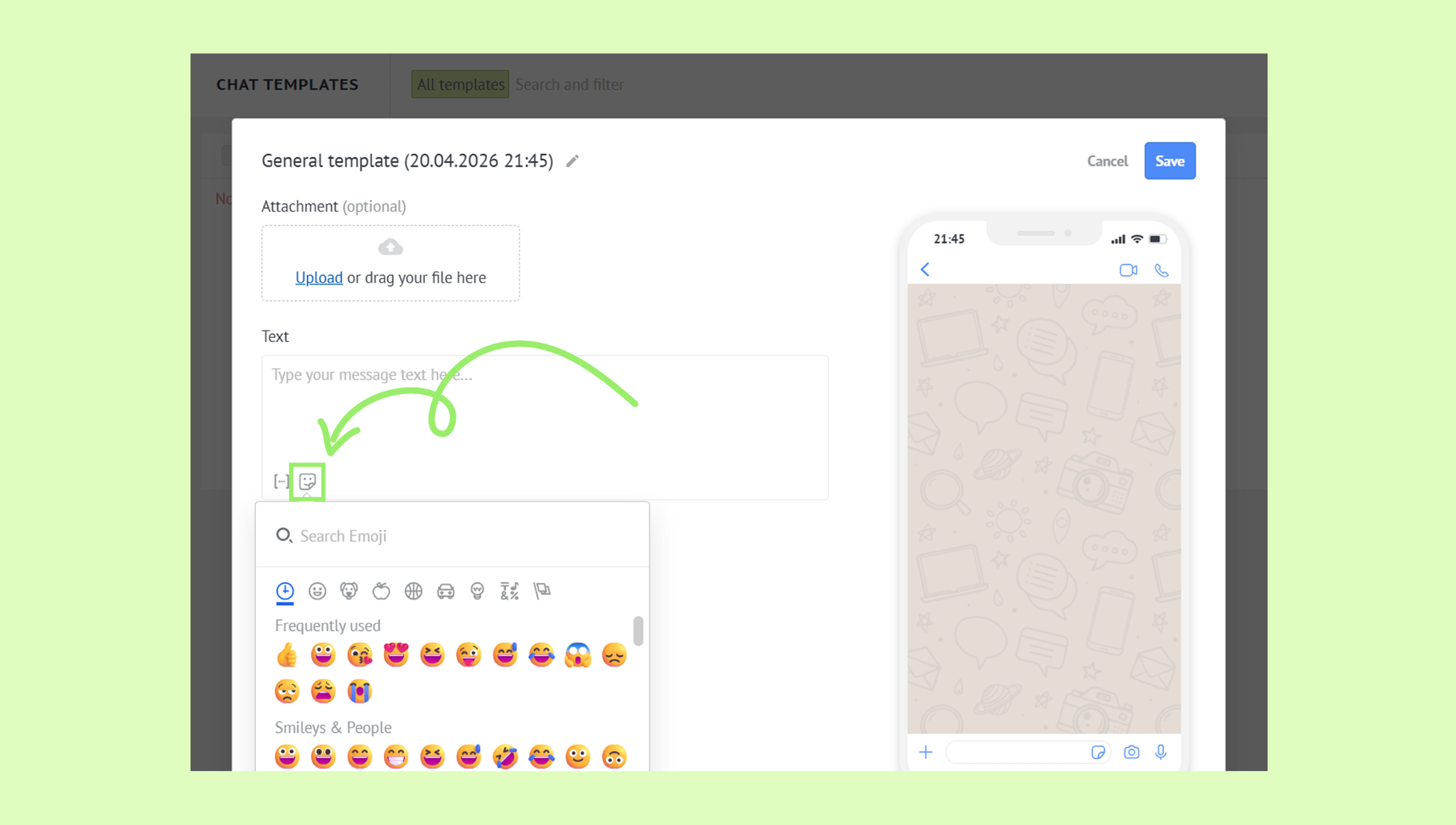
(Optional) Click the smiley icon to add an emoji.
Add a Quick reply or Call to action button if needed.
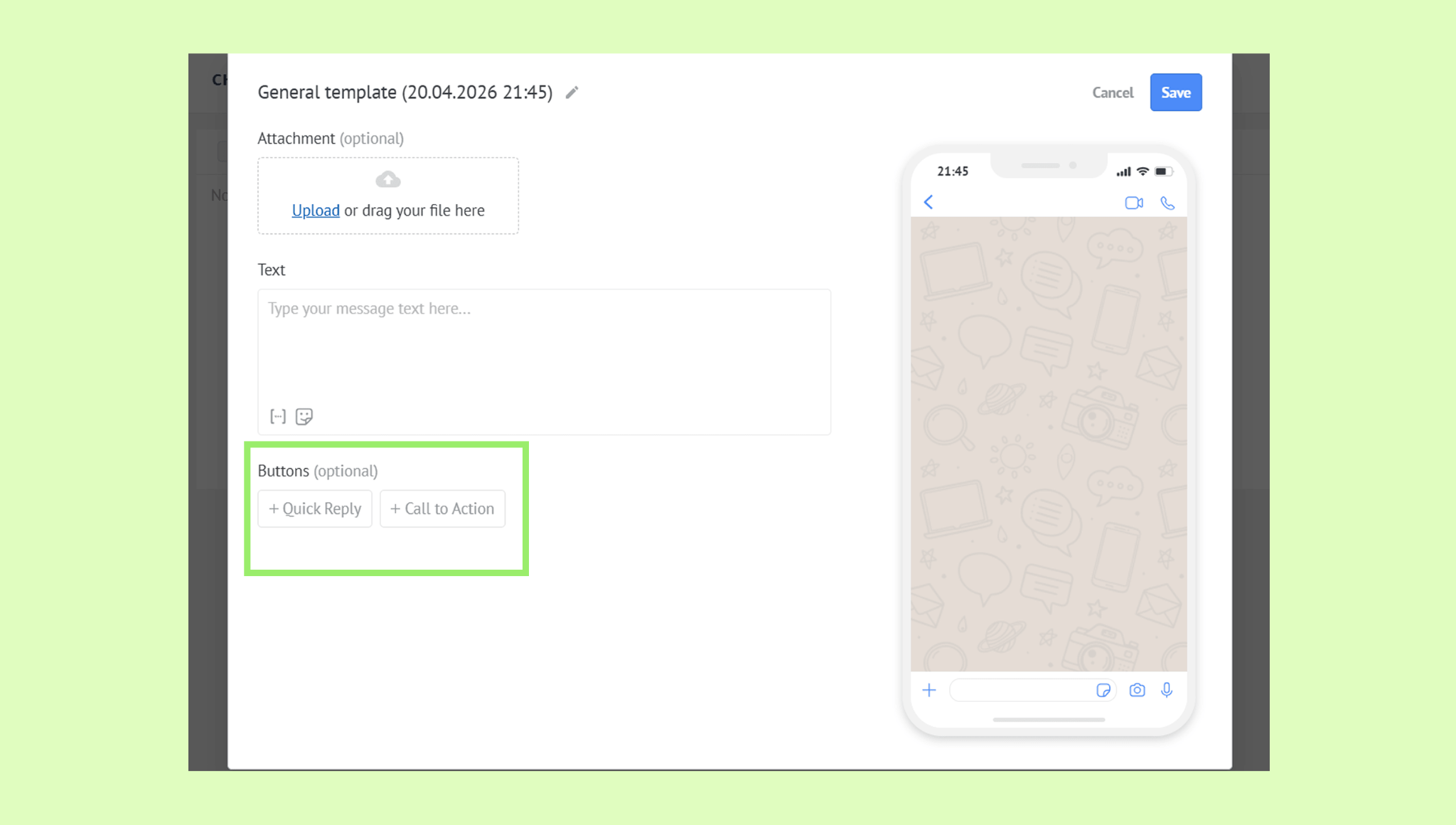
Tip: You can add buttons to your template to make it easier for clients to respond. Quick reply buttons let clients tap to reply instantly without typing — useful for yes/no questions or simple choices. Call to action buttons direct clients to take a specific action, such as visiting a website or making a call.
Click Save.
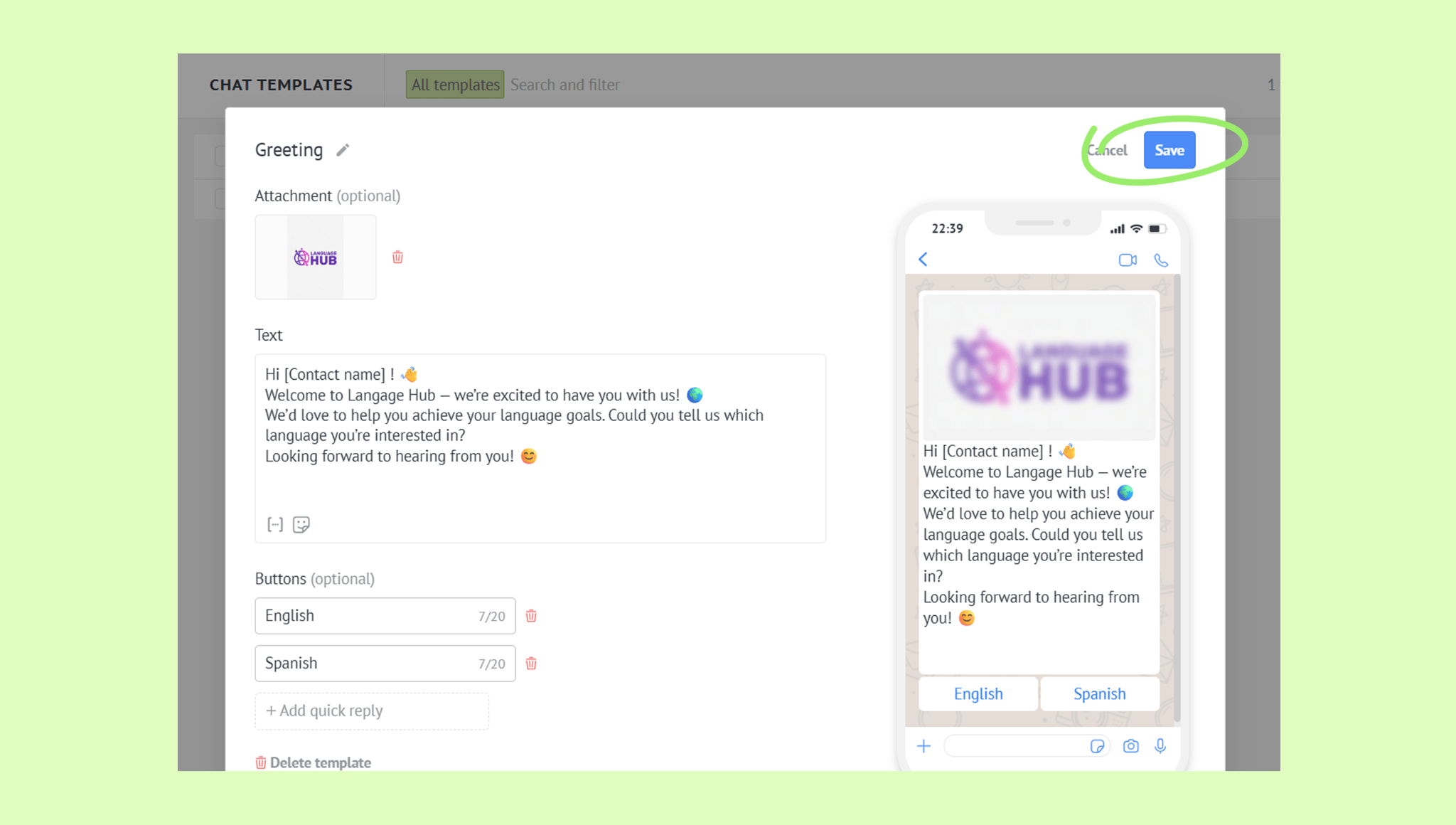
Tip: Add placeholders to your templates to automatically fill in client details from your database, such as a client's name or lead ID. Kommo replaces them with the actual values every time a message is sent — no manual input needed.
Learn how to create a WhatsApp chat template in this article.
Edit a chat template
Go to Automations → Templates → Chat templates.
Select the template you want to edit.
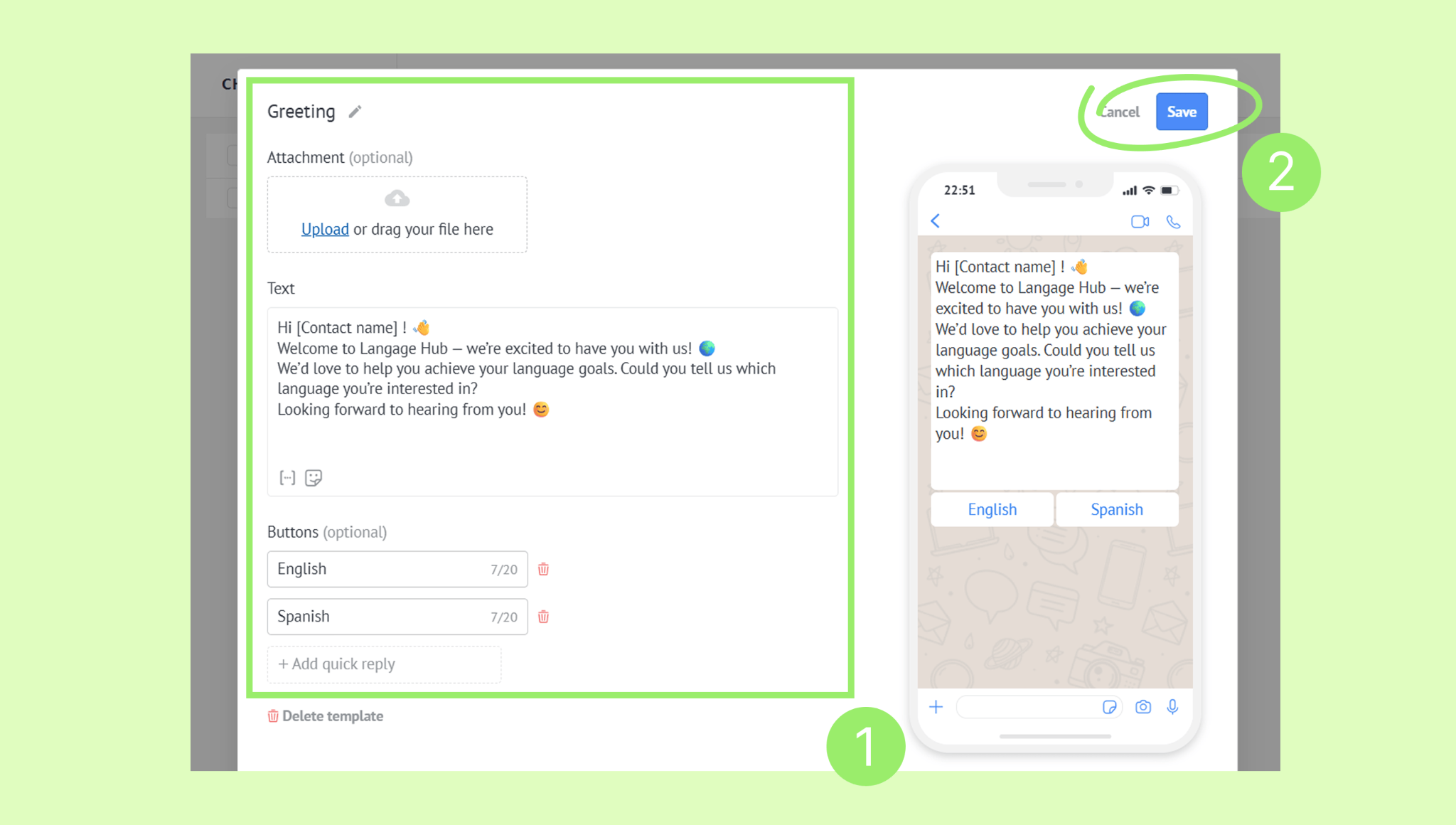
Make your changes.
Click Save.
Delete a chat template
Go to Automations → Templates → Chat templates.
Select the template you want to delete.
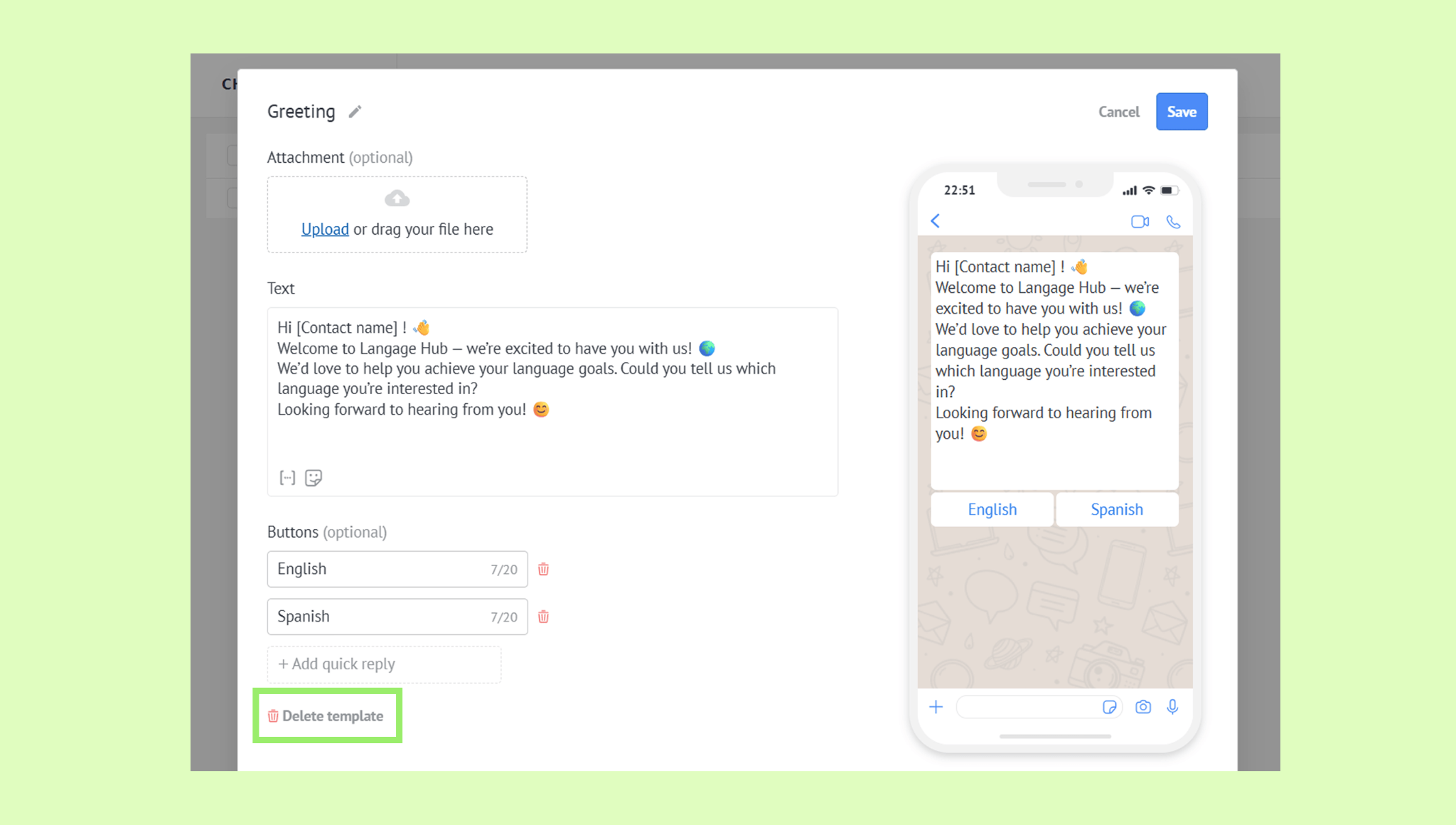
Click Delete template.
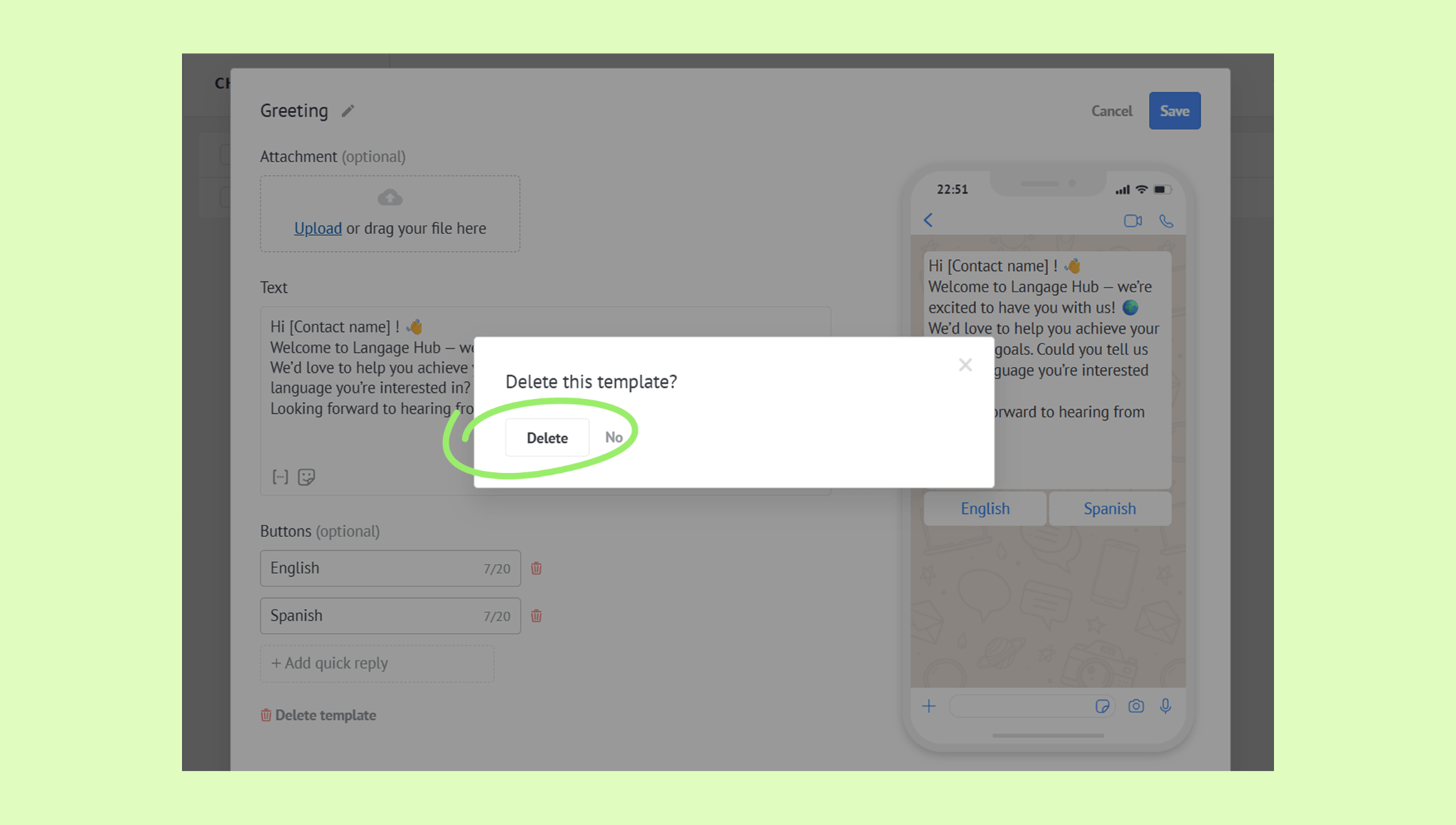
Confirm the deletion.
Send a chat template
In Kommo, you can send chat templates in three ways:
Manually — send a template straight from the Communication page or the lead profile.
Automatically — set up Salesbot to reply to incoming messages or trigger a message when something happens — for example, when a lead moves to a new pipeline stage.
In bulk — use broadcasts to reach multiple clients at once.
To send a chat template manually:
Go to Communication → Chat inbox and open a chat.
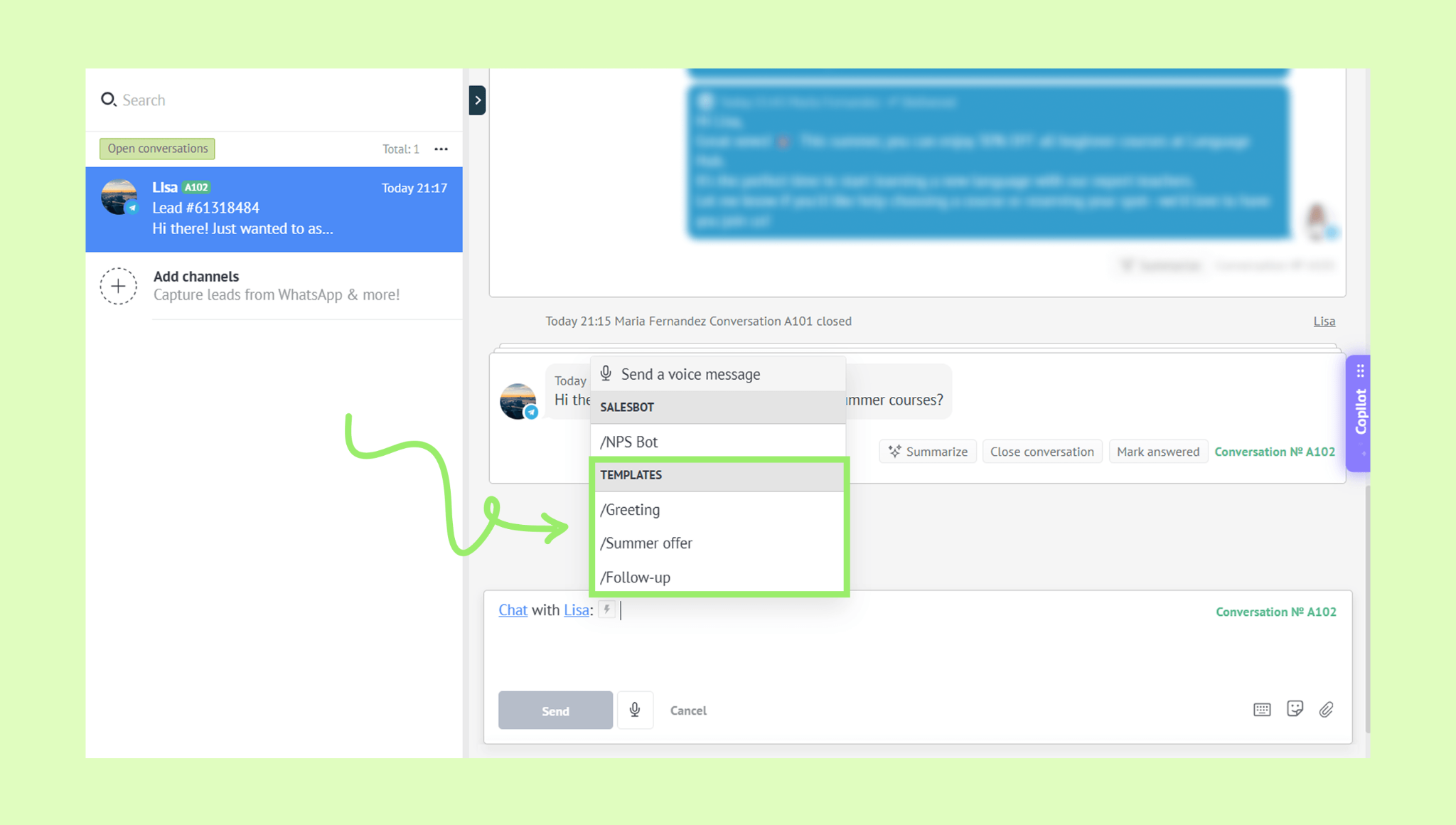
Click the lightning icon and choose a template.
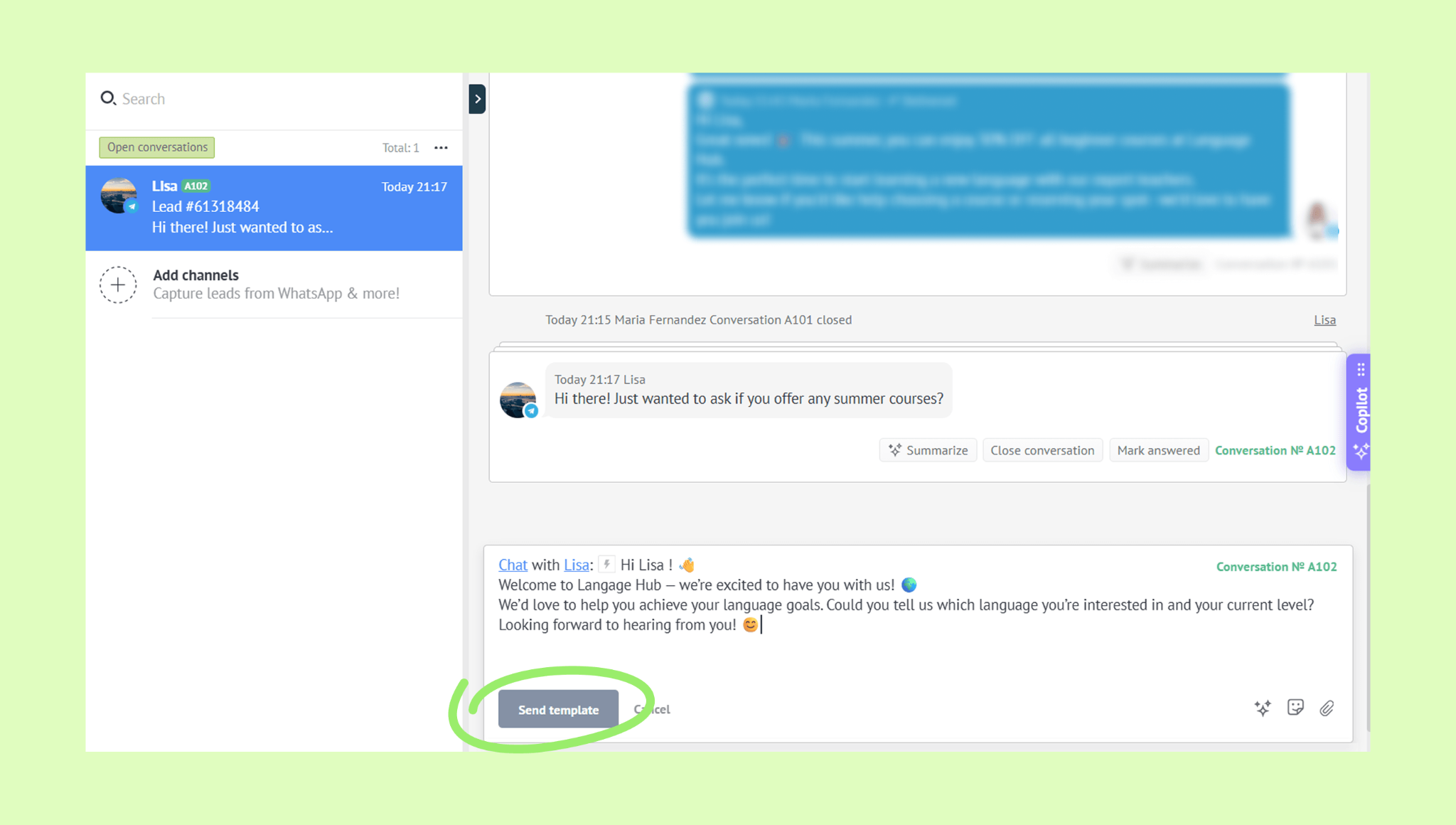
When the message appears in the input box, click Send template.
You can also insert a template by typing “/” to see the full list, or by typing a keyword (for example, “new” to find the “Greet a new customer” template) to quickly locate the one you need.