What you’ll need:
Any Kommo plan (Base, Advanced, Pro, Enterprise, or 14-day trial)
Keep in mind:
Only users from the same Kommo workspace can participate in team conversations
Access to related leads, contacts, and other records depends on each user’s permissions
Mentions do not change a user’s access permissions to related records
Team chat is Kommo’s built-in space for working with your team. Send private messages, create group chats, and share files without leaving Kommo.
When a teammate tags you in a client conversation, you can view the message and jump straight into the chat.
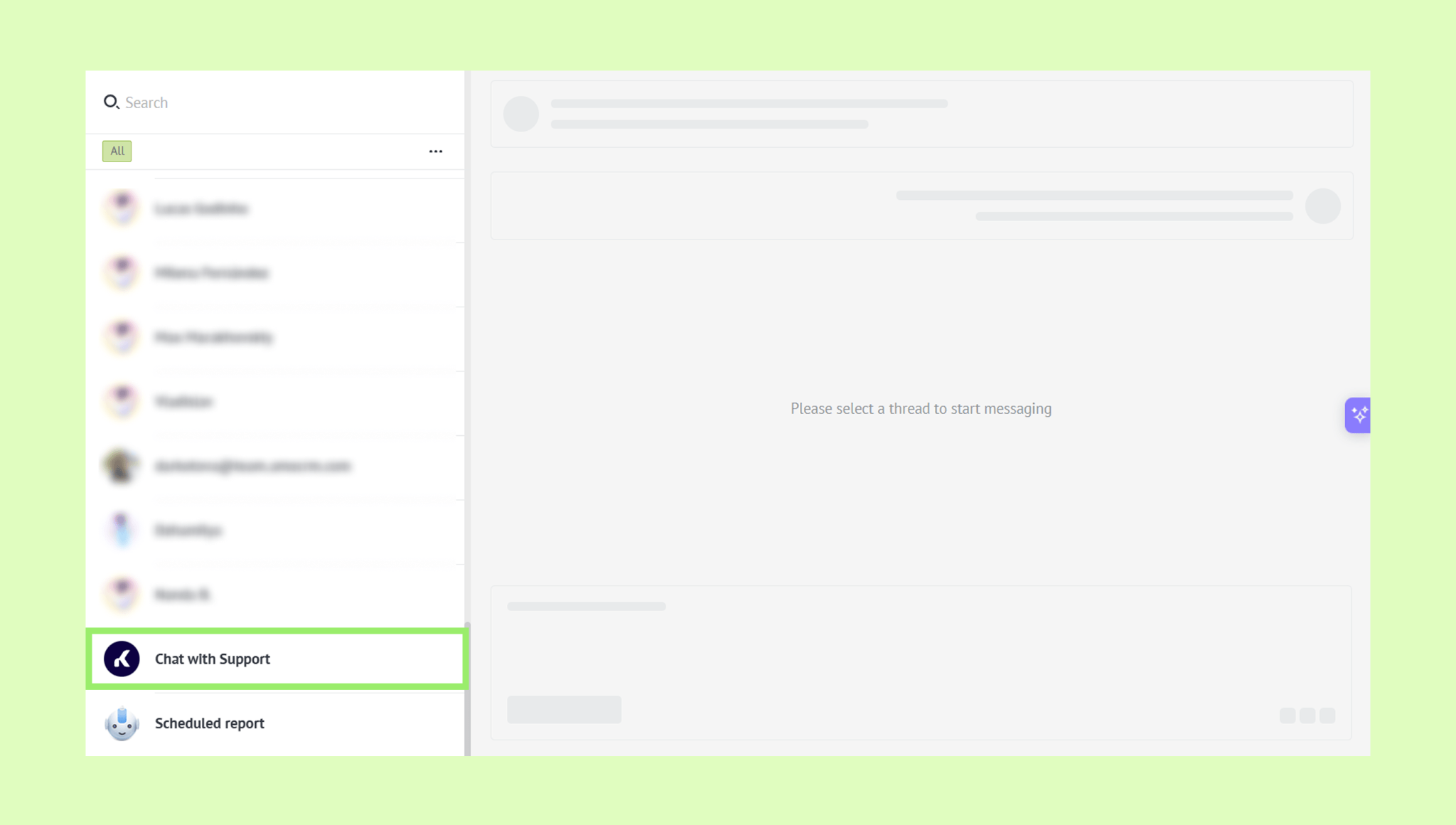
You can also contact Kommo Support directly from this section.
Manage team chat
In Team chat, you can send private messages to a colleague or create group chats to keep your whole team updated.
To send a private message:
Go to Communication → Team chat.
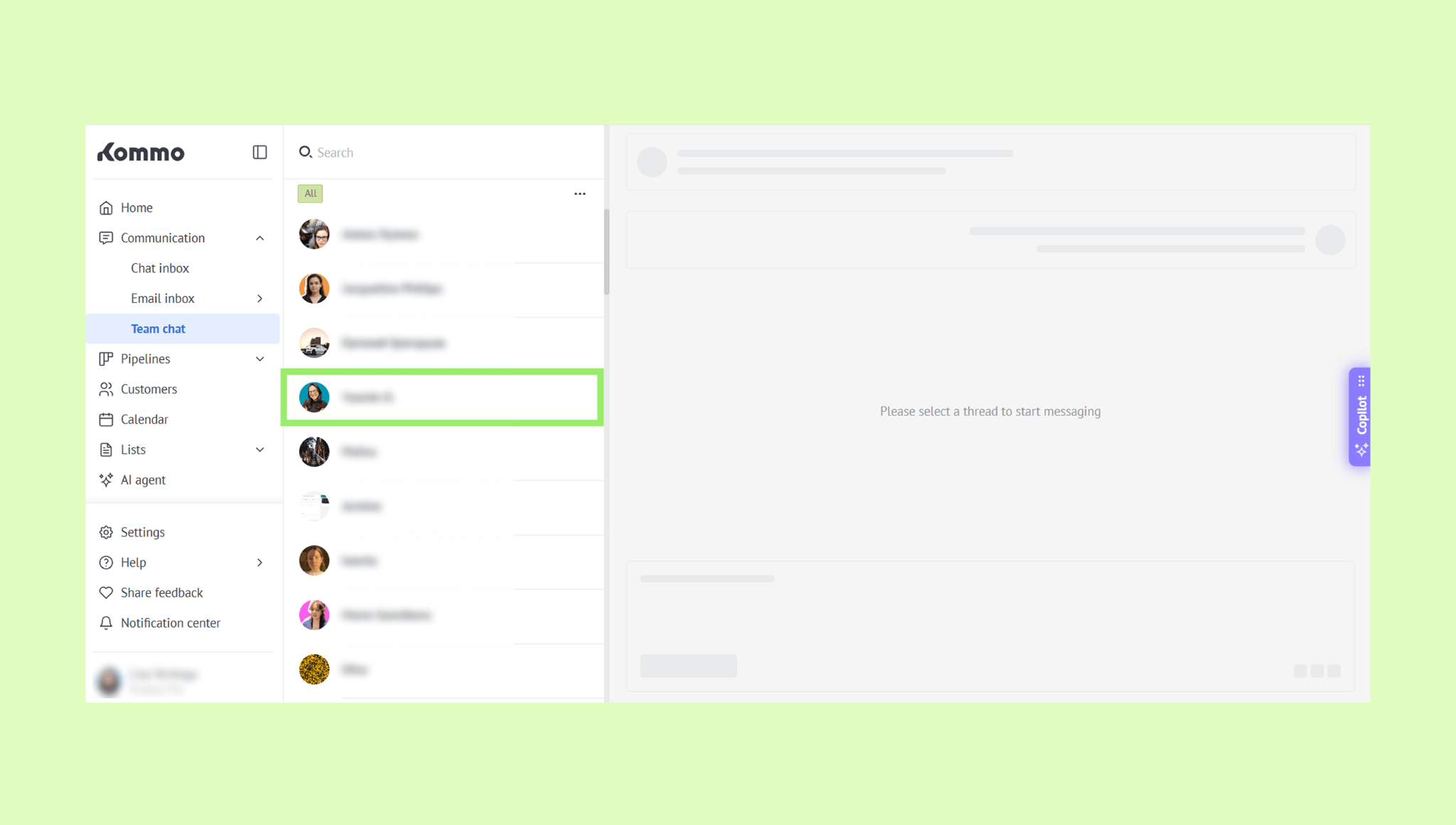
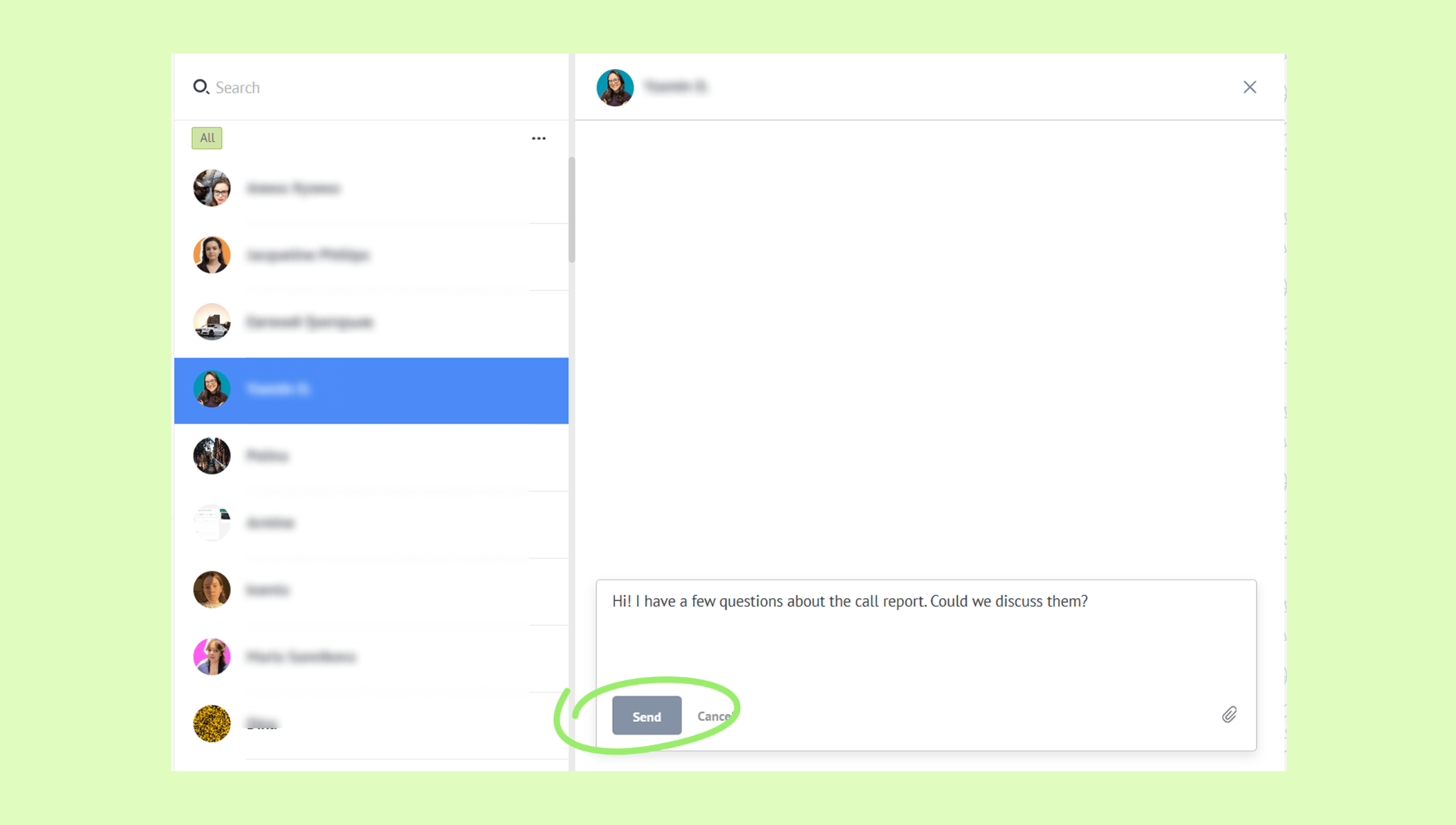
Click a teammate’s name → Enter your message → Click Send.
To create a group chat:
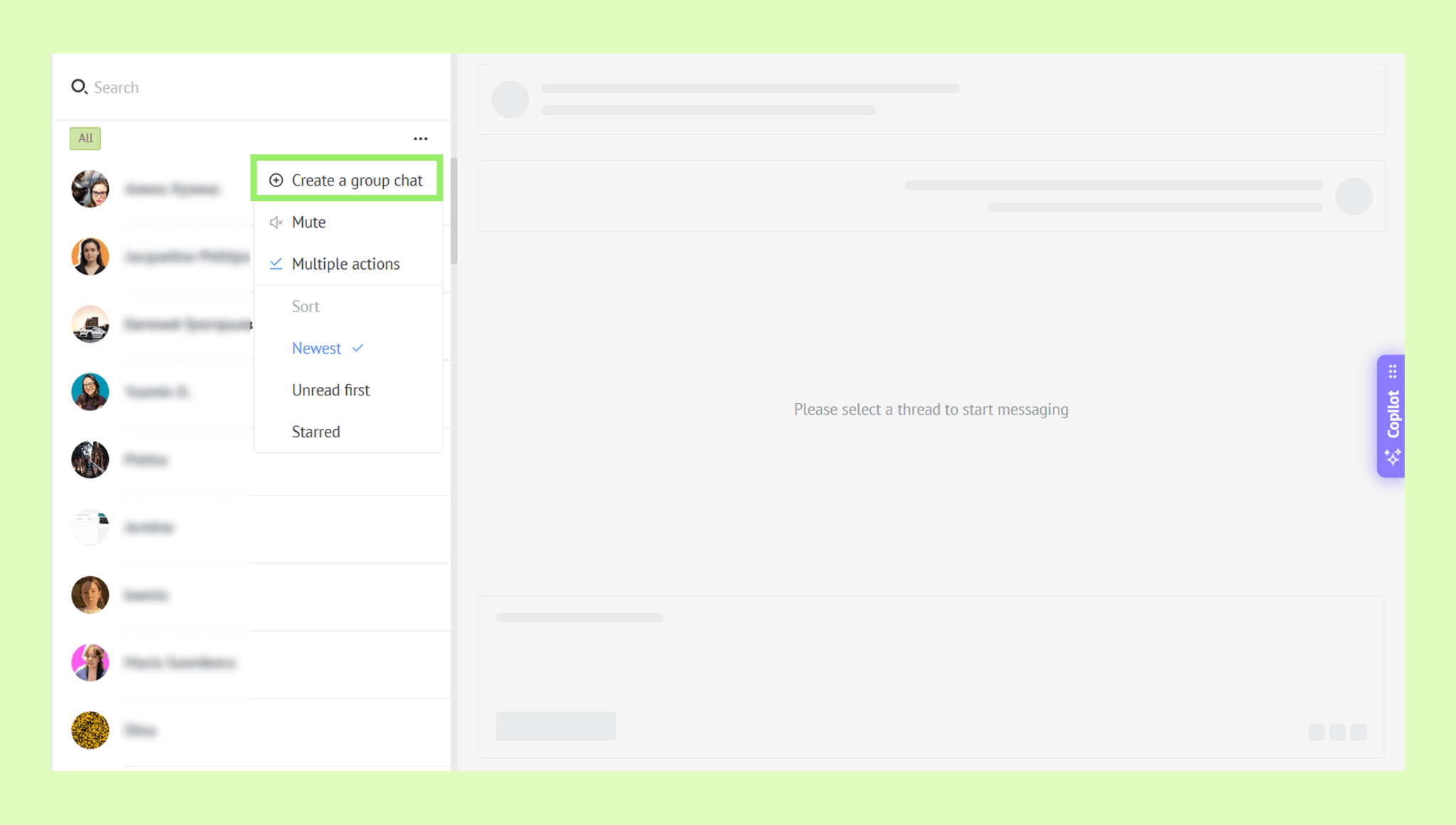
Go to Communication → Team chat.
Click the three dots menu and select Create a group chat.
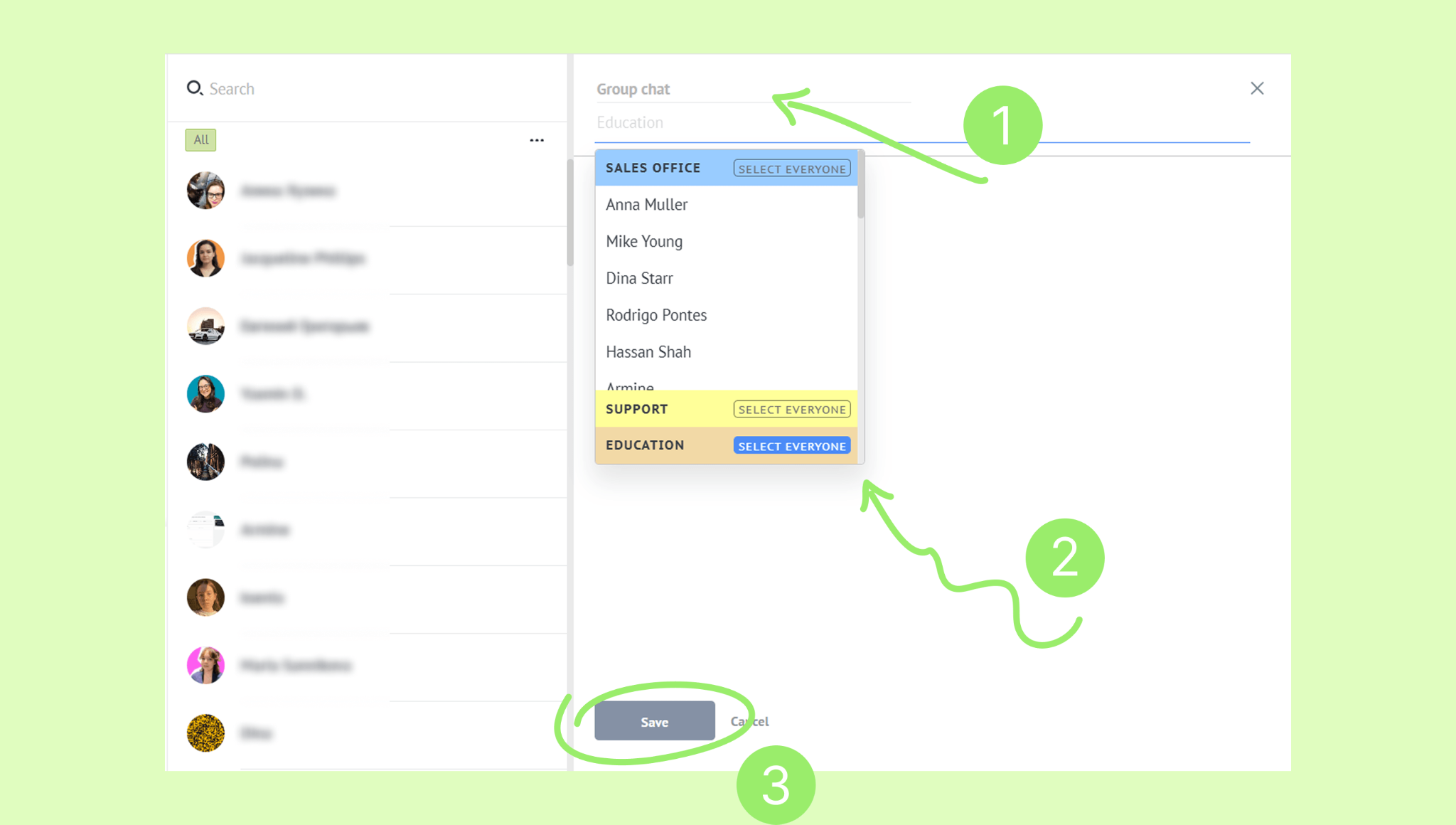
Enter a chat name, add teammates, and click Save.
Contact Kommo Support
You can also contact Kommo Support team directly from the Team chat — so all support conversations stay inside your workspace.
To contact Kommo Support:
Go to Communication → Team chat.
Use the search bar or scroll to find Chat with Support, and open the chat.
Write your message, attach a file if needed, and click Send.