What you’ll need:
Any Kommo plan (Base, Advanced, Pro, Enterprise, or a 14-day trial)
Access to Leads, Chats, Tasks, Analytics, or Settings (depending on the section)
At least one lead, chat, or task (recommended for easier navigation)
Only admins can change Settings and workspace-wide configurations
Some Analytics reports are available only on Advanced or Enterprise plans
Data updates may take a few seconds to sync across devices
Some views may differ slightly between desktop and mobile apps
This guide explains how to navigate the main sections in Kommo. You’ll learn how to switch between key areas, customize your view, and use quick actions to work efficiently.
Each section in Kommo is designed to help you focus on a specific part of your workflow — leads, conversations, tasks, or performance.
If you’re expecting new activity, refresh the page to load the latest data.
Navigate the Kommo workspace
Use the left menu to move between sections and keep your work organized:
Pipelines
Pipelines are where you manage leads, track deal progress, and automate your sales process. From Pipelines, you can:
Add new leads manually or from connected channels
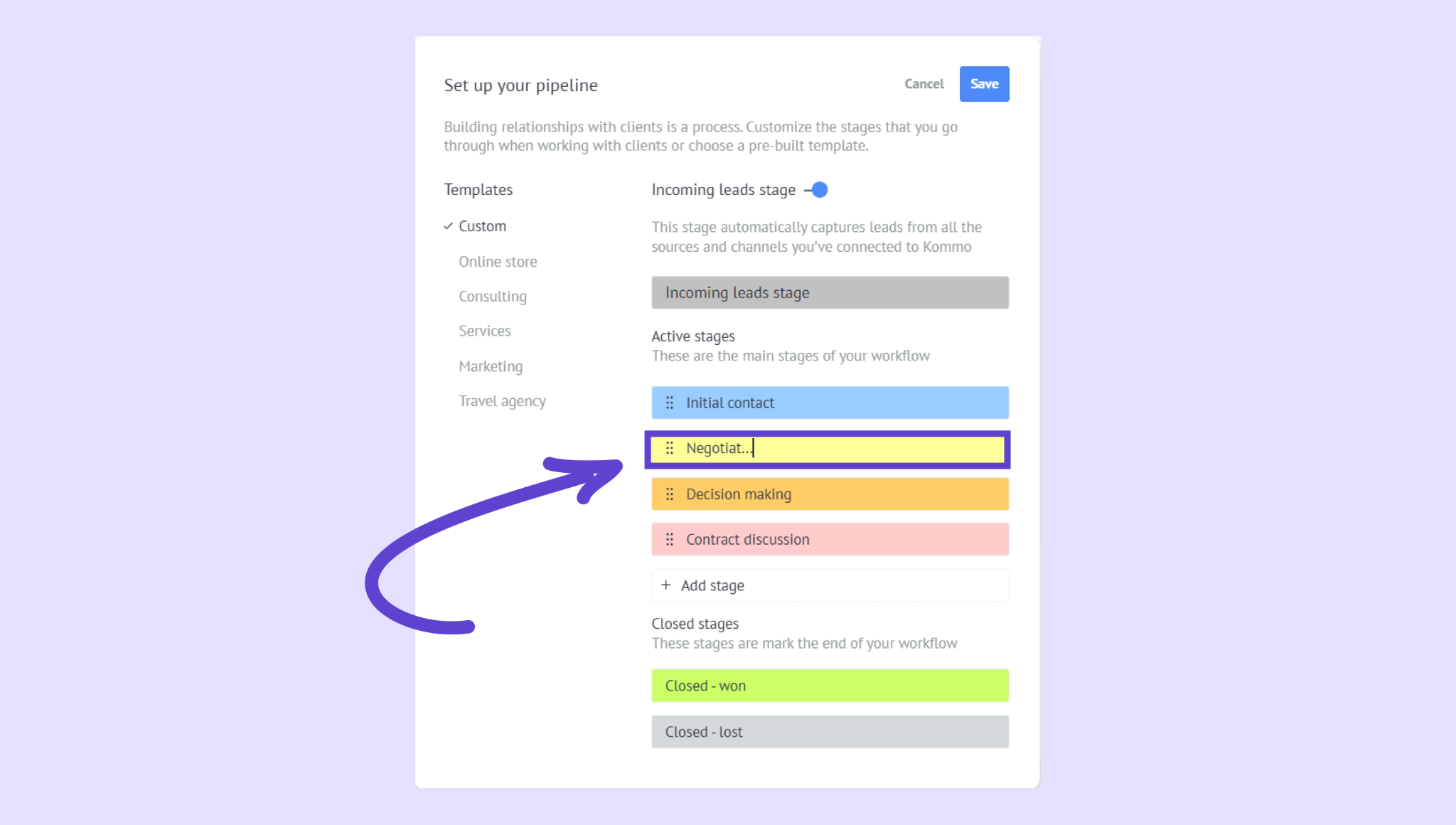
Edit pipeline stages to match your sales process (rename, reorder, add, or remove stages — admin only)
Move leads between stages using drag and drop
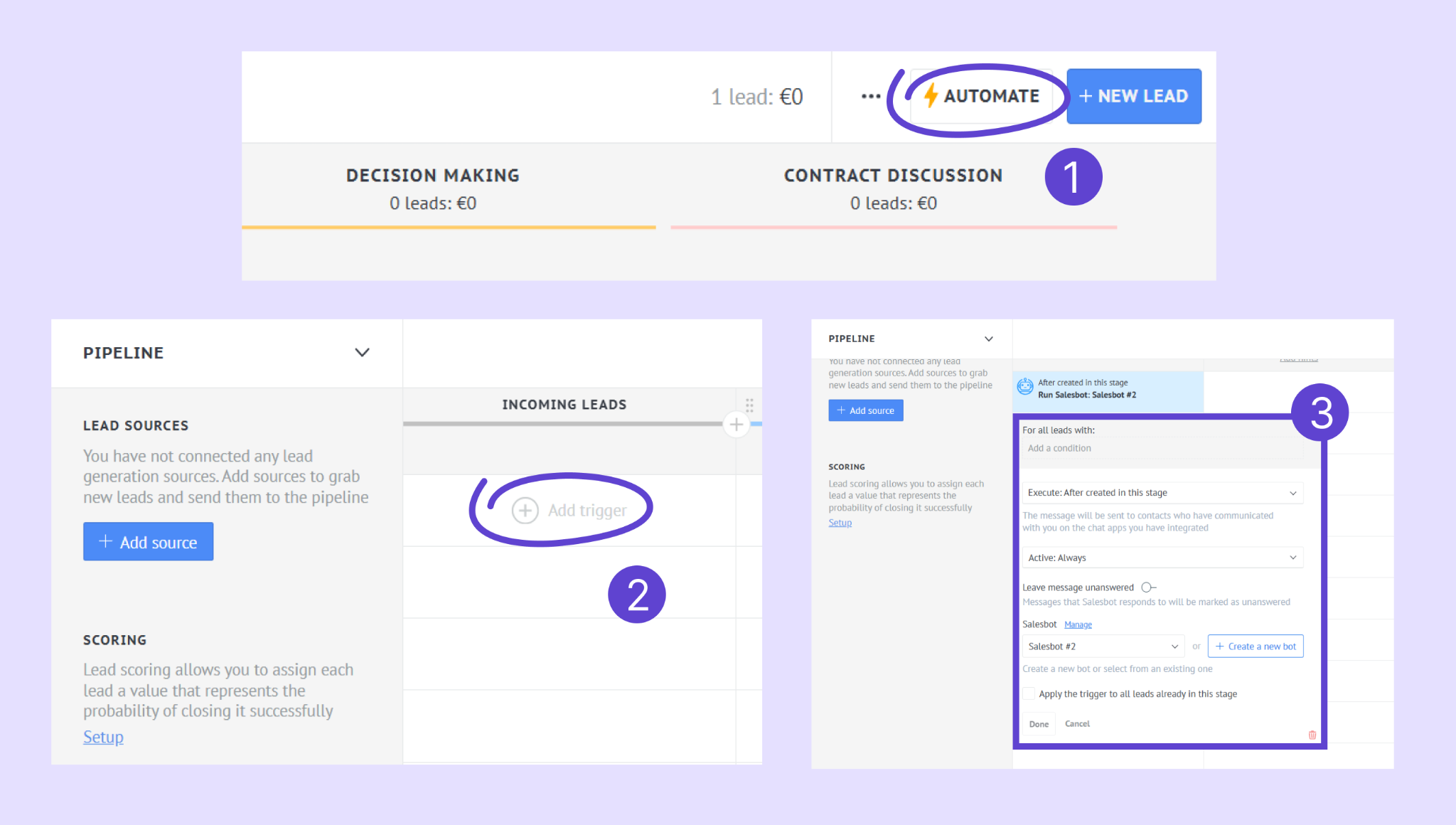
Create automations that trigger tasks, messages, or actions when a lead changes stage
Use filters to focus on specific leads, owners, stages, or statuses
Send broadcasts to reach multiple leads at once on supported channels
You can switch between:
Board view for a visual, stage-based overview
List view for a more detailed, table-style layout
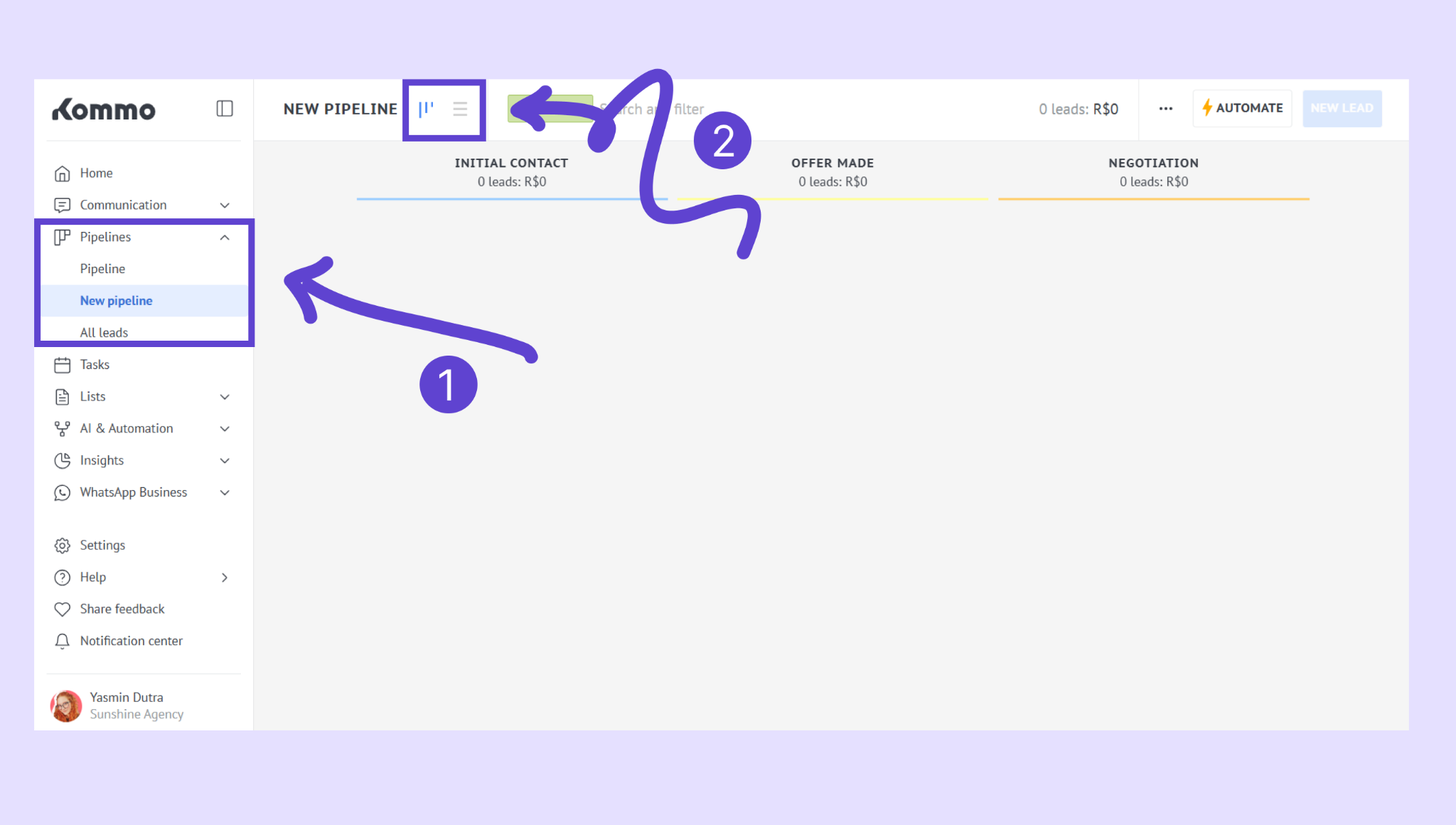
Note: Pipelines can be customized per team, product, or process. Each pipeline can have its own stages and rules.
Communication
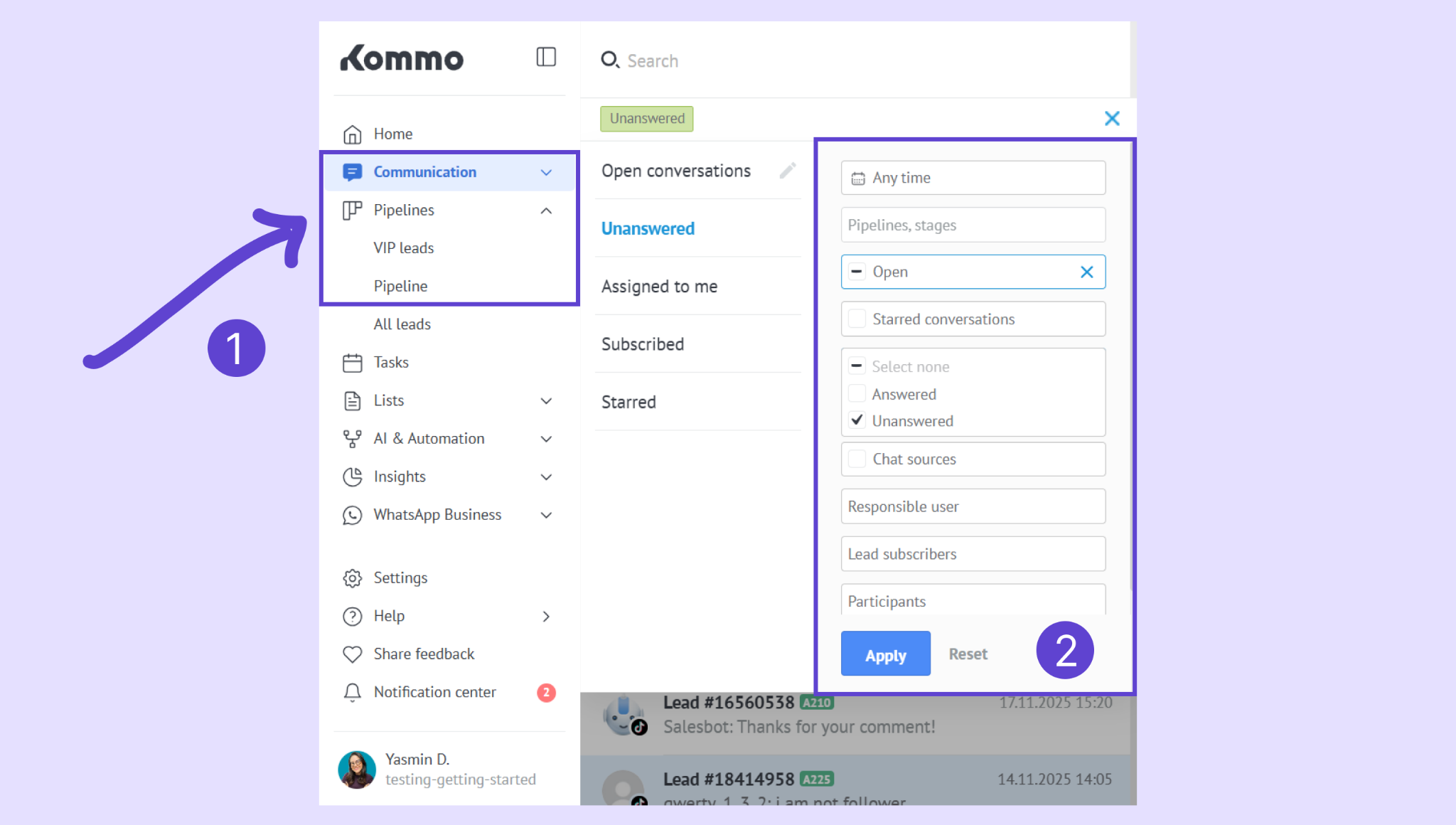
The Communication section is your shared inbox for both client conversations and internal team collaboration. Here you can:
Talk to clients across all connected channels (WhatsApp, Instagram, email, and more)
See the full conversation history linked to each lead
Reply faster using templates, AI suggestions, or quick actions
Assign tasks directly from a chat to follow up later
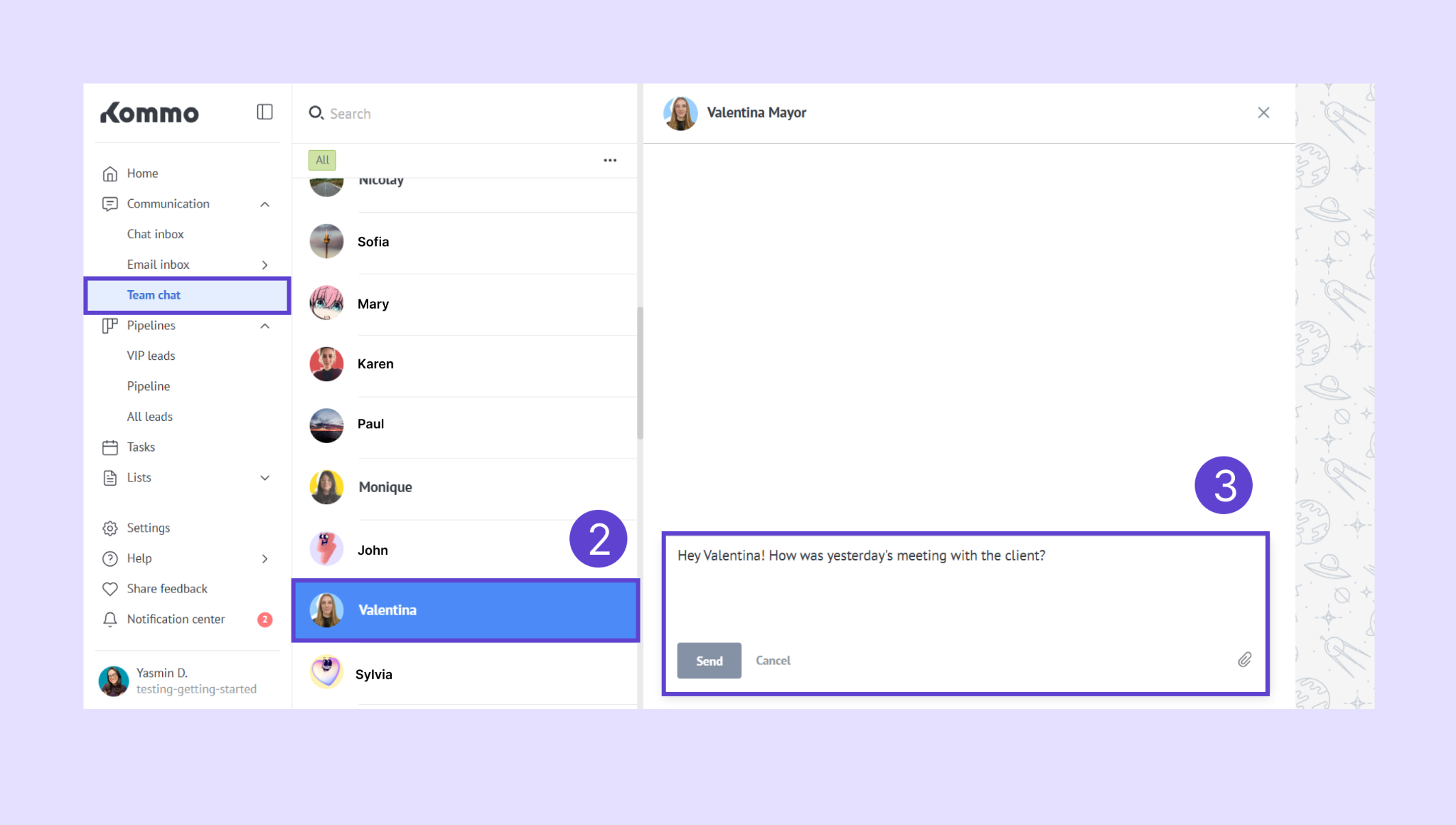
For team collaboration, you can:
Send internal messages that are visible only to teammates
Mention teammates to ask questions or hand off conversations
Coordinate responses without leaving the chat or switching tools
Use filters to:
Focus on specific channels, teammates, or unread conversations
Prioritize urgent or active chats
Tasks
Tasks help you stay on top of follow-ups and deadlines. From Tasks, you can:
View due, upcoming, and completed tasks
Switch between day, week, or month views
Track tasks created manually or automatically from pipelines and chats
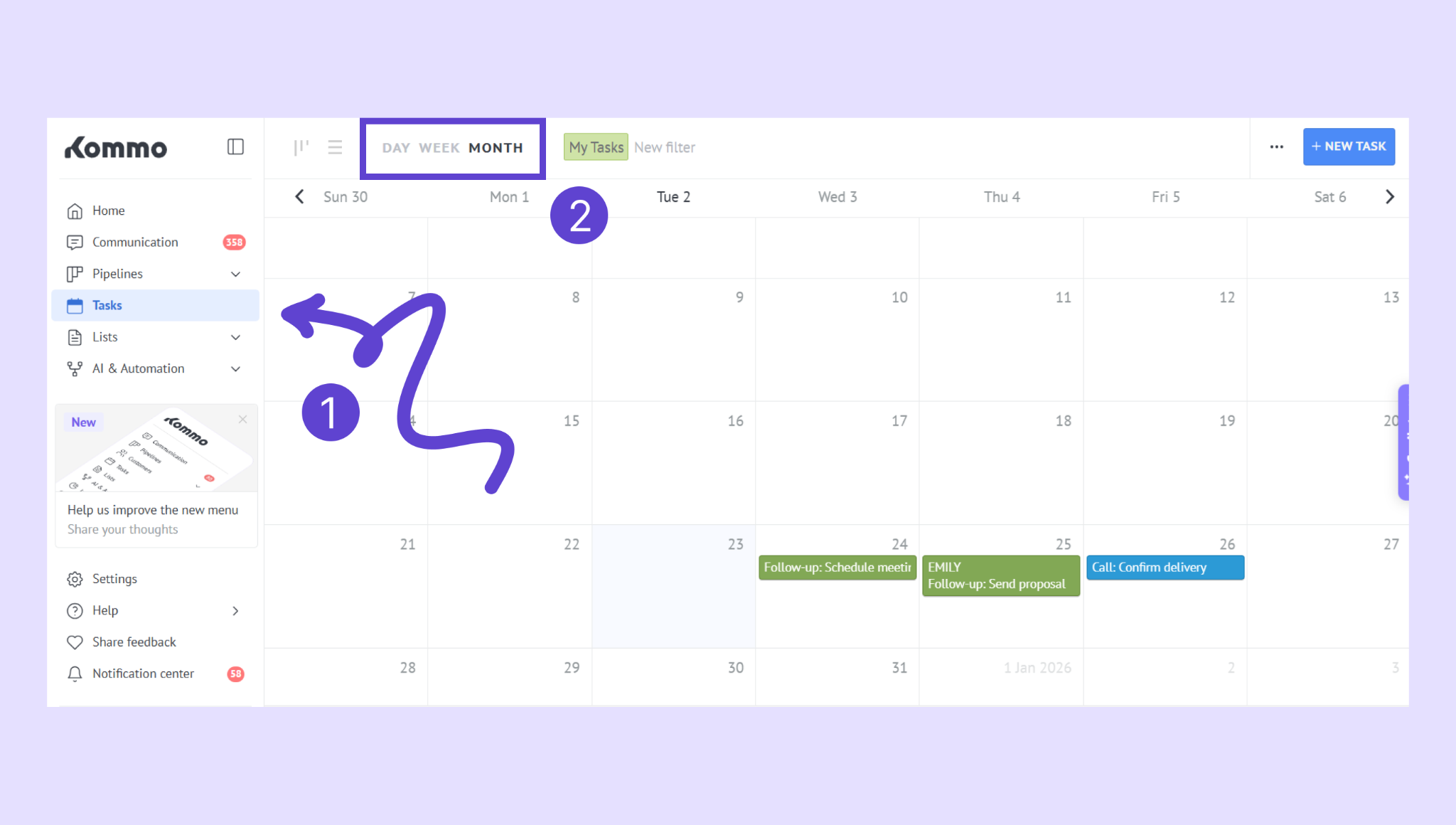
Tasks are always linked to leads or conversations, so you have full context when following up.
Lists
Lists give you structured views of your CRM data outside of pipelines. From Lists, you can:
View and manage Contacts, Companies, Media, and Products
Sort, filter, and search records across your entire workspace
Export data for reporting or backups (based on permissions)
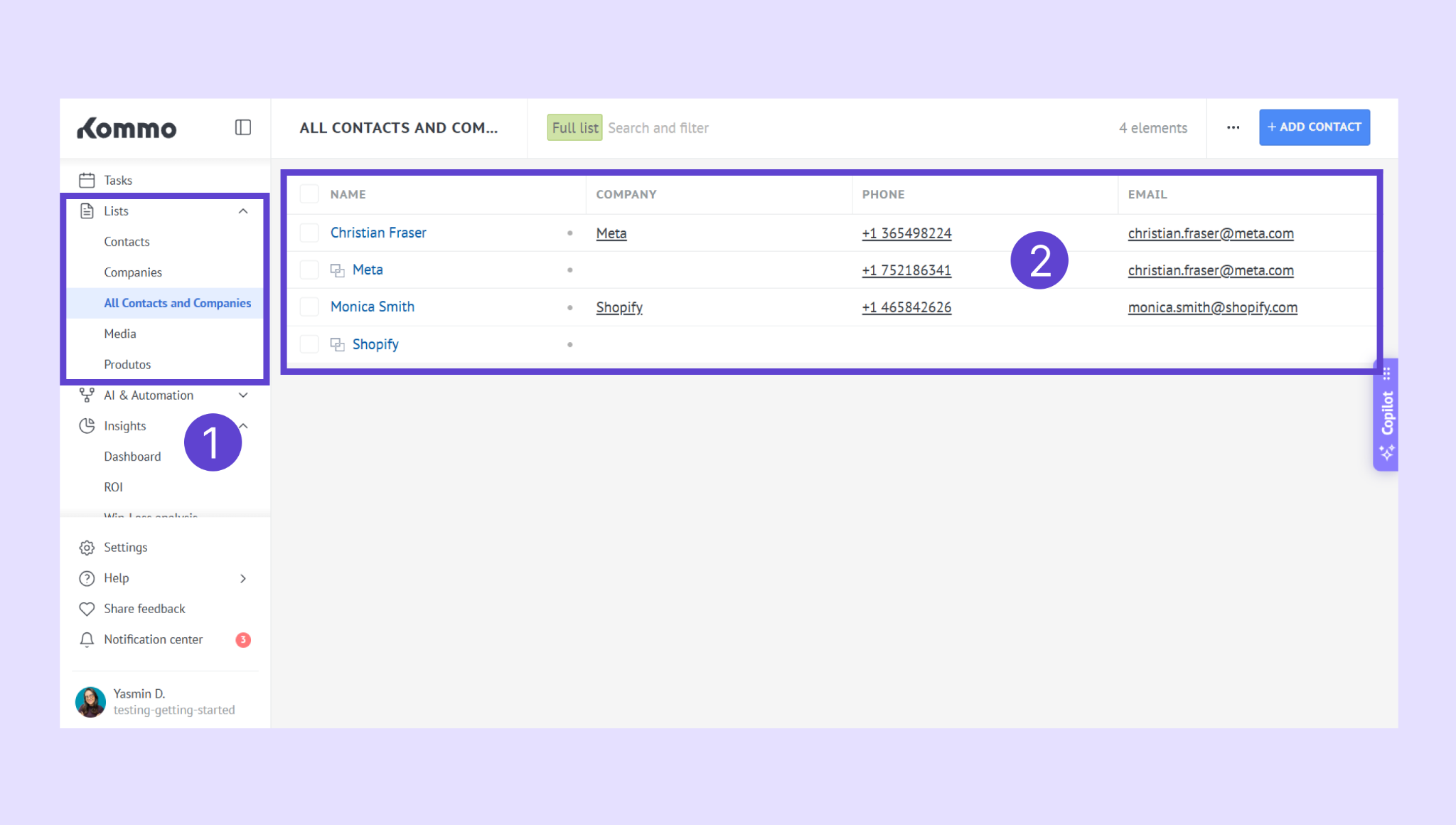
Lists are useful when you need a broader, data-focused view rather than a stage-based workflow.
AI & Automations
AI & automations help you reduce manual work and respond faster as conversation volume grows. From this section, you can:
Bots (Salesbot): Automate chat flows, follow-ups, assignments, and lead updates
Templates: Save and reuse common replies for faster, consistent responses
Broadcasting: Send messages to multiple leads at once on supported channels
Kommo AI: Get reply suggestions, summaries, and task prompts inside chats
AI agent: Automatically reply to incoming messages using your business rules
Knowledge sources: Control what information AI uses when replying to customers
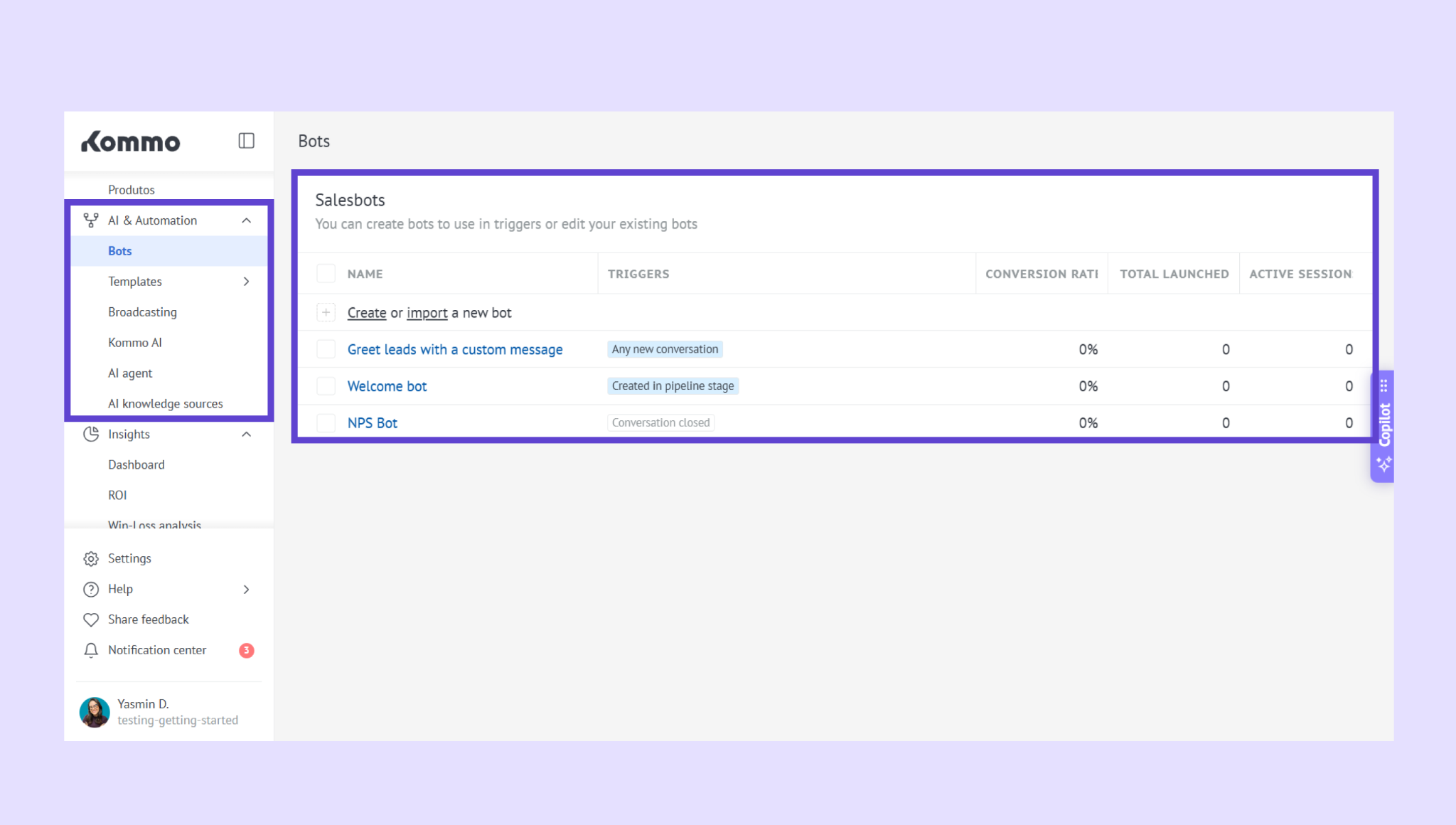
These tools help you automate routine communication while keeping conversations structured and controlled.
Insights
Insights help you understand how your team, pipelines, and conversations are performing — so you can spot trends, measure results, and improve your workflow. In Insights, you’ll find several reports, each focused on a different outcome:
Dashboard — Get a quick overview of your workspace. Track leads, tasks, and conversations at a glance, customize widgets, and switch time periods to spot trends.
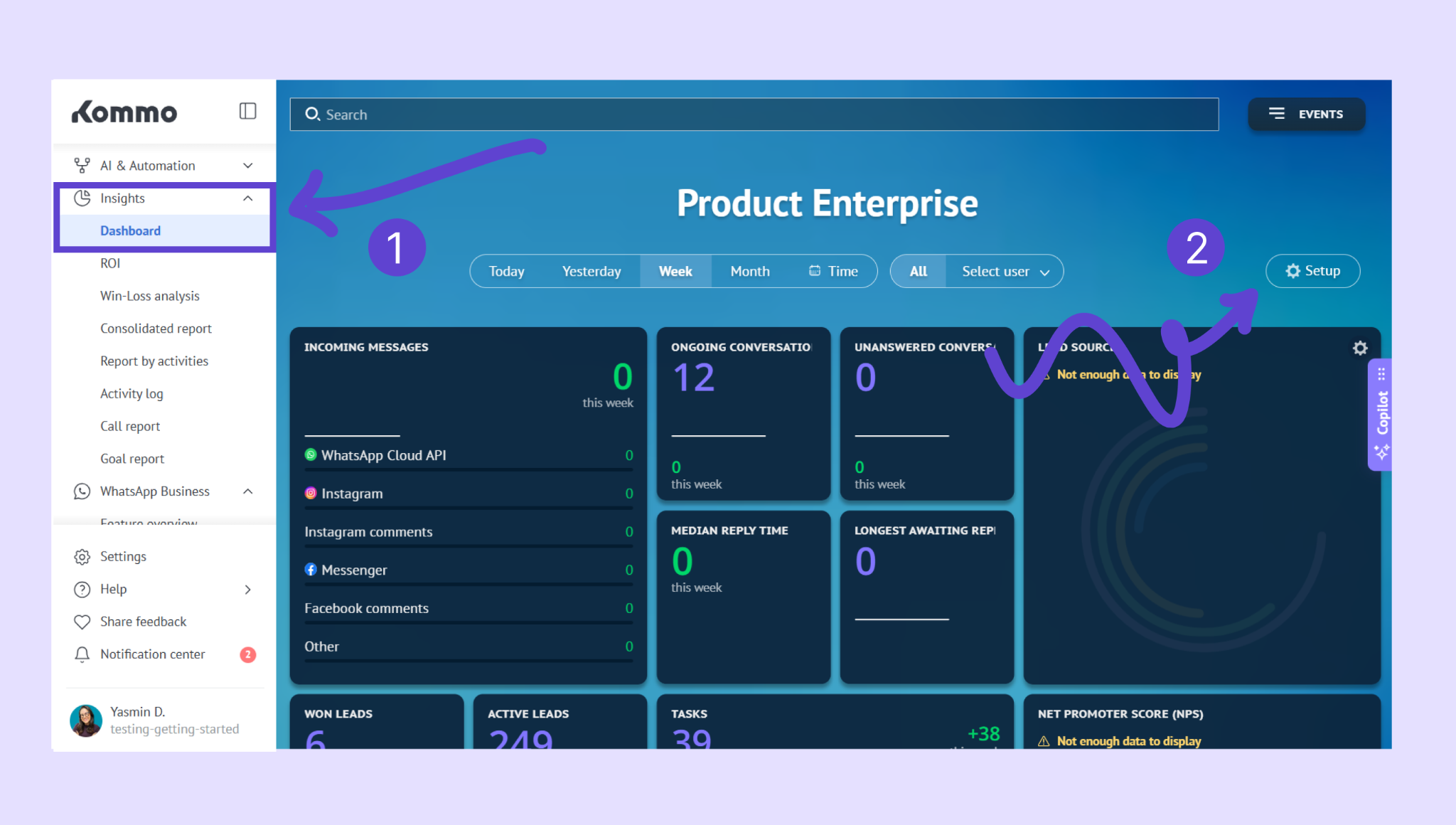
Win–Loss Analysis — See how leads move through your pipeline. Identify where deals convert or drop off, compare Closed-Won and Closed-Lost results, and analyze incoming leads and expected conversions.
Consolidated report — Review performance across leads, customers, tasks, and contacts in one place. Compare new leads with closed deals, measure conversion rates, and see lead distribution by stage or user.
Activity Log — Track everything that happens in your account. Review changes made by users or automations, filter events by type or date, and turn key actions into dashboard widgets.
Call report — Analyze call activity from connected calling integrations. Review call history, durations, recordings, and open related leads or contacts directly from the report.
Goal report — Set and track targets for your team. Monitor progress by month, quarter, or year, based on revenue or closed leads.
ROI reports — Measure how your spending turns into revenue. Combine costs like ads, paid templates, broadcasts, or services with lead revenue to see which efforts bring real return and where to invest more.
Note: Some reports and advanced analytics are available only on Advanced or Enterprise plans.
Settings
Settings is where you configure how your Kommo workspace works. From this section, you can:
Profile settings: Update your personal details, language, notifications, and security options.
Workspace settings: Configure global options like timezone, currency, and workspace preferences (Admin only).
Chat settings: Adjust chat behavior, message handling, and conversation rules.
Email settings: Connect and manage email accounts used in Kommo.
Billing: Manage your subscription, payment methods, invoices, and recurring payments.
User management: Add users, assign roles, set permissions, and manage access.
Integration marketplace: Connect messaging channels, tools, and third-party apps.
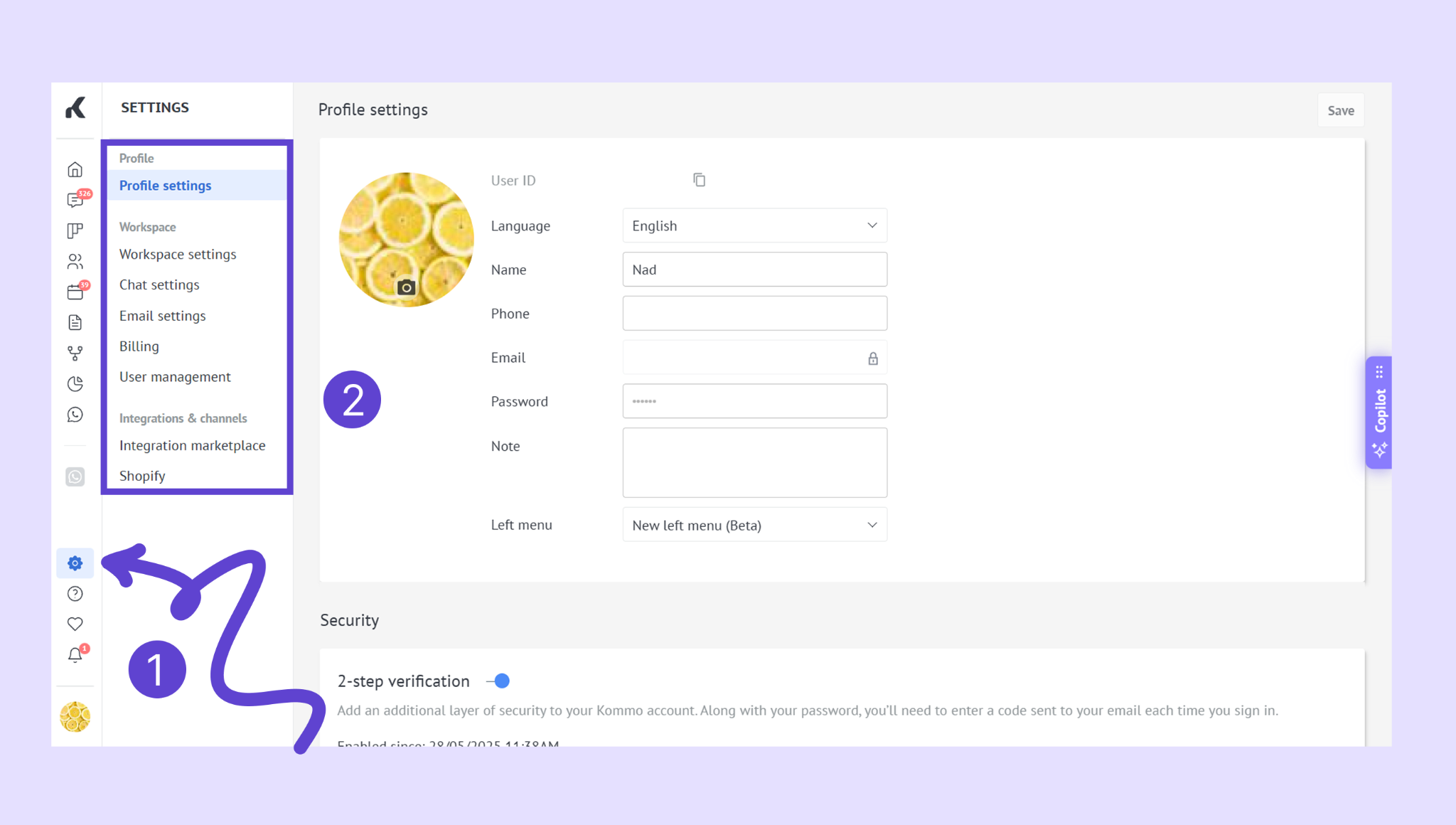
Note: Most workspace-wide settings require Admin access.
If you need more help with setup or troubleshooting, feel free to reach out to our support chat or contact us via WhatsApp. You can also hire a Kommo partner to do all the hard work for you.
Not a user yet? Sign up for our 14-day free trial or book a free live demo.