What you’ll need:
Any Kommo plan (Base, Advanced, Pro, Enterprise, or 14-day trial).
In Kommo, your client database is built by linking leads, contacts, and companies together. Connecting records brings everything together — who your clients are, where they work, and which sales opportunities they're involved in.
This article explains how to link leads, contacts and companies together.
Link records together
In Kommo, contacts and leads serve different purposes. A contact is a person — a potential or existing client. A lead is a sales opportunity that moves through your pipeline stages.
One contact can be linked to multiple leads — for example, if they purchased different products or services.
Linking contacts and leads together gives you a clear picture of your sales opportunities and lets you see all the details in one place.
To link a lead to a contact:
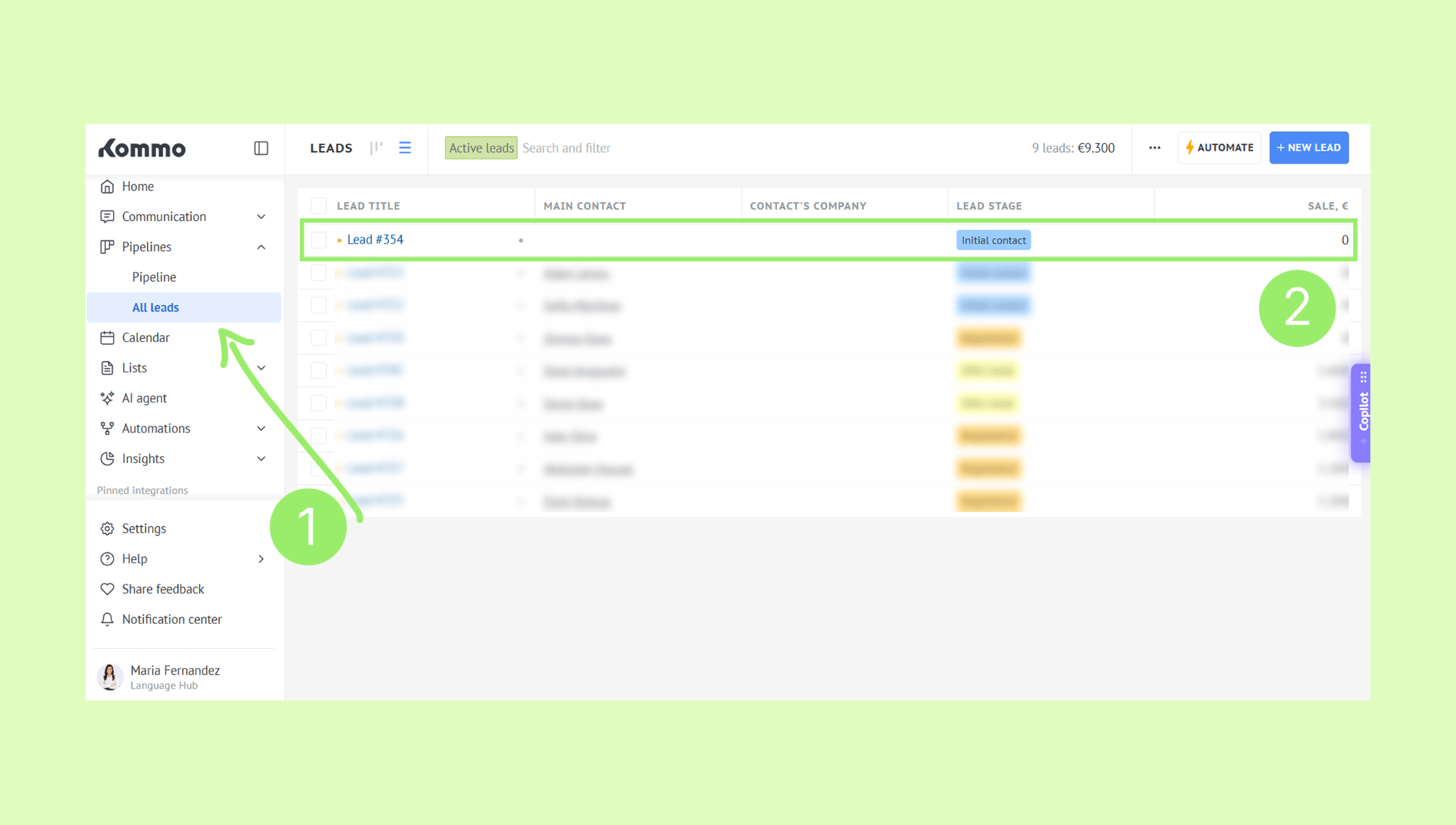
Go to Pipelines → All leads → Click a lead to open the lead card.
Click Add contact and enter a name - matching contacts will be suggested.
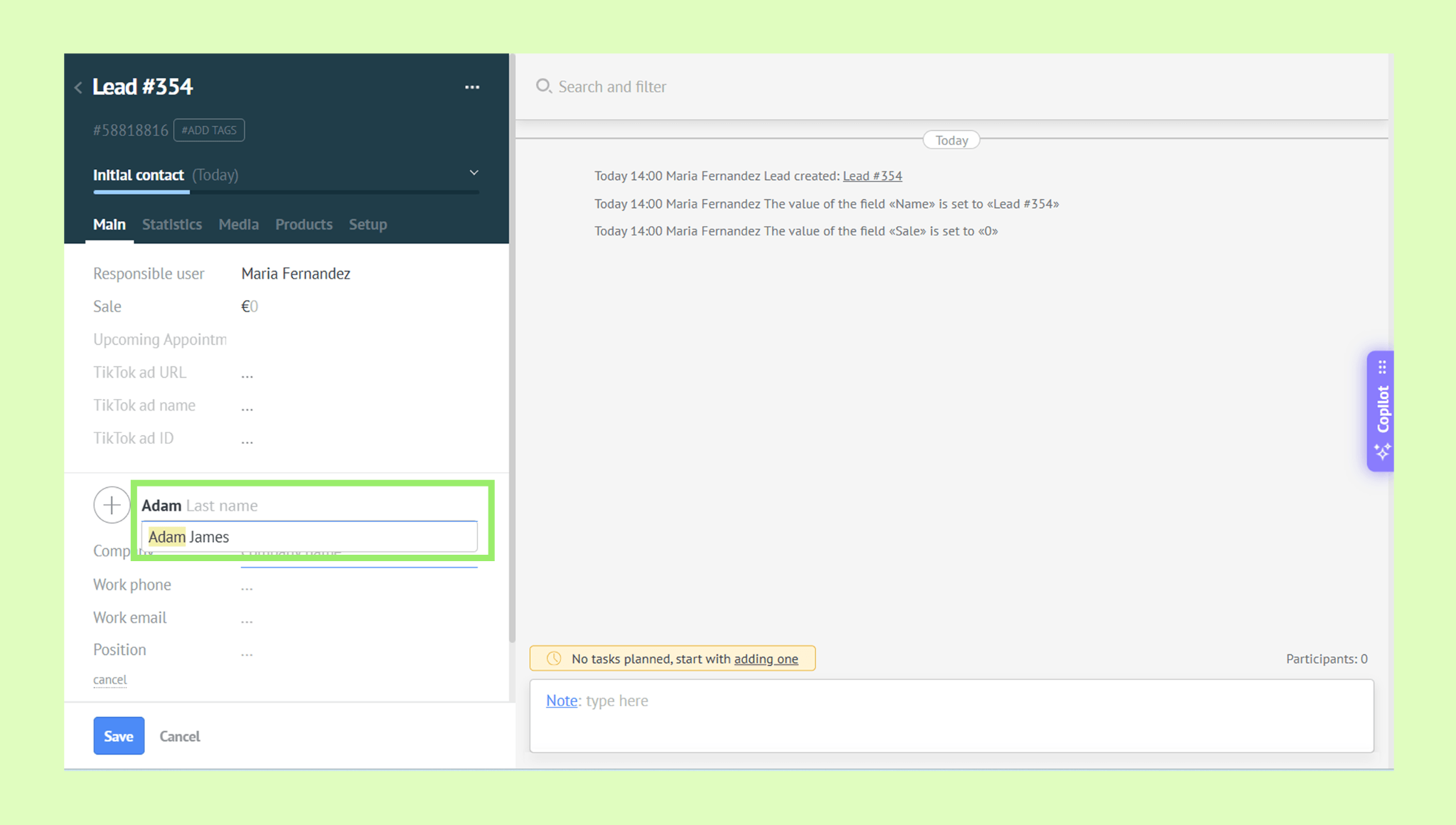
Select the contact to link it to the lead.
The contact’s information will be added to the lead, and changes are saved automatically.
Note: To link a lead to a company, follow the same steps, but click Add company instead.
Update a linked contact
Go to Pipelines → All leads → Click a lead to open the lead card.
Click the three dots (⋯) next to the contact’s name and select Unlink.
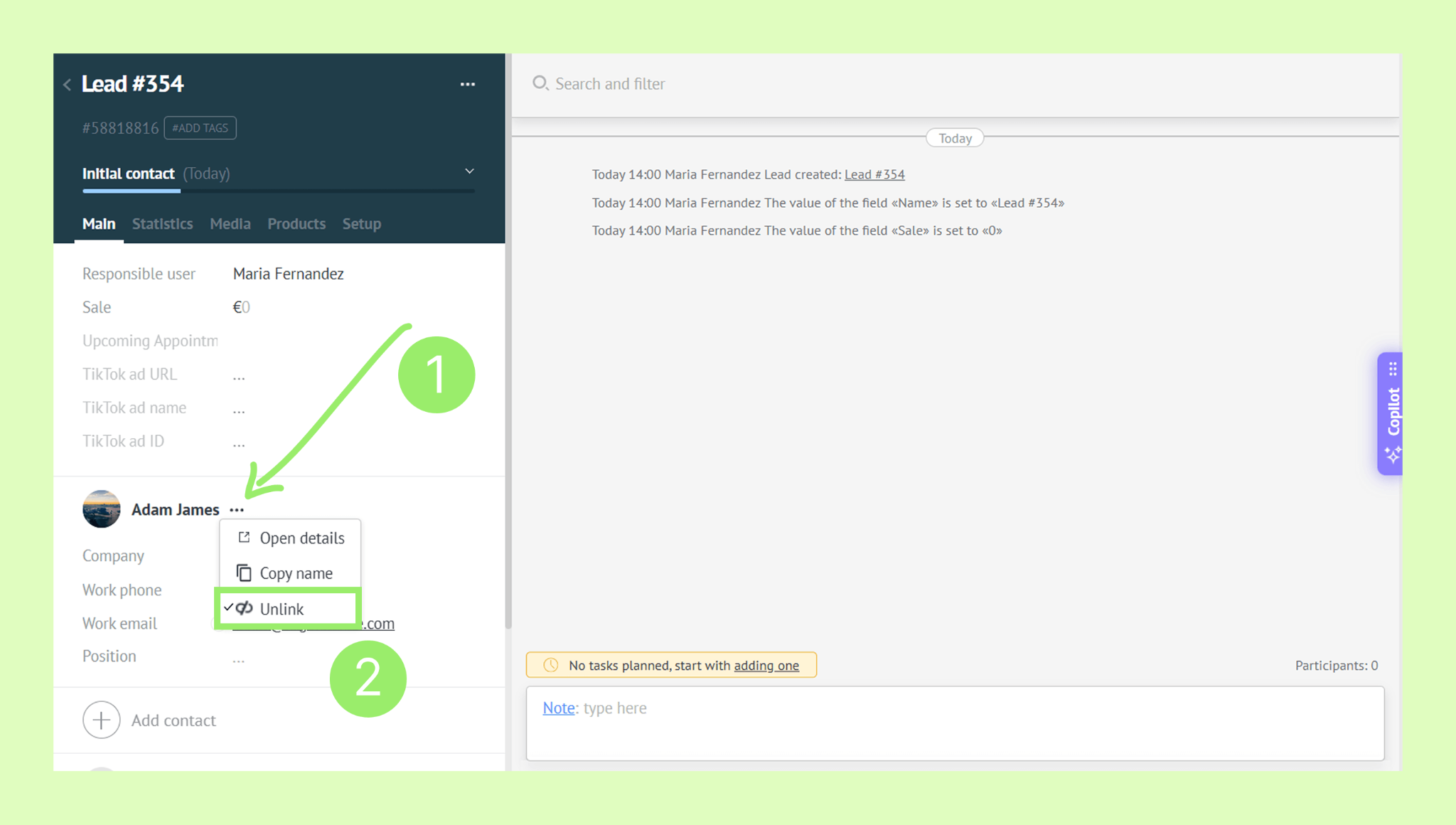
Confirm the action.
Click Add contact → Select the new contact.
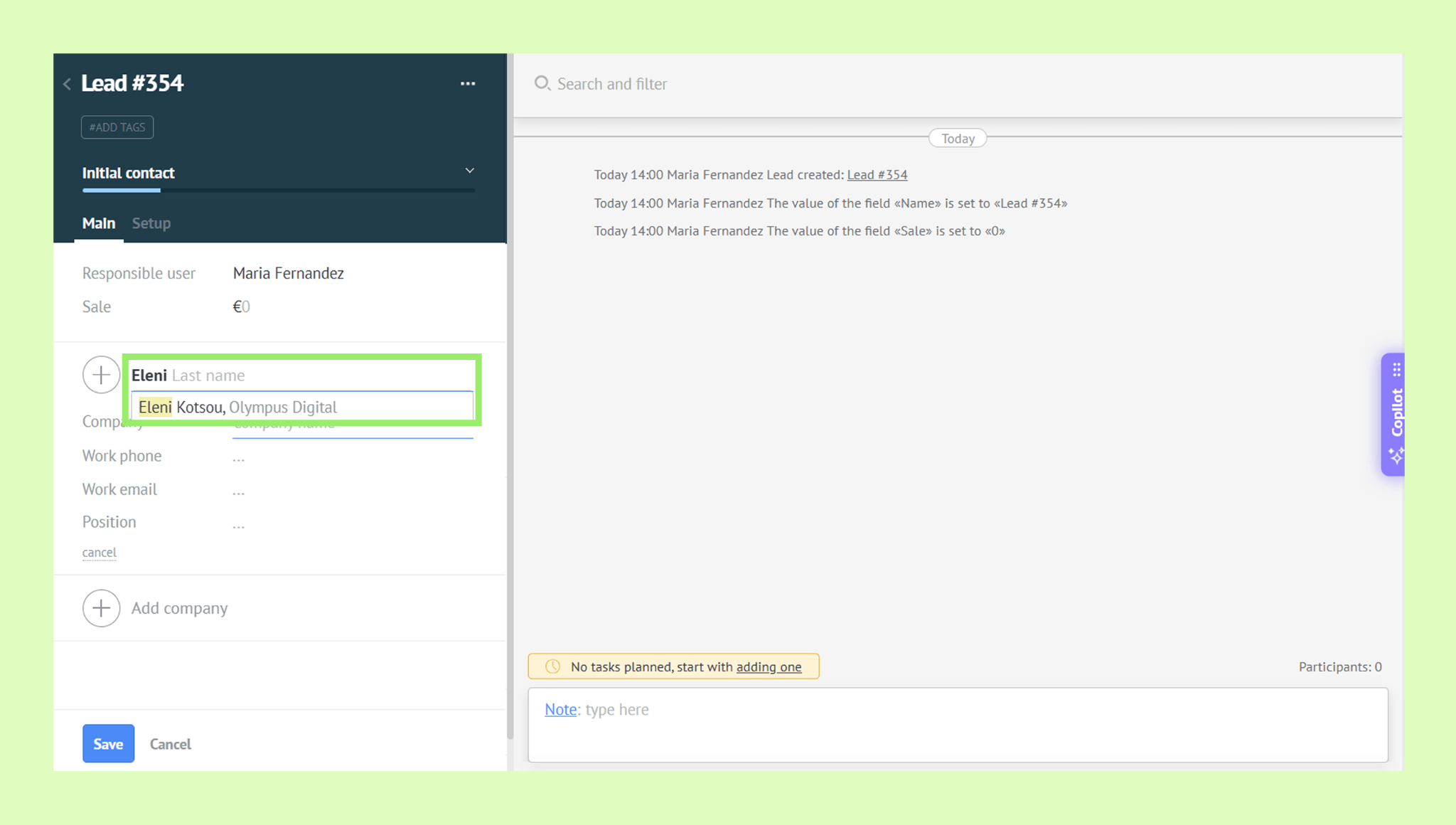
Your changes will be saved automatically.
Note: To update a linked company, follow the same steps using the three dots (⋯) next to the company name.