What you’ll need:
Any Kommo plan (Base, Advanced, Pro, Enterprise, or 14-day trial)
Keep in mind:
Each Kommo plan includes a limited number of leads, contacts, and companies. You can view the exact limits here
In Kommo, your client database is built around three record types: leads, contacts, and companies.
Leads represent your sales opportunities, contacts store information about the people you do business with, and companies are business accounts. All three can be linked together and tracked over time — giving you a full picture of every client and their purchases.
This article explains how to manage your records — one by one or in bulk.
Manage leads, contacts, and companies individually
Add a lead
Leads can be created manually or automatically.
To create leads manually, add them one by one as shown below.
To create leads automatically, connect a channel — such as WhatsApp, Facebook, Instagram, or Telegram — to Kommo. Once connected, every incoming message from that channel will turn into a new lead in your pipeline. Learn how to connect channels in this article.
Go to Pipelines → All leads and click + New lead.
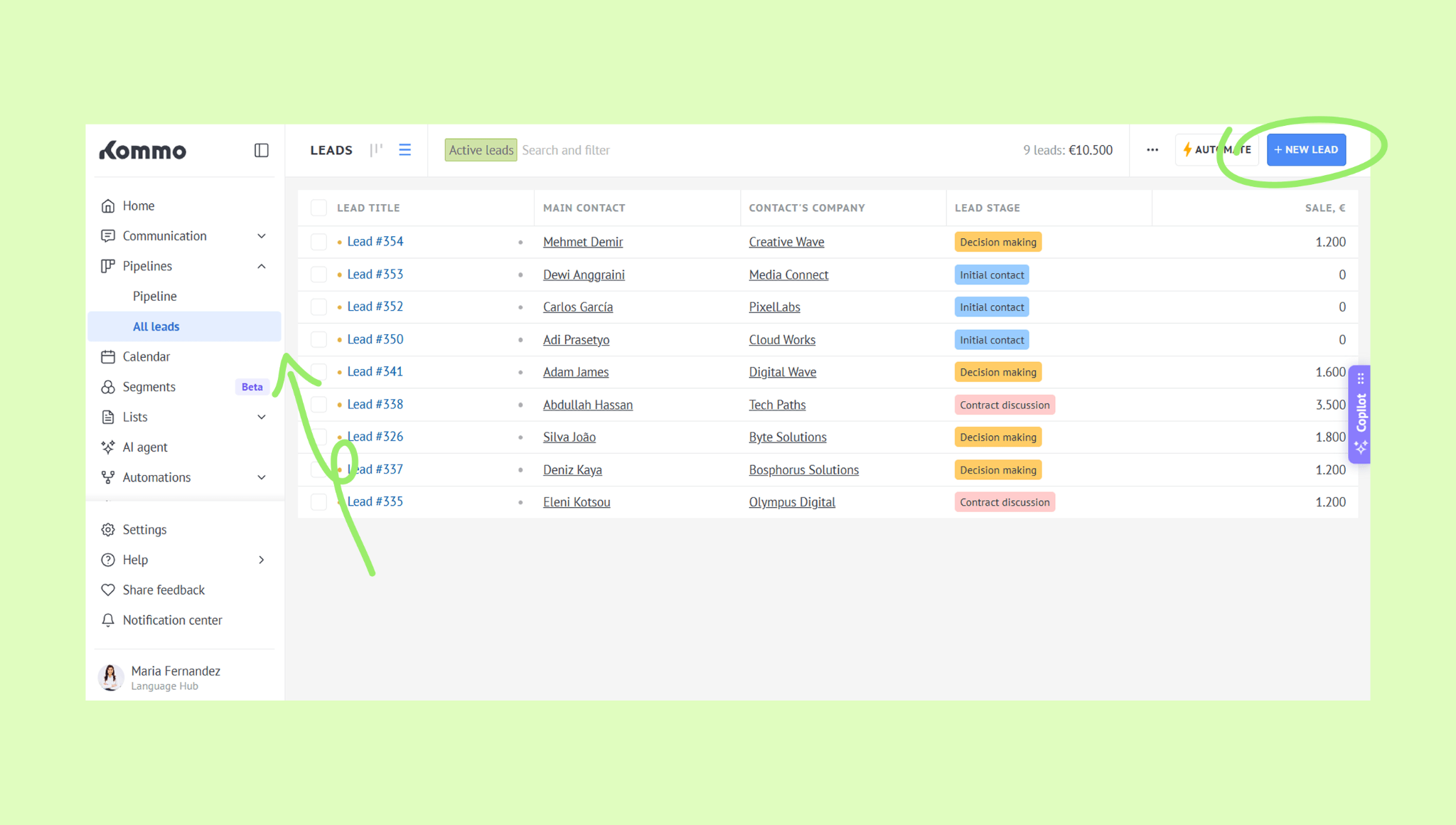
Fill in the lead details:
Enter the lead's name
Add a tag
Select a pipeline and a stage
Assign a responsible user
Enter the sale amount
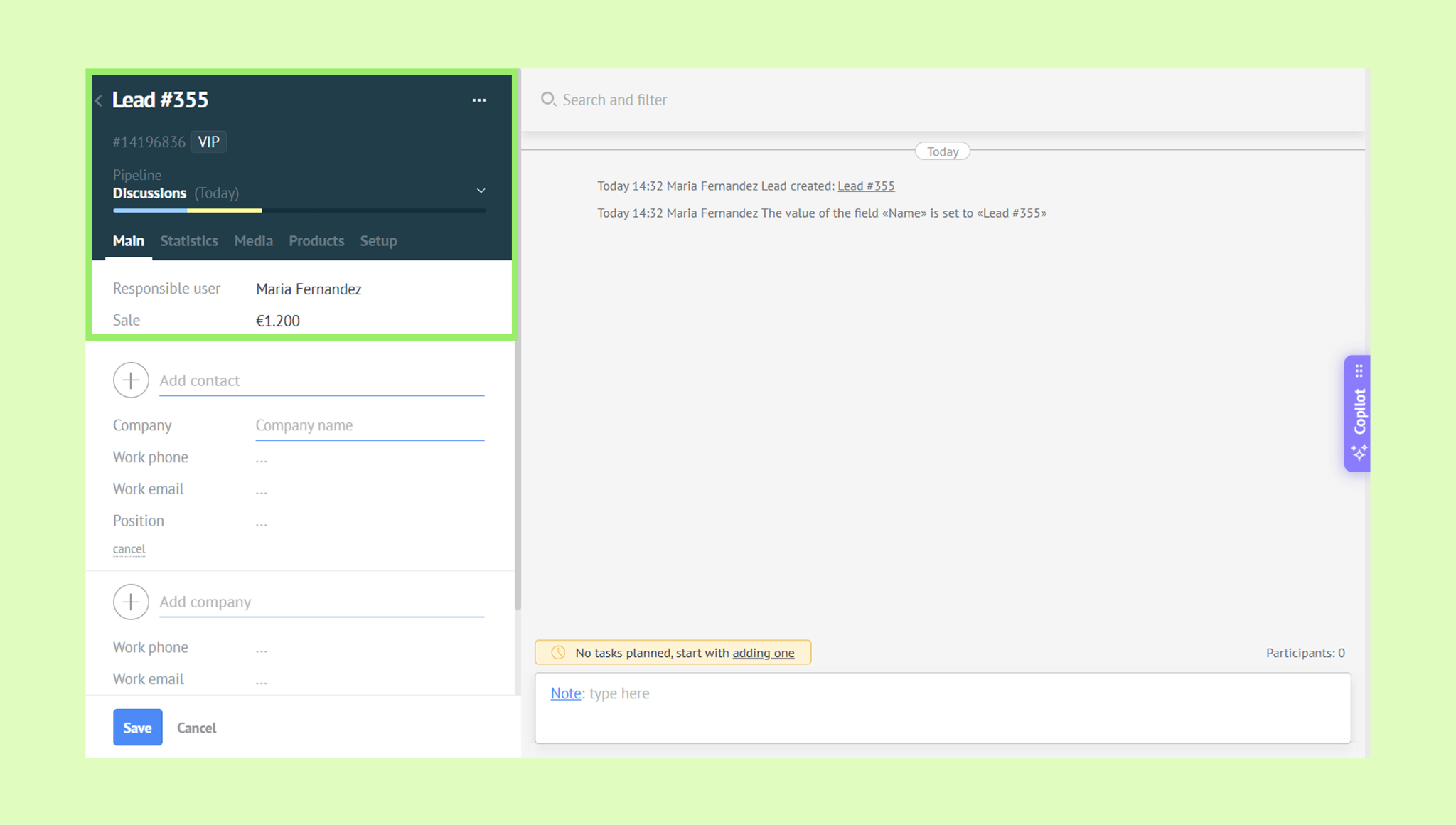
To link a contact (optional): Click + Add contact and enter their name, phone, email, company name, and position.
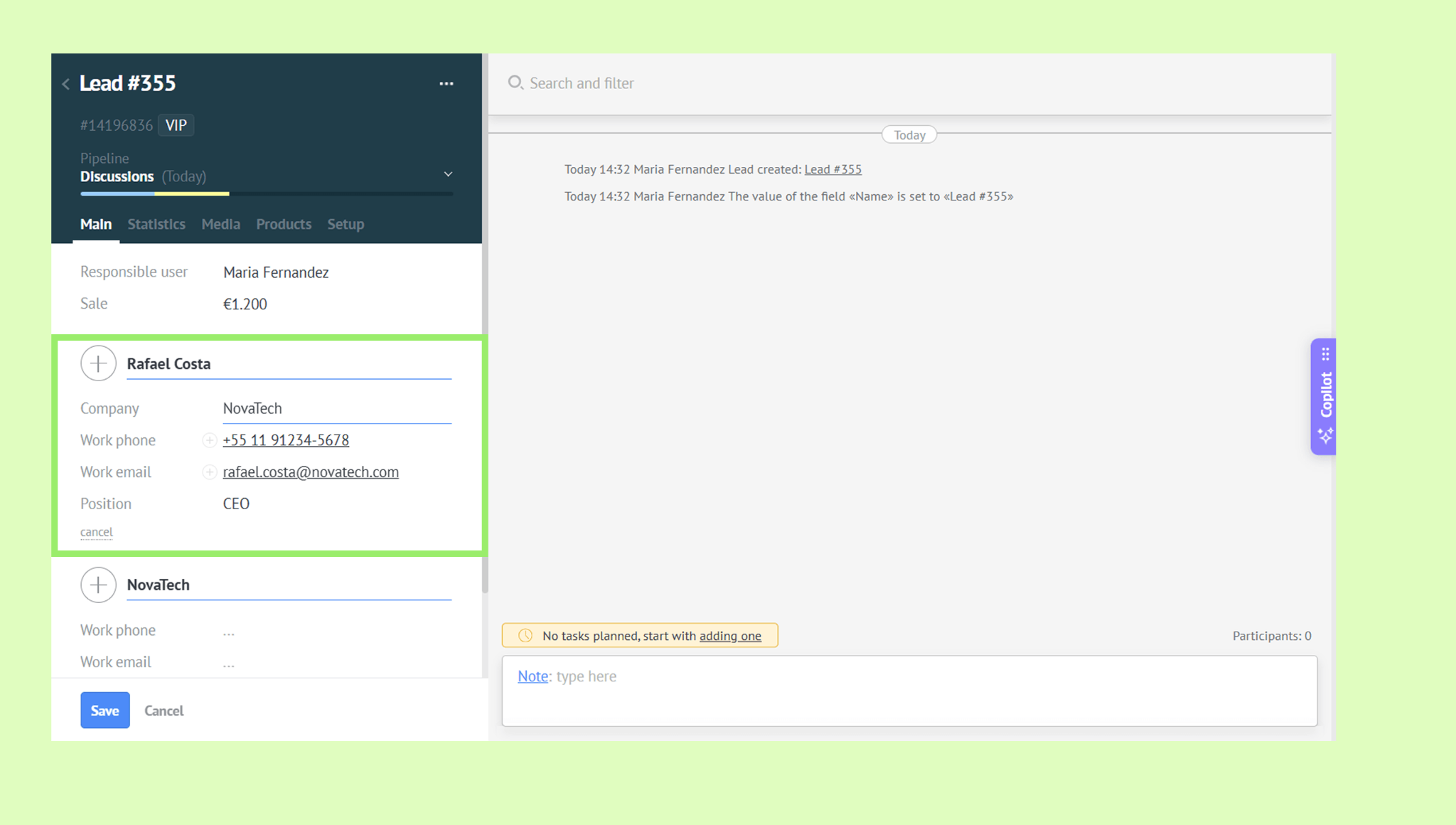
Kommo will automatically create a contact record — you can find it in Lists → Contacts.
To link a company (optional): Click + Add company and enter the company's name, phone, email, website, and address.
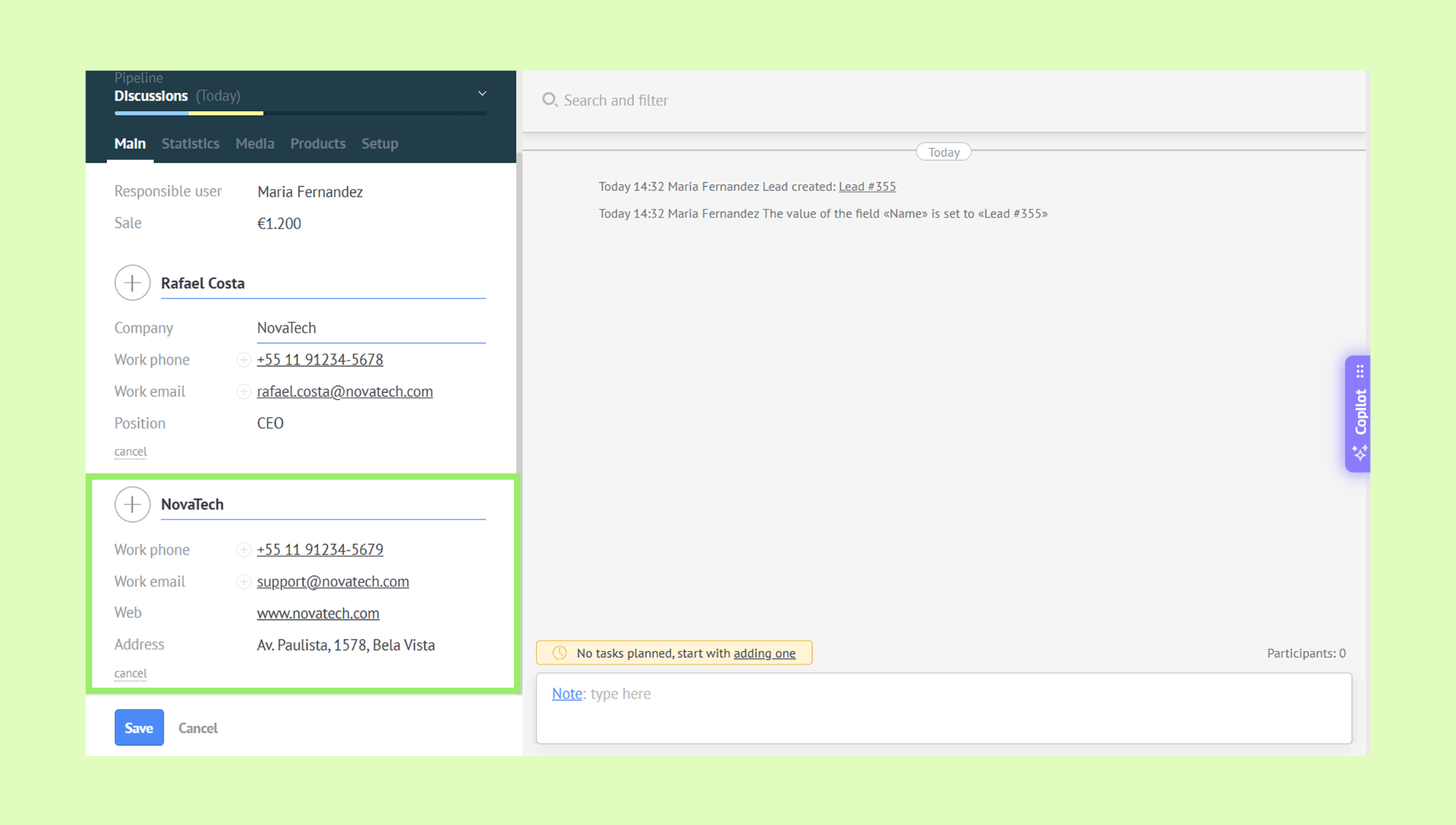
Kommo will automatically create a company record — you can find it in Lists → Companies.
Click Save.
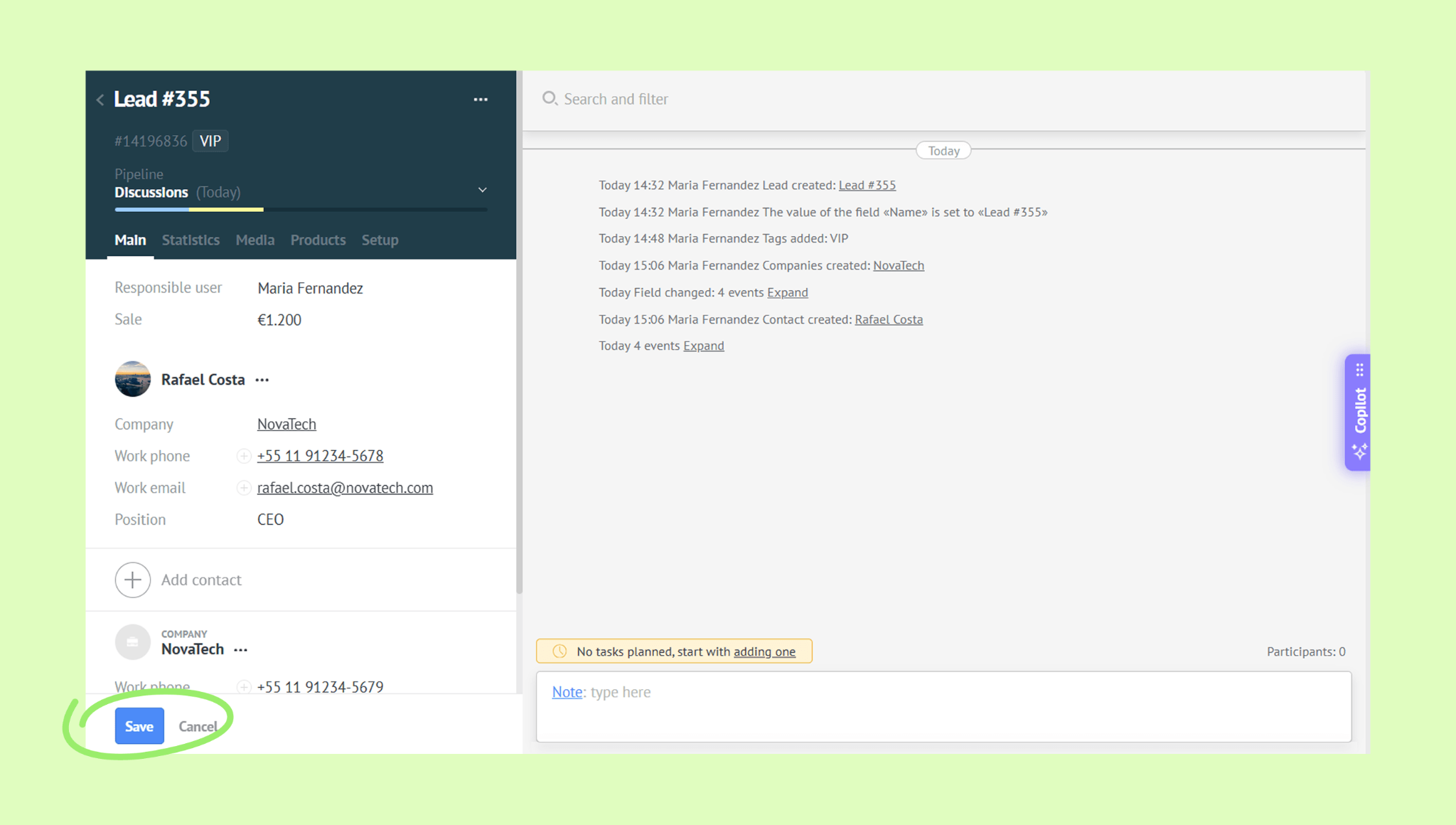
You can also add contacts and companies separately — go to Lists → Contacts or Companies and click +Add contact or +Add company.
Tip: To store additional details on a lead — like a birthday, preferred contact method, or a loyalty card number — use custom fields. Learn how in this guide.
Note: You can add leads, contacts, and companies in bulk by importing them from a file or a spreadsheet. For step-by-step instructions, see this article.
Edit a lead
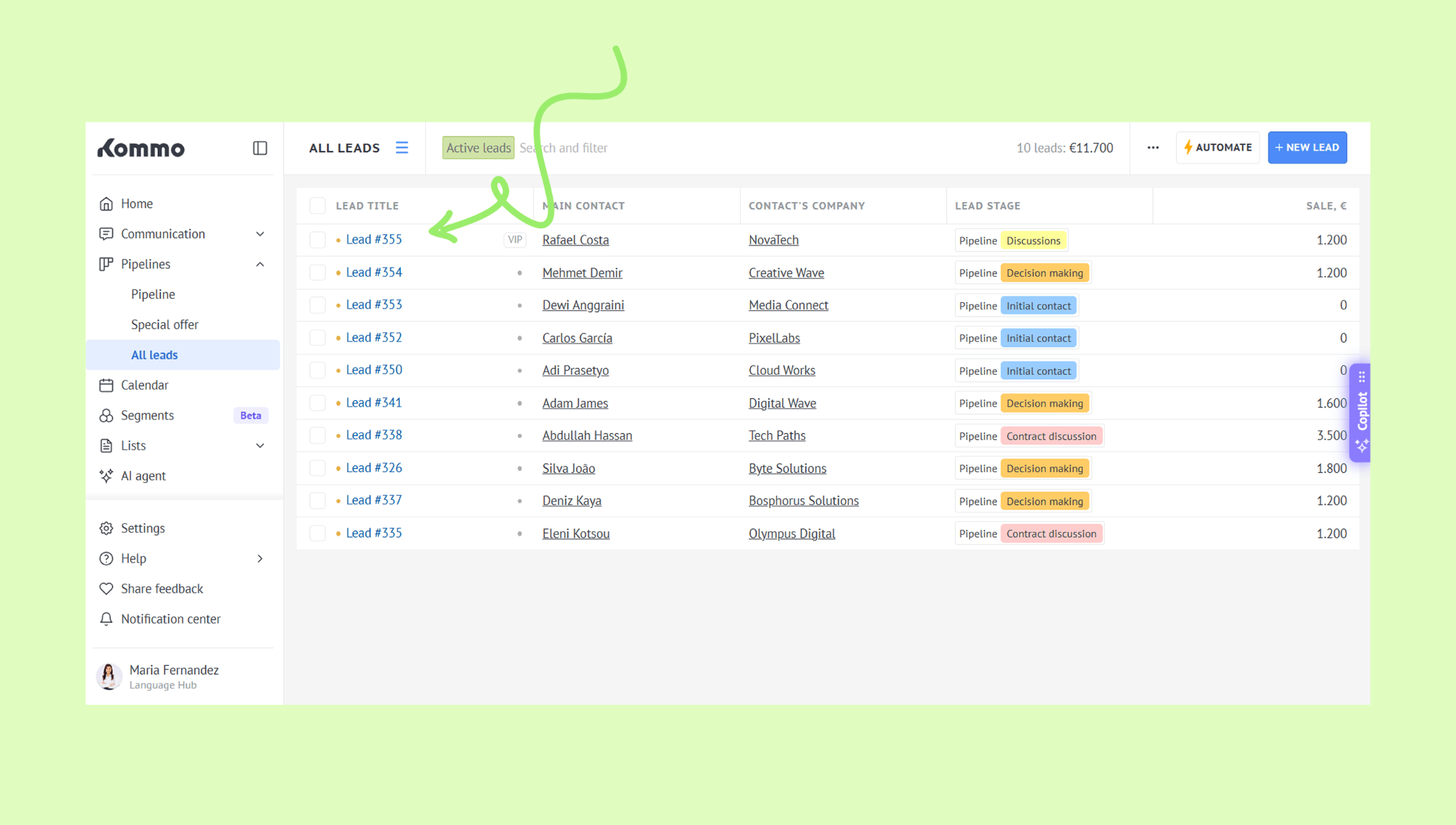
Go to Pipelines → All leads and click the lead's name to open it.
Click the field you want to edit and make your changes.
Click Save.
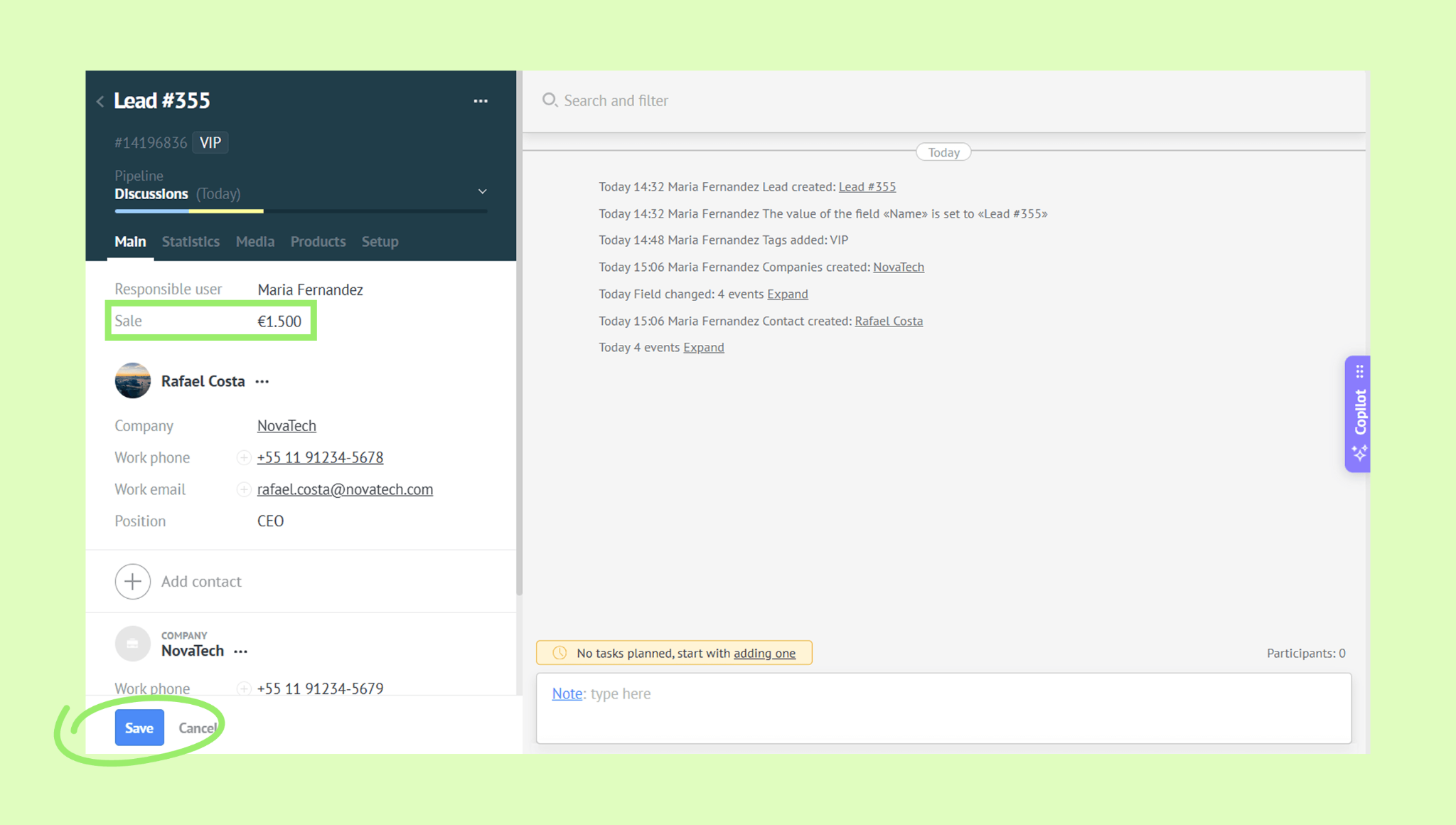
You can also edit contacts and companies the same way — go to Lists → Contacts or Companies, click the record's name to open it, make your changes, and click Save.
Tip: You can edit linked contact and company details directly from the lead's profile – no need to open a separate record. Learn how to do that in this article.
Delete a lead
Go to Pipelines → All leads and click the lead's name to open it.
Click … → Delete lead.
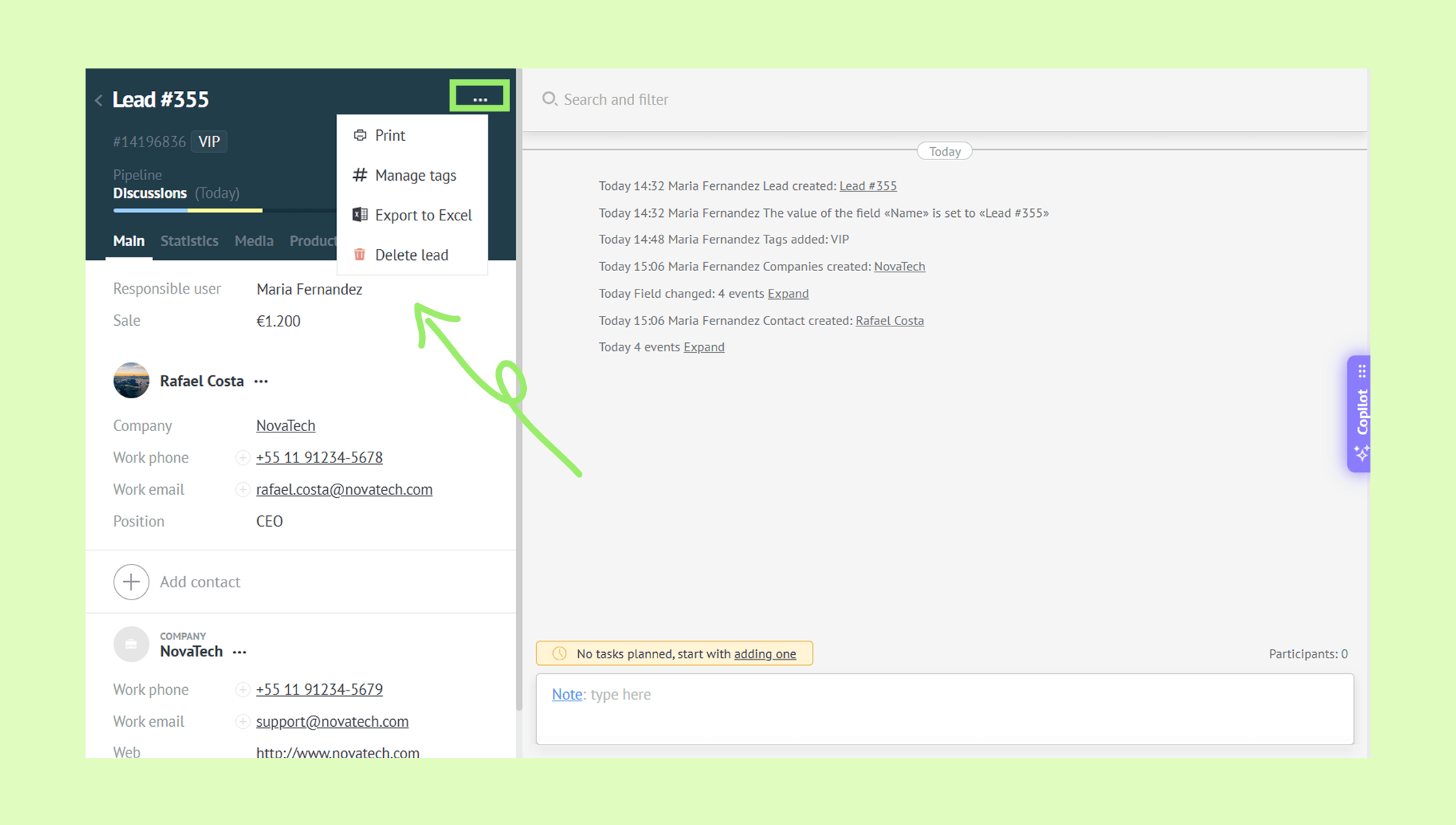
Confirm deletion.
You can also delete contacts and companies the same way — go to Lists → Contacts or Companies, click the record's name to open it, and click … → Delete contact or Delete company.
Manage leads, contacts, and companies in bulk
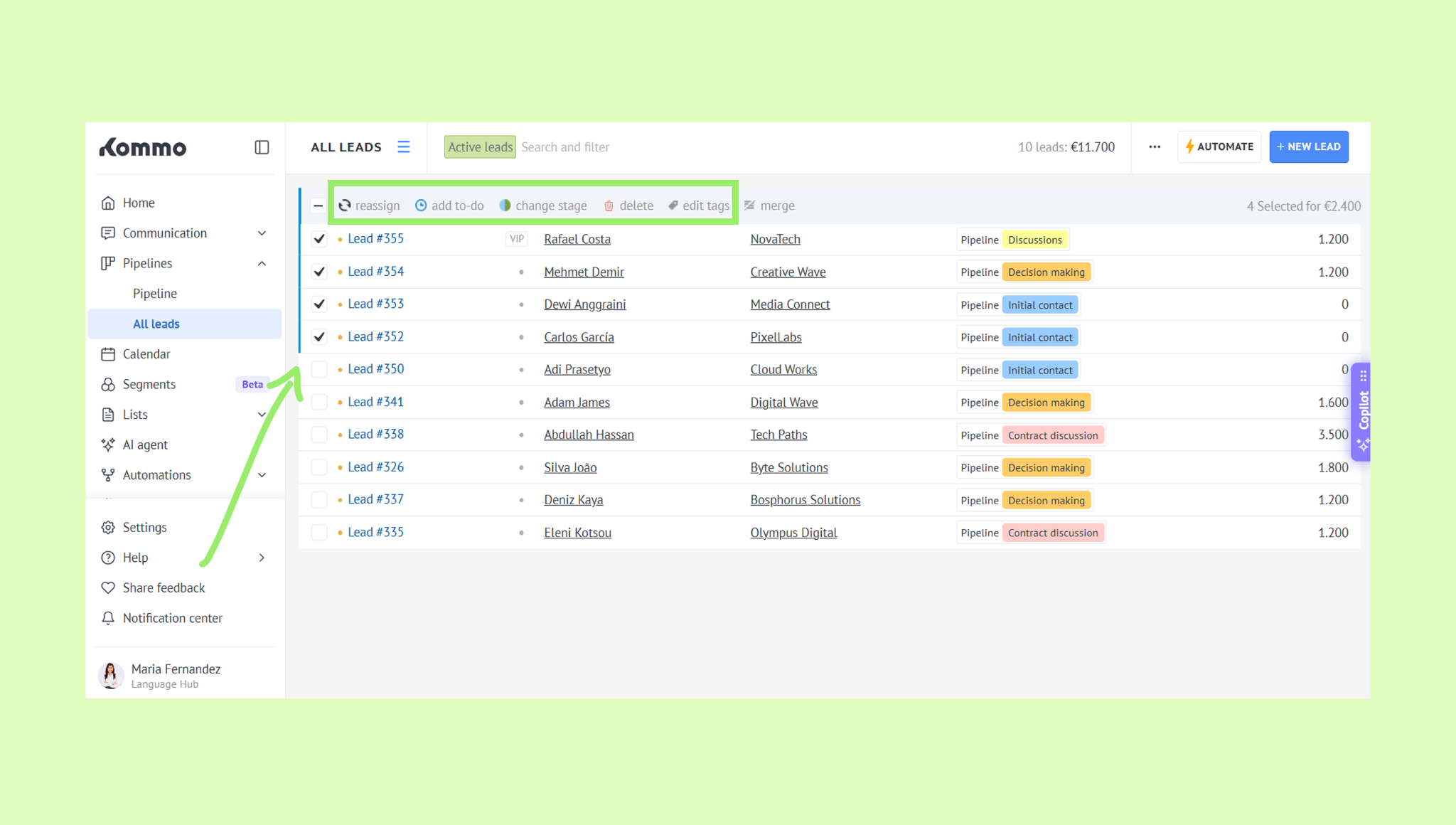
Go to Pipelines → All leads and select the leads you want to update.
Choose an action from the toolbar — reassign a user, add a to-do, change the stage, edit tags, or delete.
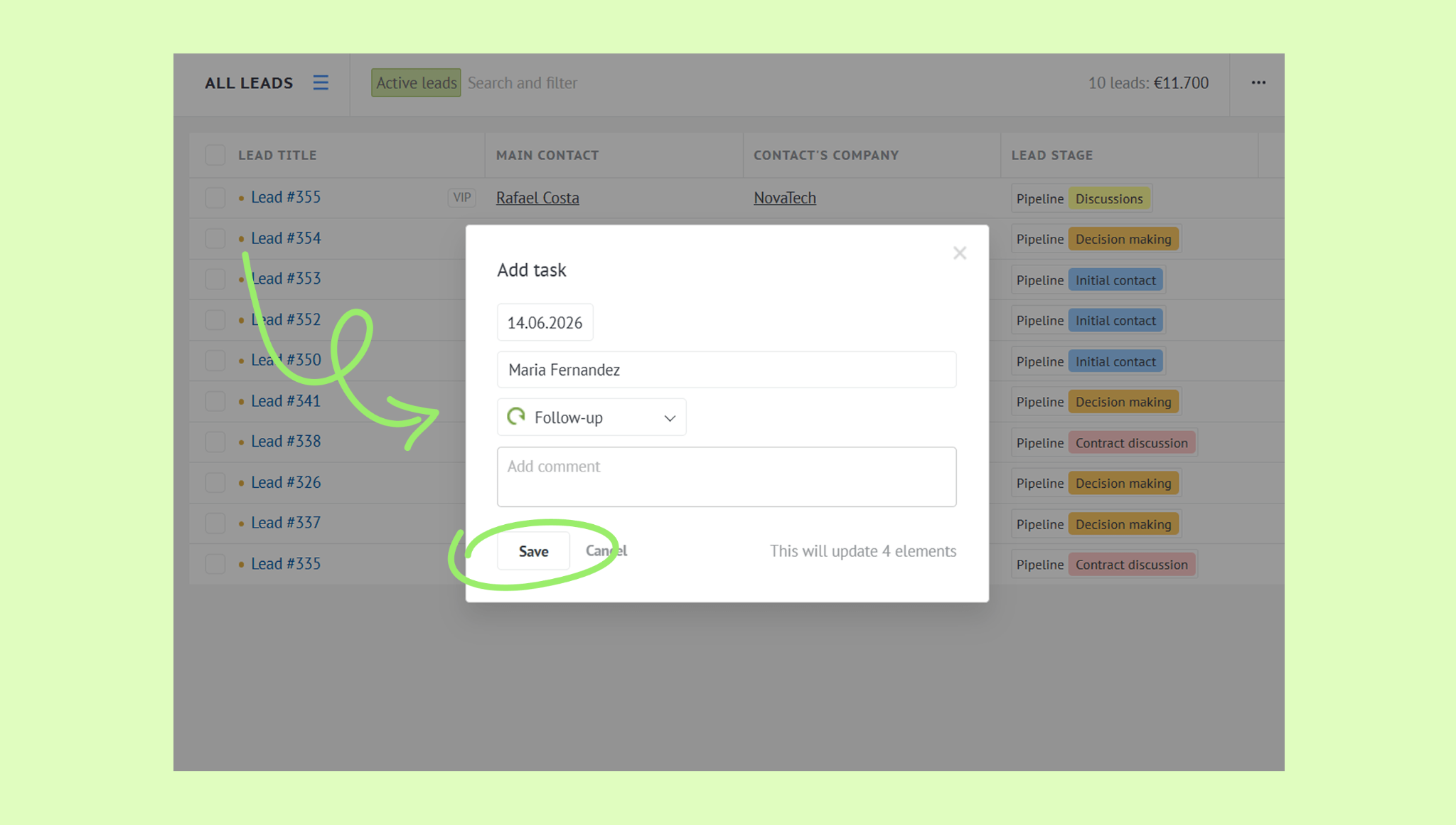
Set up the action and click Save.
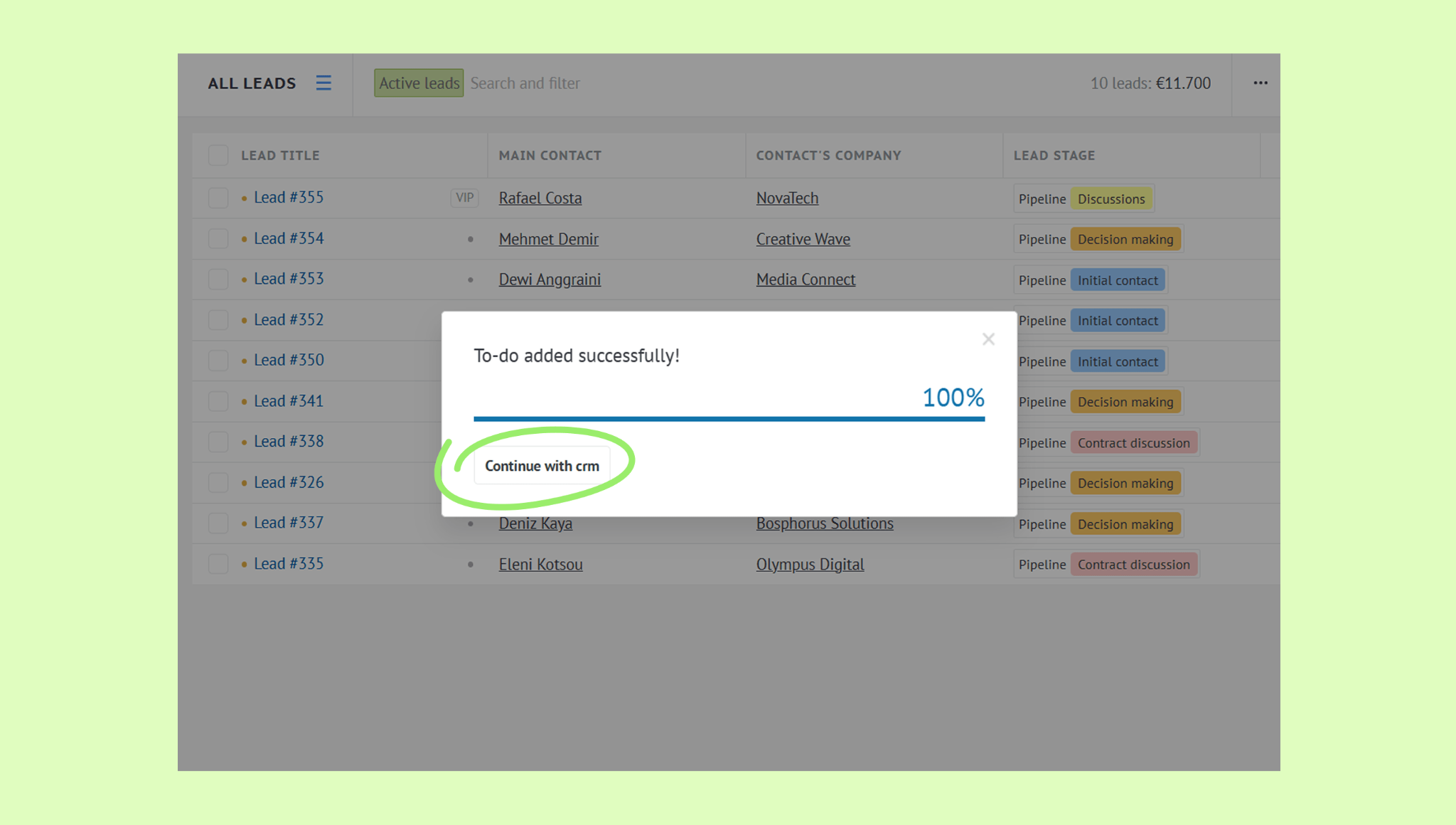
Once the changes are applied, click Continue with CRM.
You can also edit or delete contacts and companies in bulk — go to Lists → Contacts or Companies, select the records you want to update, choose an action from the toolbar, and confirm the changes.
Note: If you have duplicate records, you can select and merge them in the same toolbar. Learn more in this article.