
What you’ll need:
Any Kommo plan (Base, Advanced, Pro, Enterprise, or 14-day trial)
In Kommo, you can build your client database by adding leads, contacts, and companies and linking them together. If you already have an existing database, you can import it from a file or a spreadsheet. You can also connect your communication channels — such as WhatsApp, Instagram, or Facebook — so that all incoming client messages automatically create new leads in Kommo.
However, as your database grows, duplicate records can appear — for example, when importing multiple files or when the same client contacts you from different platforms.
Kommo has two tools to help with this: duplicate control to prevent duplicates from being created, and record merging to clean up any duplicates that already exist.
To learn more about duplicate control, see this article.
This step-by-step guide shows how to find and merge duplicate records in Kommo.
Find and merge duplicates automatically
Go to Lists → Contacts → … → Find duplicates.
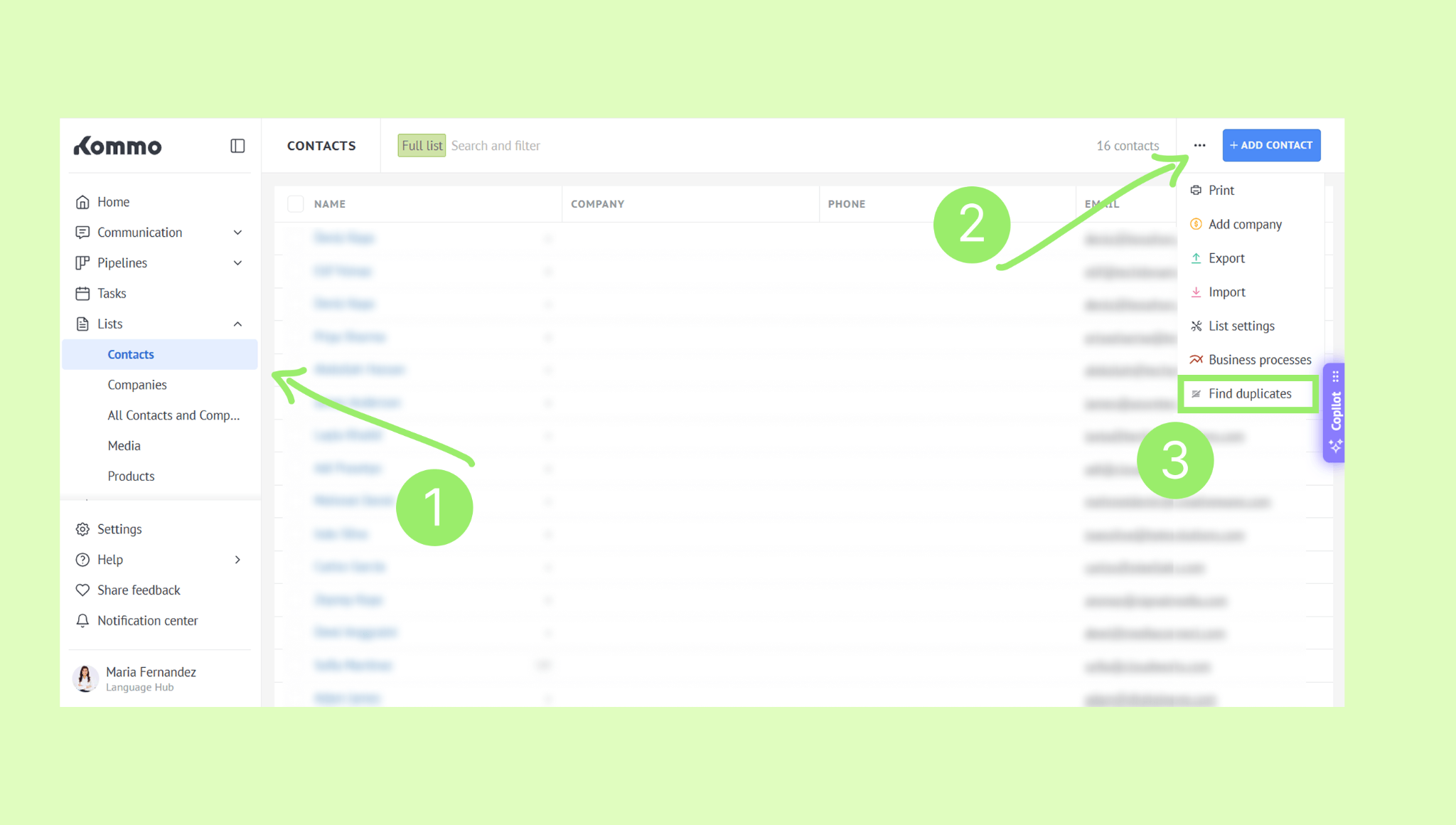
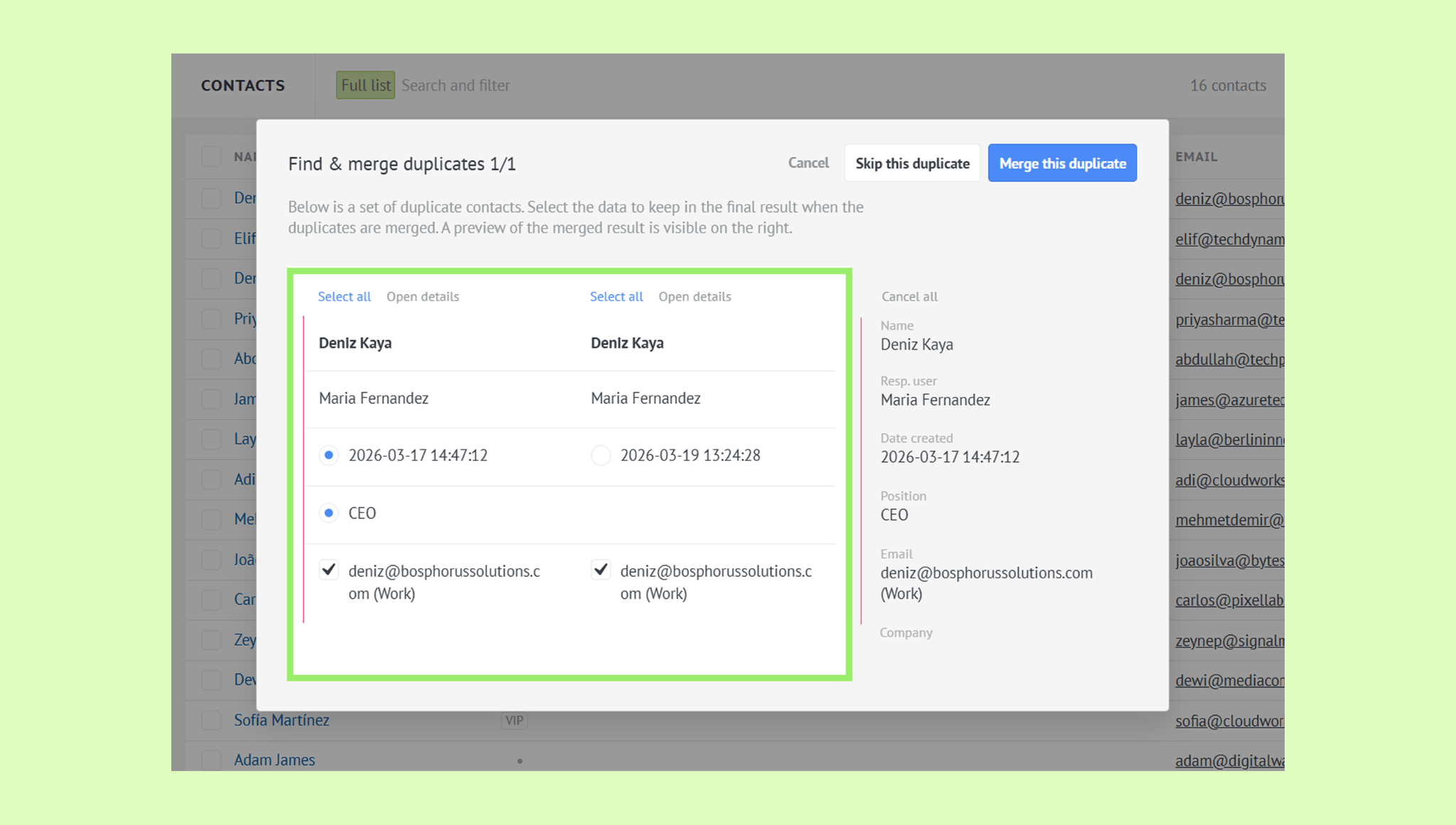
Kommo will search for matching records and display them in a duplicate modal.
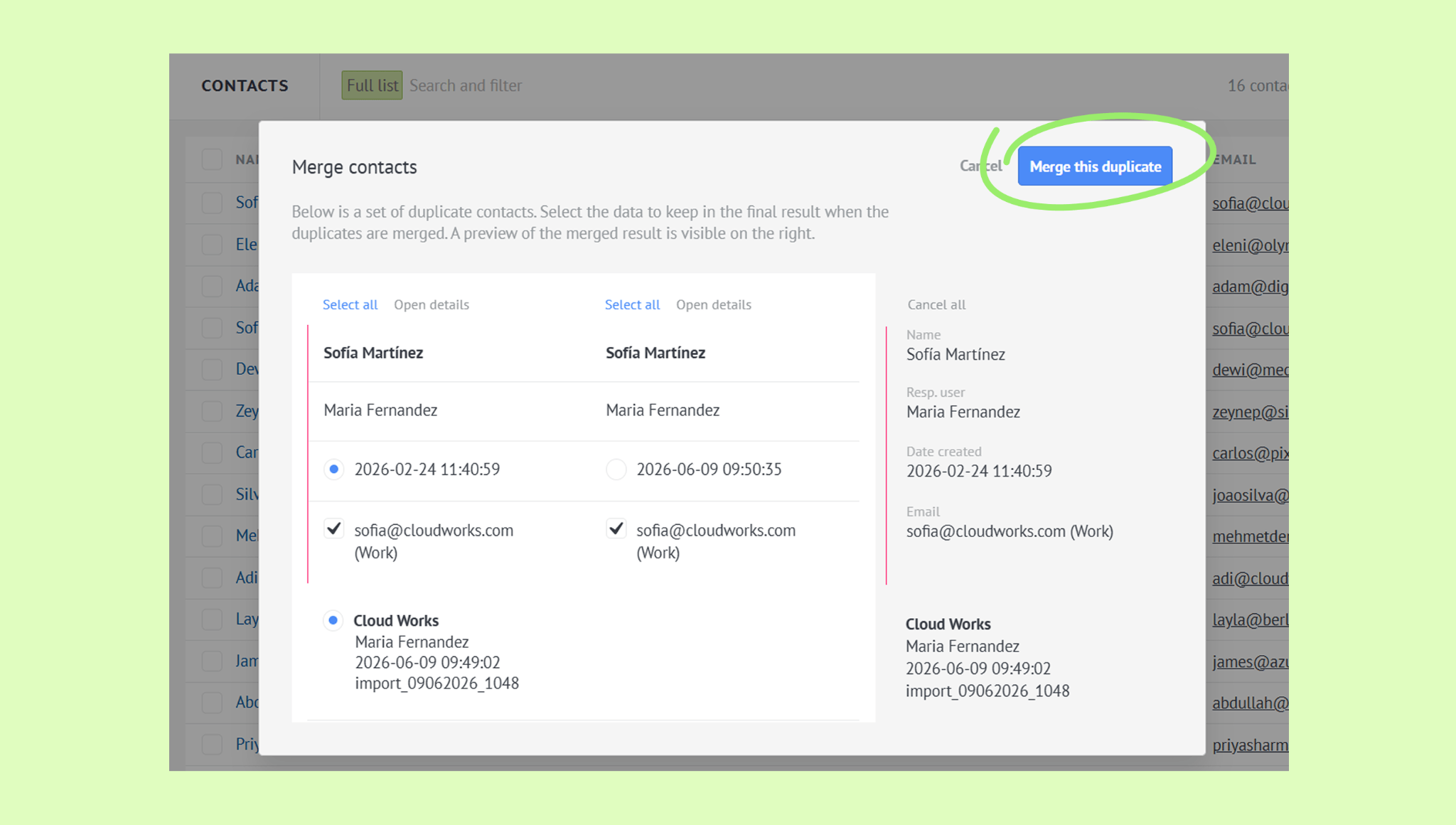
Choose which details should appear in the final record.
Click Merge this duplicate.
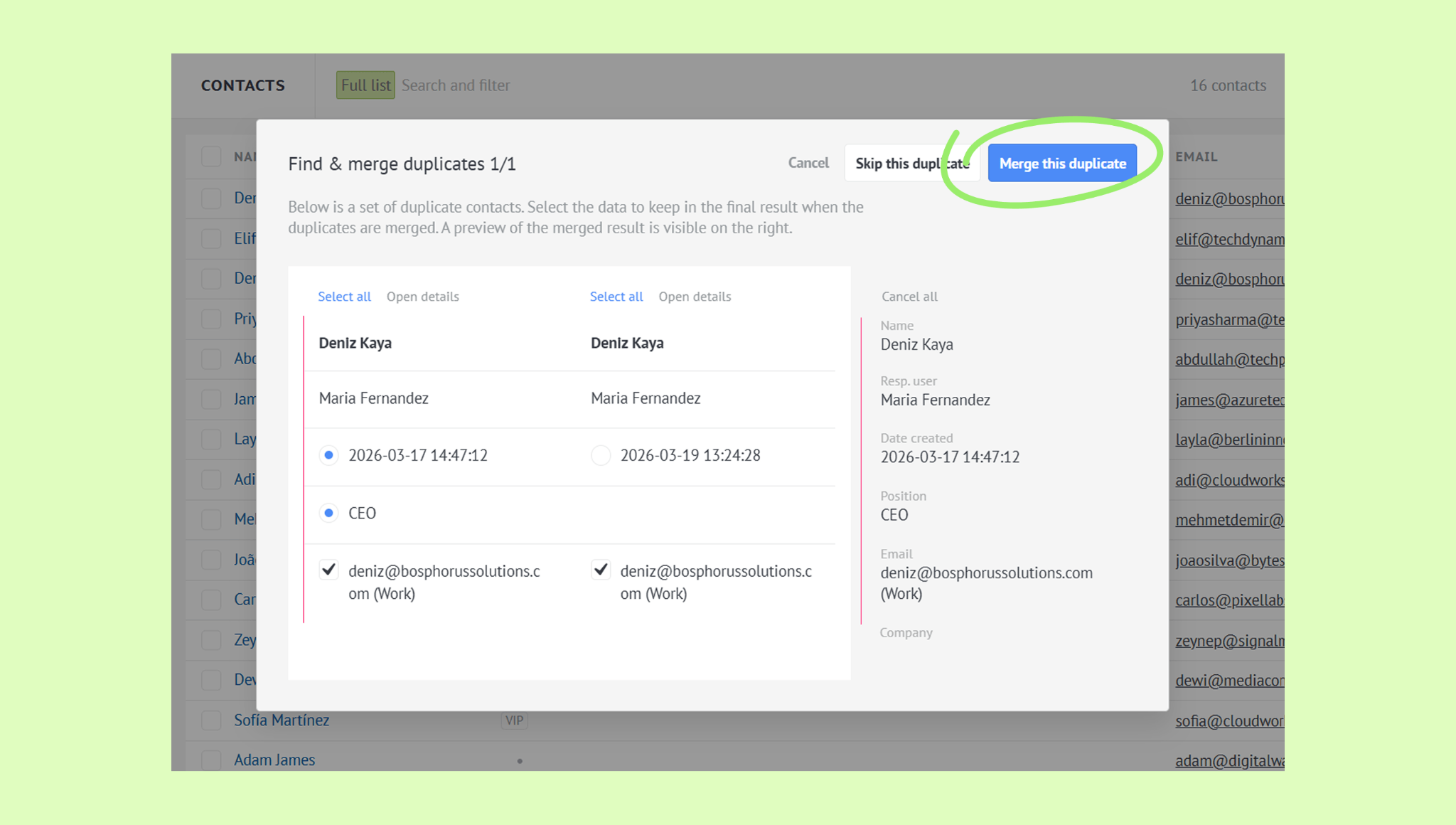
The records will be merged into one and the window will close automatically.
Once you click Find duplicates, Kommo will show you all duplicate records one by one. For each duplicate, you can:
Merge — combine the records into one
Skip — leave both records as they are and move to the next duplicate
Cancel — stop the process
You can also automatically find and merge duplicate leads — go to Pipelines → All leads and follow the same steps.
Note: When merging automatically, Kommo merges 2 duplicate records at a time.
Merge duplicates manually
Go to Lists → Contacts.
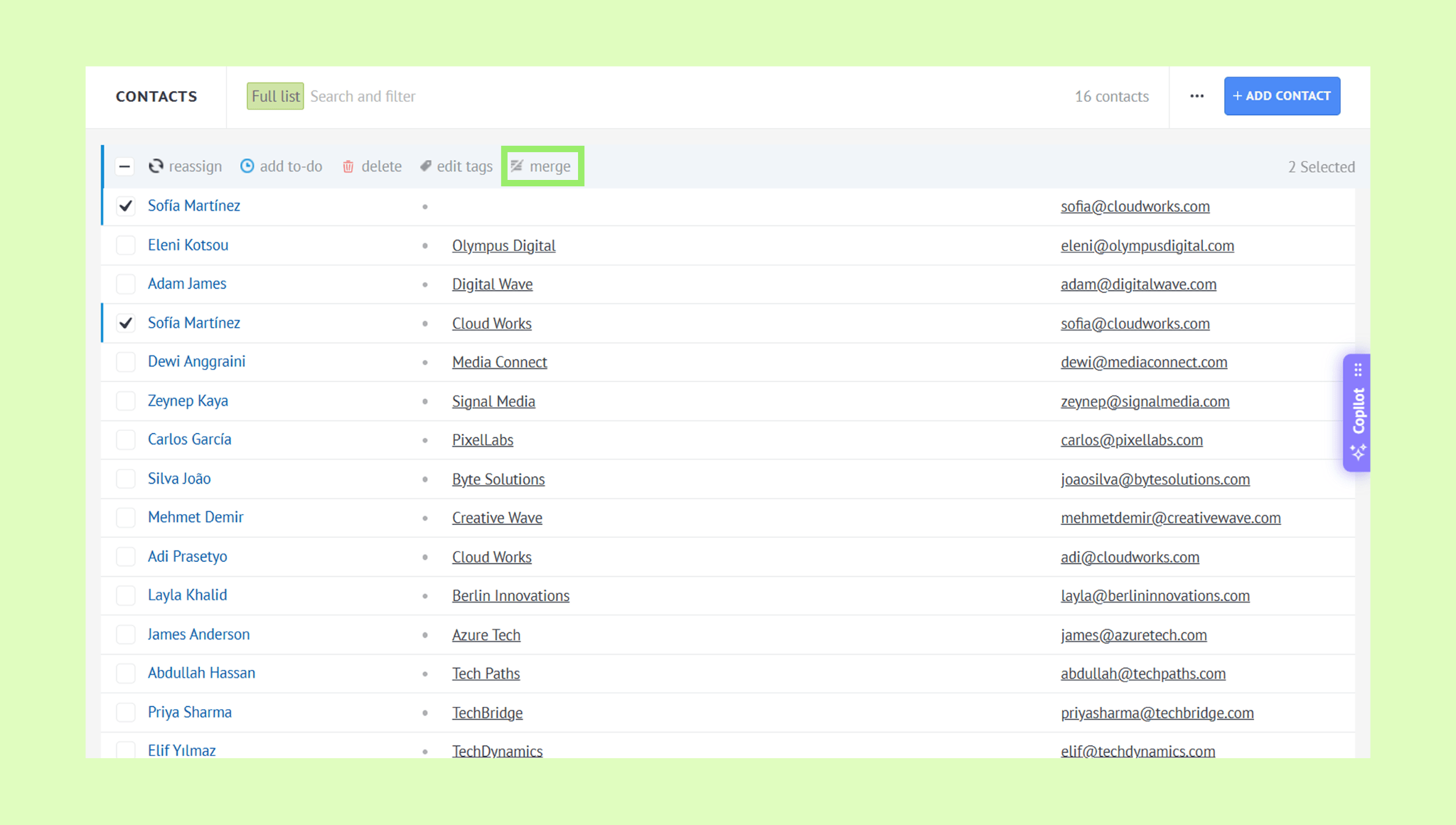
Select the records you want to merge.
Click Merge in the toolbar.
Choose which details should appear in the final record.
Click Merge this duplicate.
Once the records are merged, click Continue with CRM.
You can also merge duplicate leads and companies manually — go to Pipelines → All leads or Lists → Companies and follow the same steps.
Note: You can merge up to 5 duplicate records at a time manually.
Learn how to import and export records in this article.