What you’ll need:
Any Kommo plan (Base, Advanced, Pro, Enterprise, or a 14-day trial)
Admin access in Kommo
Keep in mind:
Duplicate control checks new incoming leads against existing leads
Duplicate control can only be set up after you’ve connected at least one channel
Duplicate control works only for leads that come in through communication channels like email, Facebook, Instagram, or WhatsApp. It does not automatically check for duplicates in leads that are imported
Duplicates in imported leads can be checked manually using the Find duplicates feature. More information about this feature is available here
Duplicate control in Kommo automatically detects and merges duplicate records. For example, if the same client contacts you through multiple channels, Kommo can recognize that all the messages belong to the same lead and merge them into one.
You can choose which channels to enable duplicate control for and configure the rules to fit your workflow.
This article explains how to set up duplicate control in Kommo.
Enable Duplicate control
To activate the Duplicate control:
Go to Pipelines → Pipeline, click Automate.
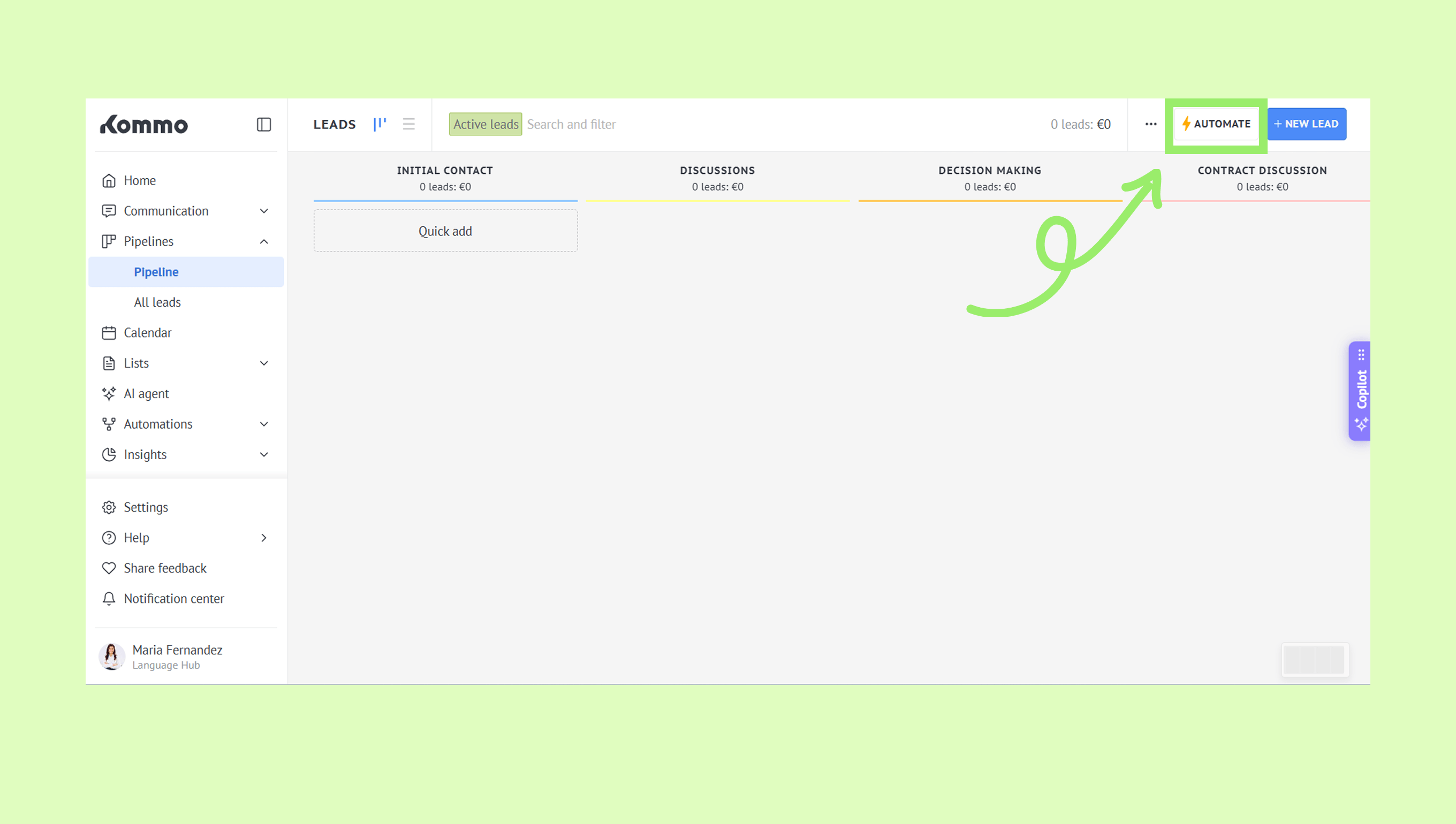
Turn on the Duplicate control switch on the left side.
 (1).png)
Note: If you haven’t connected any channels yet, the Duplicate control box won’t be visible.
Turn on Duplicate control for different channels
You can enable or disable the Duplicate control for every channel that is connected to your pipeline. To do this:
Click the Set up rules in the Duplicate control box.
.png)
Enable or disable the feature for each channel by switching the toggle.
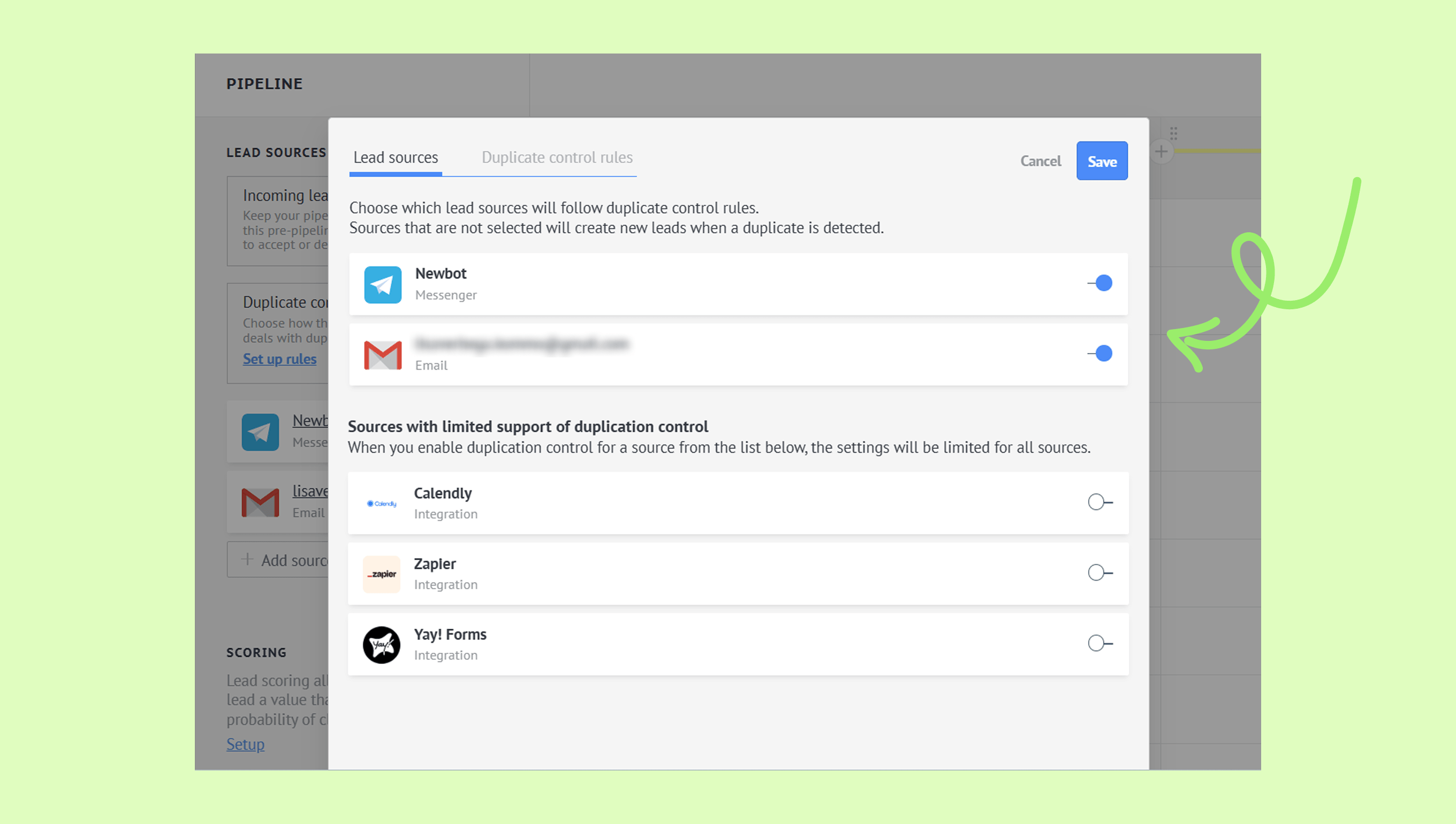
If you turn off the toggle, duplicate leads from that channel won’t be merged automatically — you’ll need to merge them manually. You can find more information on how to merge leads manually in this article.
Note: Duplicate control works with native integrations. Not all third-party integration may be supported or they are supported partly. If the developer of third-party integration did not allow a duplicate control option, you don’t see it in the list of sources.
Set up the Duplicate control rules
To configure the Duplicate control rules:
Open the Duplicate control rules tab.
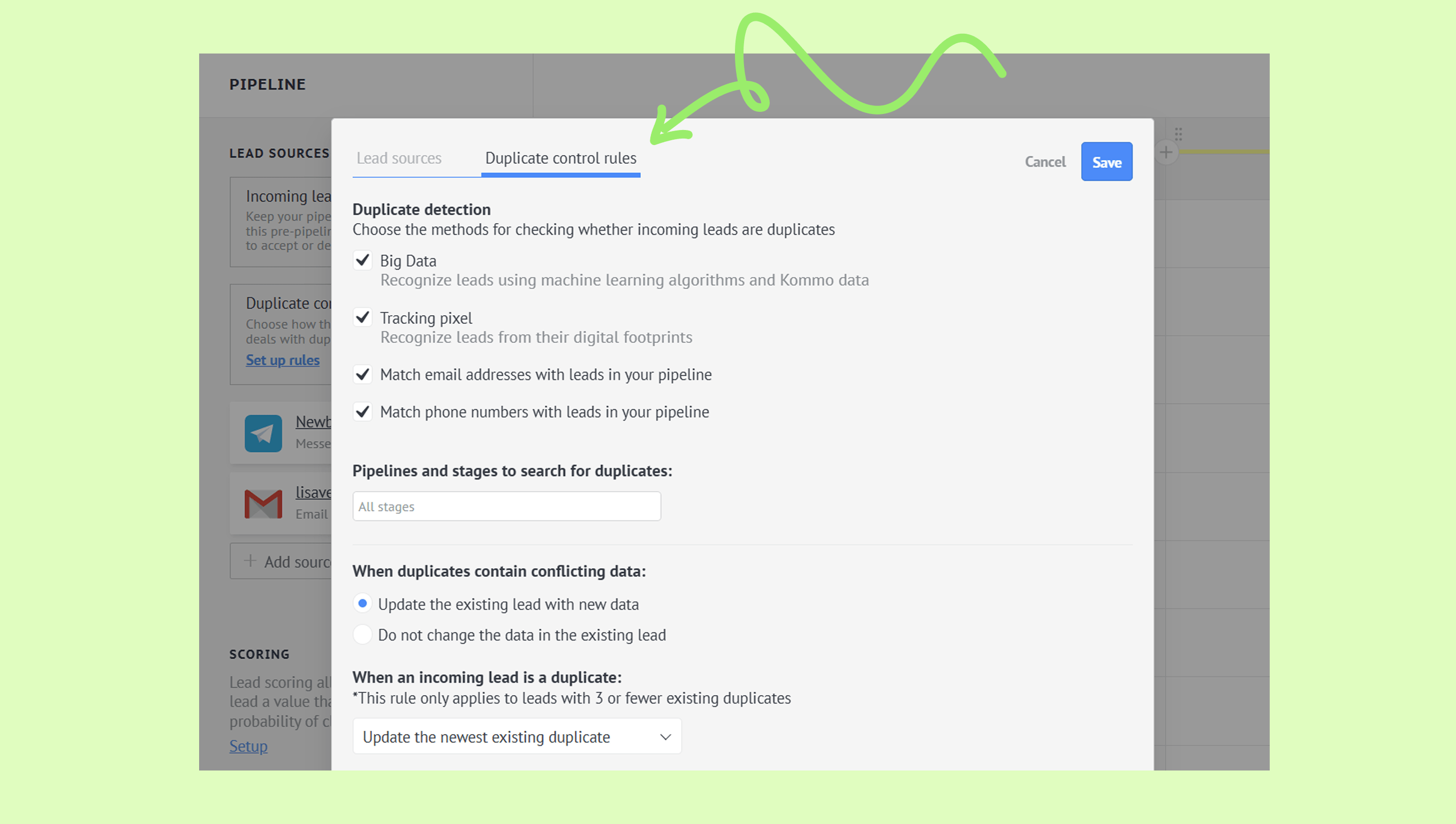
Choose the Duplicate detection method.
.png)
The available duplicate detection methods are:
Big Data — uses machine learning and Kommo's data to automatically detect and merge duplicate records. Merging happens when at least one of the duplicate leads is in the Incoming leads stage.
Duplicate control works for both newly created leads and existing leads that have been updated. For example, if you update a lead's email address, Kommo will check it against other leads for duplicates — as long as at least one of them is in the Incoming leads stage.
Tracking pixel –works only when a client contacts you through your website or a social media page using the CRM Plugin. When a client messages you for the first time, a pixel is assigned to them. Kommo then uses this pixel to check new chat requests and link them to existing leads.
Match email addresses with leads in your pipeline - in this method, Kommo detects duplicates by comparing email addresses.
Match phone numbers with leads in your pipeline - in this method, Kommo detects duplicates by comparing phone numbers.
Note: Phone numbers are searched in international format. Numbers entered in a local format may not be recognized correctly. The international format includes a plus sign (+), country code, area code, and phone number.
Choose the pipelines and the stages where Duplicate control will be applied:
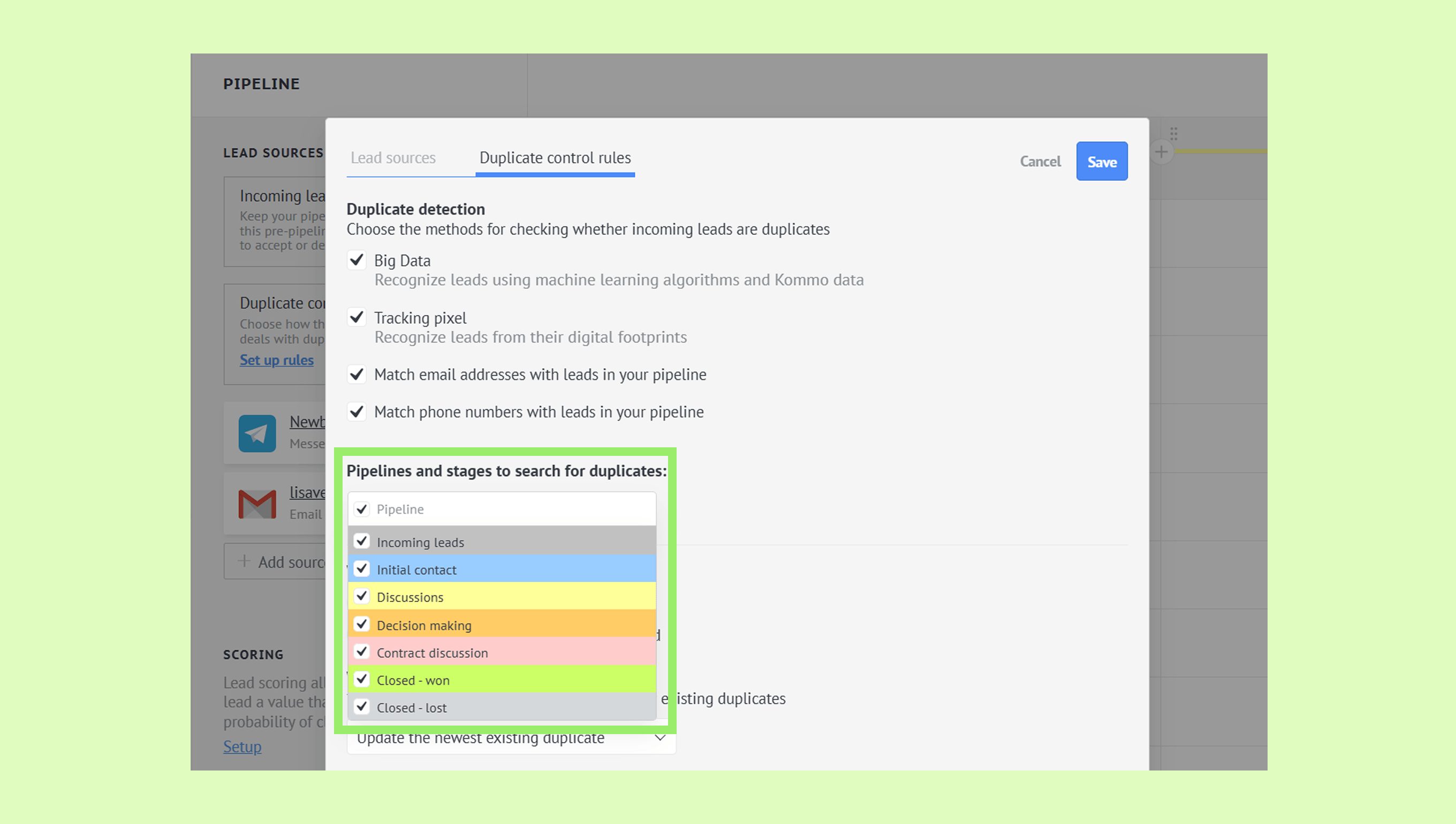
Select an option for When duplicates contain conflicting data.
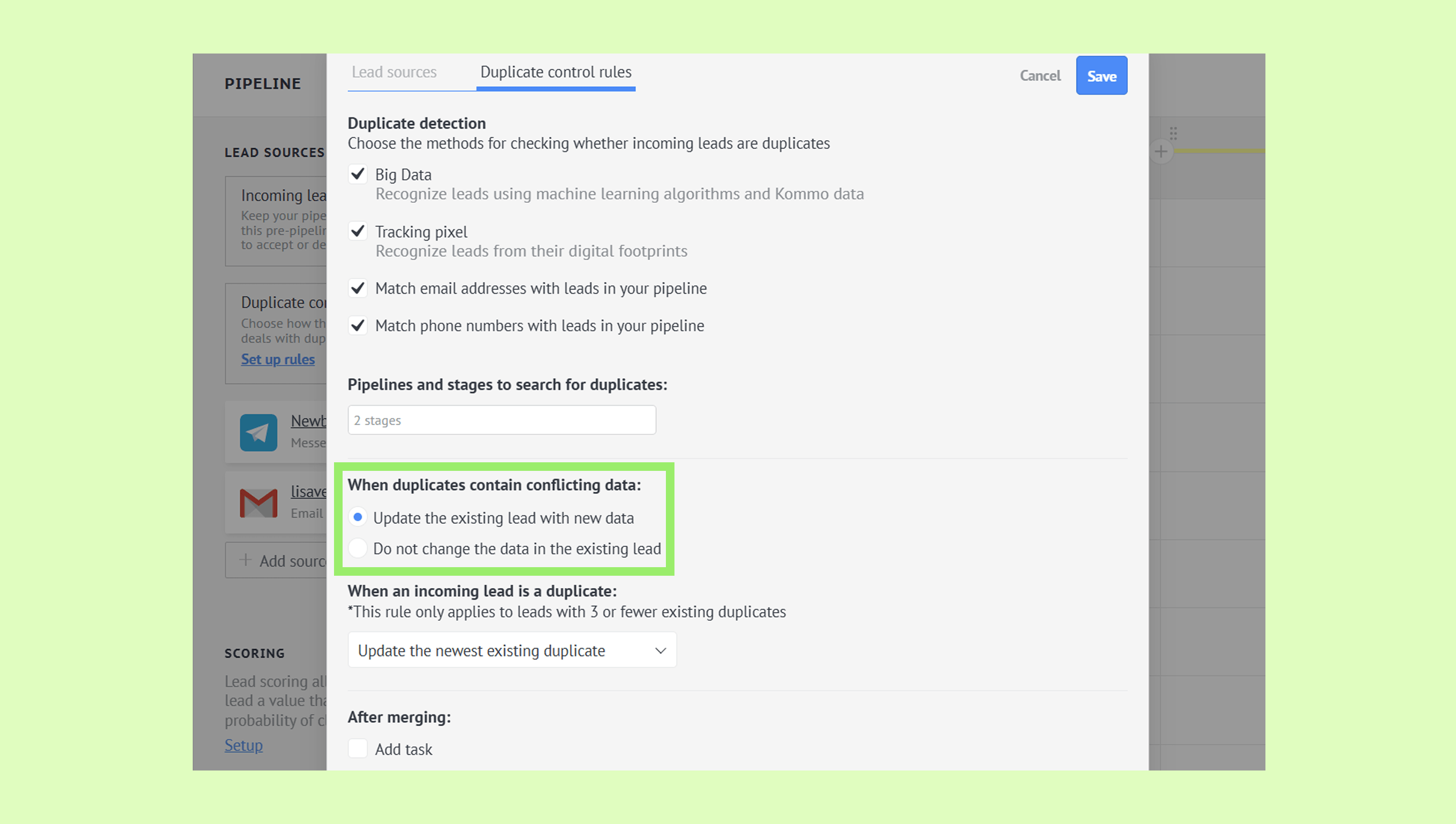
When duplicates contain conflicting data – this setting tells Kommo what to do if duplicate leads have different information. It only applies when 2 duplicate leads are found.
Available options:
Update the existing lead with new data — If a duplicate is detected, the existing lead will be updated with information from the incoming lead. For example, if an incoming lead matches an existing lead but has a different email address, Kommo will update the existing lead with the new email.
Do not change the data in the existing lead — if conflicting data is found, the existing lead stays unchanged. Both the new lead and the existing lead will remain in the system, so you can merge them manually later.
Select an option for When an incoming lead is a duplicate. This rule applies when there are 3 duplicate leads and follows the When duplicates contain conflicting data setting.
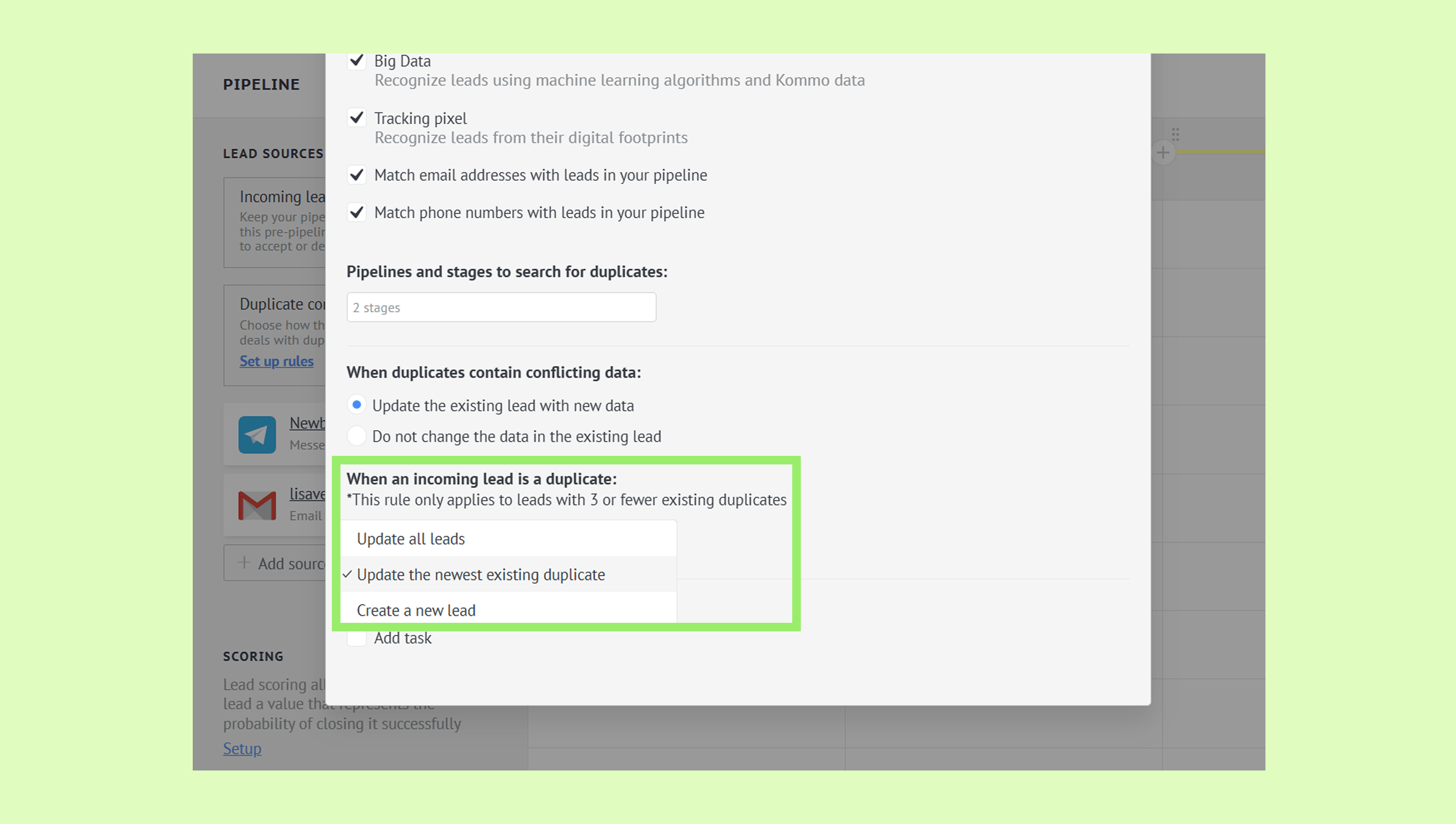
Available options:
Update all leads – when a new request is identified as a duplicate, Kommo won’t create a new lead. Instead, all existing duplicate leads will be updated with the information from the new request.
Update the newest existing duplicate - when a new request is identified as a duplicate, Kommo won’t create a new lead. Instead, only the latest existing duplicate lead will be updated with the new information, while the other duplicates remain unchanged.
Create a new lead - when a new request is identified as a duplicate, Kommo will create a new lead, and the existing duplicate leads will remain unchanged.
Note: If more than 3 duplicates are found, no merge will be performed.
6. Set up automatic task creation in After merging (optional).
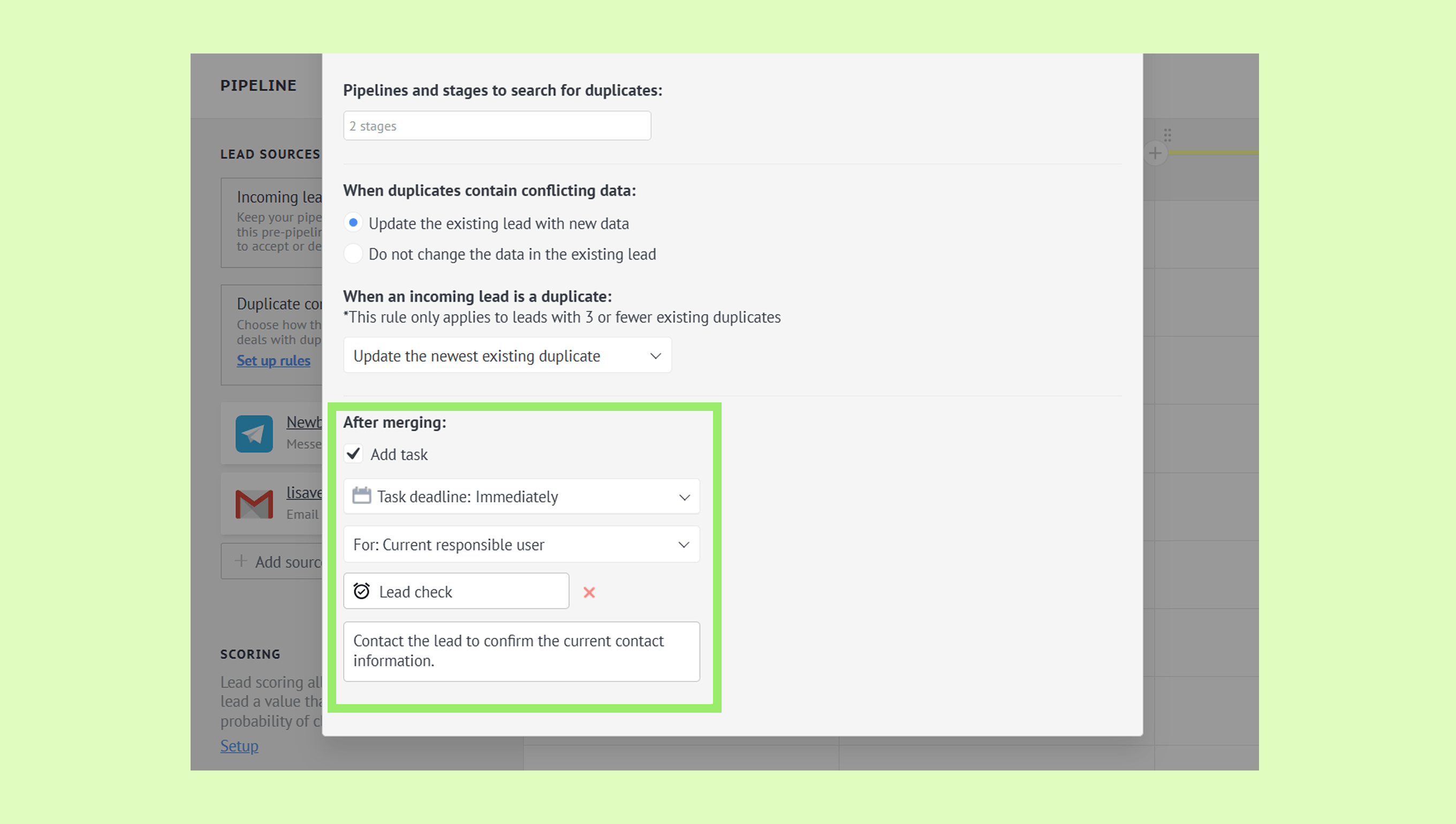
If automatic task creation is enabled, a new task will be added whenever duplicate leads are merged. For example, the task could be to call the lead and confirm their contact information.
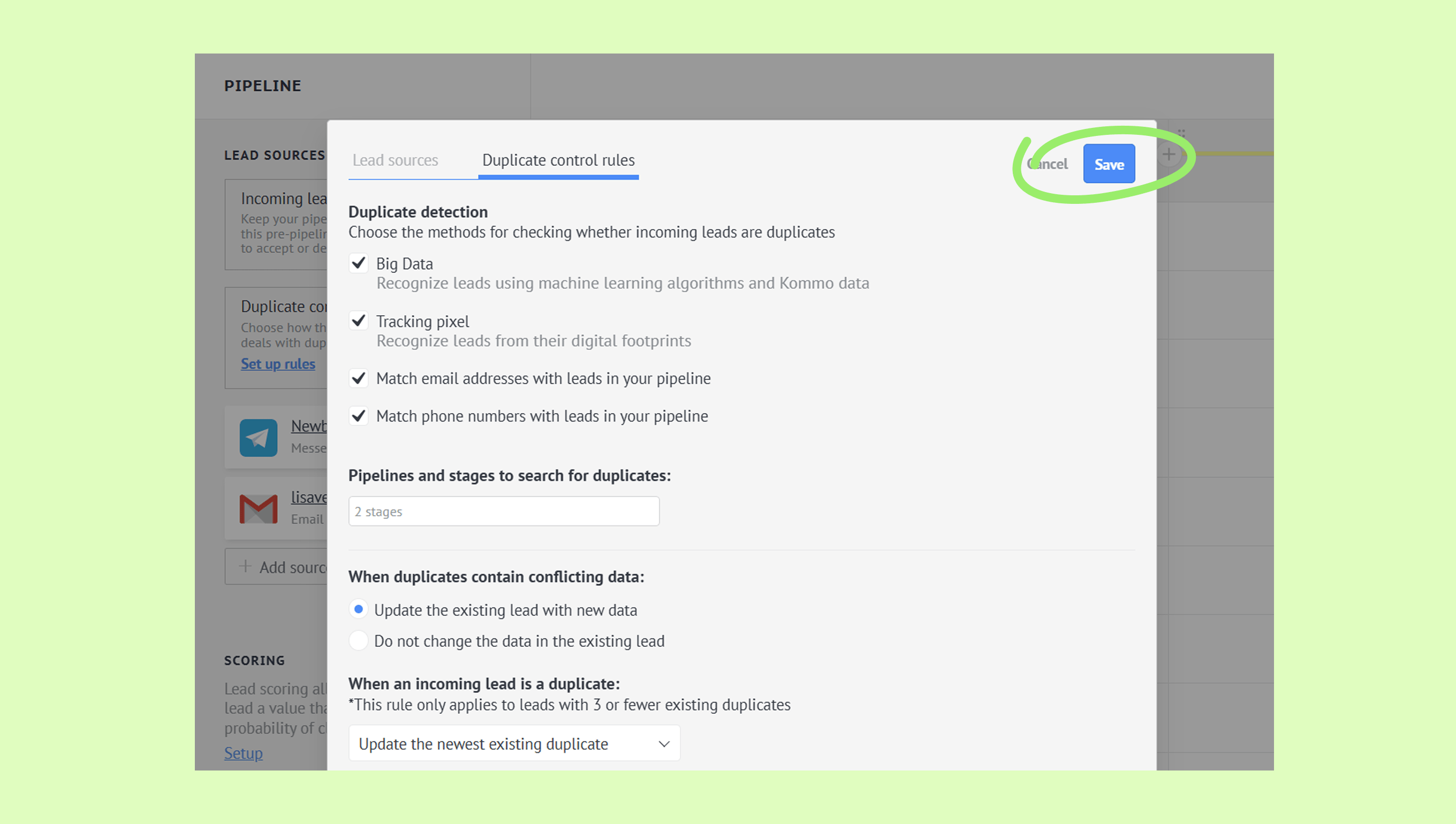
7. Click Save.