What you’ll need:
Admin access to Meta Business Manager (MBM).
Complete business info in MBM — including name, address, phone, email, and website.
Supporting documents to prove your business details match what’s in MBM (e.g. business license, certificate of incorporation, utility bill, etc.). All details in the documents must exactly match the info in your Business Manager profile.
Keep in mind:
The business name, address, and phone number in your documents must exactly match the details in your Meta Business Manager profile.
The business verification process lets Meta confirm that your company is a legitimate, officially registered organization. Once verified, you can build trust with customers, unlock higher messaging limits to reach more leads, and manage multiple WhatsApp numbers under one account.
Verification also increases your visibility by showing your business name to all WhatsApp users – even those who haven’t saved your number – and strengthens brand credibility by allowing you to apply for the WhatsApp Official Business Account blue badge.
Note: Business verification alone doesn’t qualify your number for WhatsApp’s Official Business Account. Learn more about applying for the WhatsApp Official Business Account in our article.
How to get business verification?
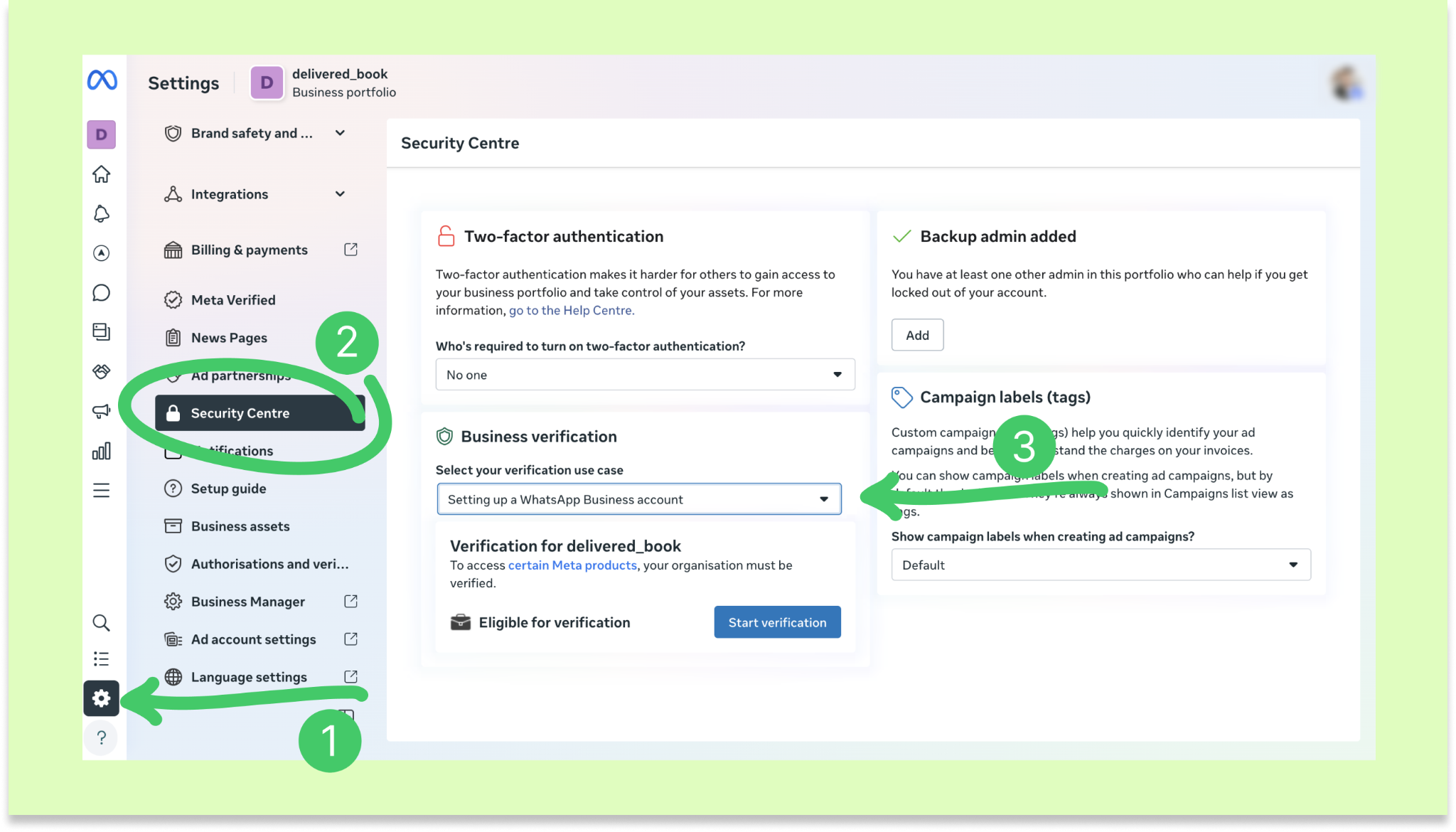
In the Meta Business Manager, go to Settings → Security Centre in your Business settings. Choose Setting up a WhatsApp Business account.
Note: Menu labels may vary depending on your Meta interface.
Click Start verification to begin the process.
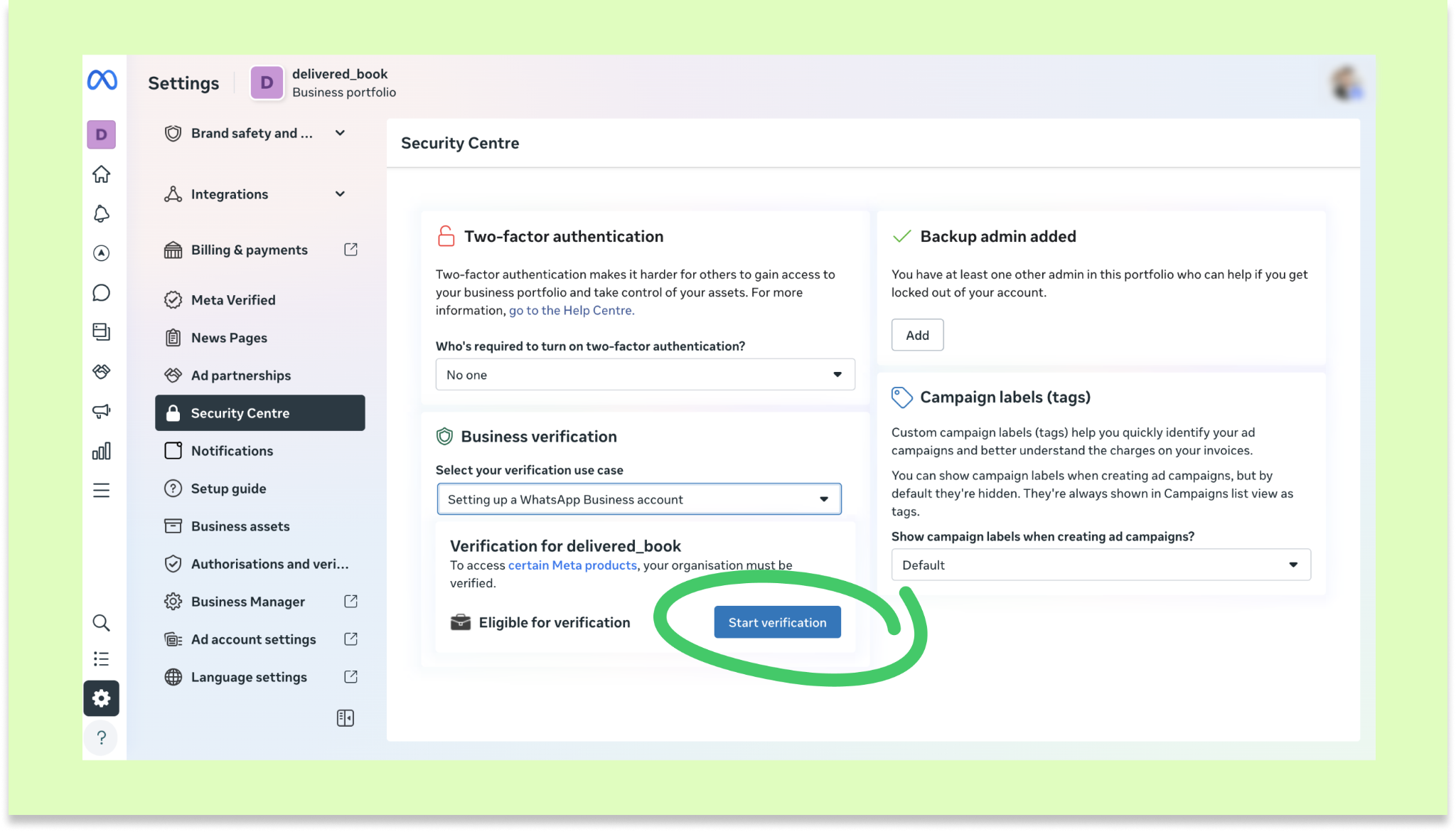
Note: If you can’t find the Start verification button, make sure you’ve filled out your business information in Meta Business Manager, including your legal name, address, website, and phone number. Once all fields are complete, the Start verification button will appear automatically.
Fill in your details:
Country of your business
Type of business
Legal business name and tax ID (if applicable in your country)
Address and phone number (exactly as on official documents)
Upload your documents:
Business license or registration certificate
Tax ID document
Utility bill or bank statement (under 3 months old)
Note: Make sure all files are clear, readable, and under 5 MB (PDF or JPEG format).
Enable two-factor authentication using SMS or an authenticator app.
Once you’ve finished, Meta will review your request. Processing usually takes 3–5 business days, up to 14 days. You can also check the status anytime in WhatsApp Accounts → Settings → Business Verification.
Troubleshooting business verification
If your verification request fails:
Business verification rejected → Make sure all business details in your Meta Business Manager match your legal documents exactly. Check that your files are clear, readable, and up to date.
Incomplete information → Fill in all required fields in your Business Info section (name, address, phone, website) before resubmitting.
Unviewable documents → Re-upload the files in an accepted format (PDF, JPG, or PNG) and ensure they’re not password-protected.
Mismatched details → Verify that the business name, address, and phone number in your documents are identical to the ones in Meta Business Manager.
Next, submit an appeal in the Security Center.
Display name review
After completing business verification, Meta automatically reviews the display name for all phone numbers linked to your account. This name appears on your WhatsApp Business profile and is visible to customers.
Meta usually sends an email and a notification in Meta Business Manager within 1–2 days to confirm whether your display name was approved. Learn more about display name guidelines.
If your display name is rejected - make sure it follows Meta’s naming rules, update it, and resubmit for review.
If you need more help with setup or troubleshooting, feel free to reach out to our support chat or contact us via WhatsApp. You can also hire a Kommo partner to do all the hard work for you.
Not a user yet? Sign up for our 14-day free trial or book a free live demo.