What you’ll need:
Any Kommo plan (Base, Advanced, Pro, Enterprise, or a 14-day trial).
WhatsApp Business integration installed and connected to your number. Learn how to set it up in our article.
A product catalog created in Meta Commerce Manager and linked to your WhatsApp Business Account.
A payment method added to your WhatsApp Business account in Meta. Learn how to do it here.
Keep in mind:
Only one catalog can be connected per WhatsApp Business Account.
The number of WhatsApp message templates a business can use depends on its verification status. Learn more about it here.
WhatsApp catalog templates have to be approved by Meta.
WhatsApp catalog template messages are charged by Meta. Pricing is based on Meta’s WhatsApp Business messaging rates. Learn more in this article.
Catalog templates are WhatsApp Marketing templates that let you showcase products from your connected Meta catalog.
Once approved by Meta, Catalog templates can be used to message clients first, re-engage them after the 24-hour messaging window closes, or send bulk product messages through broadcasts.
With Catalog templates, you can send:
A full catalog
A product set
A single product
This makes product discovery easier. Instead of sending a plain promotional message, you can show products with images and key details directly in WhatsApp.
This article explains how to set up and use WhatsApp catalog templates in Kommo.
Use cases
Start a product conversation — Message a customer first with a product, product set, or full catalog instead of a plain text template.
Re-engage customers after 24 hours — Continue the conversation with an approved product template when the customer service window has closed.
Recover abandoned carts — Remind customers about products they showed interest in and make it easy to continue the purchase.
Send tailored product offers — Share a selected set of products based on customer interest, previous purchases, or campaign audience.
Showcase your full catalog — Let customers browse your product range directly in WhatsApp when they’re still exploring.
Support marketing campaigns — Use Catalog templates for seasonal offers, launches, restocks, or product recommendations.
Guide customers automatically — Add Catalog templates to Salesbot flows to suggest relevant products based on a customer’s answers.
Choose a Catalog template
Catalog templates have three different formats. You can choose the format based on how many options you want to share with the client.
Template | What it sends | Best for | Examples |
|---|---|---|---|
Full catalog | Your entire connected catalog | Letting clients browse everything you offer | Introduce your products to a new lead, share your full range, or help a client explore options before choosing |
Product set | Up to 30 products in up to 10 sections | Sharing a focused or curated selection | Recommend a few suitable products, compare options, show products in a certain price range, or remind a client about items they viewed |
Single product | One product from your catalog | Focusing on a specific item | Follow up on a product the client asked about, share a specific model or variant, send a targeted offer, or let them know an item is back in stock |
Create Catalog templates in Kommo
Follow these steps to create a Catalog template in Kommo:
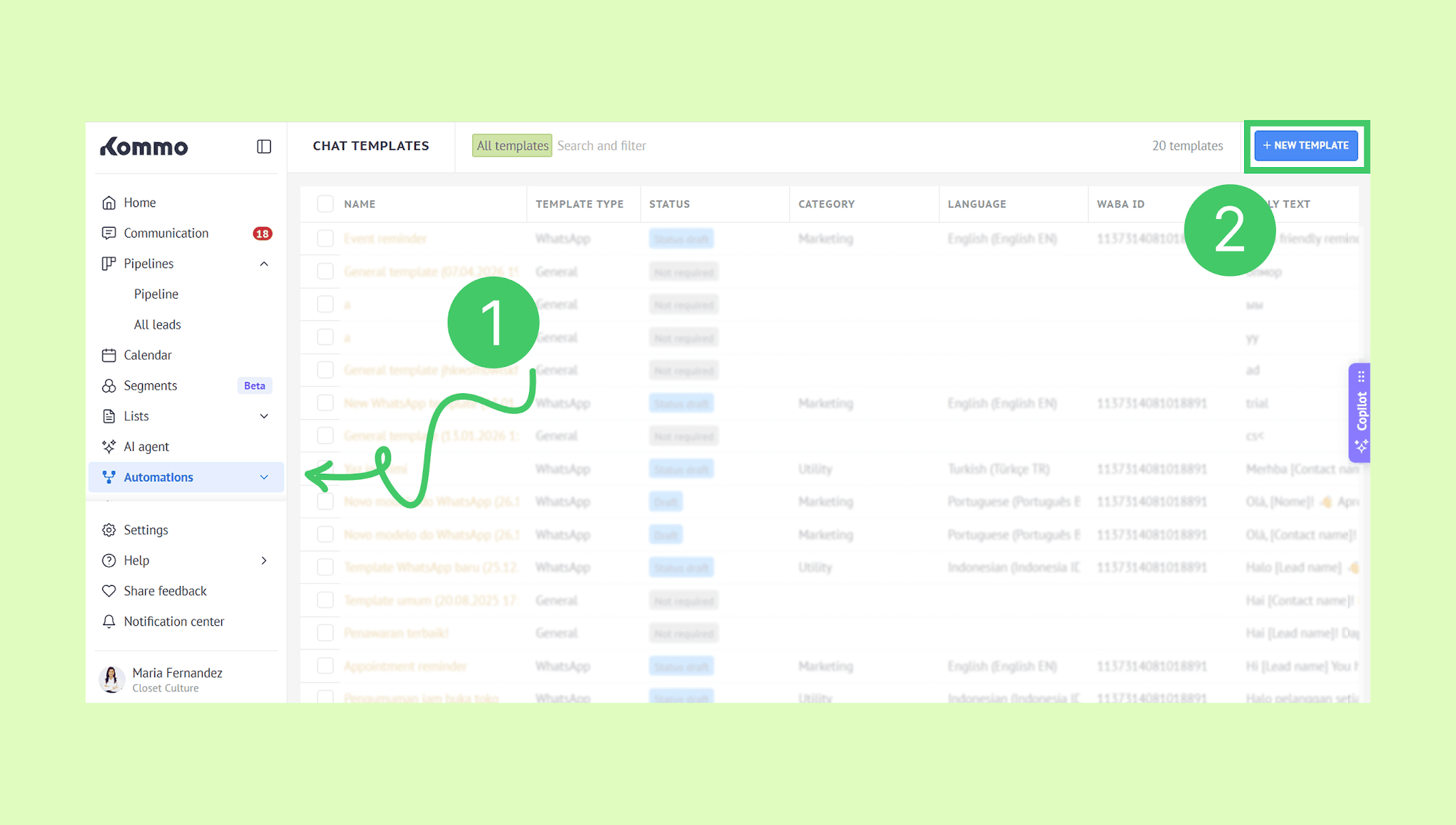
Go to Automations → Templates → Chat templates, then click New template.
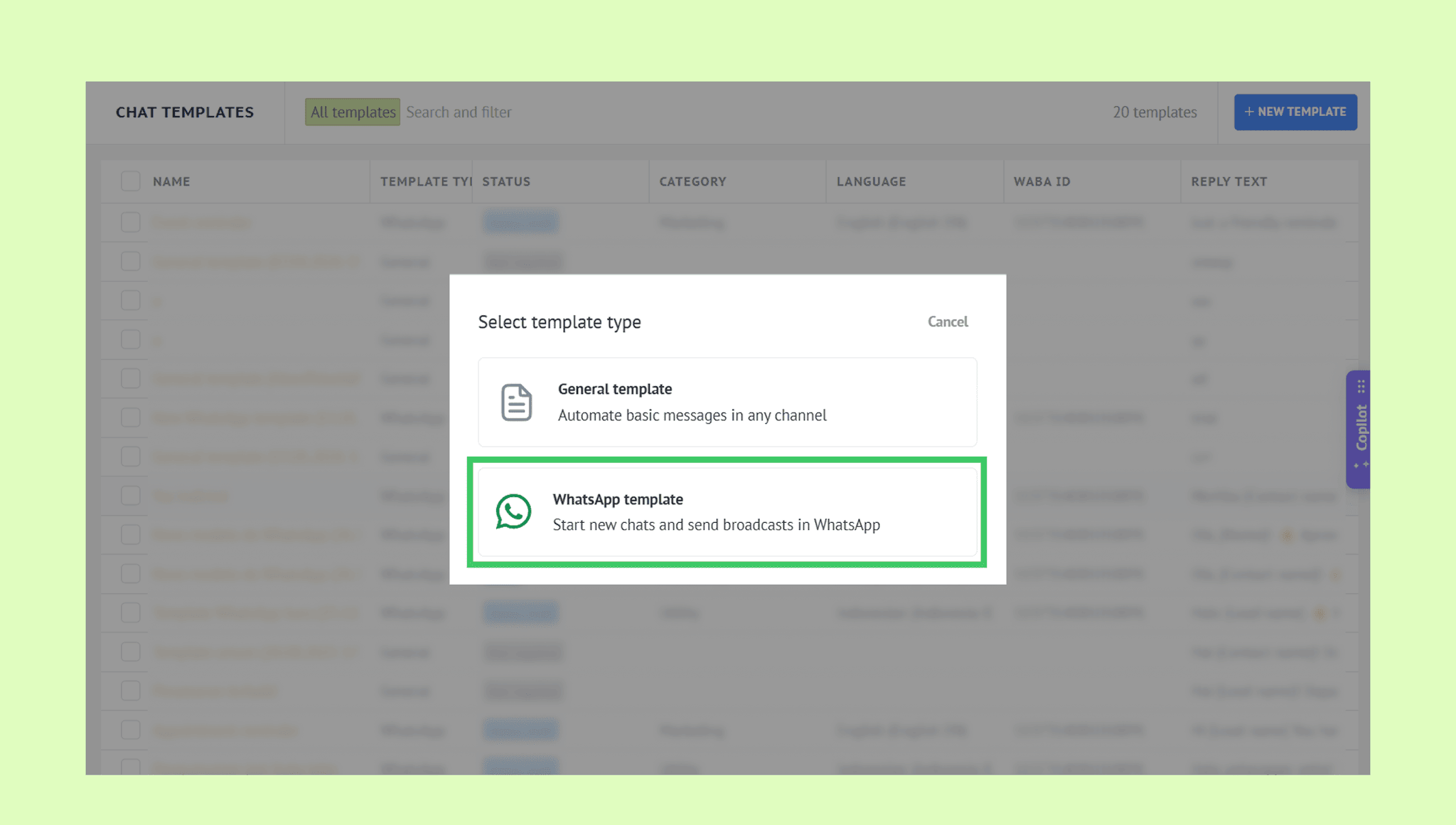
Select WhatsApp template.
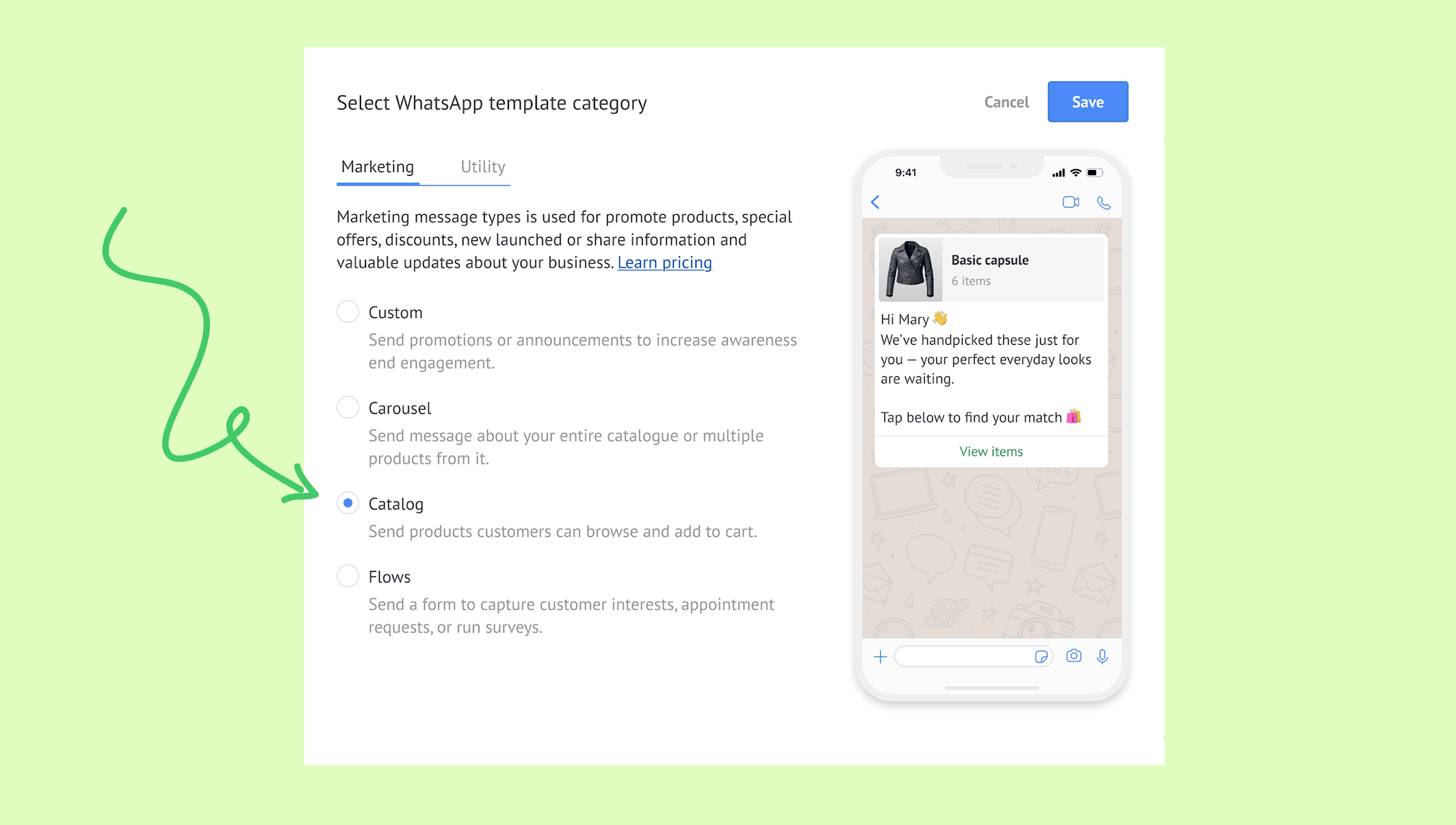
Open the Marketing tab and choose the Catalog template type.
Review the automatically generated template name and edit it if needed.
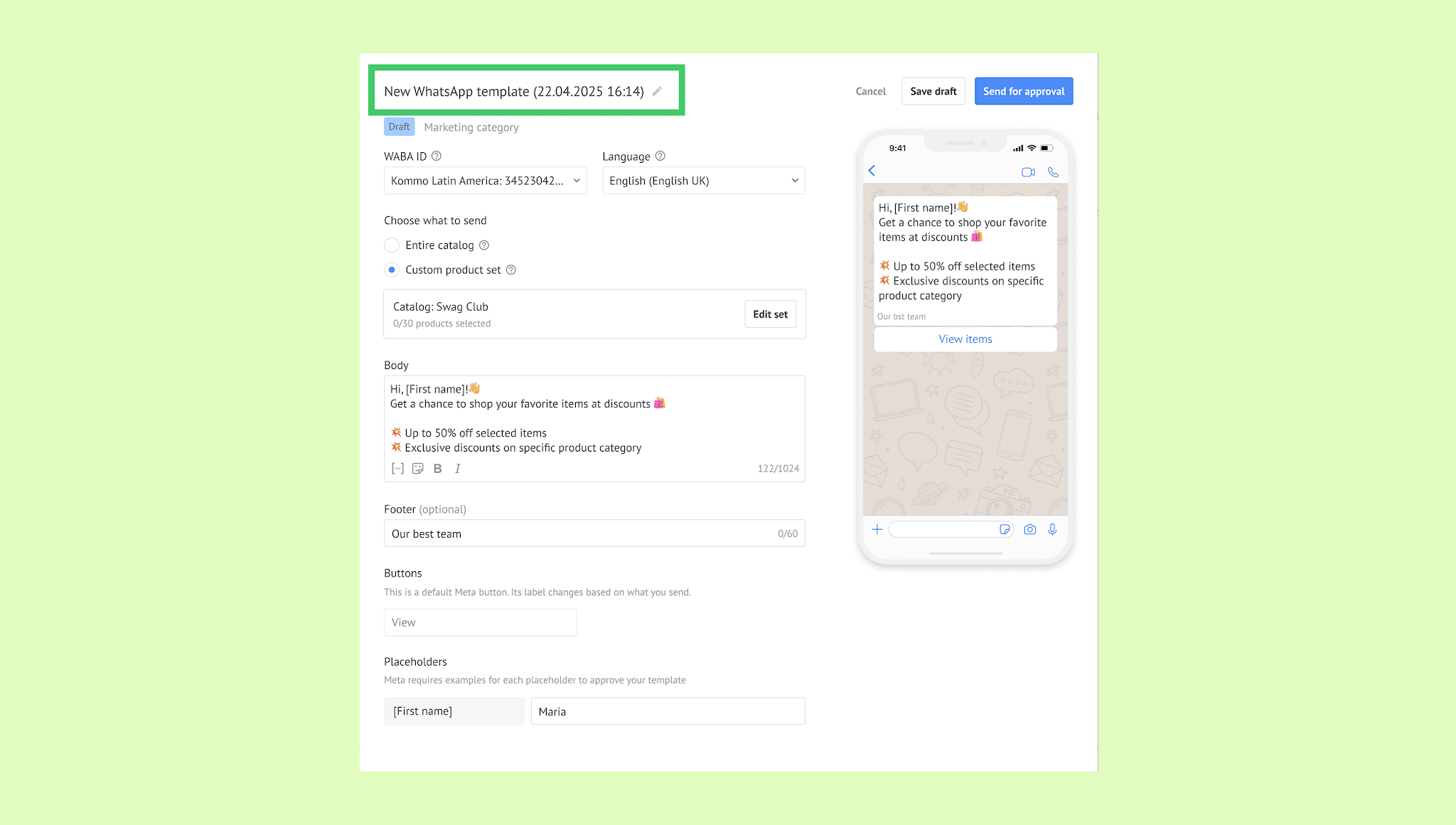
Select the WABA ID for the WhatsApp Business Account connected to your catalog.
Select the template language.
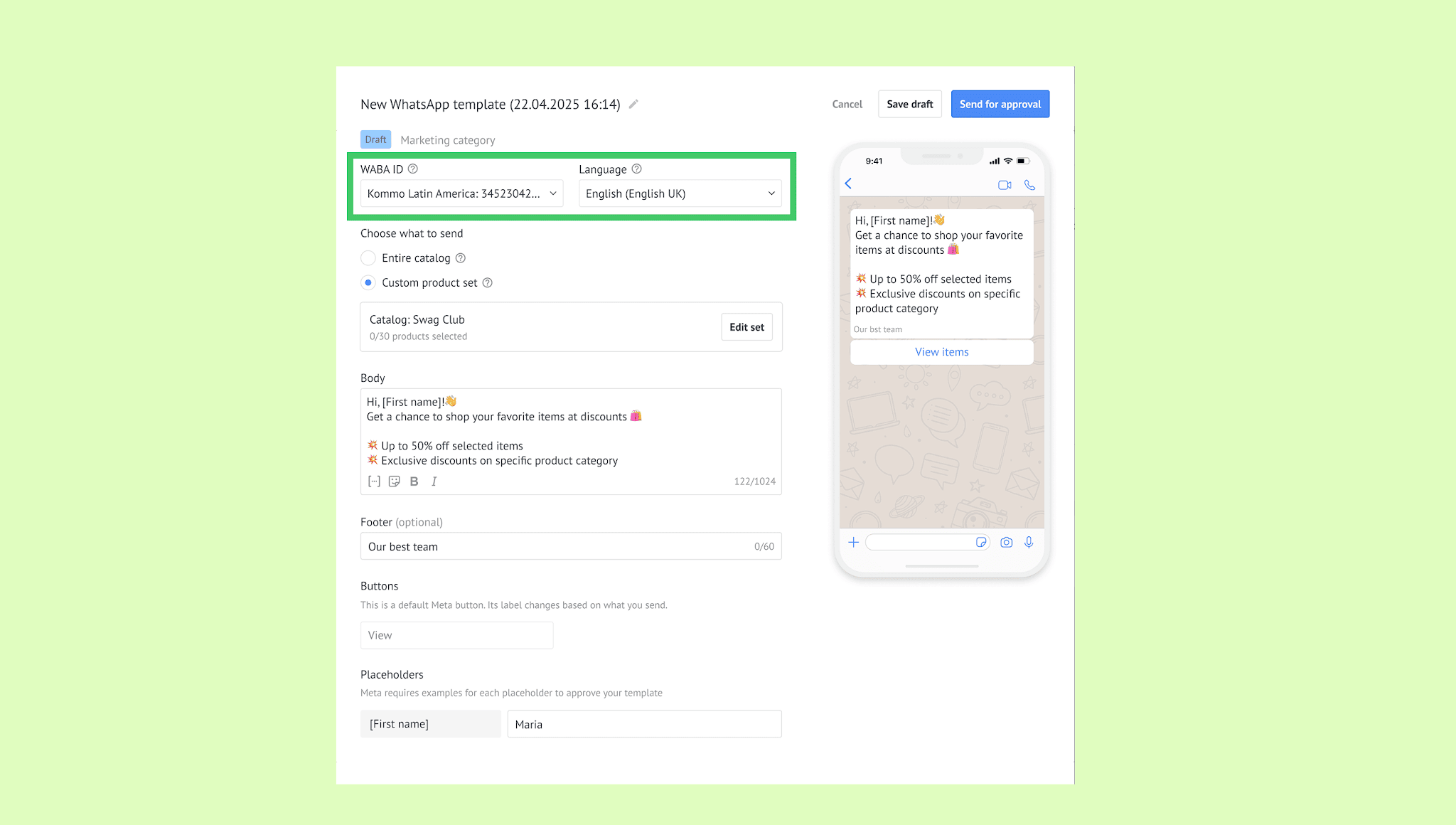
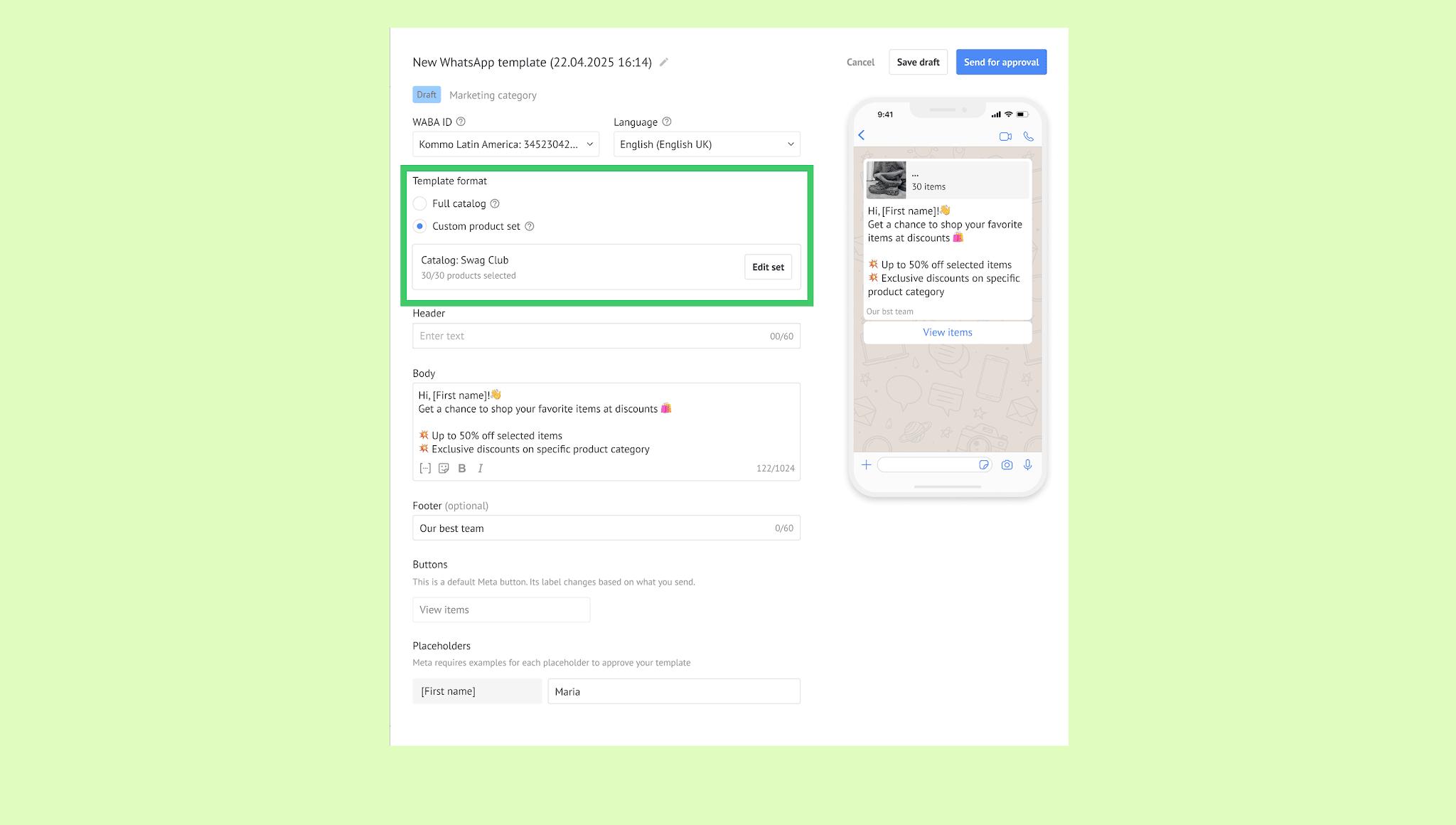
Choose what to include:
Entire catalog — Send the full catalog.
Custom product set — Send one or multiple selected products.
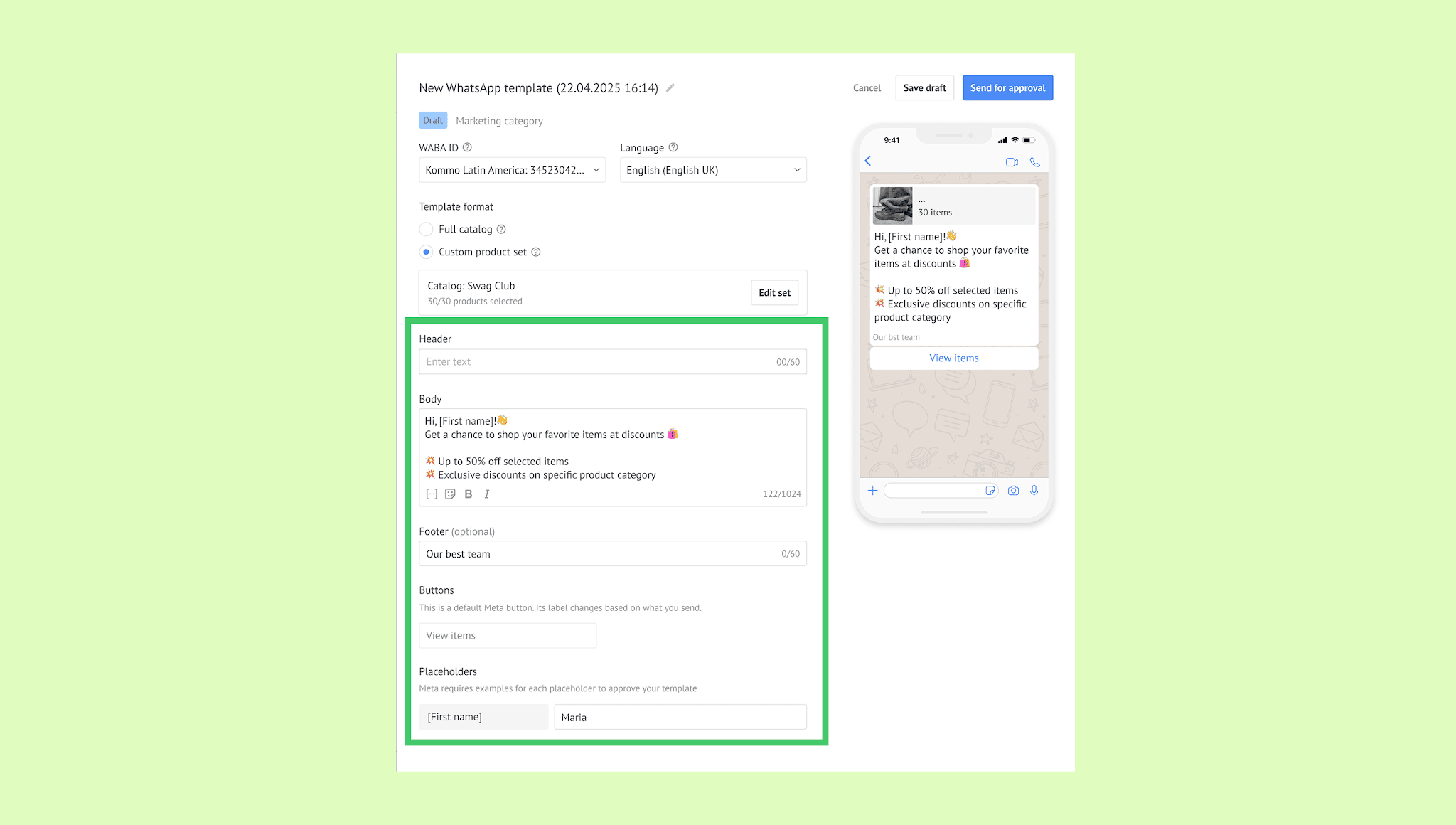
Enter the message body. You can also add an optional footer.
If you use placeholders, provide an example value for each one. Meta requires these examples for template review.
Click Save draft to finish later, or Send for approval to submit the template to Meta.
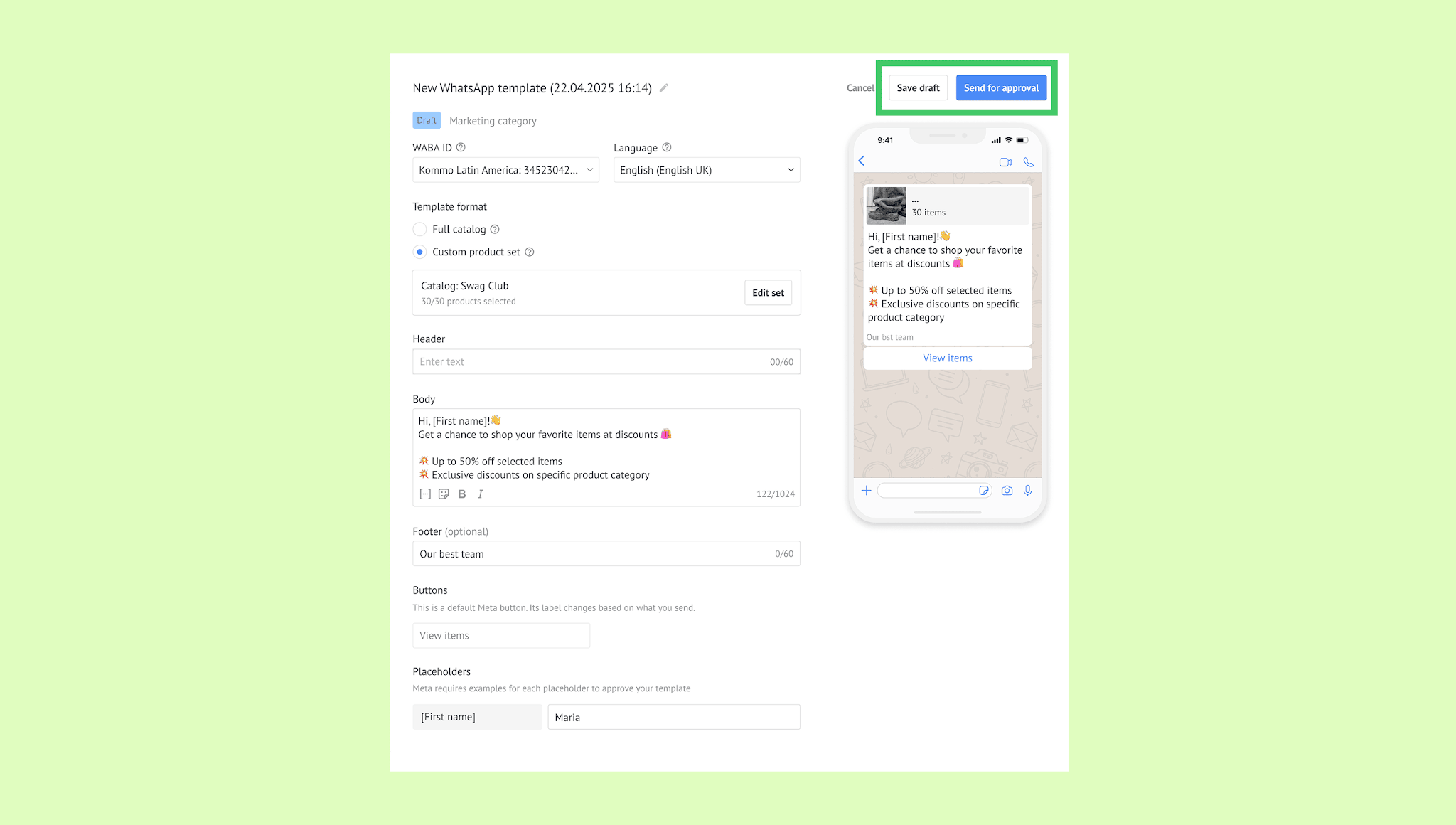
Once you submit the template, its status changes from Draft to In review. After Meta approves it, the status changes to Approved, and the template becomes available to send to clients. 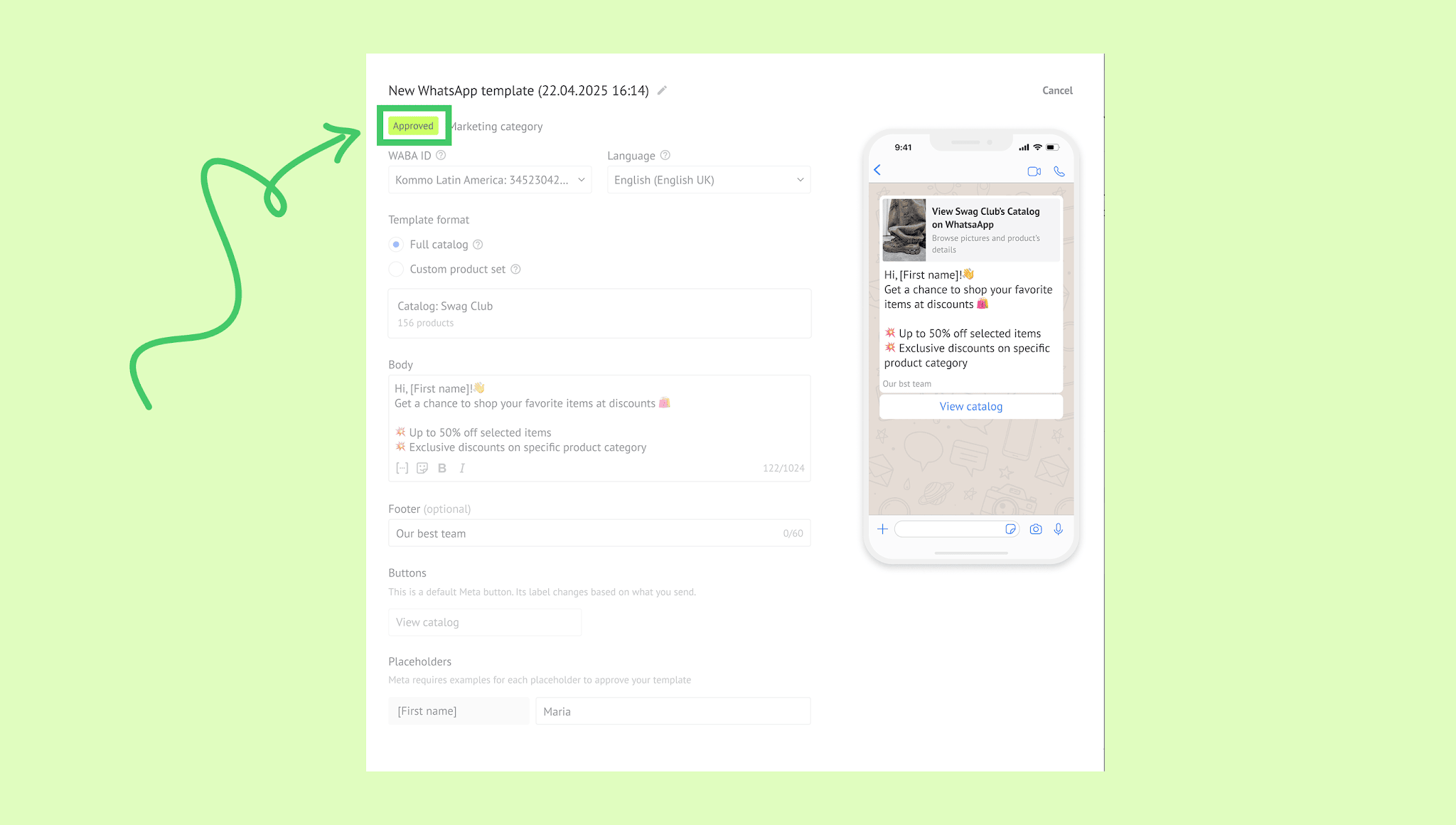
Note: Only active and available products are visible to clients in WhatsApp. If you update products in Meta, sync the catalog with Kommo before sending it.
Check Catalog template statuses
After you submit a Catalog template, Meta reviews it. In Kommo, you can track the template status In Automations → Templates → Chat templates.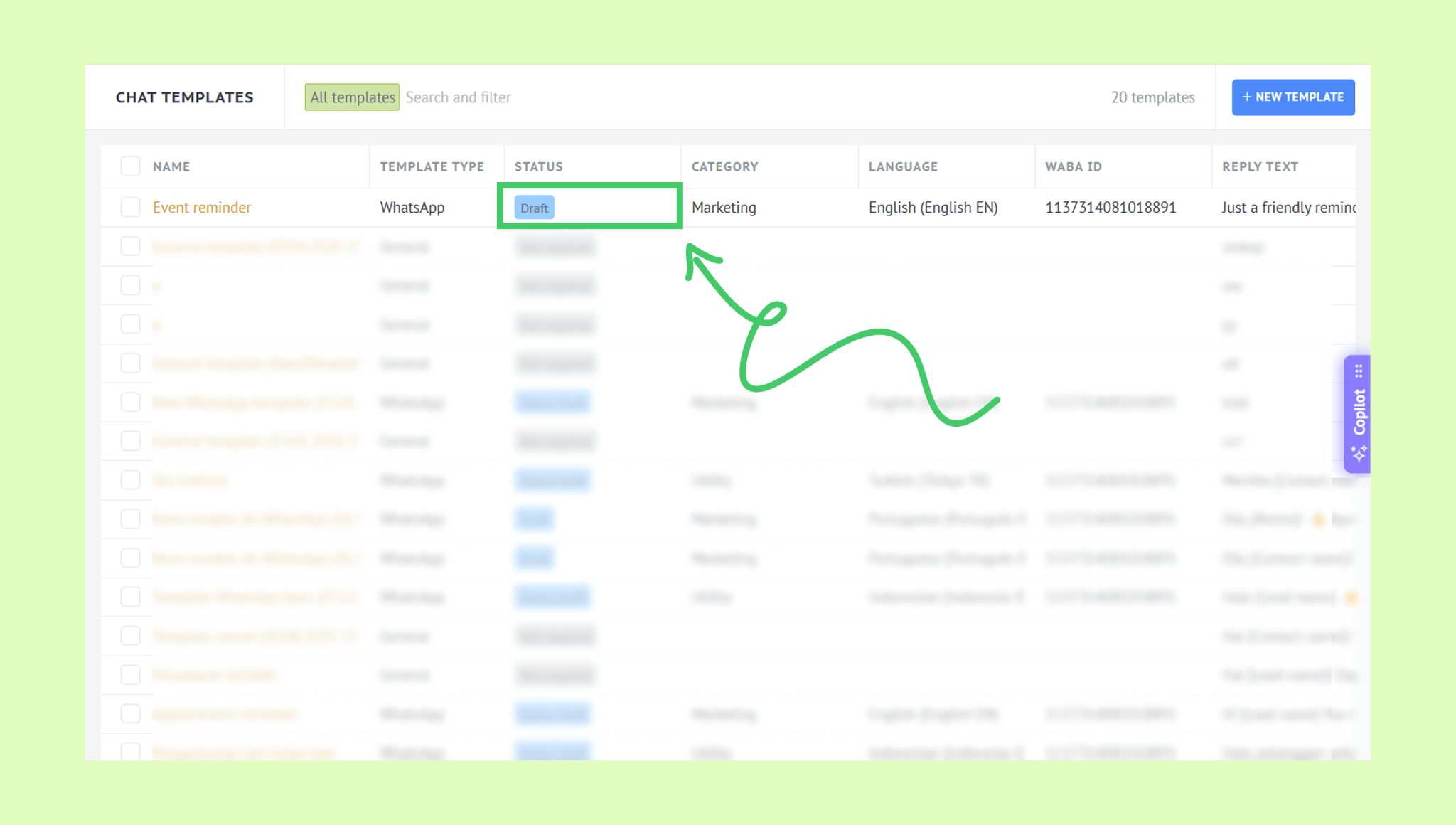
Template statuses include:
Draft — Saved but not submitted for review.
In review — Waiting for Meta’s approval.
Approved — Ready to use.
Paused — Temporarily blocked because of quality or policy issues.
Rejected — Not approved by Meta. Hover over the rejected status to see the reason, then edit and resubmit the template if needed.
Only approved templates can be sent to customers.
See the most common reasons for WhatsApp template rejection and learn how to avoid them in this article.
Send Catalog templates to your clients
You can send WhatsApp catalog templates in different ways, depending on whether you want to message one client, automate product recommendations, or reach multiple clients at once.
Send through a chat
Use Kommo’s Chat inbox to manage WhatsApp conversations and share catalog templates directly with a client. This is useful when you need to message a client first or follow up after the 24-hour messaging window has closed.
Example: Introduce your full catalog to a new lead, share a personalized selection based on the client’s preferences, or re-engage them when a product they liked is back in stock or available at a special price.
Learn how to send catalog templates through a chat.Send through Salesbot
Use Salesbot to send catalog templates automatically as part of a chat flow. You can recommend products based on a client’s answers, needs, or a pipeline stage.
Example: Set Salesbot to ask about the client’s needs, then automatically send a relevant product set based on their answers.
Learn how to send catalog templates through Salesbot.Send through broadcasts
Use broadcasting to send a catalog template to multiple clients at once. Each client receives it as a private WhatsApp message.
Example: Promote seasonal products, announce a new collection or restock, share special offers, or re-engage clients.
Learn how to send catalog templates through broadcasts.
Important: WhatsApp catalogs are currently in beta. As we continue improving the feature, some parts of the feature may not always work as expected. If you run into any issues, see our troubleshooting guide.