What you’ll need
The catalog linked to your WhatsApp Business account in Meta WhatsApp Manager.
Marketing message templates approved by Meta are required to send catalogs through bots or broadcasts. Learn more about Broadcasting.
Any Kommo plan – Base, Advanced, Pro, Enterprise, or 14-day trial.
Keep in mind
Catalogs can include up to 30 products per message if you choose to send a message with multiple products attached.
Only active and available products are visible to clients in WhatsApp.
You cannot submit a new template with catalog or products included during the broadcasting setup. You can only select an already approved template from the list.WhatsApp catalogs are currently in beta. As we continue improving the feature, some things may not always work as expected. If you run into any issues, see our troubleshooting guide.
Sending catalogs lets you showcase and sell products directly in WhatsApp chats. You can share items or collections from your Meta catalog, promote offers, and let leads browse, ask questions – all without leaving the conversation.
Send WhatsApp catalogs from Kommo
With WhatsApp Catalogs, you can send products in several formats:
Catalog message/template – full catalog.
A custom list of multiple products from the catalog – up to 30 products and 10 sections per message.
Single product message/template – one product.
There are multiple methods to include catalogs to send to leads:
Send a catalog through a chat with a lead
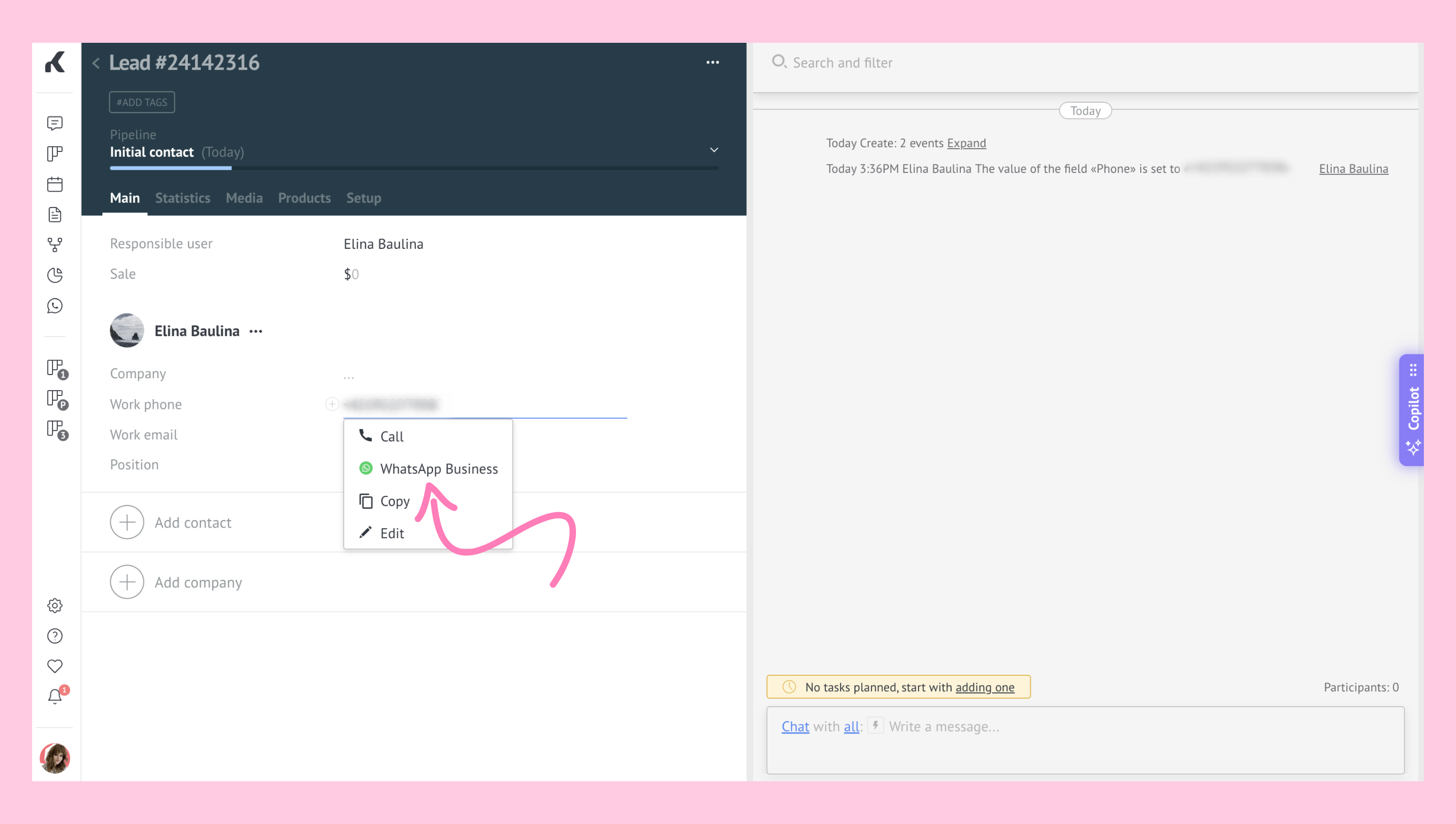
Open the lead’s chat in Kommo. Check the selected channel for the lead, making sure it's WhatsApp Business.
Click the catalogs button.
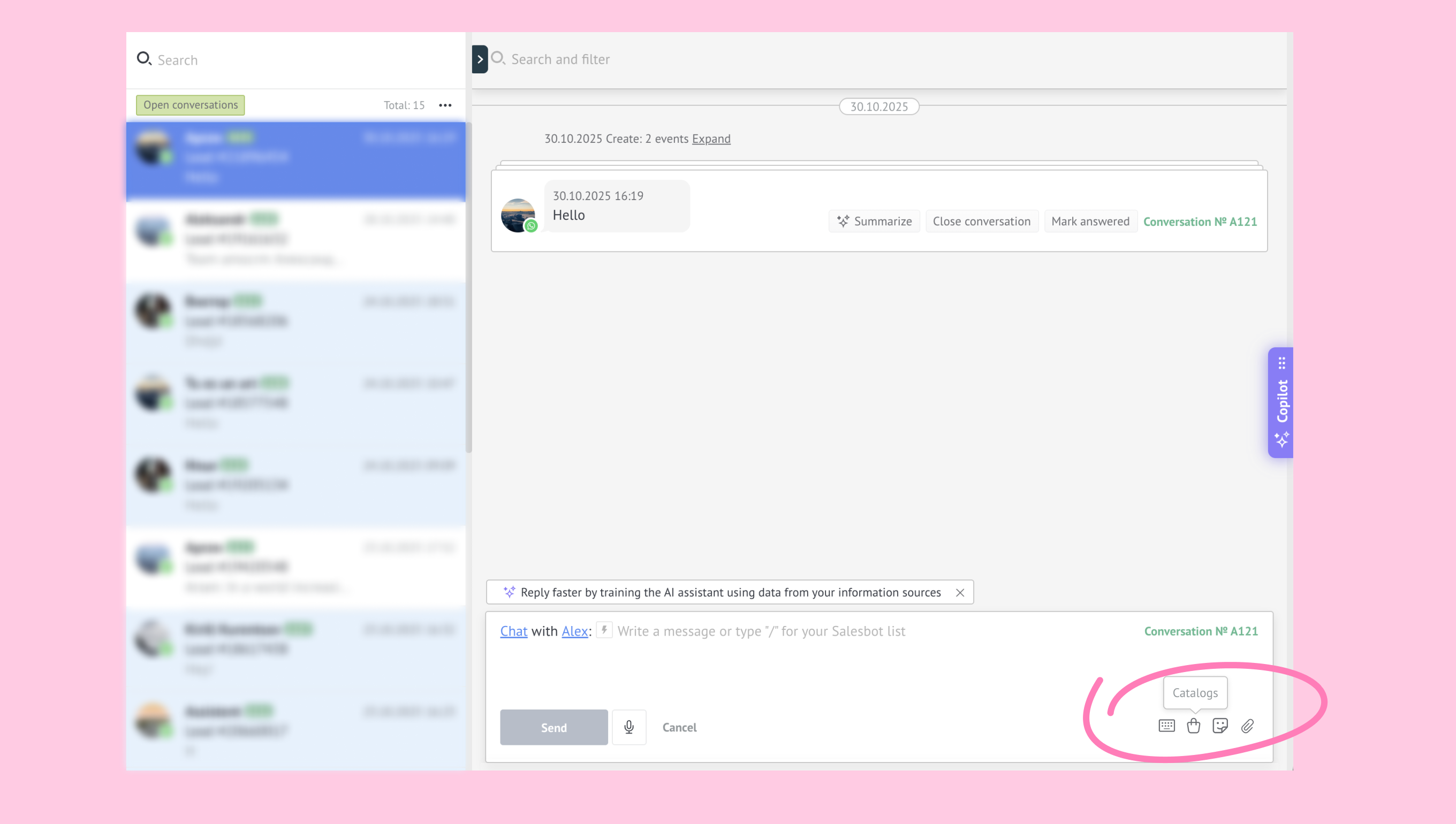
Select products or an entire catalog to send.
Add message text, review, and send.
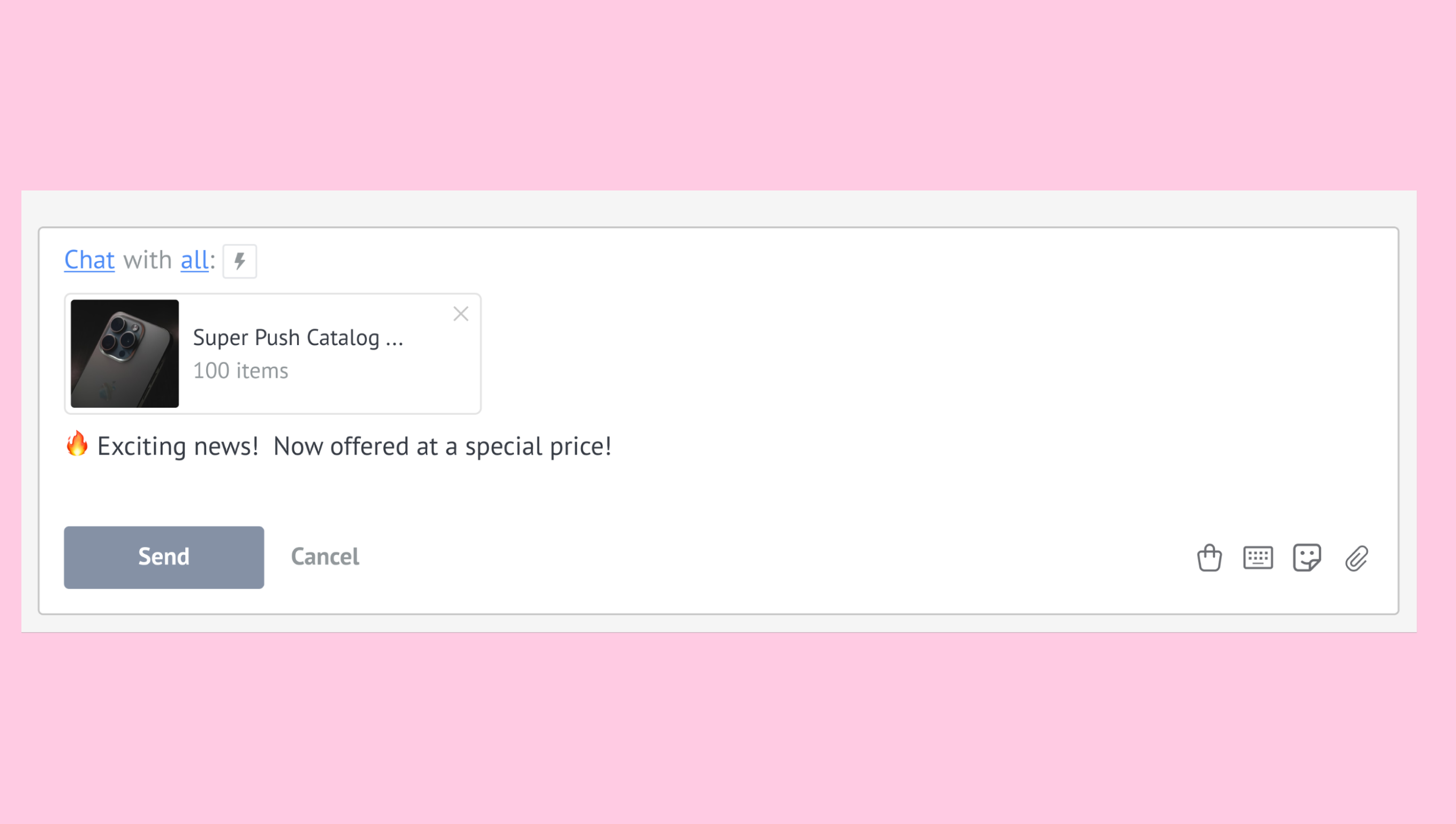
Send a catalog through a broadcast
Note: To send catalogs via broadcasting, you must use a Meta-approved WhatsApp marketing template. Create a new template and submit it for Meta approval, or choose one that’s already approved.
Go to Automations → Broadcasting. Click New broadcast.
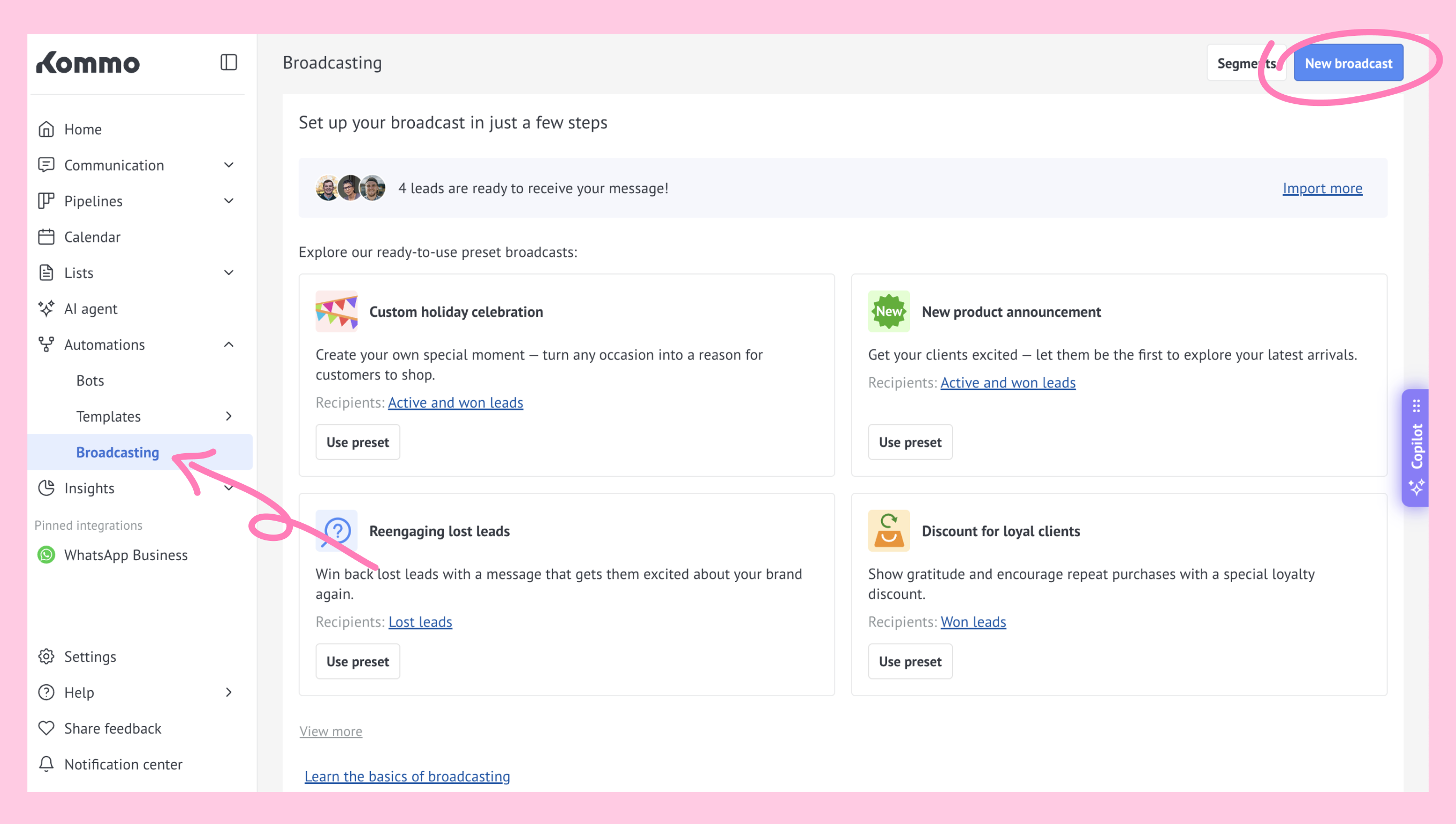
Select a template or click Start from scratch.
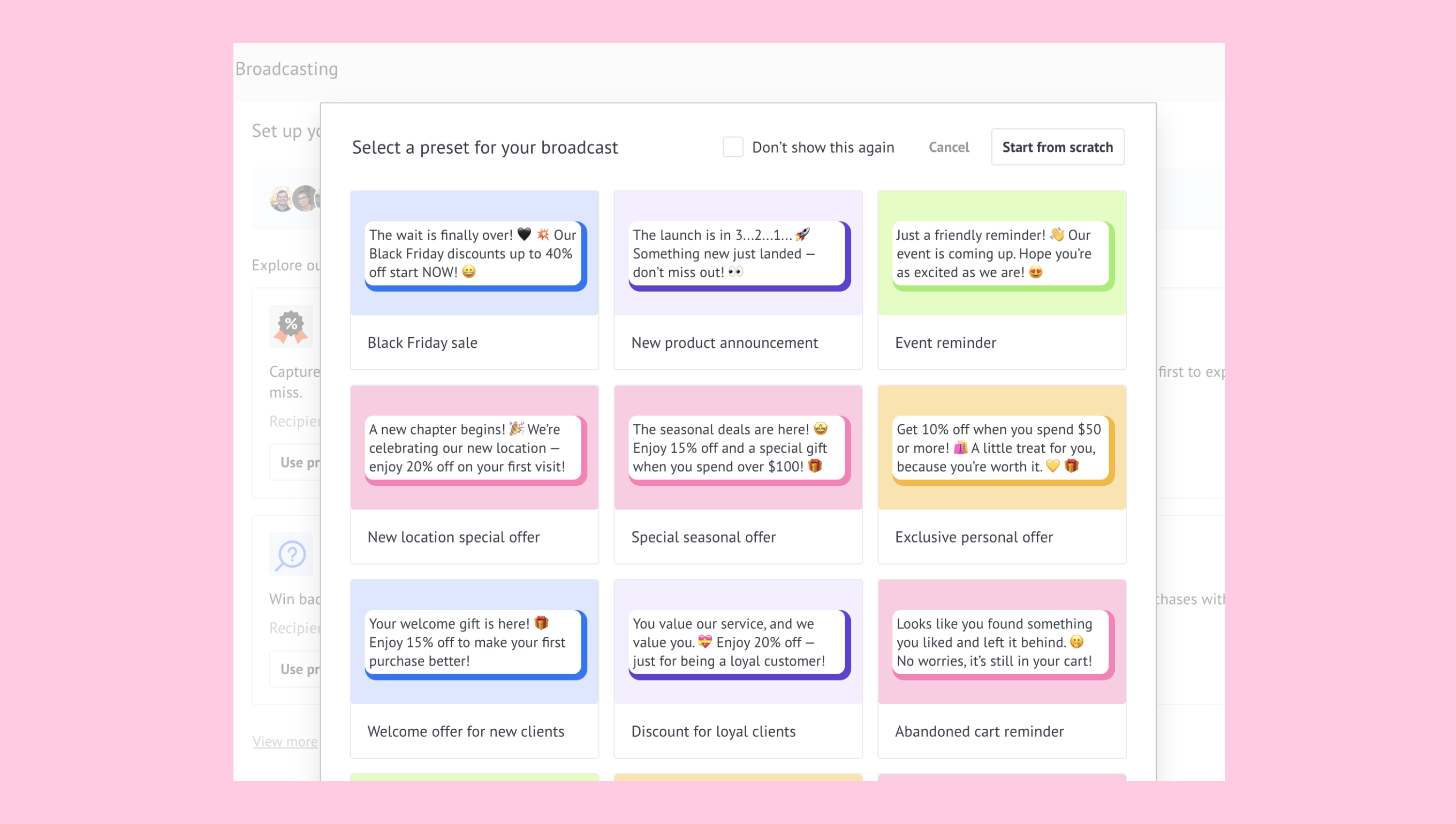
Fill in necessary fields. Learn more about broadcasting settings.
Add a WhatsApp Business template with a product from catalog, multiple products, or an entire catalog.
Important: You cannot submit a new template with catalog or products included during the broadcasting setup. You can only select an already approved template from the list.
Send or Schedule the broadcast.
Send a catalog through a bot
Go to AI & Automation → Bots. Open your bot or create a new one.
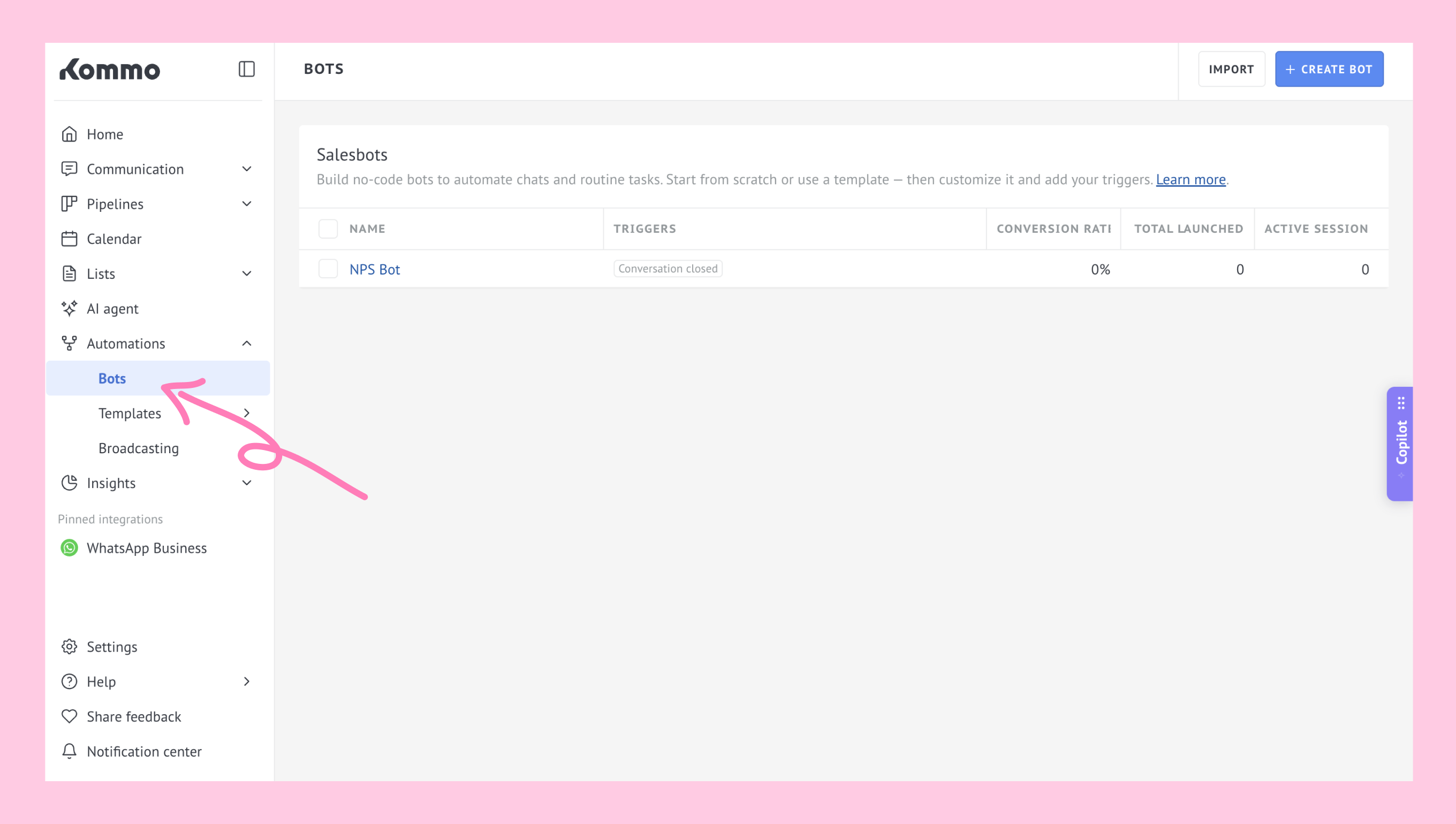
Select a template or click Start from scratch.
.png)
Add a Message step and attach a message with a template with products from a catalog or an entire catalog.
Note: You can only attach Meta-approved templates during the setup process. Creating and submitting new templates for approval isn’t available from this step.
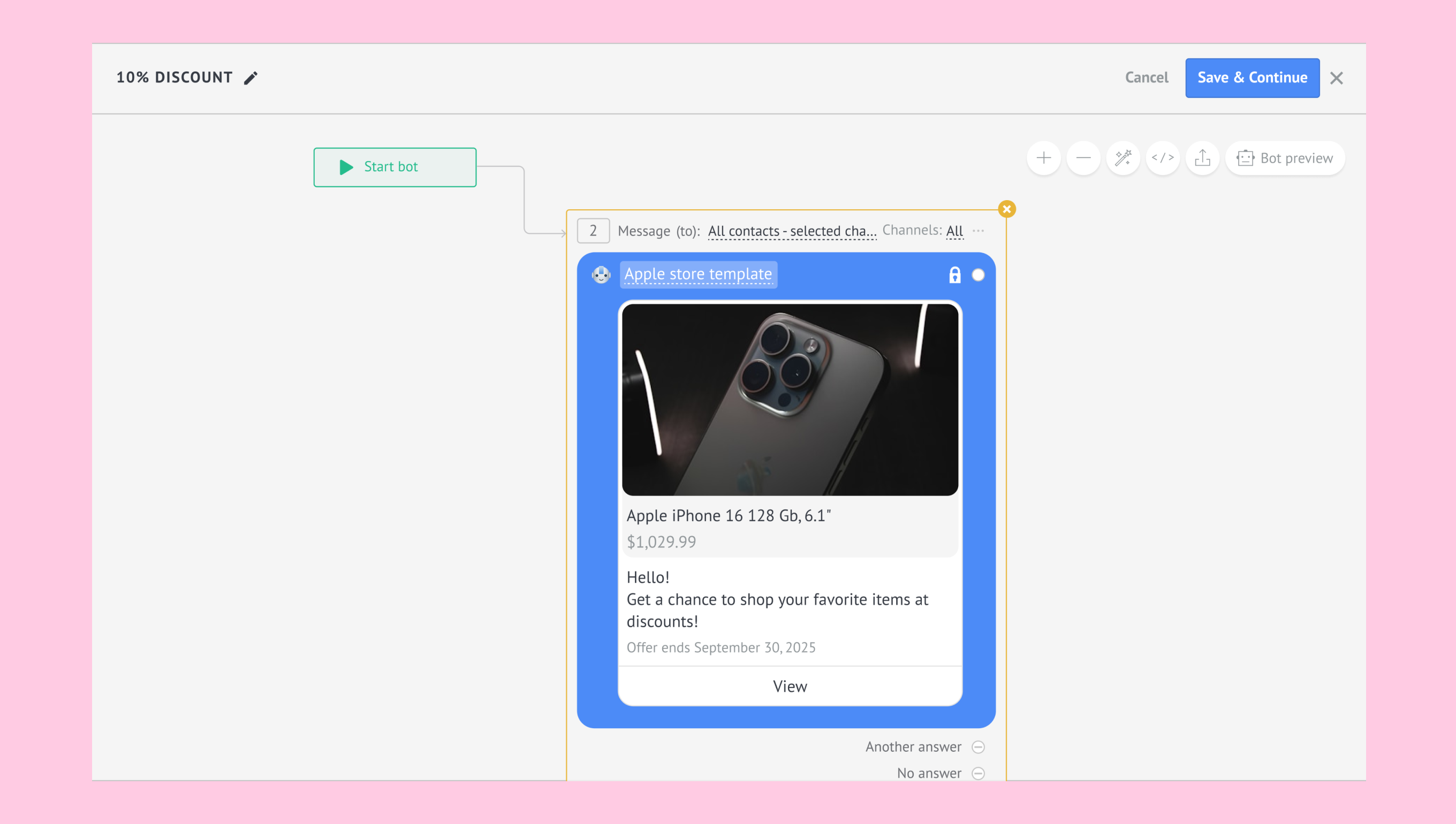
Add other steps if needed.
Launch the bot.