What you’ll need:
Device notifications allowed for the Kommo app (iOS/Android settings)
Access to Kommo on desktop (notification triggers are configured there)
Keep in mind:
Set notification triggers in Kommo on desktop (mobile app can’t change them)
What you can enable depends on your role and permissions
Your phone must allow Kommo notifications for push alerts to appear
Mobile notifications help you stay informed about important activity — without needing to keep the desktop app open. You can choose what triggers alerts and keep interruptions under control.
Configure your mobile Kommo notifications
Choose which Kommo events trigger notifications on your phone.
Open Kommo on desktop.
Go to Settings → Profile settings. Scroll to Notifications settings.
In the Mobile column, select or clear notification checkboxes. Click Save in the top-right corner.
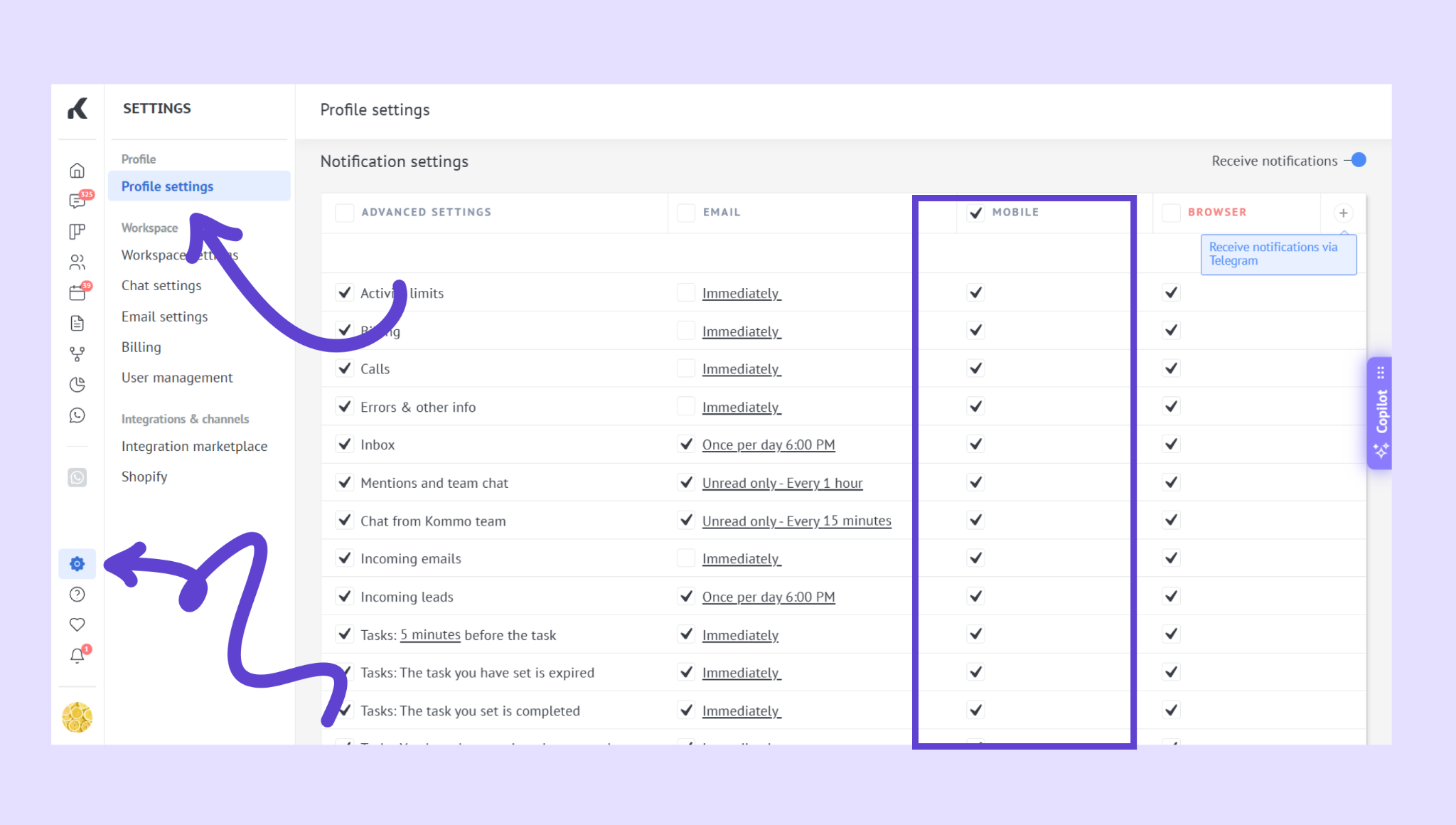
Your changes apply immediately and sync with the mobile app.
Verify notifications
Make sure everything is working correctly.
Ask a teammate to send you a message
Create a task assigned to you
Get mentioned in a lead or conversation
You should receive a push notification on your phone within seconds.
If notifications don’t appear:
Check notification permissions in your device settings
Make sure Kommo notifications are enabled for the app
Make sure your phone is online (Wi-Fi or mobile data)
If you need more help with setup or troubleshooting, feel free to reach out to our support chat or contact us via WhatsApp. You can also hire a Kommo partner to do all the hard work for you.
Not a user yet? Sign up for our 14-day free trial or book a free live demo.