What you’ll need:
Any Kommo plan (Base, Advanced, Pro, Enterprise, or 14-day trial)
Keep in mind:
Only users with the Admin role can configure custom fields
Default fields cannot be renamed or deleted
In Kommo, you can build your client database using three record types: leads, contacts, and companies. To store the details that matter to your business, add custom fields to any record type – such as date of birth, gender, contract number, or preferred contact method.
This article explains how to add and manage custom fields in Kommo.
Add a custom field
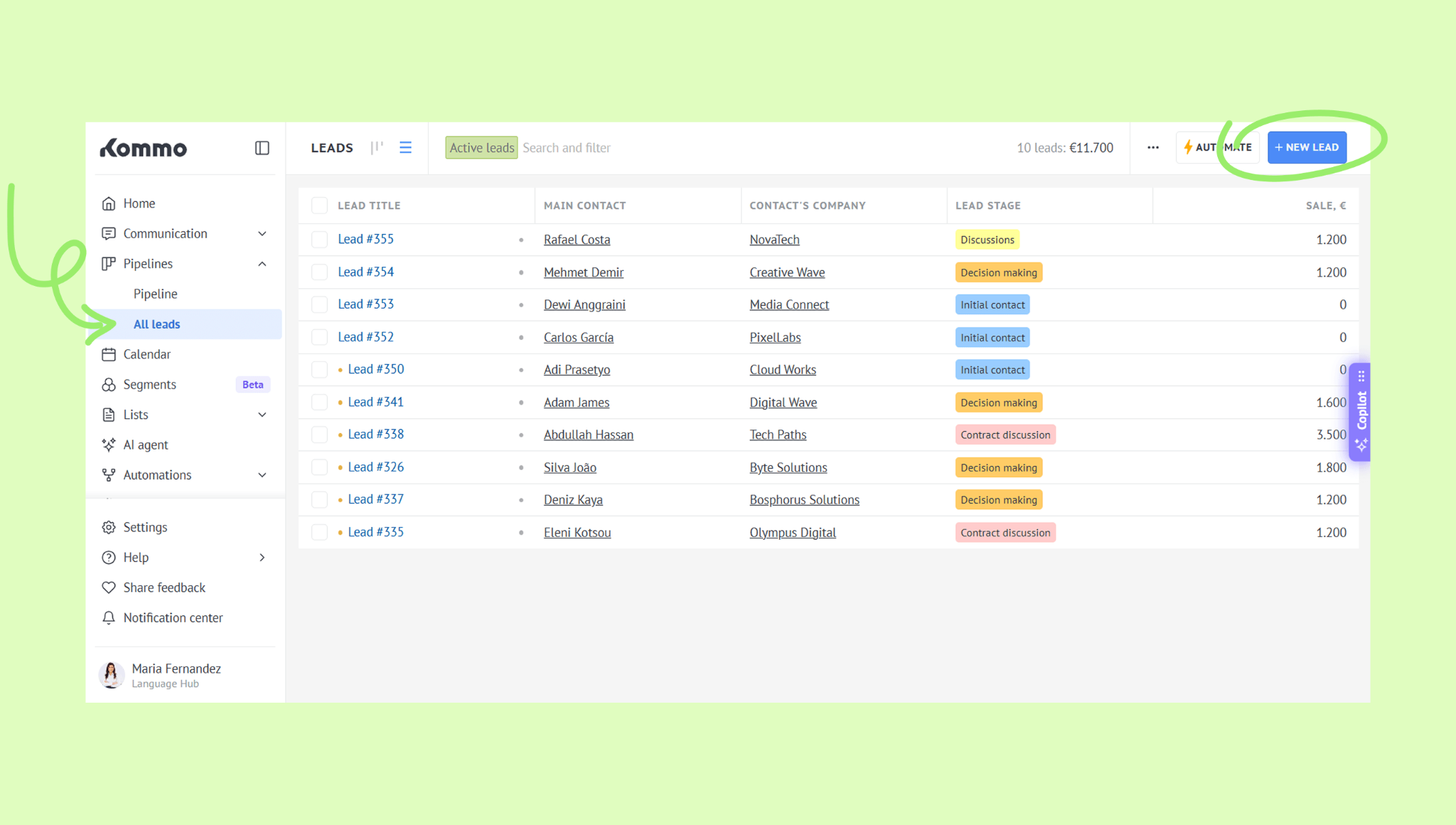
Go to Pipelines → All leads and click + New lead.
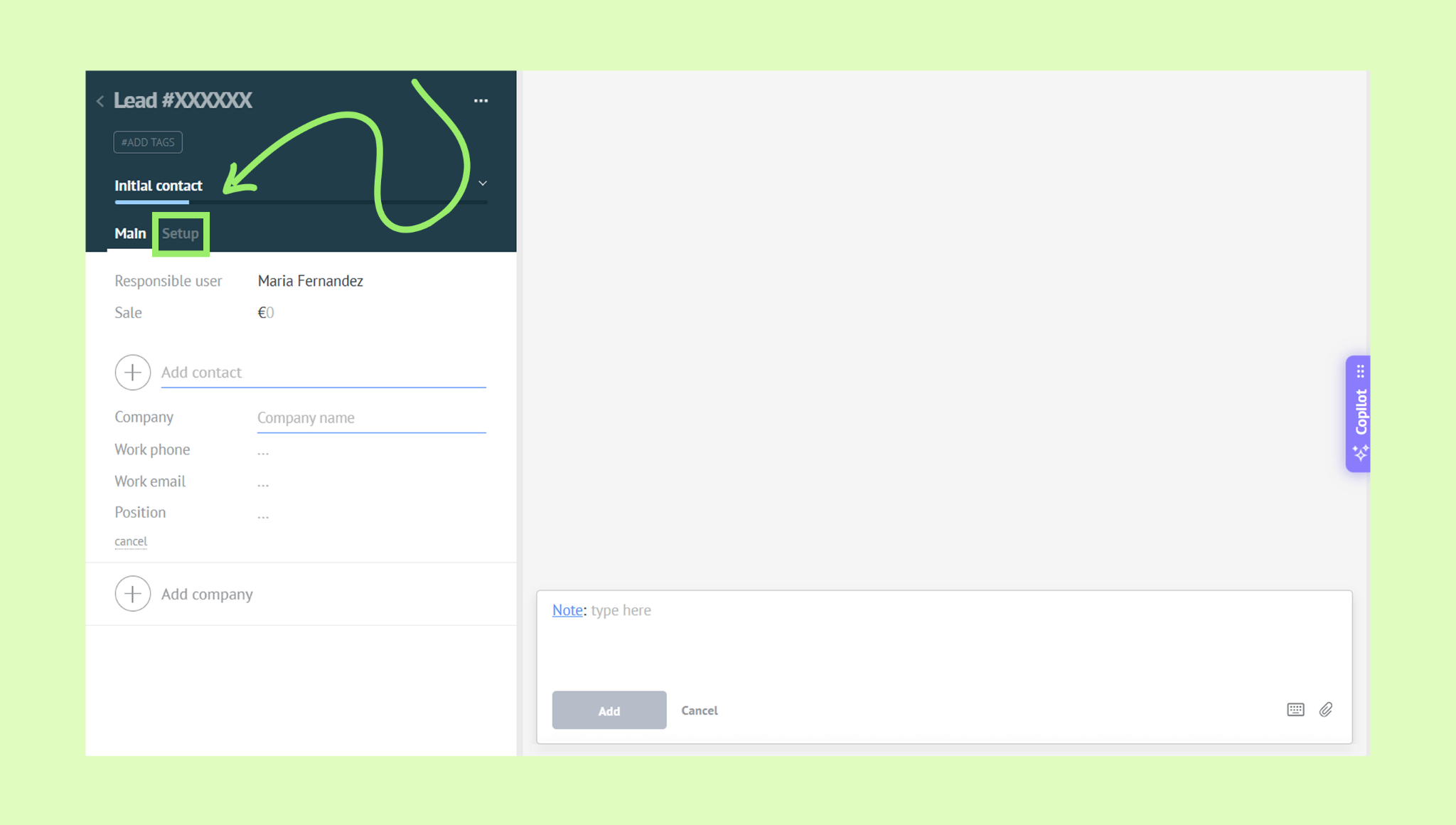
Open the Setup tab.
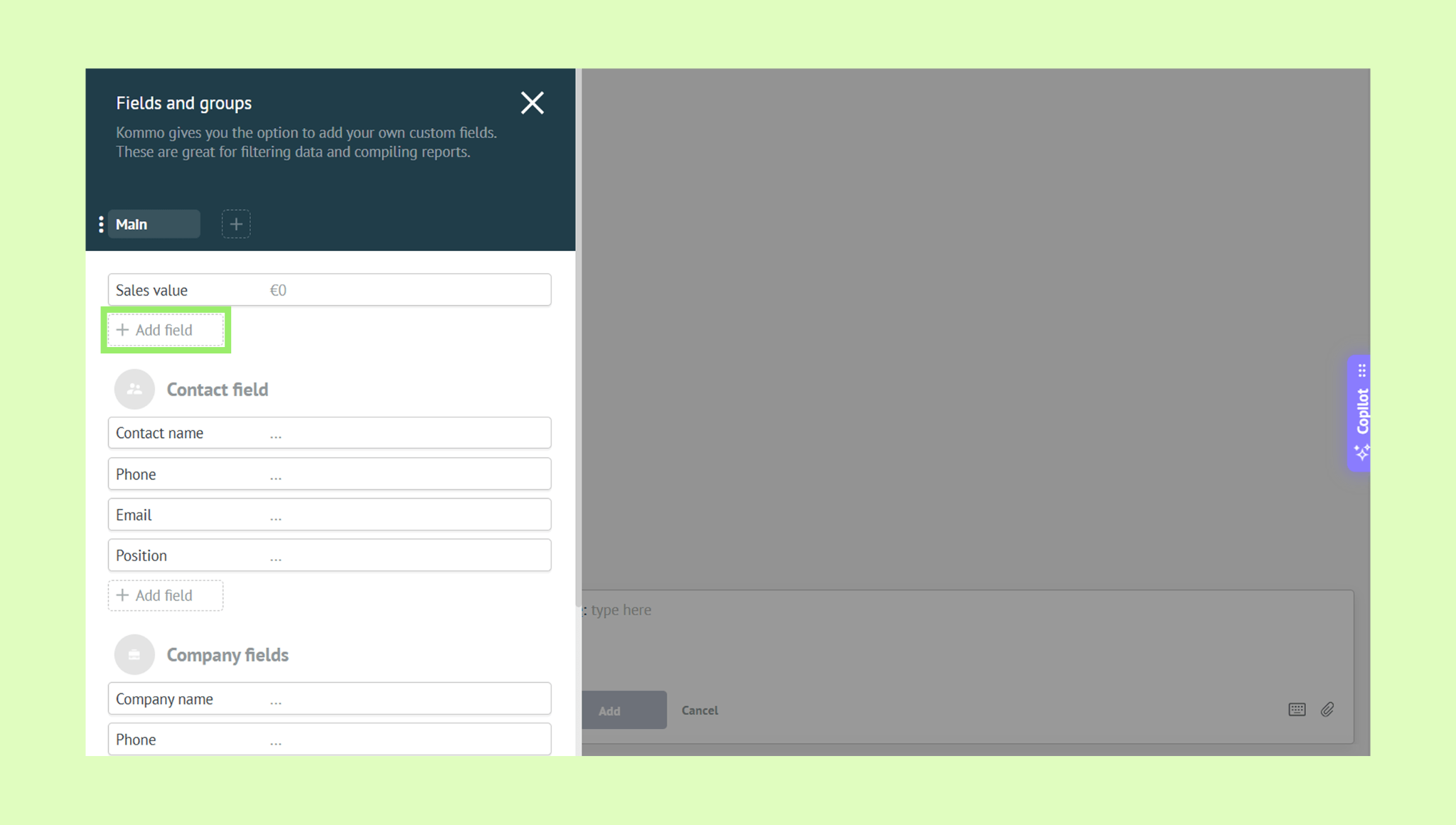
Click + Add field.
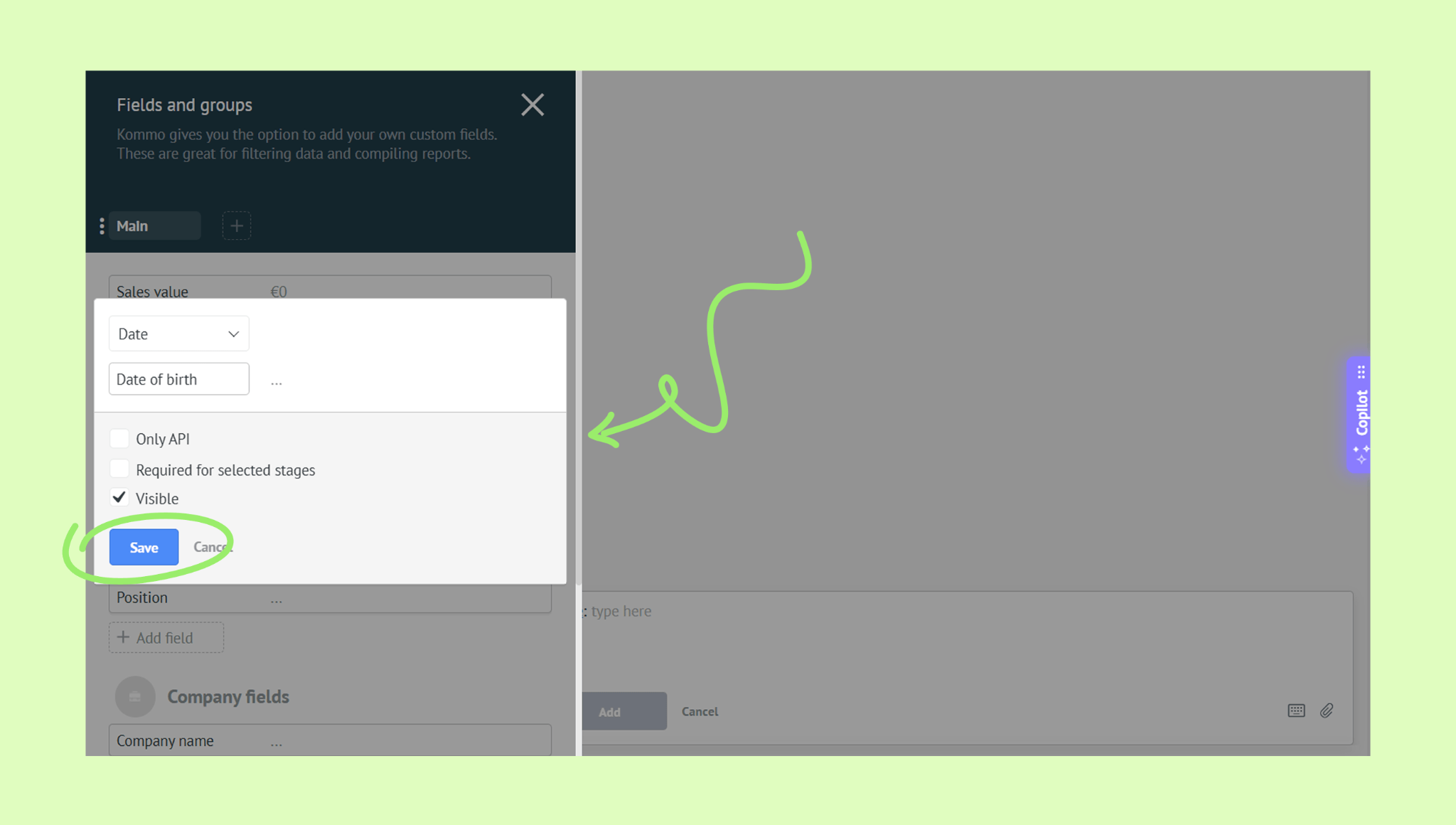
Configure the field:
Choose the field type
Enter the field name
Enable API only if needed (optional)
Mark it as required for specific pipeline stages (optional)
Set visibility — choose whether the field is visible in the lead card
Click Save.
The field will be added to all existing leads automatically.
You can add custom fields to a contact or company profile from the lead card – just click + Add field under the Contact fields or Company fields sections: 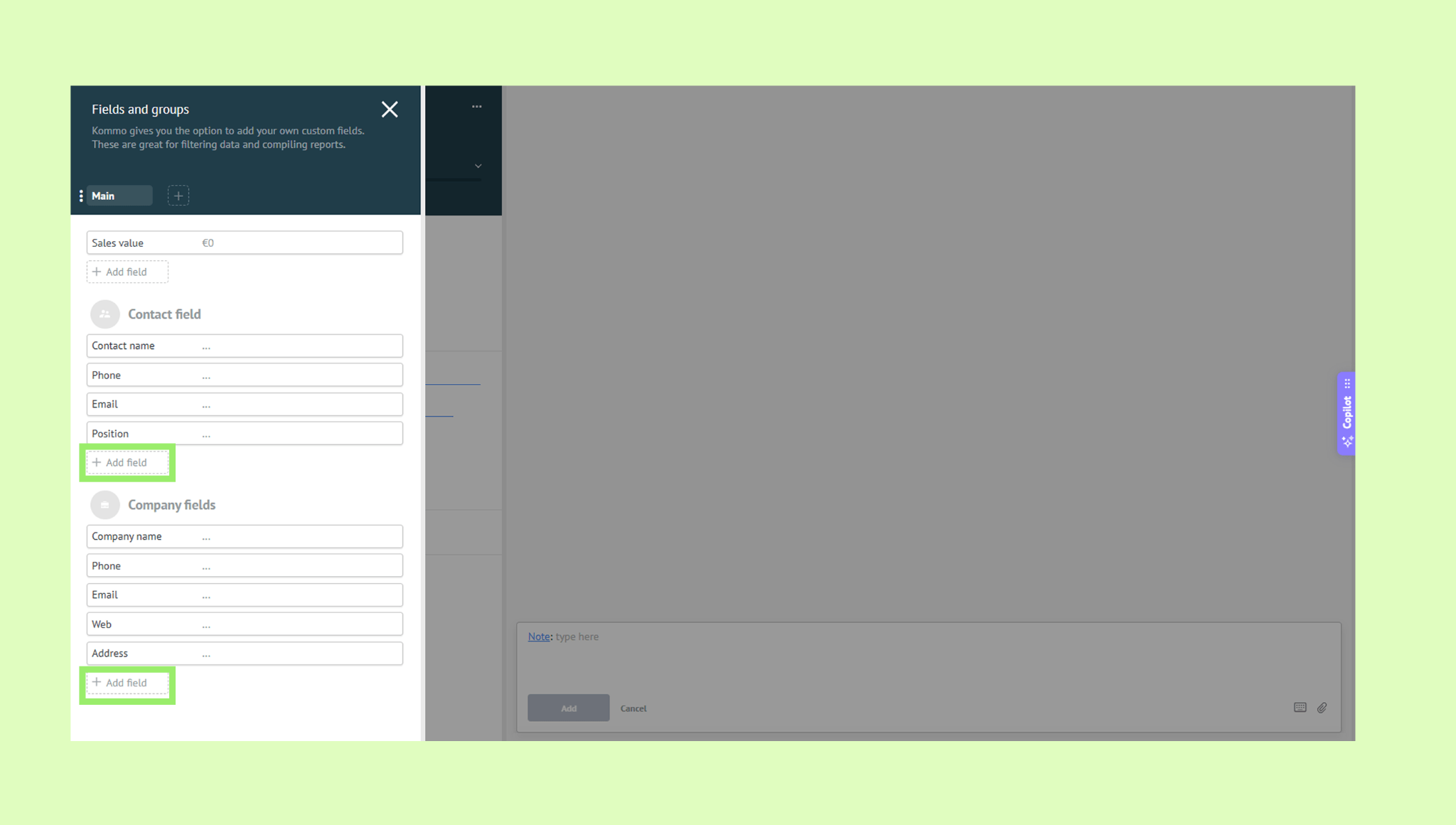
Note: You can also manage custom fields from any existing record — open a lead, contact, or company, click the Setup tab, and follow the same steps.
Reorder custom fields
Go to Pipelines → All leads and click + New lead.
Open the Setup tab.
Hover over the grip icon (⋮) next to the field and drag it to the new position.
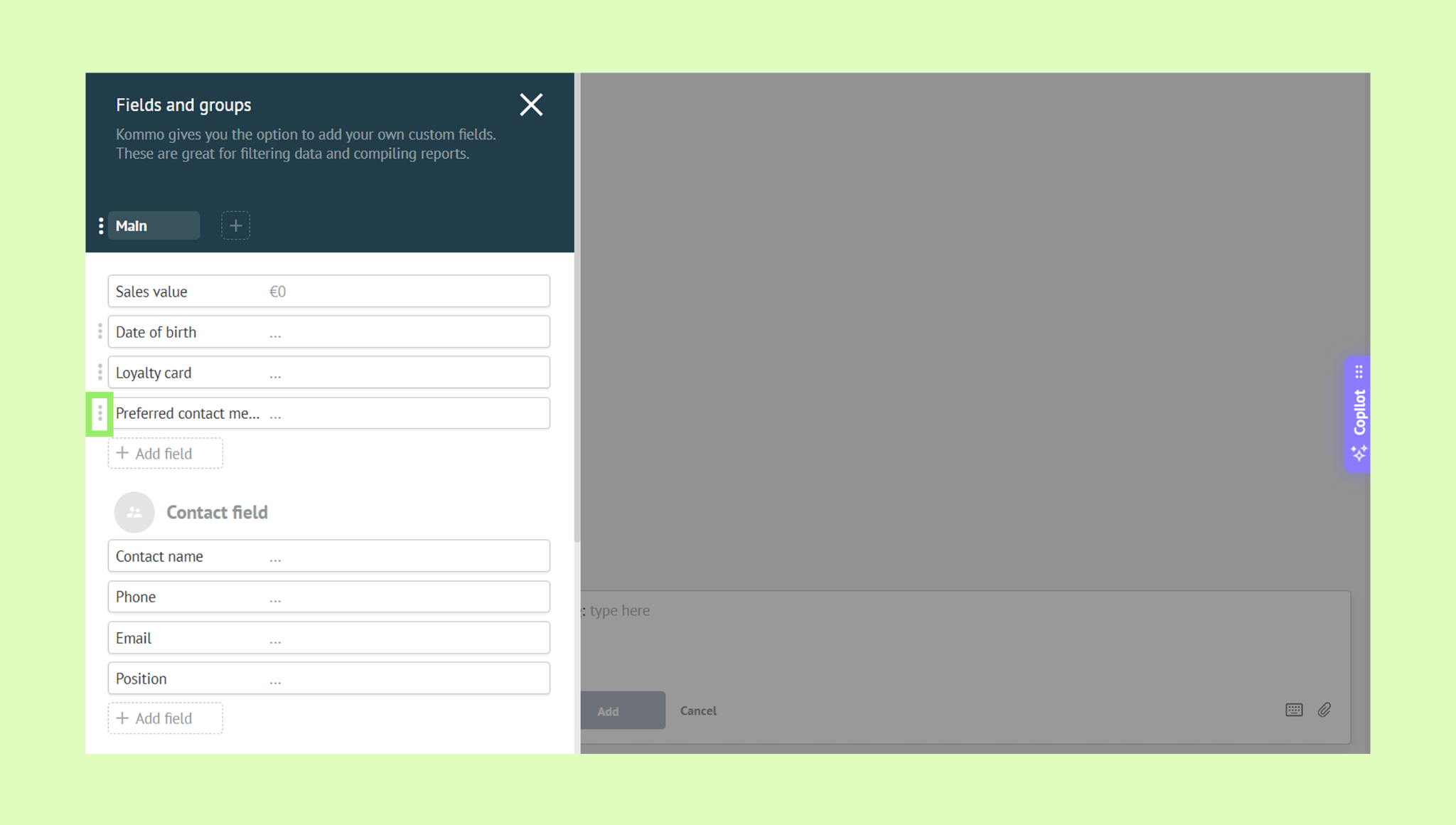
The change is saved automatically.
You can also reorder custom fields for contacts and companies directly from the lead card — just drag and drop the fields under the Contact fields or Company fields section.
Delete a custom field
Go to Pipelines → All leads and click + New lead.
Open the Setup tab.
Click the field you want to delete.
Click Delete field and confirm deletion.
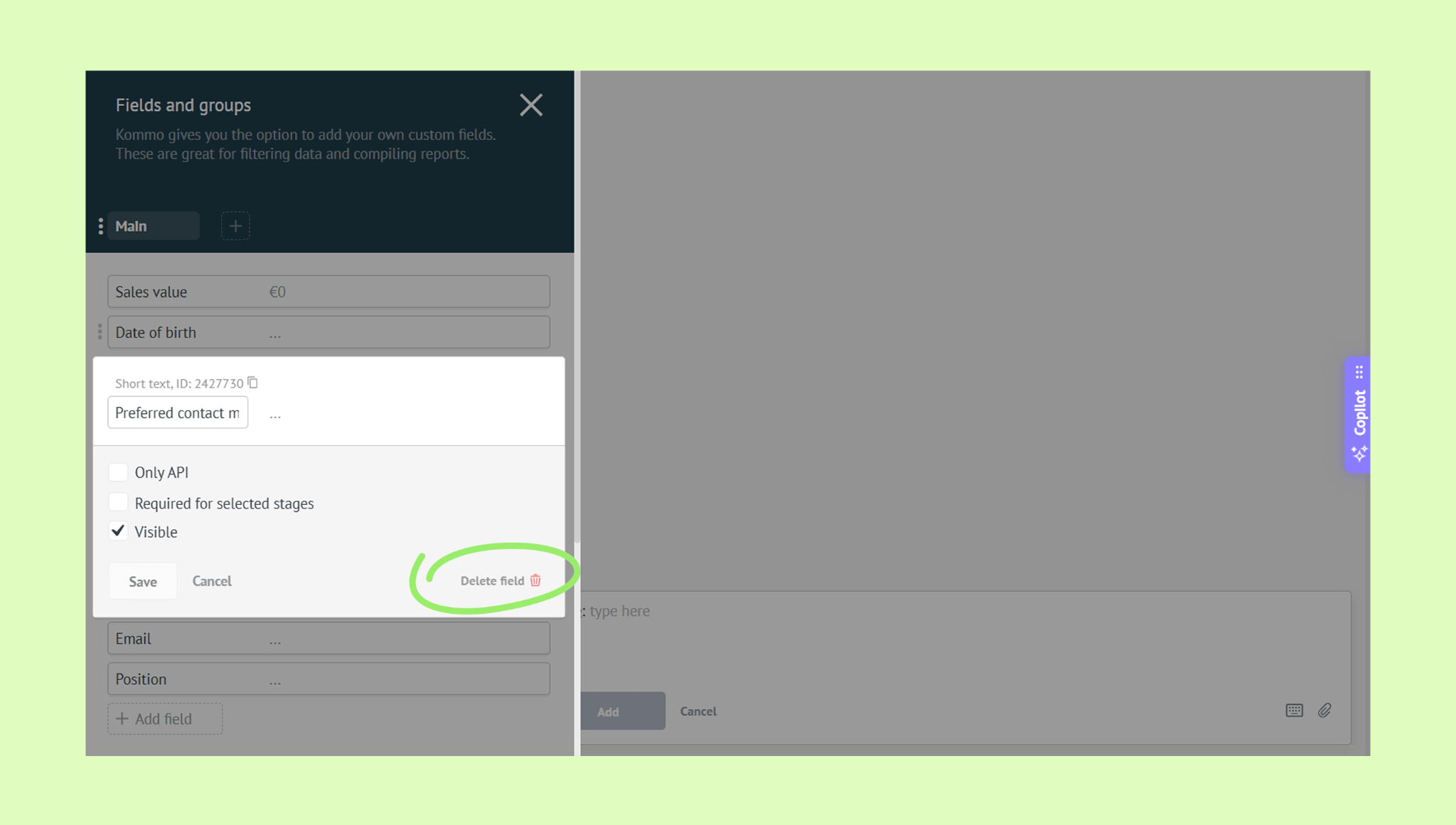
The field will be removed from all existing leads automatically.
You can also delete custom fields for contacts and companies directly from the lead card — just click the field you want to delete under the Contact fields or Company fields section and click Delete field.
Note: Custom fields can be used for duplicate control. For example, you can set Kommo to automatically merge all leads with the same loyalty card number. Learn more in the Duplicate control article.