Description: Learn how to organize useful information across leads, contacts, and companies in Kommo.
What you’ll need:
Any Kommo plan (Base, Advanced, Pro, Enterprise, or 14-day trial)
Admin access to configure custom fields
Examples of the information your team currently uses
Keep in mind:
Only Admins can add or edit custom fields
Default fields cannot be renamed or deleted
Collect only information that supports your team’s workflow
Kommo stores client and sales information in leads, contacts, and companies. Planning what belongs in each record helps your team find important details quickly, avoid duplicate information, and keep records consistent.
Outcome
By the end of this guide, you will understand which information belongs in each record type and how fields, tags, and notes can support your workflow.
Understand the three record types
Leads
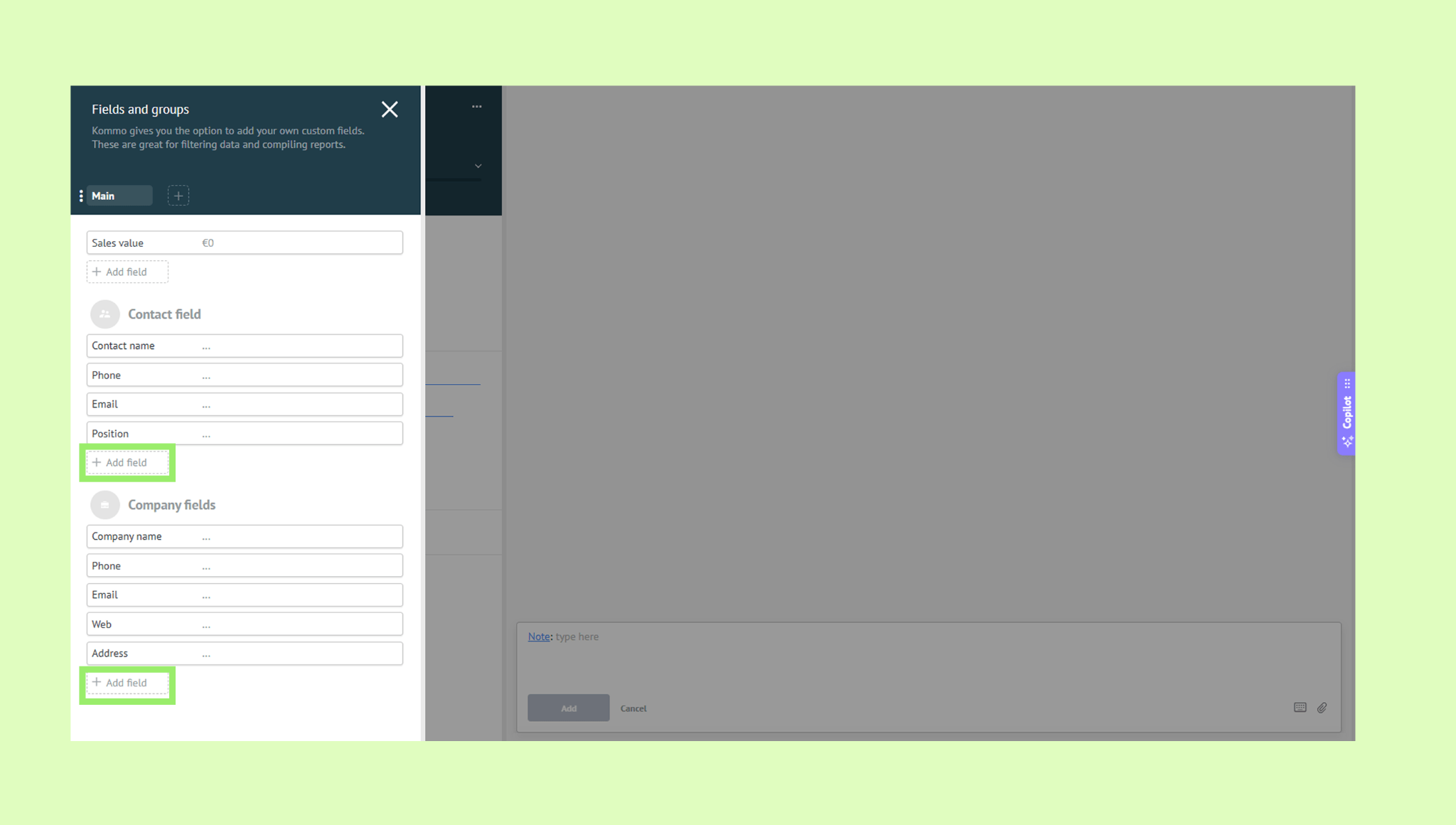
A lead represents a sale, deal, or other opportunity. Store information that can change from one opportunity to another, such as the product requested, expected sale value, source, or delivery date.
Contacts
A contact represents a person. Store information that should stay connected to that person across multiple leads, such as their name, phone number, email address, preferred contact method, or language.
Companies
A company represents an organization. Store information such as the company name, industry, website, address, or account type. If your business works only with individuals, you may not need company records in your first setup.
Choose useful information
Start with the information your team already checks during sales conversations and follow-ups. Keep a field only when it helps your team understand the client, choose the next action, filter records, run automations, or review results.
A short list of useful fields is easier to maintain than a long record with information no one uses.
Choose the right record
Use this rule:
Store opportunity-specific information in the lead
Store person-specific information in the contact
Store organization-specific information in the company
For example, store a client’s preferred language in the contact, but store the product they are currently interested in within the lead.
Choose a consistent format
Use structured field types when teammates should choose from the same set of values. This is useful for information such as Lead source, preferred contact method, dates, or numeric values.
Use free-text fields only when the answer cannot be standardized. Consistent values make filters, automations, imports, and reports more reliable.
Use fields, tags, and notes appropriately
Fields store structured information your team needs to filter, automate, or report on
Tags provide flexible labels for grouping records
Notes store additional context that does not need a fixed format
Avoid using tags or notes instead of important structured information.
Configure custom fields
Admins can add custom fields to leads, contacts, and companies, choose the appropriate field type, control visibility, make fields required at specific stages, reorder them, or remove fields that are no longer needed.
For complete setup instructions, see Configure custom fields.
Update record information
Users with the required permissions can update field values inside individual leads, contacts, and companies. Contact and company details can also be managed directly from a linked lead card.
Learn how to create and edit records in Manage leads, contacts and companies. For linked contact and company information, see Manage company and contact details from a lead card.
Customize the pipeline card layout
You can choose which information appears on lead cards in the pipeline, helping teammates see the most important details without opening every record.
Learn more in Customize your lead card layout.
Verify your information plan
Your setup is ready when:
Every field has a clear purpose
Information belongs to the correct record type
Field names and values are consistent
The most important details are easy to find
Your team does not need to enter the same information more than once
Next step
Complete an end-to-end review with Prepare your Kommo workspace for launch.