What you’ll need:
Any Kommo plan (Base, Advanced, Pro, or Enterprise)
Admin access in Kommo
A valid payment method:
Brazil: Credit card or Pix (payments accepted in BRL, installment payments are available for credit card payments)
Other countries: Card or PayPal (payments accepted in USD)
Keep in mind:
The minimum subscription period is 6 months
Discounts are available for 9-, 12-, and 24-month plans
Subscriptions apply to the entire workspace — all users share the same plan
If you want to pay in your local currency, contact a local Kommo partner
Subscription auto-renewal payments are enabled by default for all payment methods except Pix
Auto-renewals can be disabled at any time
The saved payment method is used for auto-renewals, upgrades, ai credit top-ups, and added seats
Each subscription includes a limited number of AI credits. Additional AI credits can be purchased separately
Important: Some features described in this article may not be available yet. They will be released soon.
Kommo supports different payment methods depending on your region. In Brazil, you can pay by credit card or Pix. In other countries, you can pay by card or PayPal.
When you complete your first purchase:
Auto-renewal payments are enabled by default.
Your payment method is saved for future payments.
Your billing details are saved in your workspace.
Kommo uses your saved payment method for subscription renewals and other purchases, and your saved billing details to issue invoices.
You can delete your payment method or update your billing details at any time from the Billing page.
This article explains how to manage your payment method and billing details in Kommo.
To learn how auto-renewal payments work and how to turn them on or off, see Manage auto-renewal payments in Kommo.
Note: Auto-renewal payments are not available for Pix.
Change your payment method or details
When you make your first purchase, the payment method you use is linked to your Kommo workspace and saved for future payments. You can change the payment method or update its details later.
You can make these changes:
During a new purchase, for example, when you want to use a different payment method instead of the saved one.
When paying a pending order, for example, if Kommo could not charge your saved payment method and you want to retry using another one.
After a successful payment, the new payment method will be linked to your workspace and used automatically for future payments.
Change the payment method during a new purchase
Go to Settings → Billing and create a new order.
On the checkout page, click Change next to the saved payment method.
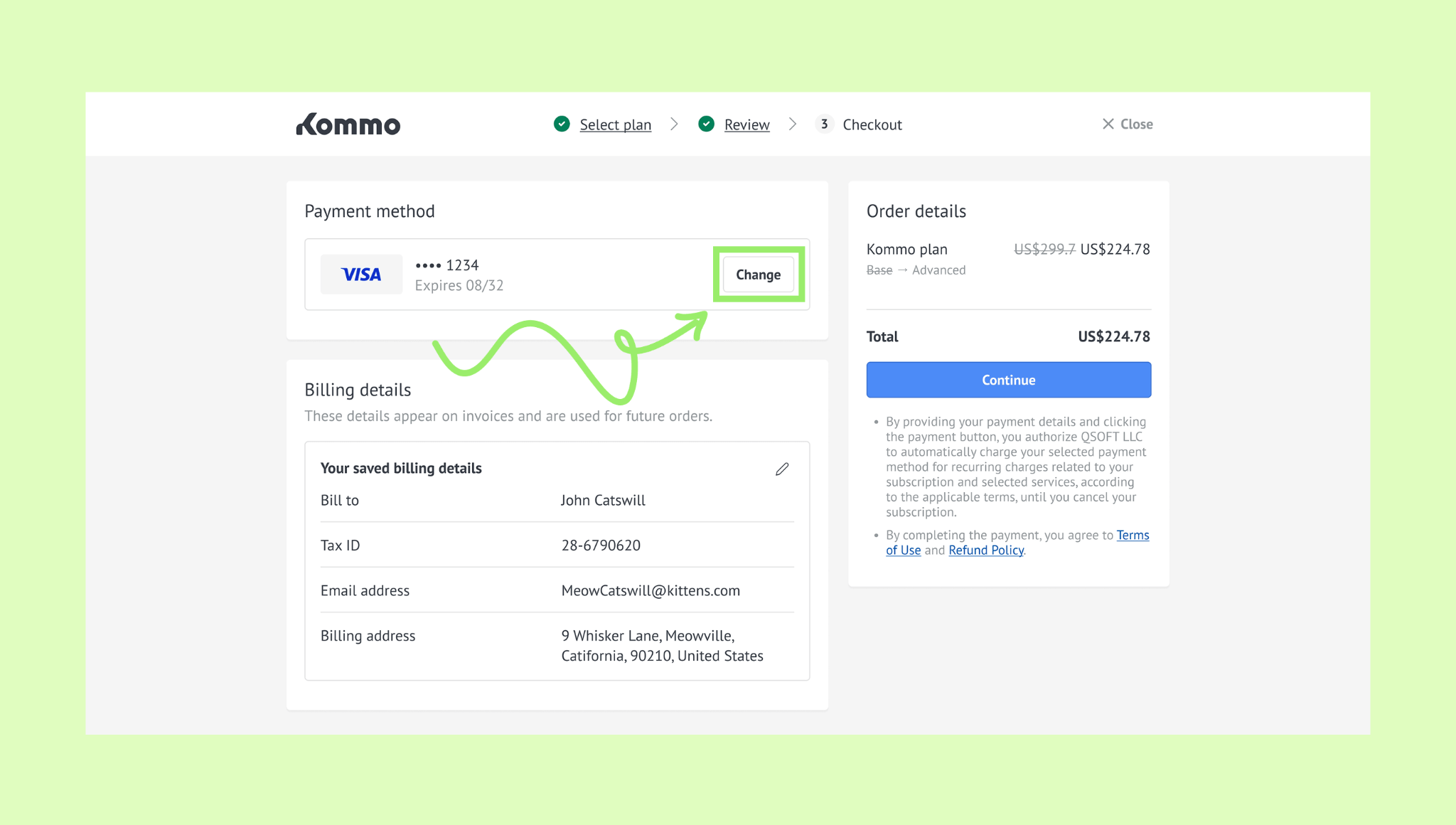
Confirm the change.
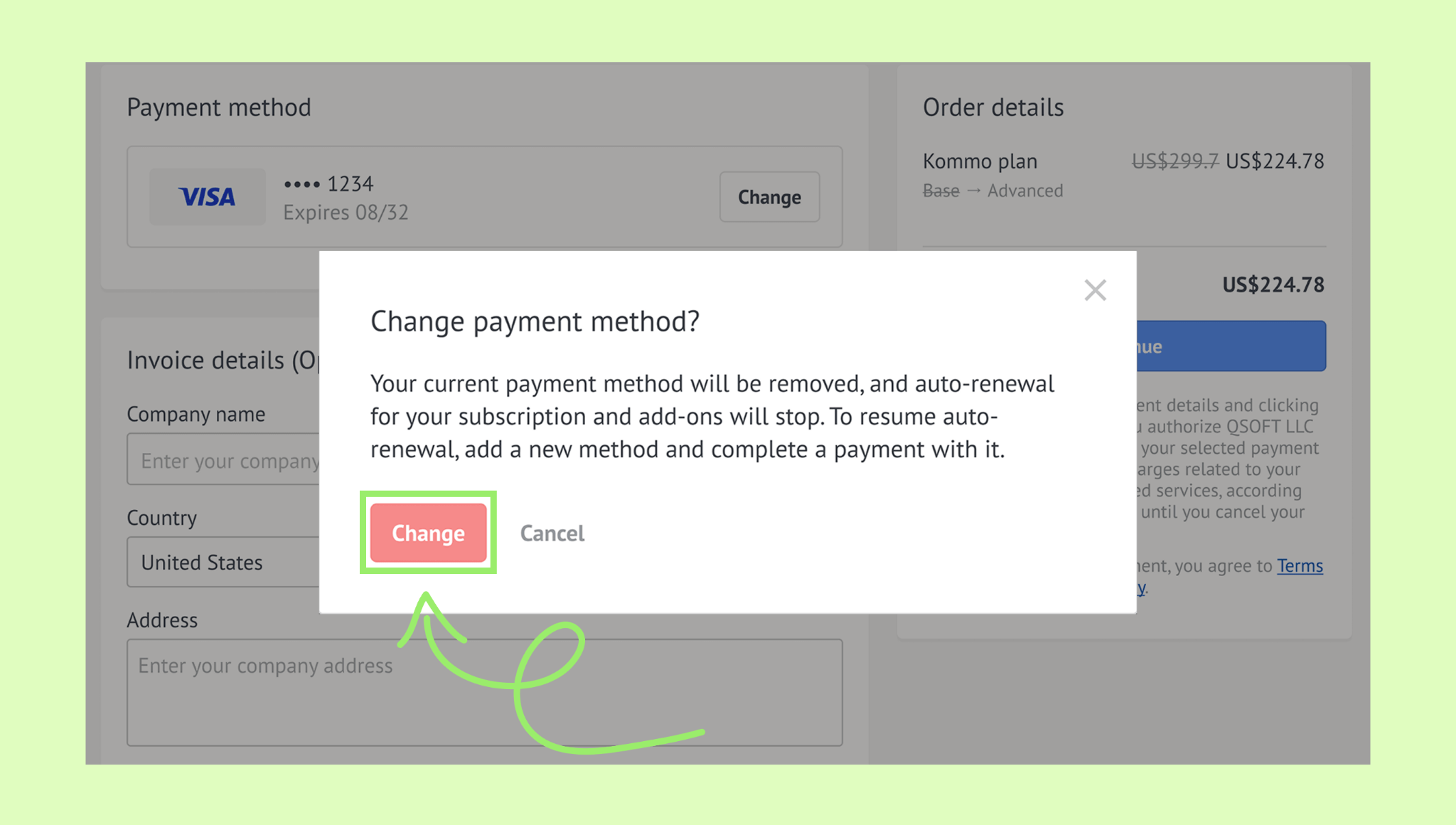
Select a new payment method or enter new payment details, then click Continue.
Complete the payment.
Change the payment method for a pending order
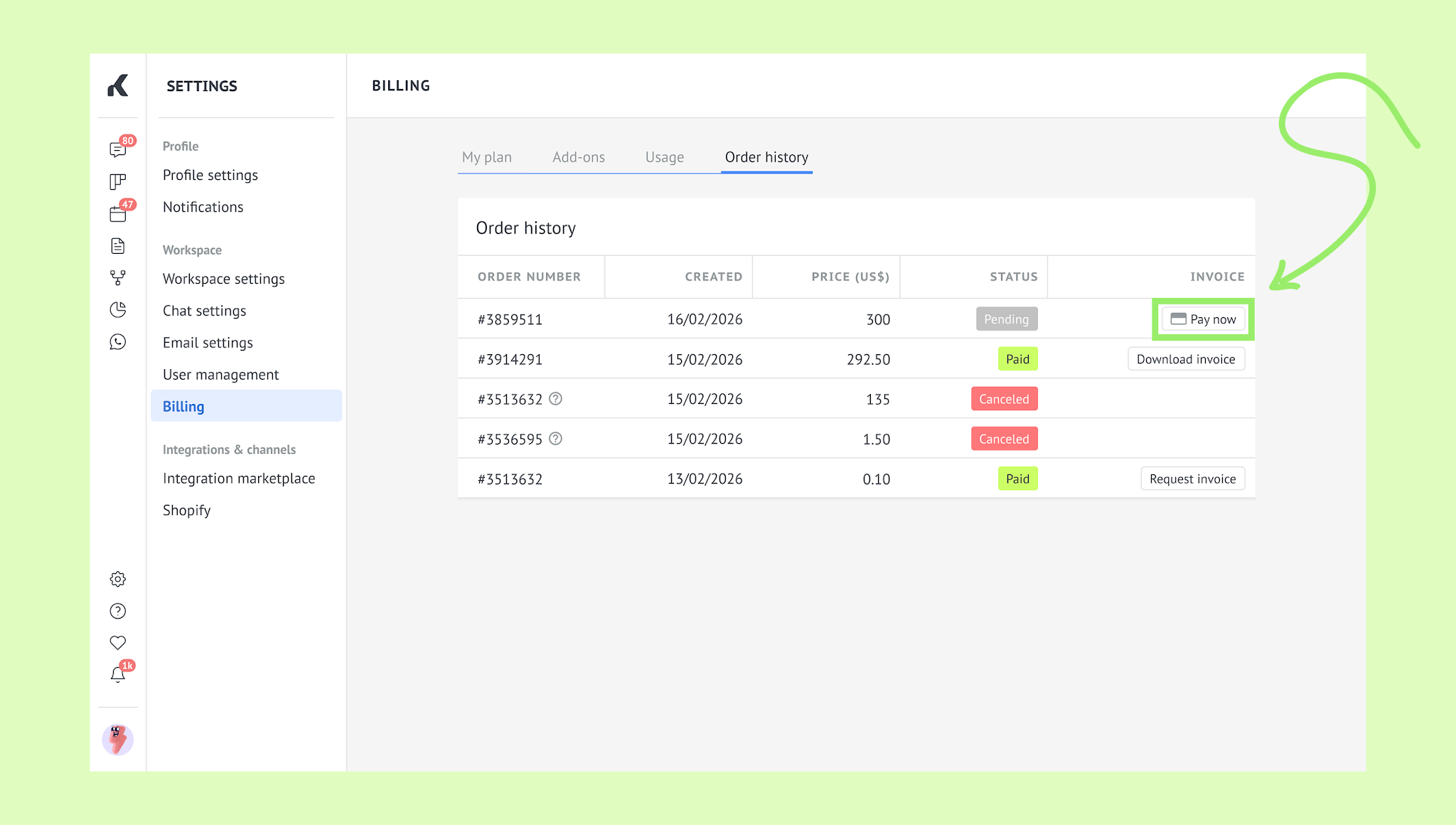
Go to Settings → Billing and open the Order history tab.
Find the pending order and click Pay now.
On the checkout page, click Change next to the saved payment method.
Confirm the change.
Select a new payment method or enter new payment details, then click Continue.
Complete the payment.
Once the payment is successful, the new payment method and details will be saved in Kommo and used for future subscription renewals, upgrades, add-on purchases, and added seats.
Note: When you change your payment method or payment details, auto-renewal payments are temporarily turned off and then turned back on automatically. Learn how to manage auto-renewal payments in this article.
Manage your billing details
When you purchase your first Kommo subscription, the billing details you enter during checkout are saved in your workspace and used for future purchases. These details can include your name, email address, and tax number.
You can edit your saved billing details, remove them from your workspace, or add them if they were not saved during a previous purchase.
View your billing details
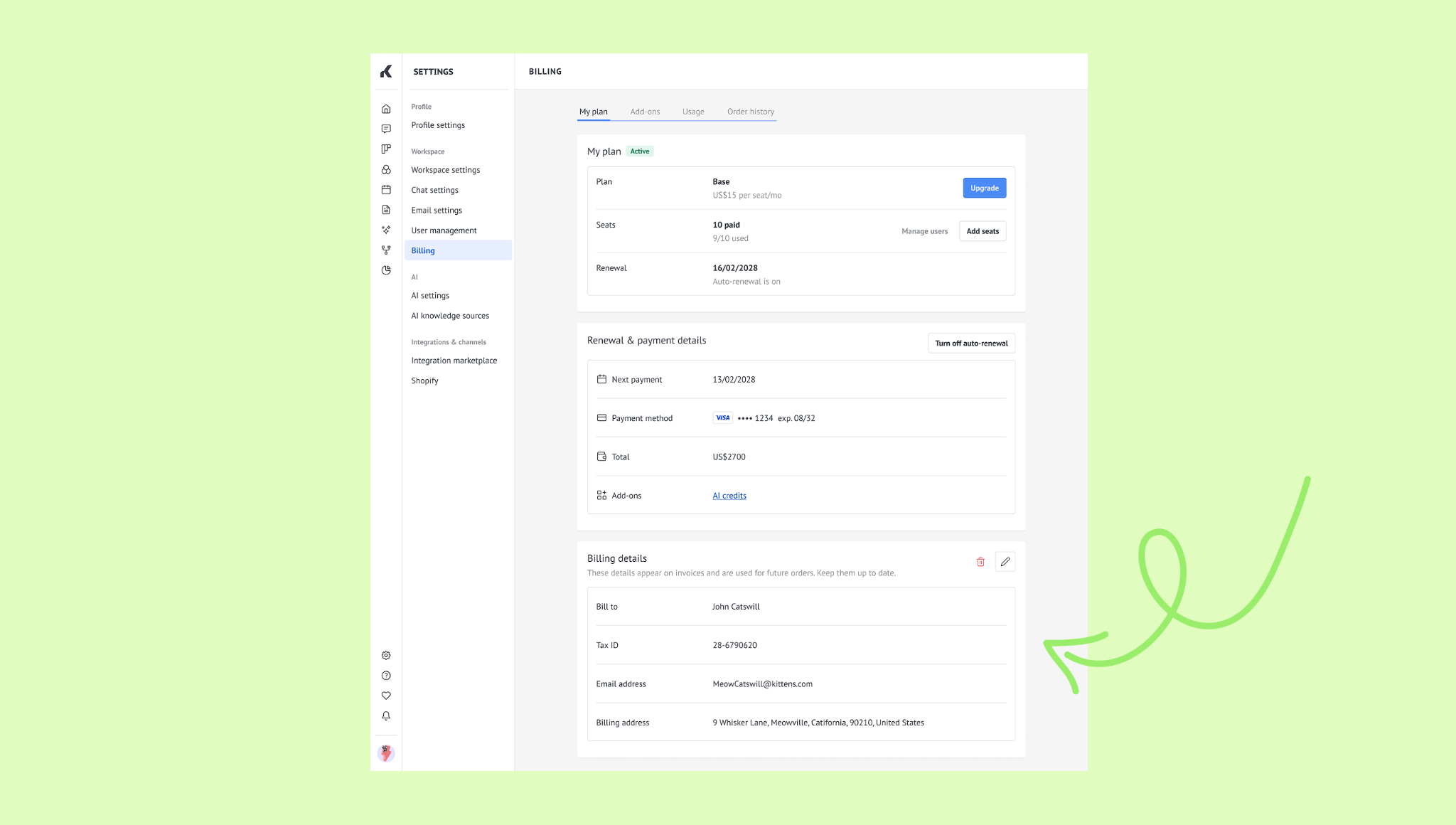
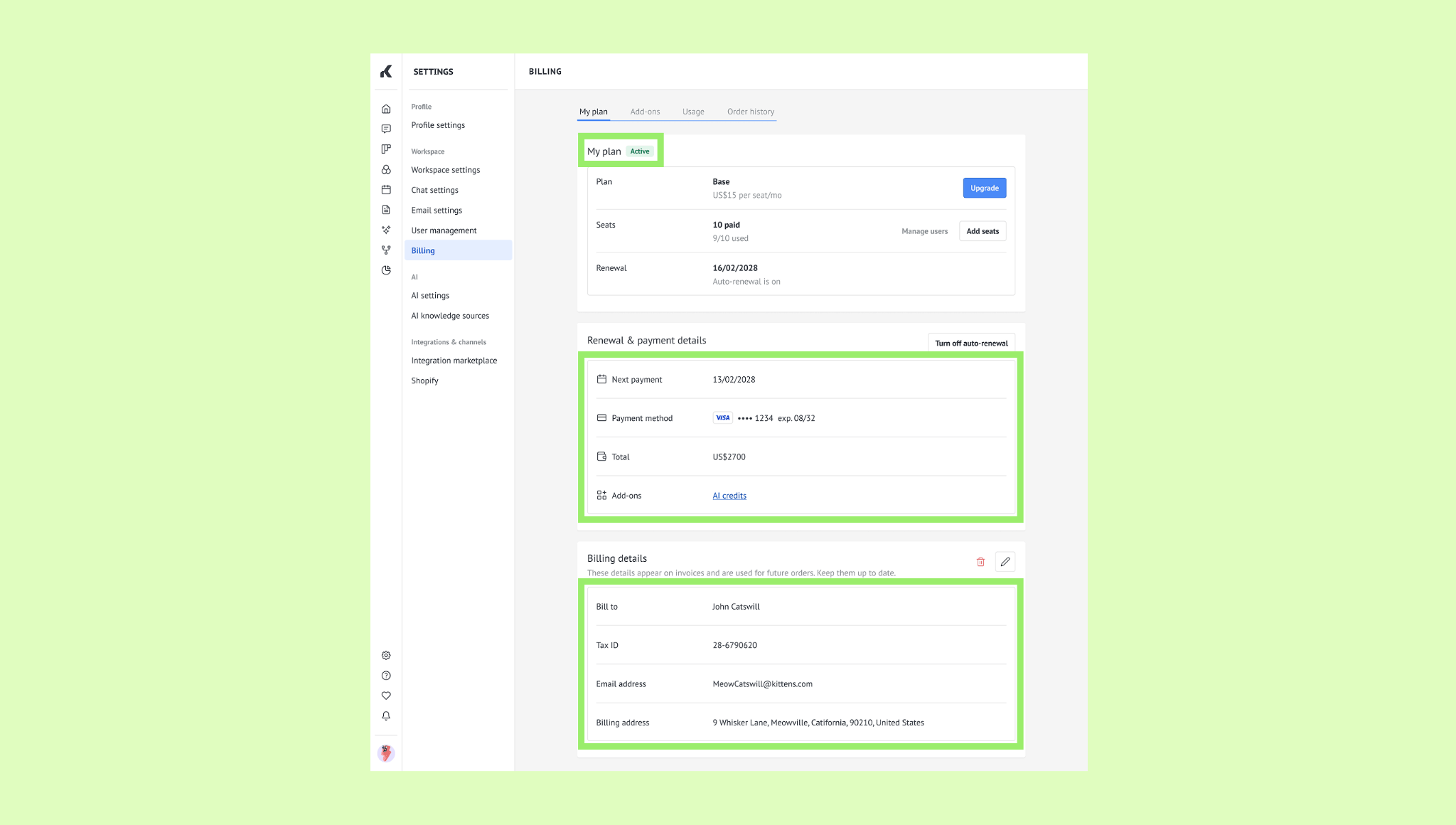
Go to Settings → Billing → My plan.
Scroll the page down to see the Billing details section.
Edit your billing details
Go to Settings → Billing → My plan, and scroll the page down.
In the Billing details section, click the pencil icon.
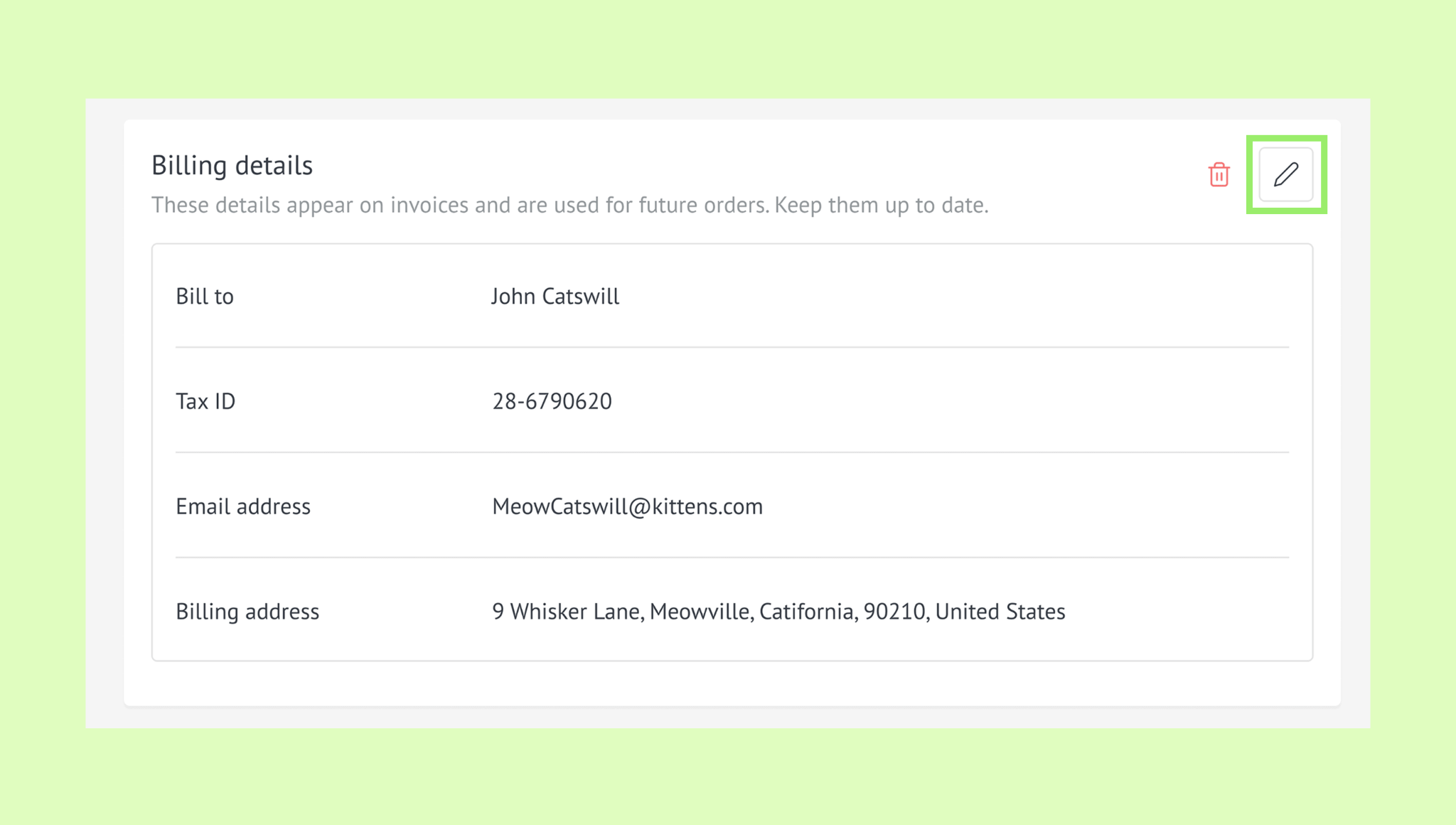
Update your billing details and click Save.
The updated details will be saved in your workspace and used for future purchases.
Add your billing details
If billing details have not been saved in your workspace, you can add them from your billing settings.
Go to Settings → Billing → My plan.
In the Billing details section, click Add.
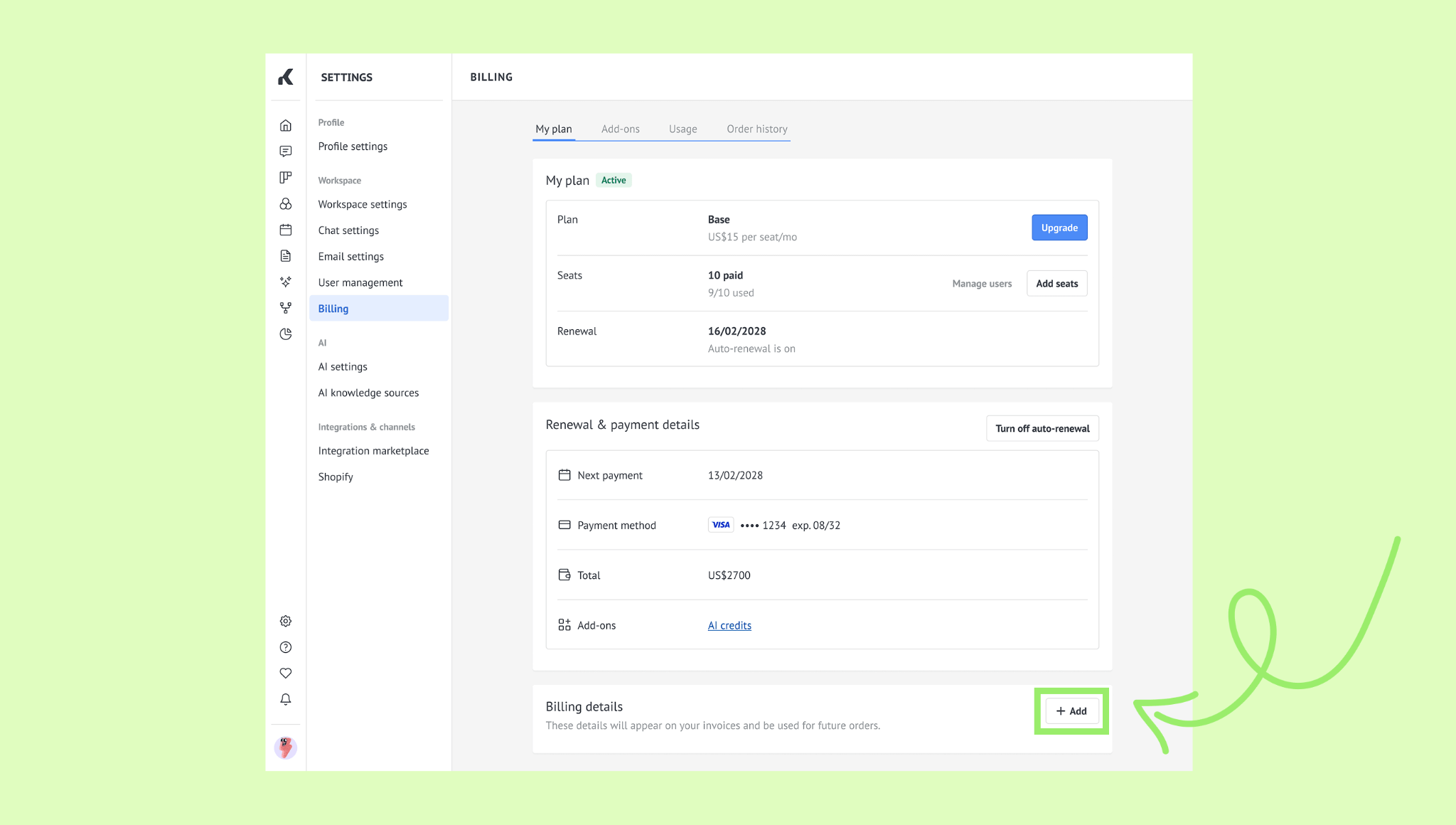
Fill in the form and click Save.
Your billing details will be linked to your Kommo workspace and shown in the Billing details section.
Delete your billing details
Go to Settings → Billing → My plan.
In the Billing details section, click the trash bin icon.
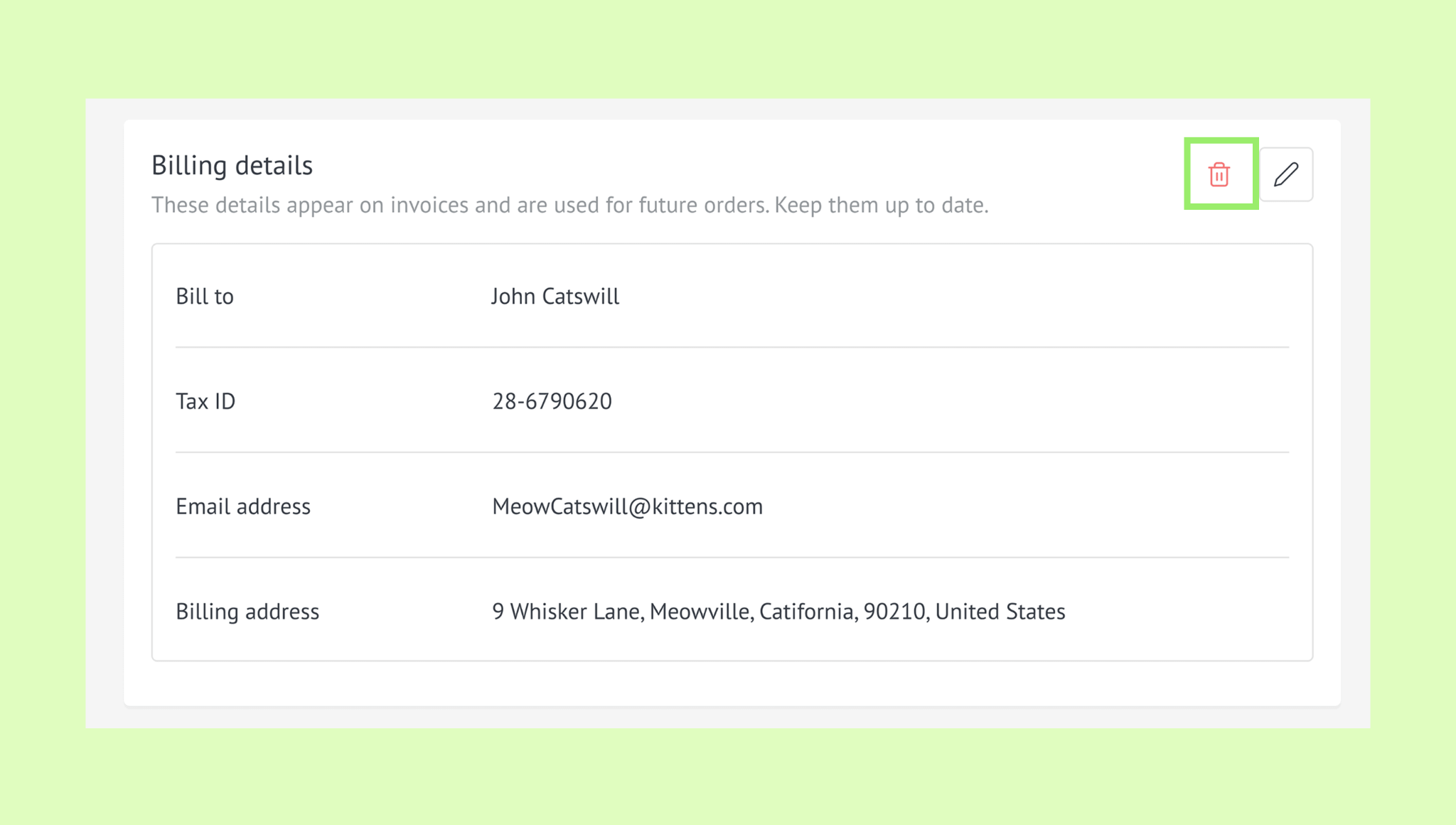
Click Delete to confirm.
Your billing details will be removed from Kommo and will no longer appear on the Billing page.
Note: Billing details are required to complete a purchase in Kommo. After deleting them, you’ll need to enter them manually during your next purchase.
Verify your new payment method
Make sure your payment was successful and your payment method is set up correctly.
Latest invoice appears as Paid in Billing → Order history.
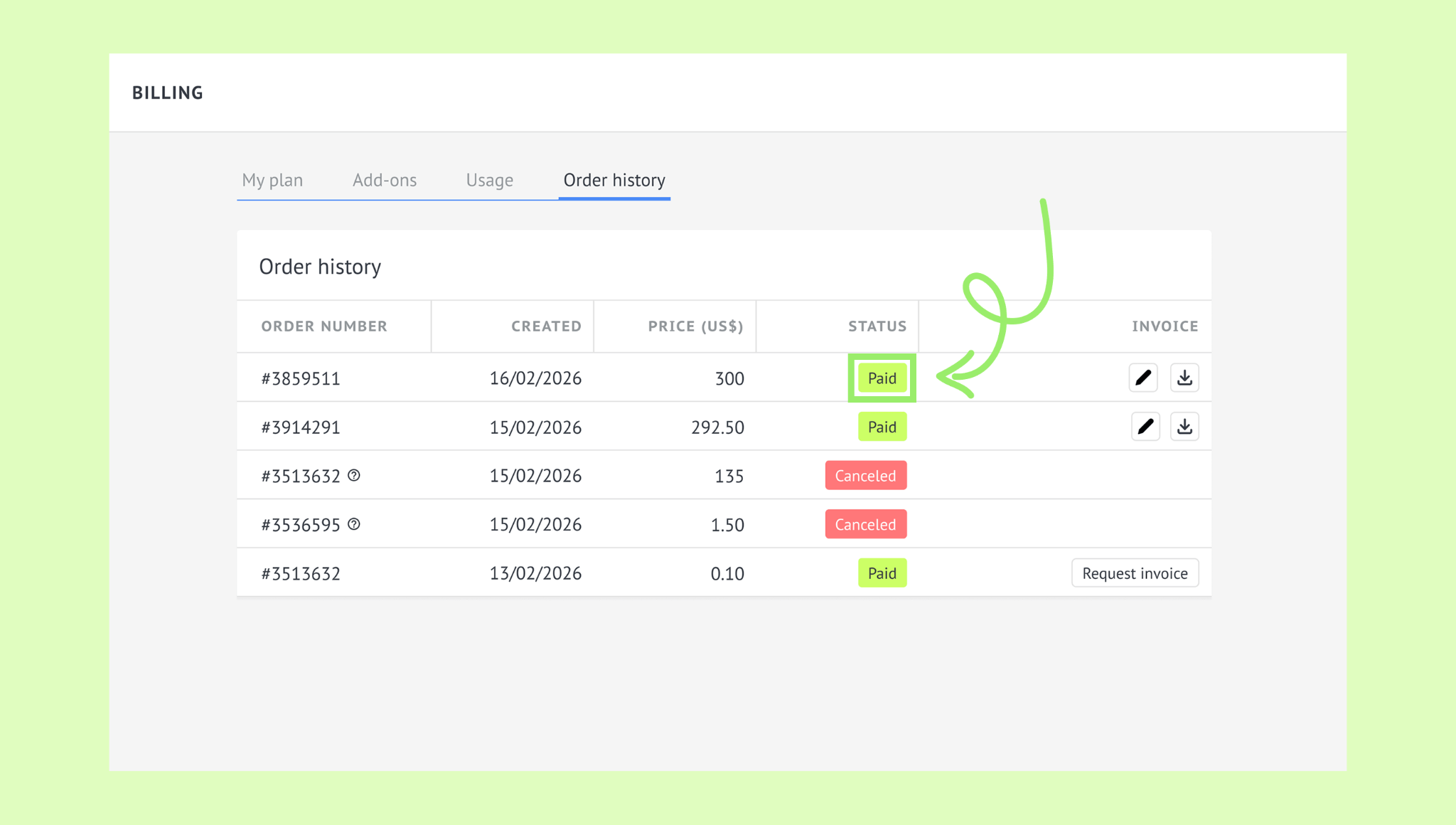
In Billing → My plan, your Kommo plan shows as Active, and your payment method and details are correct.
Your saved payment method and billing details are correct.
Note: If you pay via Pix, auto-renewals won’t be enabled.