What you’ll need:
Any Kommo plan (Base, Advanced, Pro, or Enterprise)
Admin access in Kommo
A valid payment method:
Brazil: Credit card (payments accepted in BRL, installment payments are available)
Other countries: Card or PayPal (payments accepted in USD)
Keep in mind:
The minimum subscription period is 6 months
Discounts are available for 9-, 12-, and 24-month plans
Subscriptions apply to the entire workspace — all users share the same plan
Subscription auto-renewals are enabled by default for all payment methods except Pix
Auto-renewal payments can be disabled at any time
The saved payment method is used for subscription renewals, upgrades, and added seats
Each subscription includes a limited number of AI credits. Additional AI credits can be purchased separately
To switch payment methods or update payment details, auto-renewals must be disabled first. Learn how to manage your payment methods here
After paying with a new payment method or details, auto-renewals turn back on automatically
Important: Some features described in this article may not be available yet. They will be released soon.
When you purchase a Kommo subscription, auto-renewal payments are turned on by default for all payment methods except Pix. This article shows how auto-renewals work and how to manage them.
Learn more about managing payment methods in Kommo.
How auto-renewals work in Kommo
When you purchase your first Kommo subscription using a card or PayPal:
Auto-renewal payments are enabled automatically
Your payment method and details are saved in Kommo
Your saved payment details are used for future charges such as subscription auto-renewals, upgrades, and added seats
When renewal payments are enabled:
9 days before expiration: You receive a reminder email
3 days before expiration: Kommo automatically creates a renewal order and charges using your saved payment details
If the payment succeeds:
Status becomes Paid
You’ll get a confirmation email
Your subscription is renewed automatically
If the payment fails:
You receive an email notification
The order appears as Pending in Billing
The error reason is shown
Kommo retries the charge every 24 hours (unless renewal payments are disabled), with up to 4 payment attempts in total.
If you turn off auto-renewals:
Subscription renewals won’t happen automatically
You’ll need to create and pay orders manually
Your current paid subscription stays active until it expires
Note: Your selected plan, number of seats, and subscription duration will be used for future renewals by default. You can update these settings for your current subscription at any time, and the changes will also apply to future renewals. Learn how to manage your subscription in this article. Learn how to manage your subscription in this article.
Extend your subscription with auto-renewals enabled
Three days before your subscription expires, Kommo will create an auto-renewal order and attempt to process the payment automatically.
If the payment fails, you’ll receive an email notification, and you can pay for the order manually using your saved payment details:
Go to Settings → Billing → Order history.
Find the order with Pending status.
Click Pay now — the payment will be processed automatically.
If the payment fails again, contact Kommo support.
Extend your subscription with auto-renewals disabled
If auto-renewal payments were turned off manually or after a failed payment attempt (for example, due to an expired card), follow these steps:
Go to Settings → Billing → Order history.
Find the order with Pending status.
Click Pay now.
Enter your payment details and finalize the payment.
After the payment is completed, auto-renewals will be enabled automatically.
Create and pay for orders with auto-renewals enabled
With auto-renewal payments enabled, you can upgrade your plan or add seats without entering your payment details again, as they are saved in Kommo.
To create and pay for an order:
Go to Settings → Billing.
Create a new order.
Click Checkout.
Pay using your saved payment details.
To use a different payment method or update your payment details, click Change on the checkout page. Select another payment method or enter new details, then complete the payment.
Learn how to create an order in Kommo in this article.
Disable auto-renewals
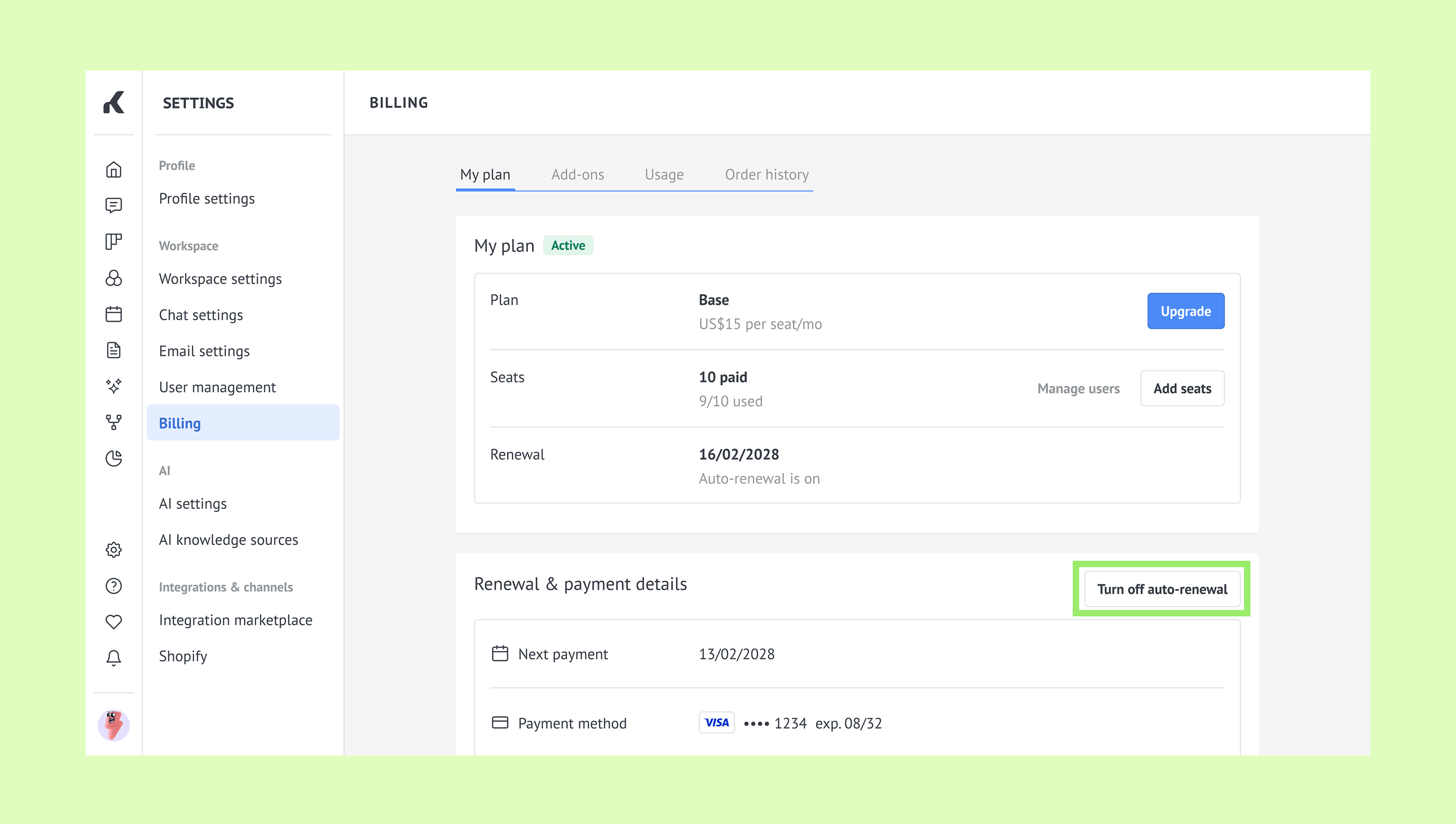
Go to Settings → Billing, click Turn off auto-renewal.
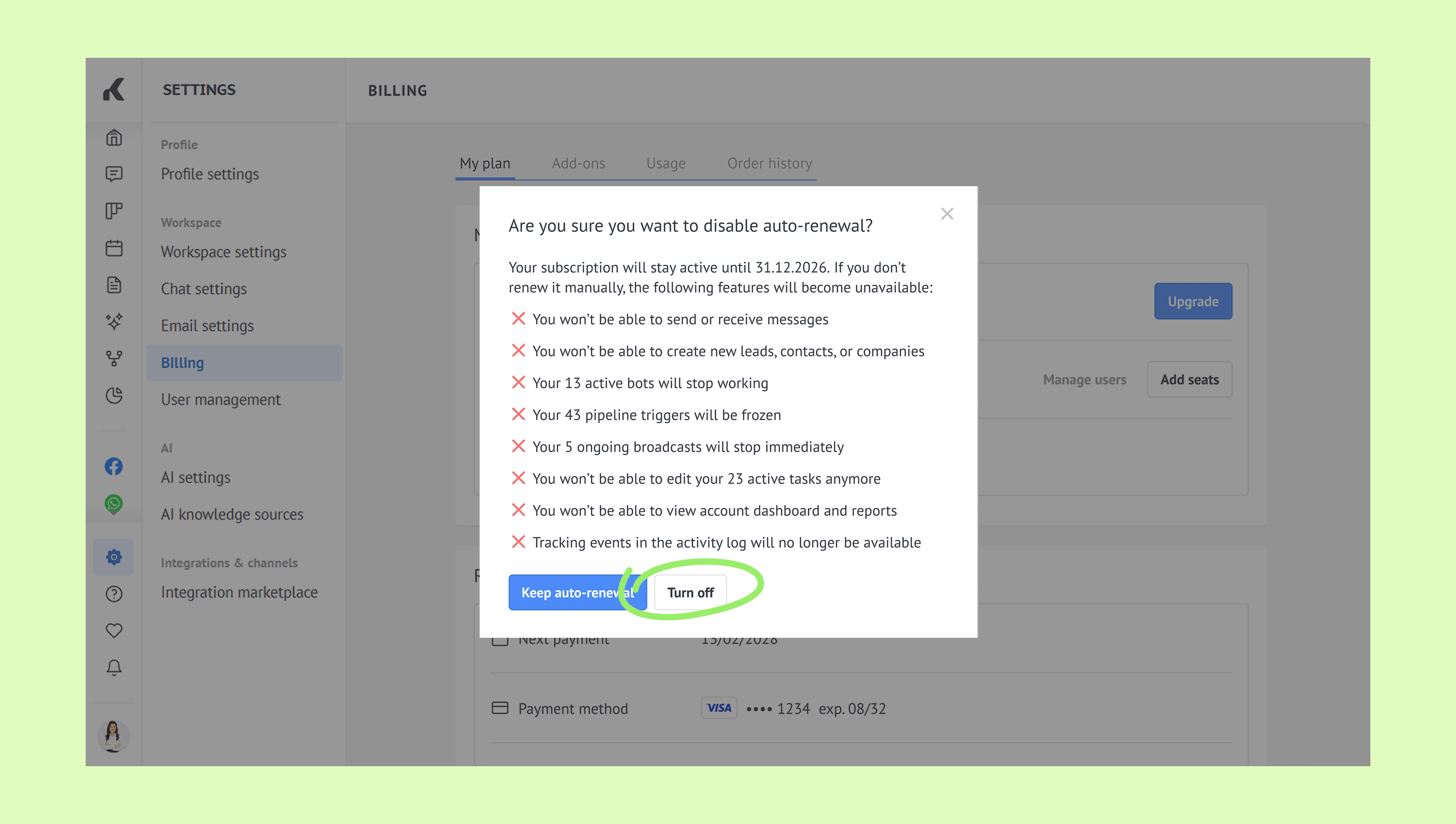
Choose a reason, add a comment (optional), and click Turn off.
.png)
In the next window, click Turn off to confirm.
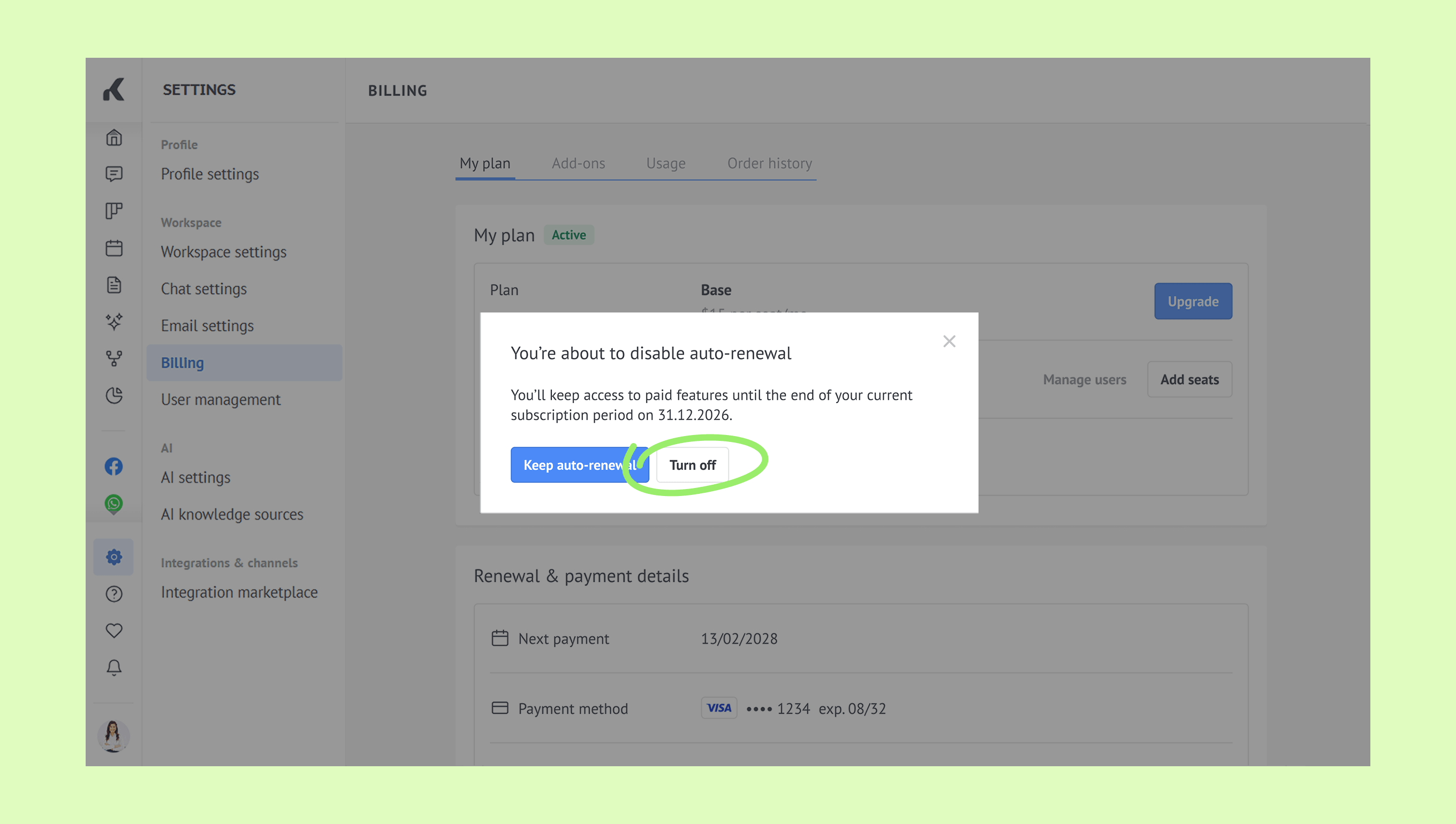
In the next window, you’ll see your subscription’s expiration date. Click Turn off to finish.
Once finished, a success message will appear, and your saved payment details will be removed.