What you’ll need:
An active Kommo subscription plan.
Admin permissions in the account.
Keep in mind:
Additional AI credits are added on top of the credits already included in your subscription plan, increasing the total amount of available AI credits in the account.
Purchased AI credits renew on the same billing period as your subscription plan.
Installment payments for additional AI credits are handled through Ebury and are available only for accounts based in Brazil.
Purchasing only additional AI credits does not enable auto-renewal unless auto-renewal was already active on the account.
Additional AI credits apply to the entire workspace, meaning all seats in the account share the same additional AI credit balance.
This article explains how to purchase additional AI credits, how their auto-renewal works, and which payment options are available.
Learn more about Kommo AI limits.
How additional AI credits work
Additional AI credits are added on top of the credits already included in your subscription and renew on the same billing cycle.
You can buy more AI credits in 5,000-credit increments, ranging from 5,000 to 1,000,000 credits per month. If your subscription renews in less than a month, any AI credits you purchase will stay active until that renewal date.
Note: When you buy more AI credits, AI features use fewer credits:
AI agent actions can use up to 3 times fewer credits.
Analyst mode requests can use up to 2 times fewer credits.
For example:
Your account is on the Advanced plan and includes 1,250 AI credits/month per seat. It renews on July 15.
Before this date, your account reaches the available AI credits limit, so you purchase 5,000 additional AI credits for at least one month.
What happens:
Your total available AI credits increase to 6,250 (1,250 included AI credits per seat+ 5,000 additional AI credits = 6,250 total AI credits).
Your subscription plan and included features stay the same.
On July 15, your AI credits reset to the 1,250 credits included in your subscription plan.
Unused AI credits expire at the end of the billing period and do not carry over to the next month.
Important: Additional AI credits only extend AI usage limits. They do not change your subscription plan or unlock additional subscription features. Learn more about Kommo plans and their limits.
Payment methods for additional AI credits
When purchasing additional AI credits, the following payment options and renewal rules apply:
Using auto-renewals
Auto-renewal is an option for automatic payments made using your saved payment method. It is used to renew paid items in Kommo, including additional AI credits.
Auto-renewal is enabled after a successful payment for any order that includes a subscription-related action, such as:
Buying a new subscription
Renewing a subscription
Upgrading a plan
Adding extra users
Note: Additional AI credits you purchase renew each month for the period selected during purchase. If they’re purchased through the end of your Kommo subscription, they can renew with your subscription when auto-renewal is enabled. Turning off auto-renewal stops automatic renewals for both subscriptions and additional AI credits.
To learn more about renewals, check our article.
Buying only additional AI credits
The payment process depends on whether auto-renewal is already enabled in your account:
If auto-renewal is enabled, the payment uses the saved card and automatic renewals continue.
If auto-renewal is not enabled, purchasing only additional AI credits does not automatically enable auto-renewal.
Paying in installments
Instead of paying the full amount at once, you can choose to pay for additional AI credits in installments.
Installments are available only through Ebury for accounts based in Brazil
A commission applies when choosing 7 or more installments
There is no limit on the number of installment purchases per account
Installments can also be used for subscription renewals
The same number of installments applies to both subscriptions and additional AI credits you purchase
These installment rules apply whether the payment is one-time or renewed automatically.
How to purchase additional AI credits
To buy an AI credit package, follow these steps:
Go to Settings → Billing and open the Add-ons tab.
.png)
In the Available add-ons section, click Add credits.
.png)
You’ll be redirected to the checkout page, where you can select the monthly AI credit amount you want to purchase.
.png)
Note: You can remove the additional AI credits from your order by clicking the Remove button.
.png)
Next, choose the subscription period for the additional AI credits.
.png)
Important: The available purchase period depends on the time remaining in your current Kommo subscription.
You can purchase additional AI credits for one month or longer, up to your subscription renewal date. If your subscription renews in less than one month, the credits stay active until that date.
Click Continue.
.png)
On the payment page, choose one of the available payment methods:
Credit card - supports Ebury (available only in Brazil)
PayPal
.png)
Optionally, you can provide your invoice details:
Company name
Country
Company address
VAT number
.png)
Click Continue.
.png)
Complete the payment. Once it’s successful, a success modal window will appear.
After the payment is completed, you can check the purchase details in the Order history tab, including:
Order number
Creation date
Price
Status
Actions
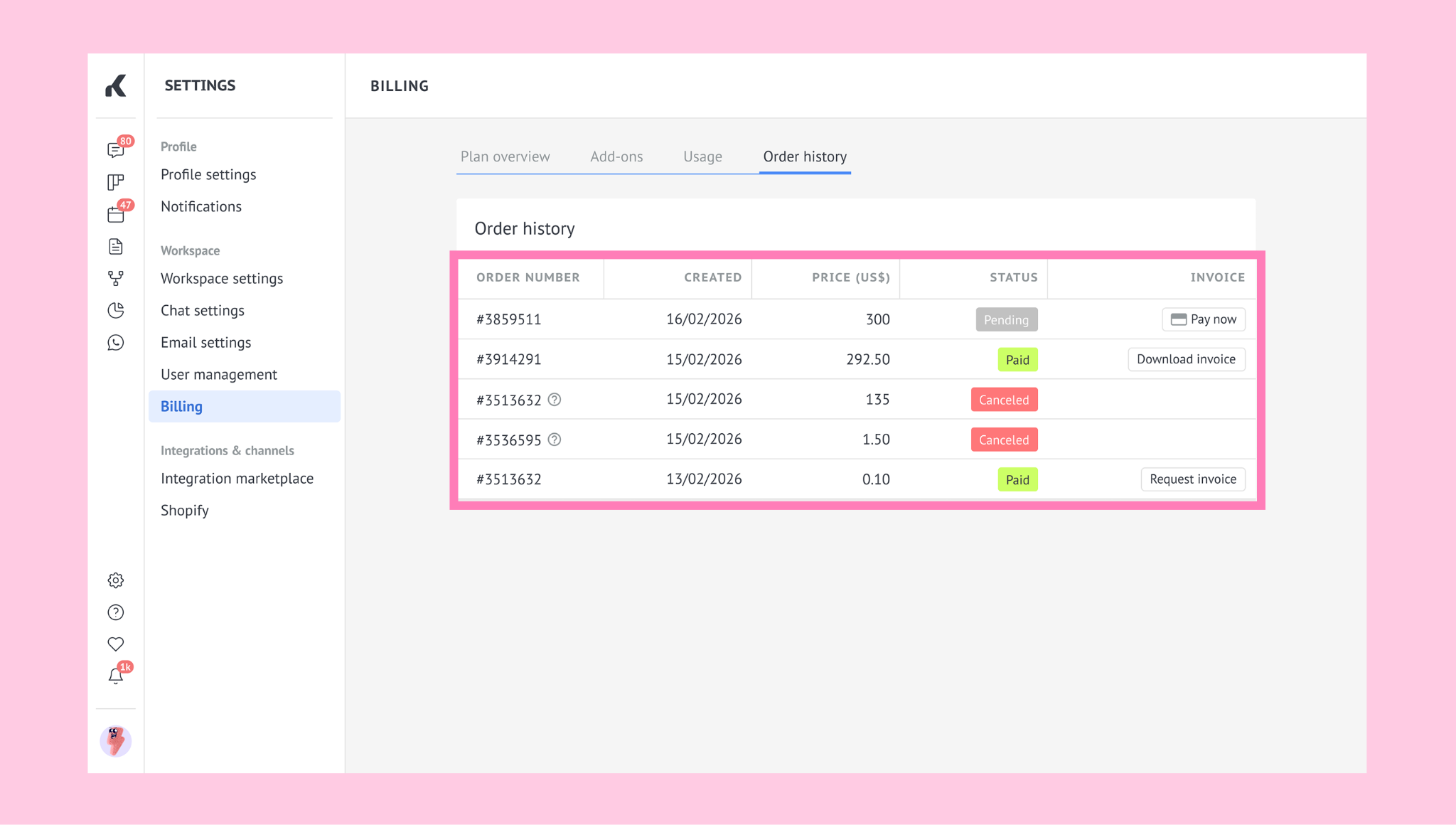
Note: If you request an invoice, a PDF invoice appears on the right side.
After a successful payment, auto-renewal is automatically enabled only if the order includes a subscription-related action (for example, a new subscription, subscription renewal, plan upgrade, or adding users).