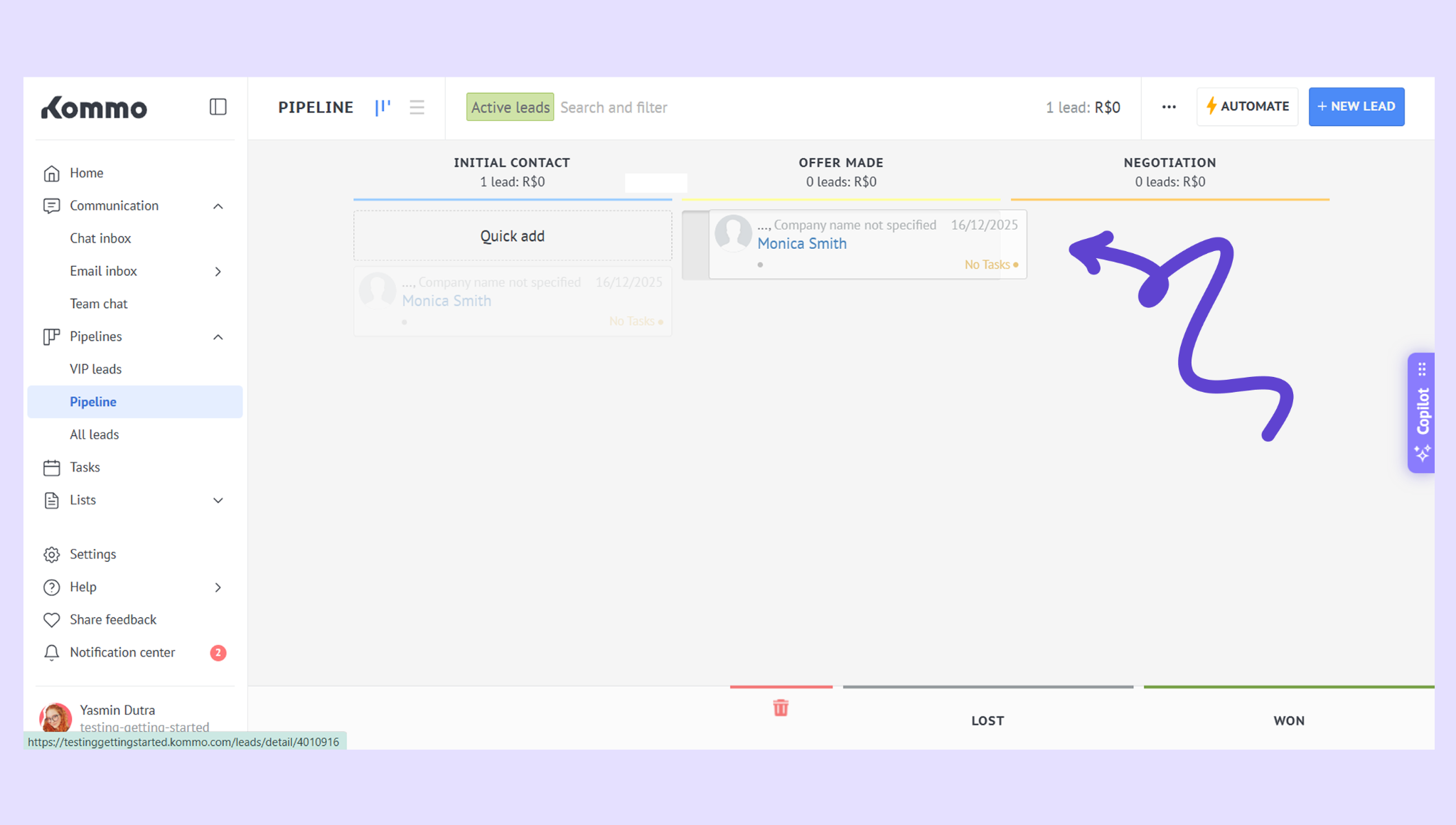
What you’ll need:
Any Kommo plan (Base, Advanced, Pro, Enterprise, or a 14-day trial)
Permission to view and manage Leads
A few test leads (recommended for practice)
Only admins can create, delete, or reorder pipelines and stages
Each pipeline can have its own custom fields
Moving a lead can trigger automations, reminders, or bots
Updates may take a few seconds to sync after refresh
Some views may differ between desktop and mobile apps
This guide explains how pipelines and stages work in Kommo. Your pipeline gives you a visual overview of where every lead stands. When a lead moves to a new stage, its status updates instantly and any connected automations run automatically. Refresh the page to make sure you’re seeing the latest changes.
Manage your pipeline
Use pipelines to organize your sales process, track lead progress across stages, review lead details, and update lead statuses as deals move forward.
Open Pipelines from the left menu and select the pipeline you want to work with.
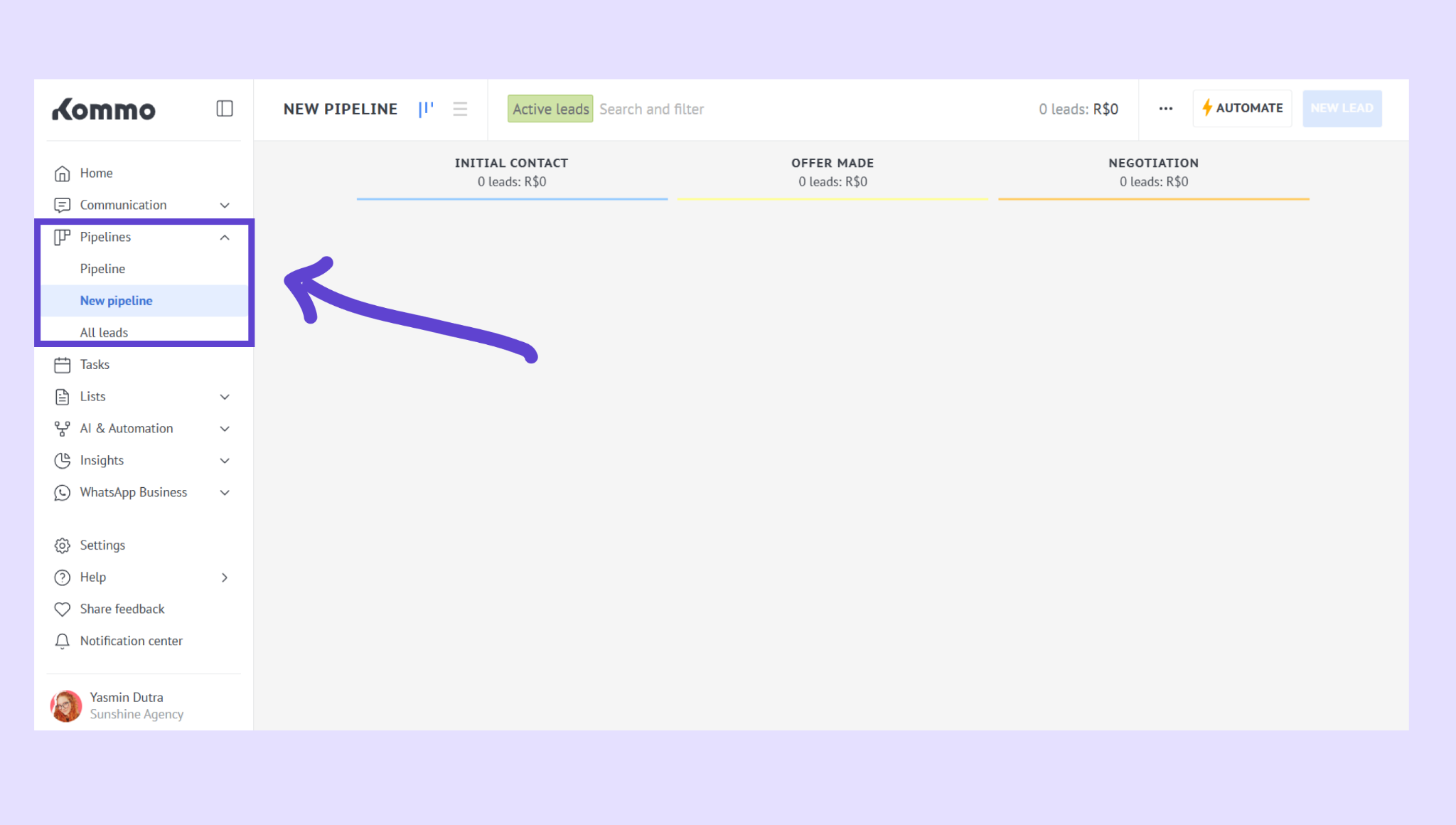
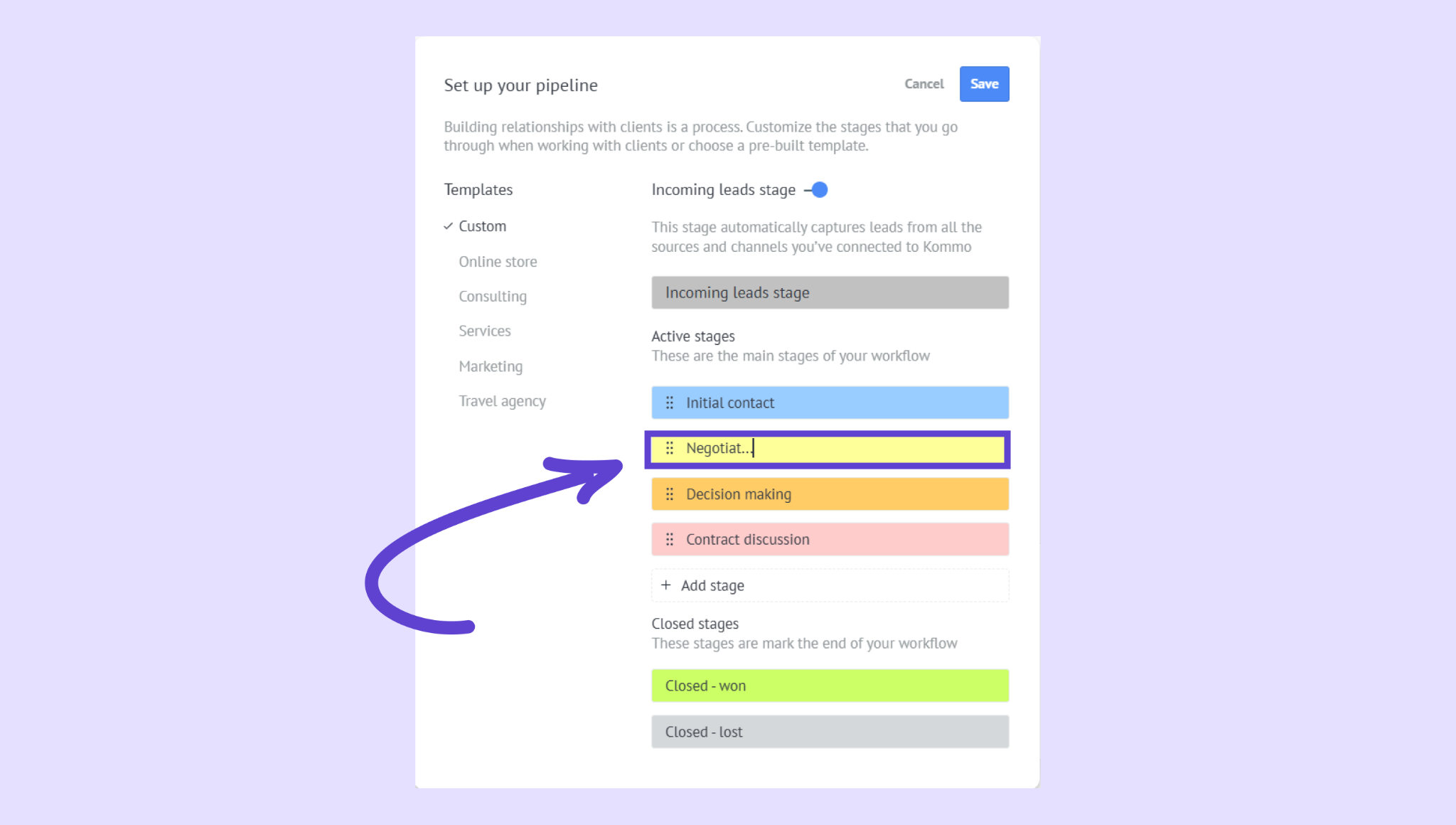
Review the stages (for example: Incoming → Contacted → Negotiation), then click the three dots → Edit pipeline to rename, reorder, add, or remove stages.
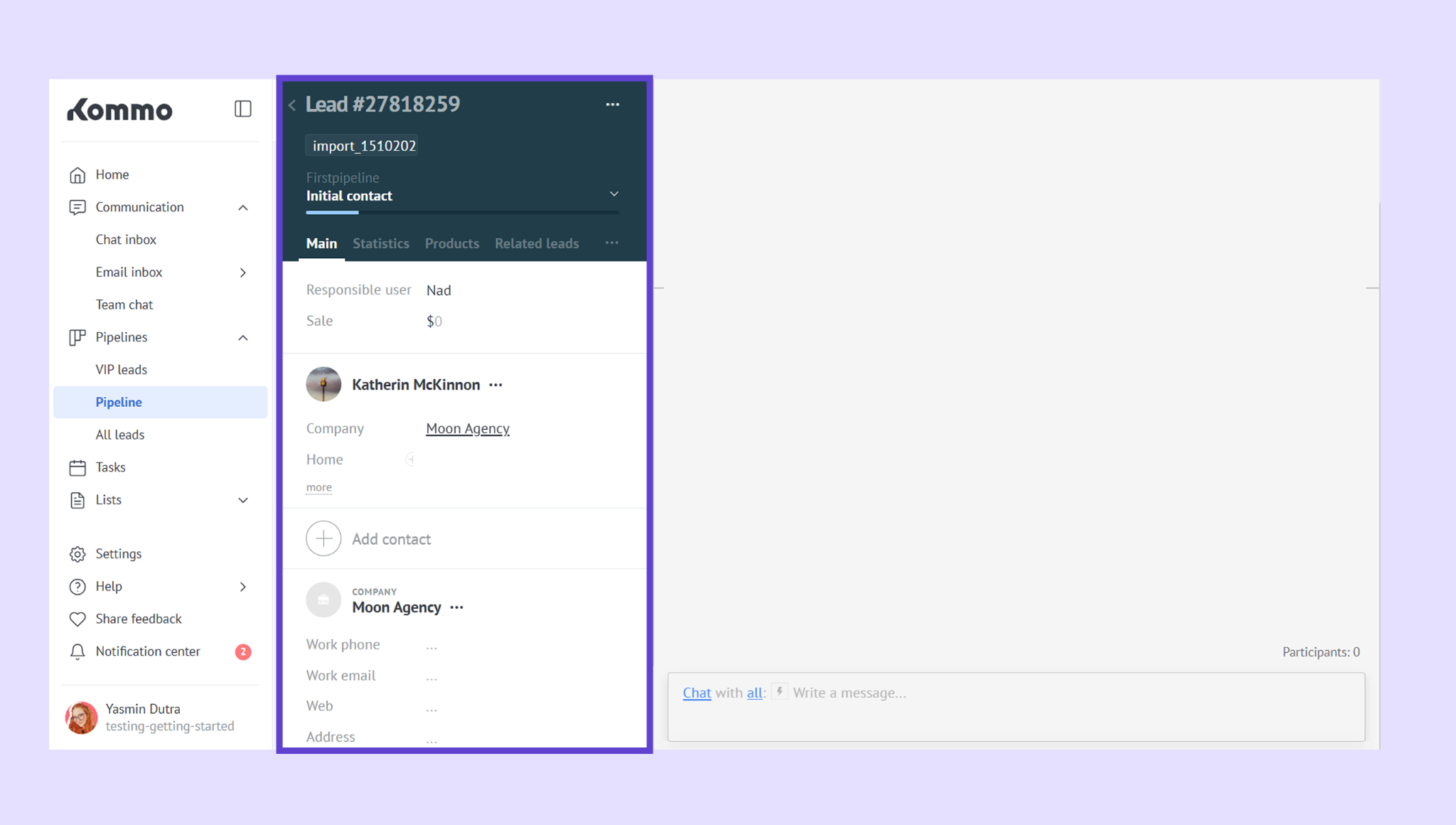
Click a lead to open its card and view details.
Drag and drop the lead to another stage to update its status.