What you’ll need:
Any Kommo plan (Base, Advanced, Pro, Enterprise, or 14-day trial)
Administrator (Admin) access in Kommo
A valid email address for each teammate you want to invite
Only Admins can invite new users or assign roles
Each invited user needs to accept their email invitation to access the workspace
The number of users depends on your Kommo plan
When you first create a Kommo account, you’re the account admin by default.
Inviting teammates allows your whole team to manage leads together, send messages from shared channels, and stay aligned throughout the sales process.
How to invite teammates
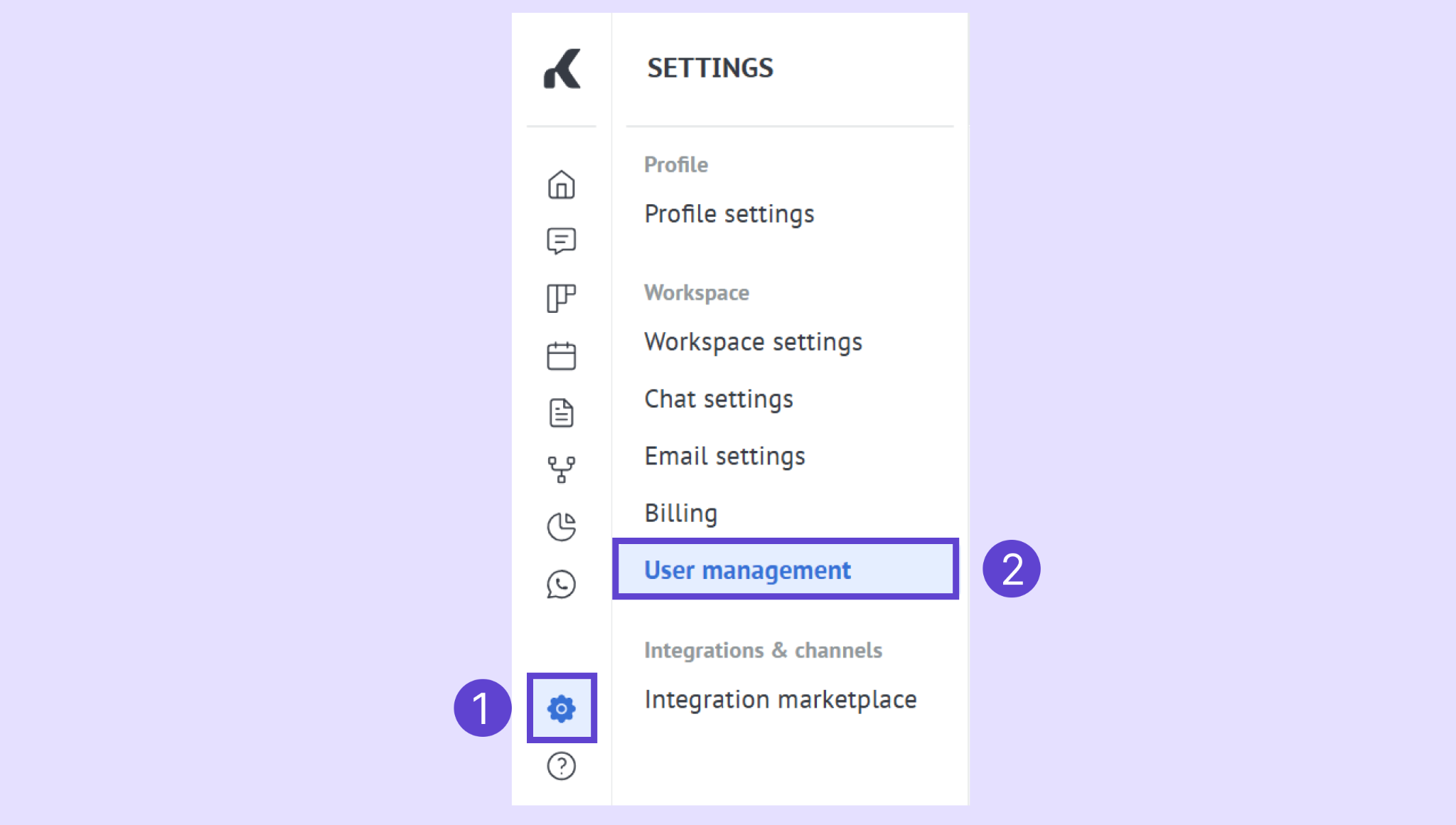
Go to Settings → User management.
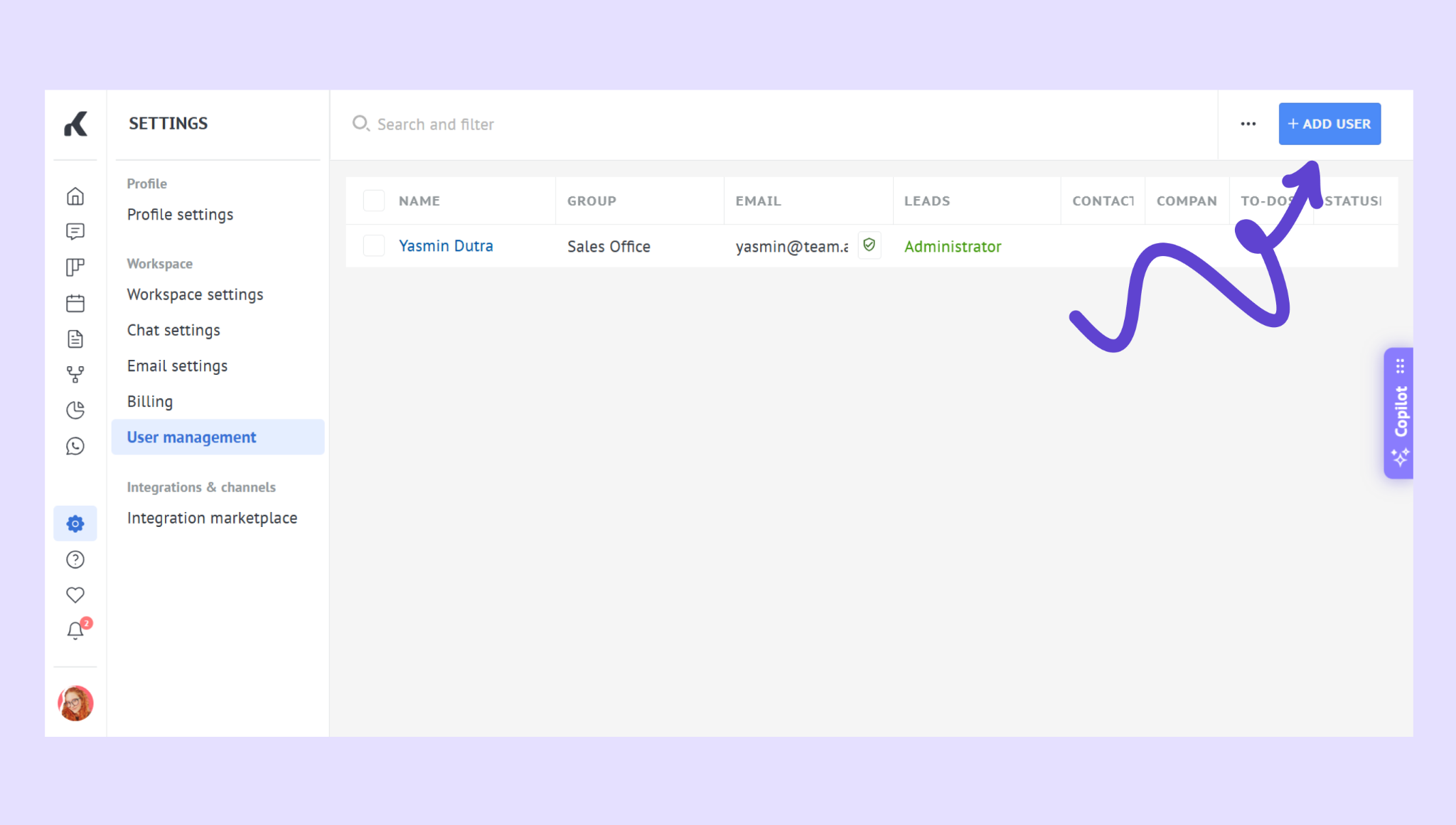
Click + Add user in the upper-right corner.
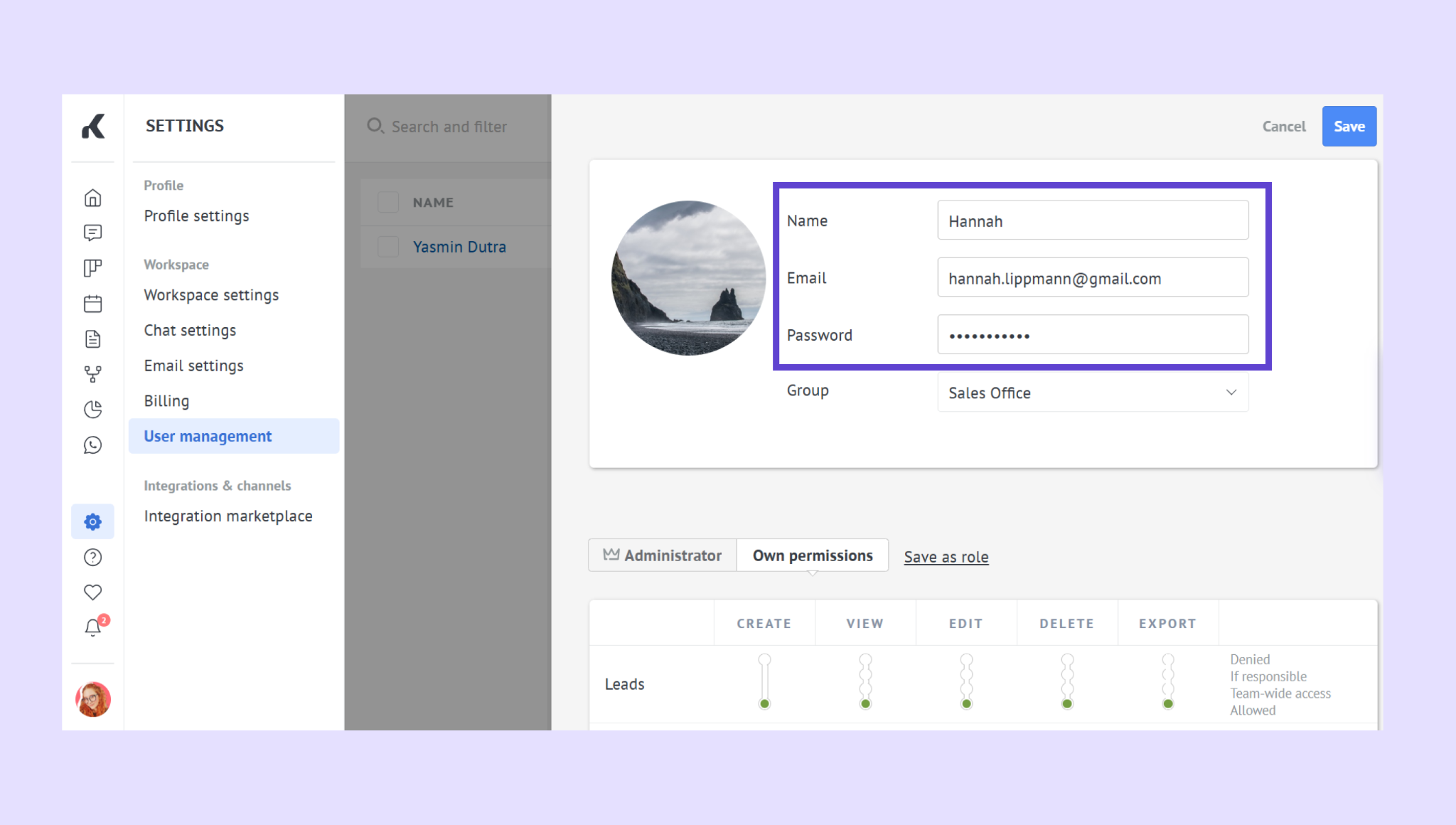
Enter the teammate’s name and email address. You can also set an initial password for them.
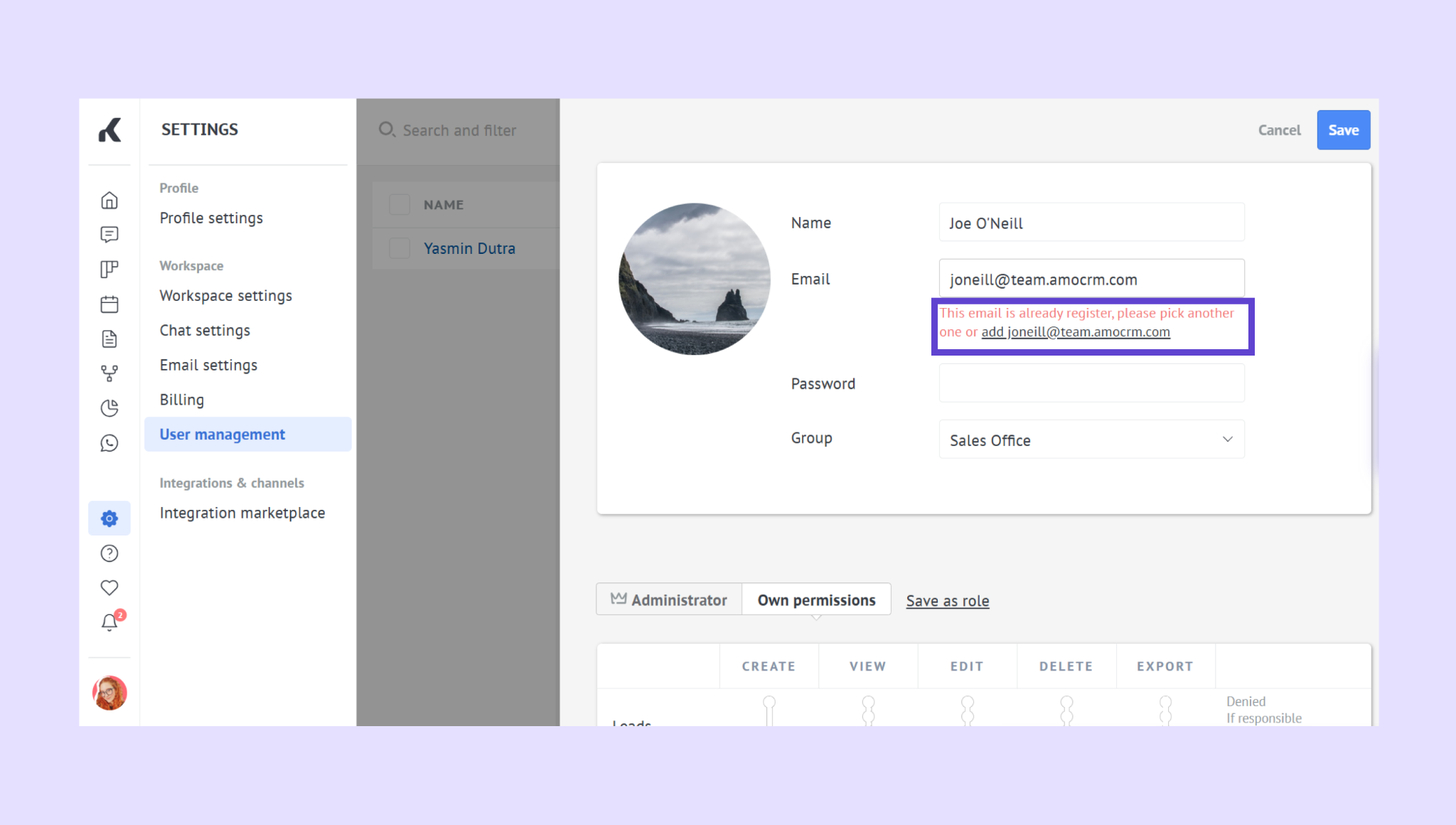
If they already have a Kommo account, enter their email address in the input field, then click add [email address].
(Optional) Assign them to a group (e.g., Sales, Marketing, Support). Learn how to create user groups here.
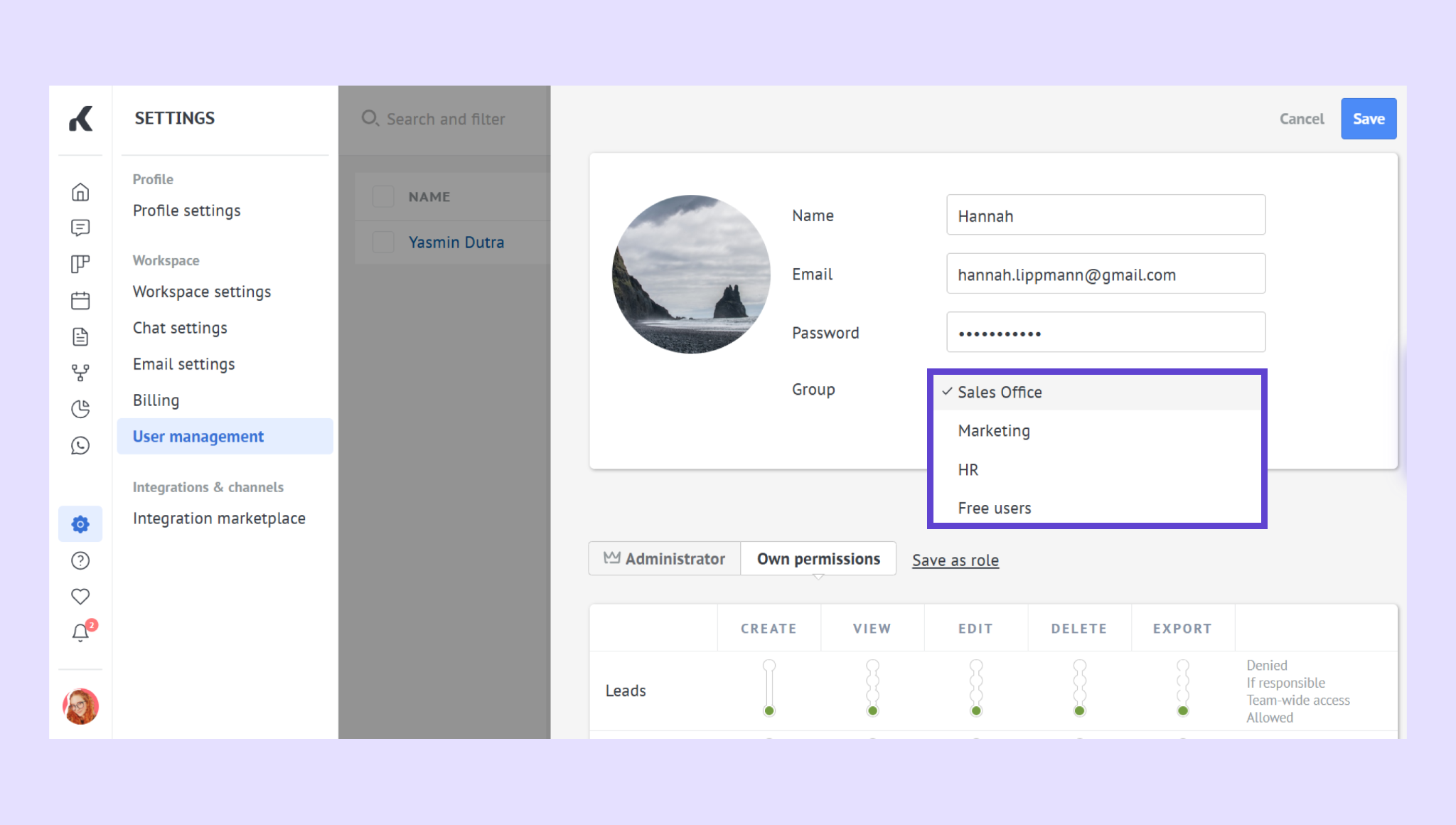
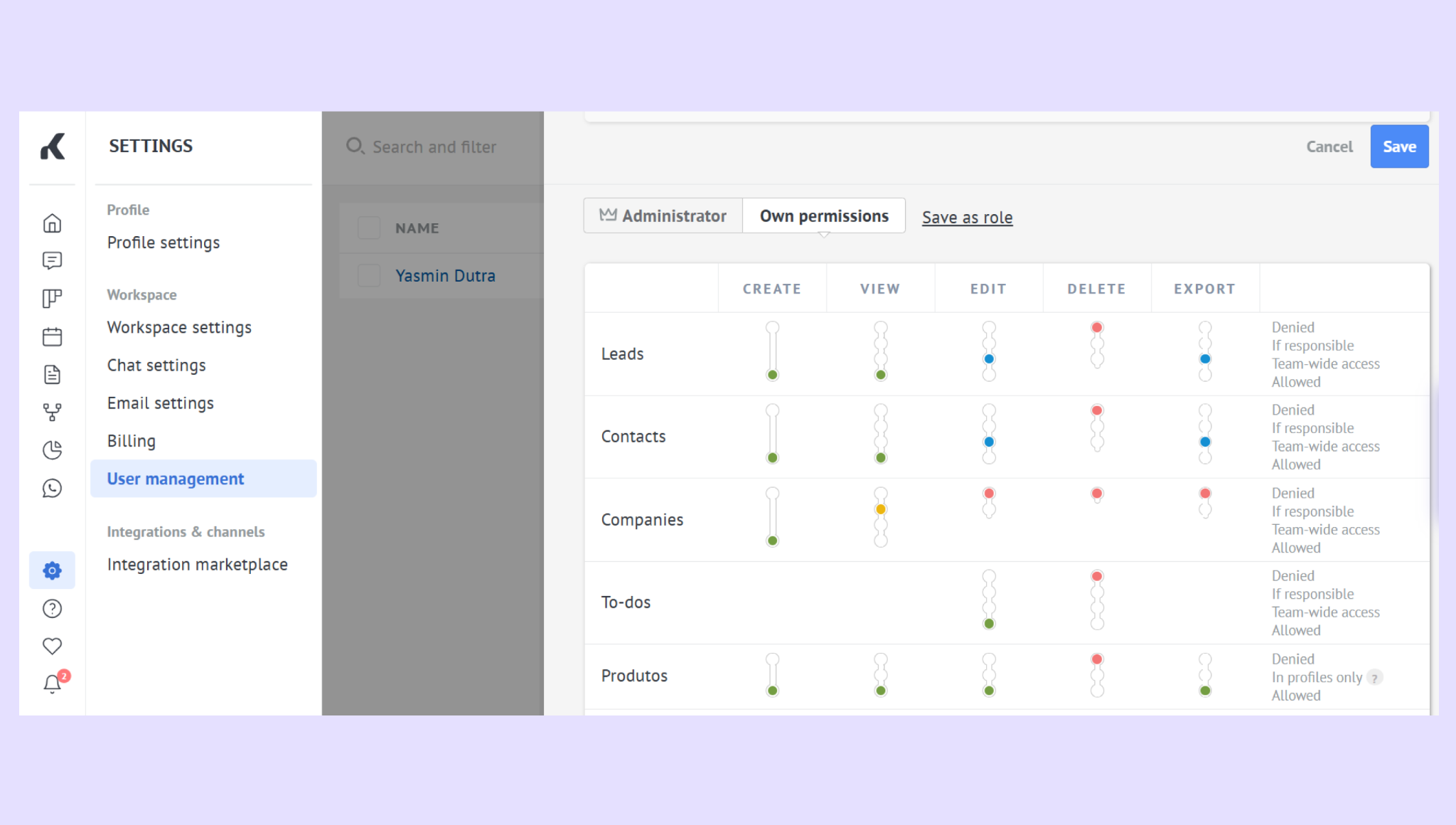
Choose their permissions or role (Admin or create a custom role).
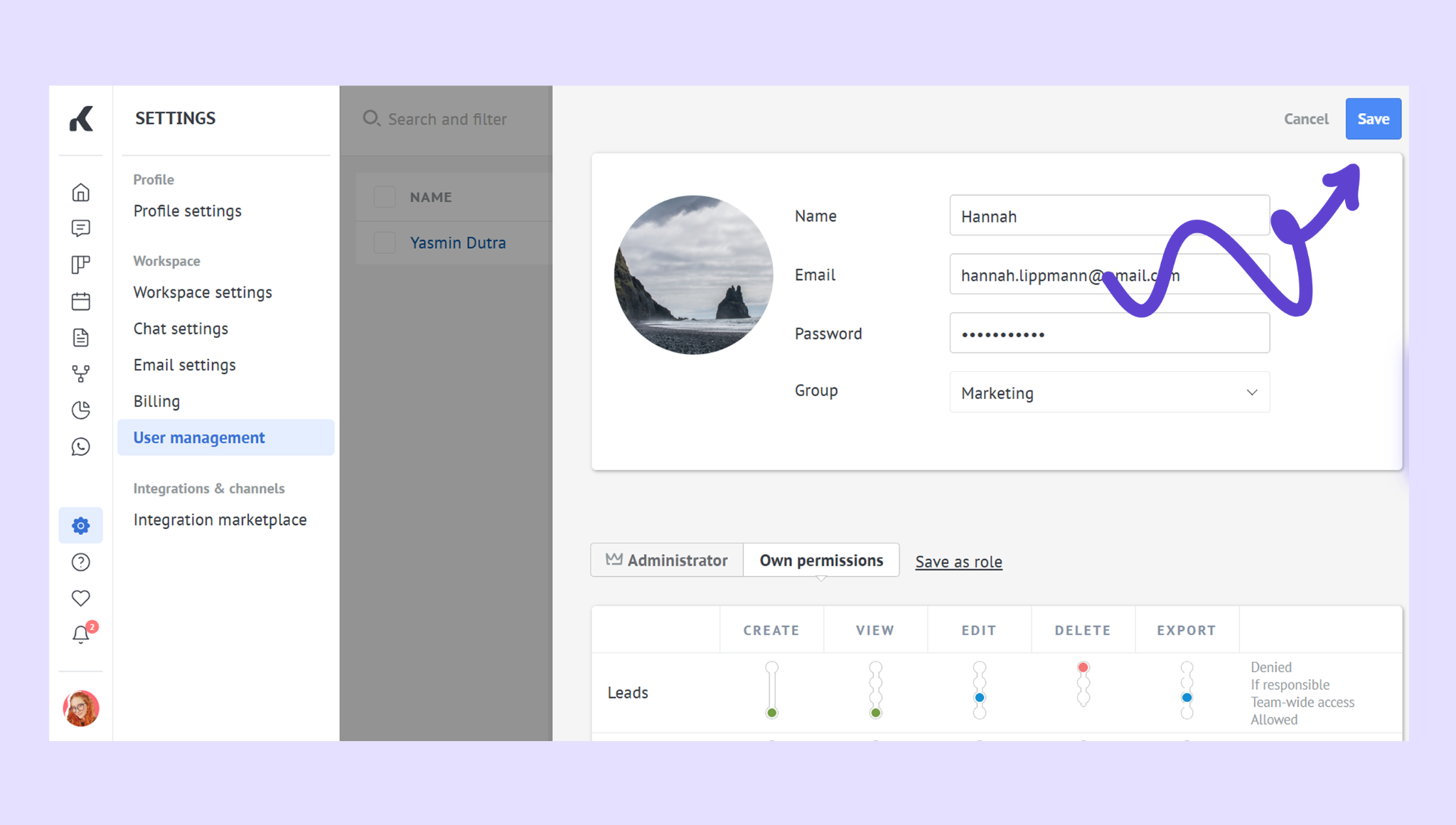
Click Save — they’ll receive an email invitation to join.
Note: If your teammate doesn’t receive the invite, ask them to check the spam folder or whitelist Kommo emails.
Accepting an invitation
If you’ve been invited to an existing workspace:
Open your email invitation from Kommo. Click Go to account or follow the provided link.
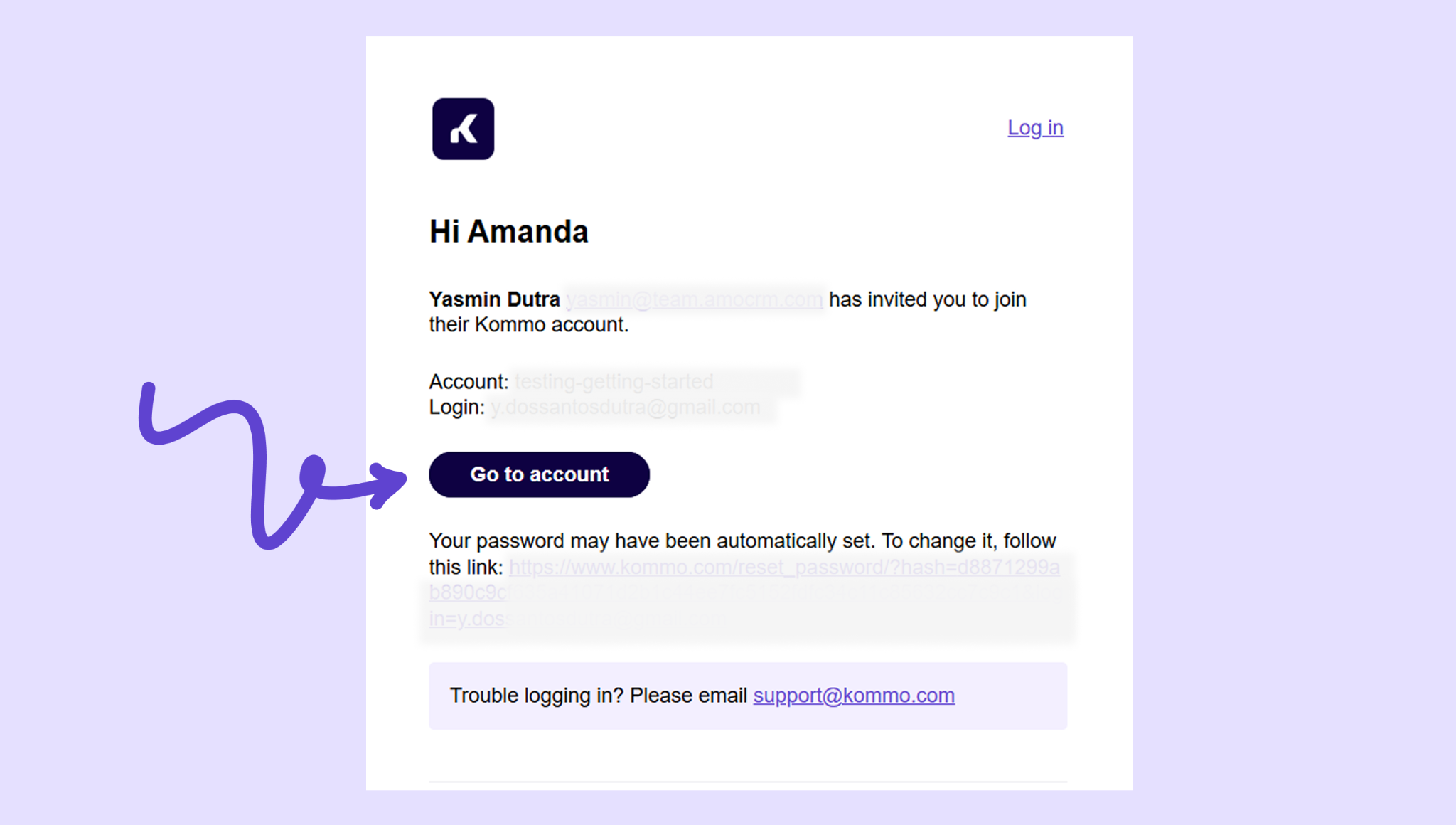
Log in (or sign up if new) to access the workspace.
Once accepted, your user profile will appear in Settings → User management.
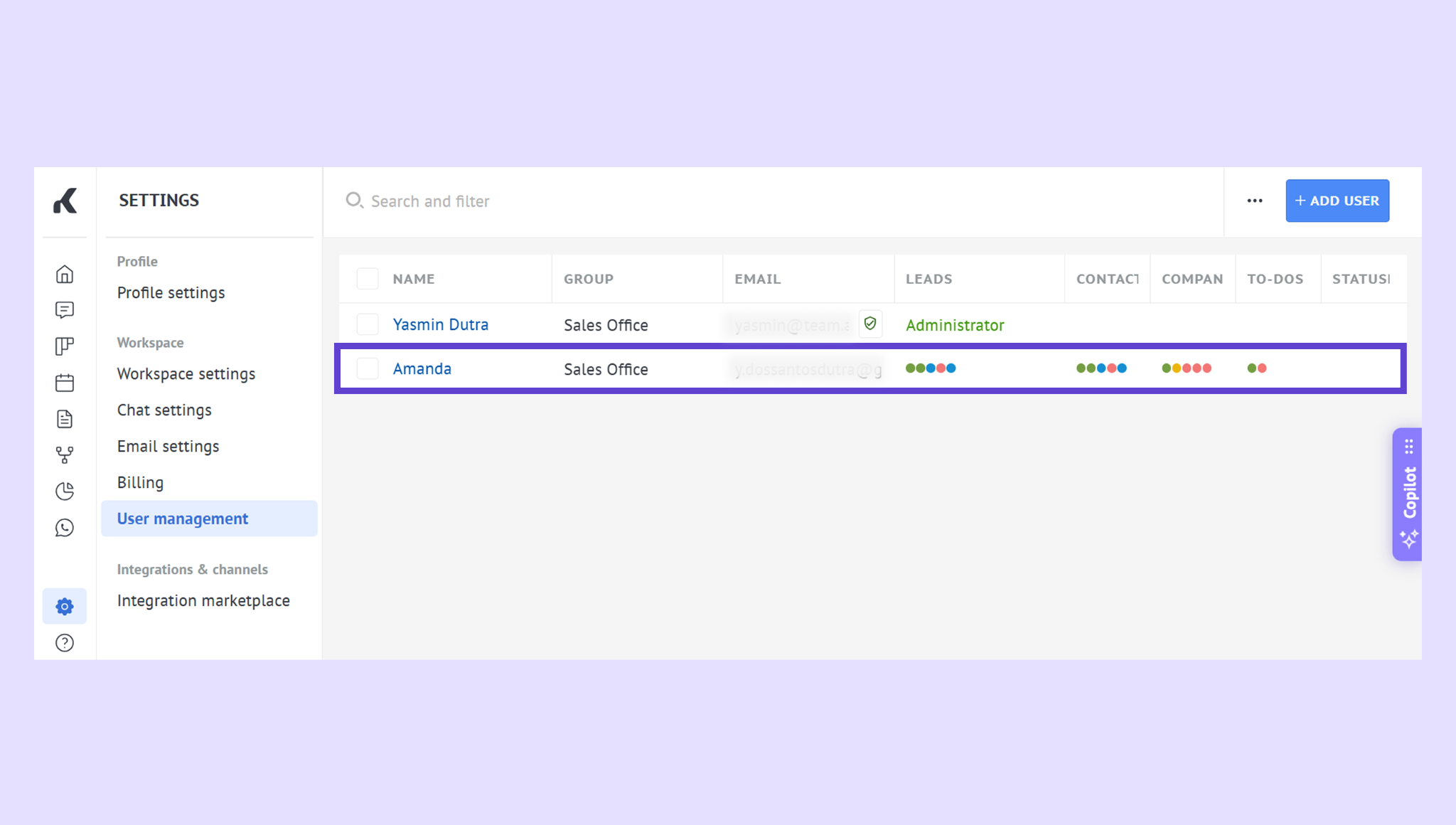
Manage roles and permissions
Admins can edit user access anytime:
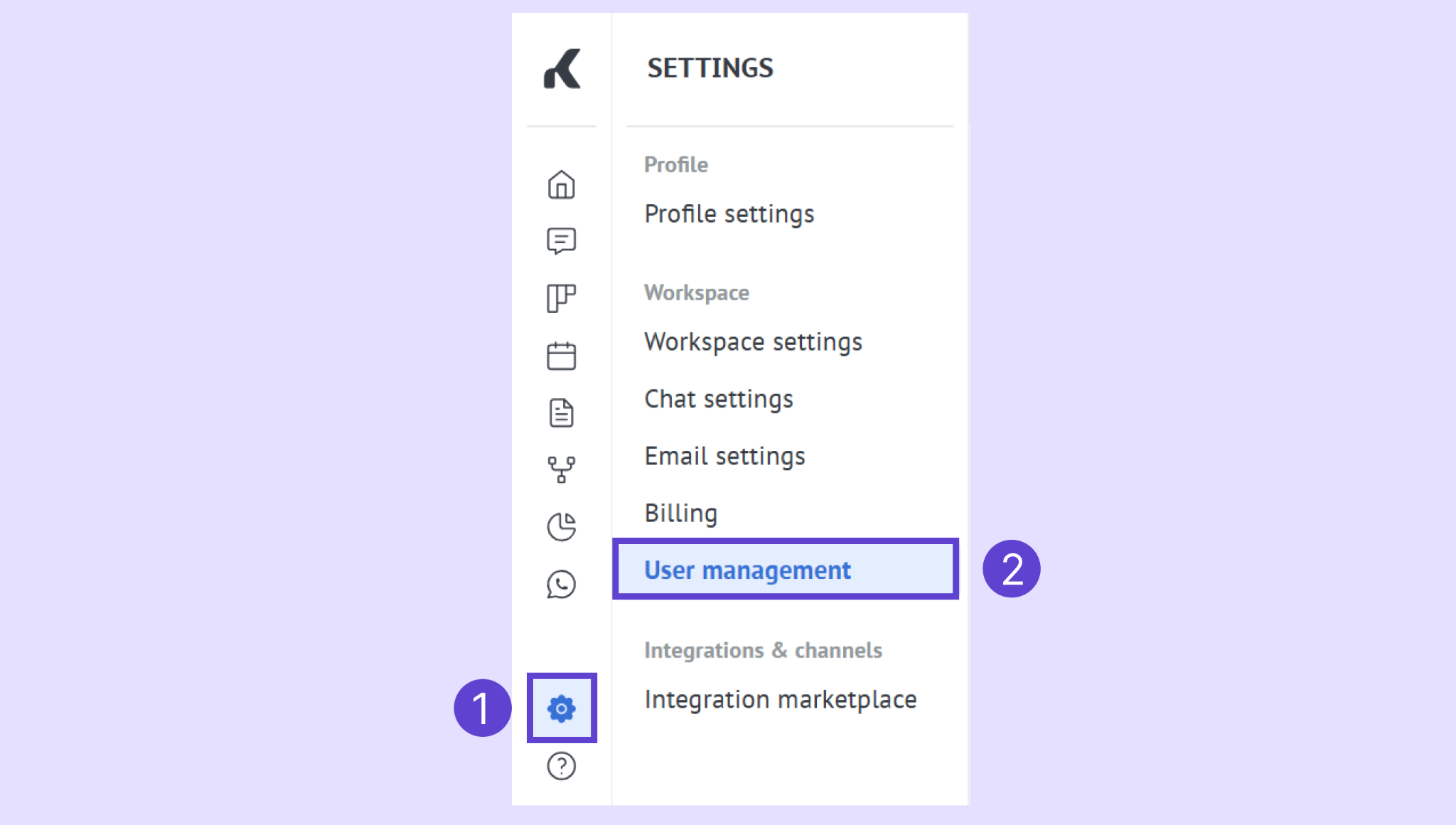
Go to Settings → User management.
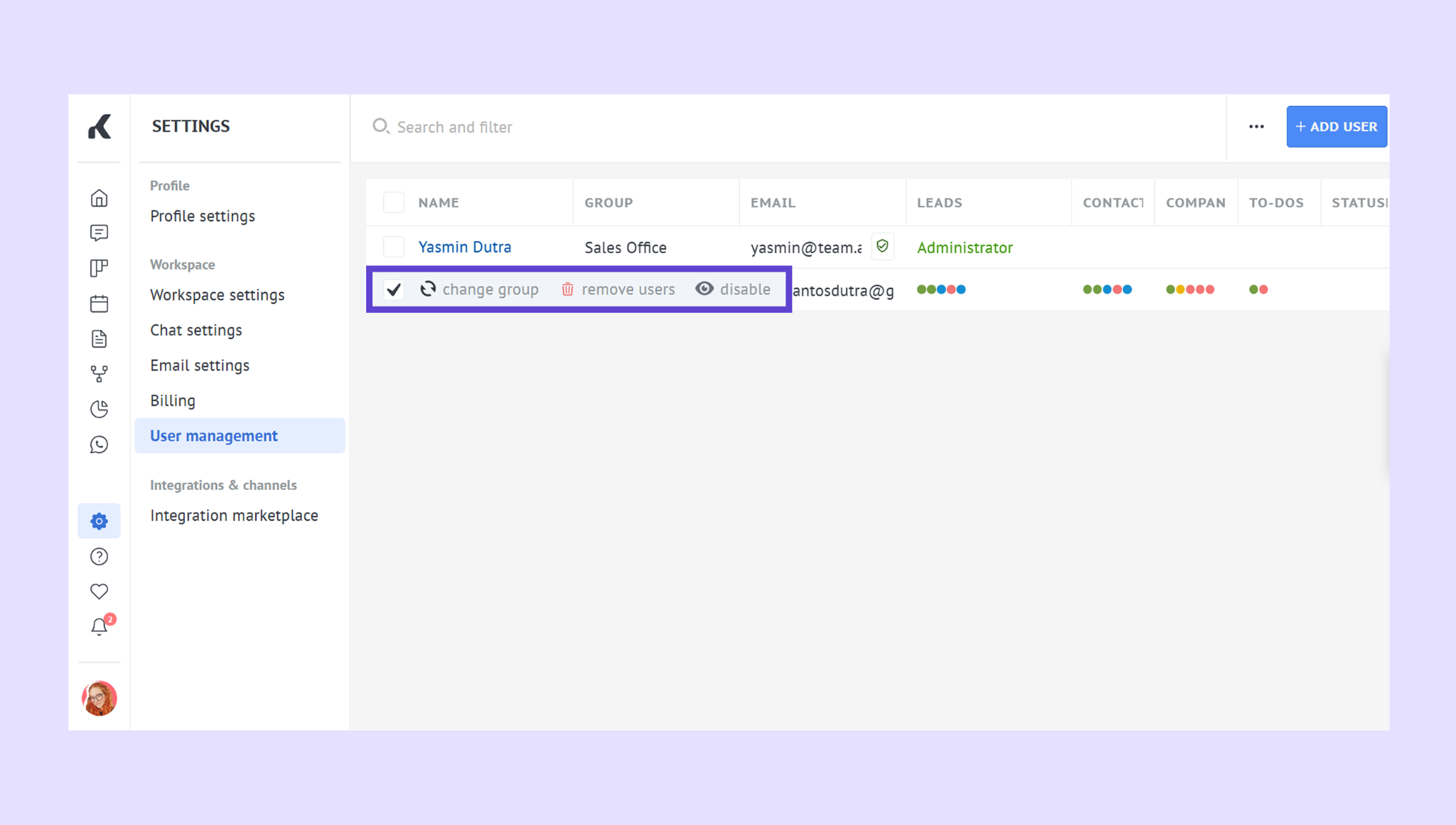
Tick the box near a teammate’s name to change their group, remove or disable them.
Click their name to edit their role or permissions.
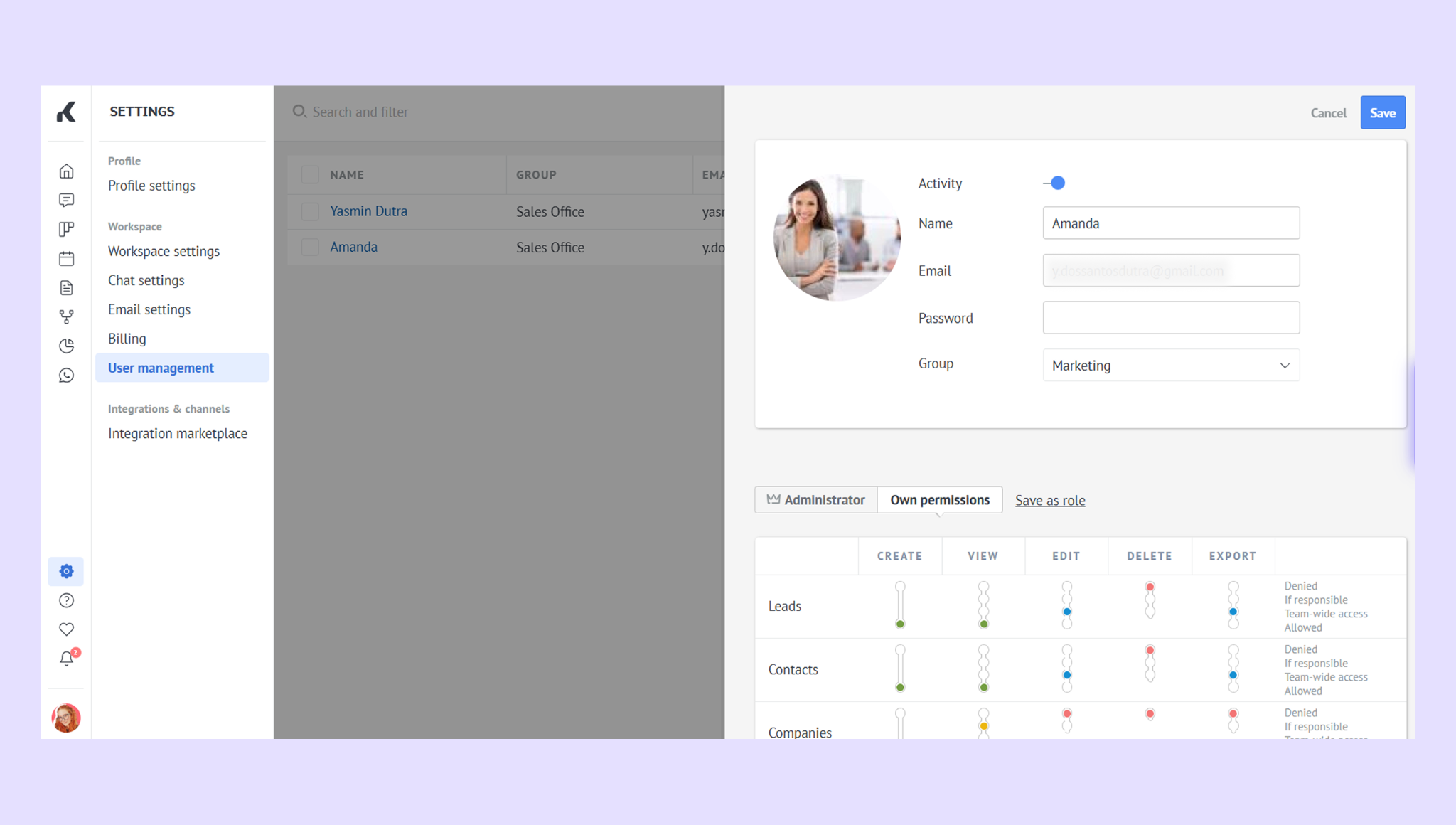
Save changes to update access instantly.
Tip: Use permissions to control who can delete leads, view pipelines, or edit integrations — keeping your workspace secure and organized.
Verify the setup
After inviting teammates:
Check Settings → User management to confirm their status shows Active.
Ensure each teammate can log in and see assigned leads or pipelines.
If you need more help with setup or troubleshooting, feel free to reach out to our support chat or contact us via WhatsApp. You can also hire a Kommo partner to do all the hard work for you.
Not a user yet? Sign up for our 14-day free trial or book a free live demo.