What you’ll need
A Facebook Business account with an active WhatsApp Business Account.
Same WhatsApp Business Account connected to Kommo.
A catalog created in Meta Commerce Manager (catalogs from the WhatsApp Business app aren’t supported).
The catalog linked to your WhatsApp Business account in Meta WhatsApp Manager.
Marketing message templates approved by Meta are required to send catalogs through bots or broadcasts. Learn more about Broadcasting.
Any Kommo plan – Base, Advanced, Pro, Enterprise, or 14-day trial.
Keep in mind
Only one catalog can be added per WhatsApp Business Account.
If you make changes to the catalog in Meta, you’ll need to sync the catalog in Kommo to update the changes.
WhatsApp catalogs are currently in beta. As we continue improving the feature, some part of the feature may not always work as expected. If you run into any issues, see our troubleshooting guide.
WhatsApp catalogs let you share your Meta products directly in client conversations.
Catalogs are created in Meta Commerce Manager and connected to Kommo through your WhatsApp Business Account. Once connected, you can share products or the full catalog in Kommo chats, so clients can view details directly in WhatsApp.
Use cases
Recommend a product during a chat — Send a product card when a client asks for a specific item, price, or recommendation.
Help clients browse your offers — Share the full catalog so clients can explore available products and choose what interests them.
Let clients compare several options — Send multiple products to help clients compare styles, models, or price ranges.
Promote new products or special offers — Include products in a broadcast to announce a new collection, seasonal offer, or restock.
Guide clients automatically — Add products to Salesbot messages to suggest relevant items based on a client’s needs or answers.
This step-by-step guide shows how to connect your WhatsApp catalog to Kommo.
Connect WhatsApp catalog to Kommo
Before you connect WhatsApp catalogs to Kommo, connect Meta Product Catalog to your WhatsApp Business Account. Next, you can connect it to Kommo:
Go to WhatsApp Business. Click Connect.
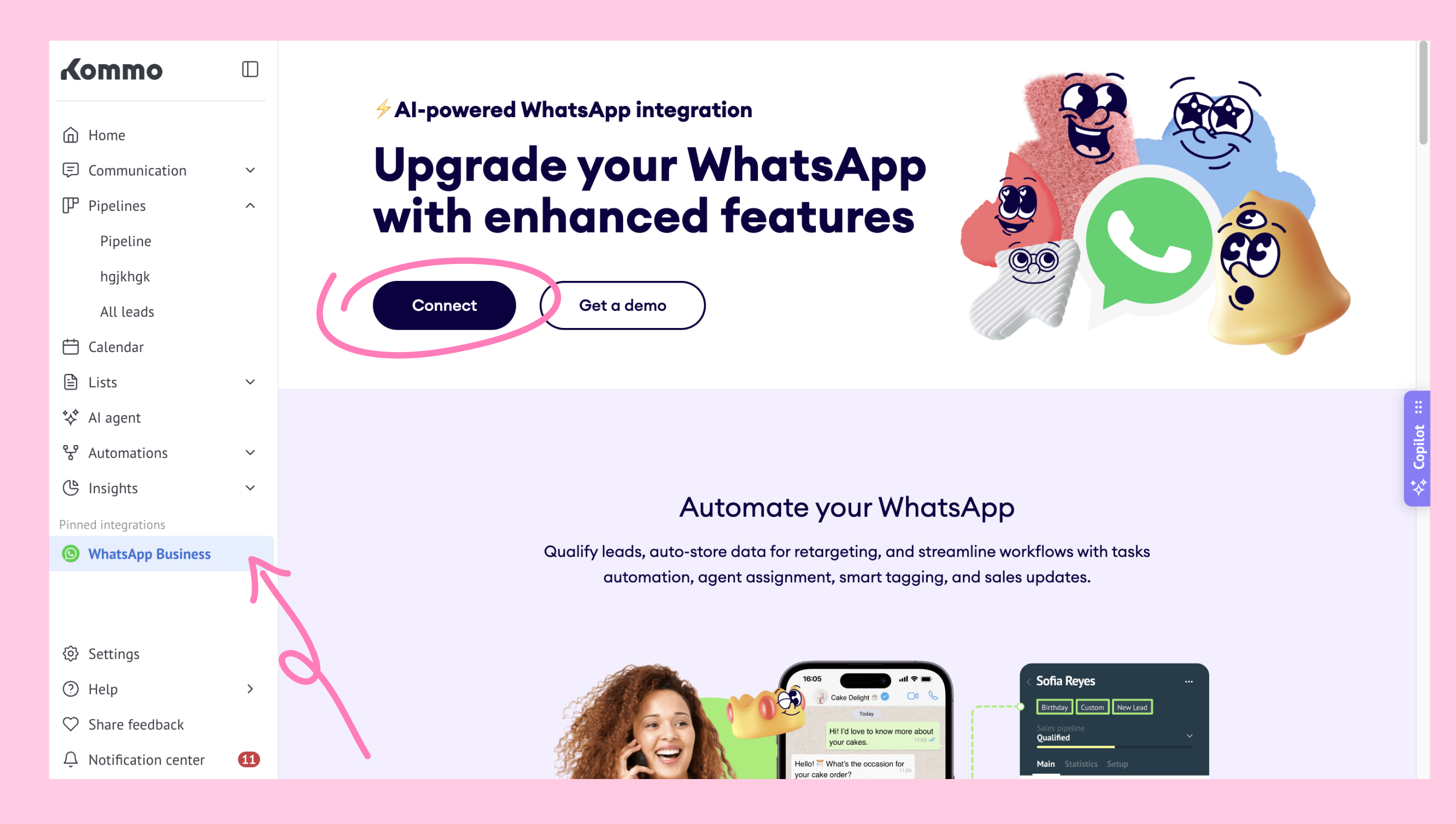
Click Catalogs.
.png)
Click Continue with Facebook.
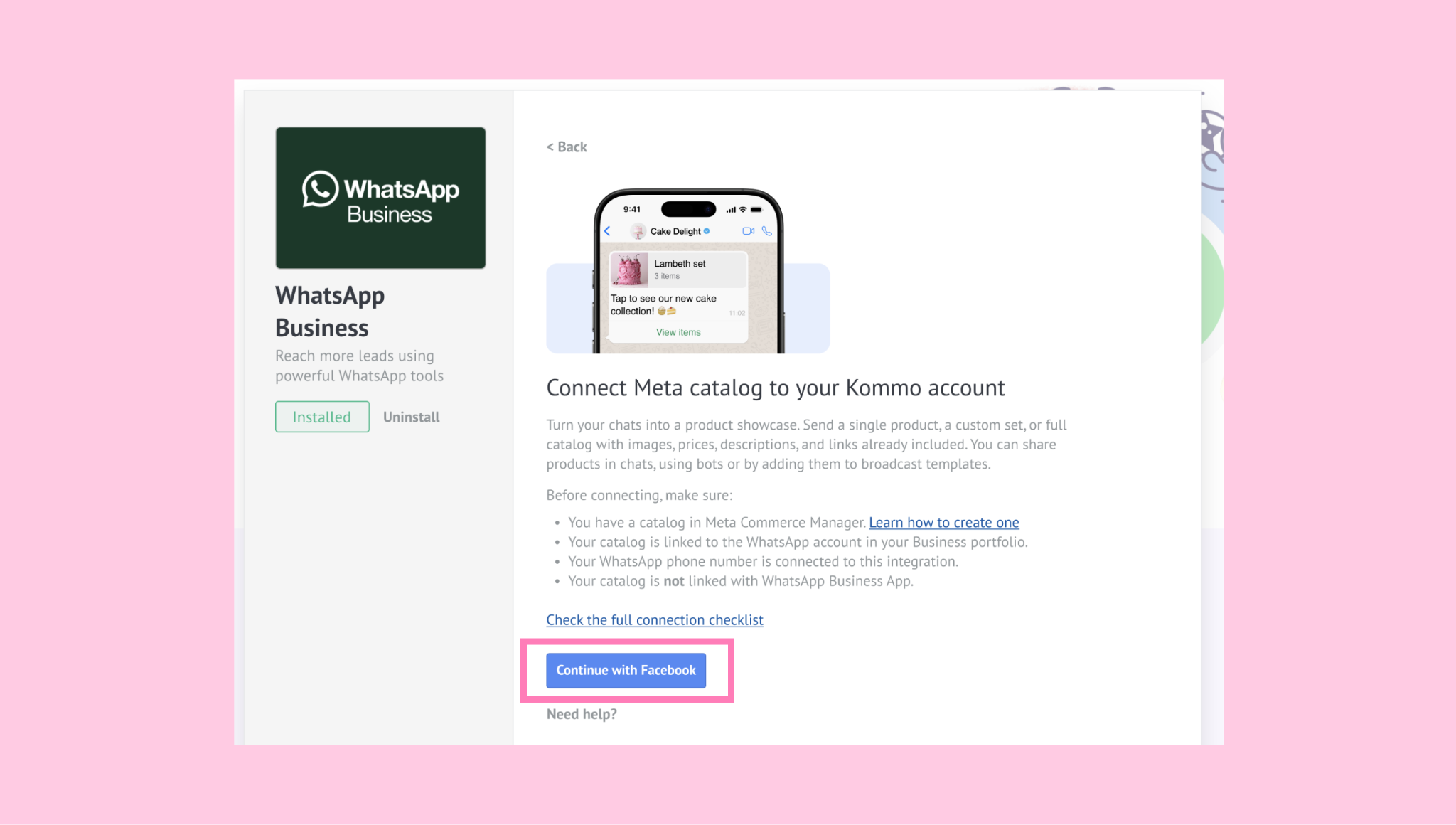
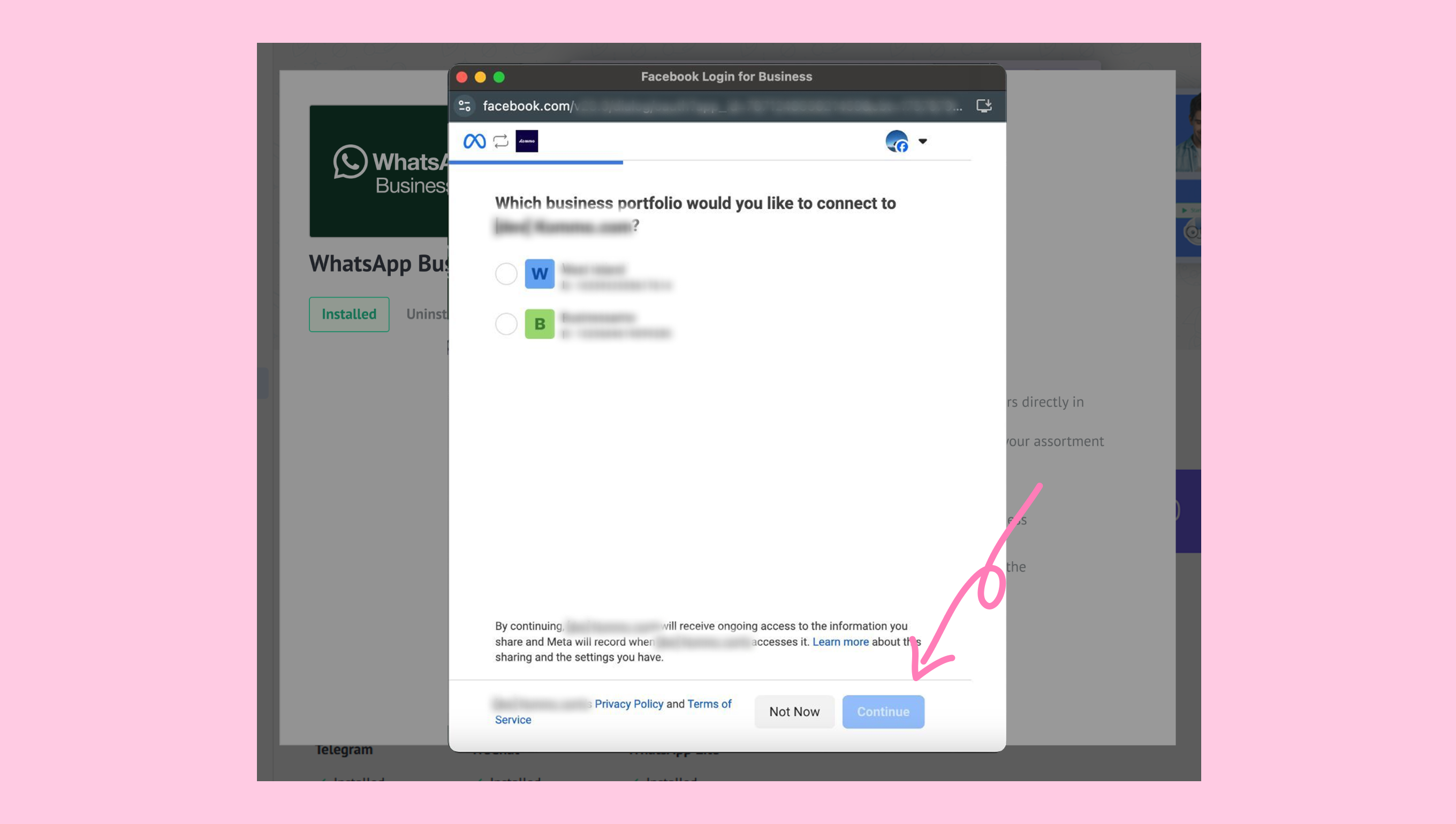
Select a business portfolio and click Continue.
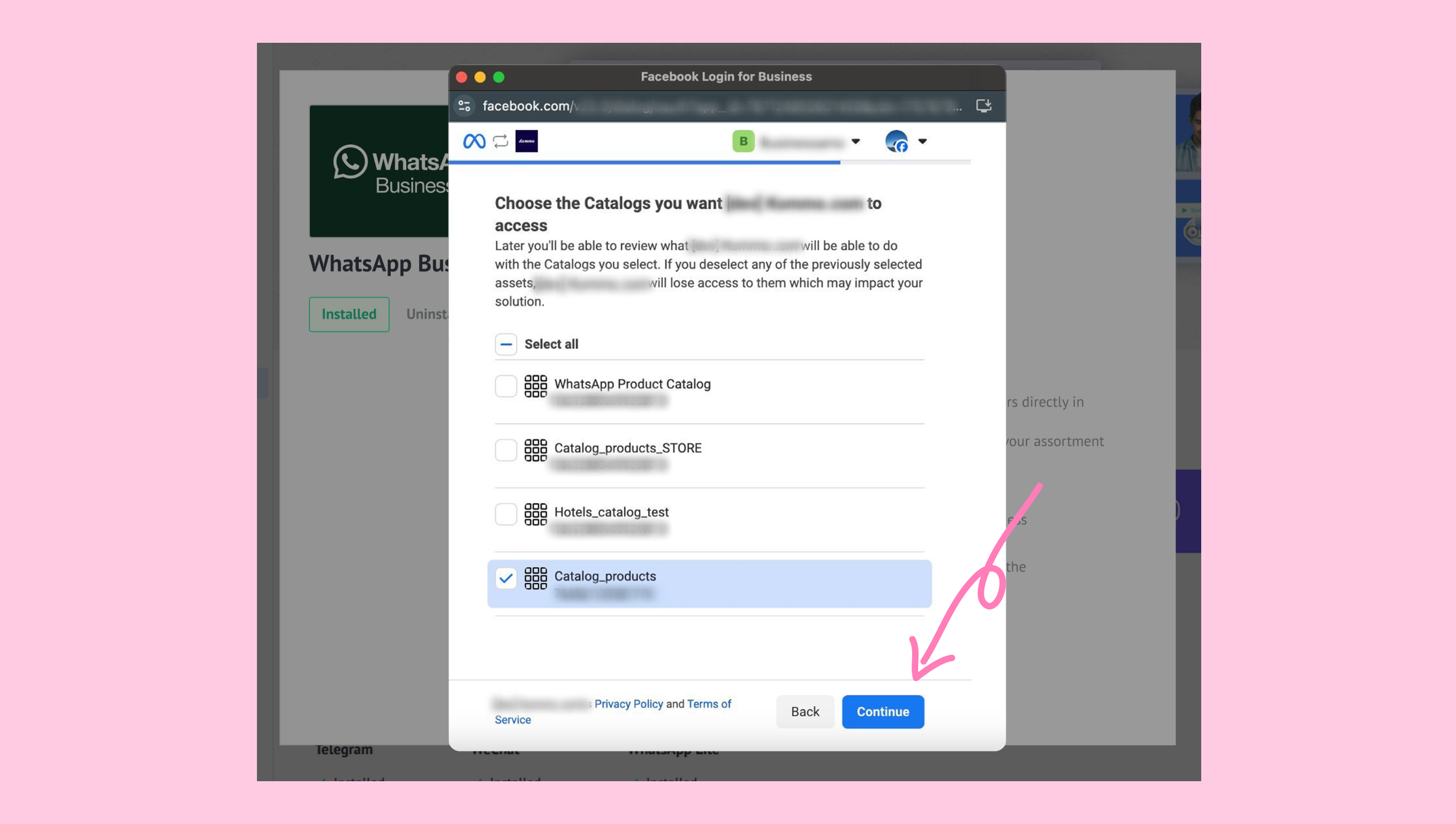
Select a catalog and click Continue.
Complete the Facebook connection process.
Click Connect.
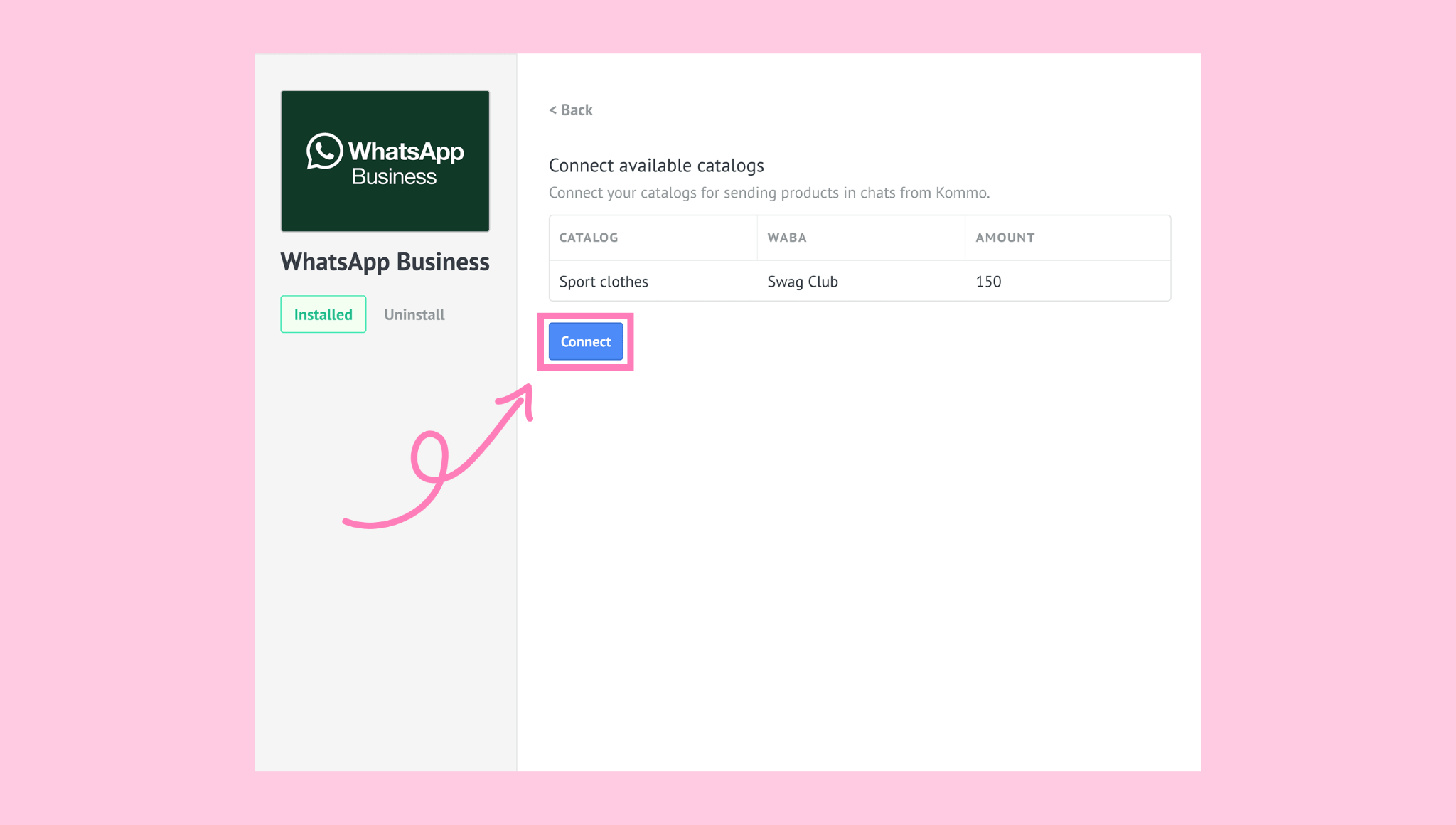
Note: The catalog won’t connect if it’s linked to a different WhatsApp Business Account than the one connected to Kommo.
The connection process may take up to 10 minutes. During this time, the status will show Sync.
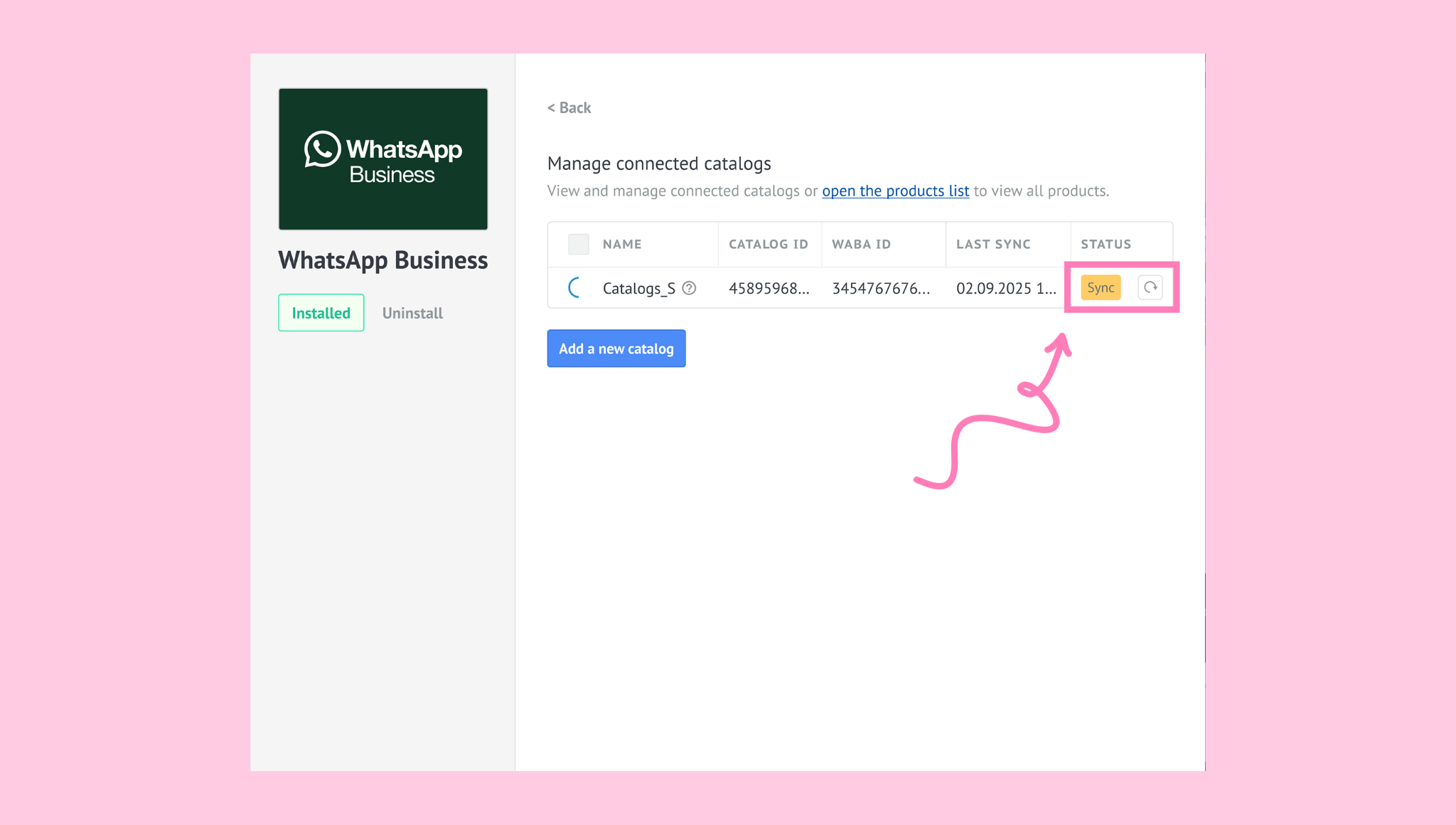
Once the connection is complete, the status will change to Active.
Manage catalogs in Kommo
Once the connection is over, you can reassess the catalog any time via WhatsApp Business → Catalogs. There you can:
Sync the catalog in case of any changes:
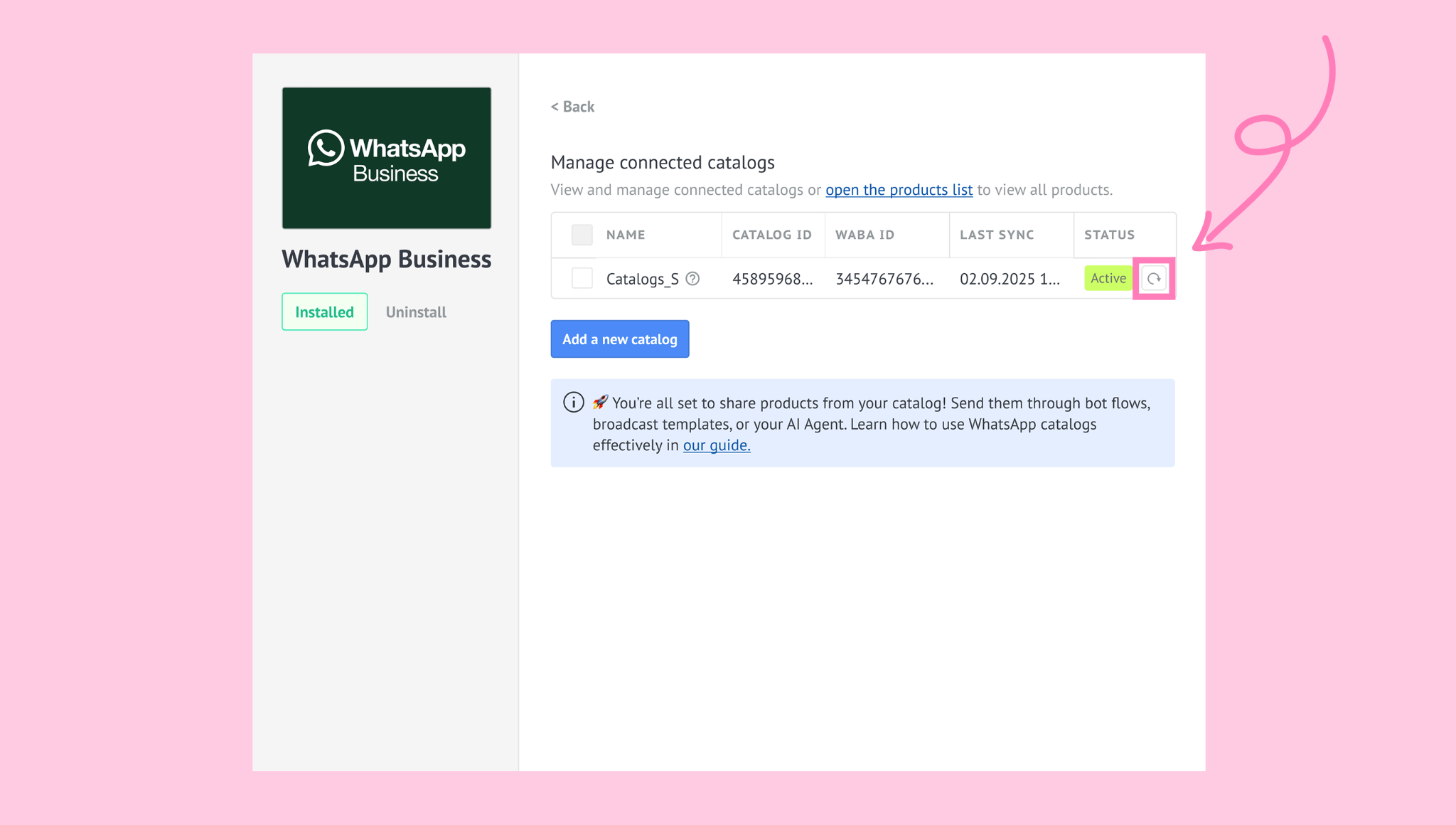
Note: Catalogs cannot be edited directly in Kommo. To update a catalog, make your changes in Meta, then manually sync it in Kommo. The sync process may take a few minutes.
Access the product list:
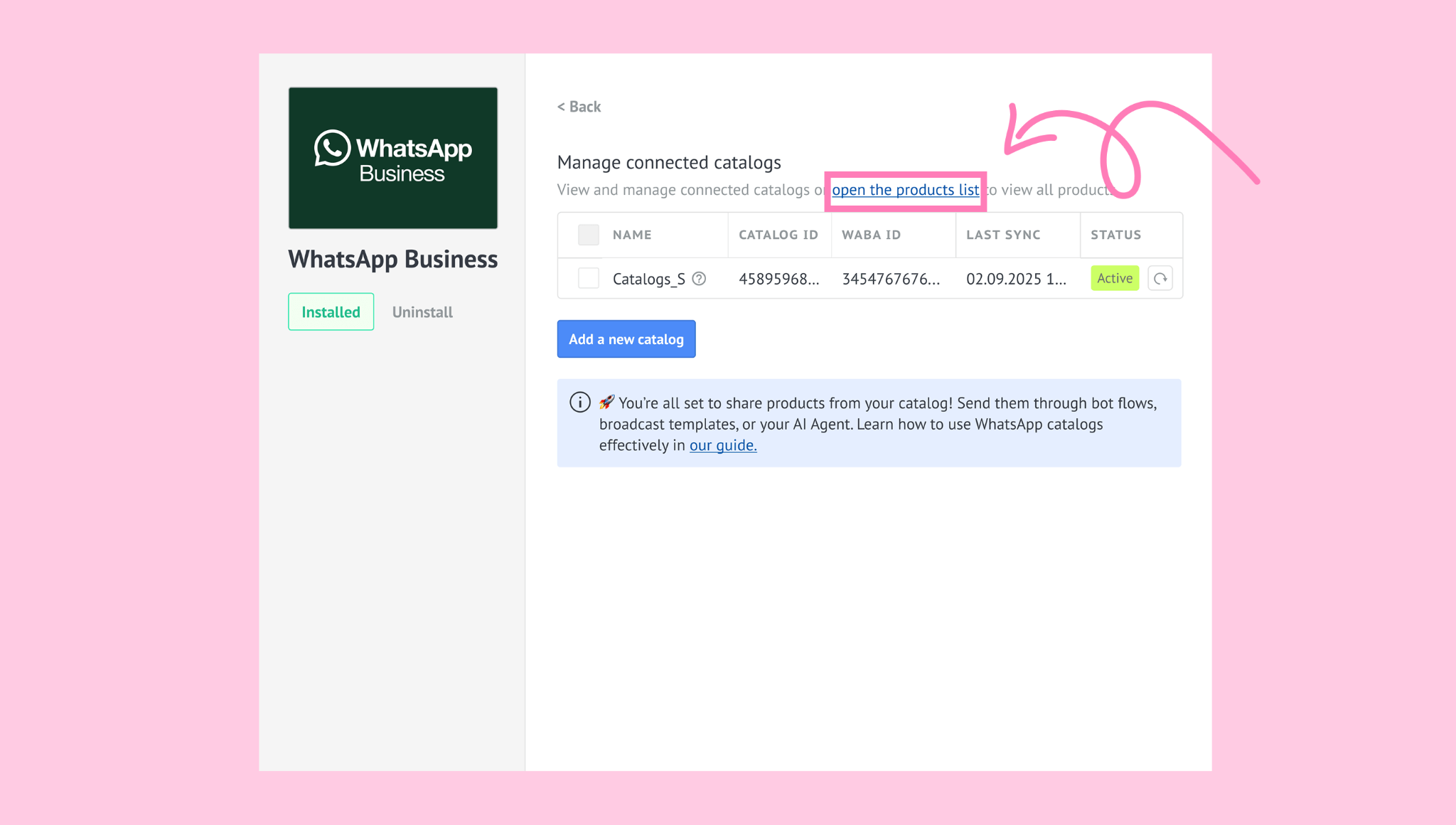
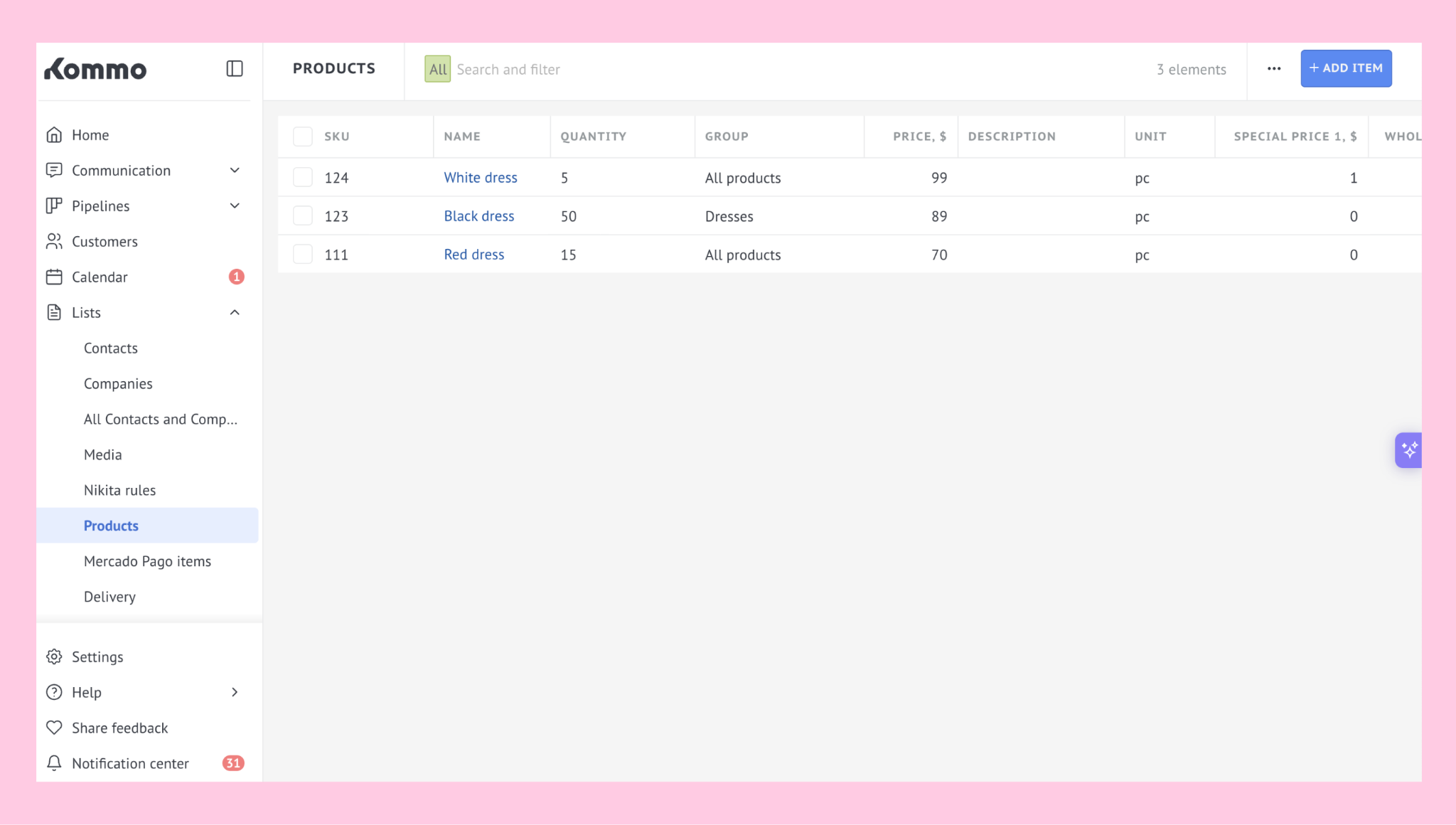
Products from the connected catalog will be added to Lists → Products:
Add a new catalog:
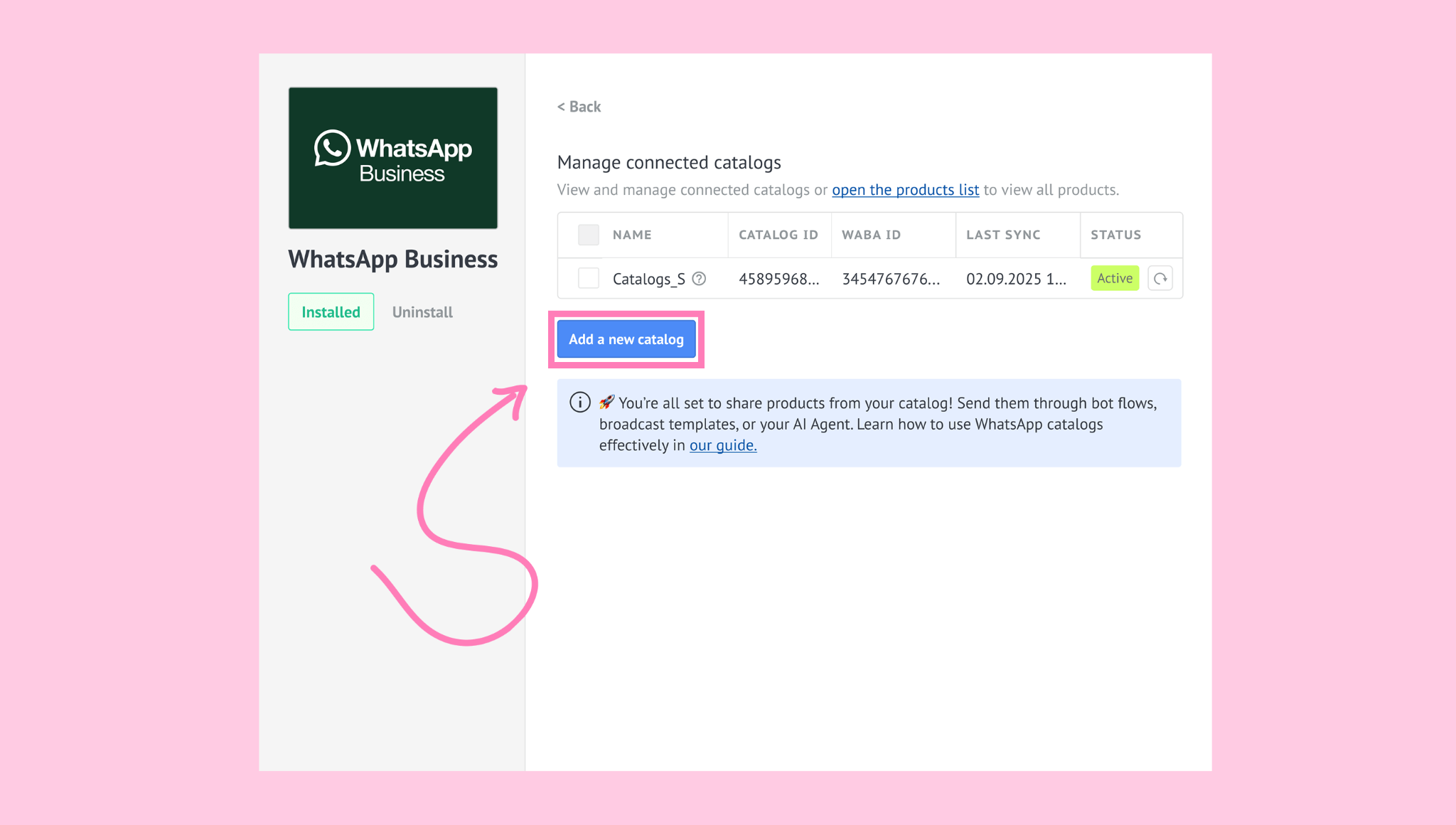
Note: Only one catalog can be connected at a time. When you add a new catalog, the previously connected catalog is removed and replaced with the new one. Any products imported from the previous catalog will also be deleted from Kommo.
Delete the catalog (check the checkbox first):
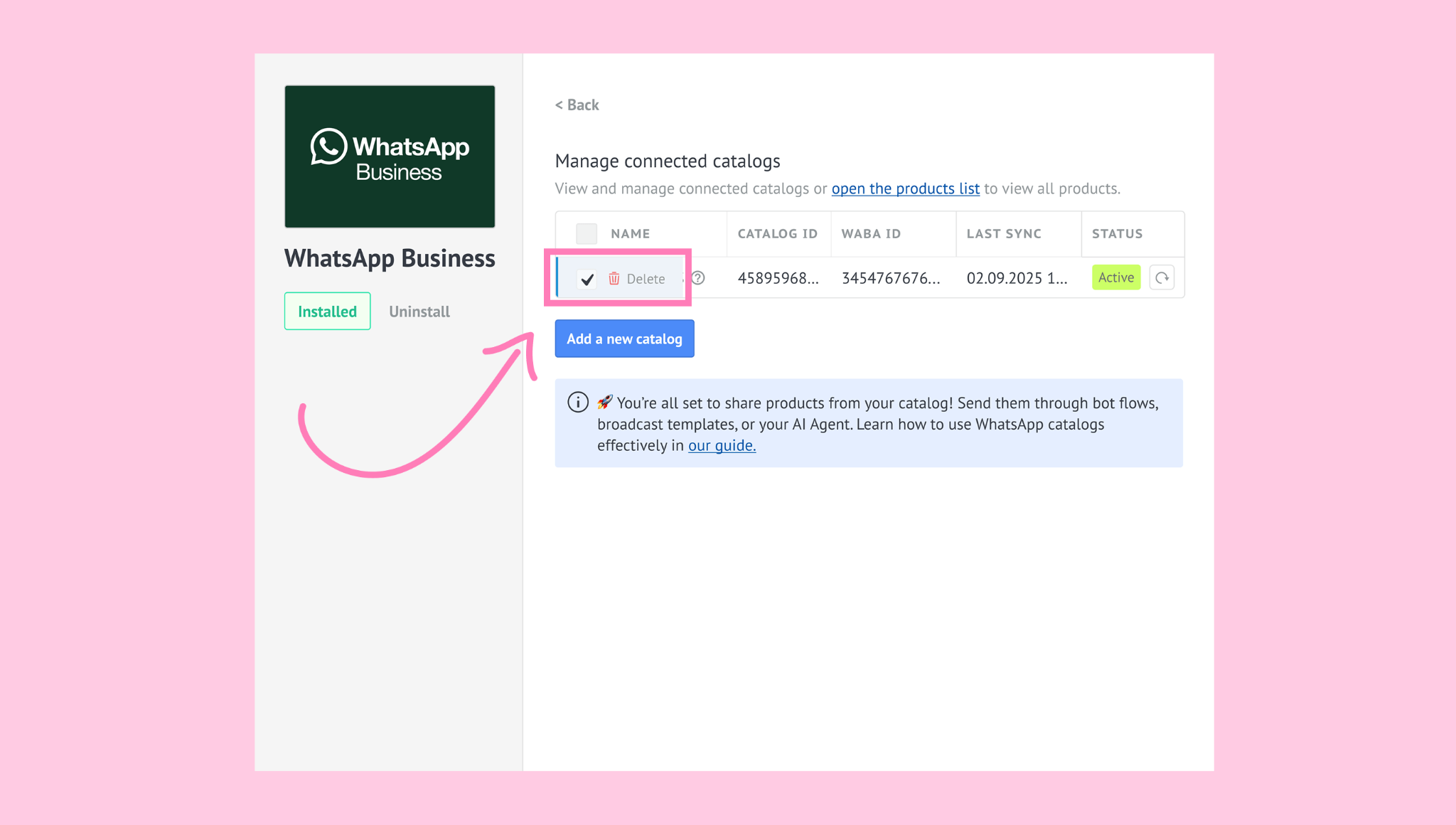
Note: Catalogs can’t be deleted while a sync is in progress. When a catalog is deleted, all products imported from it are also removed from Kommo.