Requirements:
Personal Facebook account with access to a Meta Business portfolio, with Admin rights for both.
Meta Business Portfolio and WABA, or the ability to create them during setup.
Phone number with a supported country/area code that can receive SMS or voice calls.
The number must meet WhatsApp Business Platform requirements.
Limitations:
One phone number can only be connected to one Kommo account.
Some countries/regions are not supported. Find more information here.
Unverified Meta Business Portfolios can start with up to 2 phone numbers. Once your business is verified or you reach a messaging limit of 2,000, this limit automatically increases to 20 phone numbers.
Messaging limits are separate from phone number limits and are managed at the Business Portfolio level. Learn more about WhatsApp messaging limits here.
WhatsApp Business integration with Kommo lets you benefit from both platforms. You can communicate with your clients directly from your CRM using WhatsApp Business features like interactive messages, message templates, and broadcasts. You can also create leads, assign responsible team members, add tasks, and schedule meetings in Kommo based on these conversations.
You can connect a phone number to WhatsApp Business in different ways, depending on whether it’s new or has been used before — either directly in WhatsApp, through Kommo, or with another provider.
This article explains how to:
Connect a number used with Kommo integrations (WABA API / Gupshup / Twilio)
Connect a number used with other WhatsApp Business providers (that are not integrated with Kommo)
Reconnect to WhatsApp Business after logging out or deleting your number from the Kommo integration
Connect a new number to WhatsApp Business
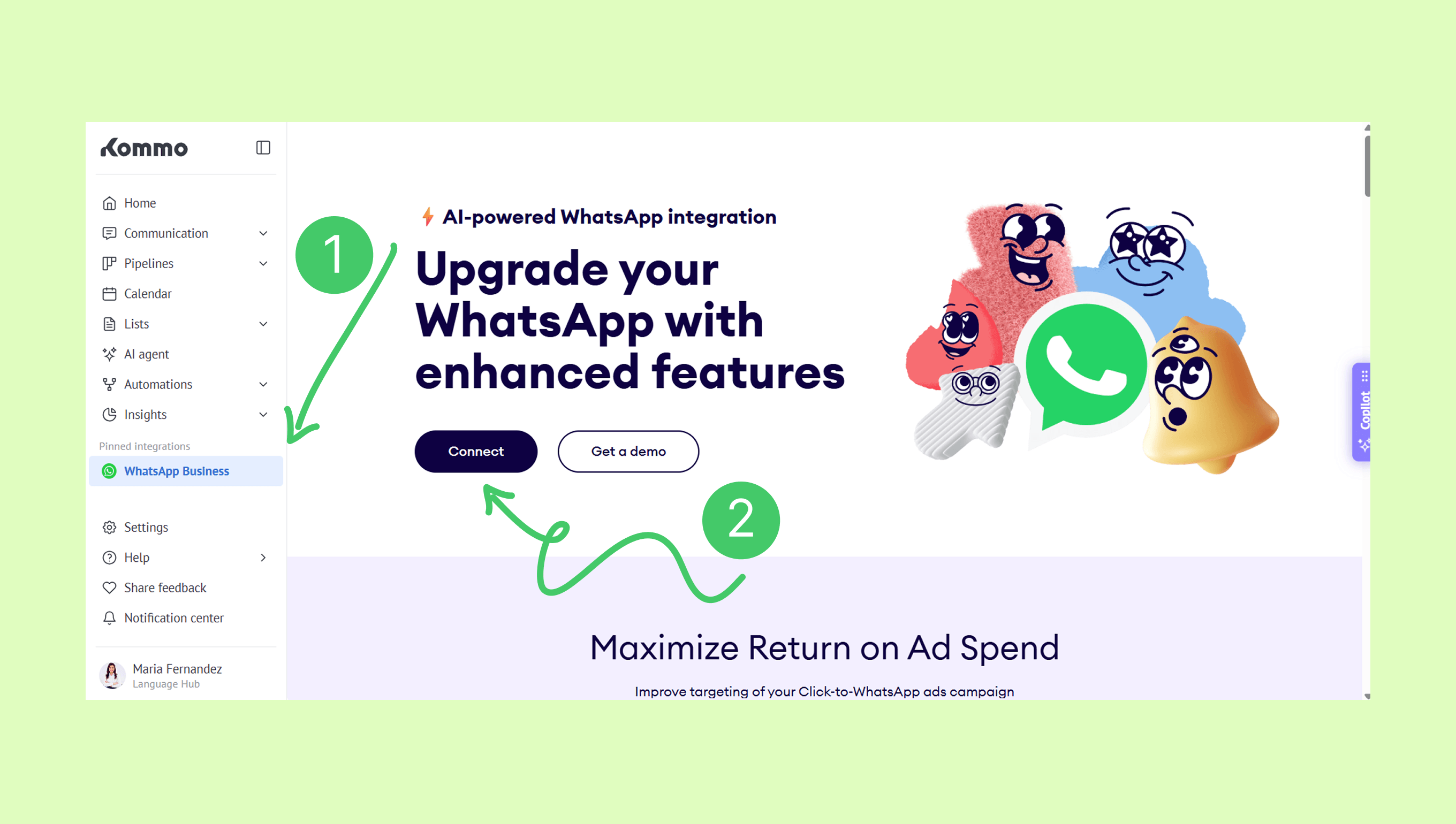
Go to WhatsApp in your left menu bar → Connect (you will be redirected to the Integration market page and WhatsApp business setup modal will open).
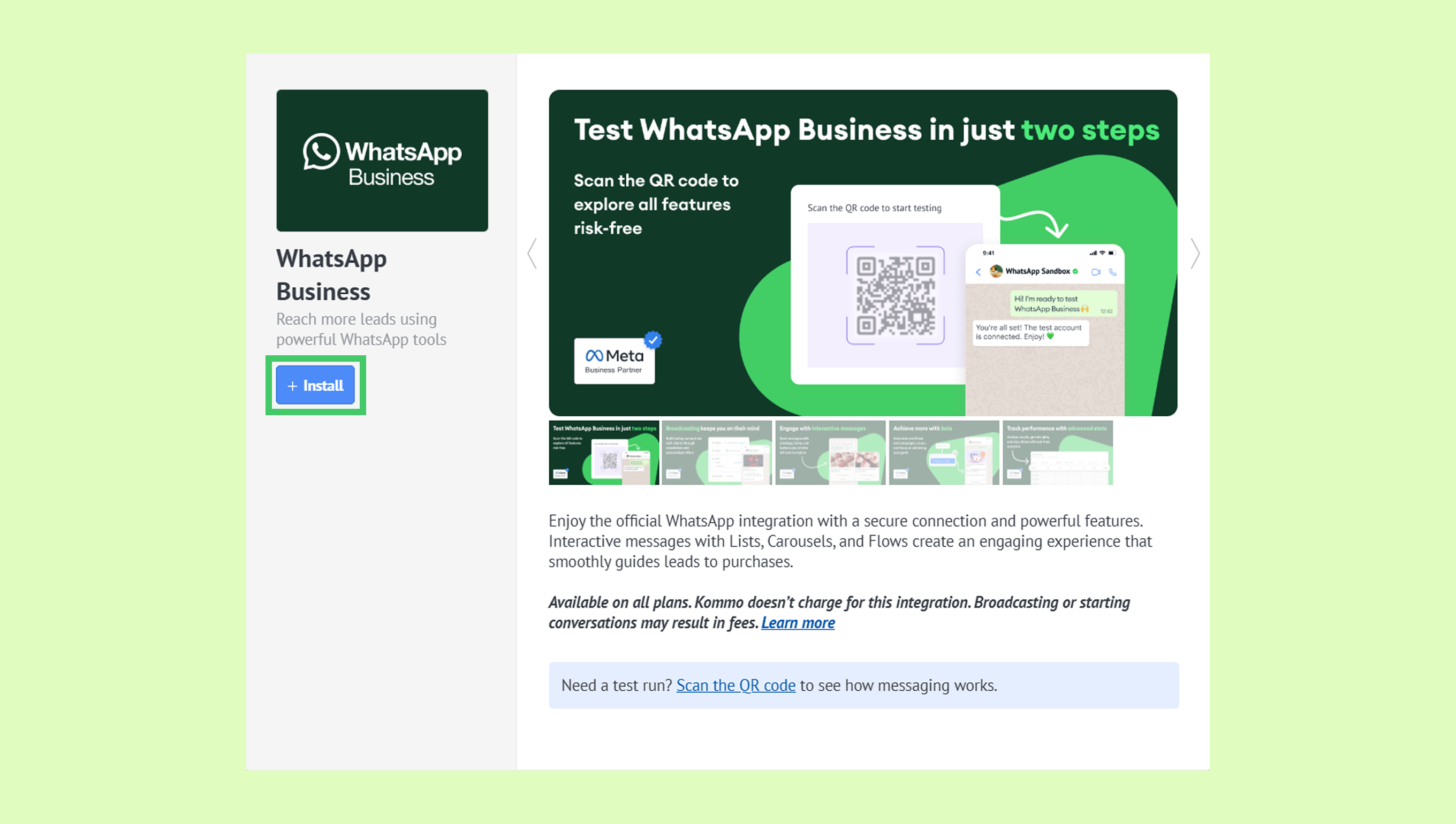
In the setup modal, click +Install.
Select Connect a new number. After that, the Meta login window will open.
.png)
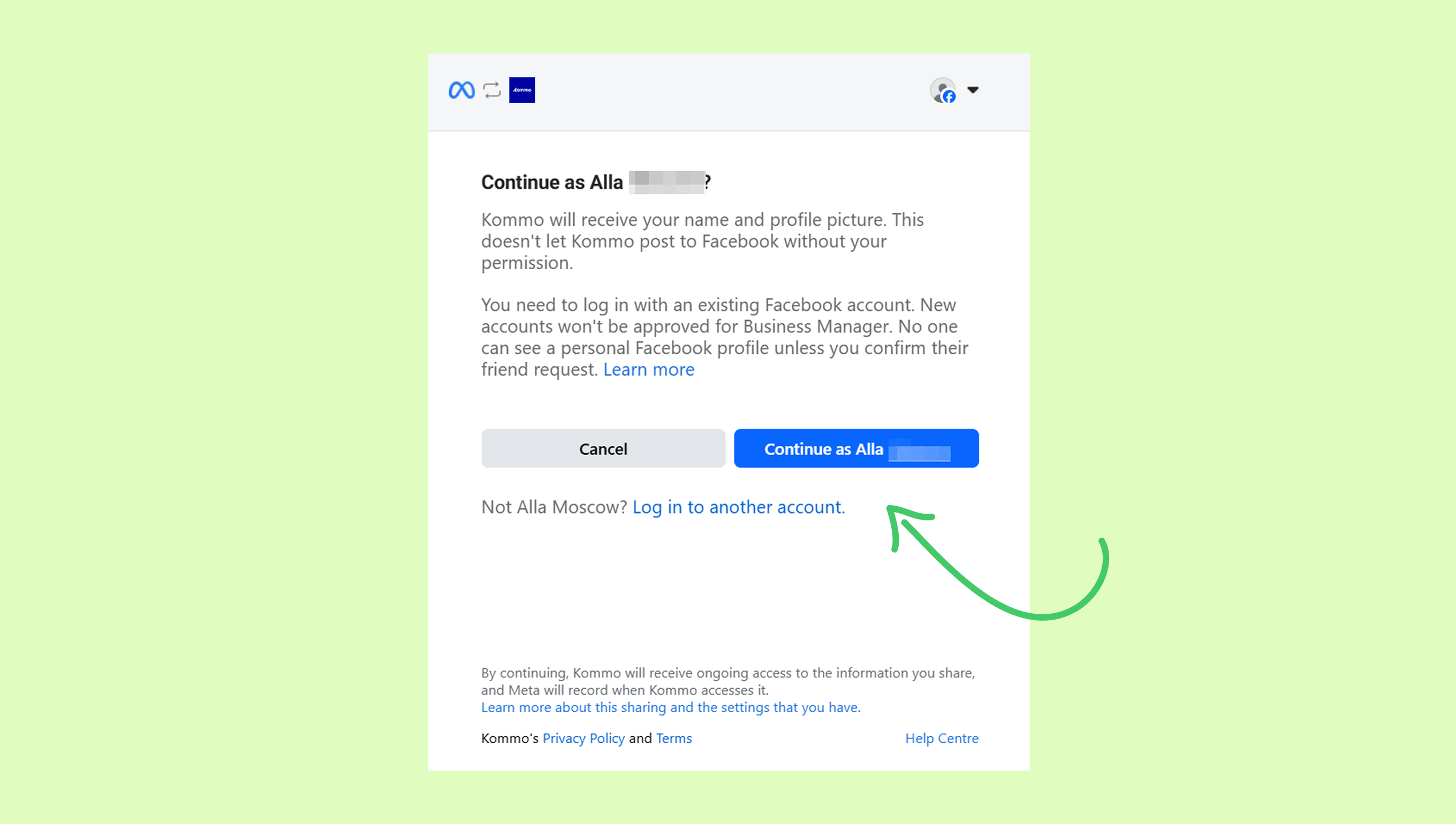
In the Facebook login window, sign in with your account or click Continue as... if you’re already logged in.
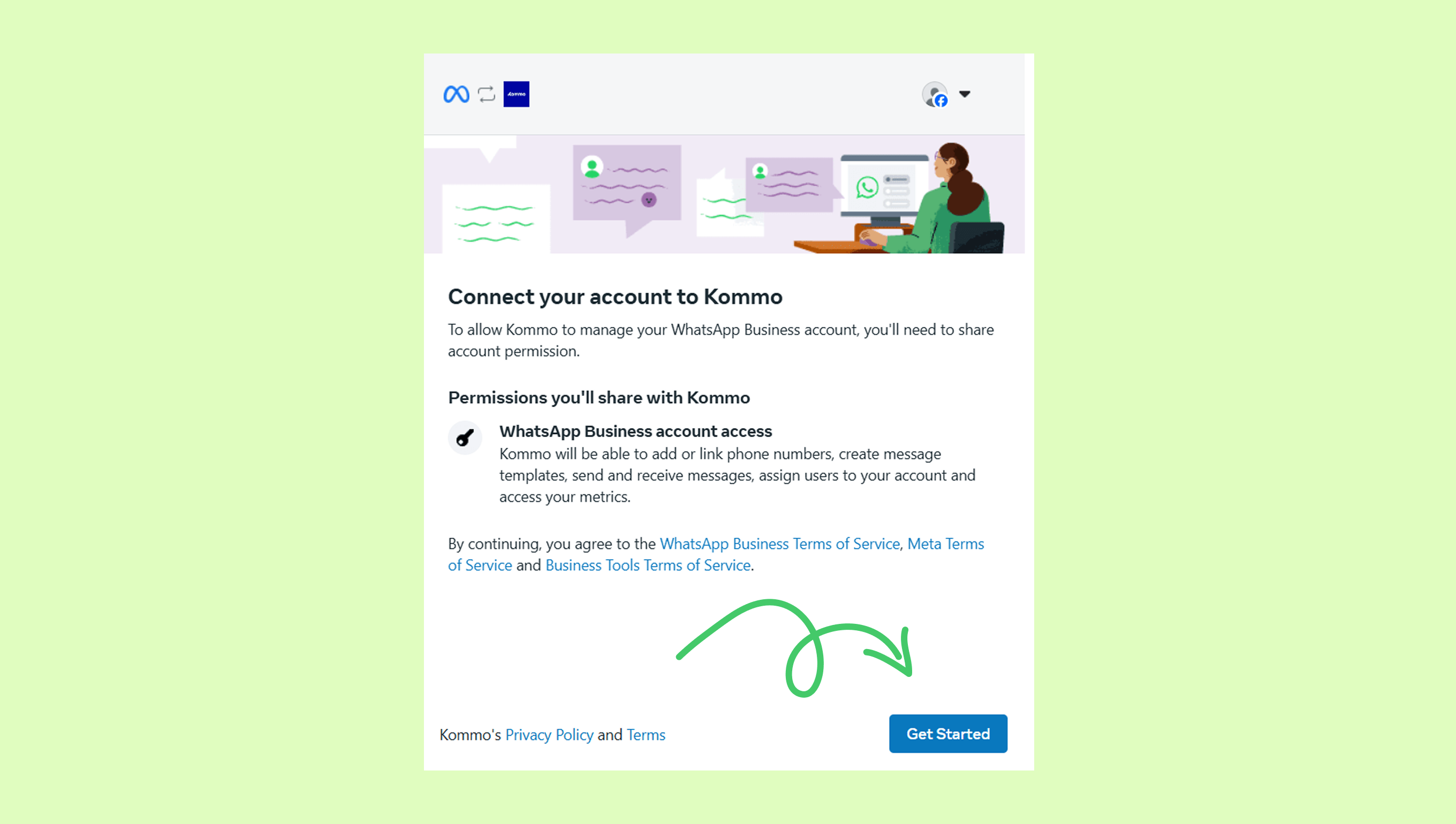
Click Get Started.
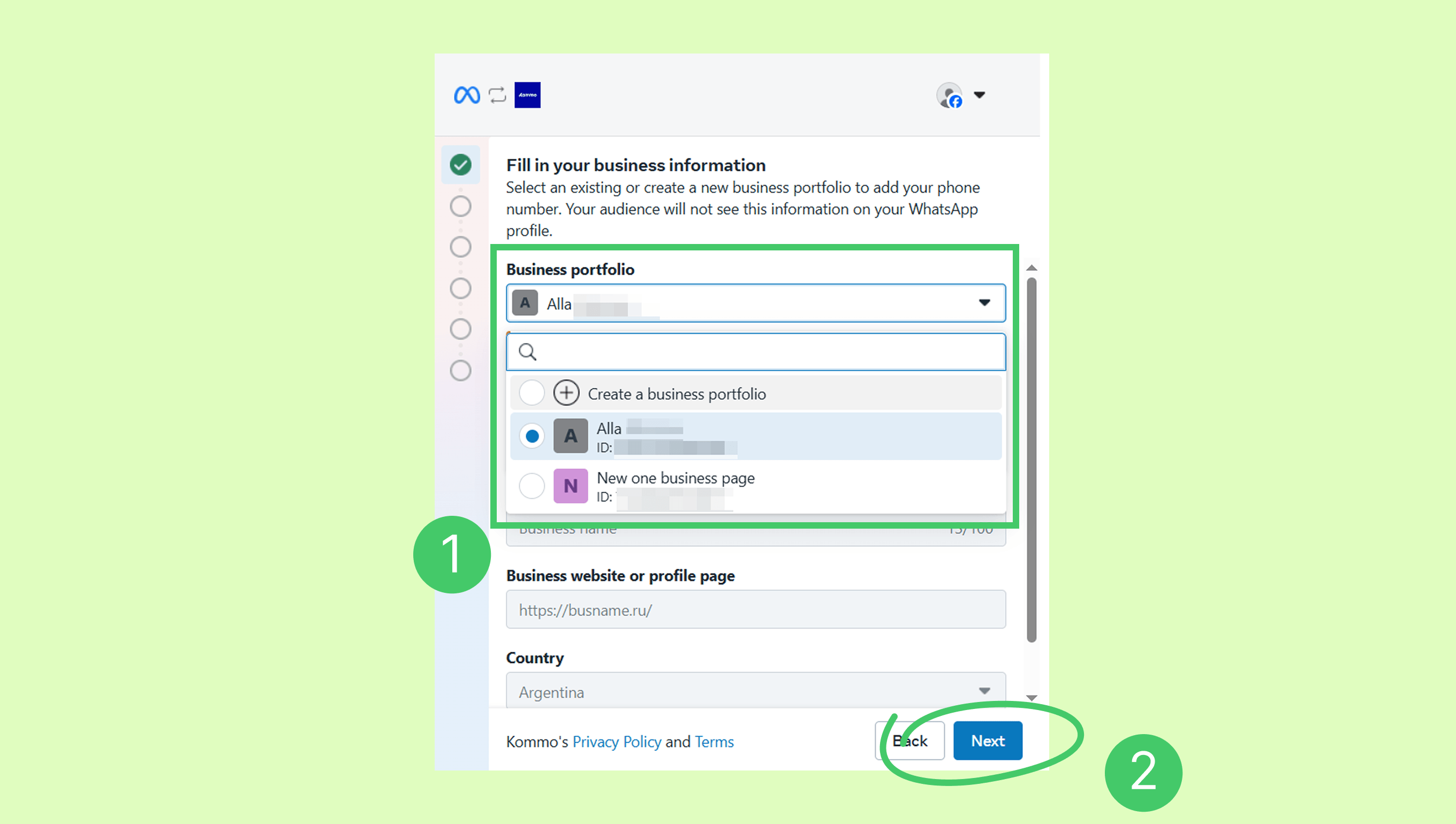
Choose your existing Business portfolio or Create a new business portfolio (fill in the details). Click Next.
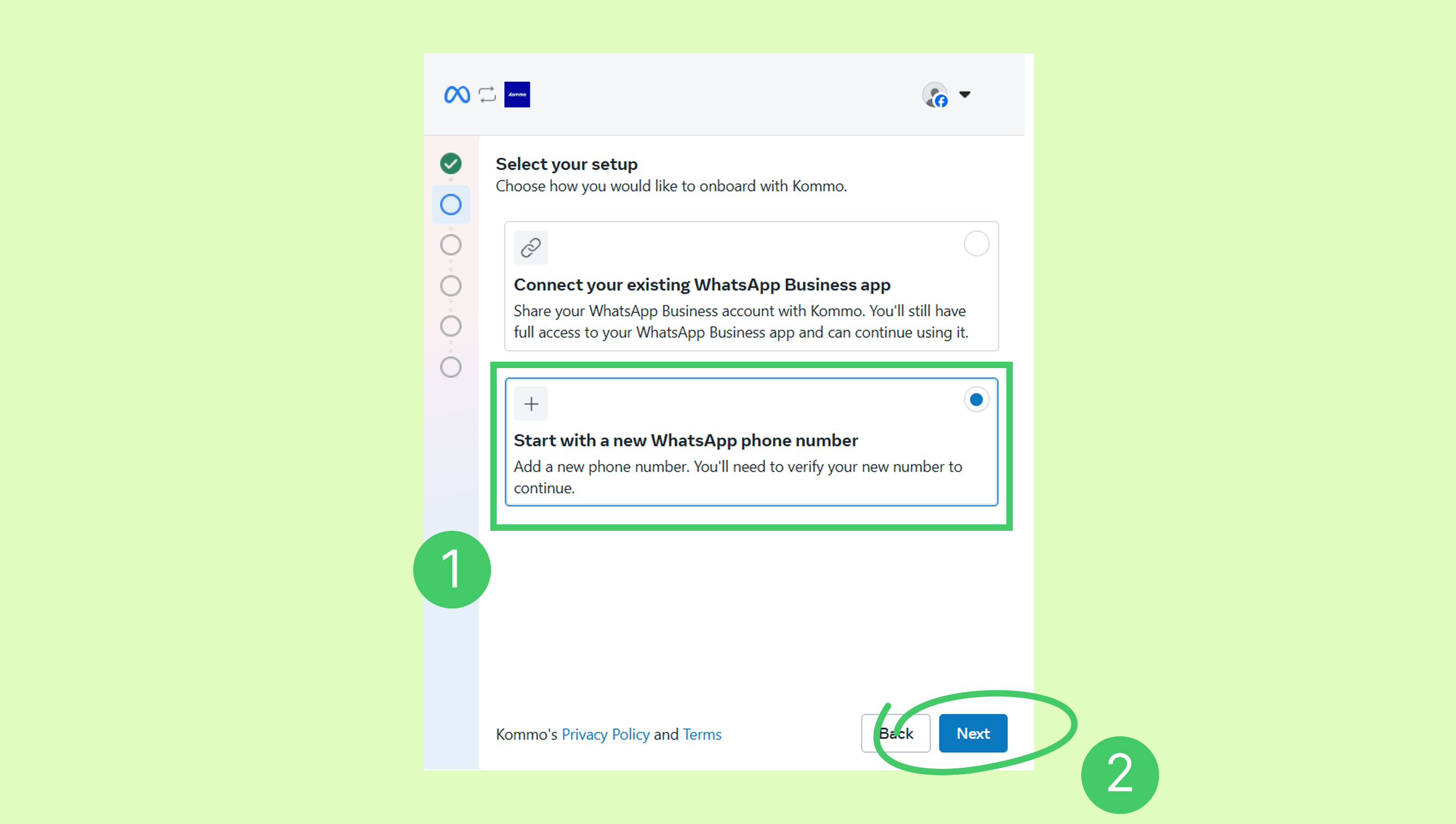
Select Start a new WhatsApp phone number, and then click Next.
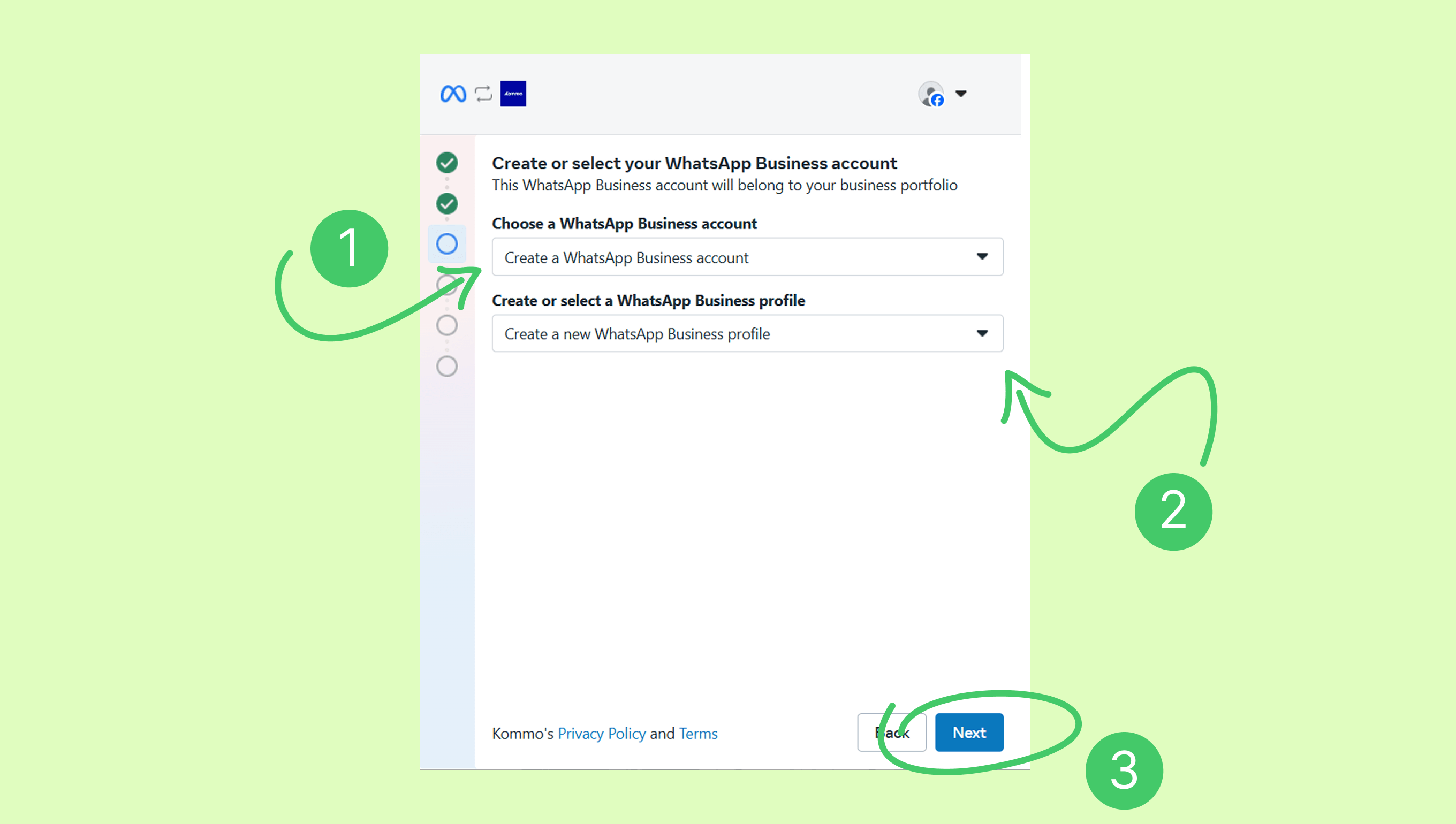
Select Create a WhatsApp Business account and Create a new WhatsApp Business profile. Click Next.
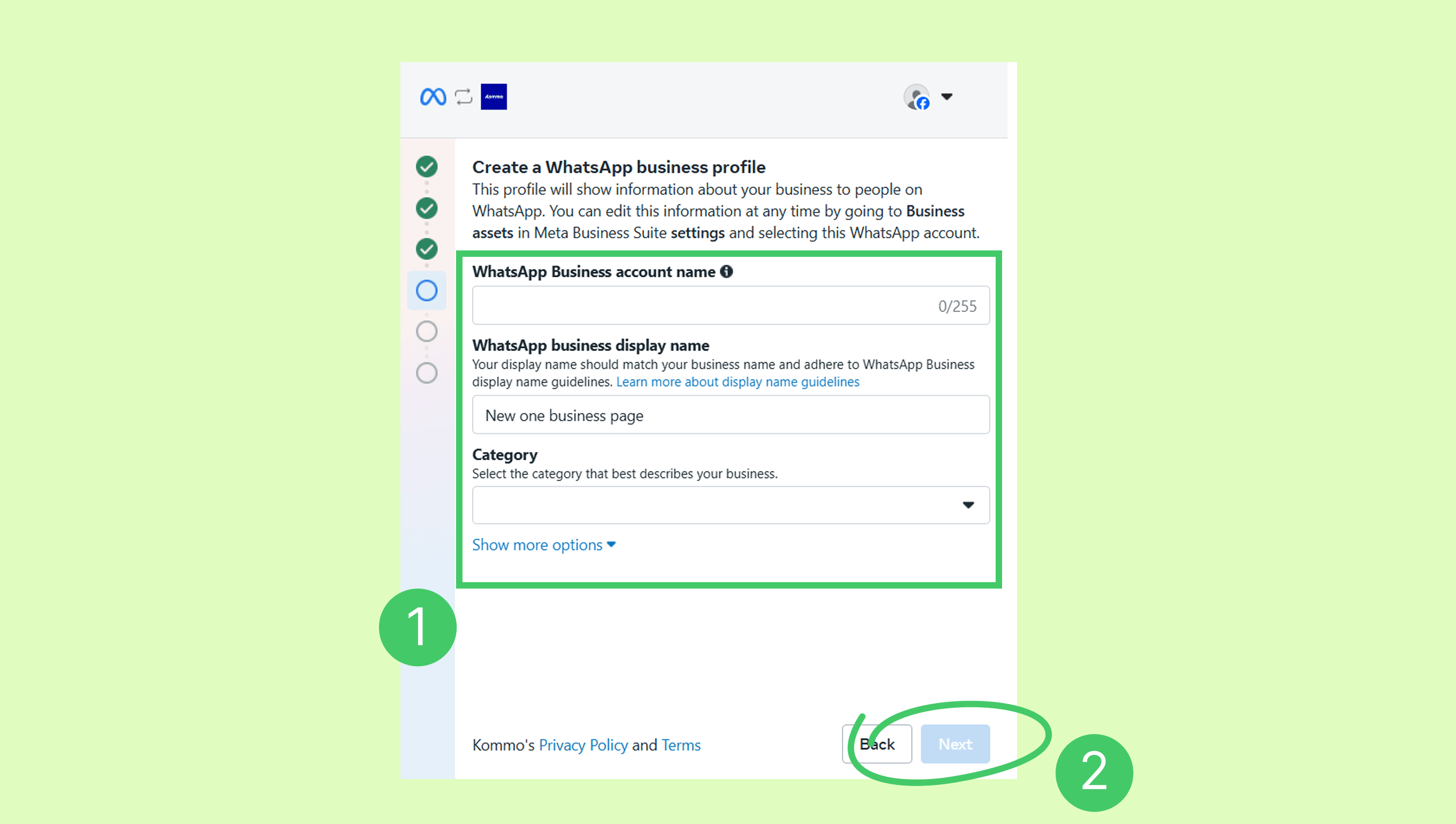
Fill all details about your new WhatsApp Business account. Click Next.
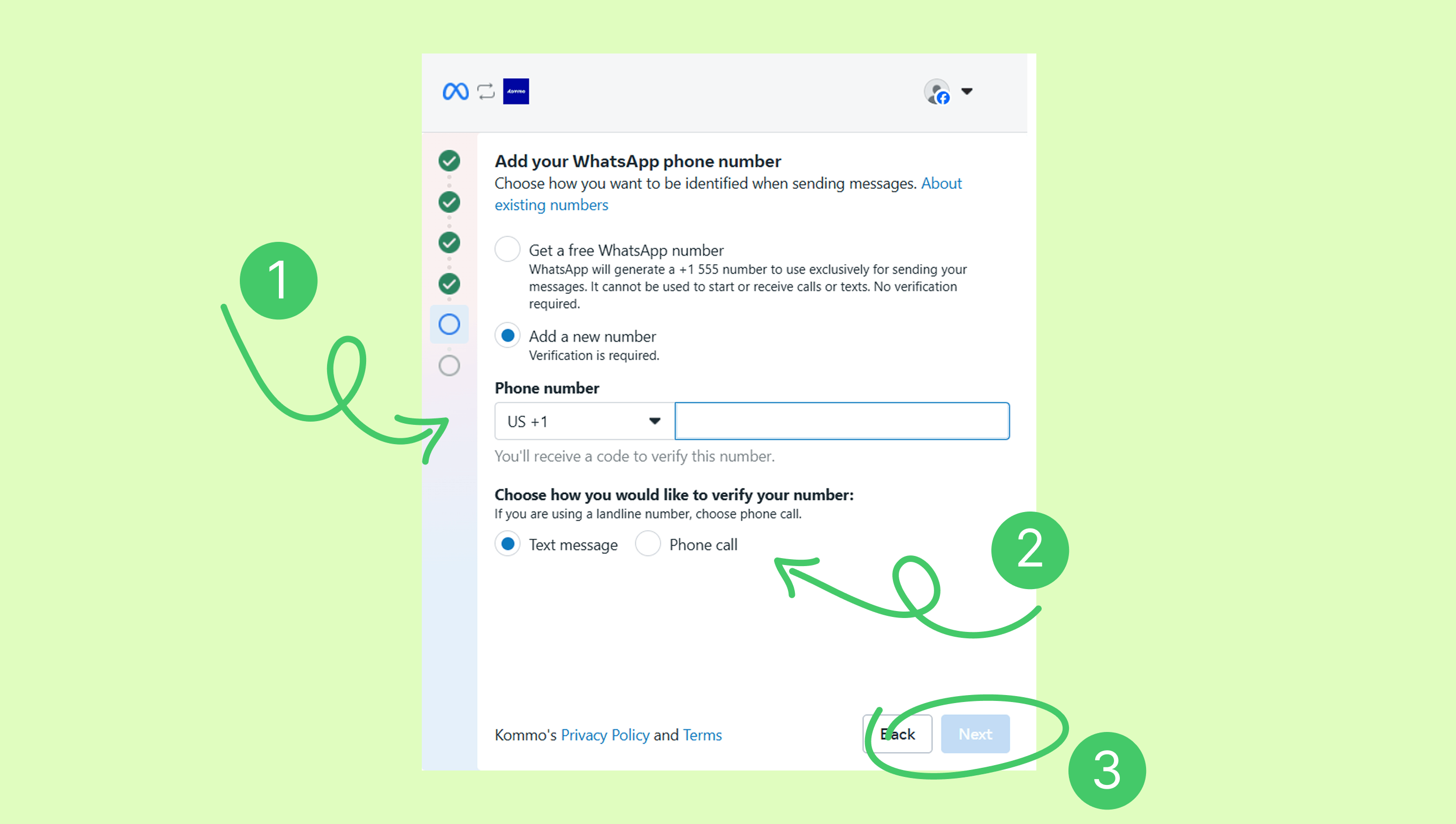
Select Add a new number.
.png)
Note: Meta offers free WhatsApp numbers with US code +1 555. These numbers can send messages only (no incoming messages or calls) and are automatically verified. They work only in WhatsApp Business. Each business can use up to two free numbers.
Select your country code, enter your phone number. Choose how to verify your number (via text message or phone call), click Next.
Enter the verification code, then click Next.
.png)
Review Kommo’s access request and click Continue.
.png)
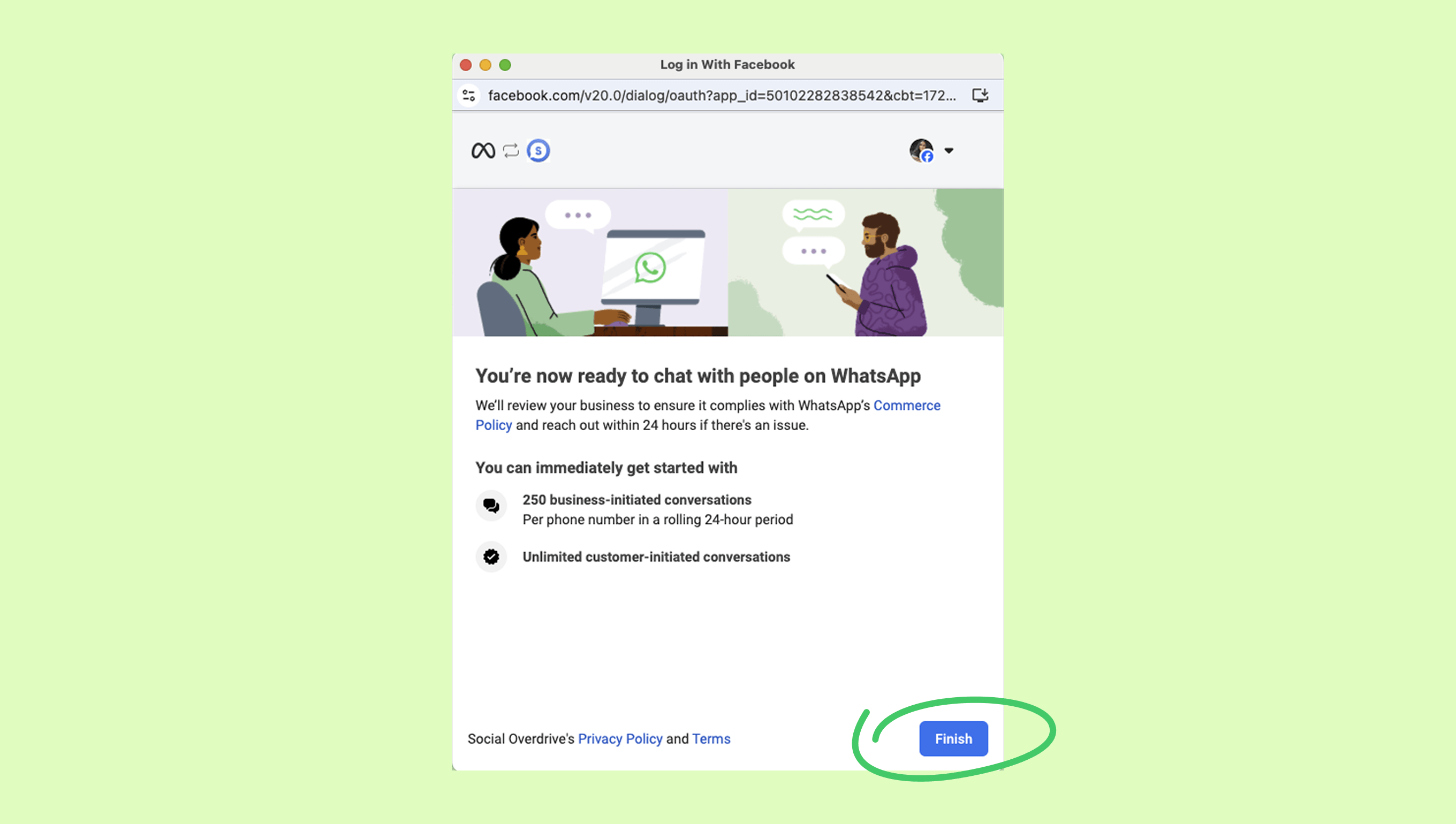
Click Finish. The Meta window will close.
In Kommo’s setup modal, click Finish. A pop-up will confirm that the number is successfully connected.
.png)
Your number will appear in the setup modal with the status “Connected”.
.png)
Connect a number used with personal WhatsApp
When connecting a number that was previously used with personal WhatsApp to a WhatsApp Business integration, you first need to delete your existing WhatsApp account, and then reconnect the number as a new one.
Note: Before deleting your WhatsApp account, don’t forget to back up your data first. Chech out this guide on how to create a backup.
To delete your WhatsApp account, follow these steps:
Open the WhatsApp app on your Android or iPhone.
Go to Settings → Account.
.png)
Tap Delete my account.
.png)
Confirm the deletion.
.png)
After your account is deleted, you can set up your number as a new number in the WhatsApp Business integration, as described above.
Connect a number used with WhatsApp Business
To connect a number used with a WhatsApp Business account, you have two options:
Option 1: Delete and reconnect
Backup your data, delete your existing WhatsApp Business account and then reconnect the number as a new one.
You can find detailed instructions here:
Option 2: Connect without deleting
Connect your WhatsApp Business app to Kommo. This way, you can use the same number for both the app and the integration. For example, you’ll be able to send bulk messages from Kommo and reply to clients individually from your phone.
Learn more in the Connect your WhatsApp Business app to Kommo article.
Note: Numbers used in WhatsApp Lite integration can be connected in the same way. However, personal WhatsApp Lite accounts require deleting the account and reconnecting the number. Only business accounts can be connected without deleting the account.
Connect a number used with Kommo integrations (WABA API / Gupshup / Twilio)
If your number was previously connected to another integration within Kommo, you can migrate it automatically - if all requirements are met.
During automatic migration, Meta transfers the following data:
display name
quality rating
messaging limits
official business account status
approved templates
Learn more about automatic migration, Meta’s requirements, and how to complete the process here.
Once the number is connected to Kommo’s WhatsApp Business integration, it can’t be used with other WhatsApp applications or in other Kommo integrations. To learn how to use the same number with both WhatsApp Business app and Kommo integration, check out this article.
Note: The Gupshup and Twilio integrations are no longer available in the Kommo Marketplace. However, users who installed them earlier can continue using them.
Connect a number used with another WhatsApp Business provider (not integrated with Kommo)
You can migrate your number from an external WhatsApp provider to Kommo’s integration. However, templates, bots, and message history cannot be transferred, so you will need to recreate templates and automations manually.
To connect a number previously used with another provider:
Disconnect the number from the previous provider.
Remove the provider’s access in Meta (Meta Business Suite → WhatsApp Manager → Partners → delete previous Partner).
Connect the number as a new one as described above.
Note: The number should remain active during the transition and show Connected status in WhatsApp Manager.
Reconnect to WhatsApp Business when you have logged out or deleted your number
To reconnect a number to WhatsApp Business after logging out or removing it from the Kommo integration, follow these steps:
In Meta WhatsApp Manager, manually delete the phone number linked to your account.
Learn how to do this in this article.Connect the number to WhatsApp Business again by repeating the same steps used during the initial setup.