What you'll need:
An active WhatsApp Business integration in Kommo. See how to connect WhatsApp Business.
Admin role in your Kommo account.
To access more detailed template data, enable the Marketing Messages API.
At least one approved template.
Keep in mind:
If your template isn’t approved by Meta, its statistics won’t be available. Learn more about how to get your template approved.
What are WhatsApp analytics?
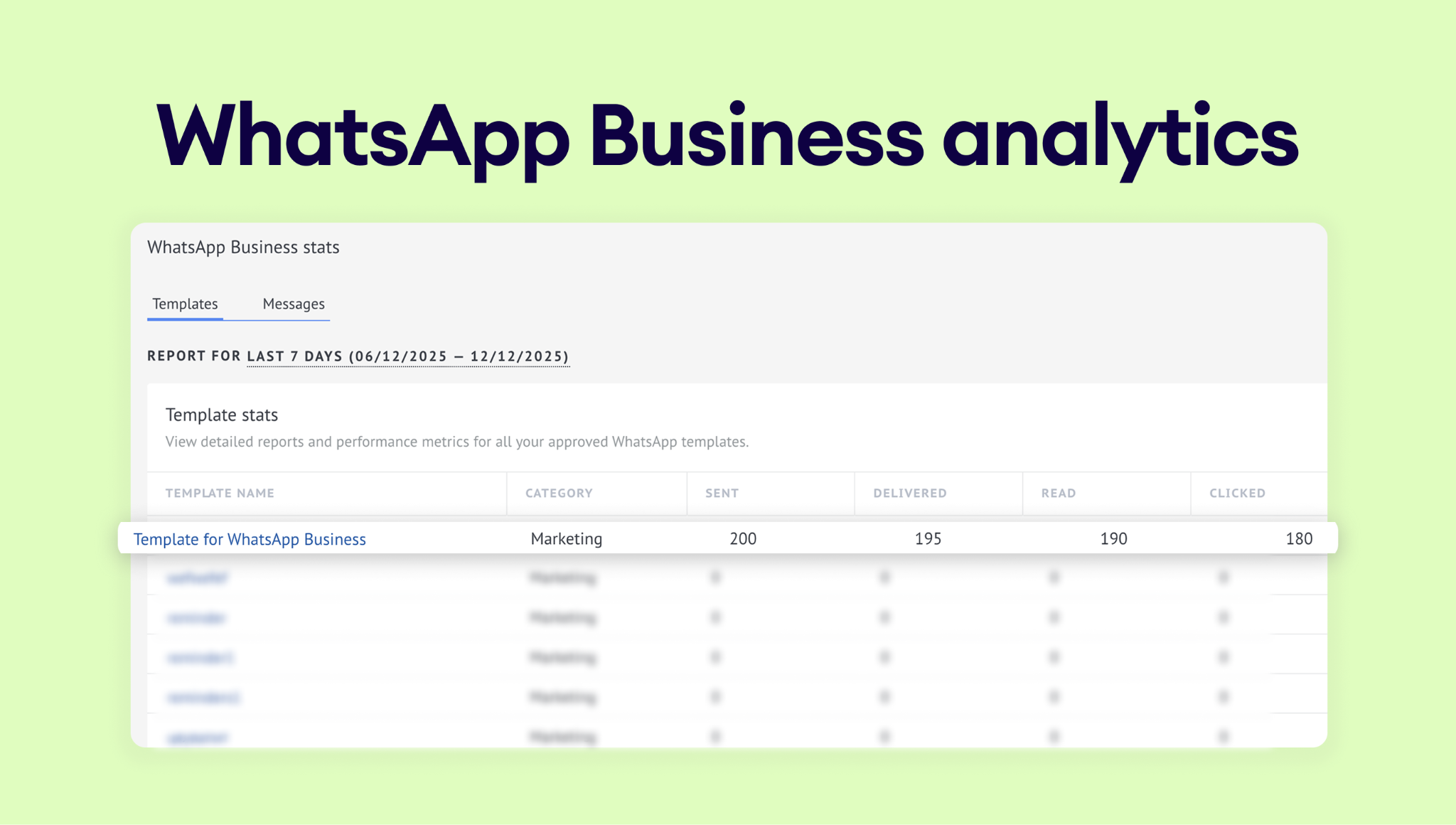
WhatsApp analytics in Kommo helps you understand exactly how your WhatsApp channel is being used and how much it’s costing you. It’s designed to give you both a big-picture view and the details you need to make better decisions.
Use cases
Improve your template strategy — compare engagement metrics (reads, clicks, replies) to identify high-performing templates and spot those that need optimization.
Evaluate campaign impact — track how conversation volume, engagement, or spending changes after launching a new campaign or promotion.
Budget with confidence — connect spend patterns to specific periods or activities so you can forecast costs more accurately.
Optimize team workflows — understand when most paid conversations start, helping your team adjust response times and reduce unnecessary charges.
To learn more about how WhatsApp Business analytics work, check Meta’s article.
How to view WhatsApp analytics
You don’t need to configure anything extra to use this feature. Once your WhatsApp Business integration is connected, Kommo automatically starts collecting analytics. To open it, follow these steps:
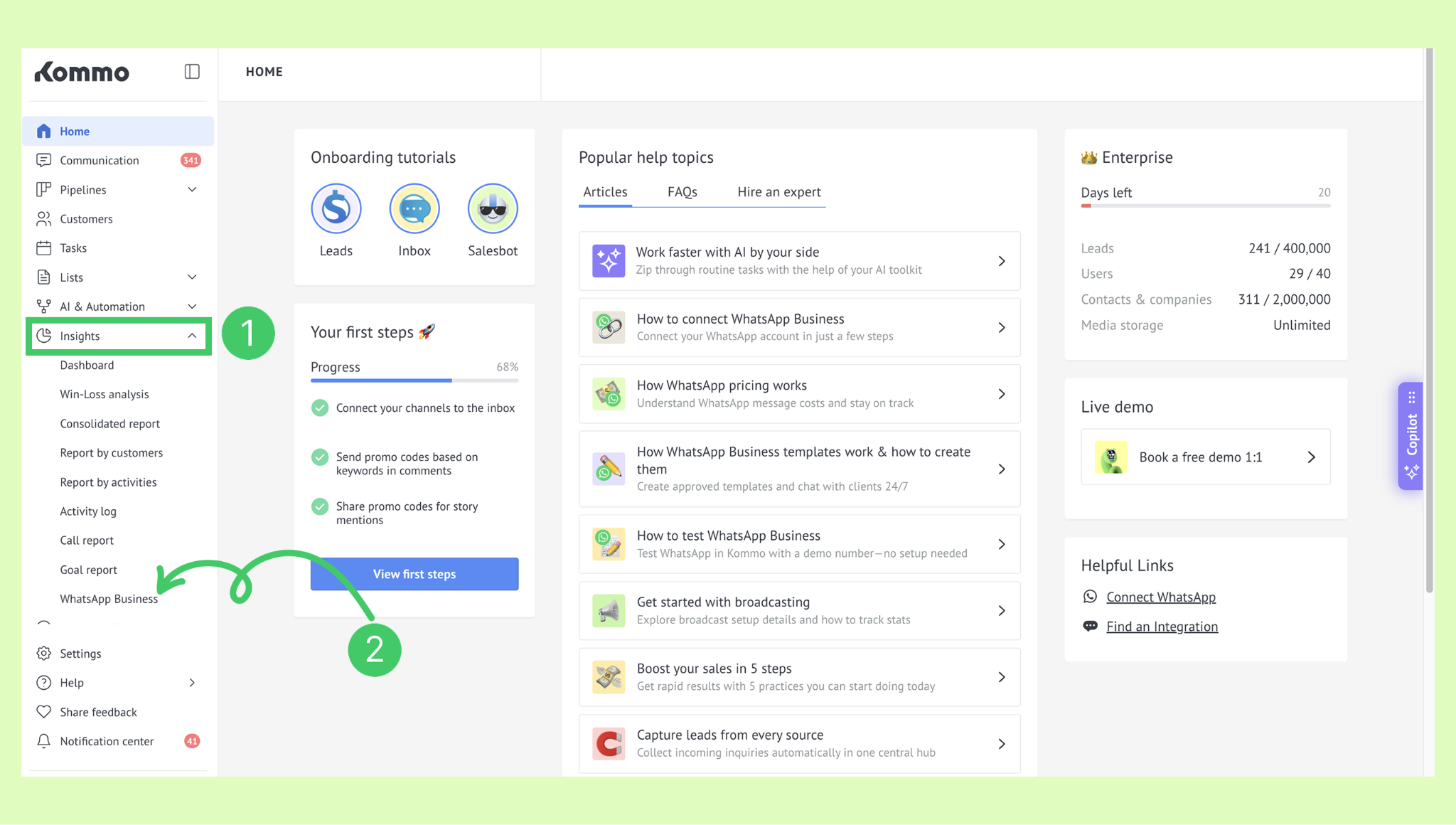
In Kommo, click on the Insights section. Then select WhatsApp Business.
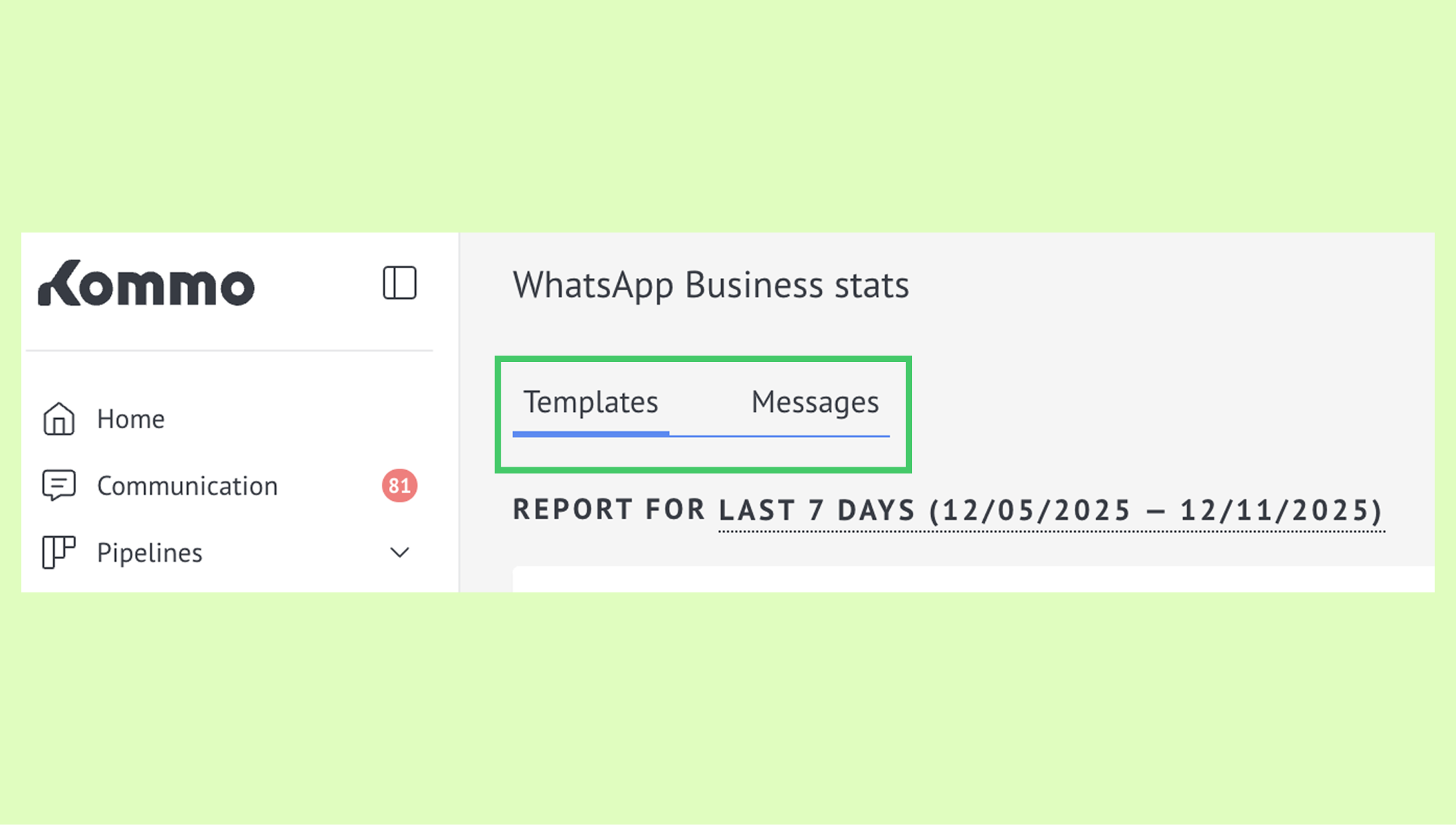
You’ll see two tabs: Templates and Messages:
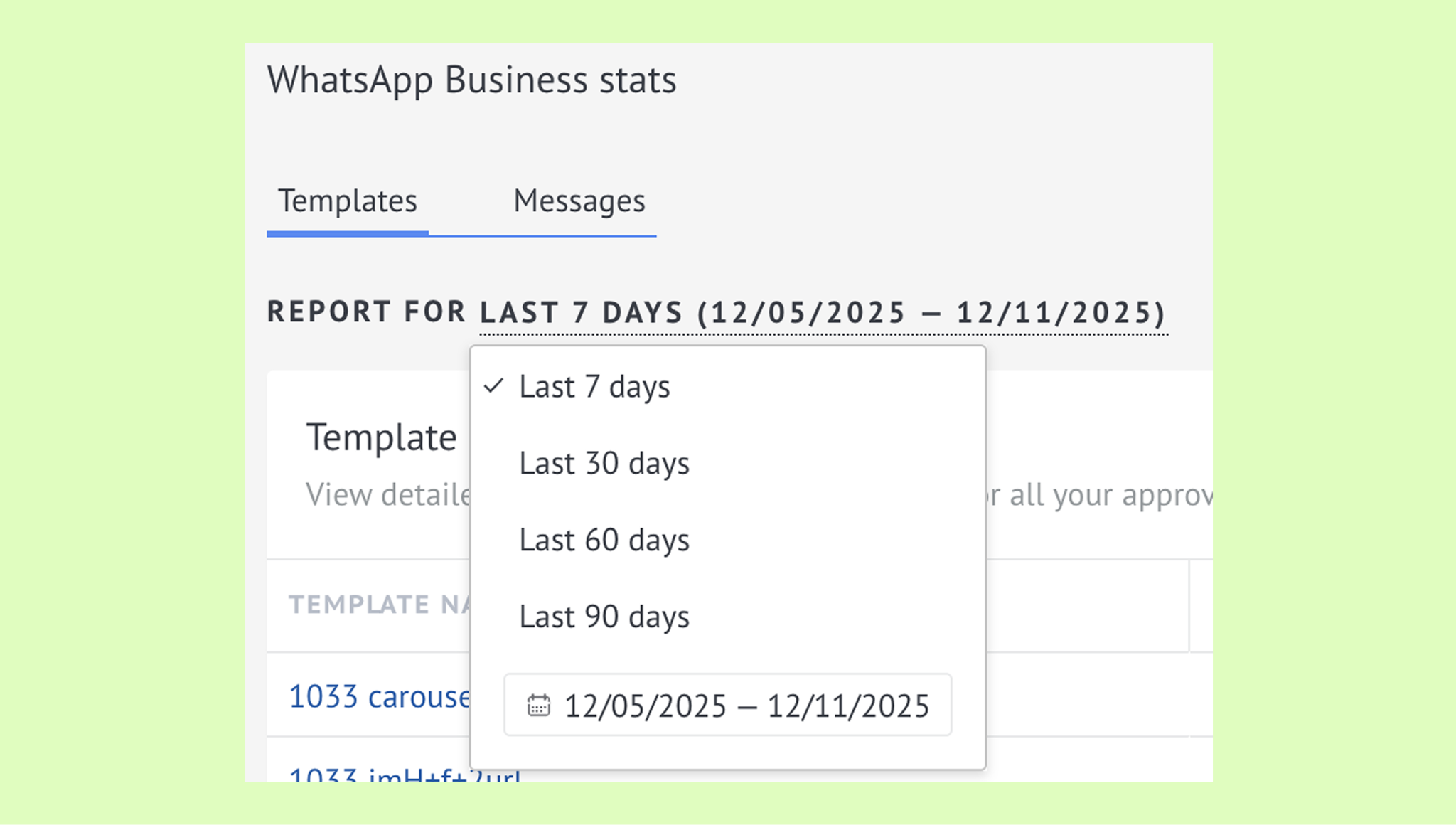
You’ll also see a date range. Click it to adjust the analytics to the period you want to review.
Templates tab
In the Templates tab, you can pick any WhatsApp template to view its stats.
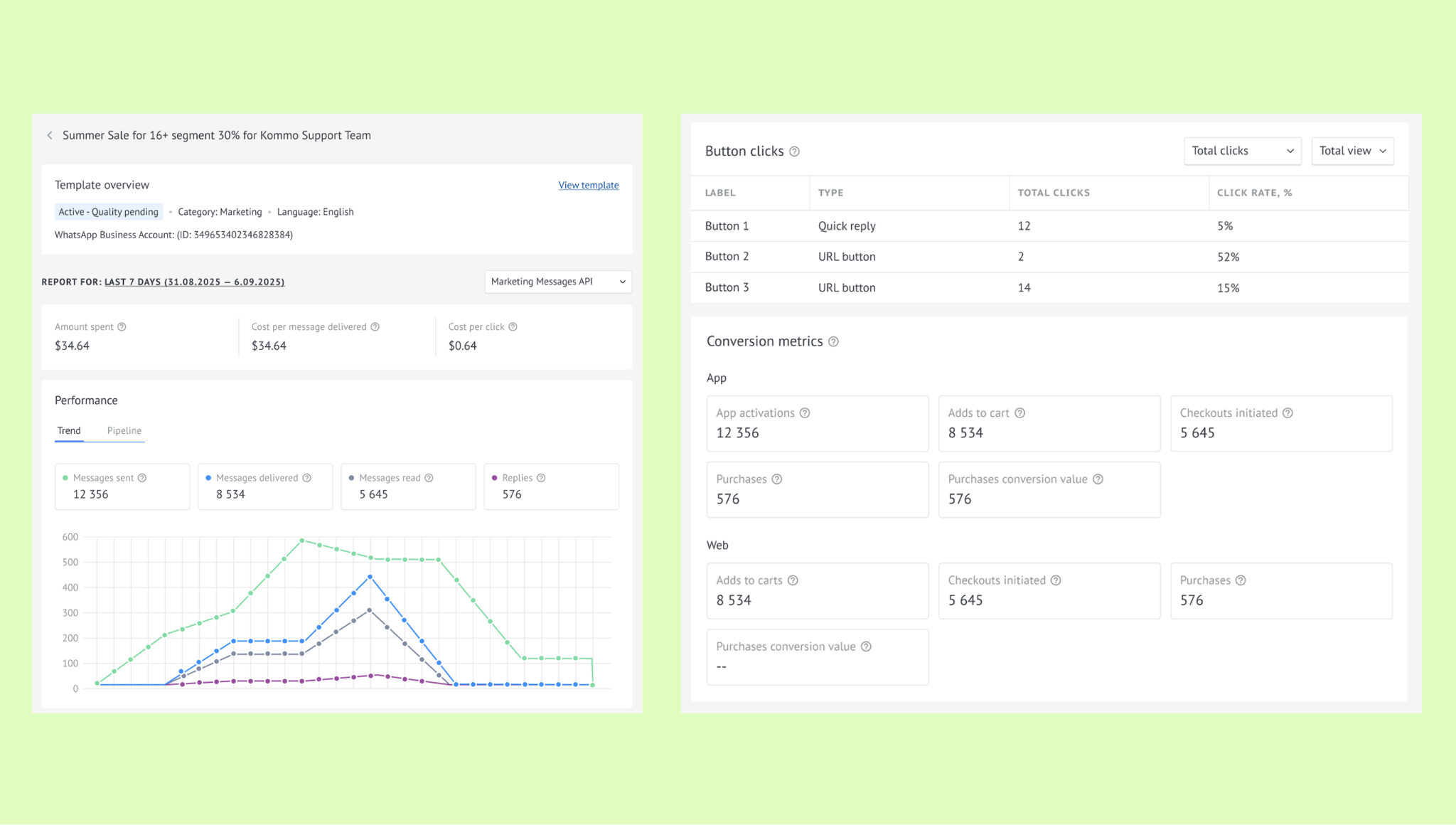
Here you can view the following:
Cost metrics — total amount spent, cost per delivered message, and cost per click (if your template includes a URL button).
Note: To learn more about when you’re charged, check our article on pricing rules for WhatsApp Business.
Performance metrics — messages sent, delivered, read, and replied.
Note: Learn more about measuring campaign effectiveness with WhatsApp Business.
Button interactions (if the template includes buttons) — button type, total clicks, and click-through rate.
Conversion metrics (if the message is sent via Marketing Messages API) — adds to cart, purchases, app activations, purchase conversion value, and more. Learn more about Marketing Messages API and how to enable it.
Messages tab
This tab shows all messages sent and delivered on specific dates. 
Together, these two tabs give you a clear view of both your costs and your performance.
Note: You can also view these analytics in your Meta Business Suite.
If you need more help with setup or troubleshooting, feel free to reach out to our support chat or contact us via WhatsApp. You can also hire a Kommo partner to do all the hard work for you.
Not a user yet? Sign up for our 14-day free trial or book a free live demo.