What you’ll need:
Available during the 14-day trial and on Advanced, Pro, and Enterprise plans. Base plan accounts can continue using the AI agent if it was activated previously.
Keep in mind:
Automatic setup uses the business information provided during trial onboarding to generate your initial AI agent.
Trial accounts can upload up to 10 sources; paid plans up to 100.
The AI agent only replies to incoming messages and can’t start conversations.
You can create multiple AI agents in the same workspace. The number that can be active at the same time depends on your subscription plan. To learn more, check our AI agent limits article.
AI agents use the shared AI credits available in your account. If you run out of credits, AI agents stop responding until your credits renew or an admin purchases an additional AI credit package. To learn more, see our Kommo AI limits article.
This guide walks you through automatically creating an AI agent during your trial, reviewing its settings, and choosing the channels and pipeline stages where it should work.
Set up an AI agent automatically
This setup flow helps you quickly create and try an AI agent with minimal configuration. Kommo uses the business information provided during onboarding, such as your industry, company name, and subdomain, to generate the initial setup.
This option is useful if you want to try the AI agent quickly and review or adjust the setup later.
To get started:
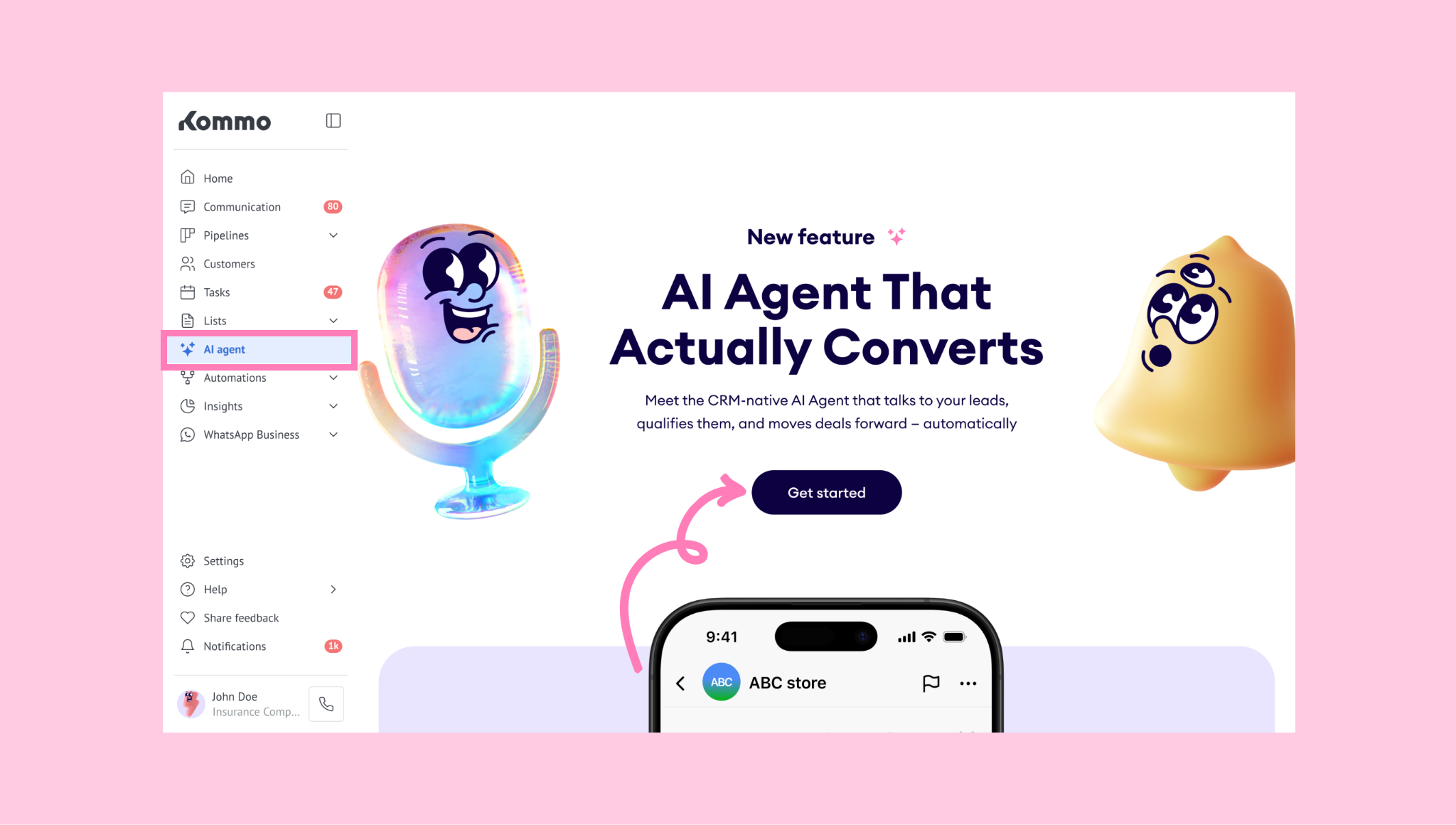
Go to the AI agent section, then click Get started on the landing page.
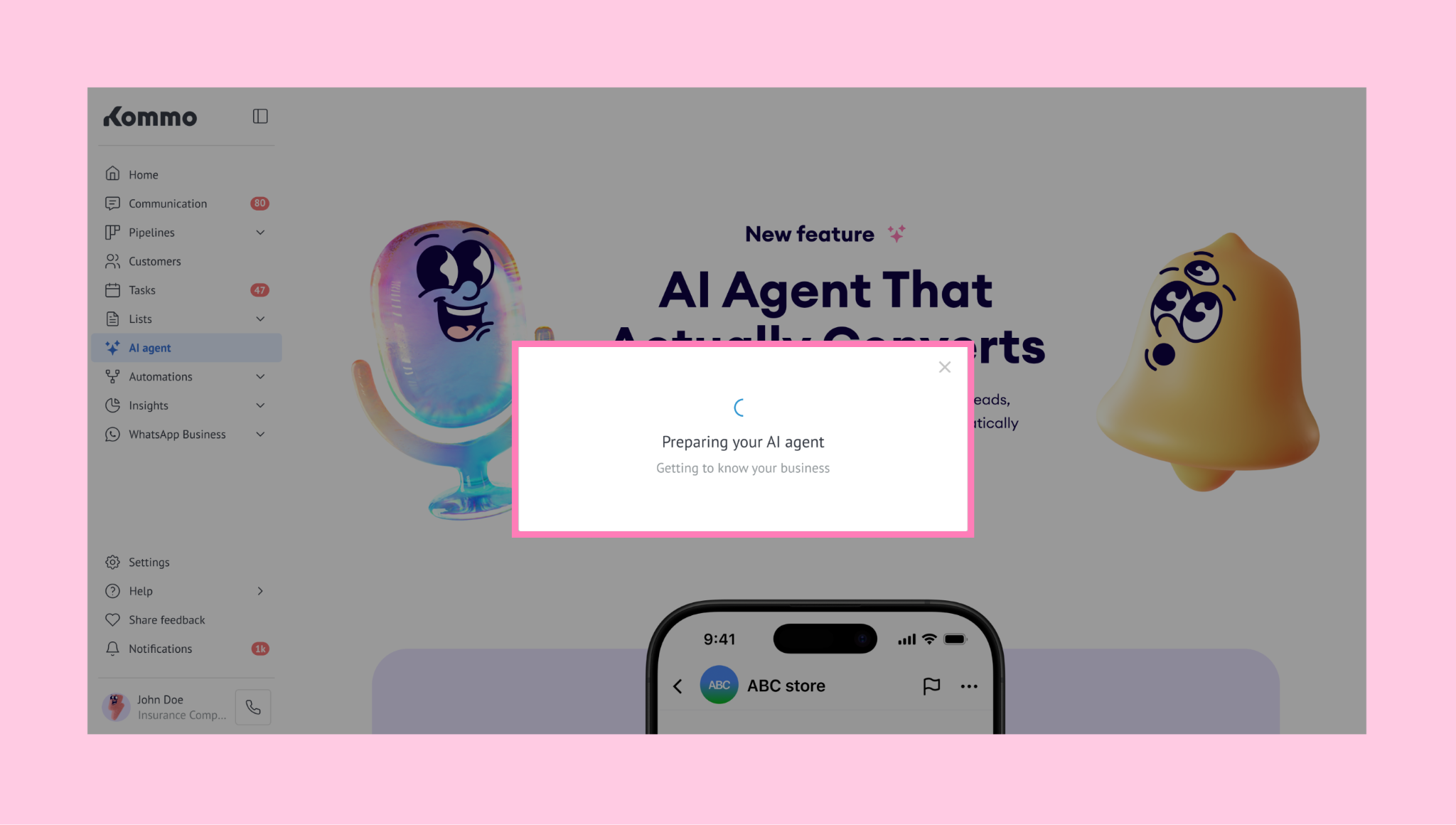
Wait while the AI agent is being generated.
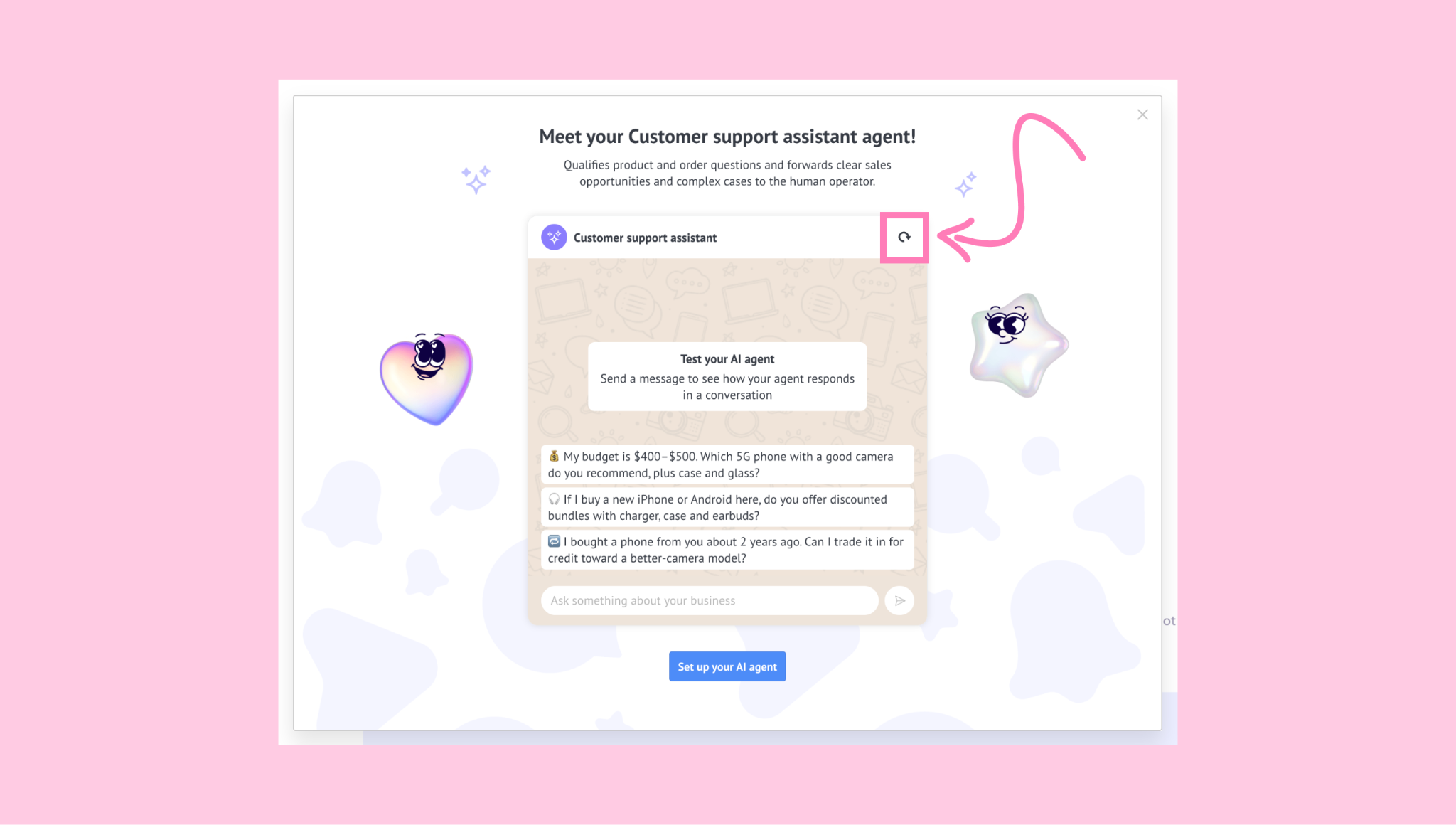
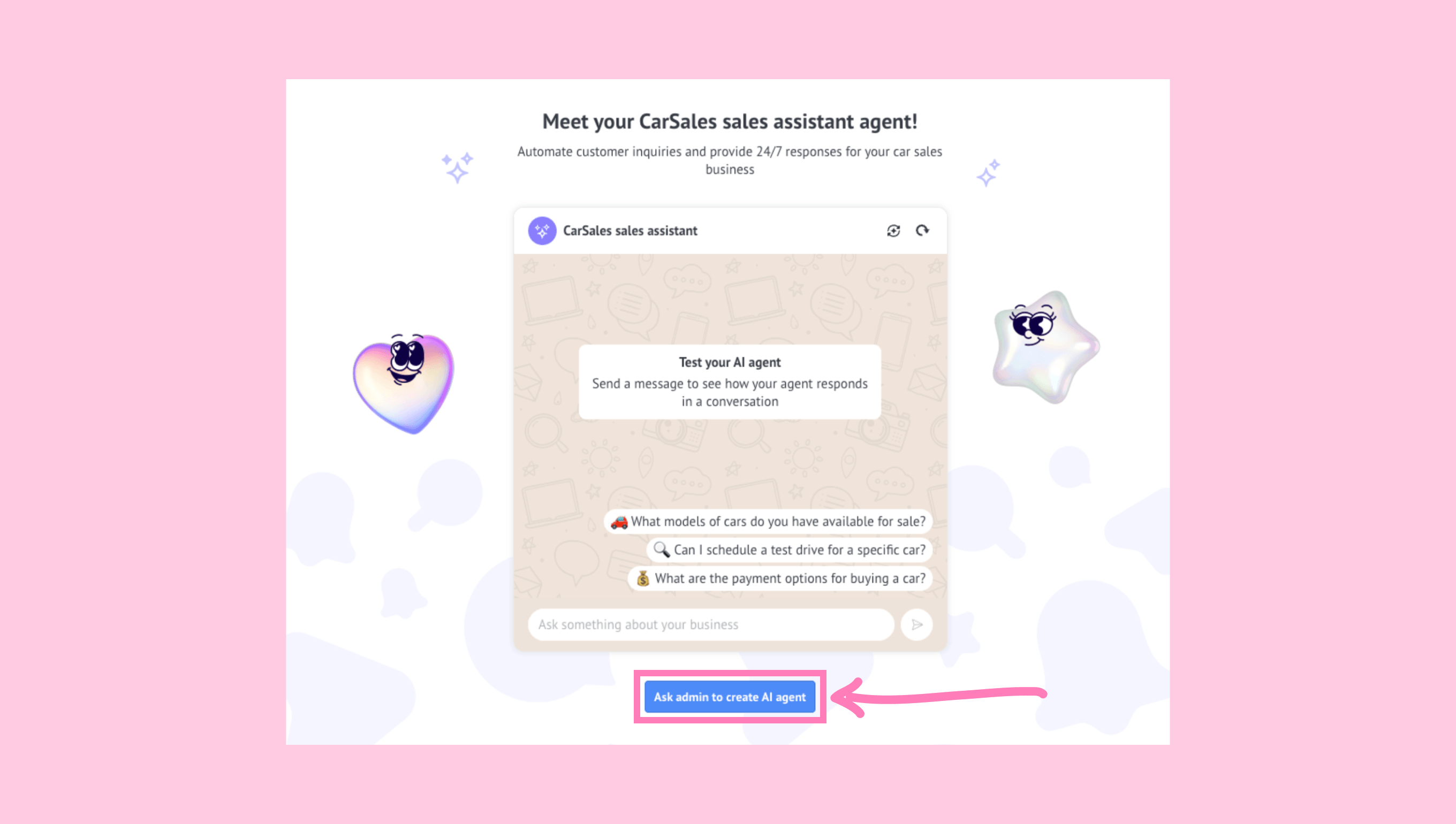
You’ll see a preview of the generated agent. Test it by sending a message, and restart the preview at any time by clicking the Restart button.
Then, click Set up your AI agent to continue.
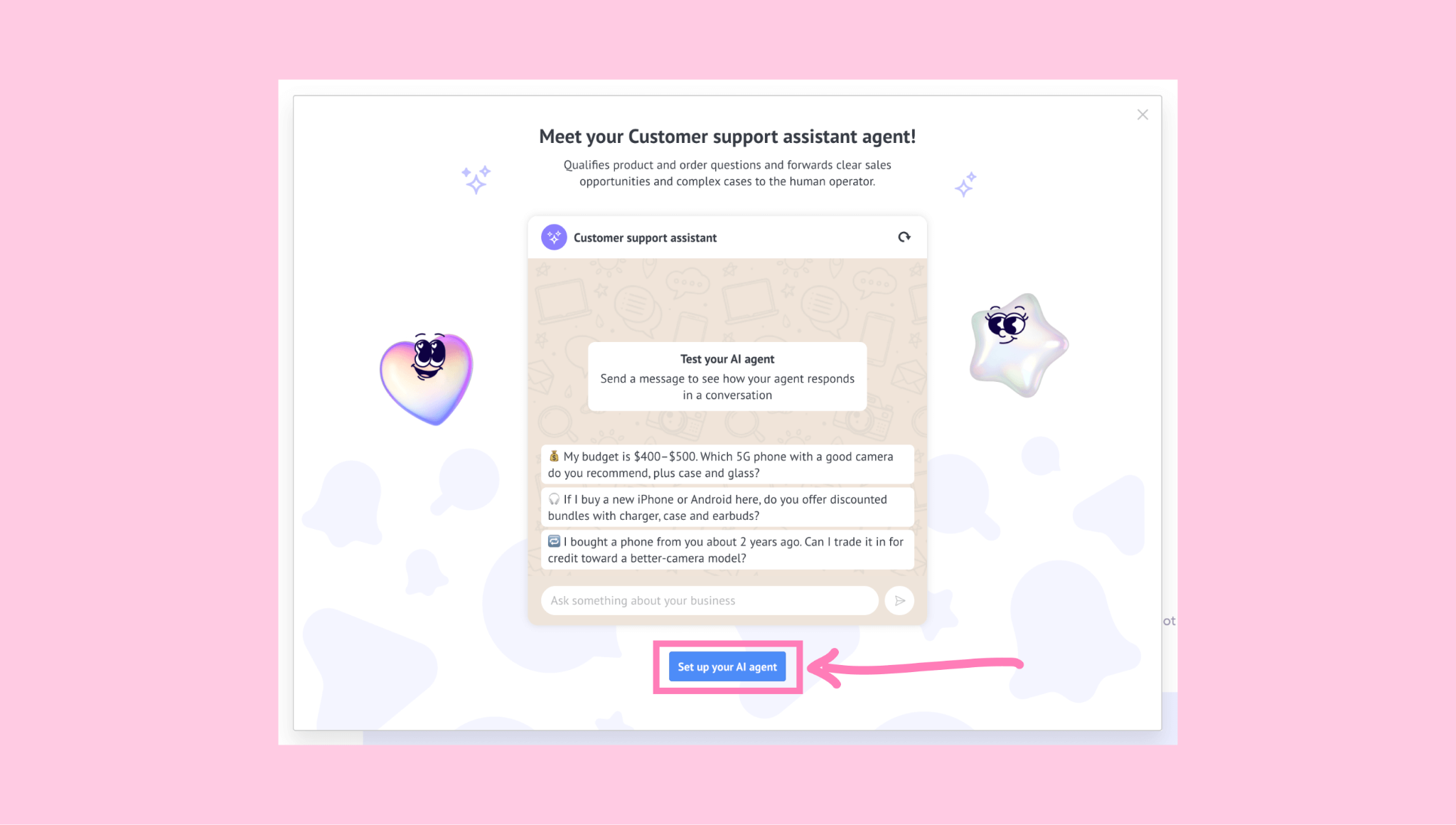
Note: Non-admin users can only generate and test the AI agent in preview mode. To continue, they’ll need to click Ask admin to create AI agent, which sends a request to an admin to review the generated agent and complete the setup.
Connect at least one channel (for example: WhatsApp Business, Instagram, etc).
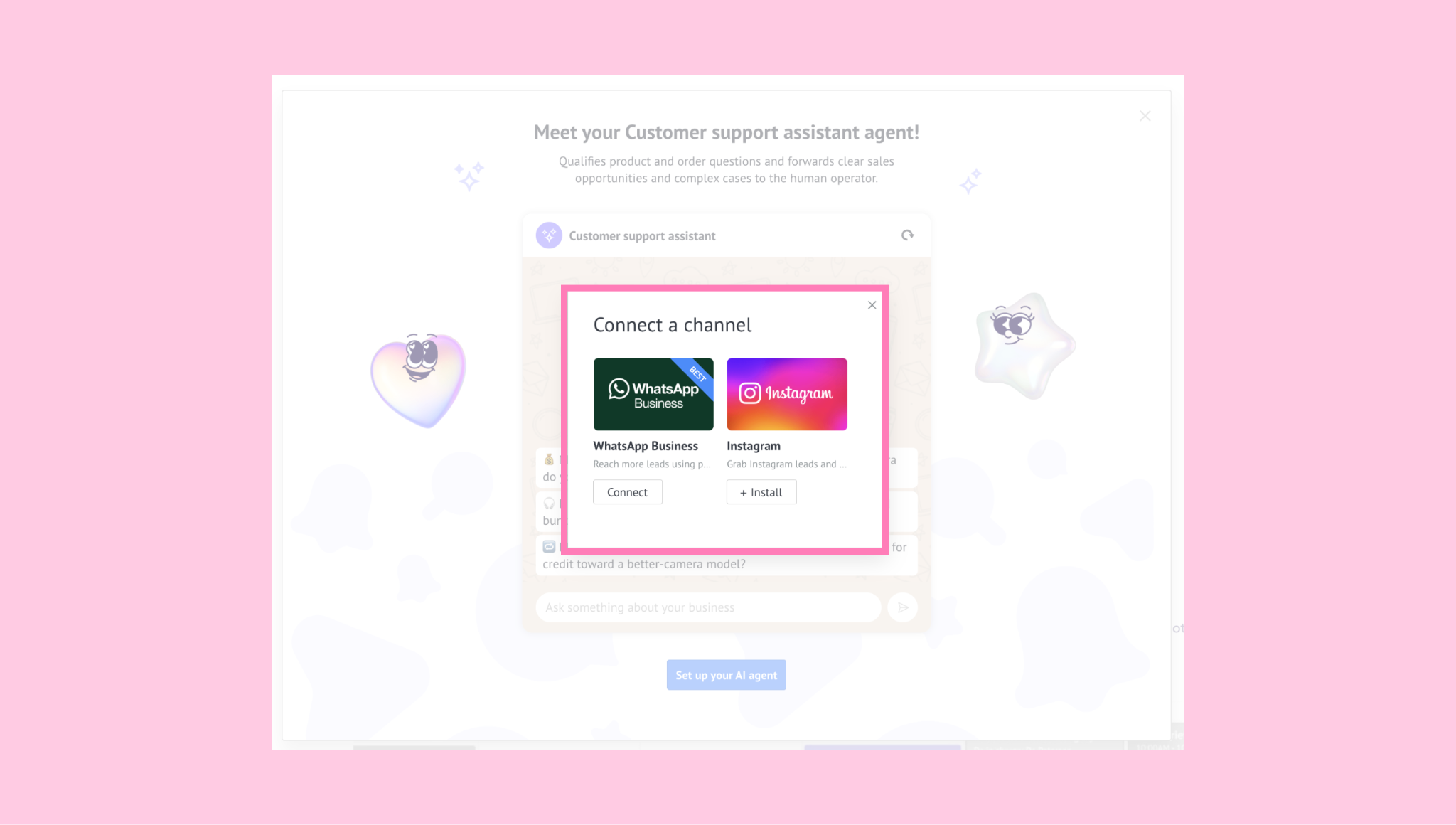
Also, select at least one pipeline stage where the AI agent should work.
A confirmation modal will appear to let you know the agent is active. You can review and adjust the generated settings in the AI agent section.
If you skip this automatic setup, you can finish setting up the AI agent later. To activate it, connect a channel and select at least one pipeline stage where it should work.
To set up the AI agent manually, check our setup guide.
After your AI agent is active, see the how to use guide to learn how it works in live conversations.